MAI Image 2.7 Prompt Guide: Prompts and Examples
Copy tested prompts for product photos, exact poster text, one-object recolors and two-reference edits. Inspect the original MAI Image 2.7 outputs and learn what to change.
 Sally Brooks
Quick Answer: How to Prompt MAI Image 2.7
For a new image, describe the deliverable, subject, composition and light. For an edit, name the object, give one clear change and say what must stay fixed. For text inside the image, quote each line exactly and specify where it belongs. For two or more references, give each image one job.
A short prompt is enough when you are exploring a look. Add constraints when those decisions matter to the deliverable, such as empty space for a headline or a label that must stay in place. Review exact text and brand details at the final size before shipping.
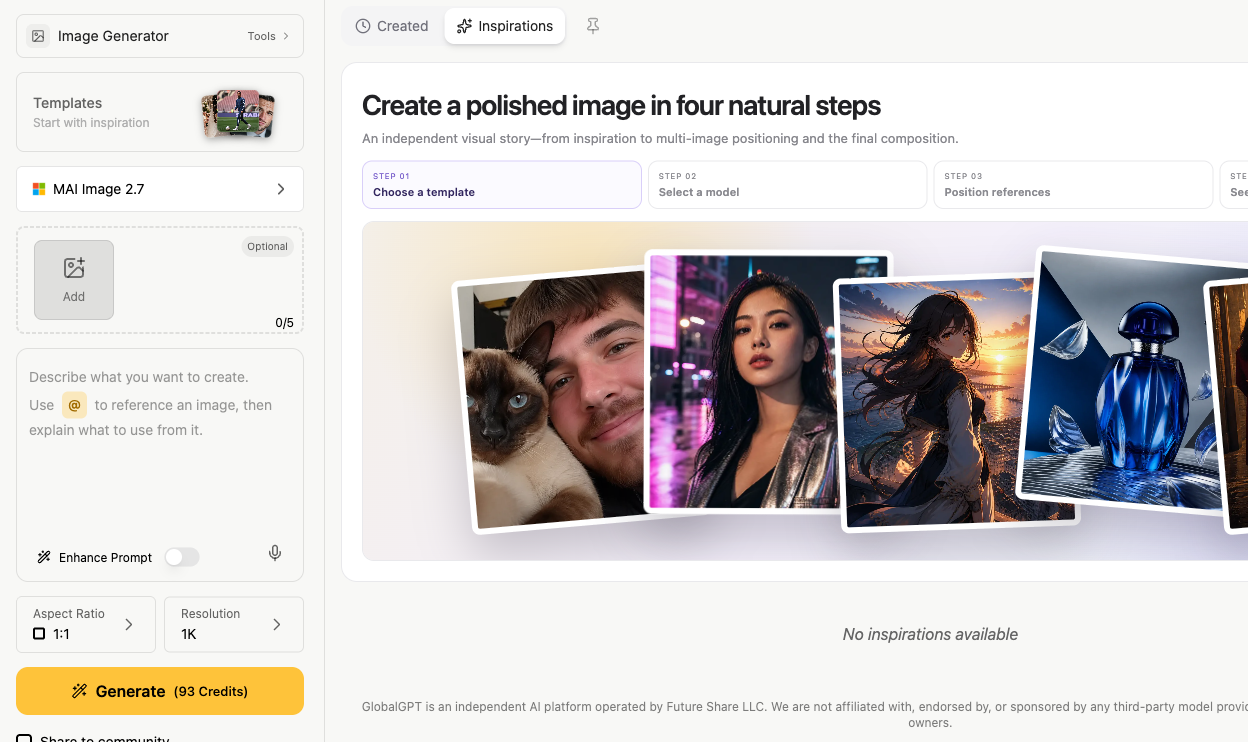
In the GlobalGPT MAI Image 2.7 workspace, you can choose the flagship, add references, and set generation ratio and resolution. Start from one of the exact prompts below, then change the part your own brief calls for.
The MAI Image 2.7 Prompt Formula
| Task | What to Specify | What to Inspect |
|---|---|---|
| Generate a New Image | Deliverable, subject, position, background, light and material | Subject count, silhouette, crop and visual hierarchy |
| Generate Image Text | Exact words in quotes, order, placement, type and contrast | Lettering, punctuation, extra words and readability |
| Edit a Reference | Locate the target, state the change and list important fixed elements | Before/after alignment and unintended changes |
| Combine References | Base image, role for each other image, exclusions and destination | Borrowed element placement and unwanted carryover |
Start with the intended output. “An editorial product photograph for a landing page” gives the model more useful direction than a list of aesthetic adjectives. State where the product must sit, what needs to remain empty for copy, and how the light should shape it. If a detail has no effect on your review, you can leave it open.
For edits, identify the target as it appears in the source. “The cobalt tin at the center” is clearer than “the product.” Give the replacement property and say which surrounding details a reviewer will compare. Microsoft’s launch examples include recolors, time-of-day changes and inserting a lamp from a second reference. The model card documents text-to-image, targeted editing and a maximum output area of about 4.19 million pixels, equivalent to a 2,048 × 2,048 square. Available controls vary by platform. Microsoft launch examples · Microsoft model card
Three MAI Image 2.7 Prompt Templates
Copy a Generation Template
Create a [deliverable and format] featuring [subject and material]. Position it [where] with [copy area or crop limits]. Light it from [direction] with [quality of light]. Keep [background] simple. Exclude [unwanted elements].
Copy a Text Layout Template
Design a [format] for [purpose]. Put "[exact headline]" at [position]. Put "[exact secondary line]" at [position]. Use [type style and contrast]. Include no other lettering.
Copy a Reference Edit Template
Use image 1 as the base. Change only [identified object or property] to [desired result]. Preserve [fixed elements]. Use image 2 only for [one feature, optional]. Put it [specific destination and size]. Exclude [elements that should not transfer].
Replace the bracketed terms with descriptions a reader could point to in the image. If the result needs a second pass, keep the last good image and request the smallest correction. For more targeted editing patterns, see our image editing guide with before-and-after examples.
MAI Image 2.7 Prompts and Examples From Our Tests
The detailed radio prompt gave us a cleaner layout, both recolor prompts completed the requested change, and the two-reference edit used the intended photograph as the base. The poster spelled all three lines correctly and changed the requested moon color. The examples show why the review checklist still matters even when the image looks finished.
We ran six first-pass requests on the same MAI Image 2.7 route. For the radio pair we kept 1K and 3:2 fixed. The poster used 1K and 3:4. Both recolor attempts used the same source image. The two-reference request used that same photograph plus one poster as a motif reference. We kept each returned image and inspected the stated checks. The samples show what happened on these runs. Different outputs can occur with identical wording.
MAI Image 2.7 Product Photo Prompts
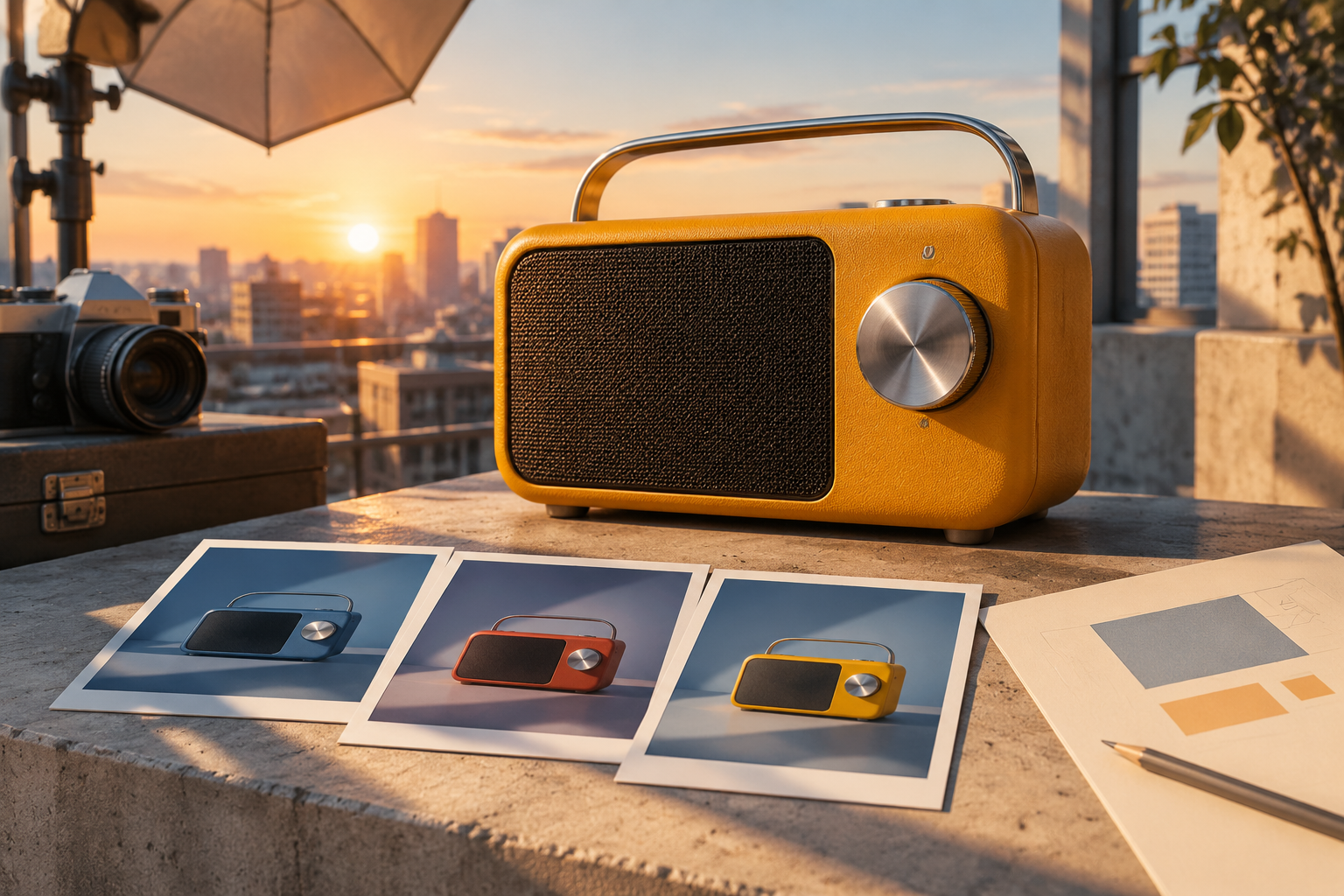
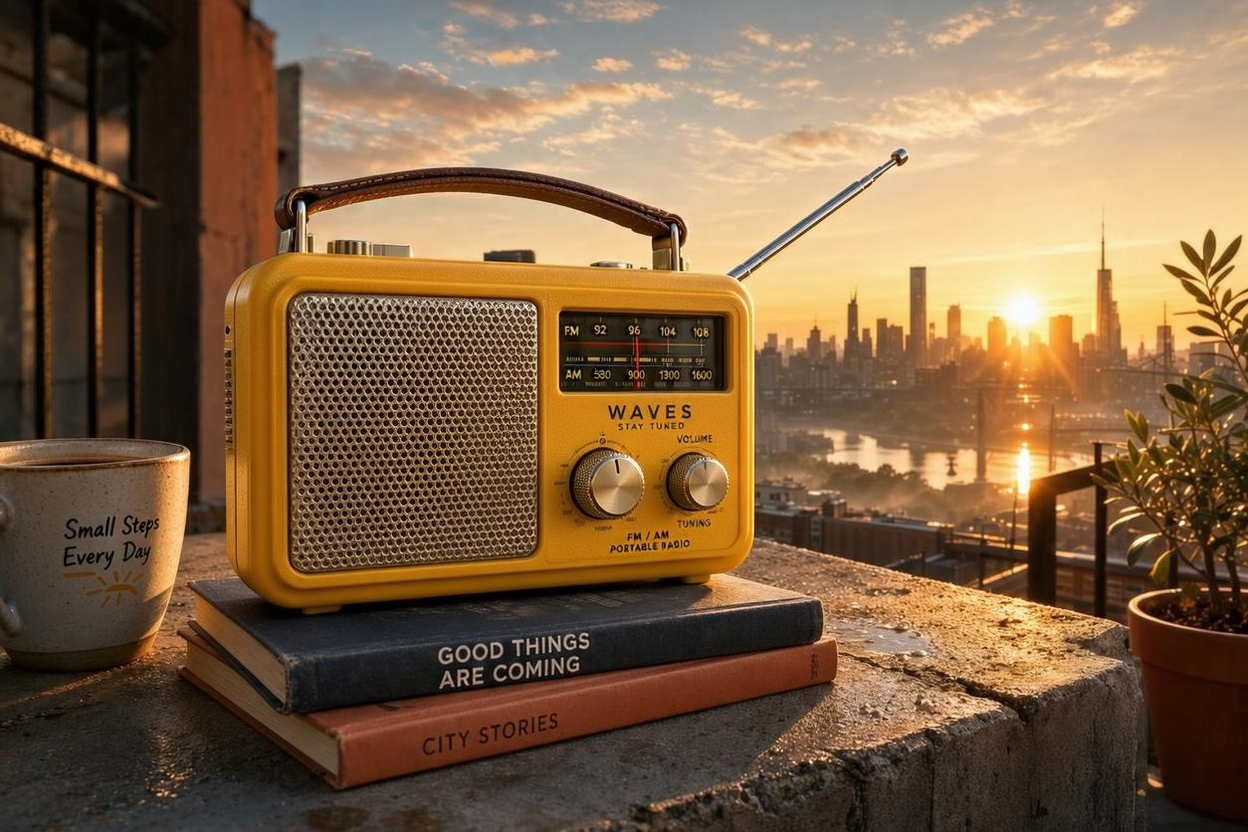
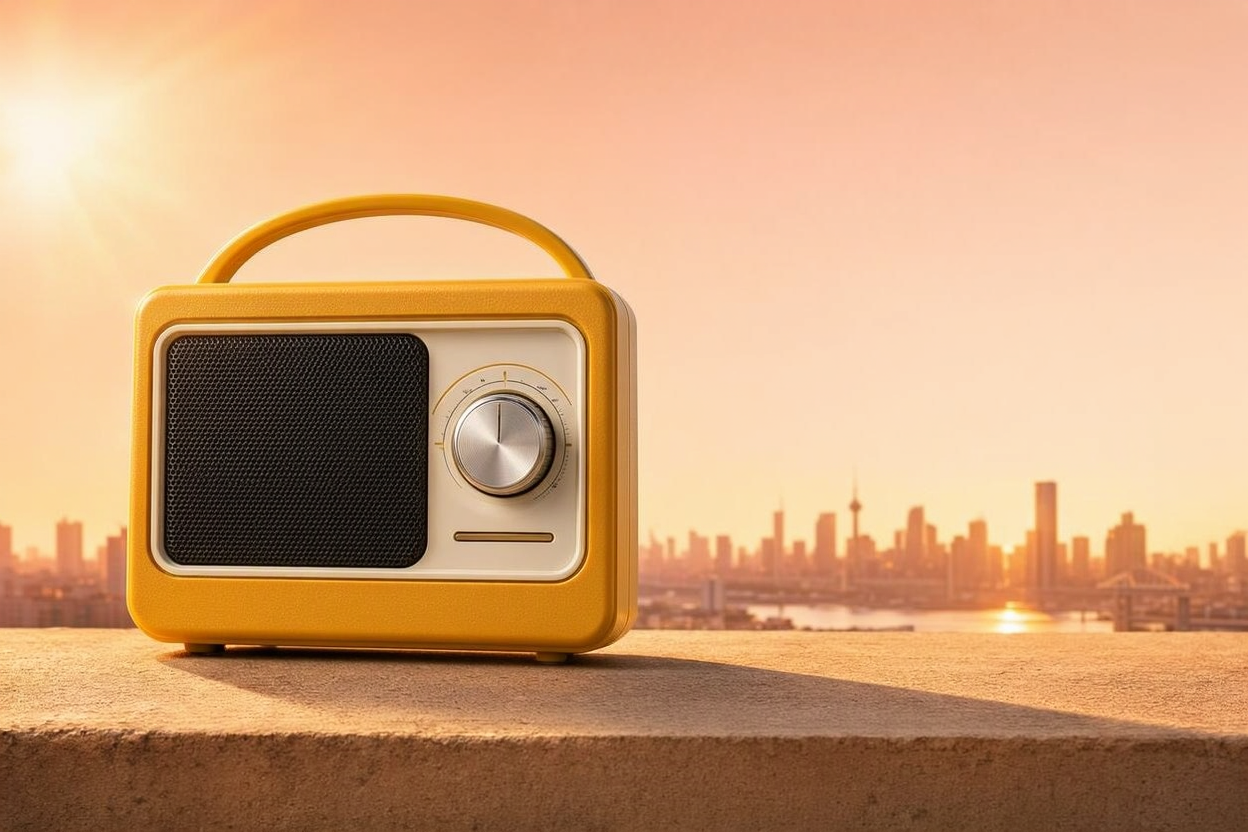
The short prompt produced a usable lifestyle concept with a radio, books, mug and plants. It also added lettering and left a busy backdrop. The detailed prompt produced a nearly front-on radio on the left with a black speaker, one silver dial and no legible lettering. The upper-right sky is clearer for copy, though the skyline still crosses its lower edge and the shadow direction is less distinct than the brief specifies. If you need a strictly empty right third, describe the skyline boundary and check the crop before adding text.
Show the Exact Short Radio Prompt
An editorial product photo of a yellow portable radio on a rooftop at sunrise.
Show the Exact Detailed Radio Prompt
A 3:2 editorial product photograph for a portable radio campaign. Place one mustard-yellow retro radio on the left third of a warm concrete rooftop ledge at sunrise. Show the front nearly straight-on so the black mesh speaker is on the left and a single silver tuning dial is on the right. Leave the right third clear, with only soft pale peach sky for later ad copy. Low sunlight from the upper left casts one soft-edged shadow down and to the right on the ledge. The body is satin plastic with subtle texture. No lettering, no logos, no people.
MAI Image 2.7 Poster Prompt With Exact Text
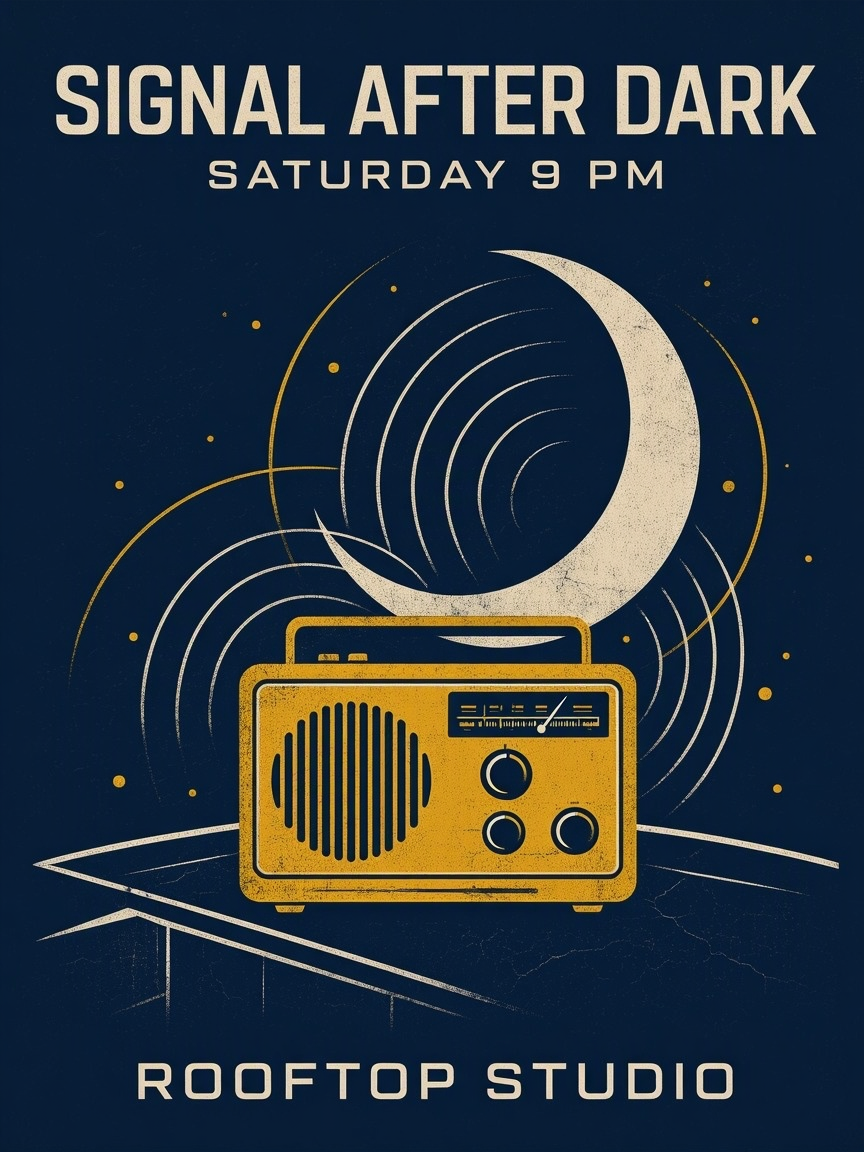
The output rendered SIGNAL AFTER DARK, SATURDAY 9 PM and ROOFTOP STUDIO exactly, in the requested top-to-bottom order. The speaker and arcs made the radio legible at thumbnail size. The crescent came out cream instead of deep blue, and the dial included small scale-like marks. If the palette is part of a brand system, give each color one specific job and check the result against the source swatches.
Show the Exact Poster Prompt
Create a portrait 3:4 screen-printed poster for an imaginary rooftop listening event. At the top put the exact words SIGNAL AFTER DARK in large cream capitals on one line if legible. Directly below, put the exact words SATURDAY 9 PM. At the very bottom put the exact words ROOFTOP STUDIO. Set these three text blocks in a clean sans serif with wide margins. In the center, show a single mustard-yellow tabletop radio and thin cream sound waves bending around a deep blue crescent moon. Use midnight navy, pale cream and mustard as the only colors. All lettering must be limited to the three specified lines.
MAI Image 2.7 Prompts for Recoloring One Object
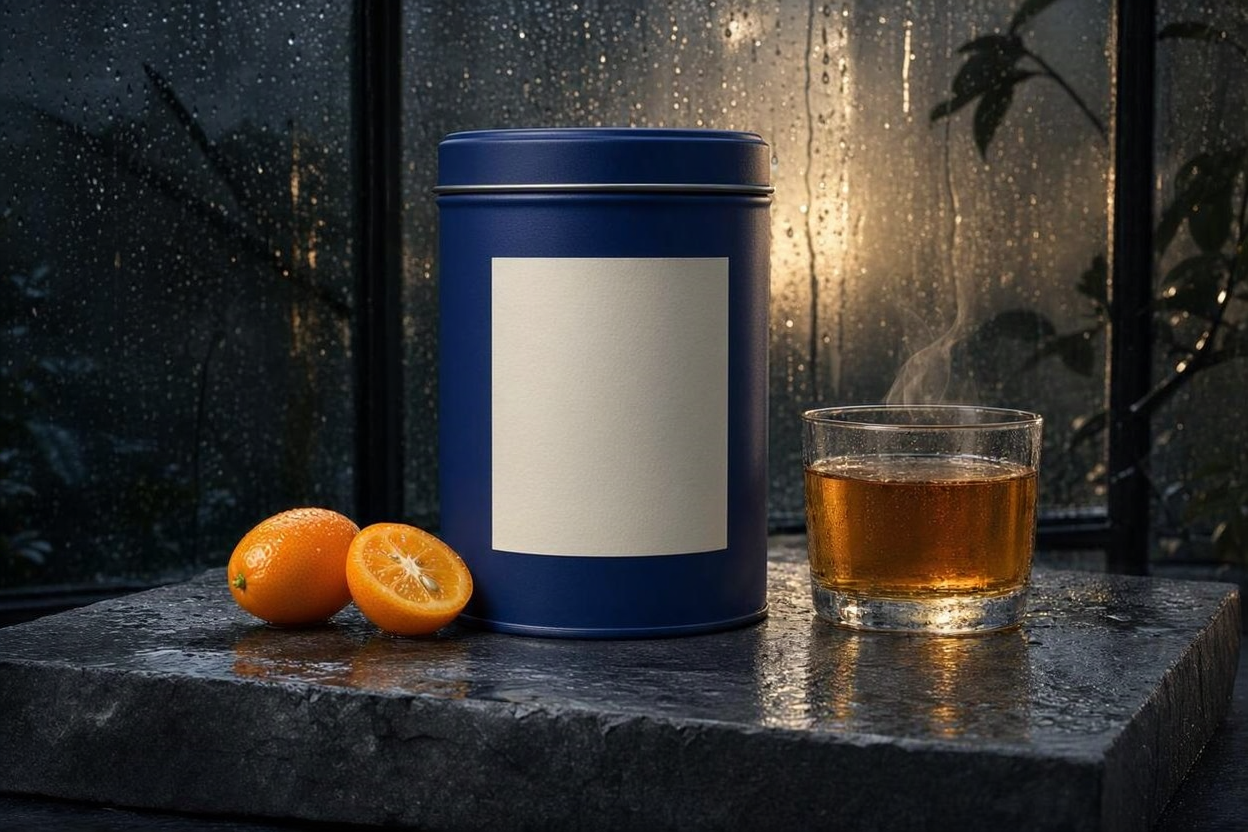
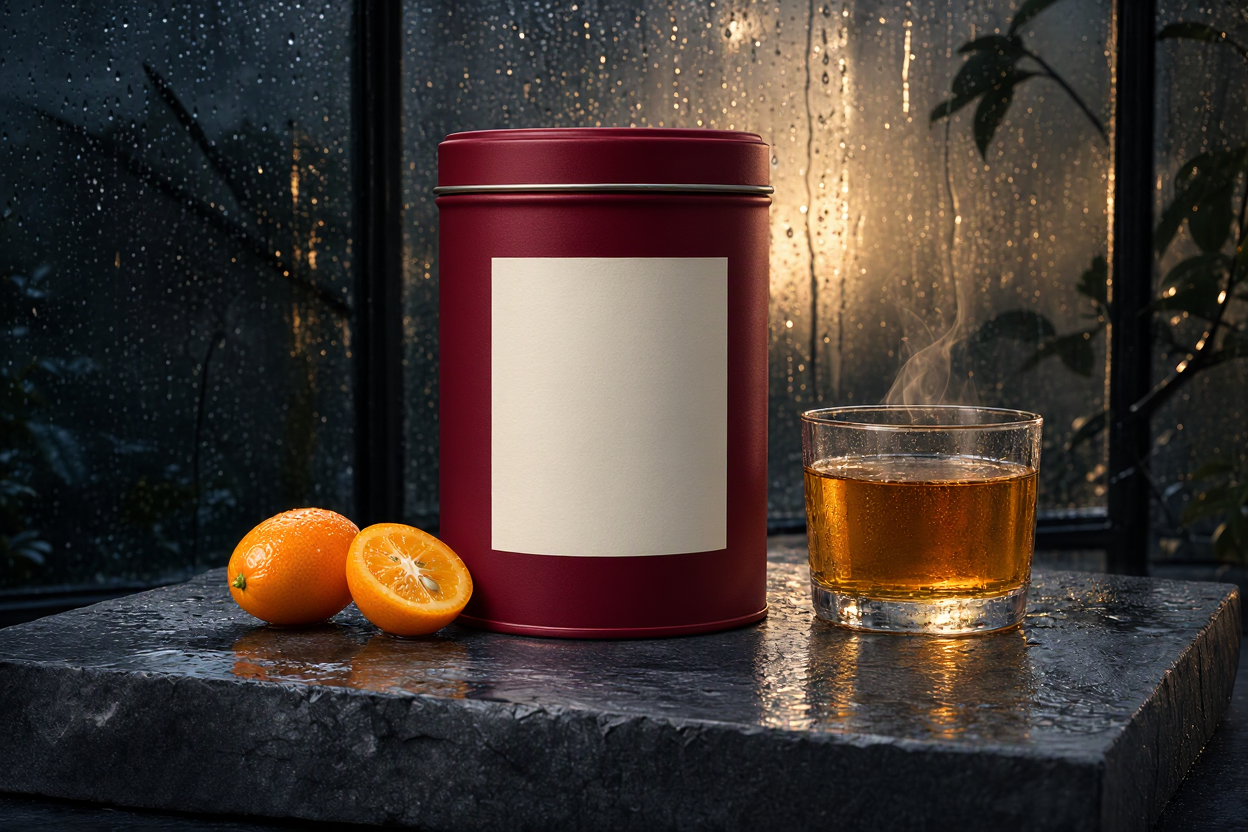
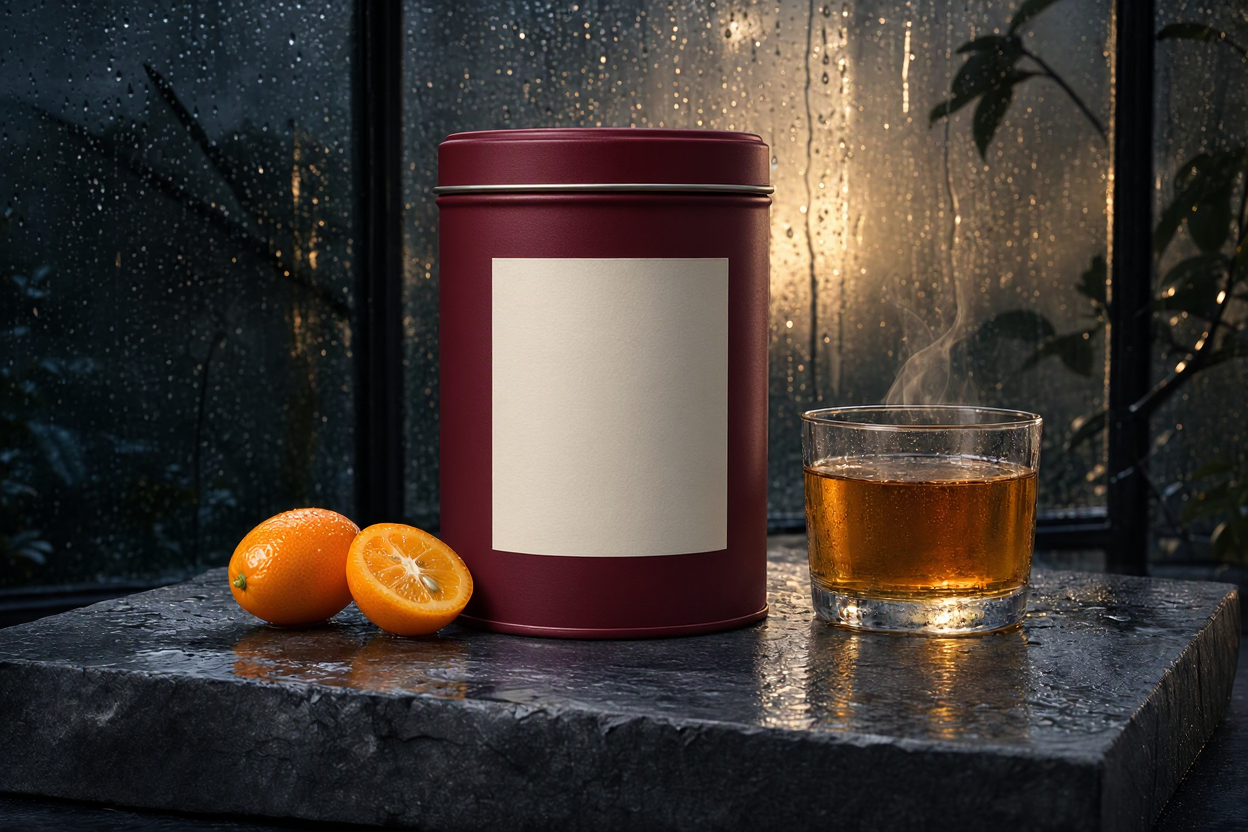
Both prompts turned the same blue tin burgundy and visibly retained the ivory label, citrus and tea. The short request already identified an unambiguous object. The longer version made the preservation requirements clear for review, including the rim and camera crop. The two outputs are visually close, and fine surface and highlight changes remain visible against the source. For an approved packaging image with locked pixels, use a layer or mask for the change and verify the original geometry.
Show the Exact Short Recolor Prompt
Make the blue tea tin burgundy.
Show the Exact Preservation Prompt
Change only the cobalt-blue cylindrical tea tin in the center to matte burgundy. Keep the original blank ivory label in place. Preserve the tin shape, silver rim, camera crop, rain-speckled glass, direction of lighting, two kumquats on the left, and amber tea and steam on the right. Do not add lettering, props, or new reflections.
MAI Image 2.7 Prompts for Two Reference Images
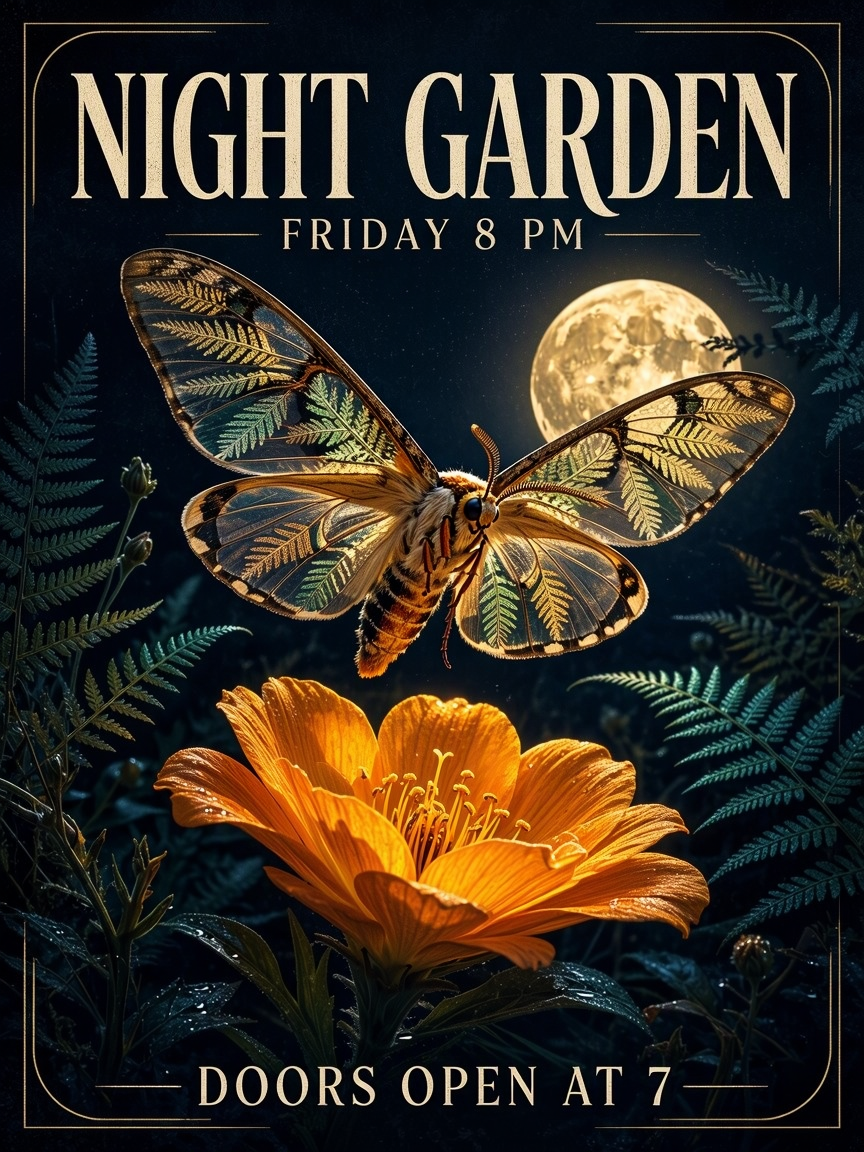
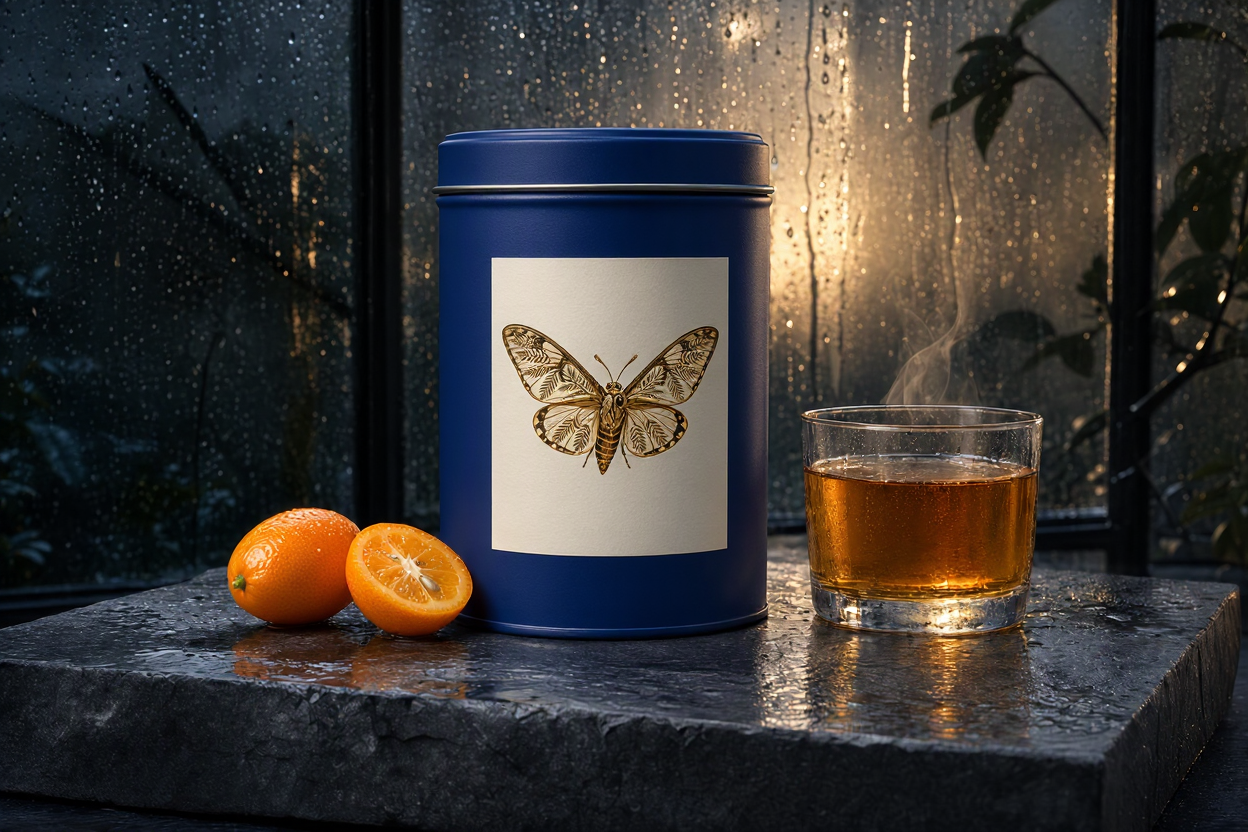
The first reference defined the product photograph. The second supplied only the moth’s wing pattern. The output placed a flat, gold, fern-patterned moth on the ivory label and preserved the basic crop and prop arrangement. Poster text, the moon and the border did not carry over. The emblem occupied most of the label width, larger than we expected from “small.” Specify a measurable size such as “no more than one-third of the label width” when the label needs room for type.
Show the Exact Two-Reference Prompt
Use the first image as the base photograph. Keep its cobalt tea tin, ivory label, two kumquats, glass of tea, stone plinth, crop and rain-lit conservatory. Use the second image only as a visual reference for the fern-patterned moth wings. Place a small, flat, dark-gold emblem of that moth at the center of the existing ivory label, with its wings spread. Keep the rest of the label blank. Do not bring over the second image's text, border, moon, orange flower or poster layout. Do not add a real insect to the scene.
MAI Image 2.7 Layout Stability Check
We reran both radio prompts twice at the same settings. Counting the first passes, all six images showed a yellow radio on a rooftop at sunrise. The detailed prompt consistently created a useful upper-right copy area. In two detailed runs, a skyline still crossed the lower-right region. The layout got easier to use, even though the instruction to reserve the entire right third was stricter than what the outputs delivered.
| Visible Feature, Three Runs Each | Short Prompt | Detailed Layout Prompt |
|---|---|---|
| Yellow Radio and Sunrise Rooftop | 3/3 | 3/3 |
| Clear Upper-Right Sky Suitable for Short Copy | 0/3 | 3/3 |
| No Legible Brand Text on Radio or Props | 0/3 | 3/3 |
These counts describe six images from two exact prompts. They help you choose a starting prompt for this layout. For a production run, define the copy box in your layout and measure acceptance against it before committing to a batch.
How to Try MAI Image 2.7 With These Prompts
Try the MAI Image 2.7 Flagship in Microsoft Labs
Open Microsoft AI Labs with MAI Image 2.7 selected. Paste a prompt, or use the attachment control if you are editing. We opened the flagship composer, entered the short radio prompt and pressed Send. Labs asked us to sign in and said it would save the prompt. The test images above were generated through our GlobalGPT model route.
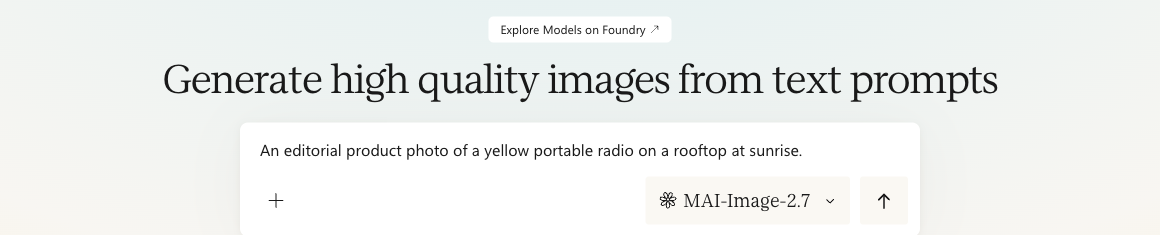
Developers can use Microsoft's Foundry generation or edit endpoint. The edit endpoint accepts up to five JPEG or PNG references. Microsoft also documents transparent generation for supported Foundry requests. Confirm the setting on your chosen surface before planning a workflow around transparency or an exact size. Microsoft Foundry instructions
Run the Same MAI Image 2.7 Prompts on GlobalGPT
In Image Generator, confirm the selected model is MAI Image 2.7. Start with 1K for layout reviews.
Choose a ratio that matches the intended use. We used 3:2 for the radio photographs and 3:4 for the poster.
For an edit, upload the base first. If you add another reference, use the workspace’s reference control to identify it and describe exactly what should transfer.
Keep the same prompt enhancement setting during comparisons. The browser exposes an Enhance Prompt switch. Individual providers can also process prompts internally.
Compare the result at full size with the original and your checklist. Increase resolution once the composition is ready.
Our screenshot shows a 93-credit quote for a 1K square generation in the workspace. The GlobalGPT API documentation lists 93 credits for its 1K generation example, 115 for a one-reference edit, 137 for two references and 371 for a 2K generation. For edits, the API documentation says the model selects output dimensions. Browser quotes and plan terms should be checked at the point of use. GlobalGPT API model examples
How to Fix Common MAI Image 2.7 Prompt Problems
| Problem | Change the Prompt or Workflow |
|---|---|
| Product Blocks the Copy Area | Give the object a named position and reserve one region for a plain background. |
| Poster Has a Wrong Date | Quote the corrected line and specify its location. For a final asset, typeset dates and prices in an editable layer. |
| One-Color Edit Alters the Label | Specify the surface to recolor and name the label, crop and key props as fixed. Use layer-based editing when exact source pixels matter. |
| Second Reference Takes Over | Identify the base first, name the single part to borrow, and list the elements from the second image that must be excluded. |
| Unexpected Edit Dimensions | Check the dimensions the endpoint returned. Keep a planned crop or resize step for final layout delivery. |
For a campaign, write one pass/fail checklist that every image must meet. Count how many outputs pass before increasing volume. When you compare models or prompt revisions, keep the same aspect ratio and references, change one part of the request at a time, and retain the first result. Our image model comparison shows another way to document prompts and inspect outputs side by side.
Final Takeaway: Write for the Review You Will Do
If the job is visual exploration, start with the subject and scene. If the image must fit a real layout, name the copy area, crop and text placement before generating. If you are editing a reference, list the few protected features that determine whether a result is usable. Then compare the result against the brief at the size your audience will see.
MAI Image 2.7 Prompt Guide FAQ
How Do I Write a Good MAI Image 2.7 Prompt?
Name the deliverable and subject, then specify the layout, lighting and details you will judge. For edits, name the target, one change and what should stay fixed.
Can MAI Image 2.7 Render Exact Text?
It rendered our three short English lines exactly in the right order. Quote each literal line and state its position. Verify text at final size or typeset mission-critical copy separately.
How Many Reference Images Can MAI Image 2.7 Use?
Foundry and GlobalGPT document support for up to five on their edit surfaces. Give the base and every secondary reference a specific role. The examples here use one and two images.
Should I Use a Short or Detailed MAI Image 2.7 Prompt?
Start short for concepts and simple edits. Name positions, exclusions or protected details when they determine whether the result can be used.
Can I Recolor a Product Without Changing Its Label?
A prompt can retain the apparent label layout, as both of our examples did. Check the label and surrounding pixels against the original. Use fixed layers or a mask if exact preservation is required.
Where Can I Try the Flagship MAI Image 2.7?
Select MAI Image 2.7 in Microsoft AI Labs or GlobalGPT Image Generator. The Labs composer asked us to sign in before generation.