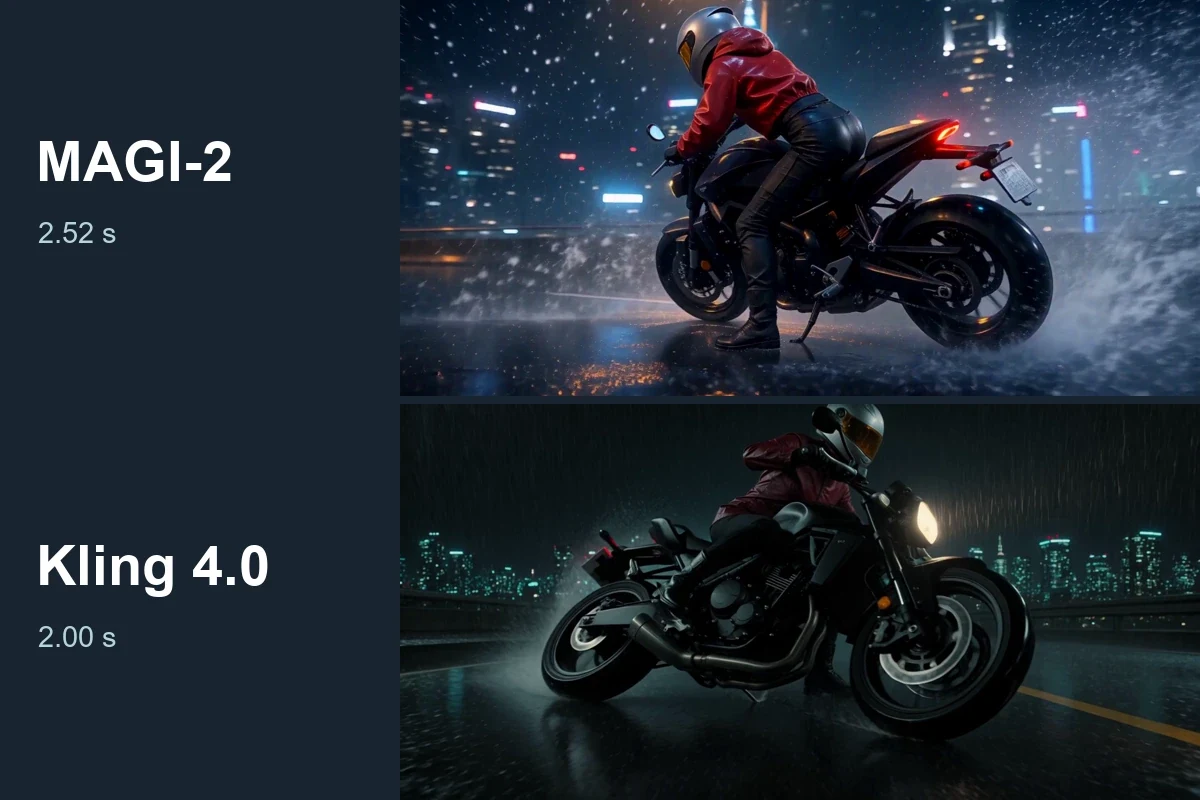
How to Use MAGI-2: Access, Settings and Your First Video
Start with the correct MAGI-2 entry point, choose a short scene, and check the result. Includes official API guidance and an original first-video example.
 Ariette Wynn

To use MAGI-2, start at Sand.ai, the developer, and follow its link to VidMuse, labeled its official partner. Choose MAGI-2 in the creation area, describe a short scene, confirm the settings and cost, then generate and review the video with sound on.
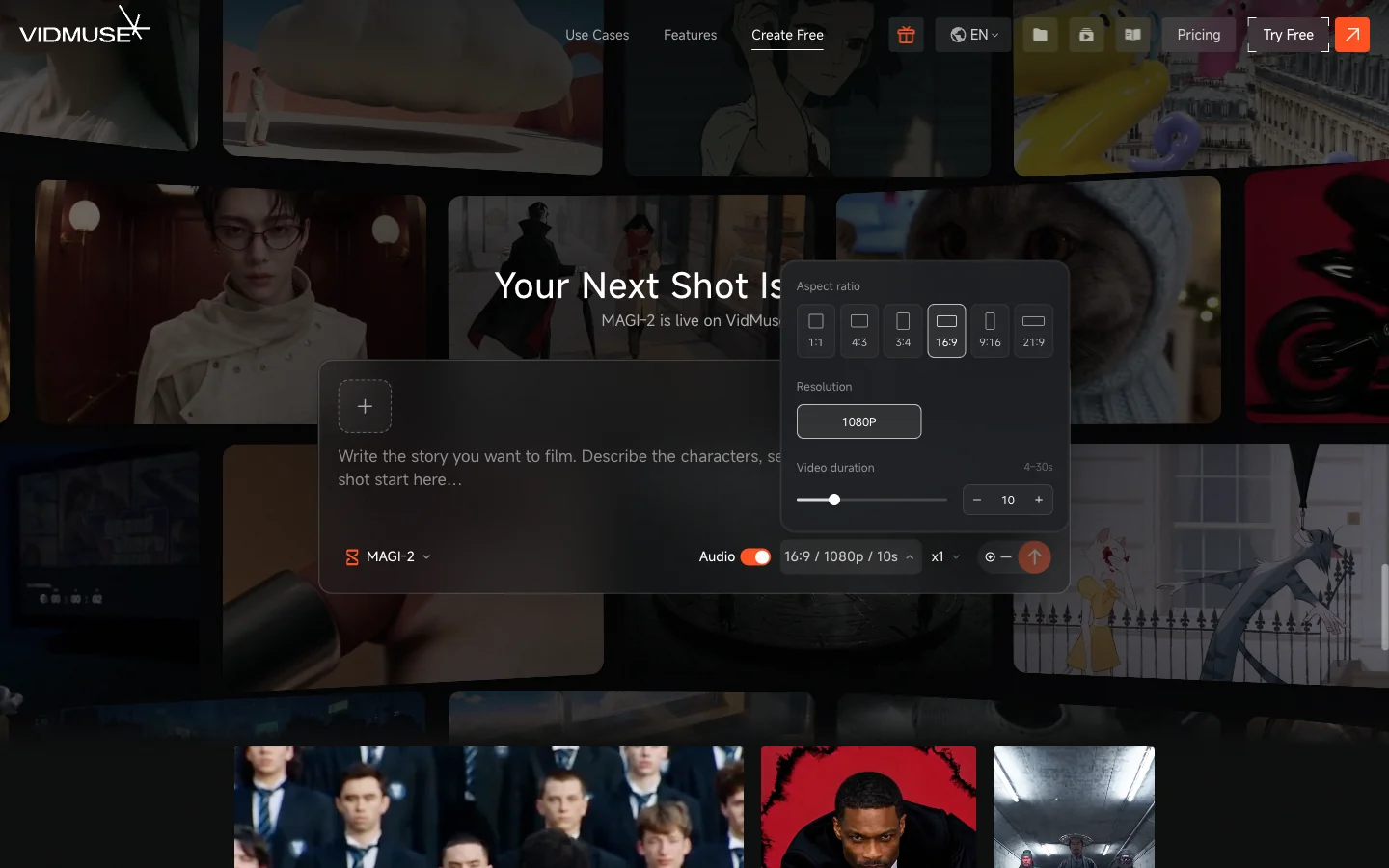
Start with a five-second scene. In the VidMuse MAGI-2 composer checked on November 27, 2026, Generation settings offers 4–30 seconds at 1080P. Check the model name: the downloadable MAGI-2 Preview is a separate research release.
A useful first clip begins with a clear brief. You can develop that brief, prepare reference imagery and continue into video work in GlobalGPT’s multi-model workspace, bringing writing, images and video into one subscription. Below, start with the developer-linked route, then see our first MAGI-2 generation and what to check in your own result.
Start with the Official MAGI-2 Access Route
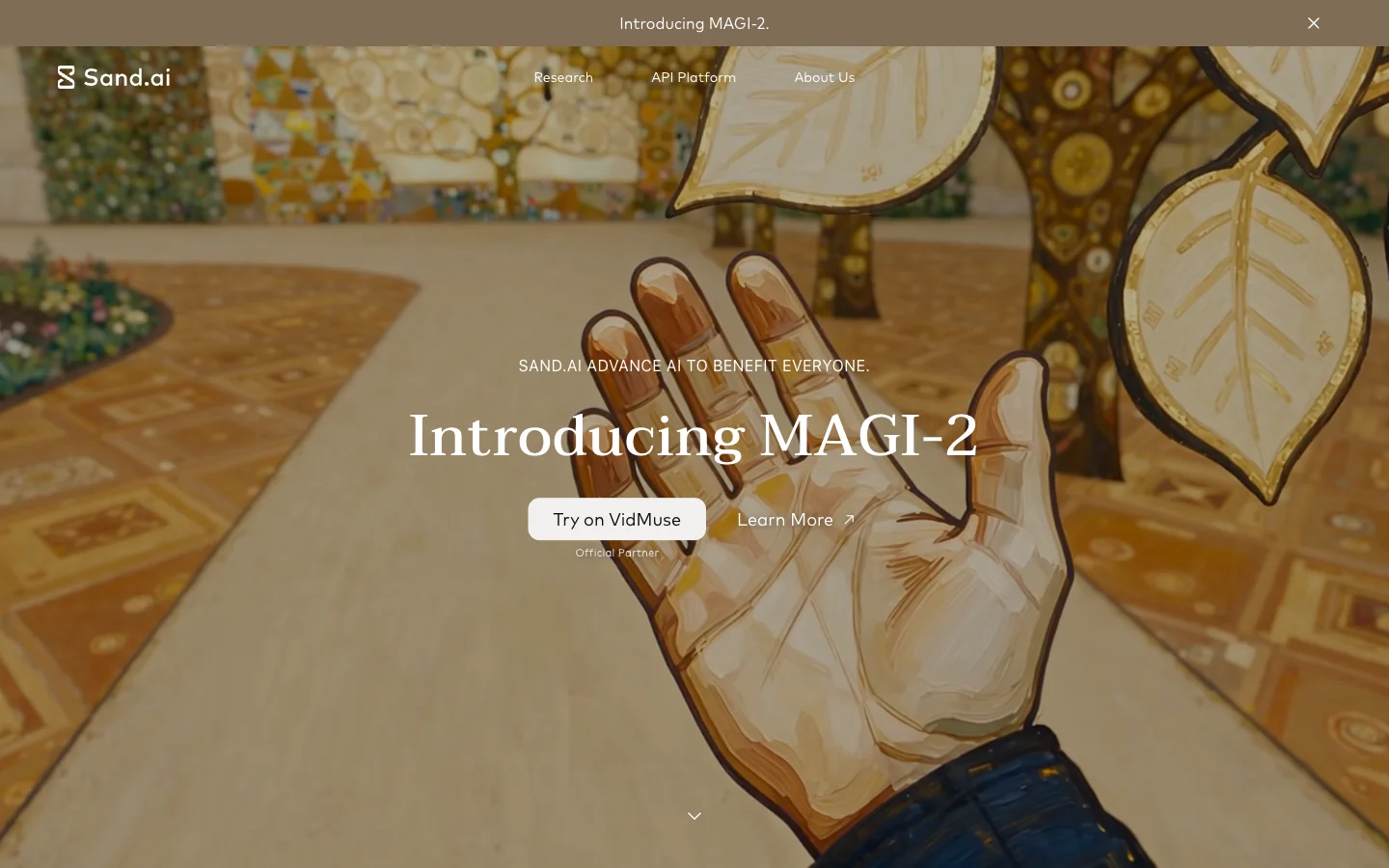
Sand.ai’s homepage is the reliable starting point for identifying the developer and its browser partner. Its Try on VidMuse link leads to the MAGI-2 creation page. An unfamiliar site with “MAGI” in its domain is not enough to establish an official connection.
The workflow below combines VidMuse’s getting-started instructions with a check of its public MAGI-2 composer and settings. We inspected the controls there; the generated video later in this guide was made in GlobalGPT.
Open the developer-linked MAGI-2 page. Enter the creation area and complete any account sign-in it requires.
Check the selected model. Confirm it reads MAGI-2 before composing the request.
Describe the scene. Start with text alone. Give the subject one action and say what should be heard.
Open Generation settings. Select 16:9 and change the default 10-second duration to 5 seconds for this example. The inspected panel offers 1080P only. Keep Audio on and generation count at x1. If you continue into Canvas, recheck the video node’s settings.
Review the quote and submit once. Check your account’s access and credit requirement before committing.
Watch the entire result. Replay the key action with sound, then save a copy you can edit.
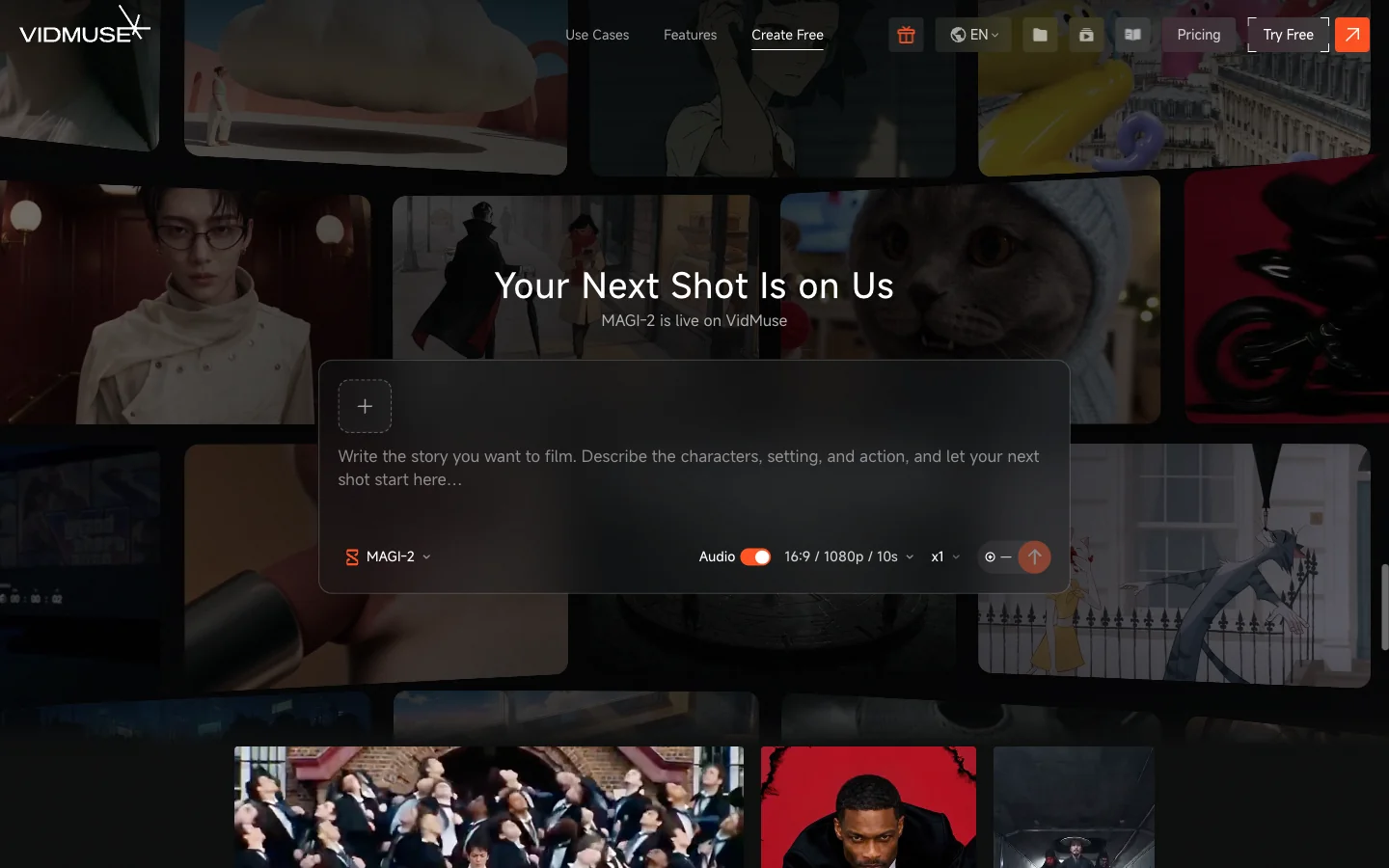
The inspected composer offers six ratios: 1:1, 4:3, 3:4, 16:9, 9:16 and 21:9. Its duration range reaches 30 seconds. Recheck settings after moving into another creation workflow, and review the quote before submission. A general trial-credit offer does not establish that a specific MAGI-2 generation is free.
Which MAGI-2 Settings Should You Choose First?
Pick the delivery format before the visual style. A landscape product shot needs room around the product; a vertical social clip needs its important action inside a narrower frame. Generating the wrong composition and cropping later can remove the very movement you wanted to show.
Decision | First-clip recommendation | Reason |
|---|---|---|
Input | Text only | Check basic scene and motion control before introducing reference files. |
Duration | 5 seconds | Enough for a small action and a brief ending to inspect. |
Aspect ratio | 16:9 for this example | Keeps the cup, spoon and camera movement visible. |
Resolution | 1080p | Use the supported output rather than assuming a cheaper resolution exists. |
Audio | On | Makes the intended liquid sound part of the test. |
Scene complexity | One setting, one camera move | Makes a missed instruction easier to identify. |
For reference, Sand.ai’s Ark-compatible API documents whole-second durations from 4 to 30, 1080p output, and six aspect ratios: 21:9, 16:9, 4:3, 1:1, 3:4 and 9:16. Audio starts enabled. The inspected VidMuse MAGI-2 settings match those output options; other creation workflows still need their own check.
Keep camera direction separate from subject action: “the camera moves toward the cup” tells a different story from “the cup slides toward the camera.” If that distinction is new, our examples of camera moves and prompt wording help you choose a move before adding more instructions.
How Do You Write a Good MAGI-2 Prompt?
Write a short shot description: say what is in the frame, what changes during the shot, and how the camera sees it. For a first five-second video, choose one main subject, one simple action and one camera instruction. A cup with rising steam is easier to describe clearly than a cup, a moving spoon, a timed splash and a camera move all happening together.
A six-part formula you can reuse
Subject + action + setting + camera + light/style + sound and limits
This is a practical writing template, not a special MAGI-2 command. Use ordinary sentences and replace each part with something visible or audible.
- Subject: name the object and the details that matter. “A plain white ceramic coffee cup” gives the model more direction than “a beautiful product.”
- Action: describe one observable change. “Thin steam rises; the cup stays still” is clearer than “make it dynamic.” If something falls, state where it starts and where it lands.
- Setting: locate the subject. “On a dark wooden café counter” establishes a surface and a place.
- Camera: choose a shot size and one movement, or keep it locked. “Slowly push from a medium close-up to a close-up” explains what the camera should do. Do not ask it to stay locked and orbit at the same time.
- Light and style: use concrete cues such as “warm morning light from the left.” A long string of “cinematic, stunning, masterpiece” adds less useful direction.
- Sound and limits: name the sound, then exclude the few things that would spoil this shot. For a calm café clip: “Quiet room tone; no music, speech, text or logos.”
Set duration and aspect ratio in the controls too. “Five seconds” in the prompt describes the intended scene; it does not replace the duration setting. Match the prompt to the chosen settings and enable generated audio if you want sound.
Example 1: a simple coffee shot to start with
This version removes the spoon and liquid-drop event. It gives the model one moving detail—the steam—and one slow camera move. Copy the whole prompt, then change the subject and setting for your own product.
If you want to turn this into an ad, choose the message before adding more action. These product-video concepts built around a sensory hook show how an atmospheric shot can support a product story.
Copy this prompt · 5 seconds · 16:9 · Audio on
One continuous five-second product shot. A plain white ceramic coffee cup rests on a dark wooden cafe counter. Thin steam rises gently from the coffee; the cup remains still. Warm morning light comes from the left. The camera slowly pushes in from a medium close-up to a close-up, keeping the whole rim in view. Quiet cafe room tone, no music and no speech. No spoon, no hands, no pouring, no scene change, no text or logos.
Why these details help: “the cup remains still” separates subject motion from camera motion; “keep the whole rim in view” gives the crop a boundary; removing the spoon avoids an unnecessary second action.
What the result shows: the white cup stays recognizable, the framing moves closer and the full rim remains visible across the sampled frames. Warm light and rising steam create the intended café mood. The steam is more pronounced than “thin” suggests, and a blurred worker moves in the background. If the background must stay empty, add that requirement to your next brief; we did not test that extra instruction here.
Recorded run: one request, five-second 1920 × 1080 video at 25 fps; completion after 534 seconds; $0.40 reported in the API task record, not a web-credit quote. No quality reroll. We checked eleven sampled frames and full video/audio decoding; sound content and synchronization were not scored. This is a useful starting example for a simple product shot, with specific details you can revise.
Example 2: describe where an action starts and ends
A liquid-drop shot needs more than “a drop falls into a cup.” The original example later in this guide put the spoon on the counter, then asked coffee to fall from it into the cup. The starting positions did not explain how that could happen. In this revised prompt, a hand holds the spoon above the coffee from the first frame, and the camera stays locked so the action is easier to inspect.
Copy this prompt · 5 seconds · 16:9 · Audio on
One continuous five-second close-up, with a locked camera. A white ceramic cup of black coffee rests on a dark wooden cafe counter. A hand holds a brass teaspoon horizontally and motionless directly above the center of the cup; the spoon bowl and cup rim are both visible from the start. One small drop of coffee hangs from the spoon tip. The drop detaches once and falls straight into the coffee, creating a low circular ripple. The hand and spoon remain above the cup throughout. Warm morning light from the left. Quiet cafe room tone and one soft liquid plink; no music, no speech. No pouring stream, no large splash, no camera movement, no cuts, no text or logos.
The important change: name the source, position and destination of the action. “Spoon tip → one falling drop → coffee surface” is a sequence the viewer can check. It is still a request, not a guarantee of exact simulation.
What the result shows: the hand holds the spoon above the cup from the first sampled frame, so the source of the liquid is now visible. The result still does not follow every instruction: several samples show a thin stream rather than one detached drop, and the spoon changes angle instead of staying motionless. Circular ripples appear on the coffee. This is a clearer scene setup, not a perfect single-drop simulation.
Recorded run: one request, five-second 1920 × 1080 video at 25 fps; completion after 158 seconds; $0.40 reported in the API task record. No quality reroll. We inspected eleven sampled frames and verified full video/audio decoding; sound content and synchronization were not scored. For a first usable café shot, start with Example 1; choose this more demanding action only if it is important to your brief.
What should you change after the first result?
If the result misses… | Make this next edit |
|---|---|
The main object changes shape | Keep its defining description consistent. Remove competing subjects; consider a clear reference image if product identity matters. |
The camera moves in the wrong way | Replace the movement sentence with one instruction, such as “locked close-up” or “slow push-in.” Avoid combining zoom, orbit and pan in a first test. |
The action comes from the wrong place | State the starting position explicitly: who holds the object, where it sits, and where it moves. |
A small action becomes exaggerated | Make the requested action smaller and simpler. If exact fluid behavior is essential, plan to select or edit a take rather than assume a longer prompt will solve it. |
The sound is wrong | Check that audio is enabled, then specify the sound source. Listen to the generated clip; the presence of an audio track alone does not establish that it matches the action. |
For your next attempt, change one instruction and keep the other settings steady so the difference is easier to understand. The two examples above are different teaching briefs, each generated once in GlobalGPT; they are not a controlled benchmark or proof that any formula always succeeds.
How Do You Generate a MAGI-2 Video with the Official API?
Use the official API if you want your application or script to submit MAGI-2 jobs and retrieve the finished videos. If you only want to make a clip manually, the browser steps above are the simpler route. The developer workflow has four steps: create a key, submit a scene, check the job status, and download the result. As of November 27, 2026, the official pricing page lists MAGI-2 at $0.08 per output second at 1080p, and says top-up is temporarily unavailable. Confirm usable balance and model access before preparing a paid request.
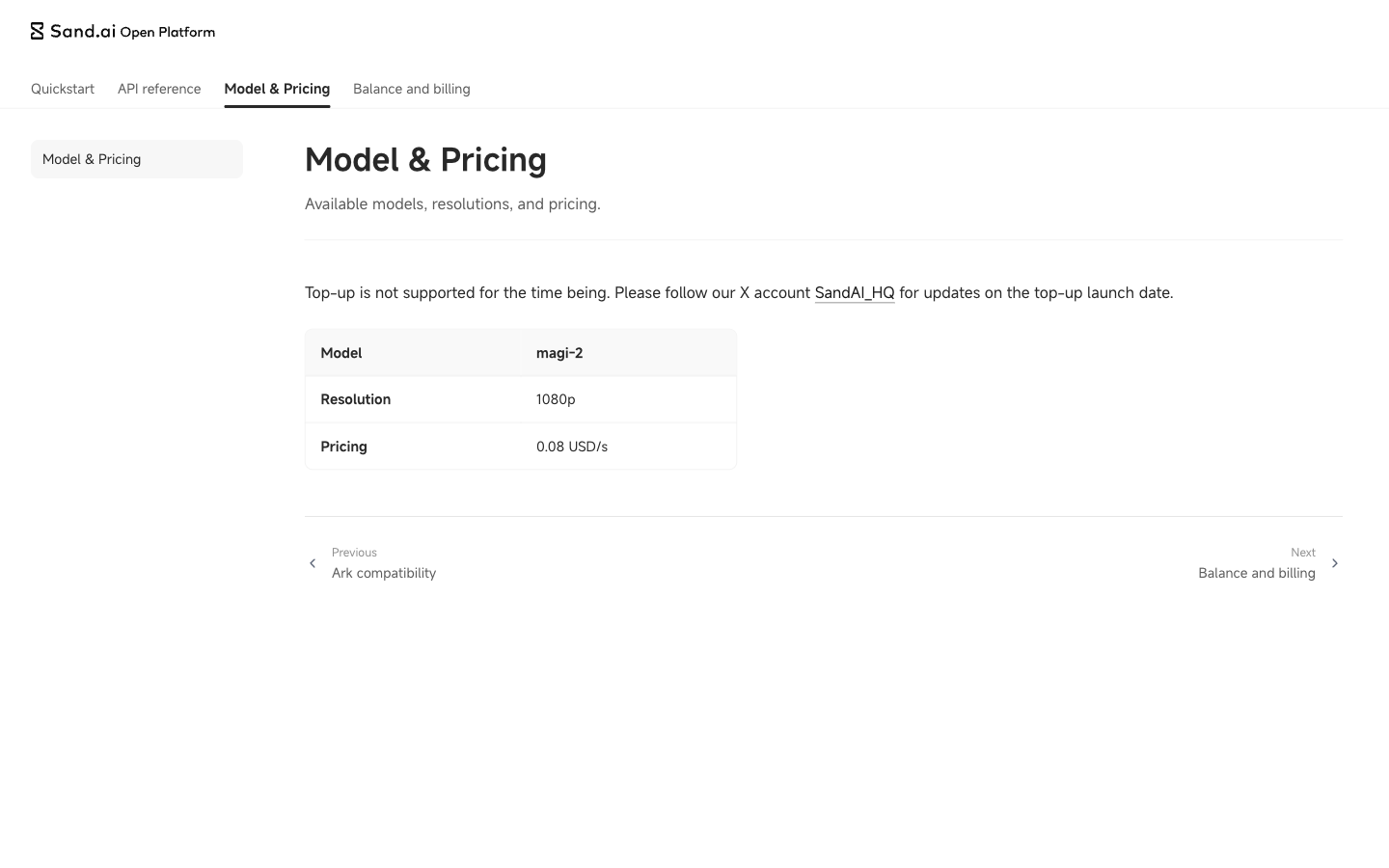
A five-second output is $0.40 at that listed API rate. That calculation is not a VidMuse credit quote or a GlobalGPT subscription charge. For your first experiment, a short scene lets you check whether the motion works before paying for a longer version.
1. Create your key and submit the scene
Sand.ai’s quickstart uses a server-side SAND_API_KEY. After configuring that environment variable, create a native request like this. The following is an official-interface request example, not the request used to produce the GlobalGPT examples. Replace its text with your complete scene description; keep the output settings in their own fields.
curl -sS "https://api.sand.ai/v2/generations" \
  -H "Authorization: Bearer $SAND_API_KEY" \
  -H "Content-Type: application/json" \
  --data-binary '{
    "model": "magi-2",
    "parts": [{"type": "text", "text": "A white ceramic cup rests on a wooden counter. Steam rises as the camera slowly moves closer. Quiet cafe ambience, no music or speech, one continuous shot."}],
    "duration": 5,
    "aspectRatio": "16:9",
    "generateAudio": true
}'2. Check the job, then download the video
Save the returned generation ID. Retrieve it with GET /v2/generations/{id}; for one task, poll every 10 seconds. When it succeeds, download from output.videoUrl. Stop on a failed or canceled status. Result links last 60 minutes; retrieving the task again can refresh the URL.
# Set this to the ID returned by the create request.
export SAND_GENERATION_ID='YOUR_RETURNED_ID'
curl -sS "https://api.sand.ai/v2/generations/$SAND_GENERATION_ID" \
-H "Authorization: Bearer $SAND_API_KEY"A successful HTTP response only means the status check worked. Wait for status: succeeded, then use the returned output.videoUrl to download the video without sending your API key to that download address. queued and processing mean the video is not ready yet; failed and canceled mean stop and inspect the result. See the official status and download documentation.
Use one request format consistently. The native API uses parts, aspectRatio and generateAudio. Ark compatibility uses a different schema. Copying fields between them can produce a validation error. If submission times out, retrieve any returned task ID before submitting again: a repeated create request can make another billable task.
How to Start a MAGI-2 Video in GlobalGPT
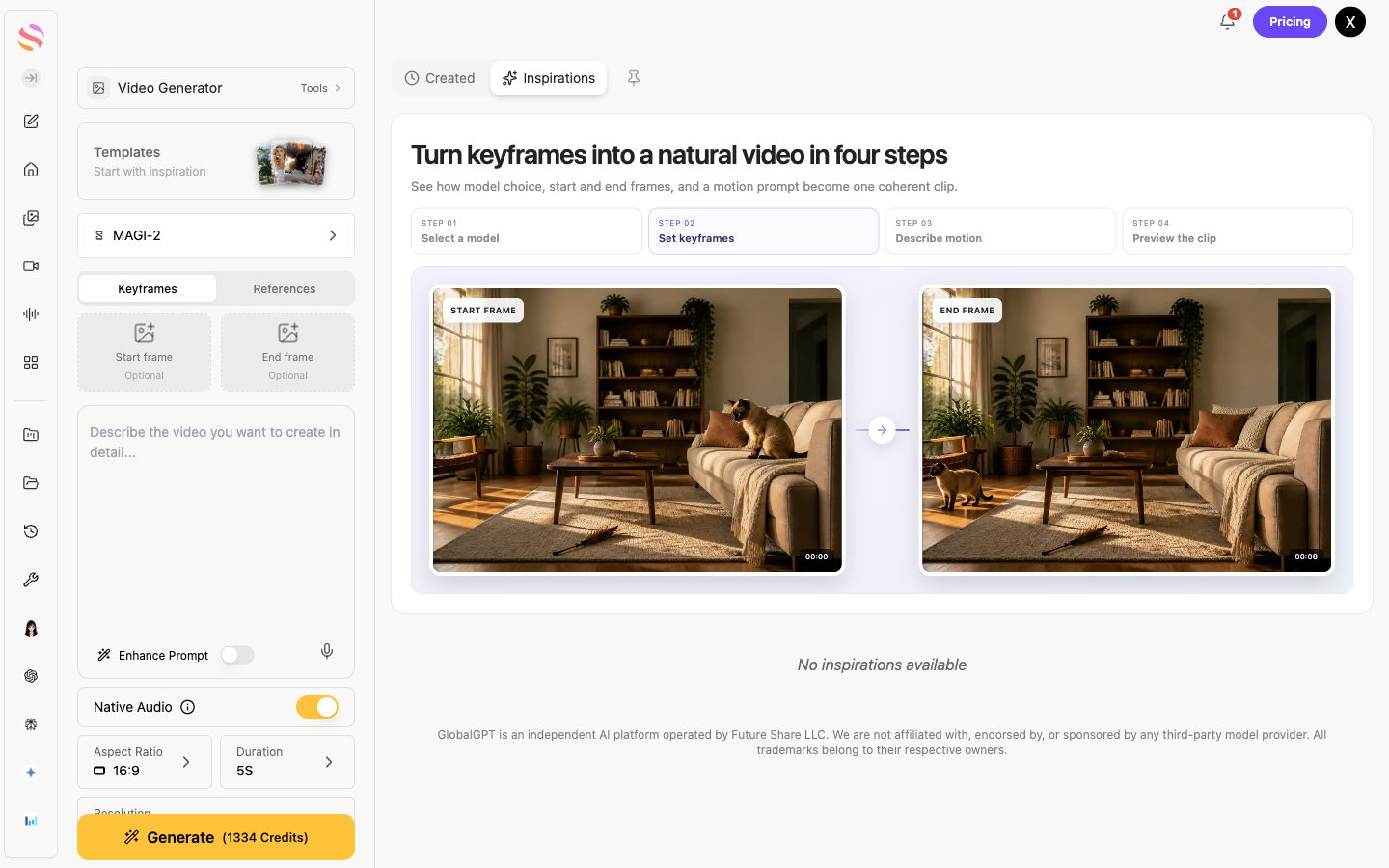
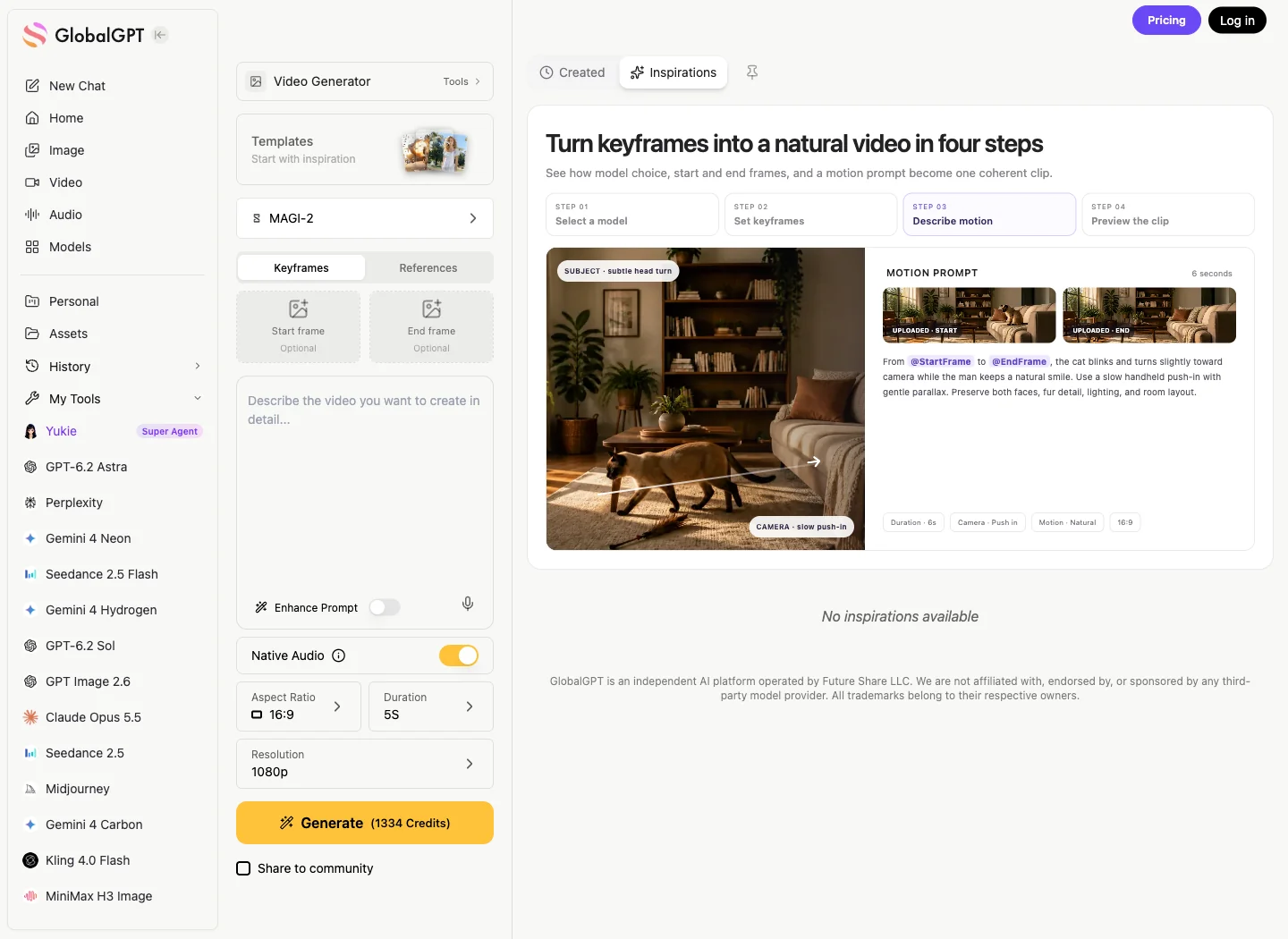
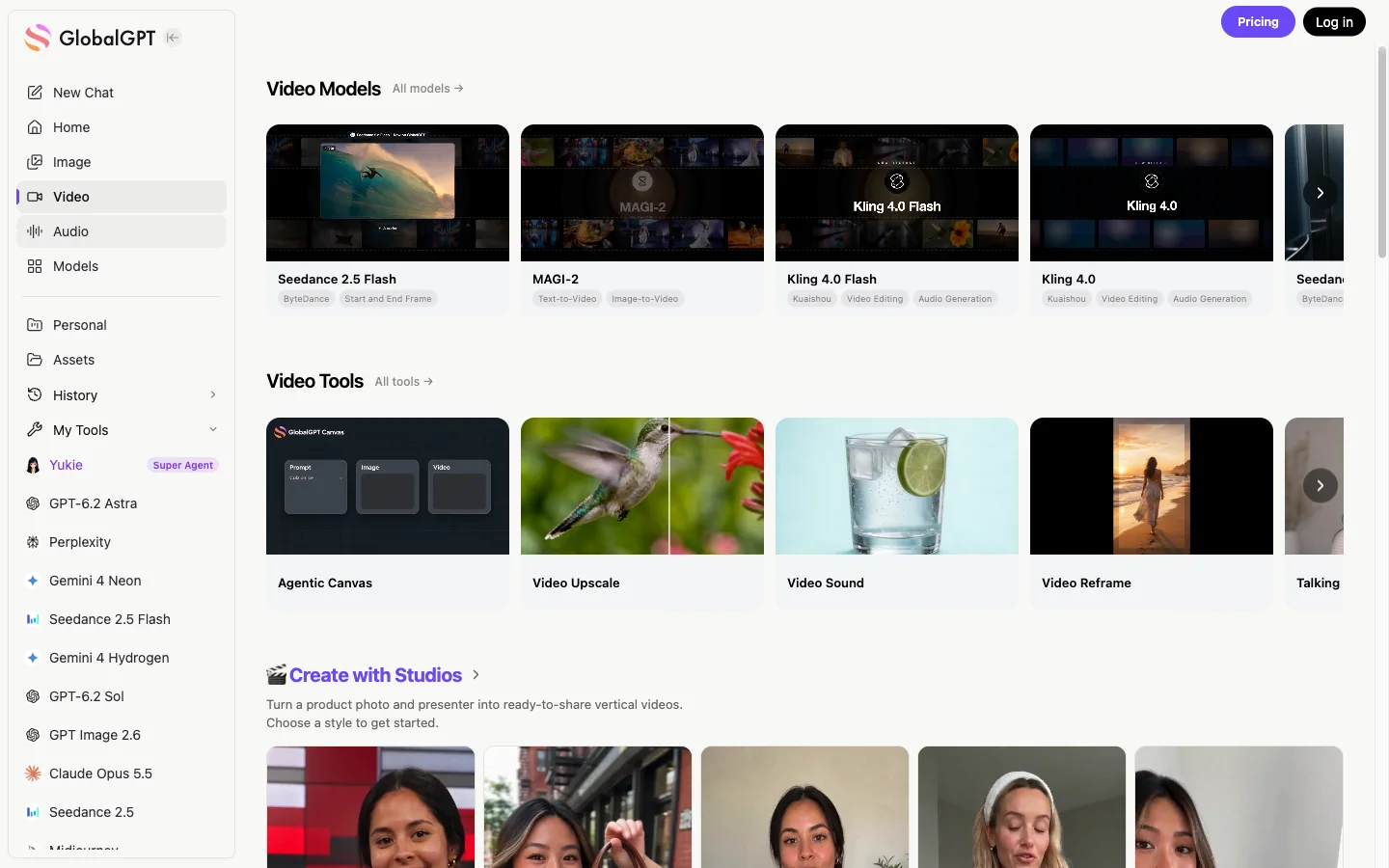
To start in GlobalGPT, open its video tools and choose MAGI-2. The public MAGI-2 generator inspected on November 27, 2026 exposes the prompt field, Keyframes and References modes, a native-audio control, and output settings. You can inspect those controls before submitting a generation.
Confirm MAGI-2 is selected. Check the model name before preparing the shot.
Enter your scene prompt. For a first attempt, use Example 1 above. If you add reference material, choose the matching mode and check its input requirements.
Review the visible output controls. Our inspected setup showed 16:9, 5 seconds, 1080p and native audio. Check the settings again after changing modes.
Read the credit quote before generating. The inspected five-second setup quoted 1,334 Credits. This is the web interface’s quote for those settings, separate from the API cost record for our original test below.
We inspected this interface without clicking Generate. The first video below comes from the earlier recorded test; the interface inspection did not create another clip or verify a new credit debit.
What Was Wrong with Our Original Coffee Prompt?
Before testing the two prompts above, we generated this earlier take with MAGI-2 in GlobalGPT. Its spoon instruction is ambiguous, which makes it a useful example of what to fix in a brief. We kept the original output and reproduce its exact prompt here.
Original first-take prompt: the ambiguous spoon setup
A five-second cinematic product shot in one continuous take. A matte white ceramic coffee cup sits on a dark wooden café counter beside a small brass teaspoon. Morning sunlight enters from the left. Thin steam rises from the coffee while the camera makes one slow push-in from a medium view to a close-up. At three seconds, a single drop falls from the spoon into the cup, creating a small visible ripple and a soft liquid plink. Quiet café room tone only; no music, no speech, no captions, no logos. Keep the cup and spoon unchanged throughout.Test detail | Recorded result |
|---|---|
Requested model and input | MAGI-2; text only; original ambiguous coffee-cup prompt; no reference files |
Requested controls | 5 seconds, 16:9, generated audio on; no separate resolution or prompt-enhancement control submitted |
Delivered file | 5 seconds; 1920 × 1080; 25 fps; H.264 video with AAC stereo audio |
Submission to completion | 613 seconds (10 minutes 13 seconds) for this request |
Reported cost | $0.40 in the API job record; a retail bill or GlobalGPT web-credit debit was not independently verified |
Attempts | One submitted request; no quality reroll |
First-Video Review: What to Keep and Change
We inspected frames sampled at half-second intervals, plus a full-resolution frame around the liquid event. The cup and brass-colored spoon stay recognizable, steam rises, and the camera moves progressively closer across the samples. Warm light enters from the left. This gives the shot a useful café atmosphere, though the cup looks glossy instead of matte.
Requirement | Observed in sampled frames | Assessment |
|---|---|---|
Recognizable cup, spoon and café scene | The main objects remain recognizable; no major substitution is apparent. | Useful visual draft |
Slow push-in | The cup grows steadily larger; no cut is apparent in the sampled frames. | Supported by samples; continuous playback was not scored |
Matte finish and thin steam | The cup has glossy highlights, and the steam is pronounced. | Less literal than requested |
One drop from the spoon at three seconds | The surface is calm at the 3-second sample. Several drops appear above the cup around 3.48 seconds, while the spoon remains on the counter. | Source and single-drop action missed; exact onset was not measured |
Small ripple | A tall splash is visible around four seconds. | Larger action than requested |
Liquid plink and quiet café ambience | The audio track was verified and decoded; no listening assessment was performed. | Sound content and timing not scored |
The original prompt also leaves an awkward gap: it places the spoon beside the cup, then asks a drop to fall from it into the cup without explaining how the spoon gets above the coffee. That makes the cause-and-effect instruction ambiguous. The result cannot fairly be treated as a clean test of an unambiguous action.
We used this failure to write the two examples in the prompt section. Example 1 removes the drop and keeps the atmospheric coffee shot. Example 2 puts the spoon above the cup and makes the liquid source explicit. Both now have their own generated output, so you can compare the brief with the result instead of treating an untested rewrite as a solution.
Preserve this first take as a reference for what changed. The sampled review supports a promising visual draft and identifies a specific action to rewrite; it does not establish exact sound synchronization or frame-by-frame motion quality.
For a larger project, keep a small shot sheet beside the clips: intended action, requested length, actual result, and one next change. GlobalGPT brings the writing and visual preparation into the same working routine. The workflow for turning a script into a video with Yukie shows how to plan a deliverable and review the first output before asking for more media.
When Should You Add Reference Images or Frames?
Add a reference when a visible detail must carry over: the product silhouette, clothing, or the appearance of a room. Start with one clear image you have permission to use. Describe what should remain consistent and what should move; otherwise the model has to guess which details matter.
For another model’s approach to planning motion from a still image, the Kling walkthrough provides examples. Use it for shot-planning ideas; MAGI-2 has its own reference modes and controls.
In Sand.ai’s API, general references and frame inputs serve different jobs. General references guide content. First and last frames constrain the beginning and ending; the Ark interface does not allow mixing that mode with general image, video or audio references. The native interface does not accept frame roles. Choose the mode that fits your intention, then use its own documented schema.
The upload documentation allows up to 10 images, five video references and five audio references per task. Images must be under 30 MB; video and audio have separate 30-second total allowances, alongside per-file limits. Uploading more references is not a substitute for a clear brief. One well-chosen product photo is a better first step than a folder of conflicting views.
What to Do When Your First Video Misses
Problem | Next check |
|---|---|
The requested duration is missing | Recheck the selected model and creation mode. The inspected MAGI-2 composer offers 4–30 seconds; recheck the video node if you moved into another workflow. |
The job is taking longer than expected | Keep the task ID and inspect its status. Avoid creating another job just because the first is still processing. |
The cup changes shape or extra props appear | Remove secondary actions. Keep one stable subject and specify the details that matter. |
Sound does not match the visible action | Check the contact at normal speed. If the picture is usable, adding the sound in an editor may be the quickest fix. |
An API reference is rejected | Check file size, format and duration, and make sure frame inputs have not been mixed with general references. |
A previous download link stops working | Retrieve the successful task again for a fresh result URL, then save the file. |
Make one change at a time. If the camera move is wrong, keep the scene and action stable while rewriting the move. If the object deforms during a fast action, slow the action down before adding more descriptive adjectives. Preserve the original take so you can tell whether the revision helped.
Is MAGI-2 Preview the Same Model?
No. Sand.ai’s November 24 flagship announcement describes the full MAGI-2 release and says open-source releases will follow. That is different from the already available MAGI-2 Preview repository.
Preview is a separate 114B-parameter research model with fixed 10-second output. Its repository lists eight NVIDIA Hopper GPUs as a requirement. Downloading it is a deployment project, not the simplest way to make your first clip on a normal laptop. For this tutorial, choose a hosted MAGI-2 route and check the exact model name.
MAGI-2 FAQ
Where is the official MAGI-2 website?
Sand.ai is the developer. Its homepage links to VidMuse as an official partner for browser-based creation.
Can I make a 30-second MAGI-2 video?
Yes. The developer API and the VidMuse MAGI-2 settings inspected on November 27, 2026 offer up to 30 seconds. Recheck the video node if you continue into another workflow.
Does MAGI-2 generate audio?
Yes. The developer API enables generated audio by default. Enable Audio in a browser workflow when you want sound, then listen to the result.
Is MAGI-2 free to try?
A trial offer does not guarantee that a particular MAGI-2 clip is included. Check the selected settings, account access and generation quote before submitting.
Can I download MAGI-2 and run it on my laptop?
The downloadable Preview is a separate research release, with eight NVIDIA Hopper GPUs listed as a requirement. The flagship announcement describes further open-source releases as forthcoming.
Why did my MAGI-2 download link expire?
Sand.ai API result URLs last 60 minutes. Retrieve the successful generation again to obtain a fresh link, then save a local copy.
Final Verdict: Finish One Small Scene First
Use Sand.ai to find its official partner, verify the settings offered by the creation mode, and begin with one brief scene. Judge the full moving clip and its sound before extending the duration or adding references. Save the original output and change one instruction at a time.
When the next step is a coordinated set of assets, you can develop a product image and campaign copy in Canvas before planning another video shot.
Once you have a usable shot, develop the next scene, reference images and supporting copy in GlobalGPT’s creative workspace. A first video has done its job when it tells you what to keep and what to change next.