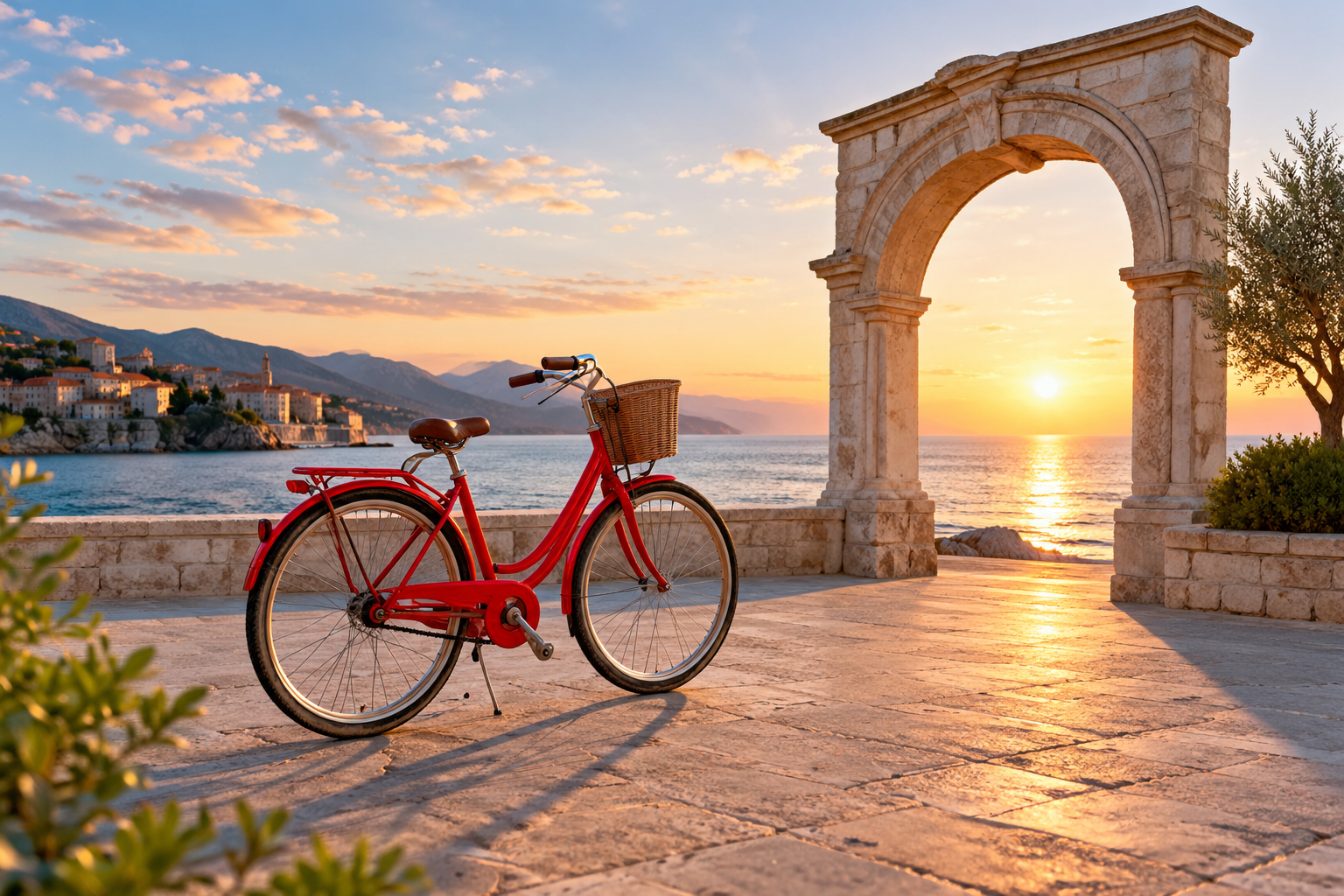
AI video camera control is the instruction layer that tells a generator how the viewpoint should move. It is different from asking a subject to move, and it is different from adding the word “cinematic” to a prompt. A useful camera-control brief names one primary move, its pace, the ending frame, and the details that must stay stable.
For creators who need more than one shot, GlobalGPT brings multiple video models into one affordable workspace. Plan your scene, prepare a reference image, explore different interpretations, and write the accompanying copy without juggling separate subscriptions and projects.
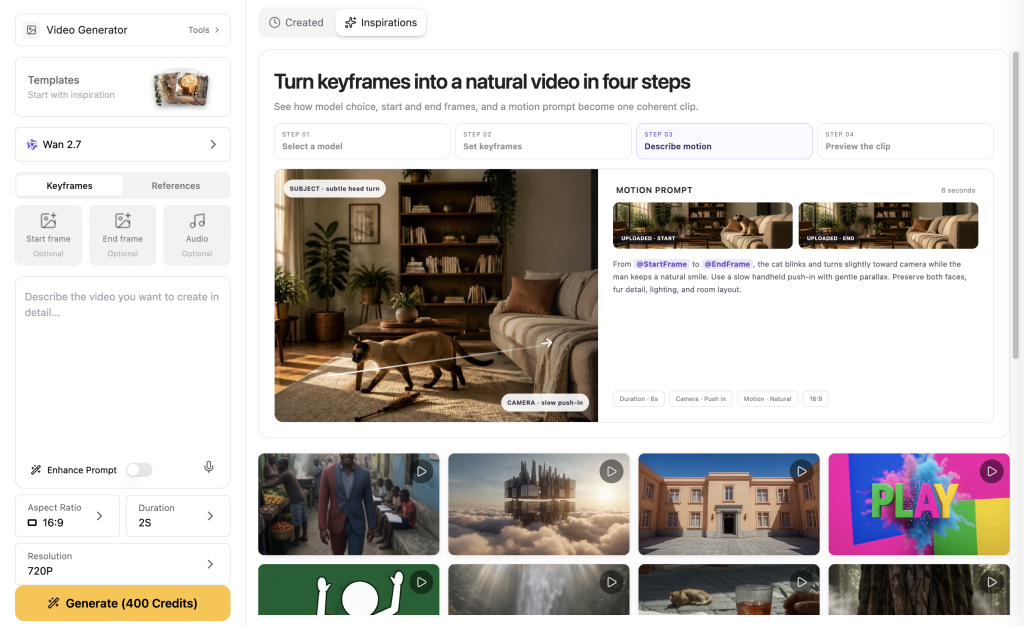
What AI video camera control actually controls
A camera-control instruction describes the path of the viewpoint through a scene. The subject can stay still while the camera moves, or both can move at once. The key is to describe those jobs separately so you can tell what the model followed.
A brighter grade or a more dramatic background can make a clip feel cinematic, but neither proves that the camera moved. Look for parallax: foreground and background landmarks should shift at different rates while the subject remains coherent.
The camera moves worth learning first
Start with one movement per shot. Adding dolly, orbit, pan, crane, and handheld motion to the same five-second brief makes a result hard to judge and gives the model competing instructions.
| Move | What the viewer notices | Useful prompt detail | First check |
|---|---|---|---|
| Dolly-in | The subject grows larger as the viewpoint moves closer. | “slow physical dolly-in, ending in a closer frame” | Does the subject grow without looking like a digital crop? |
| Dolly-out | The scene opens and the subject gains context. | “slow dolly-out, keep the whole subject visible” | Does the subject remain the visual anchor? |
| Orbit / arc | Background landmarks move around a subject at a similar scale. | “one smooth clockwise arc, constant distance and height” | Do landmarks shift, or does the object merely rotate? |
| Lateral tracking | The camera travels beside a moving subject. | “track parallel from the left, match the subject’s pace” | Do camera and subject drift apart? |
| Crane | The viewpoint rises or falls through space. | “slow crane-up, keep vertical lines stable” | Do buildings and horizon bend? |
| Pan / tilt | The viewpoint turns from a mostly fixed position. | “pan right to reveal the arch, no camera travel” | Is the move rotation rather than a sideways slide? |
A prompt formula that keeps a shot directed
Use this order when you want the movement to be easy to inspect:
- Subject and setting: say what must remain recognizable.
- Subject action: give it one continuous action, even if the action is “stays parked.”
- Primary camera move: name one move, direction, and pace.
- Endpoint: define the final size, angle, or reveal.
- Continuity: repeat the objects, proportions, horizon, and lighting that should hold.
- Exclusions: remove cuts, duplicates, text, logos, and extra camera moves.
One continuous five-second landscape 16:9 shot of a bright red bicycle parked beside a pale stone arch in a quiet coastal plaza at sunrise. The camera performs a slow physical dolly-in toward the bicycle, starting medium-wide and ending closer while keeping the complete bicycle visible and the horizon level. Preserve the bicycle and arch proportions, show natural foreground and background parallax, and keep the move smooth and steady. No zoom, no orbit, no lateral tracking, no tilt, no cuts, no people, no subtitles, no writing, no letters, no labels, no logos, no watermark, no interface elements.
The phrase “physical dolly-in” sets the visual goal, while “no zoom” gives the model a useful boundary. The endpoint and parallax clauses give you something concrete to inspect after generation.
Choose the right control route
“Camera control” can mean different things depending on the route. Use the route that matches the input you actually have.
| Route | What you provide | Best use | What not to assume |
|---|---|---|---|
| Prompt-to-video | Text prompt | Explore a shot idea quickly and compare movement language. | A camera word does not guarantee a calibrated path. |
| Image-to-video | Starting image + motion brief | Keep a designed composition while adding a short move. | The model may redraw details between frames. |
| Reference-to-video | Reference clip + prompt | Carry subject appearance or scene cues into a new generation. | It is not the same as frame-by-frame editing or 3D keyframing. |
| Dedicated conditioning | Special camera codes, nodes, or control inputs | Workflows that expose explicit camera-control parameters. | A hosted model page may not expose the same controls as a local node graph. |

Start from the material you have: text for a fresh concept, an image for a designed opening, or a clip for a subject reference. Our AI video generator guide helps narrow the wider model choice before you commit to a shot.
A two-model dolly-in test in GlobalGPT
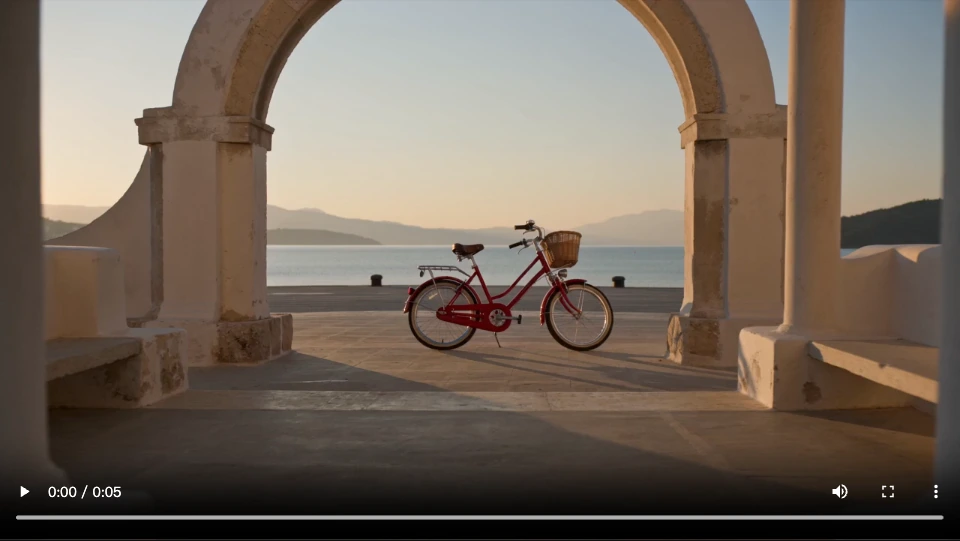
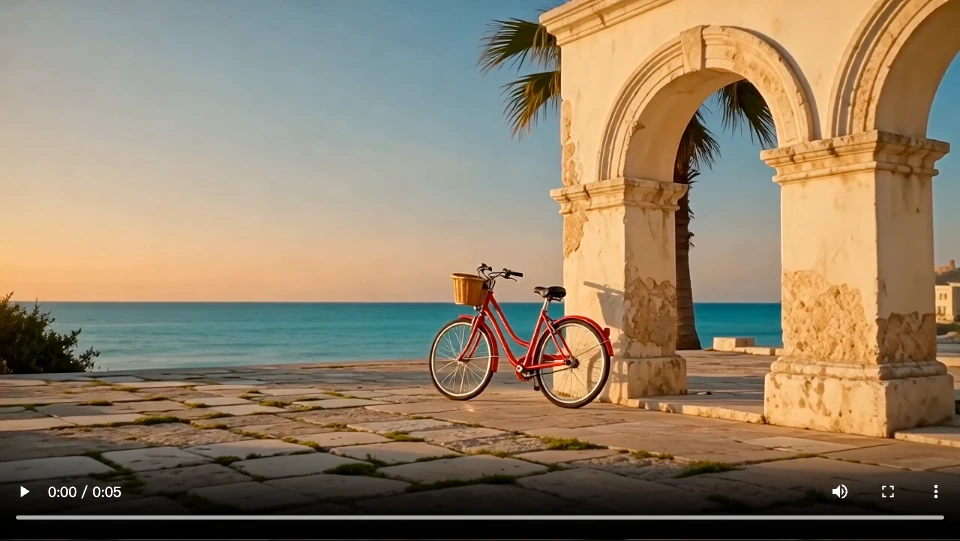
We asked Seedance 2.0 Fast and Wan 2.6 T2V to film the same red bicycle scene in GlobalGPT. Both received the complete prompt above, a five-second duration, 16:9 framing, and 720p resolution. These are the first completed clips from each model, shown in full.
| Shot decision | Seedance 2.0 Fast | Wan 2.6 T2V |
|---|---|---|
| Forward movement | The bicycle grows larger while the near pillars move outward more than the distant coastline: visible depth cues for a forward dolly. | The bicycle grows larger, paving shifts in the foreground, and the arch moves toward the right while the sea horizon stays level. |
| Ending frame | Both wheels and the frame stay visible; the bicycle ends slightly right of center. | The bicycle fills much more of the frame; the bottom of its rear wheel crosses the lower edge. |
| Practical use | The stronger fit for this brief when the complete bicycle must remain in view. | A closer reveal, but shorten the push-in or leave more space below the wheels for a full-product shot. |
| Clip dimensions | 5.088 seconds · 1280×720 | 5.007 seconds · 1280×720 |
Both clips create forward movement, but they make different ending-frame choices. Seedance keeps the full bicycle visible throughout the move. Wan gives the bicycle more presence at the finish, at the cost of the rear-wheel crop. For a full-product ad, we would keep the Seedance clip from this pair; for a tighter reveal, the Wan interpretation is a useful starting point.
For the next Wan attempt, keep the scene and camera direction and change only the endpoint: “End in a medium shot with both wheels fully visible and clear space beneath them; stop the push-in before the bicycle reaches the frame edges.” That revision targets the observed crop. It is a suggested next adjustment, not another completed test. These two clips show this shot’s outcome, not a general ranking of either model.
What to fix when the shot misses
| Symptom | Likely conflict | First change |
|---|---|---|
| It looks like a zoom | There are no depth cues or endpoint instructions. | Add a foreground landmark, background landmark, and final frame size. |
| The subject drifts | Style changes compete with preservation. | Remove optional styling and repeat the must-keep proportions. |
| The background bends | The move is too large for the available scene information. | Shorten the arc, slow the move, and simplify the background. |
| The camera and subject fight | Both actions use the same motion words. | Give the subject one action and the camera one action in separate sentences. |
| The ending frame is wrong | The prompt names movement but not where it finishes. | Specify final size, angle, and what must remain inside the frame. |
| An unwanted cut appears | Several shots or transition words compete. | Say “one continuous shot, no cuts” and keep the scene singular. |
Change one variable at a time. If you change the move, lighting, subject action, and setting together, the next result cannot tell you what helped. For shifting objects or details across a sequence, use these AI video consistency techniques. If a clip never finishes generating, use the generation troubleshooting guide before changing your creative brief.
Build the rest of the video in GlobalGPT
Camera control is one shot decision inside a larger production loop. GlobalGPT is useful when the project needs more than one model: sketch the scene with an image model, create a first video, try a second route with the same brief, and then use writing and research tools to finish the ad, storyboard, or social post in the same dashboard.
FAQ
What is AI video camera control?
It is a way to direct how the viewpoint moves during AI video generation. A useful instruction names the camera path, direction, pace, endpoint, and details that should remain stable.
Is a camera-control prompt the same as video editing?
No. A generated clip may rebuild the scene around a reference or text instruction. That is different from editing existing frames with a timeline or keyframing a camera in 3D software.
What camera move should I test first?
Start with a slow dolly-in or dolly-out. The change in subject scale is easy to inspect, especially when the frame has a clear foreground and background.
How do I write an orbit prompt?
Name the direction, keep the distance and height stable, keep the subject centered, and state what must remain in the frame. Use one continuous move and remove competing zoom, pan, and tilt instructions.
Why does my camera move look like a zoom?
Without depth cues, a model can enlarge the subject without changing the viewpoint. Add near and far landmarks, ask for parallax, and define the ending composition.
Can I compare camera control across models?
Yes. Keep the same prompt, duration, resolution, and aspect ratio, then compare complete clips. Look for the requested movement, a stable subject, and the intended final frame before judging which clip fits your project.
Where can I try different video models?
GlobalGPT brings multiple AI video options and the rest of the creative workflow into one dashboard, so you can keep the shot brief and review criteria consistent while you test.