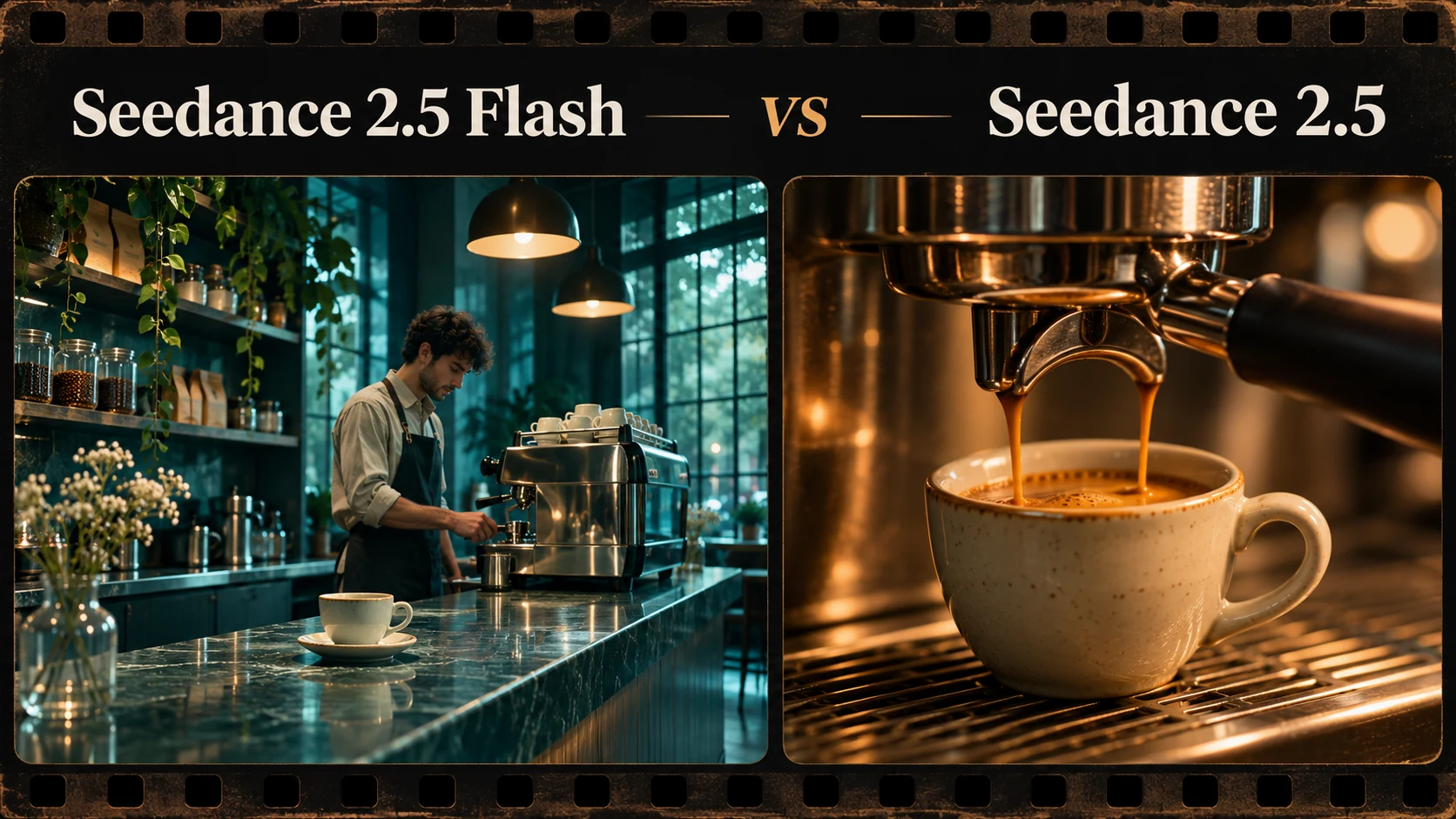
Seedance 2.5 Flash Prompts: 8 Copy-and-Paste Examples
Copy eight Seedance 2.5 Flash prompts for product shots, vertical ads, dialogue, and image-to-video. Learn how to break a clip into timed beats, direct camera movement and sound, and tell the model which details to preserve from a reference image. A café clip generated on GlobalGPT shows how three simple actions play out in a four-second take.
 Luke Bennett
AI VIDEO PROMPT GUIDE
A product video can have the right subject and still miss the moment that makes the shot work. If a hand sets a bottle cap on the counter, should the camera push in as the hand enters or wait until the cap lands? Give the action, camera move, and sound a clear order so you can judge whether the take follows your brief.
These eight Seedance 2.5 Flash prompts cover product shots, vertical ads, dialogue, and image-to-video. Each shows how to break a clip into beats, with specific instructions for what moves, what stays consistent, and what the viewer hears. The reference examples also show how to tell the model what to take from each image.
You can try the prompts in GlobalGPT’s Seedance 2.5 Flash generator. We used it for the café clip below, where a barista positions the cup, pulls an espresso, and slides the cup toward the camera. The screenshot shows the generator alongside the finished take.
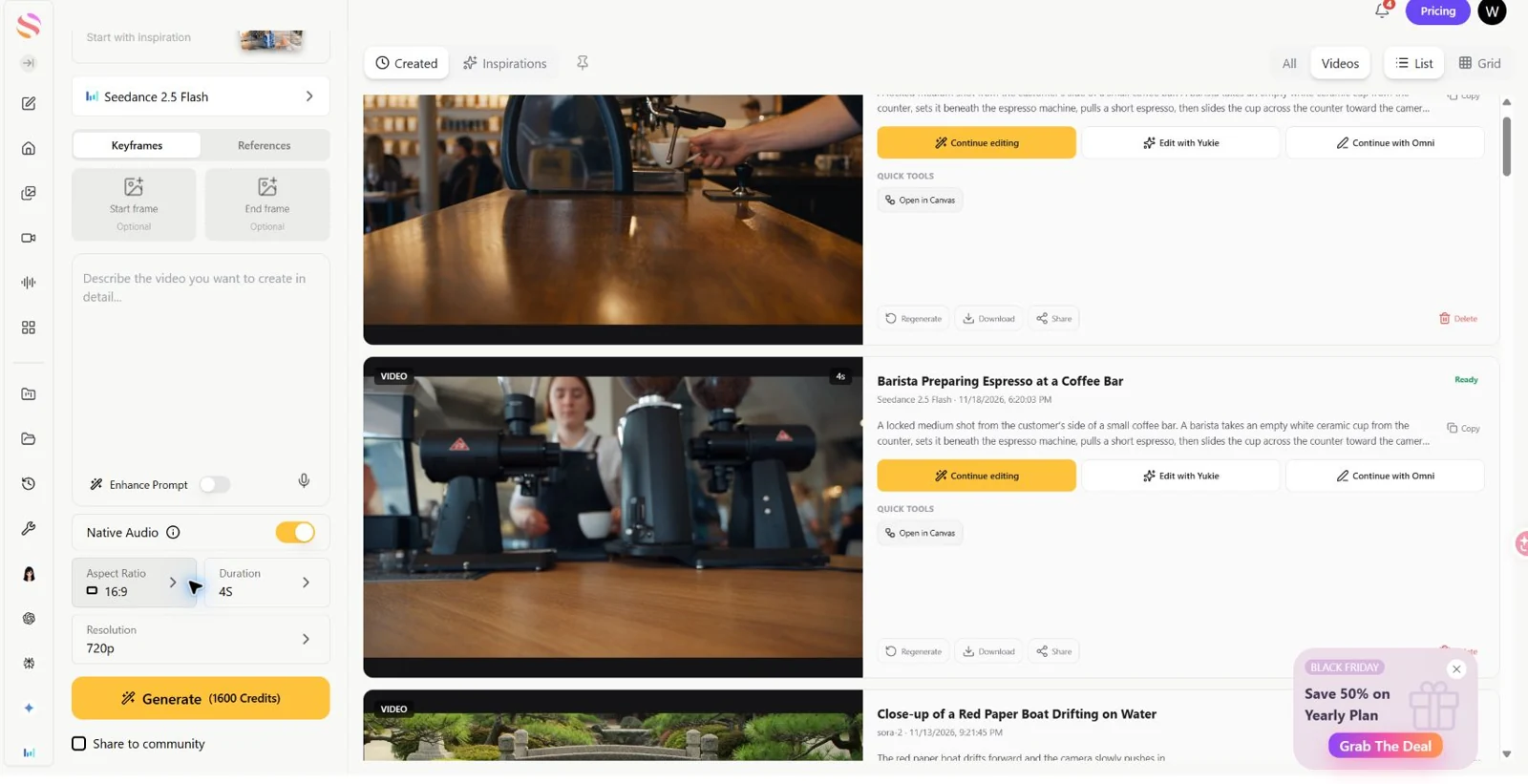
Seedance 2.5 Flash on GlobalGPT with the café test and its 720p, four-second settings.
A Seedance 2.5 Flash Prompt You Can Copy Right Now
A matte cobalt-blue water bottle stands upright on a pale stone counter beside a window. A hand enters from the right and sets the matching cap beside the bottle. Hold a medium close-up for the first two seconds, then slowly push in. End with the full bottle and cap visible. Soft morning light, quiet room tone, and one light tap as the cap touches the stone.
BytePlus recommends opening with a one-sentence scene brief, then directing the action by shot or time range and specifying what should stay consistent. For references, number each asset by upload order and give it a distinct job. BytePlus official prompting guide
Overview [Subject and action] in [location and visual style], filmed in [framing].
References, if used Image 1 supplies [identity]. Video 1 supplies [motion].
[0–2s] [Opening action, framing, sound cue].
[2–5s] [Next action, camera move, final framing].
Throughout [Stable appearance, lighting and background sound].
Give each instruction a job. “A hand sets the cap beside the bottle” gives the scene an action. “The camera pushes in after the cap touches the counter” gives the camera a cue. If the final shot needs to leave room for a headline, describe that space in the framing and add the headline in editing.
Use whole-second ranges for beats within a continuous shot. Use Shot 1 and Shot 2 for a cut, and define the new framing. For start and end frames, use the dedicated fields when available. General image references named in the prompt can suggest the endpoints, with less exact matching. Volcengine Ark official guide
8 Seedance 2.5 Flash Prompts by Use Case
1. Product close-up with a timed push-in
Input Text to video. Suggested setup Landscape.
[0–2s] Locked medium close-up as a hand sets the cap on the stone. Sync a light tap to contact. [2–5s] Push straight in while keeping the whole bottle and cap visible. Throughout, keep the side light and quiet room tone steady.
Make it yours. Swap the bottle and surface. Keep the final framing instruction if the whole product needs to stay visible.
2. Vertical ad hook with space for text
Input Text to video. Suggested setup 9:16.
[0–1s] Locked overhead shot as two hands tear the paper from the center. Sync a sharp rip to the tear. [1–4s] The hands exit at the sides. Hold the amber jar in the lower two-thirds with bare tabletop above it.
Make it yours. Change the reveal action and specify where the product should land in the frame.
3. Cinematic scene with one continuous camera move
Input Text to video. Suggested setup Landscape.
[0–3s] Track parallel to the cyclist at walking pace as the front wheel enters the shop-window reflection. [3–6s] Hold the same side angle as both wheels pass through it. Keep the bike fully in frame. Wet tire hiss over distant traffic.
Make it yours. If the camera path matters, describe where the camera is relative to the subject and how fast it moves. For examples at different shot lengths, see the Kling 4.0 and Seedance 2.5 video tests.
4. Short talking-head clip with one spoken line
Input Text to video. Suggested setup 9:16.
[0–1s] Locked eye-level medium close-up. The presenter looks into the lens. [1–5s] They say, “Here’s how I pack for a weekend,” with their hands on the desk. Keep the voice in the foreground over low room tone. No music or subtitles.
Make it yours. Replace the quoted line with a sentence you can comfortably say in the selected clip length.
5. Two-person dialogue with clear turn-taking
Input Text to video. Suggested setup Landscape.
[0–3s] Locked medium two-shot. The person on the left in green asks, “Did you bring the map?” [3–6s] The person on the right in gray replies, “I drew one,” then slides a folded paper across the table. Keep both in frame. Low café ambience.
Make it yours. Identify both speakers by position and a visible detail. Give the second speaker an explicit cue to wait.
6. Atmospheric B-roll built around sound
Input Text to video. Suggested setup Landscape.
[0–2s] Rain gathers into one drop at the edge of the dark balcony railing. [2–5s] The drop falls and a small ripple spreads in the puddle below. Keep the railing edge and impact area in the same locked frame. Steady rain, with a distinct splash on impact.
Make it yours. Pair one continuous background sound with one sound tied to a visible event.
7. Turn a product photo into a video
Input One product reference image. Suggested setup Match the source framing or your placement.
Image 1 supplies the bottle’s silhouette, cobalt finish, and label placement. [0–2s] Hold a front-left view of the stationary bottle. [2–5s] Arc toward the front and end with the label facing camera. Keep the bottle and cap geometry consistent as the window reflection shifts across the finish.
Make it yours. Name the specific features to preserve. If tiny label text matters, inspect it at full size before using the clip.
8. Animate between a start frame and an end frame
Input Two images of the same scene. Suggested setup Use matching crops.
Load the closed notebook as the start frame and the open notebook as the end frame. [0–2s] A hand enters from below and lifts the cover. [2–5s] The hand lays the cover flat and exits the frame. Keep the overhead framing and warm side light steady. Sync the paper rustle to the opening.
Make it yours. Choose frames with compatible angles and lighting, then describe the physical action that takes the scene from one frame to the other. BytePlus documents first-frame and first-and-last-frame generation for the Seedance 2.5 series. BytePlus tutorial.
What We Saw in a Seedance 2.5 Flash Test on GlobalGPT
In a four-second café test on GlobalGPT, Seedance 2.5 Flash showed the main beats in order: the barista positioned a white cup, a stream of espresso appeared, and the cup moved toward the camera. The shot was generated at 720p in 16:9 with native audio enabled. The observations below cover visible motion and continuity.
In a single locked medium shot at a café counter, a barista sets a white cup under the espresso machine, pulls an espresso and slides the same cup toward the camera. Keep the handle visible. Use natural café sounds and no dialogue.
Original Seedance 2.5 Flash café clip generated on GlobalGPT. Open the original MP4.
By about 1 second, the white cup was in position under the machine.
At about 1.5 seconds, a thin stream was visible above the cup.
By 3.75 seconds, the cup filled the foreground and its handle was visible.
This was one Flash take from a paired model test. It shows how three short action beats came through in this clip. If the opening is essential to your own shot, give it an explicit cue such as “hold the framing until the cup is under the spout,” then review the new take from the first frame.
How to Fix a Seedance 2.5 Flash Prompt
| If you see this | Try this rewrite |
|---|---|
| The camera moves before the action is visible | Hold the medium shot until the cap touches the counter, then slowly push in. |
| The subject gets cropped at the end | End in a medium close-up with the full bottle and cap visible. |
| Speech is hard to hear | Use clear foreground speech. Keep the café ambience low. No music. |
| The wrong person speaks | The person on the left in the green jacket speaks first. The person on the right waits until the question ends before replying. |
| The product changes shape during an orbit | Preserve the wide base, straight sides, and round cap. Use a short camera arc toward the front. |
Keep the original clip and prompt when you retry. Watch both clips through the final frame. If the opening improved but the ending got worse, you’ll know which part to review before changing another line. If the same issue keeps cropping up, check these common AI video mistakes.
How to Run These Prompts on GlobalGPT
Open the Seedance 2.5 Flash generator.
Paste a text prompt, or add the relevant image input for a reference-based example.
Choose the available duration and aspect ratio for your clip. If your prompt uses timestamps, make sure they fit the selected duration.
Generate the first take and play it with sound. Save the prompt and settings so you can reproduce the setup for your next version.
Frequently Asked Questions
Can I use a Seedance 2.5 prompt in Seedance 2.5 Flash?
Yes. Start with the same scene, action, camera, and audio directions. If the prompt depends on a specific kind of reference or output setting, check what the selected model and interface expose before generating. The Seedance 2.5 review covers the reference and editing options of the standard model. BytePlus tutorial
When should I use timestamps in a Seedance 2.5 Flash prompt?
Use timestamps when the order or pacing affects the shot. For example, give the viewer two seconds to see the product before the camera pushes in. For a single continuous move, a cue such as “after the presenter finishes speaking” can be easier to write and review.
How do I prompt dialogue and background sound?
Put the spoken line in quotes and identify the speaker. Give ambience its own sentence, then link any sound effect to a visible action. For example, ask for quiet room tone throughout and a soft tap when the cap touches the counter.
How do I tell Flash what to take from a reference image?
Name the image’s job in the prompt. For product footage, specify the features the reference should anchor, such as silhouette, finish, and label placement. Then describe what should move in the shot and where the camera should end.
Pick the Seedance 2.5 Flash prompt closest to your brief and run one take. On the next take, change the sentence tied to the biggest issue you saw or heard. Try Seedance 2.5 Flash on GlobalGPT.