How to Make Videos With ChatGPT by MCP
Make videos with ChatGPT or Codex using Python or GlobalGPT MCP. Compare two real examples, connect video models, and explore Yukie’s browser-based workspaces.
 Chloe Murphy
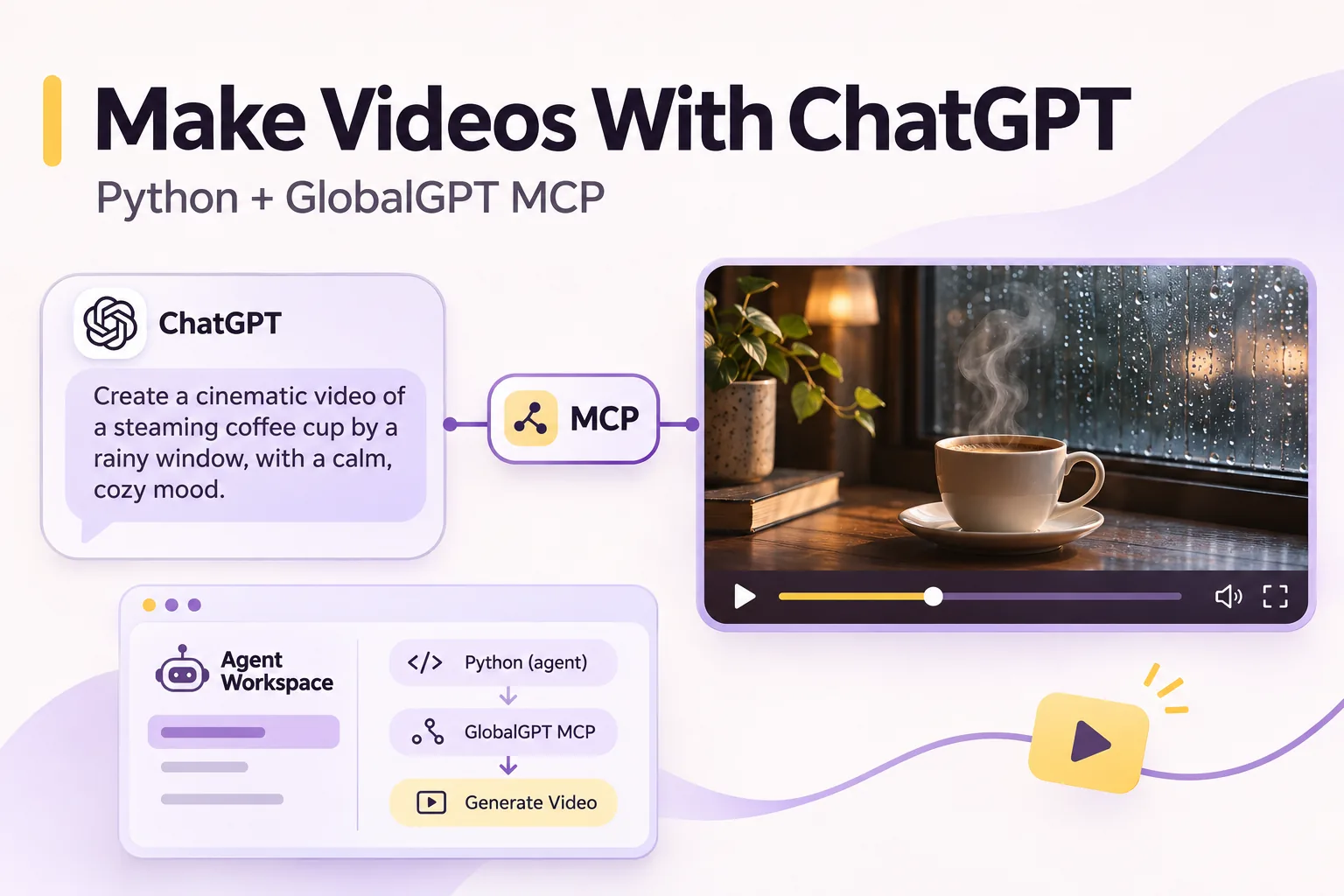
You can make videos with ChatGPT or Codex using Python or a connected video service. GlobalGPT MCP lets you access multiple video models through one connection, compare your options, and choose a model that fits your budget.
Can ChatGPT and Codex Make Videos?
Ask Codex, “Can you make videos?” In our chat, the answer was no—not with a built-in video generator. It needed an external video service. It could generate pictures, but its image screening was strict in our example.
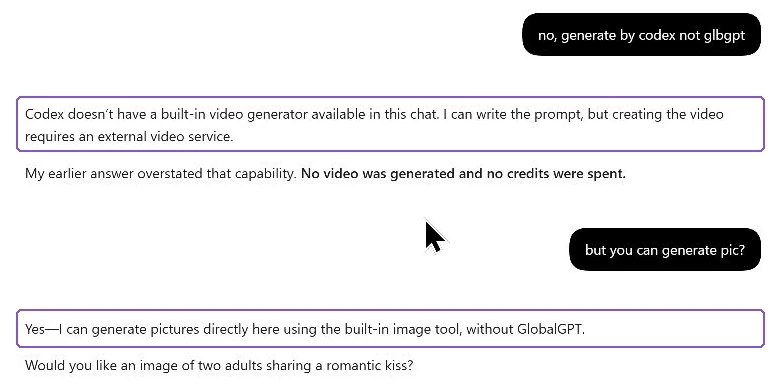
Our kissing-image request was blocked. A revised prompt showing an embrace with foreheads touching succeeded:
THE REQUESTS



Method 1: Make a Video With Python in Codex
You can still make a video with AI without an external video-generation service: ask Codex to write and run Python that renders an animation. We did exactly that for this five-second coffee clip. This requires a Python-capable environment; the tested route ran locally in Codex.
Here is the creative brief used for both video examples:
A five-second photorealistic product film. A plain white ceramic coffee cup sits on a dark wooden table beside a rain-covered window. Steam curls naturally from the hot coffee as the camera slowly pushes in. Soft overcast daylight, realistic reflections, shallow depth of field. One continuous shot, 16:9 landscape, no text, no logos, no music.To try the Python method, ask:
Write and run a Python program to make a video from the brief above. Render the scene and animation locally, then export a five-second, 1280 × 720 MP4 with no audio. Do not call an external image or video generation service.It made a video, but the result looks like a rough 3D animation. The cup is flat, the handle is segmented, and the wooden surface looks synthetic. For realistic footage, a dedicated video-generation model is a better route to try.
Method 2: Generate Video With GlobalGPT MCP
If you’re connecting an external service anyway, why not get everything you need in one place? GlobalGPT brings together 100+ AI models. Connect its MCP to create images, videos, 3D models, and music from ChatGPT or Codex—without setting up each provider separately. Switch models when you want to compare results or try a different style.
Here is the same coffee brief generated with Seedance 2.5 through GlobalGPT MCP:
The rain-covered window, wooden surface, and cup shading look more photographic. The camera also pushes in more clearly, although the later framing crops the cup’s bottom. This is one example of two workflows, rather than a general quality benchmark.
Once connected, you can generate AI videos from ChatGPT or keep working in Codex. Choose a model, describe your scene, and retrieve the finished clip in the same conversation.
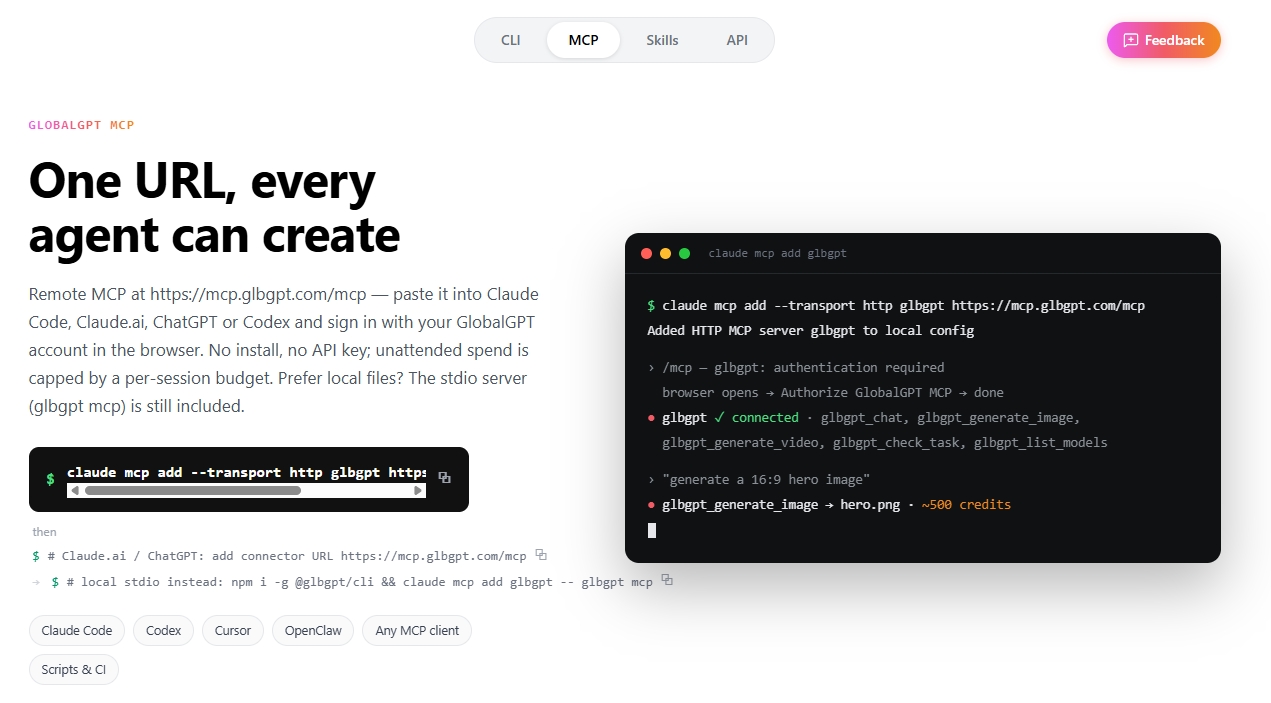
How to Connect GlobalGPT MCP to Codex
Add GlobalGPT’s remote MCP server to Codex. This route connects by URL, so you do not need to install the GlobalGPT CLI.
1. Add the MCP Connection
In your client’s MCP settings, add this official GlobalGPT MCP address:
https://mcp.glbgpt.com/mcpUsing Codex’s command line, the equivalent registration is:
codex mcp add globalgpt --url https://mcp.glbgpt.com/mcp2. Sign In to GlobalGPT
Complete the browser sign-in and review the requested permissions. If the connection still requires authentication, use:
codex mcp login globalgpt3. Verify the Video Tools
Check the connection, then ask Codex to list available video models without generating anything:
codex mcp listUse GlobalGPT MCP to list the available video models. Confirm that video generation and task-status tools are available. Do not generate media yet.Look for glbgpt_list_models, glbgpt_generate_video, and glbgpt_check_task. If needed, open a new Codex task to load the connection.
Our example used GlobalGPT’s local MCP server; the URL setup above is the documented remote option. Both expose MCP tools, but the remote authorization flow was not part of our video test.
How to Generate and Retrieve Your First Video
1. Check the Model and Parameters
Use GlobalGPT MCP to list current video models. Check which support a five-second, 16:9, 720p text-to-video request without audio. Report the supported settings and estimated credits if available. Do not submit a generation yet.Use the returned model information instead of assuming every model supports the same durations, resolutions, or reference inputs.
2. Submit One Approved Request
Paste the coffee prompt above and specify the chosen supported settings. Set a spending limit before submission. If the connection cannot provide an estimate, check the cost through the official account tools rather than accepting a guessed number.
Generate one video using the approved model, settings, and coffee prompt. Use GlobalGPT MCP rather than a separate API or CLI generation command. Keep the returned task ID. Do not retry automatically or generate alternatives.3. Check the Existing Task
The documented video tool returns a task ID. Use glbgpt_check_task to check that task until a completed result or a clear failure is returned. An interrupted client response does not prove the generation stopped.
4. Retrieve and Review the Result
Retrieve the completed video using the returned result information. Check the actual duration, dimensions, visual consistency, and requested camera movement. Keep the original prompt and settings alongside the file so you can reproduce or revise the request.
With Yukie
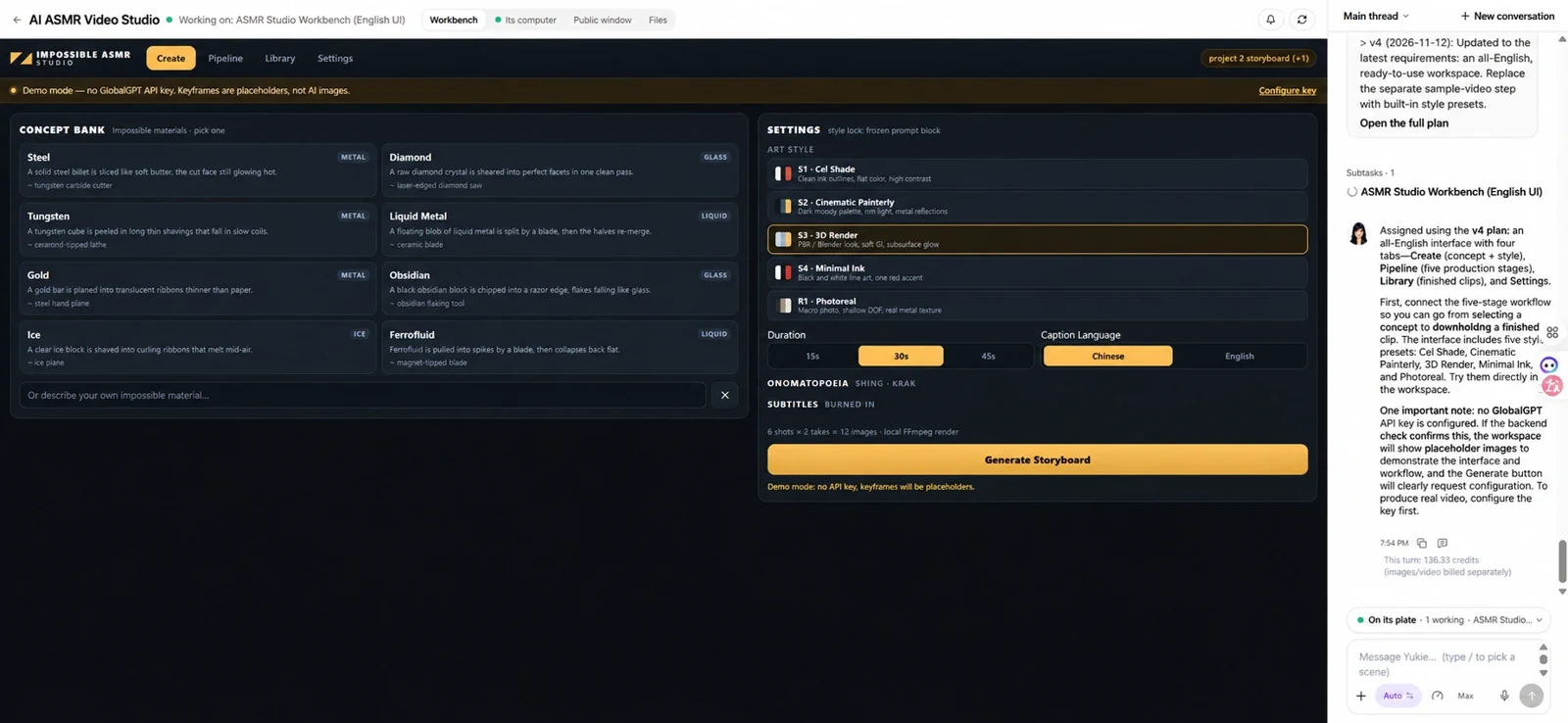
Yukie is GlobalGPT’s AI agent. It offers an affordable way to build a workspace around your work—from a video-planning dashboard to a content calendar or campaign tracker. You can use Yukie directly in your browser, without setting up MCP.
Describe the workflow you want: organize ideas, track prompts and assets, or turn a brief into a production plan. Start with one repeatable task, then expand the workspace as your needs grow.
FAQ
Can I Use GlobalGPT MCP in ChatGPT Instead of Codex?
GlobalGPT lists both as supported clients. Whether a particular account can add the connection depends on the client’s available controls and workspace permissions. This article’s worked example uses Codex.
Do I Need to Know How to Code?
You can describe the video in natural language. Connecting the tools still requires account authorization and the setup steps supported by your client.
Does Codex Have Its Own Video-Generation Model?
This tutorial does not establish a native Codex video model. It distinguishes local code-based video production from calling a dedicated video model through GlobalGPT MCP.
Can I Use a Reference Image?
Use a model and tool configuration that supports reference images, and provide the image through the designated input. Writing a local image path in the creative prompt does not guarantee the video model receives it.
What About Sora 2?
Our earlier ChatGPT and Sora 2 guide remains useful as historical context. OpenAI’s official Sora web and app experiences ended on April 26, 2026, and its API ended on September 24, 2026. Do not assume older setup instructions still work. See OpenAI’s discontinuation notice.