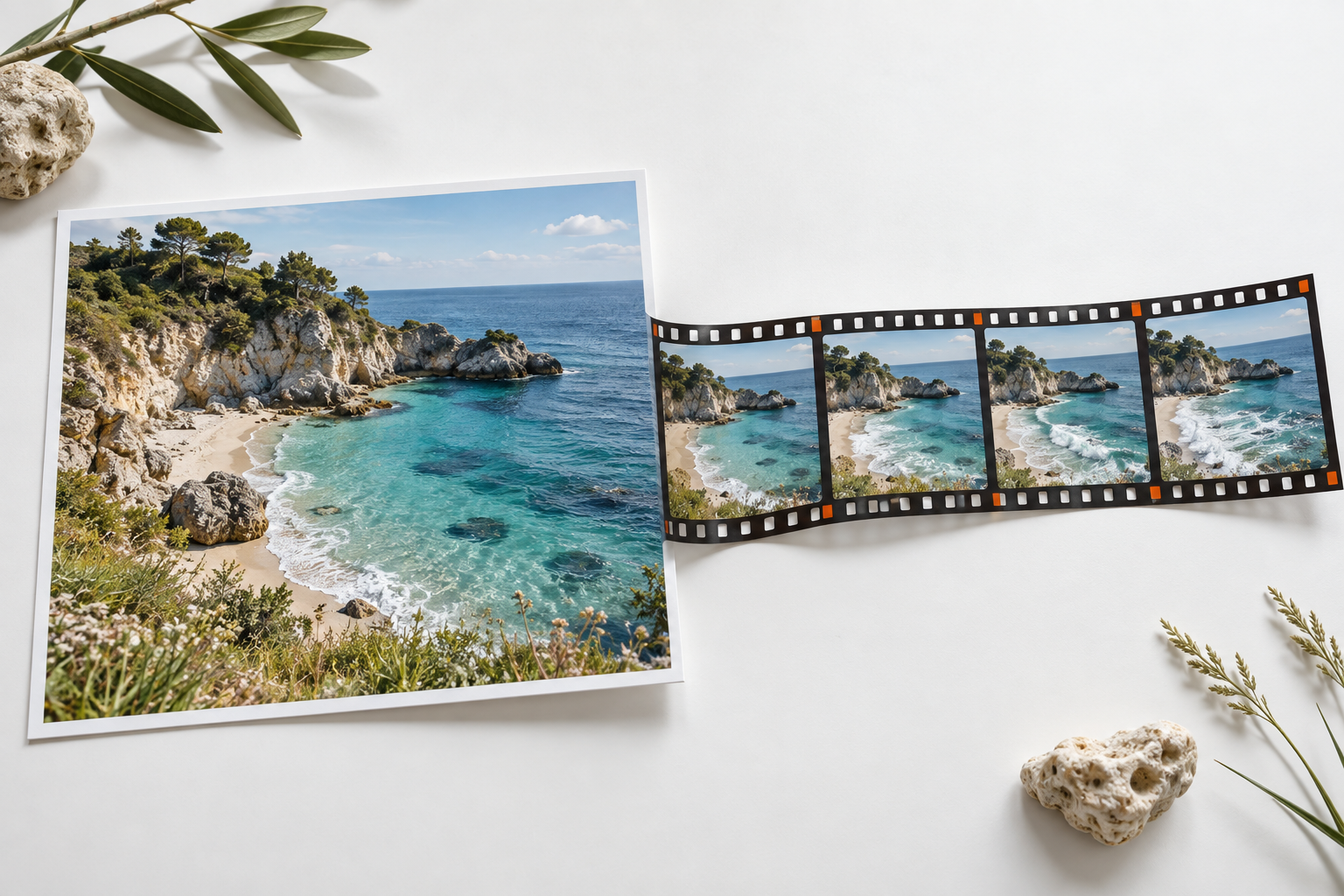
Per trasformare una foto in un video generato dall'intelligenza artificiale, scegli uno strumento che supporti la conversione da immagine a video, carica un'immagine nitida, descrivi un'azione o un movimento della telecamera e genera un breve filmato.
Esamina il movimento con la stessa attenzione con cui esamini il fotogramma iniziale. Una foto originale nitida aiuta a definire la scena, ma non garantisce che un volto, un prodotto o uno sfondo rimangano immutati.
Il primo progetto più utile è uno di piccole dimensioni: onde che si muovono in un paesaggio, una persona che sbatte le palpebre o una telecamera che scivola davanti a un prodotto. Queste riprese rendono più facile capire cosa il generatore ha conservato e cosa ha inventato. Una volta che il movimento funziona, puoi realizzare un montaggio più lungo utilizzando clip separate.
Scegli lo strumento giusto per convertire le foto in video
Inizia verificando quale sia effettivamente la funzione dell'immagine di input. La modalità "da immagine a video" anima un'immagine fissa fornita dall'utente. La modalità "immagine di riferimento" può invece guidare l'aspetto di una scena appena composta.
Anche un montatore che effettua una panoramica su una foto crea movimento, ma non genera necessariamente una nuova azione all’interno della scena. Si tratta di compiti diversi.
Decisione relativa all'immissione dei dati
Tre percorsi che sembrano simili ma hanno funzioni diverse
Scegli in base al lavoro che ti serve, quindi verifica che il campo di immissione visibile corrisponda a quel lavoro.
La distinzione è esplicita in Documentazione sul flusso di lavoro video di xAI, che distingue tra "immagine-video", "riferimento-video", "montaggio video" ed "estensione video". Prima di procedere al pagamento per una generazione, verifica che la modalità selezionata supporti il tipo di input di cui disponi.
Per una singola immagine, è importante dare priorità a un file di immagine ben visibile, alla possibilità di controllare il formato della clip e a un costo chiaro prima dell’invio.
Se un personaggio deve concludere in una posa specifica, cerca un controllo del fotogramma finale con supporto. Se una scena è guidata da più immagini, verifica il limite di riferimento per quella modalità specifica. Il limite di una piattaforma non è una regola valida per tutti i generatori.
La pagina "Da immagine a video" di Adobe Firefly supporta l'inserimento del primo fotogramma e, facoltativamente, di un fotogramma finale, oltre ai comandi della videocamera e all'esportazione in formato MP4. Higgsfield’s tutorial "dalla foto al video" descrive diversi flussi di lavoro all’interno della propria piattaforma. Entrambe sono opzioni utili da valutare; i relativi controlli e la fatturazione fanno parte di quei prodotti.
Utilizza il più ampio Confronto tra generatori di video basati sull'intelligenza artificiale quando si sceglie uno spazio di lavoro.
Se hai già scelto uno strumento specifico, una guida dettagliata come quella Guida alla conversione da immagine a video per Kling sarà più utile di un altro elenco generico di generatori.
Prepara una foto che il modello possa leggere
Scegli un'immagine con un soggetto ben definito e sufficienti dettagli da poterla esaminare con attenzione. Nel caso di un ritratto, entrambi gli occhi, la bocca e il contorno del viso dovrebbero essere chiaramente riconoscibili.
Per un prodotto, è importante che la sua silhouette completa e il contatto con la superficie rimangano visibili. Per un paesaggio, un orizzonte nitido e un primo piano ben definito rendono più facile valutare il movimento della fotocamera.
Scansione preliminare
Rendi visibili i dettagli che dovrai valutare prima della generazione
Se un elemento fondamentale è nascosto nell’immagine fissa, l’analisi del movimento non può dimostrare che sia rimasto corretto.
Prima di effettuare il ritaglio, valuta bene l'azione richiesta. Se ritagli la parte superiore della testa di una persona, questa avrà poco spazio per muoversi verso l'alto. Un primo piano ravvicinato del prodotto limita lo spazio a disposizione per una ripresa laterale.
Una foto in cui una mano è nascosta non può mostrare come dovrebbe apparire quella mano quando entra nell'inquadratura. Lascia uno spazio adeguato intorno a qualsiasi elemento che debba muoversi.
Correggi i difetti evidenti prima di procedere con l’animazione: un oggetto che distrae l’attenzione, un riflesso indesiderato, un’etichetta del prodotto errata o un ritaglio poco naturale. Una fase di editing dell’immagine fissa ti permette di verificare la correzione prima che diventi un problema nel filmato. Il Tutorial sull'editing delle immagini con Nano Banana descrive una procedura di preparazione separata per i lettori che devono modificare l'immagine di partenza.
Utilizza una foto di tua proprietà o per la quale disponi dell’autorizzazione all’uso. Nel caso di persone riconoscibili, ottieni l’autorizzazione per l’animazione e l’uso previsti. Un vecchio ritratto di famiglia merita particolare attenzione: i movimenti generati artificialmente non rispecchiano ciò che la persona ha effettivamente fatto né il modo in cui si è realmente comportata.
Trasforma la tua foto in un video generato dall'IA in sei passaggi
- Definisci l'inquadratura. Annota lo scopo e il movimento che conta. Un breve video per un sito web e un post verticale sui social potrebbero richiedere un'inquadratura diversa, anche se partono dallo stesso soggetto.
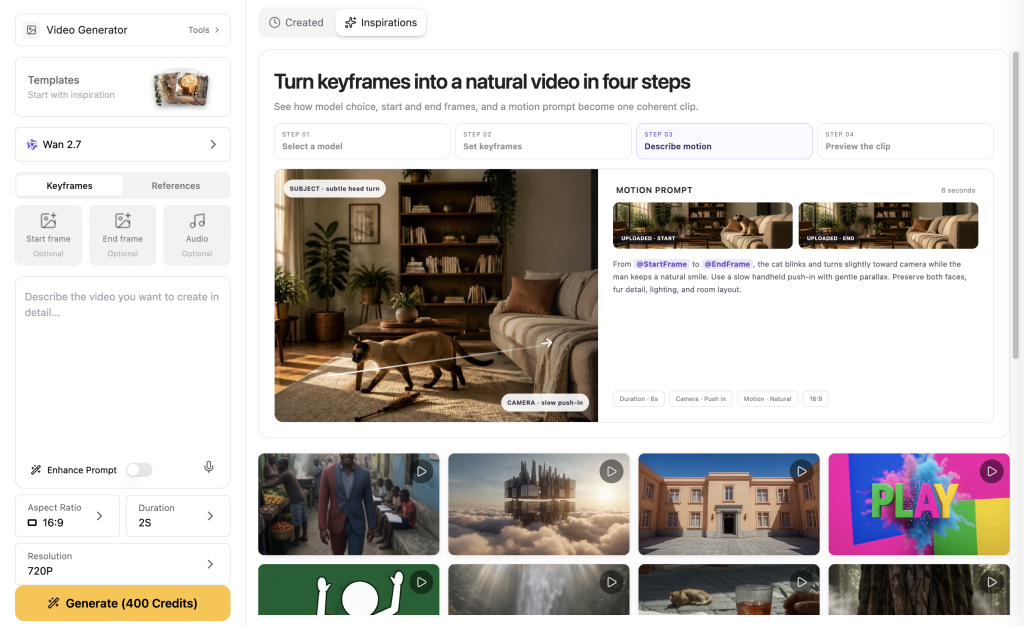
- Carica il file sorgente corretto. Seleziona la modalità "da immagine a video" o "primo fotogramma", allega la tua immagine e controlla la miniatura visualizzata. Un nome file digitato in una finestra di testo non equivale a un'immagine caricata.
- Scegli le impostazioni di consegna. Imposta le proporzioni, la durata e la risoluzione disponibile prima di procedere alla generazione. Per un inserimento su un sito web in formato orizzontale, il formato 16:9 rappresenta un punto di partenza pratico. Per un inserimento su social in formato verticale, componi l’immagine specificatamente per il formato 9:16, anziché dare per scontato che il ritaglio preservi il soggetto.
- Scrivi le istruzioni per la composizione. Descrivi l'azione, la ripresa e ciò che deve rimanere costante. Per il primo tentativo, limitati a una ripresa breve con un unico movimento principale.
- Verifica il costo, poi generalo una volta sola. Salvare il riferimento dell'attività e il prompt esatto. Se la richiesta sembra essere stata interrotta, verificare lo stato attuale prima di avviare un'altra attività.
- Rivedi ed esporta. Guarda il filmato per intero, esamina l’inizio e la fine e controlla la scena in diversi punti intermedi. Esporta la versione definitiva, quindi aggiungi titoli, audio o altri elementi di montaggio nel tuo programma di editing video.
Flusso di lavoro
Un percorso in sei fasi, dall'immagine fissa al filmato pronto all'uso
Una richiesta interrotta rimane al passaggio 5 finché non si conosce lo stato attuale dell'attività.
Documentazione di xAI sull'immagine-a-video dimostra che l'immagine di origine viene fornita come immagine effettiva insieme alla descrizione del movimento. La stessa distinzione pratica è importante anche in uno strumento browser: allegare l'immagine tramite il relativo campo di immissione, quindi utilizzare il testo per descrivere il movimento.
Non è necessario creare una nuova immagine di partenza. Una fotografia già esistente può essere il punto di partenza ideale. Ai fini di questo articolo, l’utilizzo di immagini fisse sintetizzate separate rende i tre esempi riproducibili senza dover ricorrere alla fotografia di una persona reale o all’immagine di un prodotto di terze parti.
Scrivi una traccia per un tema con un compito ben definito
L'immagine originale contiene già gran parte delle informazioni relative all'aspetto. Usa le indicazioni sul movimento per spiegare come la ripresa dovrebbe cambiare nel tempo. Una struttura utile da cui partire è:
Partendo dall'immagine fornita, [azione del soggetto].
La telecamera [effettua un movimento oppure rimane fissa].
Mantenere coerenti [identità specifica, forma o dettagli dello sfondo].
Utilizzare [ritmo e illuminazione]. Un'unica ripresa continua.
Anatomia del prompt
Assegnare a ogni frase un’attività di produzione
L'aspetto risiede soprattutto nell'immagine. Il suggerimento attribuisce movimento e indica ciò che non deve andare alla deriva.
Ad esempio, “la persona sbatte le palpebre una volta mentre la telecamera rimane fissa” fornisce un risultato verificabile. “Rendilo cinematografico, dinamico e spettacolare” lascia invece l’inquadratura effettiva troppo vaga.
Una richiesta troppo complessa può anche rivelarsi controproducente. Chiedere una telecamera fissa e un'orbita ampia nello stesso breve filmato crea indicazioni contrastanti.
Sii preciso riguardo ai dettagli che non puoi permetterti di trascurare. “Mantenere la stessa forma della bottiglia e del tappo” è un requisito di produzione più chiaro rispetto a “qualità perfetta”. Le istruzioni rimangono comunque delle richieste, quindi verifica il risultato finale invece di dare per scontato che la formulazione garantisca la conformità.
Il vocabolario fotografico dovrebbe essere al servizio dell'inquadratura. Una leggera panoramica può mettere in risalto i riflessi su un prodotto; una panoramica ampia richiede alla modella di rivelare superfici che la foto originale non aveva mai mostrato.
Per esempi specifici relativi ai singoli modelli riguardo alle diciture "telecamera" e "azione", consultare il Guida rapida a Kling 3.0. Considera questi esempi come il contesto di quella guida, non come impostazioni universali valide per ogni strumento.
Tre spunti per trasformare foto in video generati dall'IA
Ciascuna descrizione riportata di seguito è stata redatta per una diversa immagine di partenza generata: una costa, un ritratto e un prodotto. Le indicazioni sono le istruzioni di movimento esatte fornite durante la stesura di questo articolo.
Un errore nel trasferimento dell'immagine sorgente ha compromesso quella sessione di lavoro, pertanto i filmati risultanti sono stati scartati. Questi brief rappresentano dei punti di partenza piuttosto che risultati di animazione convalidati.
Bilancio di movimento
Sposta uno strato; tieni fermi gli altri
Le etichette descrivono i tre casi trattati in questo articolo. Si tratta di spunti di riflessione, non di scenari modello.
Un paesaggio costiero: lasciamo che l’ambiente si muova
L'immagine della costa presenta onde visibili, un orizzonte livellato, erba in primo piano e un litorale roccioso. Le indicazioni richiedono uno spostamento in avanti moderato, in modo che sia l'ambiente a fornire la maggior parte del movimento. Non è previsto un nuovo punto di vista dietro le scogliere né una transizione elaborata verso un'altra location.
Utilizza la fotografia della costa fornita come fotogramma iniziale. In un’unica ripresa continua, la telecamera scivola dolcemente in avanti per una breve distanza. Piccole onde si infrangono sulla riva e l’erba in primo piano ondeggia leggermente nella brezza. Mantenere l’orizzonte livellato e garantire la coerenza delle scogliere, della linea di costa e della luce del giorno. Riprese di movimento lente e naturali; movimento contenuto per tutta la durata del filmato. Nessun cambio di scena, nuovi oggetti, testo, loghi, filigrane o bordi.Valutate il risultato in base alla linea di costa e all’orizzonte, non solo all’aspetto accattivante dell’acqua. Un motivo ondulato gradevole non compensa una scogliera che cambia forma. Quando si adatta questa idea a un altro modello, il Veo 3.1 Guida alle istruzioni fornisce ulteriori esempi su come descrivere il movimento e i dettagli della scena.
Un ritratto: mantenere l’azione su piccola scala
Il ritratto mostra un soggetto chiaramente adulto, rivolto quasi in avanti accanto a una finestra. Sono visibili entrambi gli occhi e la bocca chiusa. Un battito di ciglia e un sorriso discreto conferiscono alla clip uno scopo ben definito senza richiedere un'ampia rotazione della testa né l'aggiunta di nuovi dialoghi.
Anima il ritratto fornito come un'unica ripresa con la telecamera fissa. La donna sbatte le palpebre una volta in modo naturale, poi sfoggia un piccolo sorriso rilassato a bocca chiusa. Solo alcune ciocche di capelli sciolte si muovono delicatamente. Mantieni inalterati i tratti del viso, la maglietta color corallo, la posizione della testa, lo sfondo e la morbida luce del giorno. Il movimento deve essere sottile e realistico. Non devono esserci dialoghi, movimenti della testa, movimenti della telecamera, persone in eccesso, testi, loghi, filigrane o bordi.Osservare gli occhi durante il battito delle palpebre e la bocca mentre l’espressione cambia. Verificare se il volto rimane riconoscibile rispetto all’immagine di partenza. Nel caso del ritratto di una persona reale, l’approvazione della foto di partenza e quella dell’espressione risultante sono decisioni distinte.
Prodotto A: Spostare la telecamera, mantenendo l'oggetto fisso
Il prodotto si presenta in un flacone di vetro blu senza marchio, con un semplice tappo di metallo e un’ombra di contatto visibile. Una minuscola diapositiva della fotocamera permette di effettuare una verifica diretta: i riflessi possono cambiare mentre le proporzioni del prodotto rimangono invariate?
Partire dalla fotografia del prodotto fornita. La fotocamera si sposta di una distanza molto breve verso destra con una ripresa fluida e continua, creando un leggero cambiamento nei riflessi della bottiglia. La bottiglia blu cobalto, il tappo argentato e il piedistallo bianco rimangono completamente immobili e mantengono le loro forme, proporzioni e ombra di contatto esatte. Mantenere la stessa illuminazione brillante e morbida e lo sfondo grigio. Non sono ammessi: rotazioni, effetti di galleggiamento, schizzi di liquido, nuovi oggetti, testo, loghi, filigrane o bordi.Per una campagna relativa a un prodotto reale, esamina gli elementi che un acquirente utilizzerebbe per riconoscere il prodotto: tappo, bordi, materiale, colore e testo sulla confezione. Aggiungi i prezzi salienti o il testo promozionale nell’editor dopo la generazione, in modo da poter controllare con precisione la formulazione.
Risolvi il problema che riesci effettivamente a vedere
Il volto cambia. Confronta diversi fotogrammi con l’originale. Riduci l’ampiezza dell’espressione o del movimento della testa, assicurati che il volto rimanga chiaramente visibile ed elimina dal brief le azioni che potrebbero creare confusione. Se l’identificabilità è fondamentale e il risultato continua a non corrispondere, scarta la clip.
Il prodotto si piega o galleggia. Osserva la sua sagoma e l’ombra che proietta. Uno spostamento più contenuto della fotocamera e una fonte di luce più definita possono rendere più facile la valutazione del prossimo test. Evita di chiedere che una singola foto basti a documentare una rotazione completa che metta in luce una superficie posteriore non visibile.
Il filmato si muove a malapena. Descrivi un’azione visibile invece di aggiungere altri aggettivi che descrivono lo stile. Frasi come “La tenda ondeggia dolcemente” o “Piccole onde raggiungono la riva” attribuiscono al movimento un ruolo specifico nella scena. Una carrellata della telecamera dovrebbe produrre un cambiamento visibile nella prospettiva.
L'immagine trema o lo sfondo cambia. Semplifica la ripresa e decidi quale elemento deve muoversi. Controlla il risultato fotogramma per fotogramma nella zona della discontinuità. Potrebbe essere sufficiente ritagliare una sezione pulita per il montaggio; non mantenere una transizione visibilmente discontinua solo perché l’inizio sembra ben fatto.
La parte sbagliata dell'immagine è stata ritagliata. Torna all’inquadratura originale e alle proporzioni previste. Reinquadrare un’immagine fissa è spesso più semplice che cercare di recuperare un soggetto in movimento che esce ripetutamente dall’inquadratura.
Diagnosi
Risolvi il problema evidente, poi decidi se rifiutarlo
Quando il problema riguarda un video esistente, il riavvio della conversione da immagine a video potrebbe non essere il flusso di lavoro più indicato. Il processo separato Guida video-per-video sull'intelligenza artificiale spiega l'importanza di utilizzare filmati già esistenti come materiale di partenza.
Prevedere un budget per un video approvato, non solo per la sua realizzazione
Il primo prezzo indicato rappresenta solo una parte del costo di produzione. Occorre tenere conto della preparazione dell'immagine originale, di ogni tentativo di registrazione video, di eventuali operazioni di upscaling a pagamento e del lavoro di montaggio o di elaborazione audio. Confronta i costi all'interno dello stesso prodotto e delle stesse impostazioni: i crediti di servizi diversi non sono valute intercambiabili.
In occasione della fase di preparazione di questo articolo, il 7 settembre 2026 la CLI GlobalGPT ha stimato circa 320 crediti per ogni immagine sorgente e 500 crediti per ogni video predefinito della durata di cinque secondi. Tre richieste di immagini e tre richieste di video hanno comportato un costo totale stimato di circa 2.460 crediti. Si tratta di stime relative alle attività, non dell’importo totale di una fattura né di una conversione in dollari statunitensi.
Le richieste video della prima esecuzione sono state completate, ma un errore di configurazione ha impedito alle immagini sorgente di arrivare a destinazione. Nessuna delle tre uscite è stata ritenuta idonea come filmato accettabile.
Questo risultato evidenzia un errore di produzione, non la capacità del modello di animare una foto fornita. Il fatto che l'attività sia stata completata con successo e che il video sia accattivante non dimostra che sia stato utilizzato l'input previsto.
Controllo dei costi
Paga per un video accettato, non per uno stato "in elaborazione"
Questo risultato è dovuto al mancato passaggio della sorgente. Non misura la capacità del modello con un'immagine fornita correttamente.
“L'opzione ”Da foto a video con IA" potrebbe riferirsi a una versione di prova limitata anziché a una produzione senza restrizioni. Prima di iniziare, verifica il modello selezionato, le generazioni disponibili, la risoluzione, le impostazioni relative alla filigrana e le autorizzazioni di esportazione.
Adobe’s Pagina dedicata a Firefly descrive le generazioni giornaliere gratuite per il proprio Video Model e i piani a pagamento per volumi maggiori o un accesso più ampio al modello di partnership. Tali condizioni non devono essere estese ad altre piattaforme.
Per i progetti commerciali, verificare anche l'immagine di origine, le persone raffigurate, la musica e i termini del generatore. Il Guida all'uso commerciale delle immagini generate dall'intelligenza artificiale rappresenta un punto di partenza per la parte relativa alle immagini di origine di quella recensione. L'esportazione di un video non garantisce di per sé il rispetto di tutte quelle autorizzazioni.
Esporta una clip che useresti davvero
Guarda il file completo accettato a velocità normale, poi metti in pausa sulle parti importanti: volti, testo, mani, contorni e punti di contatto. Controlla sia il fotogramma finale che il primo. Una clip con un’introduzione accattivante può comunque presentare un difetto verso la fine.
Verificare le dimensioni effettive del file e la durata dopo l'esportazione. Le impostazioni richieste e il file fornito sono due cose diverse. Una risoluzione più alta non può correggere un volto o un oggetto che ha cambiato forma, quindi è necessario risolvere il problema relativo al contenuto visibile prima di investire in un'operazione di upscaling.
Conserva insieme la fonte originale, il prompt esatto e il risultato finale approvato. Questa piccola abitudine semplifica le revisioni e aiuta a evitare di dover ripetere un lavoro già pagato nel caso in cui un collega non riesca a trovare il filmato finito. Crea la sequenza più lunga a partire da singole riprese già revisionate, quindi aggiungi i titoli, la musica e il ritmo finale in un programma di montaggio.
Inizia con una foto che si avvicini già allo scatto che desideri. Aggiungi un unico movimento ben definito, esamina il risultato complessivo e mantieni la versione più adatta al montaggio. Prova a realizzare un progetto "da foto a video" su GlobalGPT quando sarai pronto a mettere in pratica quel flusso di lavoro.
Domande frequenti
Che cos’è la conversione di una foto in un video generato dall’IA?
La funzione "Da foto a video con IA" utilizza un'immagine fissa come input per generare il movimento. A seconda della modalità selezionata, l'immagine può fungere da punto di partenza per la ripresa o guidarne l'aspetto. Il risultato può includere il movimento del soggetto, il movimento dell'ambiente circostante o una ripresa con la telecamera.
Come posso trasformare una foto in un video con l'intelligenza artificiale?
Seleziona una modalità "da immagine a video", carica una foto nitida, imposta il formato e la durata, quindi descrivi un'azione o un movimento di macchina. Genera un breve filmato, controlla il risultato finale, quindi esporta la versione che ritieni soddisfacente.
Posso trasformare una foto in un video generato dall'intelligenza artificiale gratuitamente?
Alcuni servizi offrono un numero limitato di generazioni gratuite. Prima di procedere alla generazione, verifica il modello selezionato, il limite dell’account, la risoluzione, la filigrana e le condizioni di download. Una versione di prova gratuita non include necessariamente tutti i modelli o tutte le opzioni di esportazione.
L'intelligenza artificiale manterrà il volto della persona esattamente uguale?
Un'immagine di riferimento può fornire indicazioni sull'aspetto, ma non garantisce che il volto rimanga immutato per tutta la durata del filmato. Inizia con una piccola modifica e controlla gli occhi, la bocca e il contorno del viso in diversi punti prima di approvare un ritratto.
Devo descrivere di nuovo l'immagine nel prompt?
Utilizza la maggior parte dello spazio a disposizione per descrivere i movimenti, le inquadrature e i dettagli che devono rimanere coerenti. Accenna all’aspetto fisico dei personaggi solo quando è rilevante per la scena, ma evita di soffocare l’azione con una lunga descrizione di tutto ciò che è già visibile.
Posso inserire più foto in un unico video?
Dipende dal modello e dalla modalità di inserimento. Alcuni strumenti supportano più riferimenti o consentono di specificare separatamente il primo e l'ultimo fotogramma. Verificate le loro funzionalità e i relativi limiti prima di caricare i file; la presenza di più riferimenti non garantisce automaticamente la creazione di una presentazione ordinata.
Posso realizzare questi video su GlobalGPT?
Il catalogo video di GlobalGPT include il supporto per il riferimento alle immagini. Controlla i comandi di input del modello selezionato e confronta l'output con la tua fonte. La versione di prova di questo articolo presentava un errore di trasferimento dei dati in ingresso e non costituisce prova del corretto funzionamento dell'animazione.
Posso utilizzare il filmato finito a fini commerciali?
Esamina i termini di utilizzo del generatore, nonché i tuoi diritti relativi all’immagine originale, alle persone raffigurate, al marchio e a qualsiasi contenuto audio aggiunto. Il fatto che l’esportazione vada a buon fine non costituisce una licenza generica per ogni elemento presente nel video finito.