Réponse rapide : The most common AI video mistakes come from asking one generation to do too much. A vague subject, several actions, conflicting camera directions, or an unsuitable reference image can all produce footage that looks convincing for a moment but falls apart when it moves.
The fix is not always a longer prompt. You need to identify whether the failure began with the brief, the reference, the motion, the model, or the finishing process. Then you can decide whether to rewrite, regenerate, switch tools, or repair the shot in an editor.
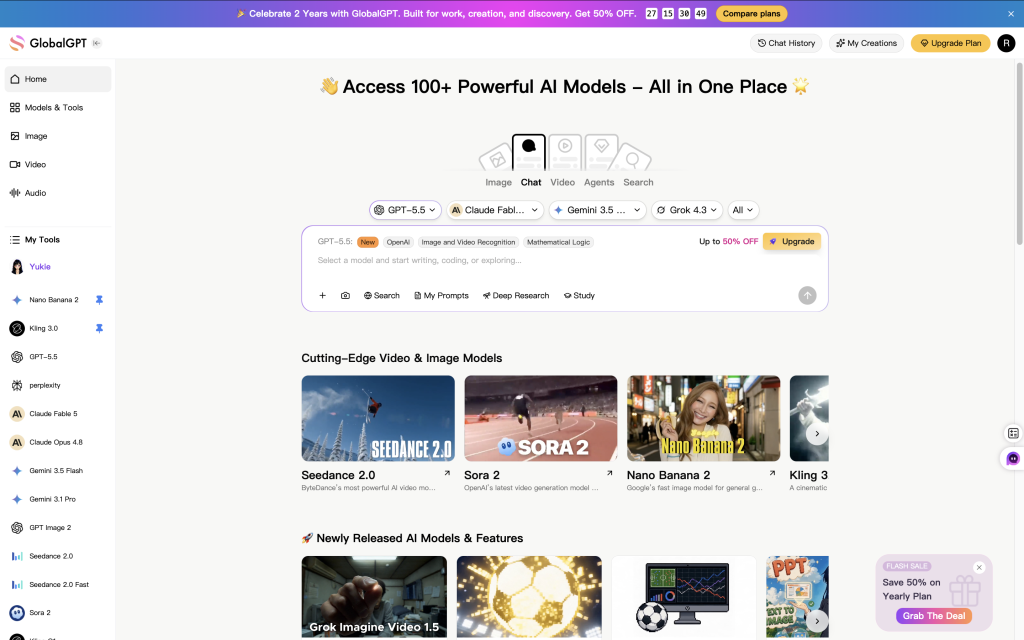
For creators, marketers, and small teams, the practical goal is a repeatable way to move from brief to reference image to usable clip. If you prefer to keep those stages together, GlobalGPT can serve as an all-in-one workspace for supported chat, research, image, and video tools under one account. The diagnosis and quality-control steps below still apply whichever generator you choose.
Points clés à retenir
- Give each shot one main action and one clear camera instruction.
- Treat reference quality and continuity planning as part of prompting.
- Fix composition and motion before adding elaborate visual style.
- Regenerate structural failures; edit small timing, crop, text, and audio problems.
- Check the final export frame by frame and on the device where it will be published.
Why AI Videos Fail Even When the Prompt Sounds Good
AI video mistakes are planning, prompting, generation, or finishing decisions that make a clip inconsistent, unclear, or unsuitable for its intended use. A frame can look polished on its own while the full sequence still contains identity drift, duplicated objects, broken contact, lighting jumps, or an unwanted camera move.
Video adds time to the problem. The model must preserve a subject while also interpreting action, space, camera behavior, lighting, and style across many changing frames. Every extra instruction creates another relationship that has to remain coherent.
That is why the right tool still matters. A model may be strong at stylized motion but less dependable for dialogue, product detail, or character continuity. A practical Comparatif des générateurs de vidéos basés sur l'IA can help you match the model to the job before you spend time repairing the wrong kind of output.
It helps to diagnose the failure at four levels:
- Entrée : The brief, prompt, or reference does not define the shot clearly.
- Génération : Identity, motion, camera, or scene logic changes across frames.
- Production: The shot was made for the wrong duration, format, audio plan, or edit.
- Publishing: Brand, rights, disclosure, crop, or device checks were skipped.
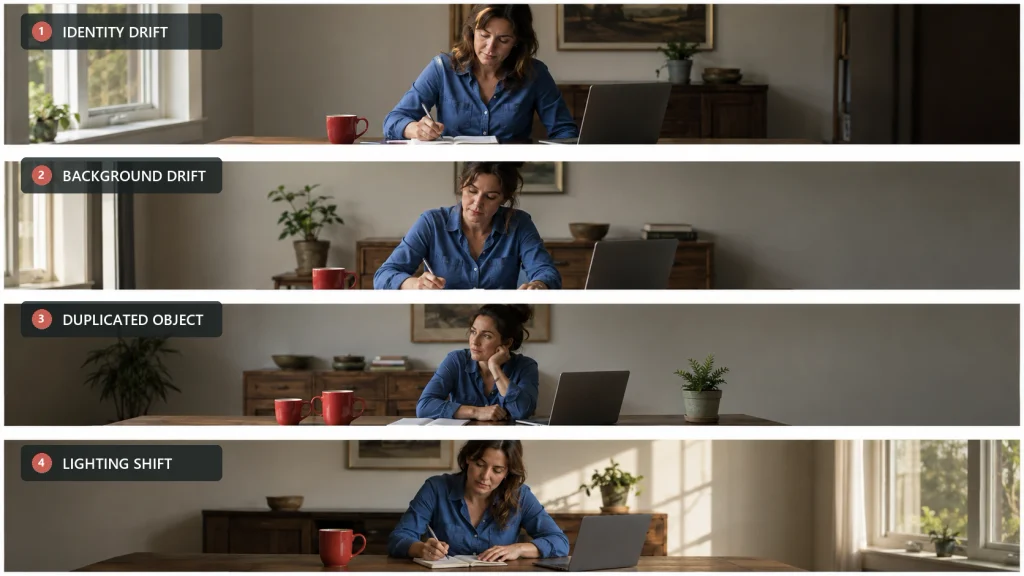
Once you know the level, the next move becomes much easier.
12 Common AI Video Mistakes and How to Fix Them
1. Writing a vague prompt
What it looks like: The subject is technically present, but the framing, action, pacing, or mood feels generic. The clip may be attractive while still missing the actual purpose of the shot.
Why it happens: A request such as “a woman drinking coffee in a cinematic cafe” leaves too many decisions open. Which shot size? Is the camera static? What does the woman do first? Where is the light coming from? How quickly does the action happen?
Fix it: Build the prompt from subject, action, location, shot type, camera behavior, lighting, pacing, and style. Adobe’s official video prompt guidance uses a similar structure: shot type, character, action, location, and aesthetic. Our Formule de l'invite Kling 3.0 shows how to turn those ingredients into a working prompt.
Best response: Rewrite before regenerating. Editing cannot recover an intention that was never defined.
2. Packing too many actions into one shot
What it looks like: The character skips a step, merges two gestures, changes position suddenly, or completes the action in an unnatural order.
Why it happens: A short clip has limited time to represent every instruction. “She enters, sits down, opens a laptop, looks surprised, answers a call, and turns toward the window” is a scene plan disguised as one shot.
Fix it: Divide the sequence into separate shots. Give each generation one dominant action: enter, sit, open, react, or turn. Define the starting state and ending state so the model does not have to invent the transitions between six events.
Adobe also notes that more than four subjects can confuse Firefly. That limit is product-specific, but the broader lesson travels well: reduce simultaneous subjects and actions until the intended event is unmistakable.
Best response: Rewrite the shot list, then regenerate shorter clips.
3. Giving the camera conflicting instructions
What it looks like: The frame zooms and pans at the same time, the subject drifts out of view, or a supposedly static shot starts floating around the scene.
Why it happens: Creators often stack cinematic vocabulary without checking whether the instructions describe one possible camera move. “Static handheld tracking shot with a rapid dolly zoom” sounds dramatic, but it asks the camera to behave in incompatible ways.
Fix it: Choose one primary move and describe its speed and destination. For example: “Medium shot. The camera slowly dollies forward from waist-up framing to a close-up while the subject remains centered.” Google’s official video generation prompt guide separates camera angle, camera movement, lens effects, lighting, action, and temporal elements, which makes contradictions easier to spot. The AI camera movement guide provides practical wording for common moves.
Best response: Rewrite and regenerate. Stabilization can reduce small shakes, but it cannot turn an incoherent camera path into deliberate direction.
4. Using a weak or mismatched reference image
What it looks like: Hands distort when they leave the body, clothing changes shape, the background expands unpredictably, or the motion fights the original pose.
Why it happens: Image-to-video starts with composition already locked. A tightly cropped portrait is a poor foundation for full-body walking. Hidden hands give the model nothing reliable to animate. Busy backgrounds increase the number of details that must stay stable.
Fix it: Use a sharp source with visible anatomy, clear subject-background separation, enough room in the direction of movement, and a pose close to the intended first frame. Before generating, decide whether text-to-video or image-to-video gives you the right level of control. This image-to-video workflow for creators explains how the source frame shapes the result.
The available controls vary by product. Google’s official image-to-video documentation, for example, treats the uploaded image as the initial frame rather than a loose mood reference. Check how your chosen tool interprets its input before judging the output.
Best response: Replace or reframe the reference first. Repeating the same unsuitable input usually repeats the same class of error.
5. Ignoring character and object continuity
What it looks like: A face changes between shots, sleeves switch color, a cup moves to the other hand, or background objects disappear.
Why it happens: Each new generation can reinterpret unspecified details. Names such as “the same woman” are not a complete visual specification, especially when the model receives a different crop or a new angle.
Fix it: Create a continuity sheet before generating the sequence. Record the character’s face, hair, wardrobe, accessories, important props, color palette, environment, light direction, and camera height. Reuse the same reference set and keep stable descriptors unchanged. The principles in this character consistency guide are useful even when you work in another video tool.
Best response: Regenerate the broken shot with the reference and continuity details restored. Minor color drift may be editable; identity drift usually is not.
6. Asking for physically impossible motion
What it looks like: Feet slide, fingers melt into an object, a prop teleports, or the subject arrives at the final pose without completing the action.
Why it happens: Natural-language prompts often describe only the desired endpoint. The missing contact and transition states must then be invented by the model.
Fix it: Write motion as a sequence of states: start, approach, contact, movement, and end. Instead of “she picks up the red mug,” try “Her right hand begins beside the mug, reaches toward the handle, closes around it, lifts the mug smoothly to chest height, and stops.” Keep the camera static while validating difficult hand-object contact.
When a tool supports explicit start and end images, that can provide stronger boundary conditions for a controlled transition. Google’s first-and-last-frame workflow is one documented example.
Best response: Simplify and regenerate. Frame interpolation or speed changes can smooth a usable action, but they cannot repair missing physical logic.
7. Over-stylizing before the motion works
What it looks like: Individual frames look impressive, yet the subject flickers, the action is hard to read, or every moment introduces new texture and lighting changes.
Why it happens: Style words compete with action, composition, and continuity for control. A dense combination of film stock, fantasy particles, lens effects, complex weather, and rapid movement makes diagnosis almost impossible.
Fix it: Run a plain motion pass first. Lock the shot size, subject, action, camera, and light. Once that version behaves, add one style layer at a time. Google’s video generation best practices reinforce a component-based workflow rather than relying on an uncontrolled pile of adjectives.
Best response: Remove style modifiers and regenerate a clean baseline.
8. Ignoring lighting direction and scene logic
What it looks like: Shadows reverse direction, the exposure flickers, the weather changes, or the subject appears pasted into the environment.
Why it happens: “Cinematic lighting” describes a quality, not a stable setup. Without a defined source and direction, the model can reinterpret illumination while the camera or subject moves.
Fix it: State the source, direction, softness, color, and time context. “Soft morning window light from camera-left with a cool, dim room behind the subject” is easier to preserve than “beautiful dramatic light.” Keep the same lighting phrase across every shot in the scene.
Best response: Regenerate major lighting changes. Small exposure or color differences can often be matched during grading.
9. Treating dialogue, audio, and lip sync as an afterthought
What it looks like: Mouth movement misses the words, dialogue pacing feels rushed, background sound overpowers the voice, or the character speaks before turning toward the listener.
Why it happens: Dialogue adds another timeline that must agree with motion and camera direction. Long sentences leave less room for pauses, reactions, and natural facial movement.
Fix it: Keep each spoken line short, name the speaker, separate dialogue from ambient sound, and specify when speech begins. Google’s prompt guide recommends describing audio in a separate sentence. For a deeper workflow, use the Guide sur les dialogues, l'audio et la synchronisation labiale.
Best response: Regenerate when facial performance is structurally wrong. Edit or replace audio when the visual take works but timing, volume, or music does not.
10. Generating exact text and brand details inside moving footage
What it looks like: Product labels mutate, a logo changes proportions, or a title is spelled differently from one frame to the next.
Why it happens: Moving typography and small brand details demand both exact shapes and temporal consistency. Even when one frame is correct, later frames may reinterpret the letters.
Fix it: Generate the plate without critical text, then add the approved logo, packaging, lower third, or call to action in the editor. If the logo must exist physically in the scene, keep it large, front-facing, minimally occluded, and inspect every frame. A dedicated brand-logo video workflow can help you decide which details belong in generation and which belong in post-production.
Best response: Edit exact text whenever possible. Regenerate only when the branded object itself is unusable.
11. Creating the wrong aspect ratio, duration, or safe area
What it looks like: A vertical crop cuts off hands, captions cover the product, the subject sits under app controls, or the clip is too short for the voiceover.
Why it happens: The destination was chosen after generation. Reframing a completed shot cannot always recover pixels or space that never existed.
Fix it: Decide the platform, orientation, duration, caption zone, and focal point before writing the prompt. Keep important faces, products, and gestures away from the edges. For multi-platform campaigns, generate a composition with enough breathing room or create dedicated versions rather than relying on one automatic crop.
Best response: Edit when a crop preserves the message. Regenerate when the destination format removes essential action or information.
12. Publishing the first acceptable generation
What it looks like: A small continuity error, odd background face, audio click, rights issue, or misspelled label reaches the audience because the clip felt “good enough” at normal speed.
Why it happens: Novelty hides defects. After several attempts, creators also become familiar with the intended scene and stop seeing what a first-time viewer will notice.
Fix it: Review the export in three passes: at normal speed for story, frame by frame for visual continuity, and muted for composition and captions. Then listen without watching to catch dialogue and sound problems. Review the actual mobile or desktop destination, not just the editing monitor.
Before commercial publication, also check the terms for the specific service and plan you used. Tool access does not automatically answer every rights question; this Kling AI commercial-use guide shows the kinds of plan, content, and licensing details worth checking.
Best response: Edit small defects, regenerate structural ones, and hold publication until both visual and usage checks pass.
5 AI Video Generators Worth Considering
No generator prevents every AI video mistake. The useful choice is the one that fits the shot you are making, the controls you need, and the number of separate tools you want to manage. The prices below are the US prices or billing examples shown on official product pages on September 6, 2026; offers, taxes, credits, and regional availability can change.
| Outil | Meilleur pour | Starting price or billing basis |
|---|---|---|
| GlobalGPT | Keeping research, image creation, and multiple video models in one workspace | Model-dependent; Agnes Video 2.0 is listed at about $0.007 per second |
| Défilé | Generation plus a broader creative production workflow | Free tier; Standard starts at $12/month billed annually |
| Adobe Firefly | Creators already working in the Adobe ecosystem | Firefly Standard is $9.99/month with 2,000 monthly credits |
| Kling AI | Controlled cinematic motion and multi-scene generation | Consumer pricing is shown after entering the product and can vary by account or region |
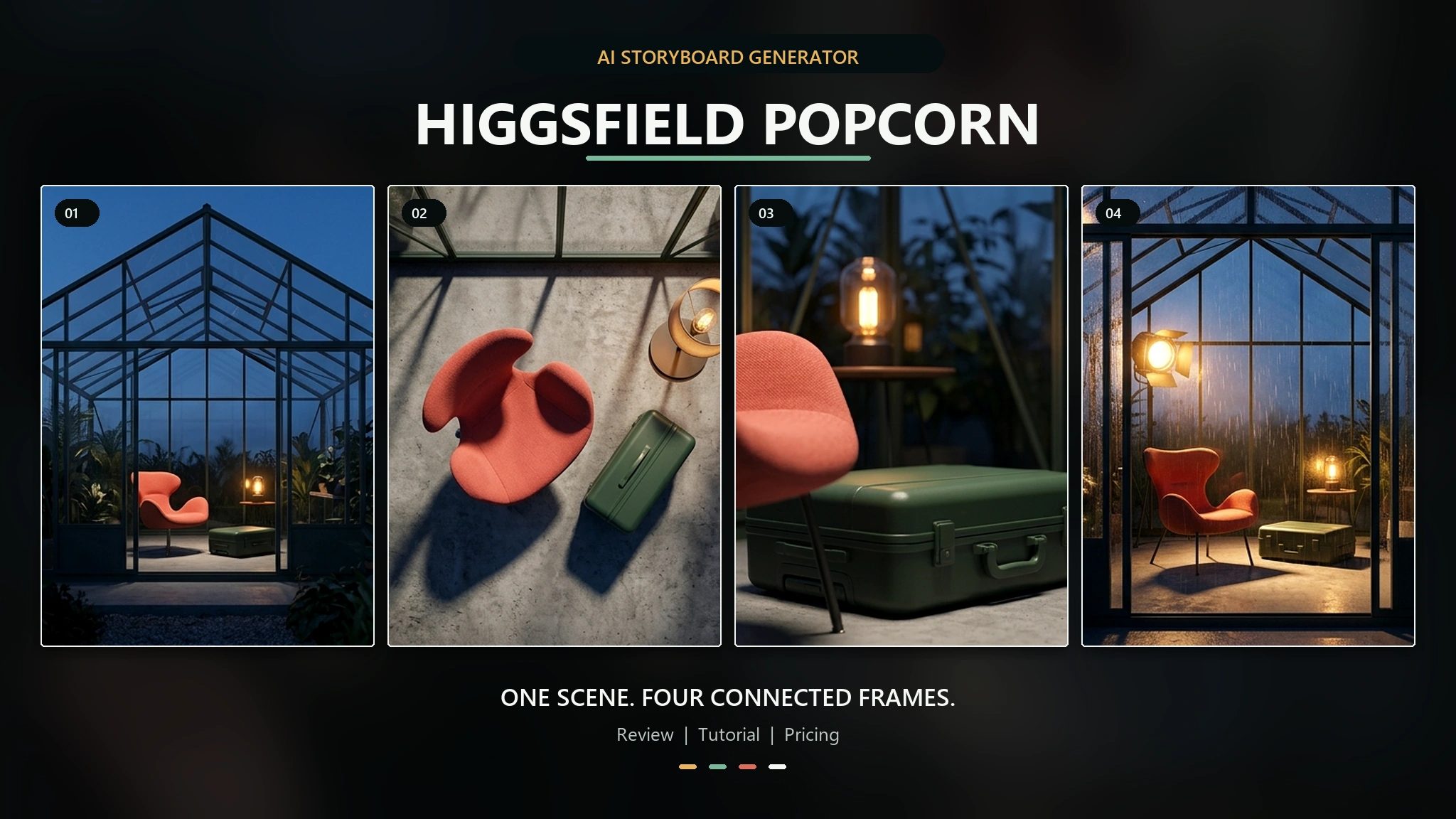
| Higgsfield | Camera-led social, advertising, and stylized video concepts | Starter is $19/month billed annually with 270 credits |
1. GlobalGPT: best for an all-in-one AI workflow
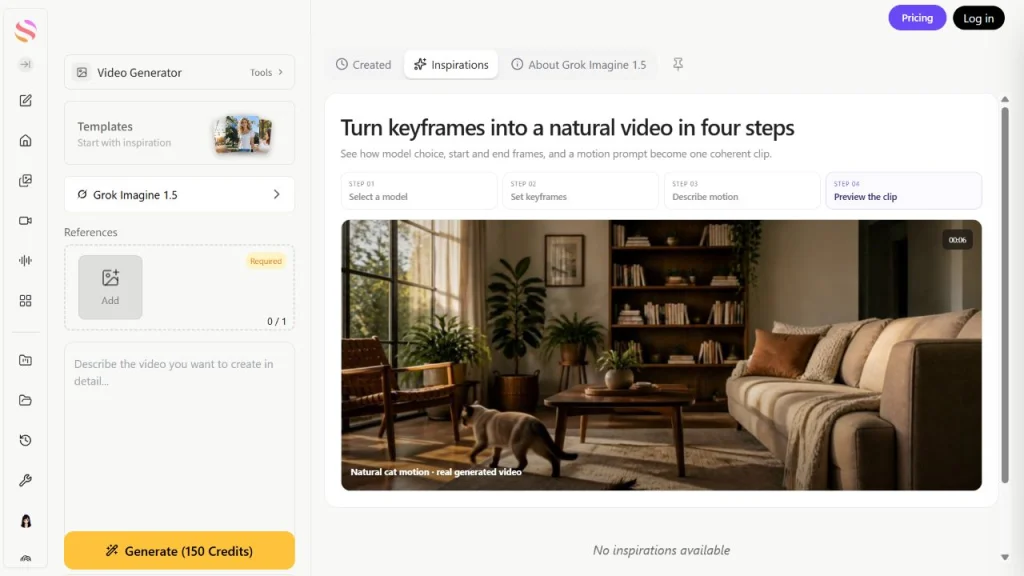
GlobalGPT makes the most sense when video is only one stage of the job. You can develop the brief with chat and research tools, create a reference image, and then move into supported video models without maintaining a separate account for every step.
- Prix : Billing depends on the selected model. The official Espace de travail GlobalGPT lists examples such as Agnes Video 2.0 at about $0.007 per second and Agnes Video 2.5 at about $0.035 per second.
- Caractéristiques principales : One account for supported chat, research, image, audio, and video tools; the current video lineup includes options from families such as Seedance, Kling, Wan, Runway, and other models.
- La force : You can keep the planning and asset-creation stages together while choosing a video model that suits the shot.
- Principale limite : Controls, speed, and cost differ by model, so changing models does not remove the need to check the settings and output carefully.
- Choisissez-le si : You want broader AI coverage without juggling several provider subscriptions and logins.
2. Runway: best for an integrated production workspace
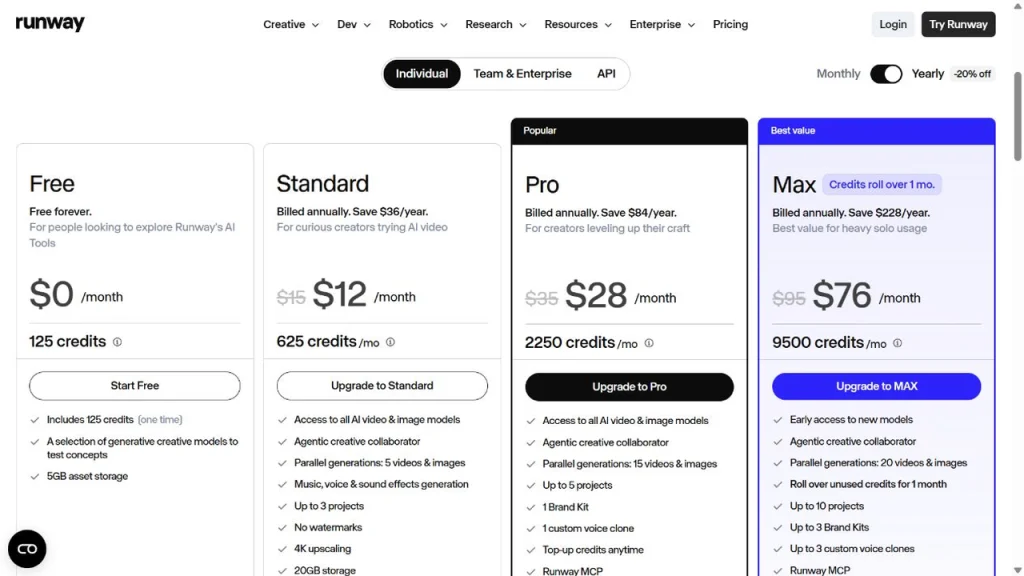
Runway is a strong fit for creators who want generation, iteration, and finishing tools in the same production environment. Its model menu also makes it useful when one visual treatment does not suit every shot.
- Prix : L'officiel Runway pricing page lists a free tier with 125 one-time credits. Standard starts at $12 per month billed annually and includes 625 monthly credits.
- Caractéristiques principales : Access to video and image models, five parallel generations on Standard, no-watermark exports, 4K upscaling, and built-in music, voice, and sound-effect tools.
- La force : A broader creation environment is useful when a generated clip still needs iteration or finishing.
- Principale limite : Premium video models consume credits quickly; Runway lists Gen-4.5 at 60 credits for five seconds on its Standard comparison.
- Choisissez-le si : You want a mature creative workspace and expect to do more than generate a single clip.
3. Adobe Firefly: best for Adobe-centered creative teams

Firefly is the practical choice when your images, graphics, and final edit already move through Adobe apps. It combines Adobe’s own generative features with access to selected partner models, reducing the friction between generation and post-production.
- Prix : Adobe’s official Firefly plan comparison lists Standard at $9.99 per month with 2,000 monthly generative credits.
- Caractéristiques principales : Text to Video, image and audio generation, Generate Speech, and access to models from Adobe and other providers.
- La force : It fits naturally into an existing Adobe workflow, especially when exact text, graphics, or color finishing should happen after generation.
- Principale limite : Premium video features use generative credits, and partner-model access differs by plan.
- Choisissez-le si : Your team already relies on Adobe software and wants generation close to the editing stage.
4. Kling AI: best for controlled cinematic motion
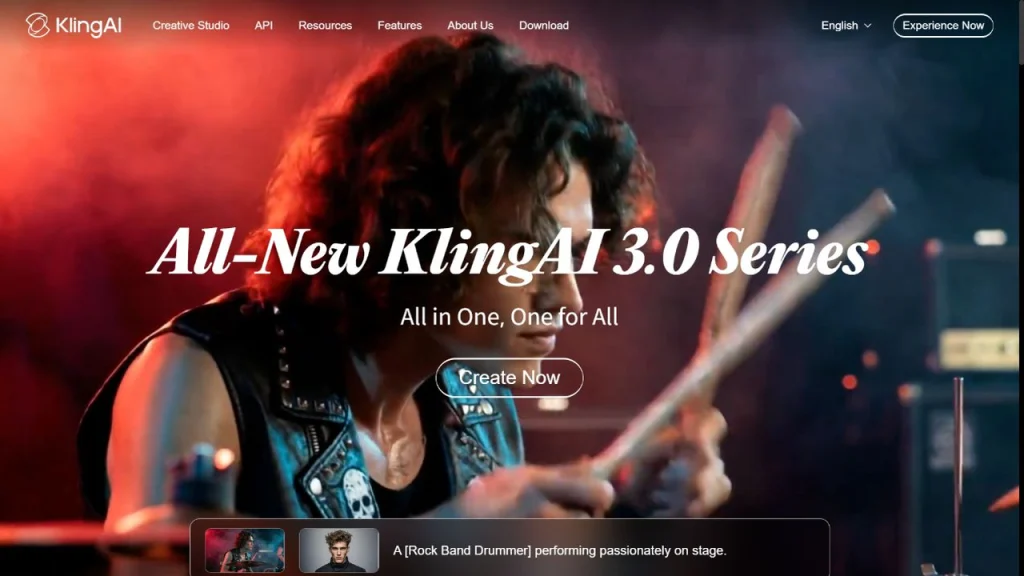
Kling AI is worth considering when camera behavior, visual identity, and transitions are central to the shot. The current Kling 3.0 series is positioned around multimodal instruction parsing, multi-scene control, and native audio.
- Prix : The public Kling AI product page does not expose a stable consumer amount before entering the product; check the membership screen for the price and credits available to your account and region.
- Caractéristiques principales : Multimodal instruction parsing, long-form storyboard control, multi-scene transitions, visual identity and vocal-tone binding, and native audio in the 3.0 series.
- La force : It gives directors more room to describe camera movement and maintain an audiovisual idea across connected shots.
- Principale limite : More controls also create more opportunities for conflicting instructions, so a disciplined shot brief still matters.
- Choisissez-le si : Your priority is cinematic movement, continuity, or a sequence that needs more than one visual beat.
5. Higgsfield: best for camera-led marketing concepts
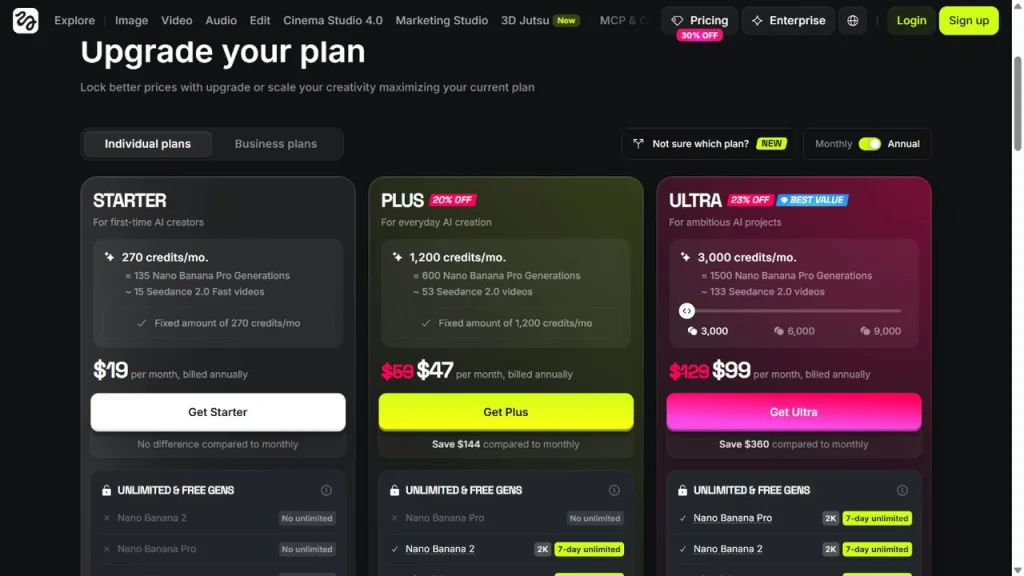
Higgsfield is aimed at creators who want expressive camera language, social formats, product concepts, and advertising workflows. Its product includes dedicated video, Cinema Studio, Marketing Studio, presets, and access to multiple generation models.
- Prix : L'officiel Higgsfield pricing page lists Starter at $19 per month billed annually with 270 monthly credits.
- Caractéristiques principales : AI video generation, camera-focused Cinema Studio 4.0, Marketing Studio, viral presets, and model choices that include Kling and Seedance options on eligible plans.
- La force : Preset-led ideation can speed up short-form ads and highly directed social visuals.
- Principale limite : Model access, resolution, and credit use vary by plan; some unlimited offers also have specific time or access conditions.
- Choisissez-le si : You want stylized movement or marketing-oriented starting points more than a general-purpose editing suite.
Simple choice guide: Start with GlobalGPT when you want one workspace and several supported model families, Runway when production tooling matters, Firefly when Adobe integration matters, Kling when controlled cinematic motion is the priority, and Higgsfield when camera presets and marketing concepts are the main attraction. Whichever tool you choose, run the same short test shot before committing credits to a full sequence.
Should You Rewrite the Prompt, Regenerate, Switch Models, or Edit?
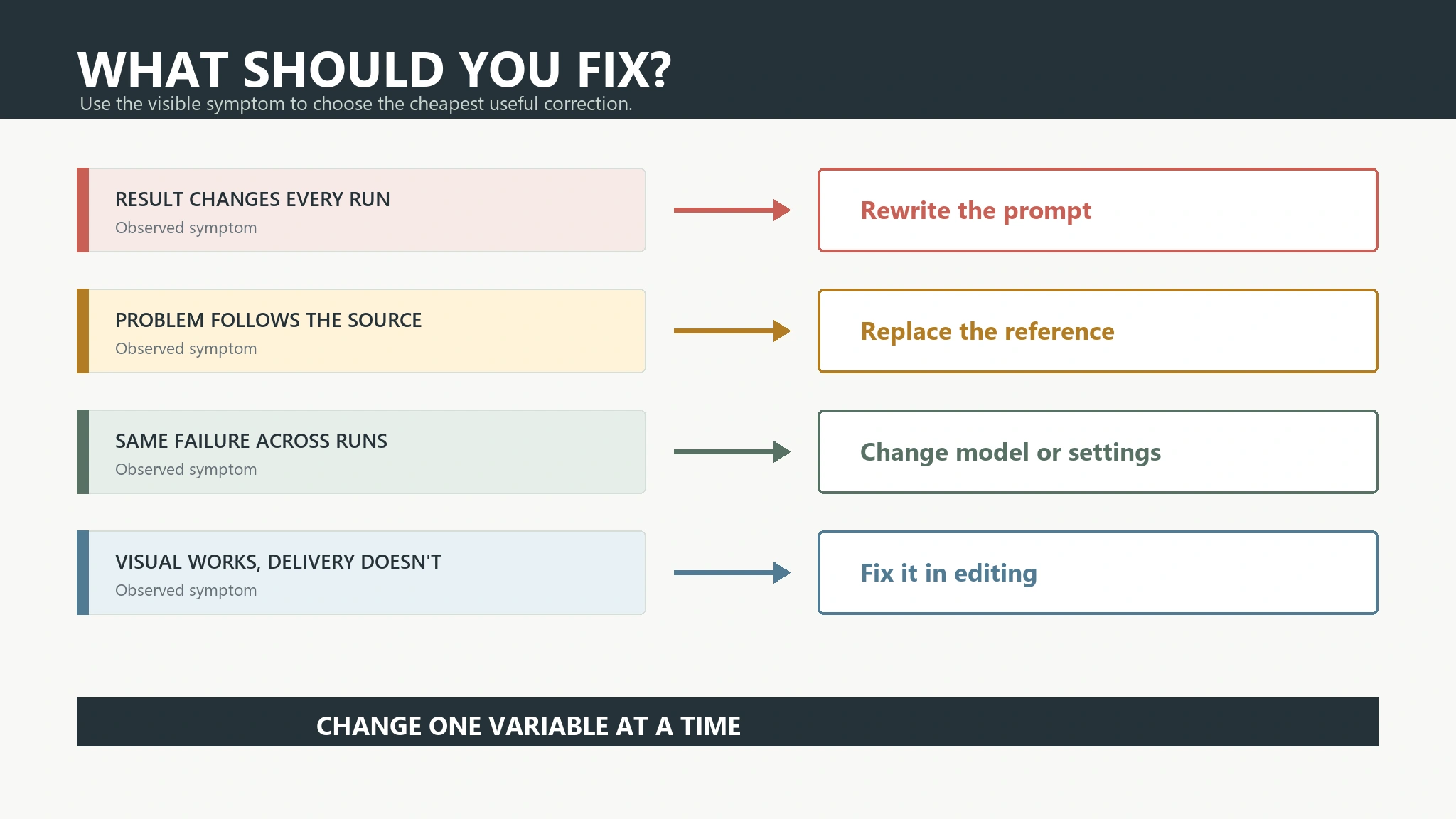
The visible symptom usually points to the cheapest useful intervention. Do not pay for another generation when the core shot already works, and do not spend an hour editing footage whose identity or motion is fundamentally broken.
| Problème visible | Cause probable | La meilleure marche à suivre |
|---|---|---|
| Wrong subject, action, mood, or framing | Unclear or conflicting brief | Rewrite the prompt |
| Distorted anatomy or motion that fights the pose | Weak reference or overly complex movement | Replace the reference or simplify, then regenerate |
| Face, clothing, props, or background drift | Missing continuity controls | Restore references and continuity details, then regenerate |
| The same failure persists across careful attempts | Capability mismatch | Switch models or workflows |
| Good shot with weak timing, crop, captions, or audio balance | Finishing problem | Edit the existing clip |
| Useful footage needs controlled transformation | The source is stronger than a fresh generation | Use an Flux de travail vidéo-vidéo basé sur l'IA |
A useful rule is simple: regenerate the structure, edit the finish. Identity, anatomy, physical contact, and major camera errors are structural. Timing trims, reframing, captions, exact typography, color matching, and sound balance usually belong in post-production.
Some generation platforms also provide prompt-based editing for an existing clip. If your tool supports that route, read its constraints before uploading source footage; Google’s video editing documentation is one official example of how an edit workflow can differ from a fresh generation.
A Better AI Video Workflow
Step 1: Define the audience, platform, and single message
Write one sentence that states who will watch, where they will watch, and what they should understand or do. This decision controls format, pacing, framing, and whether dialogue is even necessary.
Step 2: Turn the idea into a shot list
Break the concept into short shots rather than one giant prompt. Give every shot a purpose, starting state, main action, ending state, and estimated duration.
Step 3: Prepare a stable reference and continuity sheet
Collect the approved character, wardrobe, product, environment, palette, and light direction. Keep the same reference order and wording wherever the tool allows it.
Step 4: Write one controlled prompt per shot
Use the same fields each time: subject, action, location, shot size, camera, light, pace, and style. Change only what needs to change between shots.
Step 5: Generate short test shots before longer scenes
Validate the hardest interaction first. If the entire scene depends on a hand lifting a product, test that action before generating the opening, cutaways, and final reveal.
Step 6: Review motion and continuity before styling
Check face, hands, props, background, light, and camera path. A clean baseline makes it obvious whether the next style change improves the clip or introduces drift.
Step 7: Add exact text, branding, audio, and captions in post-production
Keep editable elements editable. Use the video model for the visual plate and a timeline-based editor for approved text, brand assets, precise timing, and final sound balance.
Step 8: Export and inspect on the destination device
Watch the final file where the audience will see it. Check crop, caption size, app overlays, compression, audio level, and the first frame before publishing.
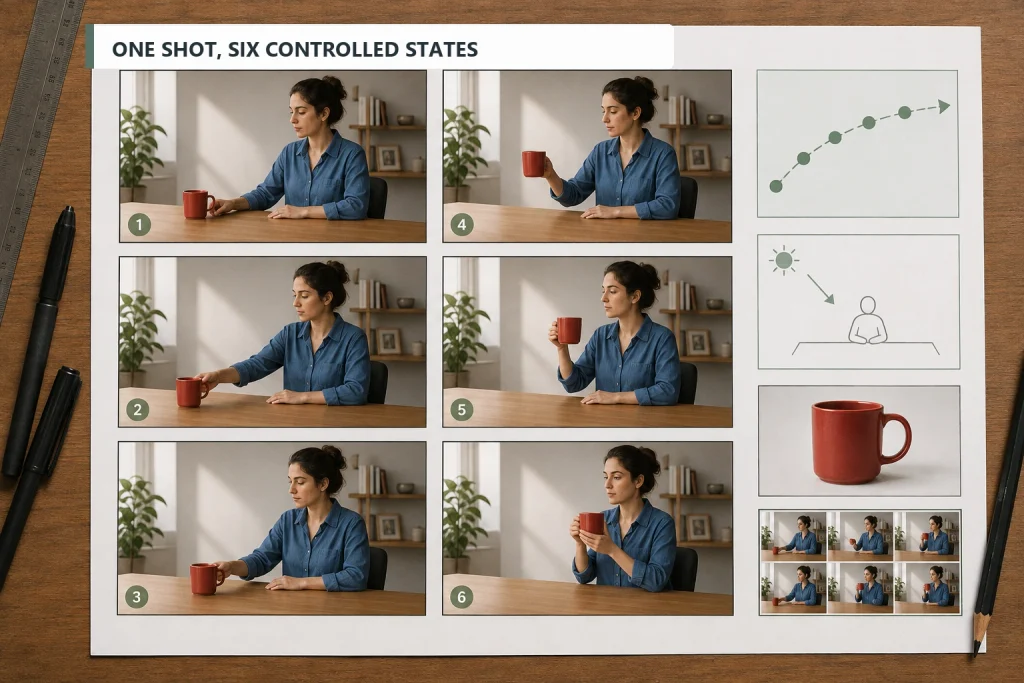
If your workflow already spans separate chat, research, image, and video subscriptions, GlobalGPT offers an all-in-one workspace for accessing multiple supported AI capabilities through one account. The practical benefit is less subscription and tab switching while you move from brief to reference image to video draft. It does not remove the need for a clear shot plan or final quality control.
AI Video Pre-Generation and Pre-Publish Checklist
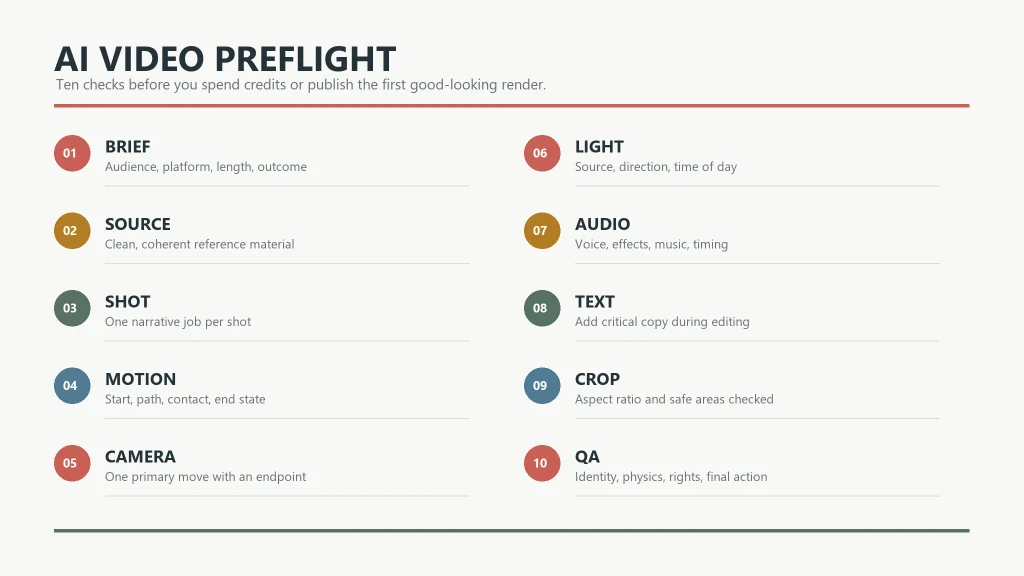
Use this ten-point check before spending credits and again before the finished clip goes live.
Before generation
- Résumé : The audience, platform, and one intended message are clear.
- Source : The reference image supports the pose, framing, and movement.
- Shot: One generation contains one main action.
- Motion : The start, contact, movement, and end states make physical sense.
- Camera and light: One camera move and one stable lighting setup are defined.
Before publishing
- Continuité : Face, hands, wardrobe, props, background, and shadows remain stable.
- Audio : Dialogue, lip sync, ambience, music, and volume work together.
- Text and brand: Every word, logo, product detail, and call to action is exact.
- Format and rights: Crop, duration, safe areas, disclosure, and usage terms are checked.
- Final QA: The export passes normal-speed, frame-by-frame, muted, audio-only, and destination-device review.
Safety and usage rules vary by provider and can change. Google’s official Responsible AI and usage guidance for video generation is one example of the provider-level checks that belong in a real publishing workflow.
Questions fréquemment posées
What are the most common AI video mistakes?
The most common AI video mistakes are vague prompts, overloaded actions, conflicting camera directions, weak reference images, continuity drift, impossible motion, unstable lighting, poor audio planning, generated text errors, wrong output formats, and skipped final review. Most can be prevented by planning one controlled shot at a time.
Why do AI-generated videos change faces and objects?
Faces and objects change because the model must reinterpret their appearance across moving frames and separate generations. Unspecified details, new angles, weak references, and changing prompt language increase that drift. Reuse a stable reference set, continuity sheet, and unchanged visual descriptors for every shot in the sequence.
How can I make AI video motion look more natural?
Describe one main action as ordered physical states: starting pose, approach, contact, movement, and final pose. Keep the camera simple while testing difficult motion, especially hands touching objects. If the action still breaks, shorten the shot or split it into separate generations rather than adding more instructions.
Should I use text-to-video or image-to-video for consistency?
Use image-to-video when the exact subject, product, costume, or composition matters. Use text-to-video when you need more freedom to invent the scene and can accept variation. A poor reference can make image-to-video less reliable, so choose a source frame that already supports the intended movement and crop.
Is it better to regenerate a bad AI video or fix it in editing?
Regenerate when identity, anatomy, physical contact, scene logic, or camera movement is fundamentally wrong. Edit when the core shot works and the remaining problems involve timing, crop, captions, exact text, color matching, or sound balance. Repeated structural failures may mean the model is a poor fit for that shot.
How long should an AI video prompt be?
An AI video prompt should be long enough to define the subject, action, location, framing, camera, lighting, pace, and style without repeating itself. There is no universal ideal length. A concise, structured prompt is usually easier to debug than a long paragraph full of conflicting adjectives and multiple events.
Final Takeaway: Fix the Cause, Not Just the Frame
The fastest way to reduce AI video mistakes is to stop treating every bad result as the same prompting problem. Diagnose the layer first. Rewrite an unclear brief, replace an unsuitable reference, regenerate broken identity or motion, switch models when the capability is wrong, and edit the parts that belong in post-production.
For your next clip, start with one action, one camera direction, and one stable visual reference. Then run the ten-point checklist before publishing. That small amount of control is cheaper and faster than hoping the next random generation will solve everything at once.