How to Use Perplexity on iPhone: App, Safari and Voice
A practical iPhone guide to the official Perplexity app, Safari, voice shortcuts, source checking and cross-device account troubleshooting.
Quick Answer
To use Perplexity on iPhone, install the official Perplexity app from the App Store, sign in, and ask a question in Search. You can also open perplexity.ai in Safari. As of November 20, 2026, the current app requires iOS 18 or later; Perplexity’s supported-browser page separately lists Safari on iOS 17 or later.
Choose the app for its native voice assistant and shortcut options. Choose the browser when you want to get started without installing another app. In either case, open the cited sources before relying on an answer, and use the same Perplexity account when moving between your phone and computer.
If your research also needs to become an email, article, presentation outline or image brief, Perplexity on GlobalGPT fits into a broader AI workspace with writing, image and video tools. Start with a focused search, keep the useful sources, and turn the findings into your next deliverable in the same dashboard.
App or Safari: which route should you use?
The important choice is how you want to access the service, rather than which iPhone name is printed on the box. Check the software version first in Settings → General → About. The requirements for installing the native app and opening the website are different.
| Route | Current requirement or setup | Best starting point |
|---|---|---|
| Official iPhone app | iOS 18 or later; download from the App Store | Regular use, native voice and shortcut setup |
| Official website in Safari | Perplexity lists Safari on iOS 17 or later | Browser access without an app download |
| GlobalGPT in your browser | Open its Perplexity workspace and sign in to GlobalGPT | Research followed by writing or other AI work |
These are separate services and account contexts. Signing in to GlobalGPT does not mean you have signed in to the native Perplexity app. Keep the account name in mind when looking for saved work or a paid subscription. A web shortcut on your Home Screen is also different from installing the App Store application.
Requirements were checked against the official App Store listing, Perplexity’s iOS support notice and its supported-browser page. If the App Store says your device is incompatible, check Software Update instead of looking for an unofficial download. An older installed app may eventually require an update before it works again.
How to install the official Perplexity iPhone app
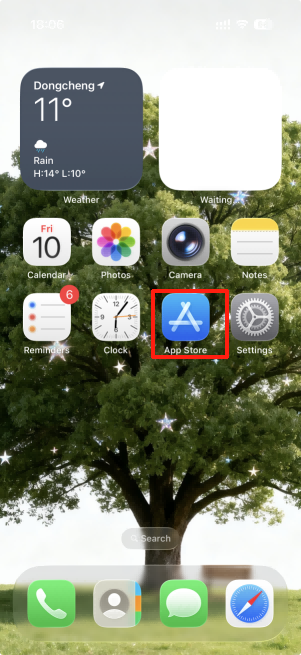
Open the App Store. Search for Perplexity or follow the official listing above. Check that the developer is Perplexity AI, Inc. App names and promotional screenshots change, so use the developer identity rather than a familiar-looking icon alone.
Check compatibility and download. Tap Get, or the download icon if you installed it before. Confirm the normal Apple download prompt. “Free · In-App Purchases” means installation is free and optional paid purchases exist; it does not mean you must buy a plan to begin.
Open the app and choose your account. Use your existing sign-in method if you already use Perplexity on another device. Creating a second account is a common reason saved sessions or a subscription appear to be missing.
Start with a text question. Ask one specific question and read the result. You can add microphone access later when you actually want voice; there is no need to grant every permission just to try a typed search.
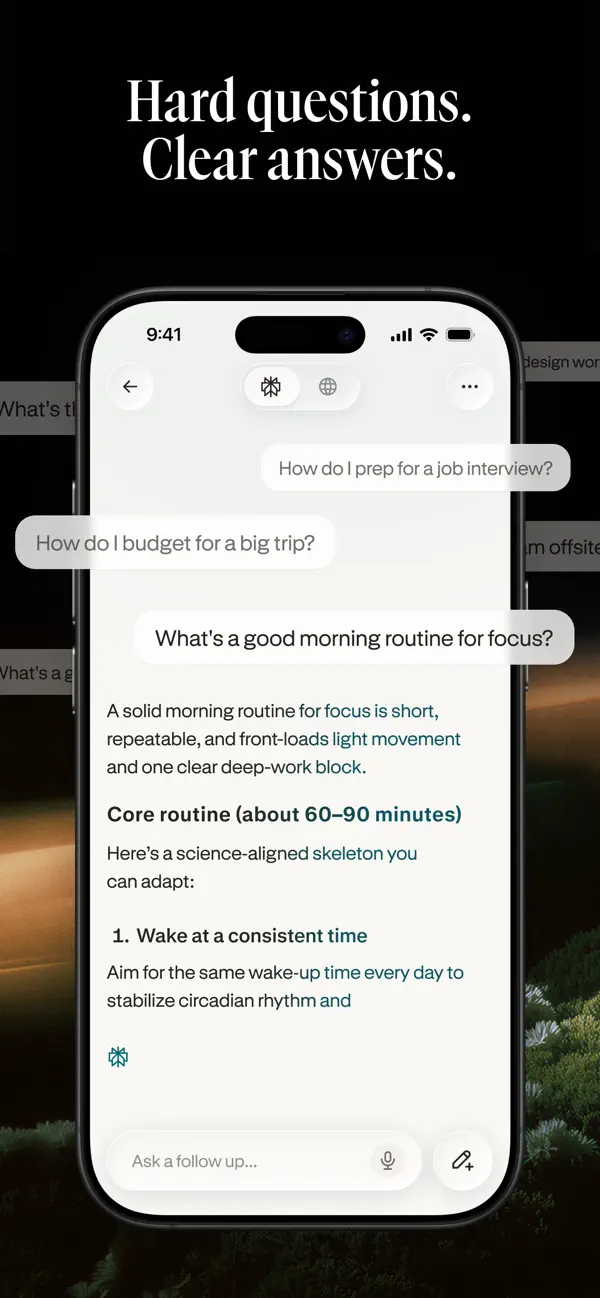
The current US listing is titled Perplexity: AI Agent & Search. Labels can vary by storefront and language. If you see a result advertising a different developer, return to the official listing before installing. Avoid treating a search suggestion, sponsored result or third-party directory as proof that you have found the right app.
Ask a useful first question and check the sources
Perplexity combines an answer with links to supporting material. The most useful mobile habit is to separate three actions: ask a focused question, inspect a source, then follow up within the same conversation. For the general difference from a conventional results page, see our guide to Perplexity versus traditional search.
1. Give the question a clear scope
Include the thing you are deciding, the relevant place or date, and the output you need. “Find information about phones” is difficult to act on. “Compare these two phones for battery life and camera use, cite the manufacturers, and separate measured results from advertised claims” gives the search a purpose.
Using only Apple Support as your source, how do I add a website to my iPhone Home Screen? Give the steps and link the source.
2. Open a citation before copying the answer
Tap a numbered citation or source card, then check whether the page actually supports the sentence you care about. Look for the publisher, the date and the relevant passage. A link can be real while the summary is too broad, out of date or based on a different product version.
For a shopping decision, confirm the final price with the seller. For travel, confirm opening hours on the venue’s own website. If an answer gives several claims, check the important ones individually rather than assuming one citation proves the whole paragraph. This takes a little longer than reading the summary and often saves a second search.
3. Ask a follow-up in the same session
Keep the thread open and narrow the request: ask for fewer options, a simpler explanation, a different source type or an explicit uncertainty. Start a new session when changing topics completely. That keeps a packing list, a work research question and an account problem from being mixed into one conversation.
Which step changes if Safari uses the Top or Bottom tabs layout? Keep the answer under 80 words.
Search and deeper research are different workloads. Perplexity’s current Pro guide says Pro Search is applied automatically to appropriate Search tasks within the plan’s limits; an old tutorial’s separate “Pro” toggle may no longer match your screen. Use the modes actually shown in your app rather than searching indefinitely for an outdated control.
How to use Perplexity in Safari without installing the app
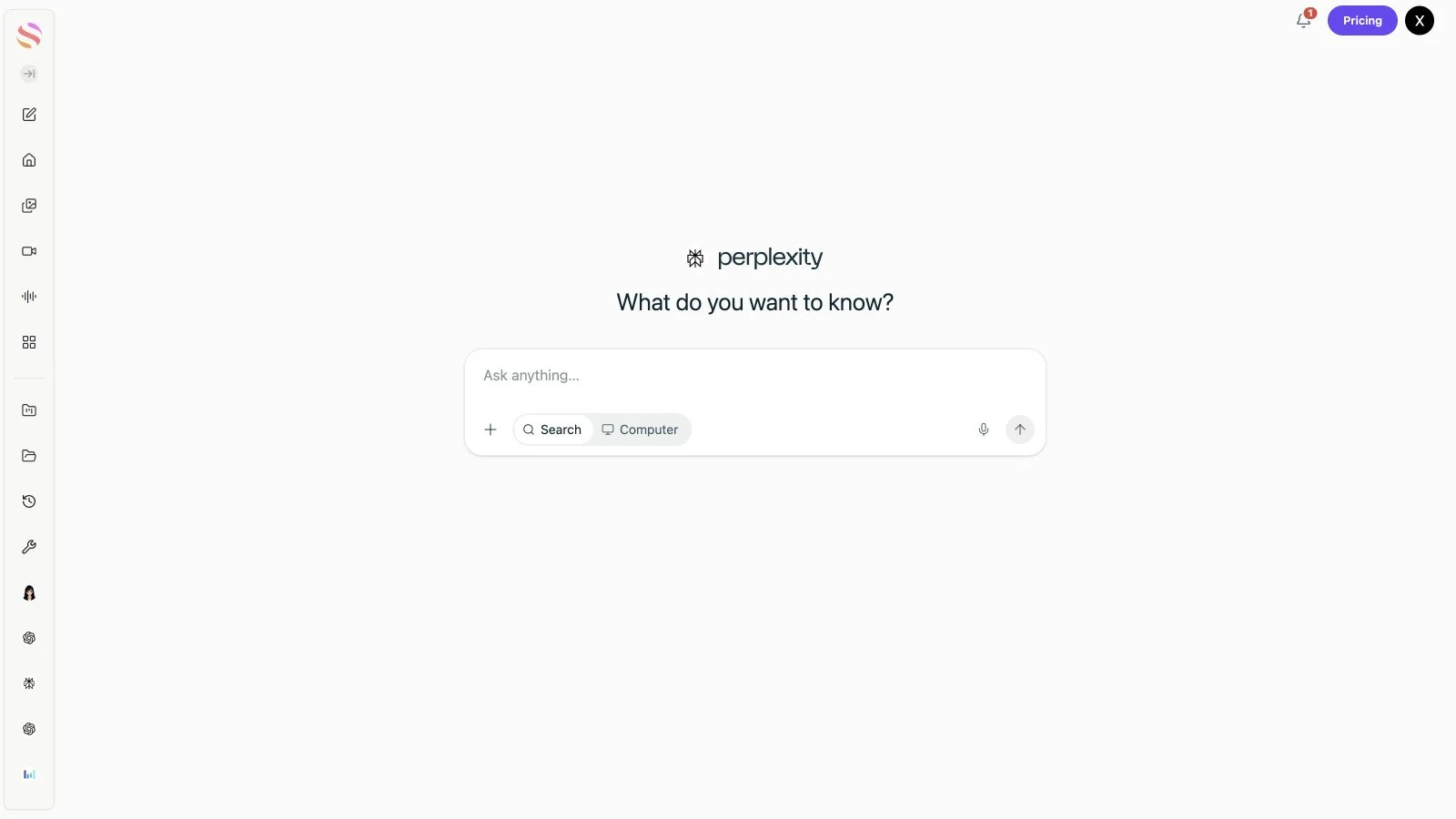
Open Safari and enter https://www.perplexity.ai/ in the address bar.
Check the hostname before signing in. A directory page describing Perplexity is not the service itself.
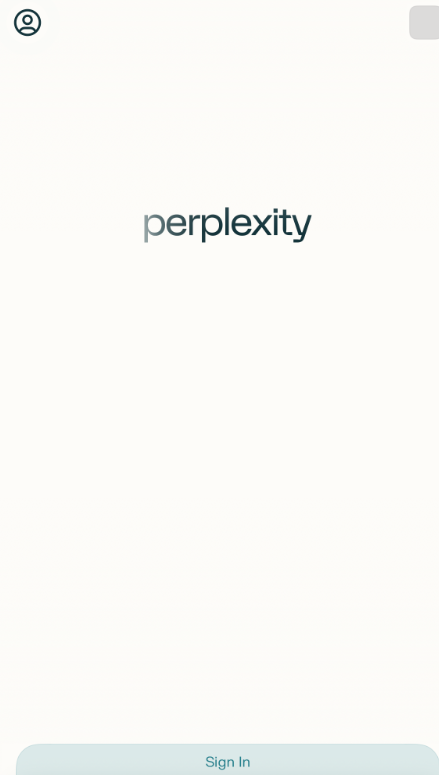
Sign in when prompted. Guest access and sign-in prompts can vary; do not assume a first question will always run without an account.
Enter a short question, read the answer and open its sources. Return to the same conversation for follow-ups.
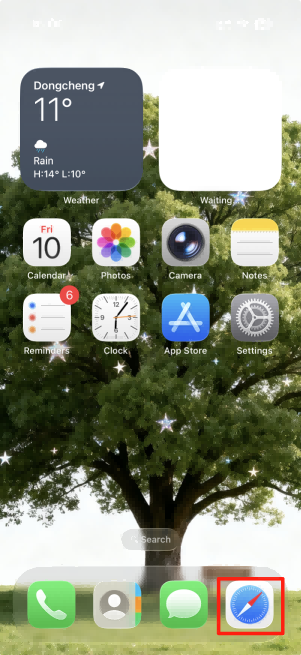
To make the site easier to reopen, use Safari’s Share menu and choose Add to Home Screen. On newer layouts, open the Page Menu first and then Share; a Top or Bottom tabs layout may show Share directly. If the action is missing, check Edit Actions. Apple’s Home Screen bookmark instructions explain the layout differences.
Give the shortcut a recognizable name before tapping Add. It adds an icon on that device; it does not transfer a subscription, create a new Perplexity account or turn Safari into the native voice assistant. Keep the app route if native shortcuts are the feature you actually want.
Use voice, Home Screen shortcuts and the Action Button
Perplexity’s official iOS voice guide describes starting a conversation through the voice icon in the input box. Update the app, enable microphone access when needed, and use the cog to change voice settings. Finished voice sessions are saved to session history.
To create a Home Screen shortcut, find Perplexity Voice Mode in Apple’s Shortcuts app, open its three-dot menu, then the arrow beside Start Voice Mode, and choose Add to Home Screen. For a supported iPhone with an Action Button, go to Settings → Action Button → Shortcut → Choose a Shortcut → Perplexity → Start voice conversation. Press and hold the button to launch it.
Lock Screen controls can also launch an app or shortcut through Customize → Lock Screen. The available controls depend on your iPhone and iOS version. An Action Button instruction applies only to hardware that has that button; a heading mentioning an old iOS version does not add the hardware to older phones.
Start with a spoken question you can verify, such as a recipe substitution or an explanation of a term. Check the transcript if a place name or number is misheard. A Shortcut launch is not the same as making Perplexity the system’s default assistant, and phone actions are not automatically identical across iOS and Android. Review any proposed message, booking or calendar action before confirming it.
How to sync Perplexity between iPhone and computer
Your sessions and projects belong to your Perplexity account. The official update notice says to sign in with the same account to recover them after updating. The practical check is account identity, not an extra “enable cloud syncing” switch.
Check the email address and sign-in method on your phone.
Use the same account on the computer or website.
Open the saved session from the history or library area. Navigation labels may change with app updates.
If it is missing, check whether the original session was anonymous or temporary, whether you used a different sign-in, and whether the device is online.
Apple sign-in can use a private relay address. Compare the account details rather than assuming that Apple, Google and an email login always lead to the same account. The official missing-plan troubleshooting guide similarly starts by checking the signed-in account.
Do not buy the subscription a second time simply because one device shows Free. First identify the account used for the original purchase and where you paid. If your work is in GlobalGPT, reopen it in GlobalGPT; do not expect the native Perplexity library to contain another platform’s conversation history.
Do you need Pro or Max on iPhone?
You can begin with the free Standard tier. Perplexity’s plan comparison distinguishes basic searches from higher limits and advanced tools. Decide after trying a representative task, rather than paying just to follow an installation tutorial.
| Option | Reason to consider it | Check before paying |
|---|---|---|
| Standard | Basic searches and learning the interface | Current limits for deeper searches and attachments |
| Pro | More research, uploads and advanced model access | Current offer, renewal term and features you will actually use |
| Max | Higher-volume advanced work and early features | Whether your workload needs those limits |
| GlobalGPT | Perplexity research alongside writing and other AI functions | The GlobalGPT plan or credits shown in its workspace |
Prices, currency, taxes and promotions depend on the billing channel and region. Read the purchase screen’s renewal amount and billing interval. This guide does not reuse an old promotional screenshot as a current quote. Perplexity subscriptions, GlobalGPT access and API billing are separate purchases.
If you subscribed through Apple, use Apple’s subscription management for that purchase; if you paid on the web, use the relevant web account. Perplexity’s iOS billing guide explains renewals and cancellation. Removing the app does not cancel a renewing subscription. For trial-specific questions, see our Perplexity free-trial guide and check the current offer’s conditions.
Turn an iPhone research question into a finished task
A quick search is often only the first step. You may need a plain-English explanation for a colleague, a source-backed outline for a post, or a brief for an image. In GlobalGPT’s Perplexity workspace, begin with Search, keep the useful findings, and carry the task into the platform’s writing or other AI tools.
Open the approved Perplexity entry and sign in to GlobalGPT.
Use the Search input for a focused question. State the required sources and output format.
Review the sources and correct the brief before asking for a polished deliverable.
Use the wider workspace for follow-on writing, image or video tasks when that is what the project needs.
For example, ask for a short, sourced comparison first, then ask a writing model to turn the checked findings into a 150-word explanation for a specific audience. Keep the source list with the draft. If the next task is an image rather than text, our Perplexity image-generation guide helps separate search from image work.
Troubleshooting: start with the symptom
| Problem | First checks |
|---|---|
| Cannot install or update | Check iOS 18+, free storage and the official App Store listing. |
| App asks for an update | Update both the app and supported iOS software; an old app can lose support. |
| Voice does not start | Check microphone access, the audio route and the app version. Try a typed question to separate voice from connectivity. |
| History or plan is missing | Compare account email and sign-in method across devices. Check the purchase account before paying again. |
| Website shows a sign-in prompt | Use the official hostname and the intended account. A guest session is not a reliable sync workflow. |
| Answer is wrong or unsupported | Open the source, narrow the request and ask what remains uncertain. Do not treat a confident summary as verification. |
If the app crashes, reopen it and check updates first. Before reinstalling or clearing website data, make sure you know your sign-in method and can recover your account. Those actions may remove local sessions or sign you out. An iPhone app does not necessarily have the same “clear cache” menu as an Android app.
When contacting support, provide the app version, iOS version, the exact error and whether it happens on Wi-Fi, cellular or both. Leave passwords, verification codes and private documents out of a public screenshot. A precise symptom is more useful than repeatedly reinstalling.
What we checked for this guide
On November 20, 2026, we checked the live App Store listing, current compatibility notice, official voice and billing guides, and the GlobalGPT Perplexity entry. The live listing identified Perplexity AI, Inc. and iOS 18+. The platform entry opened the English Search workspace.
In our public Perplexity web walkthrough, submitting the first text question brought up a sign-in prompt. We did not complete a native iPhone installation or a voice/Action Button test, and we did not score an answer that the signed-out session never returned. Native iOS steps above are based on the linked official instructions. The App Store example is a developer-provided screenshot; retained Home Screen pictures are older illustrations of where to find the apps.
The useful takeaway is to check access and account identity before assuming a missing feature is a model problem. Start with a typed question, confirm that the session works, and add voice or deeper research only when you need it.
FAQ
Can I use Perplexity on iPhone for free?
Yes. The official app is free to download and Perplexity offers a free Standard tier. Paid plans add access and higher limits; read the current purchase screen before subscribing.
Which iOS version does the app require?
As checked November 20, 2026, the native app requires iOS 18 or later. Perplexity separately lists Safari on iOS 17 or later for the web app.
Can I use Perplexity without downloading the app?
Yes. Open the genuine perplexity.ai website in a supported browser and sign in when prompted. You can add the website to your Home Screen through Safari’s Share menu.
Can Perplexity replace Siri as my default iPhone assistant?
An Action Button or Shortcuts launch is a quick way to open Perplexity. It is not the same as replacing every system-level Siri function. Hardware and available actions vary.
Why is my Perplexity history missing on another device?
Check that both devices use the same Perplexity account and sign-in method. Anonymous or temporary sessions and a different account can explain missing history.
Why can’t I see the Pro plan I paid for?
Check the signed-in Perplexity account and the original purchase channel first. For an Apple purchase, use the appropriate restore or subscription support path instead of buying a second plan.
Will deleting the app cancel a subscription?
No. Manage the subscription through the channel where you bought it, such as Apple subscription settings for an App Store purchase.
Is GlobalGPT access the same account as the native Perplexity app?
No. GlobalGPT is a separate workspace for Perplexity research and other AI tasks. Use the platform where you created the conversation or purchased access.
Final Verdict
For regular iPhone use, start with the official app on a supported iOS version. For a browser route, use the genuine Perplexity website and keep Safari updated. Whichever route you choose, build the same habit: ask a focused question, check its sources, follow up in the same session and use the correct account on every device.
When research needs to become writing or another creative task, GlobalGPT provides a practical continuation of that workflow. Confirm a small task first, then decide whether more advanced tools or a paid plan would make a useful difference to your work.