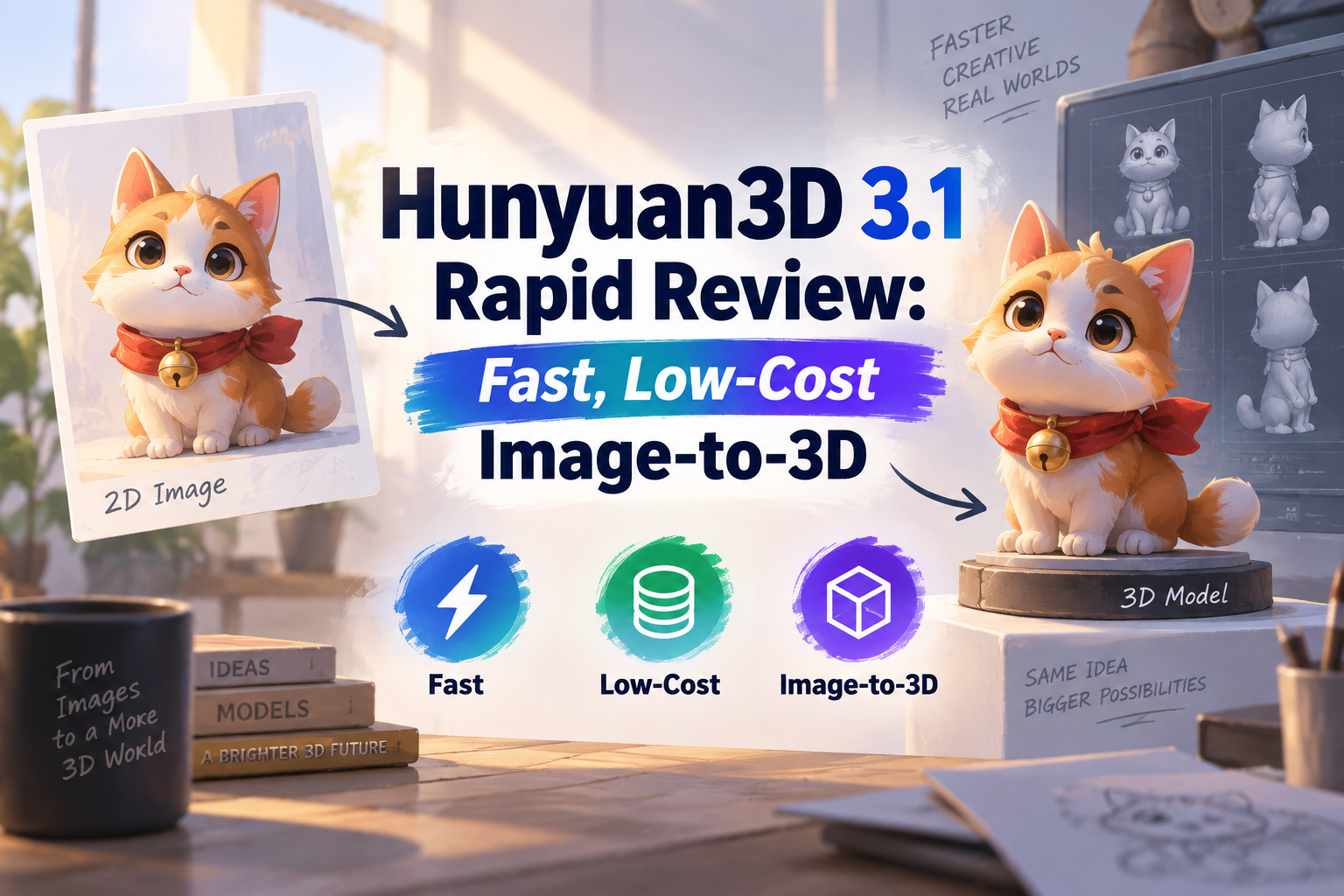
Hunyuan3D 3.1 Rapid ofrece una solución útil: convertir una sola imagen de producto o un concepto en un recurso 3D sin tener que dedicar horas a crear la primera malla. Su principal atractivo es la posibilidad de realizar iteraciones a bajo coste. La cuestión más complicada es si el resultado supone un ahorro de tiempo una vez que se examinan la forma, los materiales y las partes que la cámara nunca ha captado.
Hemos probado Rapid con imágenes de referencia originales y hemos examinado los archivos 3D descargados desde varios ángulos. La reseña se centra en los aspectos que realmente importan a la hora de probarlo por uno mismo: formas reconocibles, aberturas conservadas, pequeños detalles, materiales, tiempo de generación y coste.
¿Estás listo para convertir tu propia imagen en un recurso 3D? Prueba Hunyuan3D 3.1 Rapid en GlobalGPT. Empieza con una foto del producto o una imagen conceptual y utiliza los modelos de imagen de GlobalGPT para perfeccionar tu referencia cuando necesites un punto de partida más claro.
Respuesta rápida
¿Qué hace realmente Hunyuan3D 3.1 Rapid?
En Hunyuan3D 3.1: Conversión rápida de imágenes a puntos finales en 3D Toma una imagen de referencia y genera un resultado en 3D. Se trata de un producto final distinto de una imagen plana que simplemente parece un renderizado. Se puede examinar una malla desde puntos de vista que no aparecen en la imagen original, aunque esas superficies no visibles se deducen en lugar de medirse.
Esta distinción es importante si has utilizado un Imagen de referencia de una figurita en 3D. Un generador de imágenes puede mostrar un objeto de colección sobre un escritorio; no tiene por qué crear un objeto 3D editable. Rapid se encarga de ese siguiente paso.
En API de fal Rapid ofrece una única imagen de entrada, materiales PBR opcionales y una opción de «solo geometría». PBR significa «renderizado basado en la física»: información sobre los materiales que ayuda al renderizador a describir cómo responde una superficie a la luz. La generación de «solo geometría» omite el aspecto texturizado.
¿Hasta qué punto es barato y rápido «Rapid»?
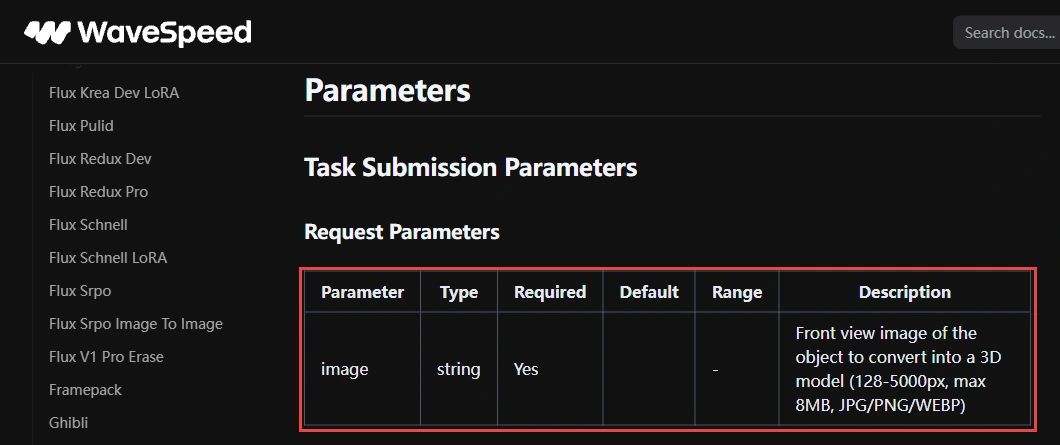
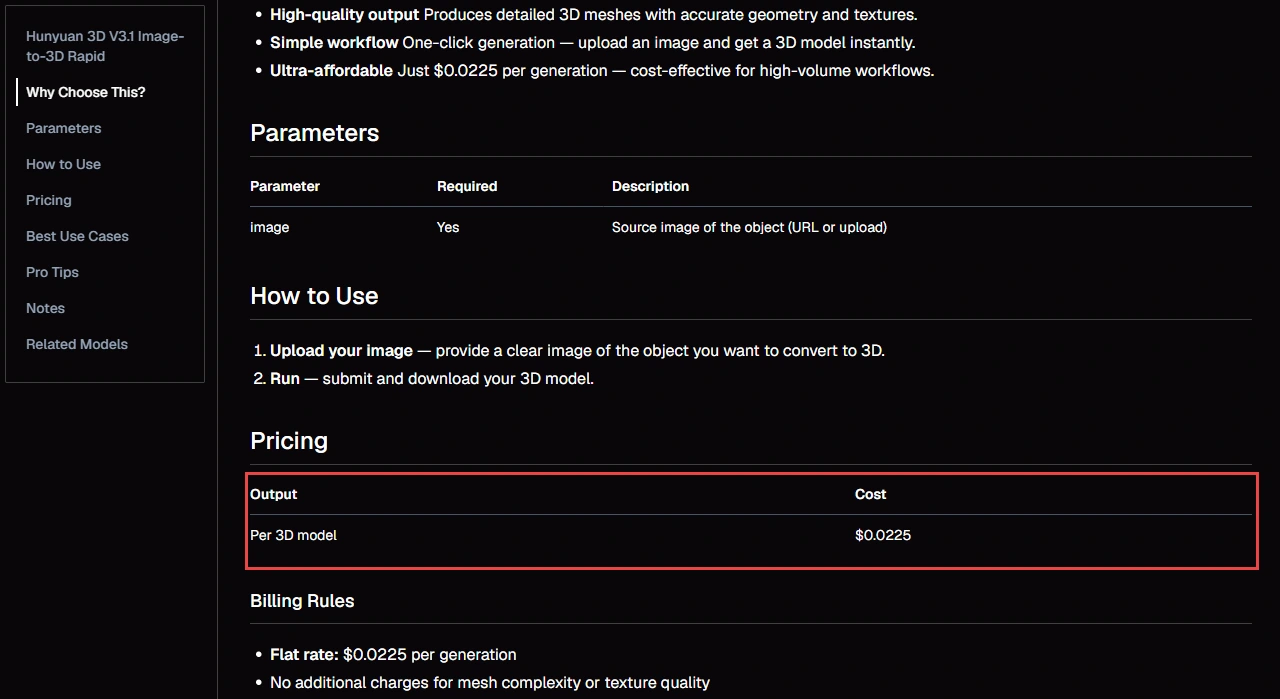
WaveSpeed incluye a Rapid en $0,0225 por ciclo y registra un tiempo medio de generación de extremo a extremo de aproximadamente 62 segundos en las últimas ejecuciones correctas. Nuestros tres tiempos de medición aparecen en el gráfico de pruebas que se muestra a continuación.
En Cotización rápida de fal’s, los costes básicos de generación son de $0,225 y el PBR añade $0,15. Las ofertas presentan diferentes configuraciones; elige la que se adapte a tus necesidades, no te fijes solo en el precio que aparece en el titular.
| Ruta / configuración | Coste consignado o registrado | Pruebas | Alcance |
|---|---|---|---|
| WaveSpeed Rapid | $0,0225 / tirada | Precio publicado directamente a través de la API | Entrada de imagen; no se muestra ningún selector PBR en su esquema de solicitud público |
| fal Rapid, base | $0,225 / ciclo | Precio base de la API publicado | Modo opcional «solo geometría»; el PBR se factura por separado |
| fal Rapid con PBR | $0,375 / serie | $0.225 + $0.15 | Generación de material configurada; no se ha probado aquí |
| Nuestras pruebas de evaluación | Equivalente a $0.10 por ciclo | Uso registrado de la API, no el precio de la suscripción | Se excluye la creación de imágenes de referencia; consulta cada prueba a continuación |
Cuánto costaría un lote pequeño
Nuestras pruebas de conversión de imágenes a 3D
Utilizamos imágenes de referencia originales de Seedream 5.0 Pro, cada una de las cuales mostraba un objeto completo sobre un fondo claro. Cada entrada se comprobó visualmente antes de su envío. Conservamos el primer resultado de cada objeto y utilizamos la misma configuración de la API de conversión de imagen a 3D en todo momento, sin solicitar ninguna opción de «solo geometría» ni PBR.
Los tiempos de generación que se indican a continuación se basan en las marcas de tiempo de envío y finalización del servidor, por lo que incluyen el intervalo de cola, pero excluyen la descarga y la inspección del archivo. Los costes se registran en equivalentes de uso de la API y excluyen la creación de imágenes de referencia; no se trata de los precios de la suscripción a GlobalGPT.
Tres objetos, de poco más de un minuto cada uno
La misma configuración de Rapid. Un primer intento por objeto.
Solicitudes que han devuelto GLB
Reintentos en la generación 3D
Uso total registrado de la API
¿Qué había realmente dentro de los GLB?
| En el archivo devuelto | Taza | Presidente | Mochila |
|---|---|---|---|
| Geometría 3D | Presente | Presente | Presente |
| Materiales | Ausente | Ausente | Ausente |
| Texturas | Ausente | Ausente | Ausente |
| Coordenadas UV | Ausente | Ausente | Ausente |
Resultado práctico: geometría inicial válida, aunque aún hay que trabajar en el color y el material.
Prueba 1: Taza azul – Asa y cavidad interior
La imagen de referencia de 2048 por 2048 mostraba una taza de cerámica azul cobalto con el interior vacío y el asa abierta. Se trata de una primera comprobación útil, ya que esas aberturas deben tener una geometría real; una mancha oscura sobre un bloque sólido no sería suficiente.
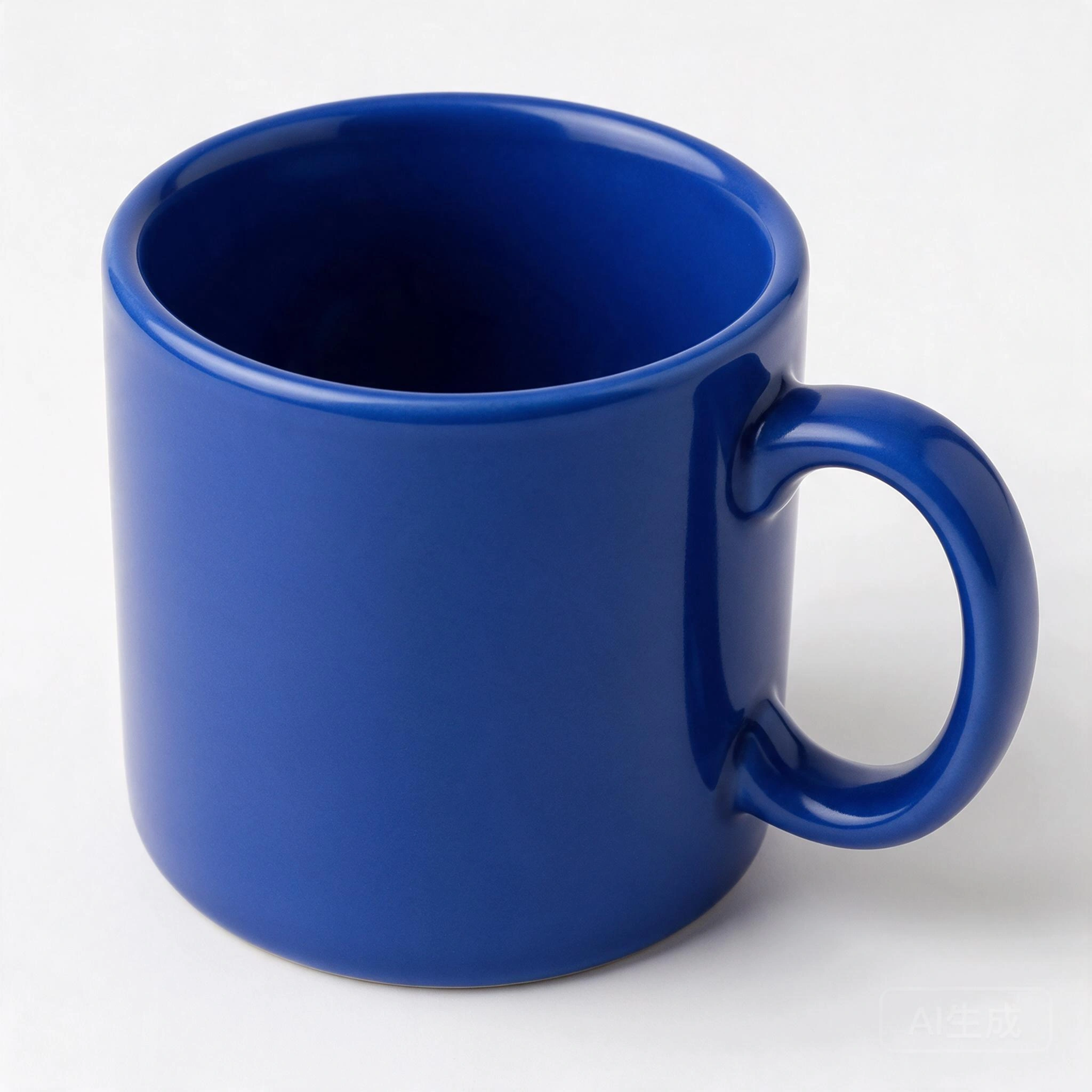
La malla conservó la forma cilíndrica de la taza, la abertura del asa y la cavidad interior. Además, superó las pruebas de estanqueidad y de bobinado frontal, aunque ninguna de ellas verifica las dimensiones reales ni el espesor seguro de las paredes.
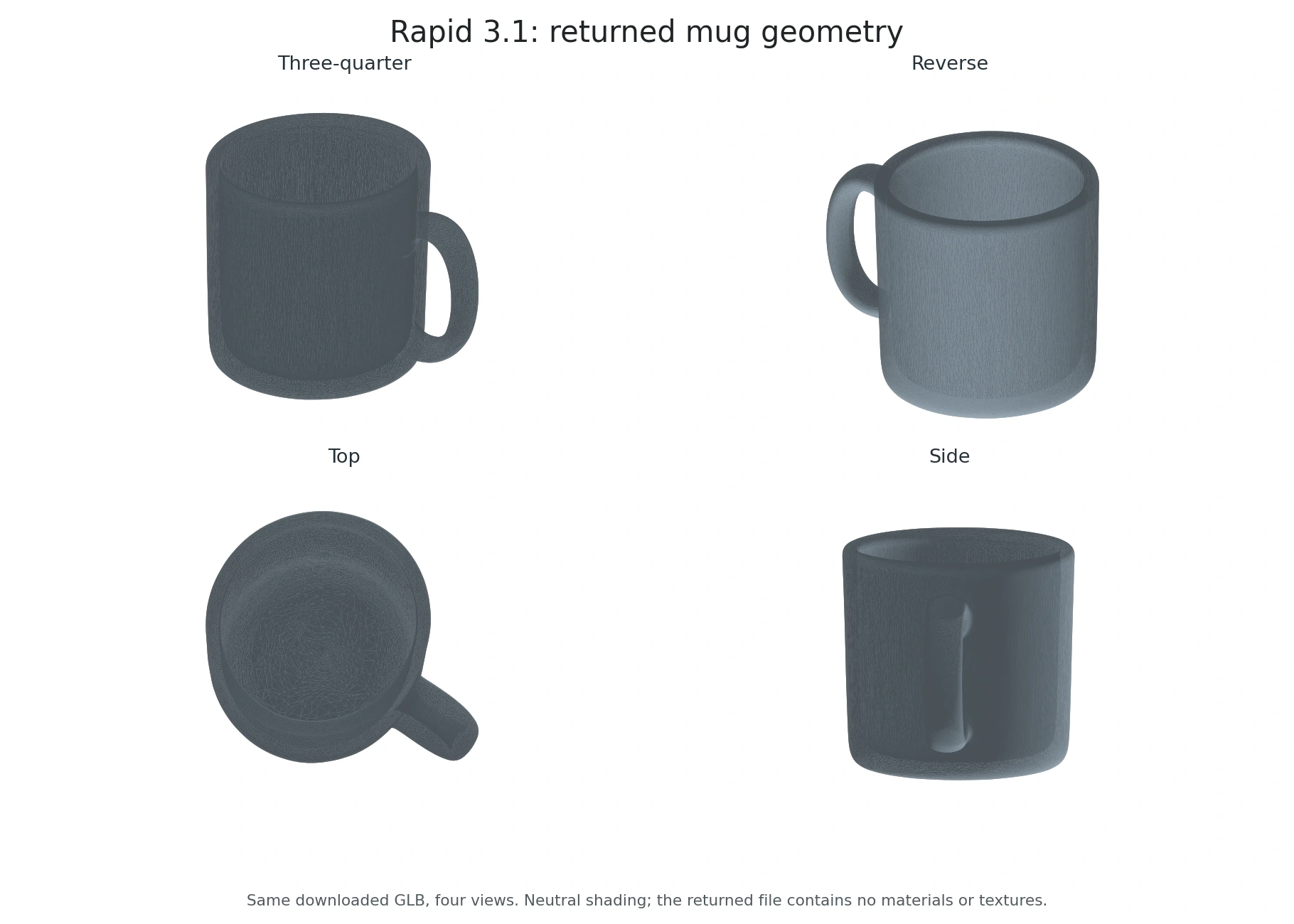
El resultado es ligeramente más sencillo y regular que el de referencia. Carece del esmalte azul, tal y como muestra la matriz del archivo anterior. El sombreado neutro que se aprecia aquí se aplicó de forma puntual para facilitar su inspección.
Examina la taza original GLB para evaluar la forma desde otros ángulos.
Prueba 2: Silla amarilla – Patas finas y respaldo abierto
Utilizamos una imagen de tres cuartos de una silla de madera amarilla con cuatro patas delgadas y tres listones verticales en el respaldo para comprobar si Rapid conservaría los soportes estrechos y los espacios entre ellos.
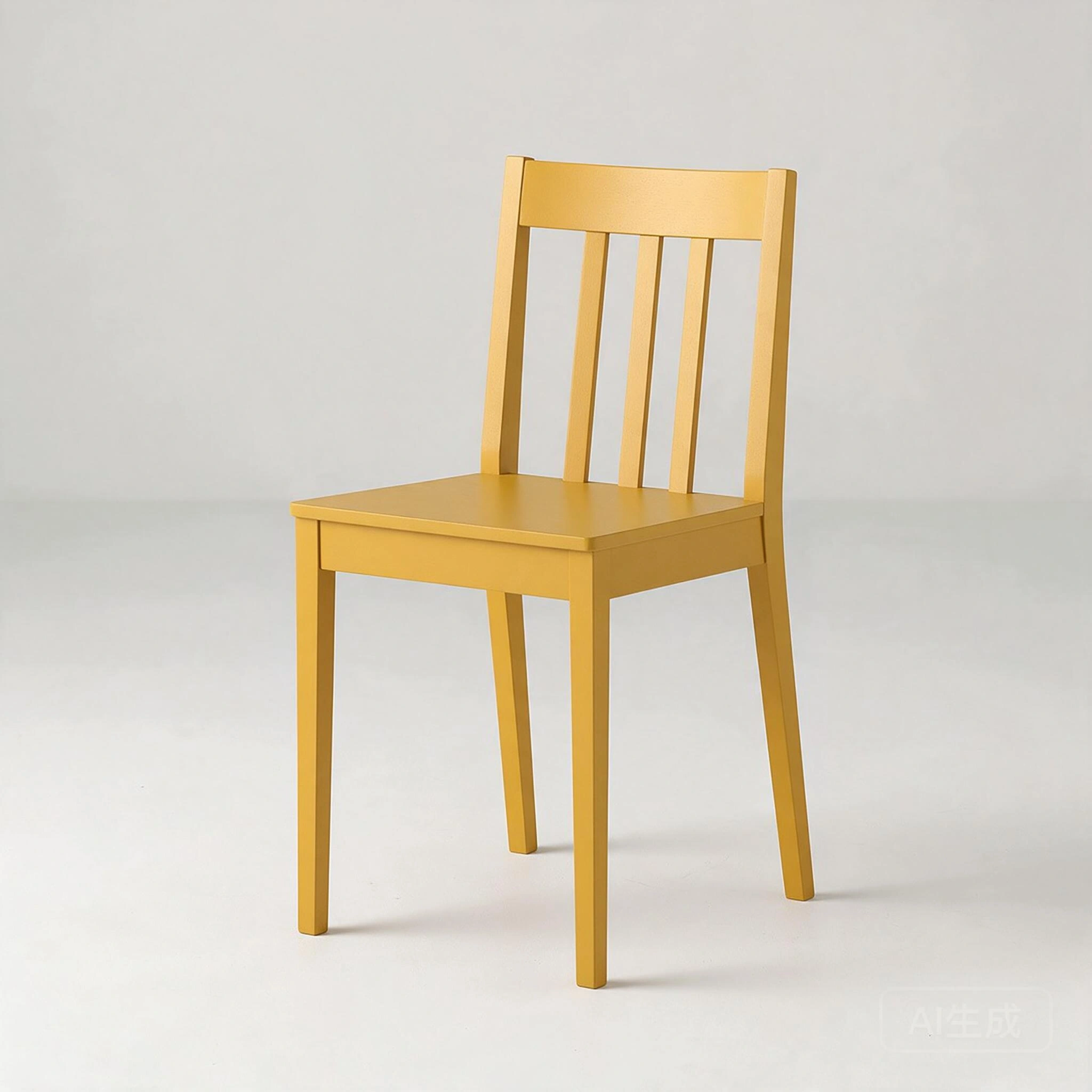
El modelo descargado conserva cuatro patas separadas, el asiento y tres listones internos del respaldo. Los huecos entre los listones y debajo del asiento siguen abiertos.
Al observarla desde delante, por detrás, desde arriba y de perfil, se aprecia una silueta coherente de la silla. El travesaño superior parece más curvado y algunos bordes son más suaves que en el modelo de referencia.
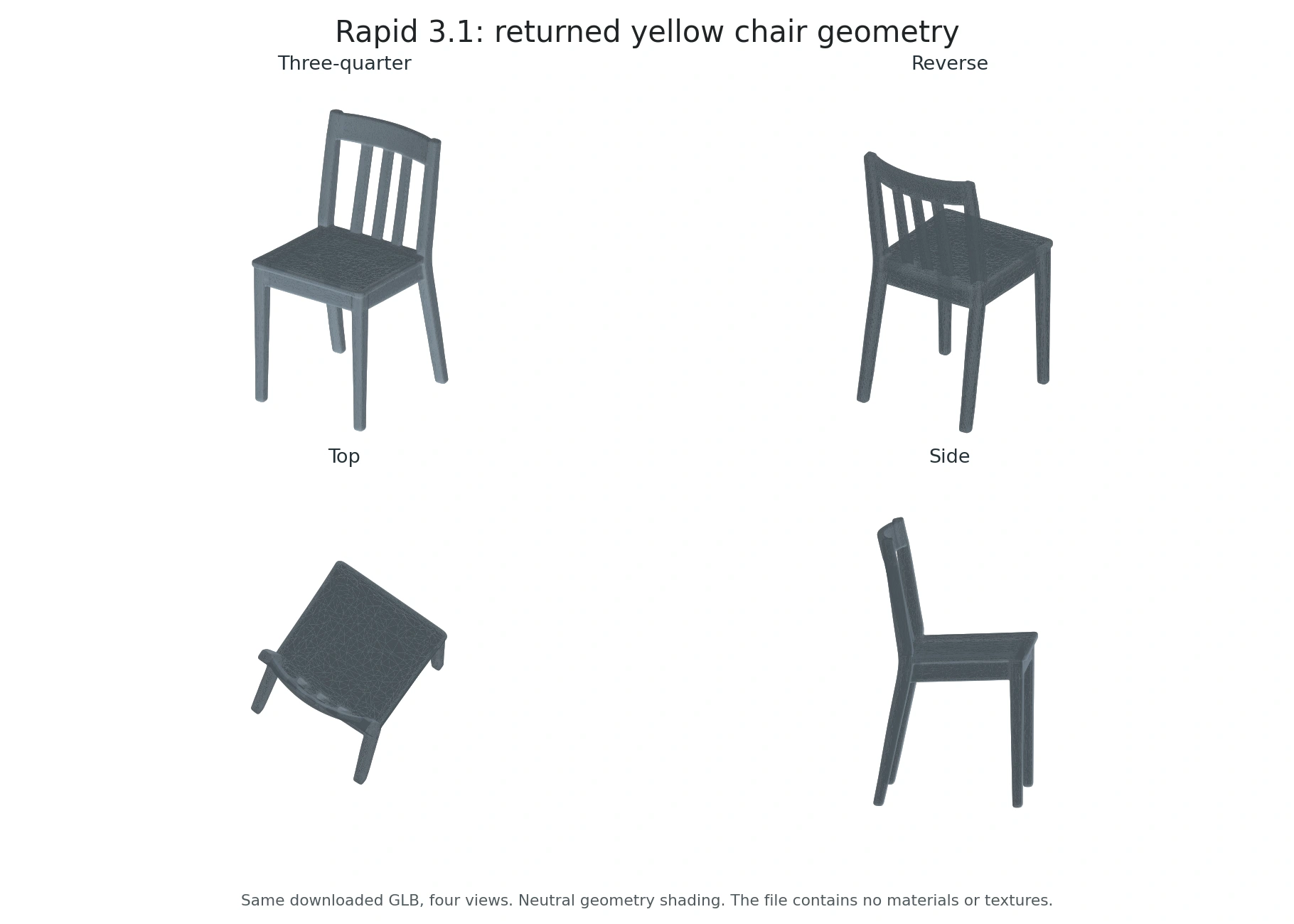
No hemos comprobado las dimensiones reales, las uniones, la estabilidad física ni la idoneidad para el diseño CAD o la fabricación.
Examina la silla amarilla original GLB para comprobarlo en tu propia aplicación 3D.
Prueba 3: Mochila roja – Bolsillos, asa y correas
Utilizamos una mochila roja de referencia, con un bolsillo delantero en relieve, tiradores de cremallera visibles, un asa superior y correas para los hombros, con el fin de probar una silueta más compleja y pequeños detalles superficiales.
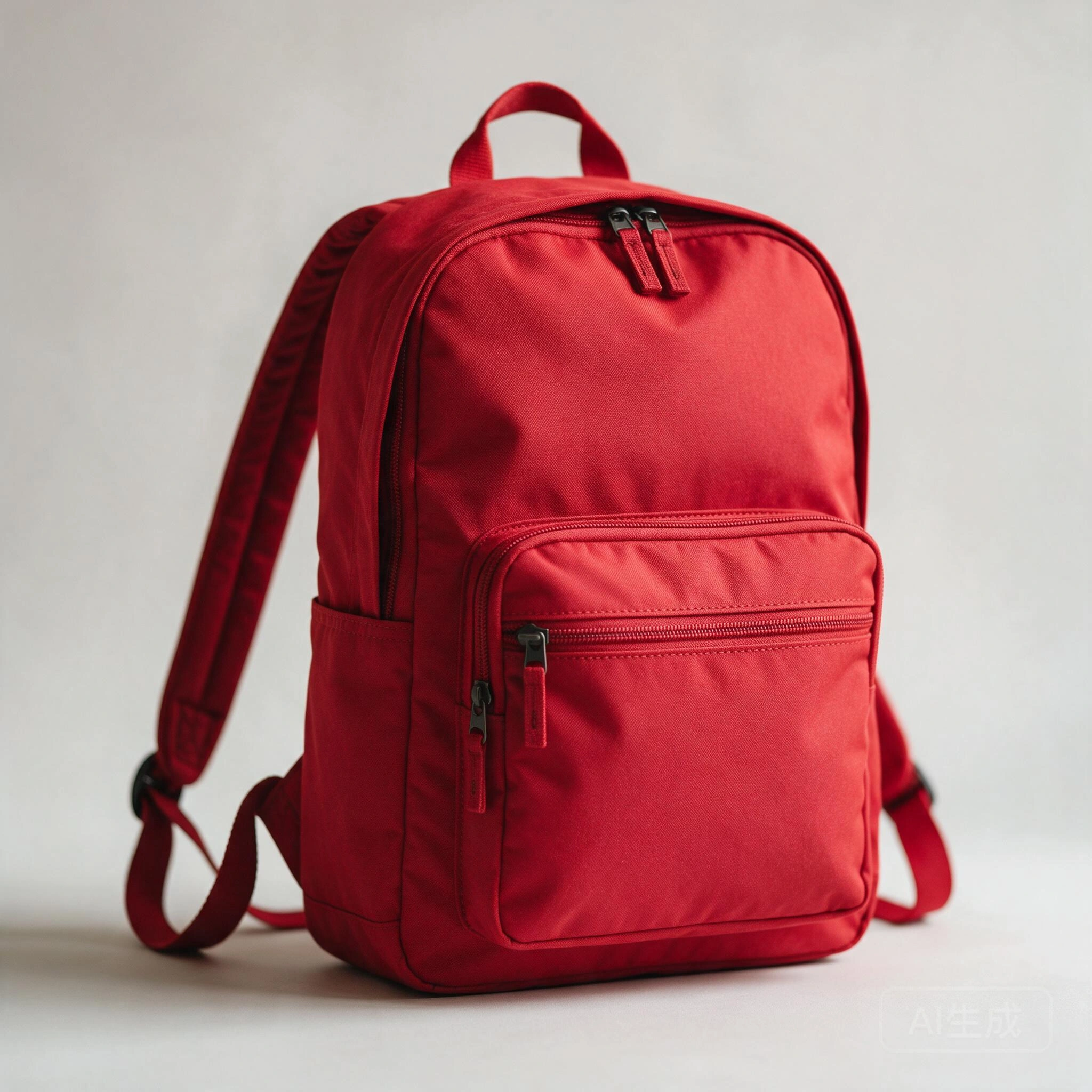
El volumen principal del bolso, el bolsillo delantero saliente, la abertura del asa superior y las presillas para la correa de hombro son elementos reconocibles en la geometría resultante.
Algunas formas de los tiradores de las cremalleras y los pliegues más grandes de la tela siguen siendo visibles como elementos geométricos, pero los detalles más sutiles de las cremalleras y la tela se han simplificado.
Las vistas trasera y lateral muestran una geometría irregular y de aspecto enredado alrededor de las uniones entre la correa inferior y la hebilla. Es necesario limpiar estas zonas antes de utilizarlas en primeros planos.
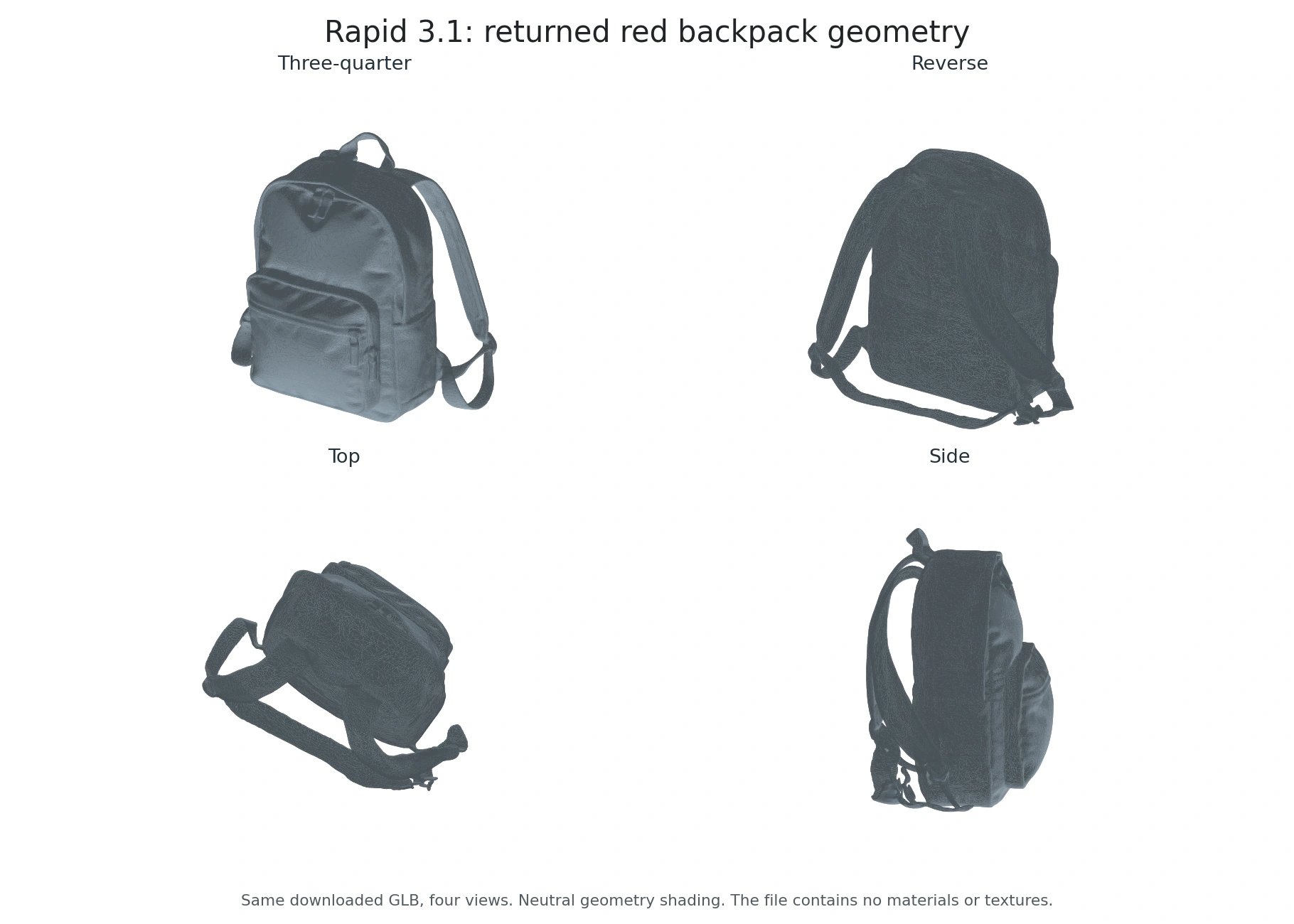
No es posible comprobar la fidelidad de la superficie trasera oculta a partir de una única imagen de referencia orientada hacia la parte delantera. Una geometría impecable no garantiza una topología clara de las correas, una construcción correcta ni que esté lista para el rigging y la animación.
Examina la mochila roja original GLB para comprobarlo en tu propia aplicación 3D.
Cómo preparar una imagen que le dé a Rapid una oportunidad justa
Empieza con un objeto completo sobre un fondo despejado. Utiliza una perspectiva de tres cuartos que revele la profundidad sin ocultar la silueta principal. Una taza debe mostrar la abertura del asa; una silla, sus patas bien definidas. Recortar la base o dejar una parte delgada oculta tras otra superficie obliga al modelo a inventarse más geometría.
Para un concepto que aún no existe, crea una referencia clara utilizando el Guía de uso de Seedream 5.0 Pro. Describe con detalle el objeto, el material, el ángulo de la cámara y el fondo. Comprueba la propia imagen antes de enviarla para crear un modelo 3D: un tirador que parezca realista pero que sea imposible sigue siendo una referencia deficiente.
La preparación de la fuente fotográfica sigue el mismo principio. Nuestra guía sobre creación de imágenes realistas de productos Es útil para definir con claridad la forma y la iluminación, pero no permitas que una edición de la imagen altere el diseño de un producto real cuyas dimensiones son importantes.
Una segunda perspectiva puede ayudarte a valorar si tu concepto es coherente. Cuando cambiar el ángulo o la perspectiva de una foto, considera la nueva vista como otra interpretación, no como un escaneo medido. El hecho de que Rapid admita una sola imagen como entrada no significa que se vaya a obtener una reconstrucción multivista simplemente porque hayas preparado varias imágenes.
fal admite imágenes de entrada de entre 128 y 5.000 píxeles en formato JPG, PNG o WebP, con un tamaño máximo de 8 MB; se recomienda que un único objeto ocupe más de la mitad del encuadre. Estos son los requisitos publicados para esa ruta. Respeta los límites del punto final que utilices realmente.
Qué hay que comprobar antes de dar por finalizado el activo
Una buena vista frontal es solo la primera comprobación. Gira el modelo para ver la parte trasera, la parte inferior y la parte superior. Busca piezas fusionadas, aberturas rellenadas, espesores irregulares, fragmentos sueltos y marcas de textura que disimulen una geometría irregular. Una taza con una mancha oscura donde debería estar el interior puede parecer hueca en una miniatura sin que tenga una cavidad útil.
Examina también la malla sin su textura de color. A continuación, comprueba cómo se comporta bajo una iluminación diferente. Los reflejos pintados en la textura pueden parecer realistas desde el ángulo de origen, pero moverse de forma incorrecta cuando el objeto gira.
En el caso de un visor web o un videojuego, comprueba el tamaño del archivo, el número de triángulos, los materiales y el rendimiento de carga en la aplicación de destino. Una malla descargada correctamente no queda automáticamente optimizada para un navegador móvil. En el caso de las animaciones, evalúa el flujo de aristas y la deformación antes de realizar el rigging; para la impresión, comprueba la escala, el grosor de las paredes, la estanqueidad y el informe de reparaciones del programa de corte.
El etiquetado exacto del producto requiere una revisión específica. Se debe aplicar el mismo cuidado que cuando añadir texto y elementos de marca a las imágenes de los productos Se aplica tras la generación en 3D: revisa de cerca las letras pequeñas y los logotipos, en lugar de dar por hecho que la referencia se ha conservado sin cambios.
Rapid frente a Pro: ¿qué diferencias son importantes?
Elige «Rapid» para obtener una primera malla rápida a partir de una imagen nítida. Elige «Pro» cuando necesites vistas adicionales o un mayor control sobre la complejidad de la malla. La comparación que se muestra a continuación utiliza Controles de Hunyuan3D documentados por fal; no hemos realizado ninguna prueba de calidad entre Rapid y Pro.
«Rapid» o «Pro»: elige los controles que necesites
| Control | Rápido | Pro |
|---|---|---|
| Imágenes de referencia | 1 imagen | Hasta 8 visualizaciones |
| Control de polígonos | Salida fija | Entre 40 000 y 1,5 millones de personas |
| Mejor ajuste | Primera malla rápida | Más vistas y control |
¿Se puede utilizar el resultado con fines comerciales?
El uso comercial plantea dos cuestiones distintas: si tienes permiso para utilizar el material de entrada y si las condiciones del servicio permiten el uso que pretendes dar al resultado. El precio de una API no equivale a la cesión de derechos. Una foto de tu propio producto es un punto de partida más claro que un personaje de marca o una imagen tomada del portfolio de otra persona.
Las mismas cuestiones que se tratan en nuestro Guía sobre el uso comercial de imágenes generadas por IA Aplícalo a la etapa de referencia. En cuanto a la malla generada, revisa las condiciones actuales exactas del proveedor y cualquier derecho de terceros sobre el objeto. No consideres que la licencia de un modelo antiguo de Hunyuan3D descargable constituye el contrato para una API 3.1 Rapid alojada.
Veredicto: un punto de partida económico, con un presupuesto para la limpieza
En nuestras tres pruebas, Rapid fue el que mejor se desenvolvió a la hora de convertir rápidamente una silueta clara en una geometría reconocible. Conservó la cavidad de la taza, las patas separadas de la silla y los huecos del respaldo, así como los compartimentos principales de la mochila. La forma difuminada de la silla y los detalles enredados de las correas inferiores de la mochila ponen de manifiesto en qué casos resulta útil realizar un retoque manual.
Lo que se omitía sistemáticamente era el aspecto: ninguno de estos archivos incluía materiales ni texturas. Por ello, los resultados son más bien mallas iniciales útiles que productos finales con color. Planifica el trabajo con los materiales y revisa las uniones delgadas y las superficies ocultas antes de incorporar un activo a la producción.
Cuando la propia entrada es ambigua, mejorar la precisión de la imagen de referencia antes de gastar más en repeticiones en 3D. Una fuente más clara facilita valorar si el siguiente resultado resuelve tu problema de diseño real.
Trae tu propia foto del producto o imagen conceptual a GlobalGPT y prueba Hunyuan3D 3.1 Rapid. Empieza con un objeto, examina la primera malla y crea a partir del resultado que mejor se adapte a tu proyecto.
Preguntas frecuentes
¿Es gratuita la versión Hunyuan3D 3.1 Rapid?
Las rutas Rapid alojadas que se tratan aquí son de pago. WaveSpeed indica un precio de $0,0225 por ejecución; fal indica $0,225 para la generación de bases, más $0,15 para el PBR opcional. Los créditos de prueba o las promociones son independientes de las tarifas indicadas.
¿Cuánto tiempo tarda Hunyuan3D 3.1 Rapid?
Nuestra taza, nuestra silla y nuestra mochila tardaron 69, 74 y 78 segundos, respectivamente, contados desde el envío a la aplicación hasta la finalización. Las descargas y la inspección requirieron tiempo adicional. Estas tres pruebas reflejan nuestra experiencia durante las pruebas, no un tiempo de entrega garantizado.
¿Rapid admite varias imágenes de referencia?
Las rutas de «imagen a 3D» de Rapid que se describen aquí utilizan una sola imagen de origen. La documentación de fal indica que la entrada de múltiples vistas es una función de Pro; no des por sentado que esté incluida en Rapid.
¿Puedo elegir el número de polígonos en Rapid?
fal describe Rapid como una generación de salida fija y asigna el número de polígonos ajustable a Pro. Comprueba los controles exactos del servicio antes de elegir un plan para un presupuesto de malla concreto.
¿Las pruebas rápidas han conservado los colores y los materiales de los objetos?
No. Los tres GLB devueltos contenían geometría, pero no materiales, texturas, imágenes incrustadas, coordenadas UV ni colores de vértices. La taza azul, la silla amarilla y la mochila roja perdieron su aspecto original. Este resultado se aplica a la configuración de la API que hemos probado; otros ajustes de materiales pueden comportarse de forma diferente.
¿Puede Rapid generar un objeto listo para imprimir?
Nuestra malla para tazas ha superado las comprobaciones automatizadas de estanqueidad y uniformidad del enrollado, pero eso no garantiza que esté lista para la impresión. La escala, el grosor de las paredes y la compatibilidad con el programa de corte aún deben someterse a inspección para la impresora y el material previstos.
¿Dónde puedo probar Hunyuan3D 3.1 Rapid?
Prueba Hunyuan3D 3.1 Rapid en GlobalGPT con una imagen nítida del objeto que quieras construir. Si se trata de un concepto nuevo, utiliza primero un modelo de imagen para crear la referencia y, a continuación, convierte esa imagen en un punto de partida en 3D.