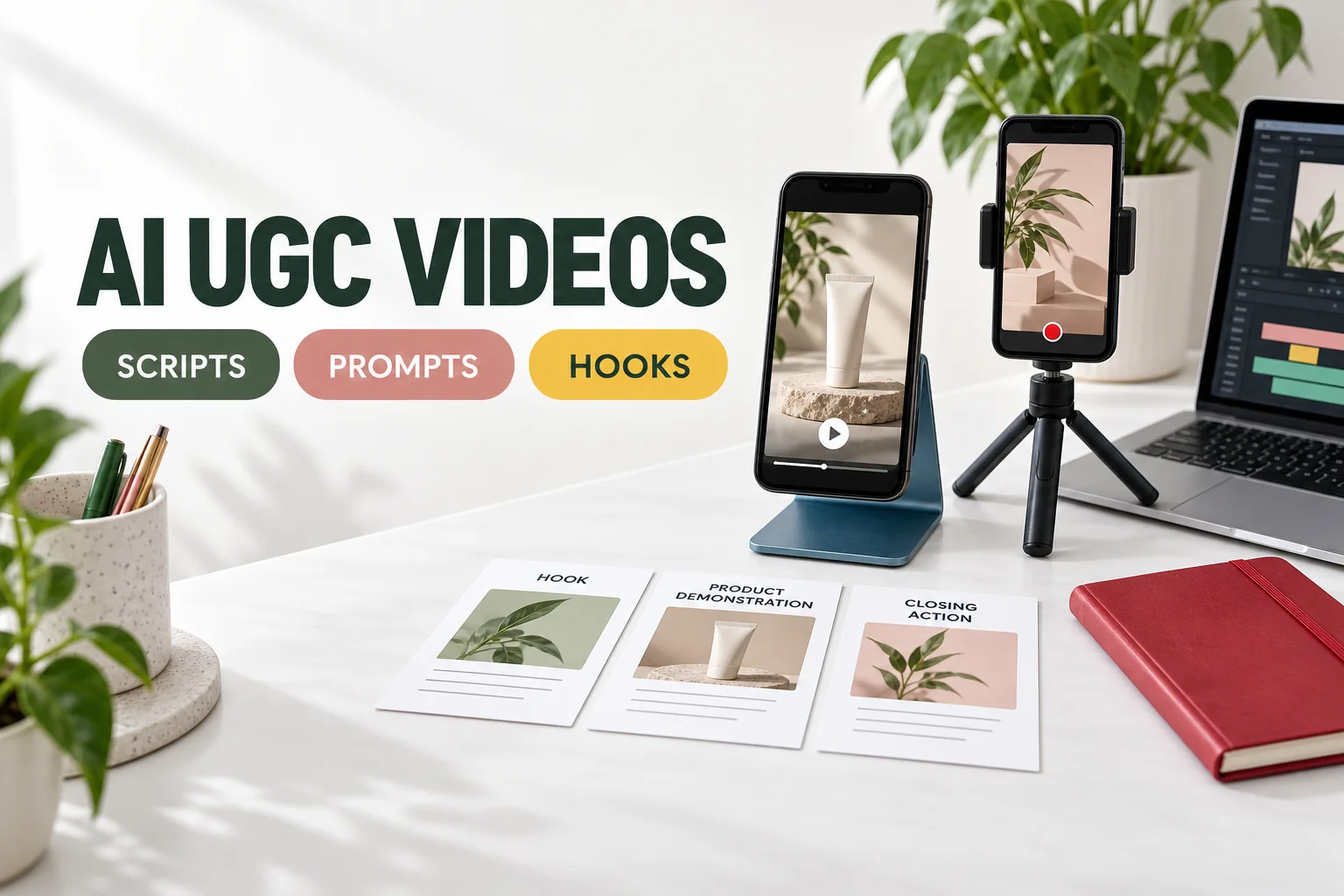
VÍDEOS DE CONTENIDO GENERADO POR LOS USUARIOS (UGC) Y IA · GUÍA PRÁCTICA
Para crear vídeos de contenido generado por el usuario (UGC) con IA, convierte una ventaja del producto en un guion breve, crea una escena protagonizada por un presentador o por el propio producto, genera unas cuantas tomas sencillas y edítalas para crear un anuncio vertical. Añade subtítulos precisos, comprueba que el producto aparezca en cada toma, indica claramente que se trata de contenido generado por IA cuando sea necesario y prueba diferentes introducciones antes de aumentar tu presupuesto publicitario.
Lo difícil es conseguir que las palabras, el producto y la acción estén en sintonía. Ni siquiera un presentador convincente puede salvar un soporte para el móvil que cambia de forma a mitad de una demostración. Además, un vídeo bonito tampoco te dice nada sobre si la gente lo comprará.
Esta guía presenta un ejemplo sencillo basado en un soporte para teléfono fijo sin marca, con un vídeo de contenido generado por los usuarios (UGC) de 15 segundos, un guion reutilizable e indicaciones para las escenas, así como una prueba práctica de gancho. El ejemplo es un concepto publicitario inventado, no una reseña de un cliente ni una prueba de rendimiento del producto.
Para seguir una guía paso a paso desde la imagen de un producto hasta los anuncios con contenido generado por los usuarios (UGC) mediante IA, empieza por GlobalGPT Studios. Elige un estilo y un presentador, añade los detalles de tu producto y, a continuación, revisa el vídeo generado antes de publicarlo. Esta guía ha sido publicada por GlobalGPT.

¿Qué es un vídeo de contenido generado por el usuario (UGC) creado con IA?
Un vídeo de “UGC” generado por IA es un anuncio sintético creado al estilo del contenido de los creadores: alguien hablando a la cámara de un móvil, una demostración detallada de un producto, un unboxing o una breve escena cotidiana. En este contexto, «UGC» describe el estilo creativo. No significa que un cliente real haya grabado el material ni que recomiende personalmente el producto.
Esa distinción es importante a la hora de redactar el guion. Un presentador ficticio puede explicar una característica anunciada, pero no puede afirmar con veracidad: “Lo compré el mes pasado y me ha cambiado la vida”. Si dispones del testimonio de un cliente real y de los permisos necesarios, mantén el significado de ese testimonio en lugar de inventarte uno más impactante.
En EE. UU., 16 CFR 465.2 sobre reseñas y testimonios falsos prohíbe determinadas prácticas comerciales que impliquen declaraciones falsas sustanciales sobre si existe realmente un autor de la reseña, si ha utilizado el producto o si ha tenido la experiencia descrita. Una etiqueta generada por IA no convierte una historia inventada sobre un cliente en un testimonio auténtico.
Para un primer proyecto, una breve demostración es un buen punto de partida. Muestra en qué consiste el producto, cómo lo utiliza el usuario y cuál es el siguiente paso que puede dar. Evita incluir en el ejemplo promesas sin fundamento sobre salud, ingresos, ahorros y rendimiento.
Elige un flujo de trabajo que se adapte al trabajo
Elige las herramientas en función de la parte del proceso de producción que necesites controlar. Un flujo de trabajo con avatar es adecuado para una explicación basada en un guion. Un flujo de trabajo de referencia de producto resulta más útil cuando es importante el embalaje, la forma o la pantalla concretos. Un editor conecta las tomas y te ofrece un control fiable sobre los subtítulos y la sincronización.
| Ruta | Un punto de partida útil | Compruébalo antes de pagar |
|---|---|---|
| Estudio publicitario integrado | Quieres empezar con un producto y un formato publicitario | Datos del producto, reutilización del presentador, duración de la salida y precio según la configuración seleccionada |
| Flujo de trabajo centrado en el avatar | La mayor parte del mensaje se dirige directamente a la cámara | Derechos de voz, pronunciación, sincronización labial y coherencia del presentador |
| Varias tomas de vídeo y un editor | Quieres tener control directo sobre la inauguración, la demostración y la clausura | Compatibilidad con formatos de referencia, duración del clip, comportamiento del audio y tiempo necesario para finalizar la edición |
Tutorial sobre el UGC de Higgsfield describe una ruta de Marketing Studio que conecta los datos del producto, un avatar y un estilo creativo. Se trata del flujo de trabajo de un proveedor concreto, y no de un requisito para crear este formato.
Página de contenido generado por los usuarios (UGC) y IA de Arcads destaca una biblioteca de actores y los flujos de trabajo publicitarios relacionados. Analiza un ejemplo relevante para tu producto, en lugar de considerar un ejemplo promocional como prueba de los resultados que obtendrá tu propio anuncio.
El flujo de trabajo de marketing de HeyGen destaca los avatares, la edición, la localización y los controles de marca. Estas funciones pueden resultar importantes cuando el cuello de botella radica en distribuir un guion de forma coherente en varias versiones.
Si quieres una lista más amplia de candidatos preseleccionados, utiliza nuestro Comparativa de generadores de vídeo con IA y contenido generado por los usuarios (UGC) para identificar candidatos y, a continuación, comprobar sus controles actuales y los precios de generación. El mejor punto de partida es la ruta que permita obtener el resultado deseado con el menor número posible de revisiones evitables.
El flujo de trabajo más rápido con GlobalGPT Studios
Para un primer borrador, la forma más rápida de empezar es utilizar una plantilla. GlobalGPT Studios reúne la imagen del producto, el presentador y el estilo de la escena en un único flujo de trabajo guiado para crear un vídeo de contenido generado por el usuario (UGC) de 15 segundos.
- Elige un estilo. Empieza con «Street Review» para una presentación informal, «Unboxing» para ver el embalaje o «In-Hand Showcase» para ver el producto de cerca.
- Añade tus imágenes. Sube una imagen nítida del producto y, a continuación, elige un avatar o sube una imagen del presentador para la que tengas permiso de uso.
- Facilítale la información sobre el producto. Despliega la sección «Detalles del producto» e introduce el nombre del producto y sus principales argumentos de venta. Studios utiliza las imágenes y los detalles para crear el diálogo y la escena.
- Generar, revisar y descargar. Comprueba el coste del crédito que se muestra, crea una primera versión y, a continuación, presta atención a que los mensajes sean precisos, el lenguaje sea natural y el producto mantenga su estructura. Ajusta los subtítulos o la llamada a la acción final en tu editor cuando sea necesario.
Utiliza el guion del vídeo de contenido generado por los usuarios (UGC) que aparece a continuación para decidirte por una ventaja y un siguiente paso claro antes de introducir los detalles del producto. Las indicaciones para el vídeo de UGC que aparecen más adelante en esta guía están pensadas para el flujo de trabajo de tomas separadas, cuando se desea tener un mayor control sobre las escenas individuales.
La configuración de Studios comprobada el 27 de septiembre de 2026 mostraba diálogos en inglés, una duración de 15 segundos, un fotograma de 9:16 y una resolución de 480p. Considéralo un primer montaje para su revisión; utiliza el flujo de trabajo de siete pasos que se indica a continuación cuando necesites un control más preciso sobre la edición.
Cómo crear vídeos de contenido generado por los usuarios (UGC) con IA en 7 pasos
1. Redacta un resumen que el material de vídeo pueda respaldar realmente
Empieza con un público, una situación y una ventaja visible. En el ejemplo del soporte para el móvil, el público son las personas que trabajan en un escritorio; la situación es un móvil apoyado en horizontal junto al teclado; la idea creativa consiste en mostrar una pantalla colocada en posición vertical, a la vista.
Enumera los datos que puedas corroborar. En el caso de un producto real, esto podría incluir sus dimensiones, los dispositivos con los que es compatible y el funcionamiento de su bisagra. Separa esos datos de las sugerencias que invente el autor. No dejes que “soporte ajustable” se convierta en “alivia el dolor de cuello” solo porque la segunda frase suene más persuasiva.
Utiliza esta breve indicación para redactar el primer guion. Sustituye los datos del ejemplo por datos validados sobre tu propio producto.
Texto de la pregunta
Escribe un guion publicitario de 15 segundos, al estilo «creator», para un soporte de teléfono de sobremesa.
Público objetivo: personas que trabajan desde un escritorio en su oficina en casa.
Situación: el teléfono está tumbado junto al teclado.
Mensaje aprobado: mostrar un teléfono colocado en posición vertical en el soporte.
Estructura requerida: pregunta inicial, demostración visual, un paso a seguir.
Elabora una tabla de tres filas: tiempo, frase hablada, plano.
El guion completo debe tener menos de 35 palabras.
No inventes un cliente, una experiencia personal, un beneficio para la salud, un precio,
una afirmación de compatibilidad, un descuento, una reseña, una estadística ni una garantía de rendimiento.
Proporciona tres frases iniciales alternativas por separado.
2. Preparar la referencia del producto
Para un anuncio de un producto real, empieza con fotografías o vídeos para los que tengas permiso de uso. Incluye una vista frontal sin obstáculos y, cuando sea pertinente, una vista lateral que muestre cómo funciona el objeto. Mantén el embalaje, las etiquetas y los accesorios lo suficientemente visibles como para poder compararlos con el resultado generado.
Utiliza el control de imagen de referencia del generador cuando este lo admita. Escribir la ruta de un archivo en la línea de comandos no equivale a adjuntar la imagen. Nuestro Guía para convertir imágenes en vídeo con Kling presenta ese tipo de flujo de trabajo; comprueba los controles disponibles en la ruta que hayas seleccionado.
La generación de texto sin imágenes es adecuada para un concepto inventado, como el ejemplo del expositor que se muestra aquí. No garantiza una reproducción fiel de un artículo que vendas. Si es necesario que un detalle clave sea exacto, utiliza imágenes reales del producto para esa sección del anuncio.
3. Haz que cada línea se gane su oportunidad
Escribe los diálogos y las tomas al mismo tiempo. Si el diálogo dice “se pliega hasta quedar plano”, las imágenes deben mostrar ese mecanismo exacto. Si el diálogo dice “cabe en el bolsillo”, esa afirmación debe estar justificada y la toma debe demostrarlo con precisión.
Una estructura inicial útil es la de tres partes: una introducción que defina la situación, una demostración que ponga de manifiesto el beneficio y un siguiente paso concreto. Lee el guion en voz alta. Si solo encaja cuando lo lees deprisa, elimina una frase antes de seguir escribiendo.
4. Elige a un presentador y toma nota de la continuidad
Utiliza un avatar de banco de imágenes con licencia, un personaje ficticio adulto generado por ordenador o una persona cuya imagen y voz tengas permiso para utilizar. Haz que el presentador tenga una apariencia, un atuendo, un entorno y un estilo de hablar coherentes. Evita utilizar la identidad de una persona famosa para dar la impresión de que un producto cuenta con su respaldo.
Anota todas esas decisiones en una sola nota de referencia, junto con las vistas del producto y la orientación de la cámara. Nuestra Guía de coherencia en los vídeos sobre IA explica cómo mantener la coherencia de los personajes, el atrezo y las escenas en clips independientes. La coincidencia de palabras en una indicación ayuda a transmitir la intención, pero por sí sola no garantiza una identidad.
5. Crea escenas breves con una acción principal
Pide a cada escena que cumpla una función útil: presentar al ponente, mostrar el producto o crear el movimiento inicial. Deja un poco de silencio al principio y al final para que el editor tenga por dónde cortar. Empieza con la acción más sencilla que transmita tu idea.
En el ejemplo se utilizan tres planos: un teléfono y un soporte que entran en el encuadre, un primer plano del producto y un presentador pronunciando la frase final. La imagen de portada en formato horizontal procede de una escena diferente, y no es un recorte del anuncio en formato vertical.
Si estás aprendiendo esa ruta, nuestro Guía ilustrada con imágenes y vídeos del Grok ofrece más contexto. Guarda el comando y los ajustes resultantes de cada toma para saber qué es lo que ha dado lugar a ese resultado.
6. Edita el anuncio y añade descripciones precisas
Empieza con la introducción, continúa con la demostración y termina con una llamada a la acción clara. Elimina las pausas que no contribuyan al mensaje. Añade subtítulos en el editor, donde podrás controlar con precisión la ortografía, la duración y la ubicación. Mantén las palabras importantes, el rostro y el producto alejados de los elementos superpuestos de la interfaz, y comprueba la vista previa de la ubicación real.
Para un feed en formato vertical, utiliza una composición de 9:16 como punto de partida. Un lienzo de edición de 1080 x 1920 es un objetivo de entrega práctico cuando la ubicación lo permite; esto no convierte el material de origen de menor resolución en 1080p de forma nativa. Mantén una exportación separada en formato horizontal para su uso en una página web que lo requiera.
Si partes de un clip ya existente, nuestra Guía del flujo de trabajo de vídeo a vídeo explica una ruta de producción diferente. Trata la transformación generativa por separado del recorte habitual y comprueba el producto de nuevo tras cada transformación.
Una disposición inicial práctica para un lienzo de 1080 x 1920. Comprueba siempre la vista previa de la ubicación real.
7. Revisar los hechos, la solicitud y la información facilitada
Míralo una vez para fijarte en el mensaje, otra para fijarte en el producto y otra para fijarte en el sonido. Examina el primer fotograma, la interacción con el objeto y cada corte. Compara cualquier afirmación verbal con las pruebas que aprobaste en el primer paso. Presta atención a las palabras inventadas, las pronunciaciones incorrectas y los cambios poco naturales en la voz.
Directrices actuales de YouTube sobre la divulgación de información relativa a la inteligencia artificial Exige que se indique claramente el contenido realista que haya sido generado o modificado de forma significativa mediante IA, incluida cualquier escena realista que no haya ocurrido realmente. Sigue los requisitos vigentes en materia de divulgación y publicidad de cada plataforma; el hecho de que una publicación aparezca como «orgánica» no garantiza que un anuncio de pago cumpla todas las normas publicitarias.
Un guion para un vídeo de contenido generado por los usuarios (UGC) de 15 segundos que puedes adaptar
Aquí tienes un primer borrador del guion para el expositor de teléfonos ficticio. Los tiempos indican cómo dividir el montaje final en tres partes; es posible que haya que recortar algunos de los clips generados para que encajen. El guion debe ser lo suficientemente breve como para dejar tiempo a que el producto cause impacto.
| Tiempo | Diálogo o subtítulo editado | Imagen |
|---|---|---|
| 0-5 segundos | “¿El móvil siempre lo tienes boca abajo sobre la mesa?” | Un teléfono que ya está colocado en su soporte se desliza hasta el centro de la mesa. |
| 5-10 segundos | “Coloca la pantalla donde puedas verla”.” | Una vista de cerca permite examinar fácilmente el teléfono, el reborde y el soporte. |
| 10-15 segundos | “Fíjate en cómo queda este soporte en tu escritorio”.” | Un presentador se coloca frente a la cámara y pronuncia la invitación final |
Las dos primeras líneas pueden basarse en los subtítulos si las escenas del producto no contienen diálogo aprovechable. Graba o genera una voz en off autorizada si necesitas narración durante todo el vídeo, y escucha el montaje completo antes de utilizarlo. No des por sentado que tres clips generados de forma independiente vayan a compartir una misma voz o la identidad de un mismo presentador.
En el ejemplo de tomas independientes que se muestra a continuación, los cuatro clips originales se generaron con una resolución de 1280 x 720 y una duración aproximada de 5,04 segundos, incluidas las tres solicitudes de material en formato vertical. Estos no se generaron en Studios. El ejemplo vertical finalizado utiliza el reencuadre local y subtítulos en un lienzo de 720 x 1280. Muestra la estructura de edición, en lugar de demostrar la generación nativa de vídeo en formato vertical.
Los detalles del soporte también varían entre las escenas generadas de forma independiente, y en la toma del rostro en primer plano el teléfono aparece colocado en horizontal. El montaje recorta ese teléfono en el plano final, pero estos fragmentos siguen sin garantizar una continuidad exacta del producto. En una campaña real, sustituye las imágenes del producto que presenten inconsistencias por material de archivo aprobado antes del lanzamiento.
La parte reutilizable es la estructura: una situación reconocible, una demostración visible y una acción. Cambia el producto y el beneficio justificado sin convertir el guion en una lista de todas las características que vendes.
Tres ideas para vídeos de contenido generado por los usuarios (UGC) para tu primer borrador
Estas indicaciones describen las escenas de ejemplo previstas. Se trata de aportaciones creativas, no de resultados garantizados ni de transcripciones literales del audio generado. Si te importa el resultado exacto, adjunta tu referencia aprobada en la herramienta y simplifica cualquier movimiento que altere su forma.
Cierre con el presentador dirigiéndose a la cámara
Procura que la línea sea corta y el movimiento, pequeño. Una presentación directa y clara ofrece al editor un final útil sin que el presentador tenga que manejar varios objetos a la vez.
Texto de la pregunta
Un vídeo original de estilo 'UGC' (contenido generado por el usuario) grabado con la cámara de un móvil en formato vertical, en un único plano continuo de cinco segundos. Una mujer ficticia de unos treinta años, con el pelo corto y oscuro, una camiseta sencilla de color verde bosque y un tono de piel natural, está sentada ante un escritorio blanco de oficina en casa. Un smartphone negro descansa en posición vertical sobre un sencillo soporte metálico triangular de color azul mate, situado en la parte inferior de la composición. Mirando a la cámara, dice en un inglés coloquial y claro: «Mira cómo queda este soporte en tu escritorio». Expresión relajada y natural con movimiento labial sincronizado, un pequeño gesto con la mano abierta, suave luz natural que entra por la ventana y sonido ambiente de una habitación tranquila, sin música. Deja un espacio libre por encima de su cabeza y mantén las manos y el producto dentro del encuadre. Se trata de una presentadora ilustrativa de la marca, no de una clienta que describe una experiencia. Sin logotipos, texto en pantalla, subtítulos, transiciones, personas adicionales ni transformaciones del producto.
Suplemento de demostración del producto
El producto es el protagonista de esta toma. Fíjate en la posición del móvil, el reborde de sujeción del soporte y el contacto de la mano con el objeto. Si esos detalles no están bien, ni siquiera una iluminación atractiva conseguirá que la demostración resulte útil.
Texto de la pregunta
Un inserto original de demostración de producto de contenido generado por el usuario (UGC) en formato vertical: un plano cercano continuo de cinco segundos sobre un escritorio blanco de oficina en casa. Un smartphone negro con la pantalla apagada y oscura se encuentra en posición vertical sobre un sencillo soporte metálico de escritorio de color azul mate y ángulo fijo. El soporte tiene un perfil lateral triangular estable, una base plana y un pequeño reborde de sujeción frontal; no cambia de forma ni se despliega. Una mano adulta entra una vez por el lateral y da un ligero golpecito en el lado exterior del teléfono, para luego retirarse. El teléfono permanece firmemente asentado, con un contacto físicamente correcto en todo momento. A la izquierda se ve un cuaderno rojo liso. Suave y lento movimiento de cámara desde un plano de tres cuartos frontal hasta uno ligeramente más cercano; luz natural suave que entra por la ventana; materiales realistas; dedos realistas; el producto permanece totalmente visible. Sin rostros, sin texto, sin logotipos, sin interfaz, sin afirmaciones, sin subtítulos, sin cortes y sin objetos flotantes.
Gancho visual
Una entrada sencilla convierte la apertura en un momento destacado. Mantén la imagen unida mientras se desplaza y deja un espacio despejado al final. Añade la pregunta inicial durante la edición, en lugar de pedir al protagonista del vídeo que la escriba en pantalla.
Texto de la pregunta
Un gancho visual original de contenido generado por los usuarios (UGC) en formato vertical: una sencilla toma continua de cinco segundos. La escena comienza en un escritorio blanco y despejado de una oficina en casa, con un cuaderno rojo liso cerca del borde izquierdo. Una mano adulta desliza desde la derecha hacia el centro un soporte metálico triangular para el móvil, de color azul mate y ángulo fijo. Un smartphone negro con la pantalla apagada ya está bien fijado en posición vertical en el soporte; el teléfono y el soporte se mueven juntos como un único conjunto y no cambian de forma. La mano suelta la base plana, dejando el producto claramente centrado durante los dos segundos finales. Plano de tres cuartos con la cámara del teléfono, movimiento sutil de mano alzada, luz natural suave, dedos realistas y fricción creíble sobre el escritorio. No aparecen personas más allá de la única mano, ni texto impreso, logotipos, subtítulos, gráficos, interfaces de pantalla, transformaciones ni afirmaciones sobre el rendimiento del producto.
Muchas salidas débiles se originan a partir de varias instrucciones que compiten entre sí. Nuestra Guía sobre los errores más comunes en los vídeos generados por IA aborda formas de simplificar el briefing antes de invertir en otra versión.
Cómo probar los «hooks» de contenido generado por los usuarios (UGC) con IA
Empieza con tres motivos distintos para captar la atención. Es poco probable que cambiar un solo adjetivo te ayude a conocer mejor el interés subyacente del público. En los ejemplos que siguen se cambia el enfoque inicial, aunque se mantienen el producto y el siguiente paso previsto.
| Ángulo | Apertura | Pregunta que aborda la prueba |
|---|---|---|
| Un problema cotidiano | “¿El móvil siempre lo tienes boca abajo sobre la mesa?” | ¿Esta situación tan familiar atrae al público al que va dirigida? |
| Primero, la demostración | “Fíjate dónde acaba la pantalla”.” | ¿Funciona mejor una acción visible que una introducción verbal? |
| Pregunta directa | “¿Dónde dejas el móvil mientras trabajas?” | ¿El hecho de preguntar por una rutina hace que el mensaje sea más relevante? |
Para una prueba inicial de gancho, reutiliza el mismo inicio y final ya aprobados. Mantén la oferta, la página de destino y el público objetivo alineados. Etiqueta los archivos indicando el enfoque y la versión, de modo que se pueda rastrear el resultado hasta la creatividad exacta.
El mero hecho de modificar la apertura en tus archivos no garantiza que una plataforma publicitaria lleve a cabo un experimento controlado. Utiliza sus controles de pruebas A/B cuando sea adecuado y ten en cuenta las diferencias en cuanto a inversión, audiencia y distribución. Considera un pequeño resultado inicial como una indicación de la tendencia, en lugar de declarar un ganador tras unas pocas visualizaciones.
Utiliza la retención inicial para comprobar si el titular capta la atención. Utiliza los clics para comprobar si el mensaje anima a dar el siguiente paso. Utiliza la acción de conversión que sea relevante para la empresa para evaluar el resultado del anuncio. Un vídeo puede atraer visualizaciones, pero generar muy pocos visitantes cualificados.
Establece un presupuesto de prueba y un punto de revisión antes del lanzamiento. Si la campaña inicial consigue captar la atención pero la página de destino no genera conversiones, comprueba que la oferta y el mensaje estén bien alineados antes de encargar un lote mayor de vídeos. Una puntuación predictiva de la creatividad puede ayudar a filtrar ideas, pero no es una tasa de conversión medida.
¿Cuánto cuesta realmente un vídeo de contenido generado por el usuario (UGC) creado con IA?
Compara el coste de los anuncios terminados y listos para su uso, en lugar del coste de una sola generación. Ten en cuenta la generación, los intentos adicionales que decidas autorizar, la edición, los subtítulos, el doblaje y la parte de los costes de suscripción atribuible al proyecto.
Texto de la pregunta
Coste de producción por anuncio utilizable =
(creación + edición + voz/subtítulos + coste de suscripción asignado)
/ número de anuncios que superan tus controles de aceptación
Por ejemplo, si un lote hipotético cuesta $40 y cuatro anuncios superan la revisión, su coste de producción es de $10 por anuncio utilizable antes de la inversión publicitaria. Si solo se aprueba uno, ese mismo lote cuesta $40 por anuncio utilizable. Estas cifras ilustran el cálculo; no se trata de un presupuesto de un proveedor ni de un resultado de este proyecto.
A modo de referencia, Tutorial oficial de UGC de Higgsfield Indica entre 52 y 142 créditos por vídeo de UGC, lo que equivale aproximadamente a entre $2,60 y 7,10 dólares estadounidenses según su tipo de cambio declarado de unos 20 créditos por dólar (consultado el 27 de septiembre de 2026). Por lo tanto, cuatro generaciones cuestan aproximadamente entre US$10,40 y US$28,40, sin contar la edición, los intentos adicionales ni el gasto en publicidad. El precio depende del preajuste, el estilo y la duración del clip; se trata de un punto de referencia del coste de generación, no de un presupuesto para el anuncio terminado.
Comprueba el modelo, la duración y la configuración seleccionados antes de generar el documento. Los sistemas de créditos y las prestaciones incluidas en los planes varían según la plataforma, por lo que no conviertas el importe en créditos de un proveedor en el precio en dólares de otro proveedor.
Una solicitud interrumpida también debe investigarse antes de volver a enviarla. Es posible que el trabajo original siga procesándose. Nuestro Guía de errores en la generación de vídeos con IA distingue entre errores en las solicitudes, trabajos en cola, problemas de reproducción y fallos creativos para que puedas elegir la acción adecuada a seguir.
Soluciona estos problemas antes de exportar
| Problema | Qué hay que revisar | Próxima acción |
|---|---|---|
| El producto cambia de forma | Esquinas, logotipos, piezas de sujeción y geometría durante el movimiento | Utiliza una referencia más clara, reduce la acción o sustituye las imágenes por imágenes reales del producto |
| Lo que se dice no coincide con el guión | Escucha la frase completa y compárala con el movimiento de la boca. | Acorta la frase o revisa el proceso de elaboración del discurso; no ocultes un error factual con los subtítulos |
| El presentador cambia entre plano y plano | Rostro, pelo, ropa, voz e iluminación en el plano | Reutiliza una referencia de identidad compatible o mantén el presentador en una sola escena |
| Los subtítulos acompañan la demostración | Superposiciones de productos, caras e interfaces en la vista previa de la colocación | Recoloca los subtítulos y comprueba el recorte final en un móvil |
| El anuncio promete más de lo que se ve en el vídeo | Cualquier afirmación sobre resultados, compatibilidad y experiencia del cliente | Elimina las afirmaciones que no estén respaldadas o obtén las pruebas necesarias para justificarlas |
Analiza un fragmento de vídeo para un trabajo concreto. Una toma que parezca atractiva puede funcionar como introducción, pero no como demostración final. Anota los motivos por los que rechazas el metraje, ya que “la mano atraviesa el teléfono” es una indicación de revisión mucho más útil que “hazlo más realista”.”
En nuestra rúbrica de evaluación visual, puntúa la claridad del tema, la geometría estable, el movimiento intencionado, el encuadre y la integridad técnica de cero a dos en cada apartado. Establece un mínimo de ocho sobre diez; cualquier error grave relacionado con la anatomía o el producto se considerará motivo de rechazo. La precisión del discurso, los derechos y el cumplimiento de la normativa publicitaria siguen requiriendo sus propias comprobaciones; la puntuación visual no los resuelve.
Preguntas frecuentes
¿Puedo crear vídeos con contenido generado por los usuarios (UGC) mediante IA sin grabarme a mí mismo?
Sí. Puedes utilizar un avatar de banco de imágenes con licencia o un presentador ficticio generado por ordenador. En el caso de un anuncio de un producto real, debes facilitar las referencias exactas del producto y obtener el permiso correspondiente para utilizar la imagen o la voz de cualquier persona real.
¿Un vídeo de contenido generado por los usuarios (UGC) creado por IA es una opinión real de un cliente?
No. El contenido generado por la IA (AI UGC) suele referirse a un formato publicitario de tipo «creator». Un presentador sintético no constituye prueba de que un cliente haya comprado, utilizado o recomendado el producto. Hay que diferenciar las demostraciones publicitarias de los testimonios auténticos.
¿Cuál es el primer vídeo de contenido generado por el usuario (UGC) con IA más fácil de hacer?
Empieza con un producto, un beneficio evidente y tres escenas sencillas: una introducción, una demostración y una acción final. Una demostración breve acompañada de subtítulos puede resultar más fácil de repasar que un discurso largo con varias interacciones.
¿Qué duración debe tener un anuncio de contenido generado por el usuario (UGC) creado con IA?
Un montaje de 15 segundos es un primer ejercicio útil, aunque la duración óptima de un anuncio depende del mensaje y de la ubicación. La configuración de Studios descrita anteriormente genera vídeos de 15 segundos; otros generadores tienen sus propios límites de duración.
¿Puedo crear contenido generado por el usuario (UGC) mediante IA con GlobalGPT?
Sí. GlobalGPT Studios convierte una imagen del producto y un presentador elegido en un vídeo vertical de 15 segundos. Elige un estilo, añade los detalles precisos del producto y, a continuación, revisa el diálogo y el aspecto del producto antes de utilizar el resultado en un anuncio.
¿Es necesario incluir una advertencia en los vídeos generados por la IA a partir de contenido creado por los usuarios?
El contenido sintético realista puede estar sujeto a la obligación de revelación. YouTube lo exige para determinados contenidos realistas generados por IA, incluidas las escenas que no han ocurrido realmente. Sigue las normas vigentes de cada plataforma y revela las relaciones publicitarias cuando sea necesario.
¿Cómo puedo mantener el mismo producto en todas las escenas?
Reutiliza referencias precisas del producto y mantén la acción sencilla. Compara la forma, las etiquetas, el color y las partes móviles en las distintas tomas. Si el generador no puede conservar un detalle esencial, utiliza imágenes reales del producto para esa escena.
¿Cuántos anzuelos debería probar primero?
Tres enfoques iniciales distintos constituyen un conjunto exploratorio fácil de manejar. Mantén la coherencia en la parte central y el final, establece un presupuesto de prueba y evita considerar una pequeña diferencia en las visitas como prueba de un mejor rendimiento empresarial.
Crea un anuncio claro y, después, mejora un aspecto
Empieza por el mensaje que puedas respaldar, escribe el guion más breve que lo transmita y haz que cada plano se adapte a ese guion. Termina un anuncio coherente antes de añadir más presentadores, productos o escenas. Después, cambia la introducción y aprende de los resultados.
Abrir GlobalGPT Studios te ayuda a crear tu primer anuncio con contenido generado por los usuarios (UGC) basado en IA, ten a mano los datos sobre el producto y centra tus próximos esfuerzos en la parte que realmente necesita mejoras.