Status checked September 16, 2026: the official OpenAI status page reported that it was fully operational when checked. That is a point-in-time signal, so use the status page again if the failure is widespread or affects several devices.
- Status: Is OpenAI reporting an incident?
- Scope: Does the problem affect every device and network?
- Browser: Does it work in a private window with extensions off?
- Account: Can you sign out, sign back in, and start a new chat?
- API: If you are a developer, use the returned HTTP error code—not the ChatGPT app checklist.
If ChatGPT is not working today, it is typically due to server outages, browser cache conflicts, or VPN blocks. While errors like “Something went wrong” may be fixed by clearing your cookies or switching browsers, these technical glitches still cause major delays and limit your access when you need it most.
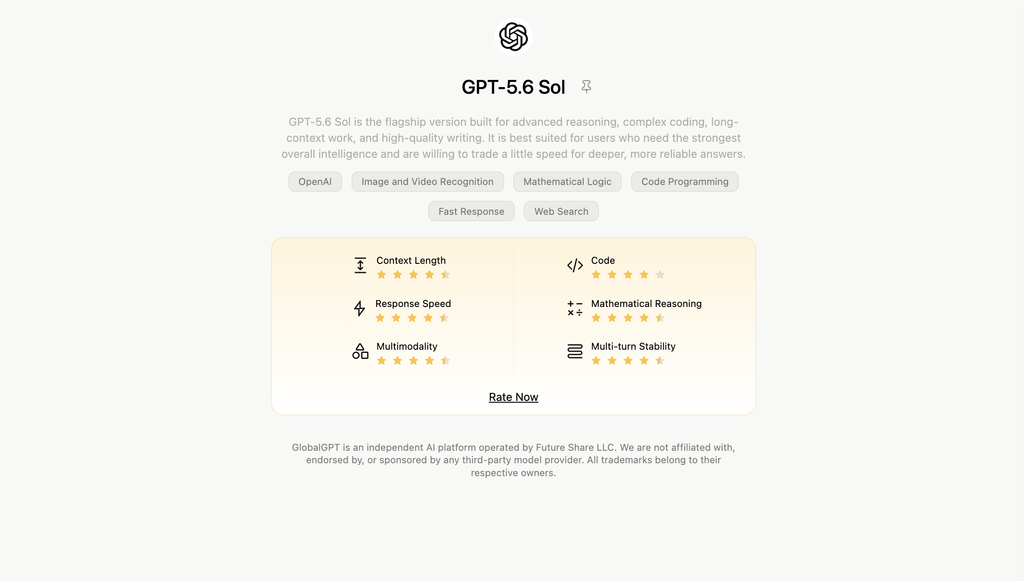
Even with these fixes, relying on one AI service can leave your workflow exposed during an outage or after you hit ChatGPT usage limits. GlobalGPT gives you a second route with access to OpenAI-family models and other model families in one workspace, starting at $5.8/month as an annual equivalent.
Our all-in-one platform provides access to more than 100 AI models in one interface. Start with the Basic Plan at $5.8 for text-model switching, or choose the $10.8 Pro Plan for additional AI video and image-generation workflows. It gives you a practical backup when one provider is unavailable.
GlobalGPT plan choice when ChatGPT is unavailable
The GlobalGPT pricing page checked September 16, 2026 shows monthly and annual-equivalent prices. Credits and model availability are product-specific, so compare the billing basis before choosing a backup.
| Plan | Monthly billing | Annual-equivalent | Best fit |
|---|---|---|---|
| Basic | $11.9/mo | $5.8/mo | Text-model switching |
| Pro | $19.9/mo | $10.8/mo | Chat plus image/video workflows |
| Unlimited | $49.9/mo | $25/mo | Selected fast-tier models |
See the current GlobalGPT plan and credit details before payment; the checkout basis determines which price applies.
Post-signup task entry: after creating or signing into your GlobalGPT workspace, open Home, choose an available chat model, and paste the short test prompt you were trying in ChatGPT. That gives you a clean comparison while the official service recovers.
1.Why Is ChatGPT Not Working Today? Quick Answer & Fast Checks
Most ChatGPT issues fall into these categories:
- Server outage or degraded model performance
- Browser/app cache corruption
- Network/VPN restrictions
- Plan limits or account issues
- Device memory overload
- Extensions or script blockers interfering
- Regional access limitations
Before deep troubleshooting, try these fast checks:
- Refresh the page
- Open ChatGPT in Incognito
- Try mobile networks instead of WiFi
- Disable VPN
- Test in a different browser
If these quick checks don’t restore your access immediately:
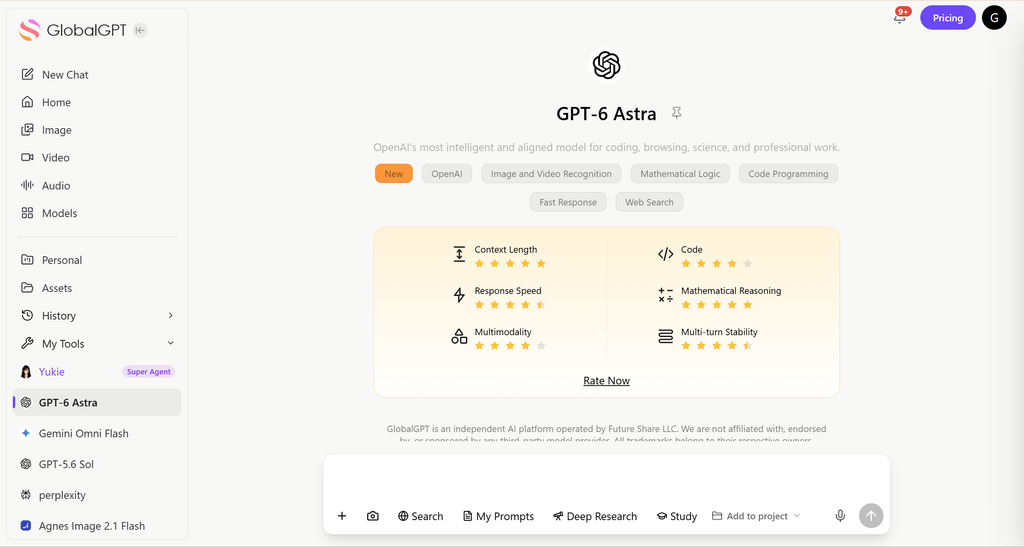
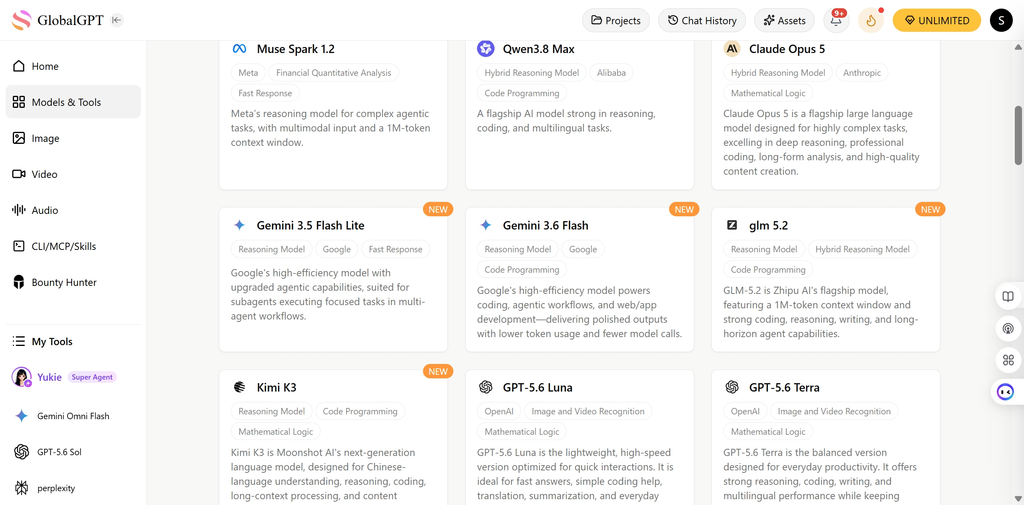
you can bypass platform-specific downtime entirely by using GlobalGPT. From $5.8/month as the annual equivalent, GlobalGPT provides a high-availability environment where you can instantly switch to OpenAI-family models, Claude Opus 5, or Gemini Omni Flash, ensuring your work never stops even when official ChatGPT servers are unstable.
2.Is ChatGPT Down Right Now? — How to Confirm an Outage
Sometimes ChatGPT isn’t broken on your device—the whole system is having issues. Here’s how to quickly check whether the outage is global or just local to you.
(1) Check the OpenAI Status Page
Start with the official OpenAI status page and look for an active ChatGPT incident.
This page shows whether key ChatGPT services are down, including:
- ChatGPT model access and API access
- Login and authentication
- Chat history
- File/image/audio uploads
- Billing and subscription services
If any section shows “Outage” or “Degraded Performance,” ChatGPT may fail to load, respond, or switch models.
(2)Check Downdetector
Downdetector lets you confirm issues reported by other users. It’s useful for:
- Regional outages
- Country-specific ISP blocks
- Sudden global spikes in downtime
A sharp increase in reports usually means the issue isn’t on your side.
(3) What “Degraded Performance” Means
This status indicates ChatGPT is running but unstable. You may see:
- Slow responses
- Partial or incomplete outputs
- “Something went wrong” errors
- Queue overload for a selected ChatGPT model
(4)Why ChatGPT Breaks During Major Releases
When OpenAI launches big updates—such as a major model or feature release—traffic surges and the system gets overloaded.
This can cause temporary rate limits, slow loading, or widespread errors.
3.Why Is ChatGPT Not Loading or Stuck on a Blank Screen?
If the page doesn’t load at all, it could be due to several issues. Here’s a quick guide to the most common causes and fixes:
Common Causes:
- Browser Incompatibility Some browsers may have trouble loading ChatGPT properly.
- Corrupted Cache or Cookies Old data can cause the page to not load or display errors.
- Extension Conflicts Extensions like ad blockers may block essential scripts.
- DNS Issues Slow or incorrect DNS servers can prevent loading.
- Network Restrictions School or office WiFi may block certain services like ChatGPT.
Fixes:
- Clear Cache and Cookies Go to your browser settings and clear both cache and cookies to remove old, corrupted data.
- Disable Extensions Disable any extensions, especially ad blockers or privacy tools, and try again.
- Try Incognito Mode Open ChatGPT in an Incognito or Private window to bypass extensions.
- Switch Browsers Try using a different browser like Chrome, Firefox, or Safari.
- Flush DNS Refresh your DNS settings to fix network-related issues:
- Chrome: Go to
chrome://settings/→ Clear browsing data. - Safari: Go to Preferences → Advanced → Empty caches.
- Firefox: Go to Preferences → Privacy & Security → Clear Data.
- Chrome: Go to
4.Why Does ChatGPT Say “Something Went Wrong”? (Error Guide)
OpenAI’s ChatGPT error troubleshooting guidance recommends separating service, network, browser, and account causes before retrying.
“Something went wrong” is ChatGPT’s universal error message. It doesn’t tell you exactly what failed, but it usually falls into one of a few common causes:
| Cause | Explanation | Typical Symptoms |
| 1. Server Overload | Happens during peak hours or when OpenAI releases major updates. | – Messages fail instantly- Responses stop halfway- Extremely slow loading or no output |
| 2. Prompt Too Long | Conversation history or the prompt is too large for the model to process. | – Long tasks suddenly stop- Model refuses to continue- Repeated errors even after refresh |
| 3. Session Timeout | Tab has been open for too long and the session token expires. | – Messages won’t send- Page refreshes by itself- Sudden logout or lost progress |
| 4. Temporary request failure | A request can fail because of a transient service, session, or connection problem. | – Response stops unexpectedly- Retry succeeds later- A new chat works normally |
How to Fix It (Step-by-Step)
- Refresh the Page Press
Ctrl + R(Windows) orCmd + R(Mac) to reload. - Shorten the Prompt Remove extra text or messages from the conversation history.
- Split Large Inputs into Smaller Parts
- Start a New Chat Thread
- Try a Different Model
- Disable VPN
- Log Out and Log Back In
5.Why Is ChatGPT Not Responding At All? (Freezing / Hanging)
When ChatGPT completely stops responding—no error message, no output—it’s usually caused by one of the following:
| Cause | Explanation |
| Circular or overly complex prompts | An unusually complex request can fail or take longer; split it into smaller steps. |
| The device sleeps or changes network | Sleep mode or a network handoff can interrupt a response in progress. |
| Low device memory | Too many open tabs or apps reduce available memory, causing the page to freeze. |
| Extensions interfering with the page | Ad blockers, privacy tools, or script injectors can block essential scripts that ChatGPT needs. |
| Unstable connection or expired session | A dropped connection or expired login session can stop a response without a useful message. |
How to Fix when ChatGPT Not Responding
| Fix | What to Do |
| Close heavy or unused tabs | Shut down video calls, YouTube, Figma, or any resource-heavy tabs to free up memory. |
| Keep ChatGPT in the active foreground tab | Don’t switch away while it’s generating — some browsers pause background processes. |
| Restart the browser completely | Close all browser windows → reopen → log in again to reset stuck scripts and memory leaks. |
| Disable or reset extensions | Turn off ad blockers, privacy tools, and script injectors one by one; reload ChatGPT after each change. |
| Try Incognito / Private Mode | Opens a clean environment without most extensions, helping you confirm whether an extension is the issue. |
6.Why Is My ChatGPT Account Not Working? (Login & Subscription Issues)
| Cause | Explanation |
| Free-tier access or rate limits reached | You may have reached the access or usage limit shown for your account. |
| Subscription payment declined | A failed payment can prevent paid features from appearing; compare the plan shown in your account with the current ChatGPT Plus price and plan guide. |
| Email not verified | Unverified accounts may block login or model access. |
| Account temporarily restricted | OpenAI may restrict accounts with unusual activity. |
| Two devices conflicting session tokens | Multiple logins can cause sudden logout or message failures. |
What to do
| Fix | Action |
| Logout → login again | Refreshes your authentication token and resolves most account glitches. |
| Re-add payment method | Update or replace your card to restore paid access. |
| Verify email from a different device | Sometimes verification links work better on mobile. |
| Contact OpenAI Support | Use the official OpenAI support channel if the issue persists across devices and networks. |
7.Why Is ChatGPT Not Working with VPN or Proxy?
VPN issues trigger:
| Cause | Explanation |
| Region mismatch | Your VPN region doesn’t match the location expected by ChatGPT. |
| Suspicious IPs flagged | Some VPN IP ranges are blocked for security reasons. |
| Government firewall blocking traffic | Some countries restrict encrypted traffic or AI services. |
How to fix when ChatGPT Not Working with VPN or Proxy
| Fix | Action |
| Disable the VPN or use a trusted network | This confirms whether the VPN route or shared IP is causing the problem. |
| Disable VPN temporarily | Helps confirm whether VPN is the cause. |
| Use mobile hotspot | Bypasses restrictive WiFi networks instantly. |
8.Is ChatGPT Not Working Because of Regional Restrictions?
ChatGPT has partial restrictions in certain countries.
Symptoms
| Symptom | What It Means |
| Page loads but messages don’t send | Messaging endpoints may be restricted. |
| Login works but models fail | Model access blocked while login remains open. |
| Voice/image features blocked | Country-specific limitations on advanced features. |
How to test
| Test | Action |
| Compare mobile vs WiFi | Mobile data may bypass local network restrictions. |
| Try another ISP | Confirms whether the block is network-based. |
9.Why Is ChatGPT Not Working on iPhone or Android?
Causes
| Cause | Explanation |
| Outdated OS | Older iOS/Android versions may not support new features. |
| App cache corruption | Corrupted app data can break model loading or messaging. |
| Background data blocked | Some phones restrict background app traffic. |
| App version too old | Older app builds lose compatibility after updates. |
How to fix when ChatGPT Not Working on iPhone or Android
| Fix | Action |
| Update app | Install the latest version from App Store/Google Play. |
| Clear storage | Reset app cache/data for a fresh start. |
| Switch network | Try cellular data instead of WiFi. |
| Reinstall app | Removes corrupted files and installs a clean version. |
10.Why Is ChatGPT Not Working on Chrome / Safari / Firefox?
Typical causes
| Cause | Explanation |
| Tracking protection | Built-in privacy settings may block necessary scripts. |
| Script blockers | Extensions like ad blockers disrupt ChatGPT functions. |
| Hardware acceleration issues | GPU-related render problems may stop the page from loading. |
| Corrupted DNS | DNS cache issues can block or slow down ChatGPT. |
How to fix when ChatGPT Not Working on Chrome / Safari / Firefox
| Fix | Action |
| Disable privacy extensions | Turn off blockers like uBlock or Privacy Badger. |
| Test in Incognito | Confirms whether extensions are the cause. |
| Try another up-to-date browser | Helps determine whether the issue is limited to one browser profile. |
11.Why Is ChatGPT Not Working for API Users?
Typical issues
| Issue | Explanation |
| 429 (Too Many Requests) | You exceeded your rate limit. |
| 500 / 503 (Model unavailable) | Model is temporarily down or overloaded. |
| Wrong Base URL | Using outdated or incorrect API endpoints. |
| Revoked API Key | Key disabled due to rotation or security issues. |
| Billing limit reached | Hard limit triggered; requests are blocked. |
How to fix when ChatGPT Not Working for API Users
| Fix | Action |
| Check logs | Identify the exact error returned by the API and compare it with the official OpenAI API error-code guide. |
| Test with curl | Verify if the issue is client-side or server-side. |
| Reduce concurrency | Lower requests per second to avoid 429 errors. |
| Add payment method | Restore usage if billing limits were hit. |
| Switch to a different model | Use an available model if one is down. |
12.Why Does ChatGPT Stop Mid-Answer?
Typical issues
| Reason | Explanation |
| Token limit hit | The response or conversation exceeds allowed length. |
| Safety filter | Sensitive content triggers a silent stop. |
| Tab loses focus | Browser throttles background tabs mid-generation. |
| Background throttling | Device sleeps or CPU is limited. |
| Server cancelled the request | Temporary overload or system interruption. |
How to fix when ChatGPT Stop Mid-Answer
| Fix | Action |
| Ask “Continue from the last sentence.” | Prompts ChatGPT to resume output. |
| Split long tasks | Break large requests into smaller chunks. |
| Keep the tab active | Avoid switching tabs while ChatGPT generates. |
| Switch models | Start a new chat or try another model that is available in your account. |
13. Advanced Diagnostic Tools (For Power Users)
If ChatGPT keeps failing and you want to pinpoint the exact cause, these tools can help.
Tools you can check
- DevTools → Network tab — See if any requests fail or scripts get blocked.
- Console logs — Detect JavaScript errors or extension conflicts.
- WebSocket stability — Confirms whether ChatGPT maintains a stable connection.
- Latency tests (ping/mtr) — Identify slow networks or packet loss.
- Clean browser profile tests — Helps determine if extensions are causing issues.
What these tests help you identify
- Whether the issue is local (device/browser problem)
- Network-related (WiFi, ISP, VPN routing)
- Server-side (OpenAI outage or model overload)
- Extension-related (script blockers or injected styles)
14.How to Prevent ChatGPT from Breaking Again
You can reduce future issues by following these best practices:
- Keep your browser updated to the latest version.
- Clear your cache once a month to avoid corrupted data.
- Avoid keeping a single chat open for many hours.
- Keep prompts concise and split very large files or requests into smaller steps.
- Use a stable, low-latency network (avoid weak WiFi).
- Disable extensions you no longer use to prevent hidden conflicts.
15.When Should You Contact OpenAI Support?
You should reach out to OpenAI Support if:
- Your account is flagged or restricted.
- You’re unable to access Plus features despite paying.
- Your payment goes through but the subscription doesn’t activate.
- Errors persist across multiple devices and networks.
16. ChatGPT Alternatives: What to Use When Servers Are Down
ChatGPT is a powerful tool, but when it encounters a “Something went wrong” error or hits strict usage caps, your productivity shouldn’t have to suffer.
Instead of waiting for a single platform to recover, GlobalGPT allows you to maintain a continuous workflow by hosting the world’s top AI models in one unified workspace.
If the problem affects image creation rather than chat, use the separate ChatGPT image-generation troubleshooting and access guide.

For a Basic Plan of just $5.8, you can instantly switch between elite text models without multiple subscriptions:
- Claude Opus 5: The current gold standard for coding and complex logical reasoning.
- Gemini Omni Flash: Best-in-class for real-time web research and multimodal data analysis.
- OpenAI-family models: A current OpenAI option for demanding professional work; see the GPT-5.6 pricing and access guide.
- DeepSeek models: A highly efficient, low-latency alternative for quick answers and summaries.
If your projects require creative visual outputs, the GlobalGPT Pro plan ($10.8/month as an annual equivalent; $19.9 month-to-month) is mandatory to unlock advanced video and image capabilities, including:
Veo 3.1: Google’s premier video model for producing polished, high-fidelity creative content.
Video models: Availability, duration, and features change by model and platform. Check the model shown in your current workspace before starting a production workflow.
Frequently Asked Questions
Why is ChatGPT not working right now?
Check the official OpenAI status page first. If no incident is listed, test a private browser window, turn off extensions and VPNs, switch networks, and sign out and back in.
How do I know whether ChatGPT is down or the problem is on my device?
Try ChatGPT on another device and another network. If it fails everywhere and the OpenAI status page reports an incident, the issue is probably service-side. If it works elsewhere, focus on the original browser, app, or network.
Why does ChatGPT show “Something went wrong”?
It is a general error rather than one diagnosis. Common causes include a temporary service incident, an expired session, a browser extension conflict, an unstable connection, or a request that needs to be retried in a new chat.
Why is ChatGPT not responding even though the page loads?
Start a new chat and send a short test prompt. If that works, the original conversation may be too large or temporarily stuck. If it does not, refresh the session, try a private window, and check the service status.
Why is the ChatGPT app not working on iPhone or Android?
Update the app and operating system, restart the phone, switch between Wi-Fi and mobile data, and reinstall the app if needed. Check the OpenAI status page before resetting anything.
What should API users do when OpenAI requests fail?
Use the returned HTTP code. A 401 points to authentication, 429 can mean rate or quota limits, 500 is a server error, and 503 indicates overload. Follow the official API error guide and retry only when appropriate.
Can I keep working if ChatGPT is temporarily unavailable?
Yes. You can wait for the official service to recover or use another available model. GlobalGPT provides OpenAI-family models and other model families in one workspace, so you are not dependent on one interface.
Final Checklist: Get ChatGPT Working Again
Check the service status, isolate the device or network, test a clean browser session, refresh your login, and use the exact API error code when development requests fail. Change one variable at a time so you know which fix actually worked.