You can access Veo 3.1 today through official Google entry points like the Gemini App, Google Flow, the Gemini API, and Vertex AI. However, navigating enterprise billing setups, complex API configurations, and calculating per-clip generation costs can severely disrupt a creator’s workflow and bloat production budgets.
While traditional cloud platforms impose strict technical barriers and regional limitations, GlobalGPT provides instant, seamless access to Veo 3.1. By upgrading to our $10.8 Pro Plan, creative professionals unlock not only Veo 3.1’s groundbreaking native audio capabilities but also gain immediate access to top-tier competitors like Sora 2, Kling, and Wan, all within a single unified dashboard.
GlobalGPT eliminates the friction of fragmented subscriptions, serving as the ultimate all-in-one platform for your entire production cycle. Whether you are generating complex 1080p simulations with Veo 3.1, leveraging ChatGPT 5.4 for advanced scriptwriting, or using Nano Banana 2 for precise character design, you can execute an end-to-end project without ever switching tabs.

What is Veo 3.1? Understanding Google’s Revolutionary AI Video Engine
According to Google DeepMind, Veo 3.1 is a state-of-the-art video generation model designed to empower filmmakers with unprecedented creative control and realism. It represents a massive leap in generative AI by flawlessly combining high-fidelity visual physics with fully integrated, native audio.
The model’s most defining feature is its native audio generation, which synthesizes perfectly synchronized dialogue, ambient sound, and cinematic effects directly alongside the video frames without relying on third-party tools. Furthermore, the model offers precise directorial control through its “Ingredients to Video” feature, allowing creators to upload reference images to maintain strict character, object, and stylistic consistency across multiple generations.s.

Key technical advancements include:
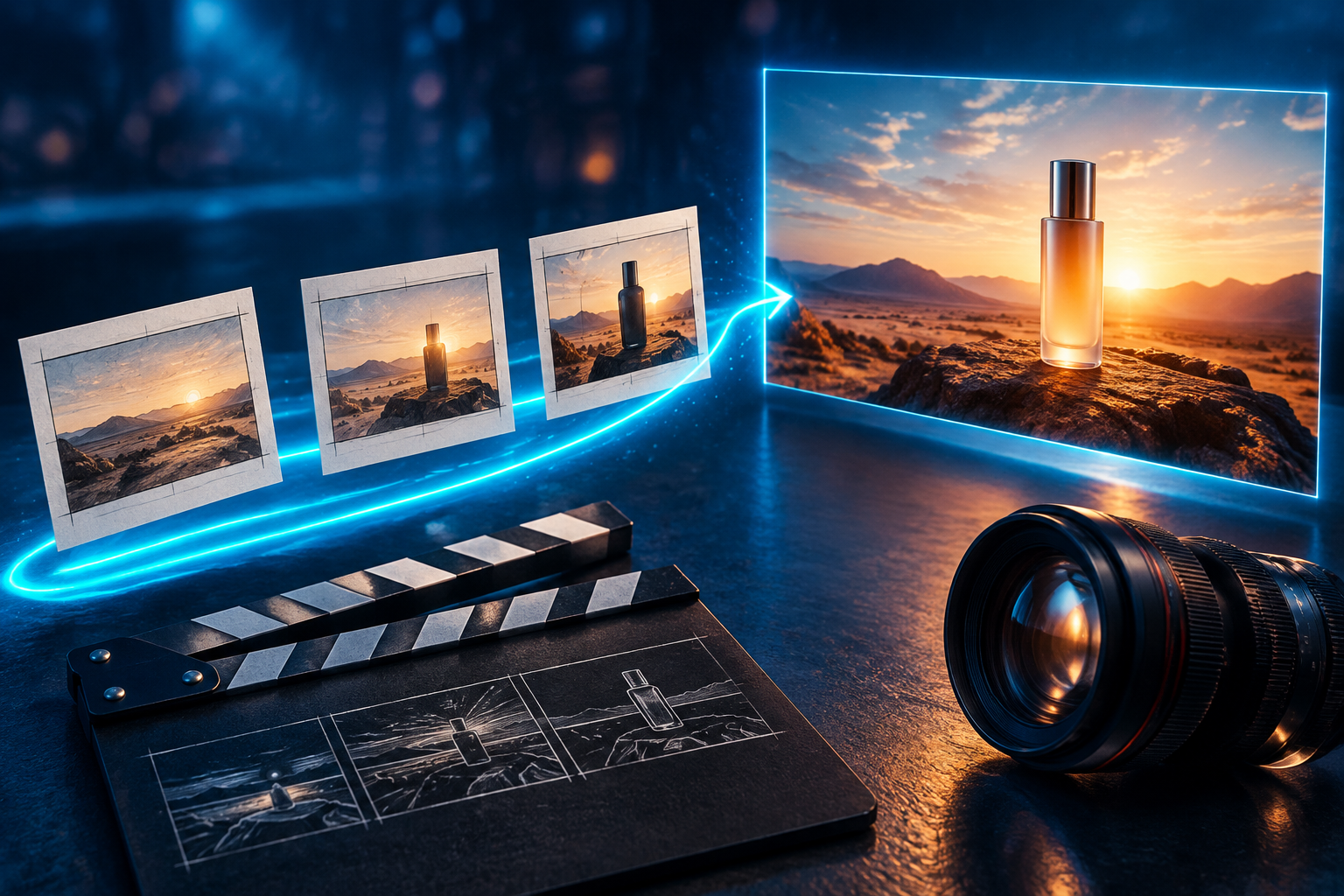
- Ingredients to Video: A core capability that uses up to three reference images to “lock” characters, objects, or styles across multiple shots.
- Native Audio & Dialogue: Unlike competitors that layer audio post-generation, Veo 3.1 generates high-fidelity synchronized sound (48kHz stereo) directly with the video frames.
- Advanced Physics: The model is fine-tuned to simulate real-world gravity, lighting, and shadow interactions, significantly reducing the “uncanny valley” effect.
- Pro-Grade Scaling: It supports native 1080p generation and state-of-the-art 4K upscaling for broadcast-quality workflows.

These advanced capabilities allow modern directors to bypass traditional, time-consuming post-production rendering and sound design, bringing their visions to life with unparalleled speed.
Where to Use Veo 3.1? A Detailed Step-by-Step Access Guide
To maximize the model’s potential, you must choose the platform that matches your specific production needs. Here is the exact procedure for the three primary professional paths.
Method 1: Programmatic Access via Gemini API & Google AI Studio
This is the “code-first” approach for developers and high-volume creators who need 4K output and precise parameter control.
- Enter AI Studio: Visit aistudio.google.com and log in with your Workspace or Google account.
- Select the Model: In the right-hand settings panel, select
veo-3.1-generate-001from the model dropdown menu.

- Configure Parameters:
- Set Resolution to 1080p or enable 4K Upscaling.

- Choose your Aspect Ratio (16:9 for cinematic or 9:16 for native mobile).
- Upload Ingredients: Use the “Add files” tool to upload up to 3 character or style images.

- Generate & Export: Click Generate. Once complete, you can download the 8-second clip with integrated stereo audio.
Method 2: Narrative Filmmaking via Google Flow (Flow Studio)
Use this path if you need to create long-form stories (over 60 seconds) with continuous character consistency.
- Launch Flow: Navigate to flow.google.

- Define Your Scene: Use the Scene Builder to input your “Ingredient” images and your “Director’s Prompt.”

- Utilize Scene Extension: After generating your first 8-second clip, click the “Extend” button. Flow will use the final second of your clip as a “seed” to generate a seamless 7-second continuation.
- Refine Transitions: Use the “First and Last Frame” mode to specify exactly how a scene should begin and end.
- Final Polish: Apply the 4K Upscaler before exporting for professional distribution.
Method 3: Enterprise Deployment via Vertex AI (Google Cloud)
For organizations requiring IAM security, regionality, and high-scale batch generation.
- Cloud Console: Go to the Google Cloud Console and search for Vertex AI Model Garden.

- Deploy Veo 3.1: Search for “Veo 3.1” and select “Open in Media Studio”.
- Batch Processing: Utilize the REST API or Vertex AI SDK (Python/Java) to send batch requests.
- Safety& Governance: Configure safety filters to ensure all generated content aligns with corporate responsible AI guidelines.
What are the Top Professional Scenarios Where Veo 3.1 is Deployed?
Professional teams and commercial studios are already seeing measurable results by integrating Veo 3.1 into their production pipelines, moving beyond novelty into real-world ROI.
For example, Promise Studios utilizes Veo 3.1 within its MUSE Platform to enhance generative storyboarding and previsualization, achieving production-quality, director-driven storytelling faster than traditional methods. In the gaming sector, Volley powers its new AI-driven RPG, Wit’s End, using Veo 3.1 to dynamically generate assets and static cinematics that narrate player progress.
Furthermore, in the marketing and advertising space, OpusClip leverages the model to boost motion graphics and create highly realistic promotional videos tailored for SMBs, drastically cutting down agency lead times.tion loss typically associated with cropping landscape AI video.
| Industry | Primary Use Case | Deployed By | Key Workflow Benefit |
| Entertainment | Generative Storyboarding | Promise Studios | Rapid previsualization of complex narrative scenes |
| Gaming | Dynamic In-Game Assets | Volley | Real-time generation of engaging cinematics |
| Marketing | Promotional Motion Graphics | OpusClip | Cost-effective, realistic ad generation at scale |

How to Refine Your Workflow Where Veo 3.1 is Implemented?
To ensure your outputs are broadcast-ready, you must move beyond basic descriptions and utilize structured, multi-layered prompting techniques that act as a virtual camera crew.
The “Director’s Formula” for Prompting
Instead of simple descriptions, structure your prompt to guide the AI’s camera and lighting engine:
- [Cinematography]: (e.g., Low-angle tracking shot, slow dolly forward)
- [Subject]: (e.g., A weathered archeologist in a canvas jacket)
- [Action]: (e.g., brushing dust off an ancient golden artifact)
- [Lighting/Style]: (e.g., dramatic high-contrast torchlight, photorealistic 35mm film)

Comparison of Veo 3.1 Model Capabilities
| Feature | Veo 3.1 (Standard) | Veo 3.1 Fast |
| Primary Goal | Highest Fidelity / Cinematic | Speed & Rapid Iteration |
| Max Quality | 4K Upscaled | 1080p |
| Audio | Native Synchronous Audio | Optional / Basic |
| Best Workflow | Final Ads / Short Films | Rapid Prototyping / Drafts |
How to Refine Your Workflow with Veo 3.1
To ensure your outputs are broadcast-ready, you must move beyond basic descriptions and utilize structured, multi-layered prompting techniques that act as a virtual camera crew.
Because Veo 3.1 accurately interprets complex instructions, explicitly defining the cinematography, specific lighting, and essential audio cues (e.g., “muffled footsteps and distant sirens”) drastically improves fidelity and triggers the native audio engine accurately. Pairing a highly specific prompt with the “Ingredients to Video” feature guarantees your primary subject’s appearance remains completely locked across varied environments.
By utilizing GlobalGPT’s full-cycle ecosystem, you can seamlessly use ChatGPT 5.4 or Claude 4.6 to write and optimize these complex prompt structures before feeding them directly into the Veo engine, ensuring perfect execution every time.

Frequently Asked Questions (FAQ)
1. Where can I find the official API documentation for Veo 3.1?
You can find the full technical specs and SDKs at the Google AI for Developers portal. Use the model ID veo-3.1-generate-001.
2. Is Veo 3.1 available globally?
Veo 3.1 is available in over 150 countries. However, “Image-to-Video” features may be limited in certain regions such as the EEA, Switzerland, and the UK (Source: Google Gemini Support Docs).
3. Can I use Veo 3.1 to create videos longer than 8 seconds?
Yes. By using the “Scene Extension” feature in Google Flow or the API, you can generate continuous footage that lasts for several minutes by chaining 7-second extensions.
4. How do I verify if a video was made with Veo 3.1?
All official outputs are embedded with SynthID. You can upload any video to the Gemini App and ask: “Was this generated with Google AI?” to get a verification report.