Quick answer: As of September 2026, Google Veo 3.1 is still available, but it is no longer the default video model in the Gemini app. Google now highlights Gemini Omni. If you need Veo 3.1 specifically, use the Gemini API, selected Google Flow workflows, or a platform that names the model explicitly.
The distinction matters. Gemini Omni is the current consumer route for conversational video generation and editing, while Veo 3.1 remains useful for targeted controls such as scene extension, last-frame control, and reference images. Our Gemini Omni Flash vs Veo 3.1 comparison helps you choose without mixing up the two models.
If you prefer one workspace instead of several separate subscriptions, GlobalGPT provides access to Veo 3.1 alongside other video models. You can keep Veo for precise controls and switch engines when a project needs different speed, editing, or style options.

What is new in Google Veo 3.1 in 2026?
Google DeepMind still presents Veo 3.1 as its leading Veo video model. It generates video and audio together, follows detailed cinematic instructions, and is especially useful when you need control over the start, end, or continuity of a shot.
- Native audio: Dialogue, ambience, and sound effects are generated with the video. For practical limits, see our guide to sound in Veo 3.1.
- .Resolution: The API supports 720p, 1080p, and 4K. 1080p and 4K outputs require an 8-second clip; video extension remains limited to 720p.
- Formats: 16:9 and 9:16 are available, including a composition designed for portrait video.
- Reference images: Up to three images can guide a character, object, or visual style.
- Scene extension: A Veo clip can be extended by seven seconds, up to 20 times within Google’s stated limits. Our guide to long Veo 3.1 videos covers the workflow.

Be precise with the terminology: Veo 3.1 is not presented as a 4K 60 fps model. Google’s documentation specifies 24 fps, with 4K restricted to 8-second clips. Better Veo 3.1 prompting techniques often matter more than simply increasing resolution.
Can you still access Veo 3.1 through the Gemini app?
Not in the same way as before. Gemini’s official help now identifies Gemini Omni as the app’s current video model. The older Veo 3.1 tutorial can still explain where the video tool lives, but your account may show a different model. Our guide to using Veo 3.1 in Gemini should therefore be treated as a transition guide, not a promise that Veo 3.1 is selectable everywhere.
- Sign in to gemini.google.com with an account that has an eligible Google AI plan.
- Open the sidebar and choose Create video.
- Add a prompt, up to five images, or a video, depending on the features available for your region and account.
- Choose the format, submit the request, and wait for generation. You can request edits in the same conversation with Gemini Omni.
If your goal is specifically Veo 3.1, do not rely on the generic “Video” button. Check the model name shown in your account. If Veo 3.1 is absent, use the API, Veo 3.1 in Google Flow when offered, or the verified GlobalGPT route above.
How do developers get the Veo 3.1 API?
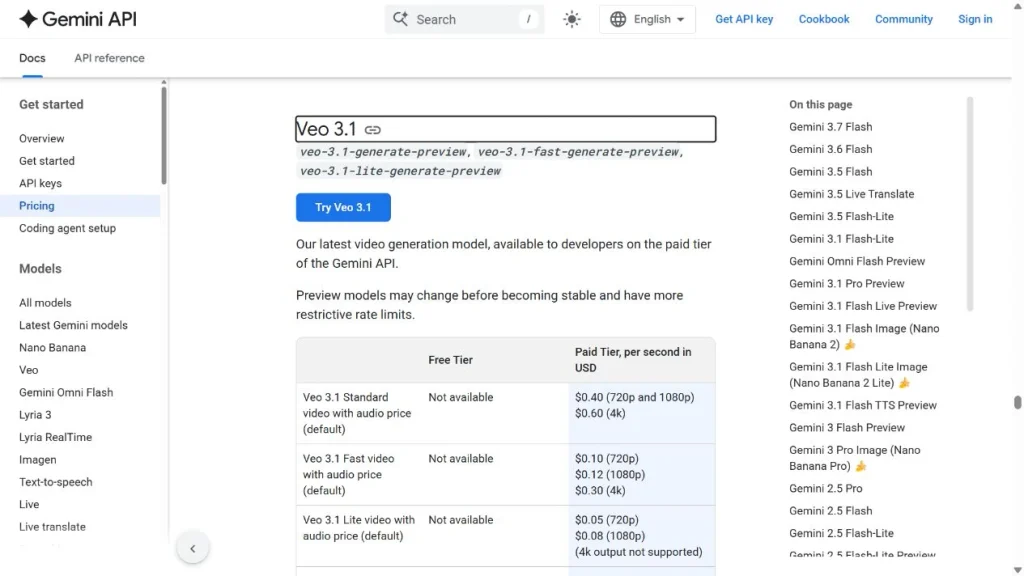
The clearest route for requesting Veo 3.1 is the Gemini API. As checked on August 21, 2026, Google documents three Preview model IDs. Stable IDs shown in older tutorials are not present in the current Gemini API documentation. For the difference between Google’s recommended video route and targeted Veo workflows, see the official video-generation overview.
- Enable billing: Veo 3.1 is not included in the Gemini API free tier.
- Choose the model:
veo-3.1-generate-preview,veo-3.1-fast-generate-preview, orveo-3.1-lite-generate-preview. - Set the output: 16:9 or 9:16, with 720p, 1080p, or 4K depending on the variant. Veo 3.1 Lite does not support 4K.
- Start the operation: Video generation is asynchronous. Poll the operation until
donebecomestrue. - Download promptly: Google keeps generated videos for two days. Save them before they expire.
All three variants are Preview models and can change before a stable release. For production, pin the model ID in your configuration, watch release notes, and keep a fallback. Google now recommends Gemini Omni Flash as the default model for new video workflows, while Veo 3.1 is aimed at specific controls and compatibility needs.
Google Veo 3.1 access methods compared
| Access | Model shown in August 2026 | Best for | Limit to know |
|---|---|---|---|
| Gemini app | Gemini Omni | Conversational creation and editing | No longer guarantees direct Veo 3.1 access |
| Google Flow | Omni Flash and video models available to the account | Scenes, editing, and narration | Credits and models vary by plan |
| Gemini API | Veo 3.1 Preview, Fast Preview, and Lite Preview | Apps and automation | Paid, asynchronous, and Preview limits |
| GlobalGPT | GlobalGPT | Multi-model work in one account | Platform pricing and quotas apply |
The best choice depends on the outcome, not just the Veo name. Gemini Omni simplifies conversational editing; Veo 3.1 remains useful for extensions, reference images, and existing pipelines. If you are comparing other engines too, our guide to the best AI video generators gives a broader view.
What are the official prices and availability?
The prices below are the United States prices displayed on August 21, 2026. Google localizes prices and benefits, so check the Google AI Plans page before paying. For a Veo-focused cost breakdown, see our guide to the cost of a Veo 3.1 subscription.
| Consumer plan (United States) | Displayed monthly price | Video / Flow access |
|---|---|---|
| Google AI Plus | $4.99/month | Higher video access; 200 Flow credits/month |
| Google AI Pro | $19.99/month | Expanded video access; 1,000 Flow credits/month |
| Google AI Ultra | From $99.99/month | Higher access; 10,000 or 25,000 Flow credits/month depending on the tier |
These plans do not promise unlimited rendering. They use access levels and credits. Google says Veo 3.1 and Flow are available in more than 140 countries and territories, but some features, including video editing, remain restricted in the EEA, the United Kingdom, Switzerland, and other regions. Our answer to whether Veo 3.1 is free explains why a trial or credits should not be confused with free API access.
| Gemini API | 720p | 1080p | 4K |
|---|---|---|---|
| Veo 3.1 Standard with audio | $0.40/s | $0.40/s | $0.60/s |
| Veo 3.1 Fast with audio | $0.10/s | $0.12/s | $0.30/s |
| Veo 3.1 Lite with audio | $0.05/s | $0.08/s | Not supported |
An 8-second Standard clip therefore costs $3.20 at 720p or 1080p, and $4.80 at 4K. Billing applies only to successfully generated videos. Prices can change, so the Gemini API pricing page is the source to check before deployment.
Frequently Asked Questions (FAQ)
Is Veo 3.1 still the default video model in Gemini?
No. In August 2026, Gemini’s official help identifies Gemini Omni as the app’s current video model. Veo 3.1 remains available through the Gemini API and selected workflows that display it explicitly.
Which Veo 3.1 IDs should I use in the Gemini API?
Google documents veo-3.1-generate-preview, veo-3.1-fast-generate-preview, and veo-3.1-lite-generate-preview. They are Preview models, so check their status before each production deployment.
How much does a Veo 3.1 API video cost?
The price depends on the variant and resolution. Standard is $0.40/s at 720p or 1080p and $0.60/s at 4K; Fast and Lite cost less. The API free tier does not include Veo 3.1.
Does Veo 3.1 generate true 4K at 60 fps?
The Gemini API documentation specifies 4K output at 24 fps for Veo 3.1 Standard and Fast, with an 8-second duration requirement. It does not promise 4K 60 fps generation.
How many reference images can I use?
Veo 3.1 accepts up to three reference images for a character, product, or style. In the Gemini app with Omni, the current help page mentions up to five images or one video.
Can I use Veo 3.1 for a commercial project?
That depends on the service, account, and applicable terms. Read Google’s terms or the platform terms, then review our guide to commercial use of Veo 3.1 before a client campaign.
Can I remove the SynthID watermark?
Veo videos are marked with SynthID. Do not promise that it can be removed. Our guide to the Veo 3.1 watermark explains the difference between visible marking, invisible watermarking, and platform rules.
Can I use Veo 3.1 on GlobalGPT?
Yes. The verified GlobalGPT Veo 3.1 route is active and explicitly displays the model. It is practical if you want several video models in one account instead of managing multiple subscriptions.
Bottom line: Use Gemini Omni for current conversational video creation, the Veo 3.1 API for precise controls and integrations, Flow for scene building, or GlobalGPT when you want Veo 3.1 inside a multi-model workspace. Always check the model name and price shown on the day you start a project.