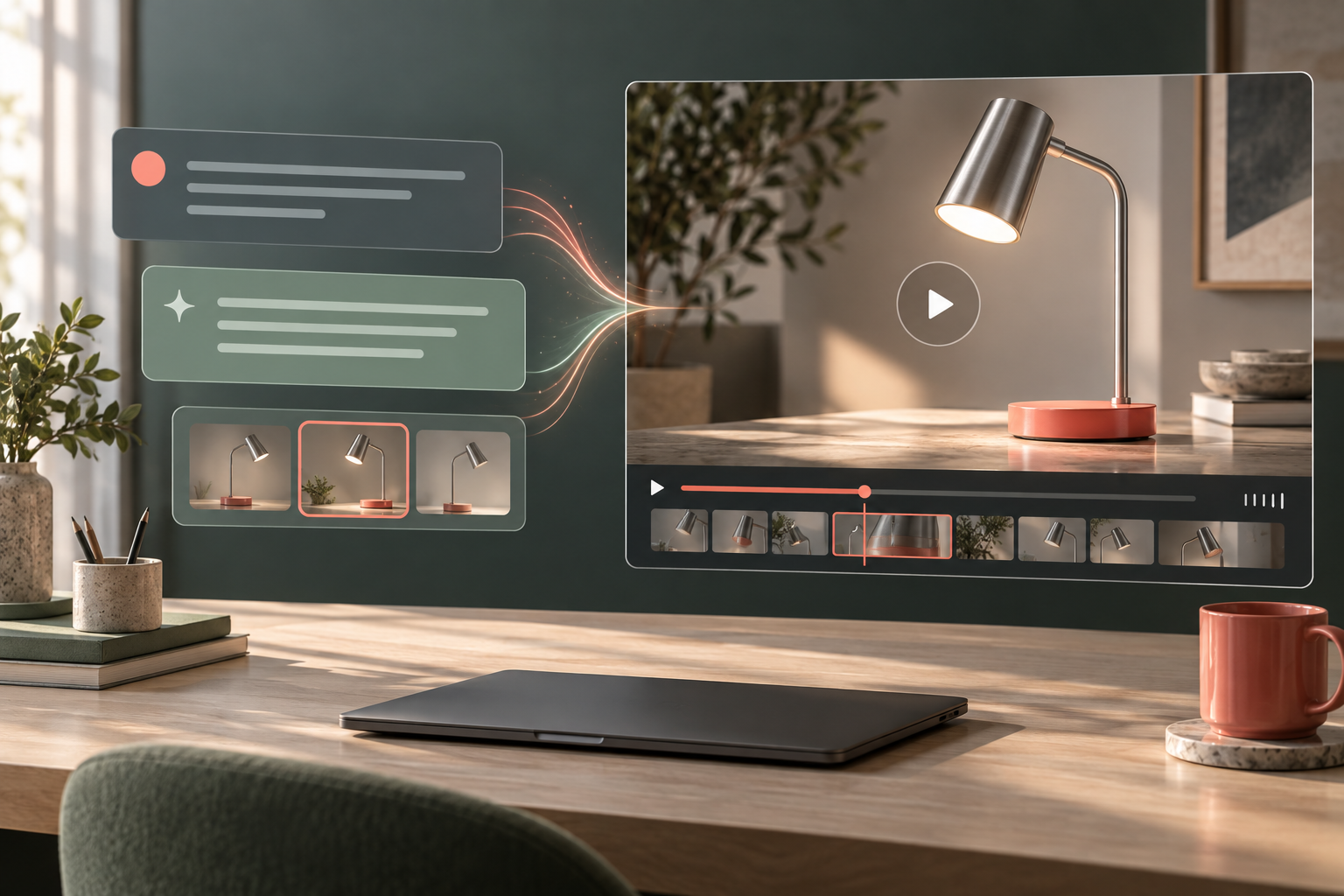
Vous pouvez créer des vidéos générées par IA à partir de ChatGPT en l'utilisant pour élaborer le brief, le script et les consignes de prise de vue, puis en transmettant ces instructions à un générateur de vidéos. Une connexion prise en charge permet de gérer ce transfert au sein même de la conversation. Le rendu des séquences vidéo reste à la charge du modèle vidéo, et ses propres règles d'accès, paramètres et coûts s'appliquent.
Un bon point de départ consiste à se concentrer sur une petite scène précise : une lampe de bureau s'allume, la caméra bouge légèrement, et le produit reste reconnaissable. Réussissez ce plan avant de demander une publicité aboutie. Un brief précis vous donne un élément que vous pouvez examiner et améliorer..
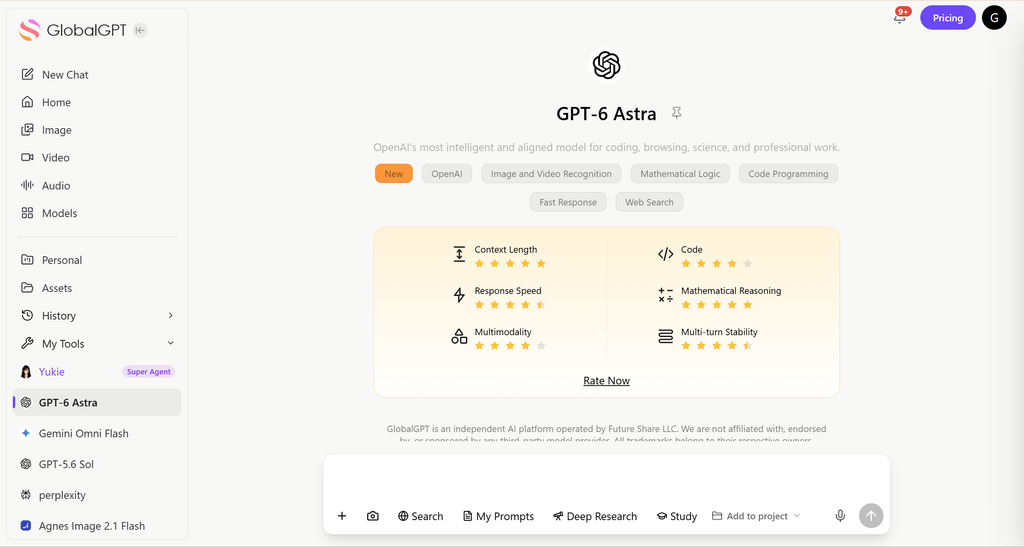
Rôle de ChatGPT dans un flux de travail vidéo basé sur l'IA
L'expression “ réaliser une vidéo ” recouvre en réalité trois métiers différents. Un assistant de production organise le concept et rédige les consignes. Un modèle vidéo transpose ces consignes et les références fournies en images animées. Un monteur assemble les plans utilisables, la voix off, les légendes et procède à l'exportation finale. Un seul projet peut faire appel à plusieurs de ces métiers, mais les responsabilités de chacun restent bien distinctes.
Qui s'occupe de quoi ?
| Scène | Résultat utile | Ce qu'il faut vérifier |
|---|---|---|
| Planification ChatGPT | Synopsis, scénario, liste des plans et indications | Pas d'informations inventées sur les produits ni de contextes sans fondement |
| Transfert via un outil connecté ou manuel | Une requête envoyée au générateur sélectionné | Le modèle, les références fournies, la durée et le coût estimé |
| Génération vidéo | Un clip rendu ou l'état d'une tâche | Fichier réellement lisible, qualité visuelle et conditions d'utilisation |
| Révision finale | Une séquence finalisée avec son et sous-titres | Rythme, continuité, déclarations et format d'exportation |
En ce qui concerne la question plus générale des capacités, le Présentation de la création vidéo ChatGPT explique le rôle de l'interface de chat. Le processus décrit ci-dessous se concentre sur le chemin à suivre pour passer d'un brief exploitable à des images prêtes à être visionnées.
Choisissez un itinéraire guidé ou manuel
Utilisez ChatGPT pour la planification, puis collez une consigne unique dans le générateur de votre choix. Joignez les références via la fonction de téléchargement de cet outil et sélectionnez les paramètres pris en charge. Cette méthode est simple à suivre lorsqu’il n’y a pas de connexion disponible ou lorsque vous souhaitez vérifier vous-même les paramètres de génération.
GlobalGPT propose des outils de texte et de vidéo au sein d’un même espace de travail. Vous pouvez développer votre idée à l’aide d’un modèle de texte, ouvrir l’outil vidéo et y transférer la consigne validée. Il s’agit d’un flux de travail propre à la plateforme ; cela ne signifie pas pour autant que GlobalGPT soit une connexion vidéo native de ChatGPT.
Choisissez un générateur adapté à la prise de vue dont vous avez besoin : la prise en charge des références, la possibilité de contrôler les mouvements, l'audio, la taille du fichier final et le coût constituent des critères plus pertinents qu'une simple étiquette générique de “ meilleur ”. Le Comparatif des générateurs de vidéos basés sur l'IA fournit des informations supplémentaires pour faciliter la sélection.
Avertissement obsolète concernant les projets Sora API
Au 7 septembre 2026, la version OpenAI indique que les services Sora 2 et l'API Videos sont obsolètes, leur arrêt étant prévu pour le 24 septembre 2026. Le Avis officiel de prise en charge progressive de la norme OpenAI indique les identifiants des API et des modèles concernés. Évitez de choisir cette API comme base d'un nouveau workflow à long terme. Cet avis concerne les produits API mentionnés ; il ne détermine pas le statut de chaque application utilisatrice ni de chaque route tierce.
Comment créer des vidéos générées par IA à partir de ChatGPT en cinq étapes
1. Définir le résultat avant d'écrire le script
Précisez qui regardera la vidéo, où elle sera diffusée et quel message essentiel le spectateur doit retenir. Pour une vidéo de présentation d’une lampe de bureau, l’objectif pourrait être de montrer un faisceau lumineux pratique sur un espace de travail compact. Il s’agit là d’un avantage visible. L’autonomie de la batterie, les indices de luminosité et les réductions nécessitent des informations factuelles sur le produit.
Définissez ici la durée finale et l’orientation du montage, mais prévoyez une marge suffisante pour tenir compte des durées de clips prises en charge par le générateur. Un montage de 15 secondes peut être composé de plusieurs clips plus courts. Indiquer “ 15 secondes ” dans une consigne ne permet pas de définir une durée que l’outil ne prend pas en charge.
Consigne n° 1 : Transformer une idée en cahier des charges de production
2. Décomposez le plan en plusieurs plans courts et concrets
Prévoyez une action principale par plan. Allumer une lumière, tourner une page ou présenter un produit fini sont des actions faciles à évaluer séparément. En revanche, demander à un court extrait de planter le décor, de présenter un personnage, de montrer un produit et de livrer un argumentaire de vente rend plus difficile l'identification des erreurs.
Un storyboard original de 15 secondes sur une lampe de bureau
| Prise de vue | Durée prévue du montage | Action visible / acceptation |
|---|---|---|
| 1. Présentation du produit | 0 à 5 secondes | La lampe s'allume ; l'objet reste entièrement visible et stable |
| 2. Utilisation en contexte | 5 à 10 secondes | Une page de cahier se tourne dans la zone de travail éclairée ; des reflets et des ombres réalistes |
| 3. Cadre de clôture | 10 à 15 secondes | Mise en attente discrète du produit ; ajouter un CTA vérifié dans l'éditeur |
Ces exemples décrivent un plan de montage, et non des performances de rendu mesurées ni la garantie d'obtenir trois clips générés identiques. Pour un produit réel, veillez à intégrer une référence produit validée dans chaque génération prise en charge. Les deux vidéos tutorielles illustrent des concepts distincts ; il ne s'agit ni d'une campagne coordonnée ni d'un test d'identité produit.
3. Rédigez une description du plan
Respectez un ordre clair : sujet, action, décor, cadrage, mouvement de caméra et éclairage. Documentation vidéo de OpenAI fait une distinction utile : la consigne décrit la scène, tandis que des paramètres tels que la taille et le nombre de secondes définissent le format de sortie. Cela reste un moyen pratique d'organiser un texte court, même lorsque vous choisissez un autre générateur.
Consigne n° 2 : Écrivez un plan vidéo contrôlable
Veillez à ce que les contraintes soient liées à une exigence claire. “ Lampe entièrement visible ” est vérifiable. Une série de mentions telles que “ primé, 8K, chef-d’œuvre cinématographique ” ne précise pas une action floue, et le fait d’écrire “ 8K ” ne définit pas la résolution d’exportation.
Les commandes spécifiques à un modèle nécessitent des instructions spécifiques à ce modèle. Le Veo 3.1 Techniques d'incitation Donnez un exemple d'adaptation d'un cahier des charges général de prise de vue à un générateur spécifique.
4. Définir les références, les contrôles des coûts et des résultats
Téléchargez le fichier image via le générateur ou la connexion prise en charge. La mention d'un nom de fichier dans le texte d'invite standard ne constitue pas une preuve que l'outil a bien reçu l'image. Vérifiez que la requête l'inclut effectivement.
Pour assurer la continuité du produit, commencez par une référence validée et un mouvement modéré. Le Guide de conversion d'images en vidéo pour le modèle Kling explore l'animation guidée par des repères. Les types et les limites exacts des données d'entrée dépendent toujours du modèle et de l'itinéraire que vous utilisez.
Vérifiez le format d'image, la durée prise en charge, la taille du fichier de sortie et les options audio, puis lancez la création d'un clip. Notez son identifiant de tâche et la description exacte de la requête. Attendez le résultat avant de lancer d'autres variantes ; une réponse lente ne signifie pas nécessairement que la tâche a échoué.
5. Relire, réviser une fois, puis corriger
Regardez l'intégralité de la séquence à vitesse normale, puis examinez attentivement le début, le milieu et la fin. La première image peut paraître convaincante, alors que, plus tard, un socle se déforme, une main perd le contact ou la direction de la lumière change. Identifiez un défaut précis avant de reformuler la consigne.
Conseil n° 3 : Analysez les résultats avant de réinvestir
Après avoir sélectionné les plans utilisables, découpez-les pour obtenir le rythme final et ajoutez du texte dans le logiciel de montage. Veillez à ce que les affirmations, l'orthographe, les sous-titres et l'appel à l'action restent modifiables. Écoutez chaque piste audio avant d'ajouter de la musique ou de publier une ligne de voix off.
Lorsqu'un modèle spécifique constitue la prochaine étape, le Exemples de prompts pour Seedance 2.0 fournissent une structure de prompt supplémentaire. Ce lien renvoie à la version spécifiée du modèle ; il ne faut pas supposer que ses paramètres s'appliquent à une autre version.
Essai pratique : de GPT-6 Astra à une vidéo en GlobalGPT
Nous avons testé ce processus dans un environnement où l'utilisateur était connecté Espace de travail GlobalGPT le 7 septembre 2026. GPT-6 Astra a préparé les instructions de prise de vue. L'outil vidéo proposait son propre sélecteur de modèles et ses propres commandes de rendu. Voici la séquence que nous avons suivie, y compris un détail de passage de relais qu'il est facile de manquer.
1. Choisissez « GPT-6 Astra » et décrivez un coup
Dans l'onglet « Accueil », sélectionnez « Modèles d'IA », puis « GPT-6 Astra ». Nous avons demandé une consigne de moins de 90 mots décrivant une lampe de bureau argentée avec un socle corail, une seule action d'allumage, une caméra fixe et une géométrie stable. Nous avons également demandé que le format d'image et la durée souhaités soient indiqués séparément, à condition que l'outil vidéo les prenne en charge.
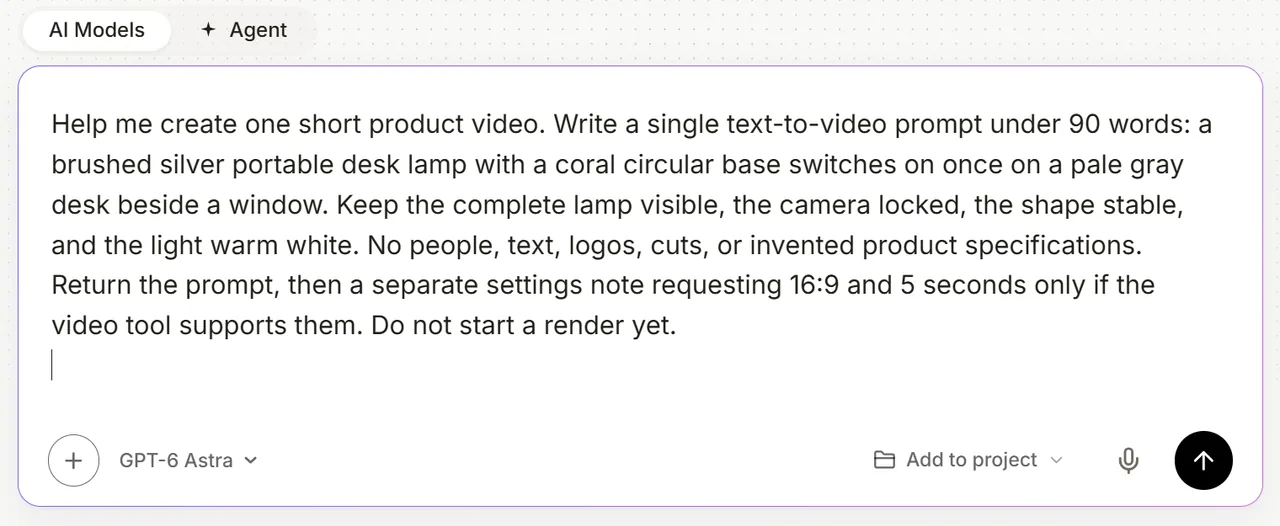
2. Transférez la consigne finalisée dans « Go to Produce »
GPT-6 Astra a fourni une consigne concise pour la prise de vue ainsi qu'une note distincte concernant les paramètres. Un panneau « Génération vidéo » est apparu sous la réponse, accompagné d'un bouton « Passer à la production ». Ce bouton a ouvert le générateur vidéo, où le modèle initialement sélectionné était Seedance 2.0 Fast.
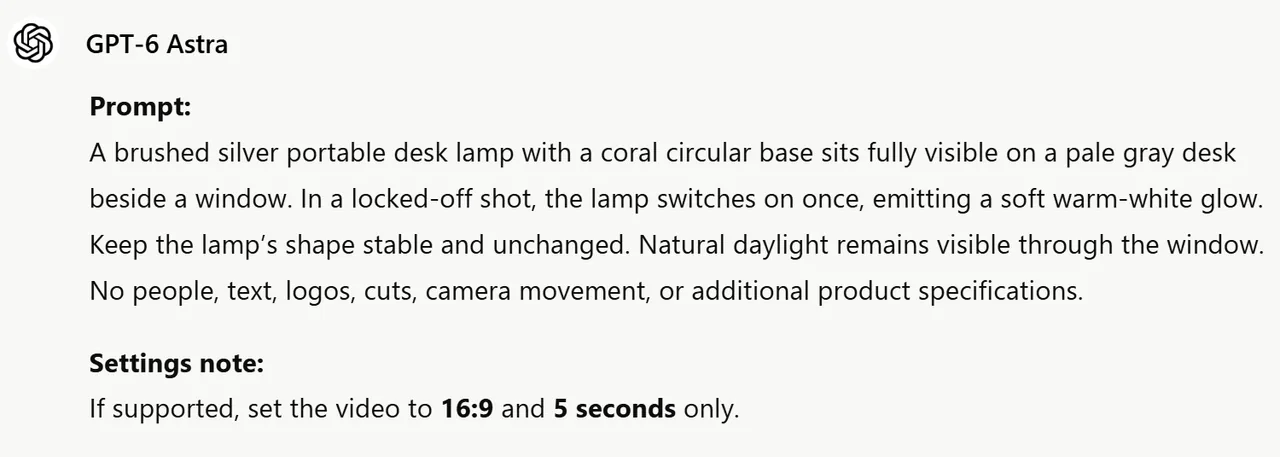

Vérifiez le texte transféré avant de lancer la génération. Lors de notre test, le générateur a reçu la question initiale commençant par “ Aidez-moi à créer une courte vidéo de présentation d’un produit ”, qui comprenait la demande de rédiger une consigne. Nous l’avons remplacée par la consigne de rendu réelle issue de la réponse de GPT. Le changement de modèle vidéo a également effacé le champ de consigne ; nous avons donc vérifié et recollé le texte final après avoir choisi le moteur de rendu.
Résultat testé de GPT : la photo de la lampe
3. Choisissez le modèle vidéo et vérifiez ses paramètres
Nous avons sélectionné « Seedance 2.5 » pour la prise de vue « texte seul », laissé vides les champs facultatifs de début et de fin, puis défini les paramètres 16:9, 5 secondes et 720p à l’aide des commandes disponibles. Les options « Enhance Prompt » et « Native Audio » étaient désactivées. L'option « Partager avec la communauté » était également désactivée. Le choix d'un modèle peut modifier à la fois les données d'entrée requises et les paramètres disponibles.
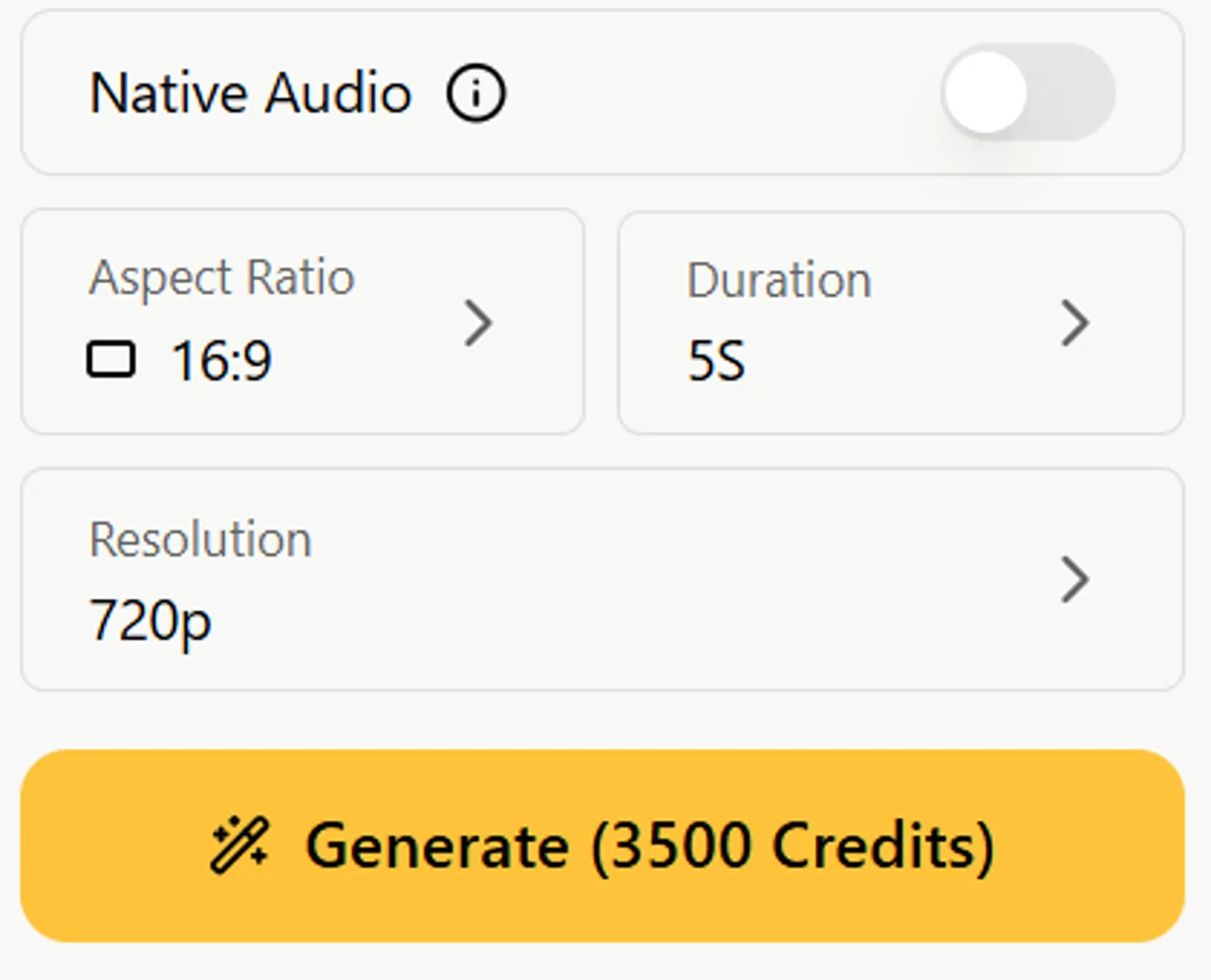
Le bouton « Générer » indiquait 3 500 crédits pour cette configuration. Nous avons envoyé une demande de vidéo. Il s’agit de l’estimation affichée sur ce compte à la date du test, et non d’un prix universel applicable à la planification GPT ou à tous les modèles vidéo. Veillez à distinguer la demande de génération de la réponse du modèle textuel lorsque vous vérifiez les coûts.
4. Vérifiez le clip une fois terminé
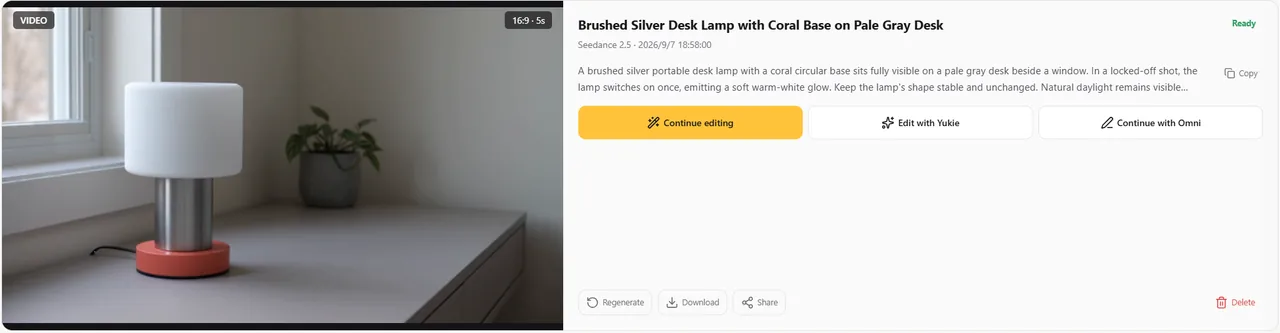
Le clip final de 5 secondes montre la lampe passant de l'état éteint à une lueur blanc chaud, tandis que l'objet dans son intégralité reste visible. Le corps en argent brossé et le socle circulaire couleur corail restent reconnaissables du début à la fin de la séquence, avec une composition très figée et en l'absence de personnes, de logos ou de texte généré. Ce résultat unique illustre le flux de travail testé, mais ne garantit pas les performances pour d'autres consignes.
Exemples de vidéos originales : ce qu'il faut vérifier
La vidéo de présentation du produit et la scène de bureau ci-dessous ont été générées pour ce tutoriel via l'interface CLI de GlobalGPT à l'aide de la vidéo Grok Imagine. Les instructions correspondantes ont été rédigées spécialement pour cet article. Ils illustrent la phase de transfert manuel et ne doivent pas être considérés comme un test de Higgsfield, d’une connexion ChatGPT ou d’un modèle par rapport à un autre.
- Vidéo de présentation du produit : Suivez la base circulaire et le col incurvé tout au long du déplacement de la caméra. Vérifiez si la lumière s'allume comme prévu.
- Scène de bureau : Observez la main, le bord du papier et la page qui se posent simultanément. Une image fixe convaincante ne suffit pas.
- Les deux extraits : vérifier les contours complets de l'objet, la direction des ombres, la présence de coupures inattendues et la stabilité de l'image finale.
Dans ces deux exemples filmés en une seule prise, la lampe du produit s'illumine pendant la fraction de seconde d'ouverture et reste entièrement cadrée tout au long du mouvement de la caméra. Le clip de bureau montre le changement d’une page, la lampe restant en place, bien que son cadrage dérive légèrement au lieu de rester parfaitement fixe. Les deux clips sélectionnés sont des exportations muettes en 1280 x 720, d’une durée d’environ cinq secondes. Ces observations ne concernent que ces fichiers ; elles ne constituent ni un classement type ni une garantie de cohérence du produit.
Est-ce que vous pouvez le faire gratuitement, et qui facture quoi ?
Considérez la planification de l'accès et le rendu vidéo comme des coûts distincts. L'accès à un assistant de chat ne donne pas en soi droit à un forfait vidéo. Un prestataire connecté peut utiliser ses propres crédits même si la demande a été formulée dans le cadre d'une conversation ChatGPT.
Higgsfield précise que les forfaits « Generations », via la connexion ChatGPT, consomment des crédits, tandis que l'accès illimité s'applique à son application web. Son Publication de l'explication relative à la facturation ChatGPT Ce document doit être considéré comme une règle applicable à ce fournisseur et à cette interface. Ne transposez pas les exemples de tarifs indiqués ici à un autre modèle, une autre date ou une autre plateforme.
Vérifiez ces éléments avant de lancer le rendu
| Poste de coûts | Décision à prendre |
|---|---|
| Planification de l'accès | Quel compte ou quelle formule de chat utilisez-vous ? |
| Emploi dans le domaine de la vidéo | Quel est le prix de ce modèle, de cette durée et de cette résolution sur cet itinéraire ? |
| Références et compléments | La création de l'image source, le son et la conversion en haute résolution font-ils l'objet de frais distincts ? |
| Variations | Combien de tentatives supplémentaires êtes-vous prêt à acheter ? |
Un budget simple correspond à la somme de vos rendus prévus, à laquelle s'ajoutent les références payantes et les travaux de finition. Si vous prévoyez deux essais par plan pour trois plans au total, cela représente six frais de rendu possibles. Il s'agit d'un exemple de calcul arithmétique, et non d'une affirmation concernant les tarifs d'un prestataire en particulier.
Pour un flux de travail coordonné, suivez ces instructions : “ Avant chaque génération payante, affichez le modèle, les références saisies, les paramètres et le coût estimé. Attendez la validation. Si une demande expire, vérifiez la tâche en cours avant d'en soumettre une autre. ” Un message vous invite à suivre cette procédure ; vérifiez tout de même la confirmation effective de l'outil et l'état de la tâche.
Résolvez les problèmes courants sans tout changer
Symptôme, vérification, modification suivante
| Problème | Vérifiez d'abord | Petite modification suivante |
|---|---|---|
| Seul un script est renvoyé | Un outil vidéo a-t-il été utilisé ? | Ouvrez un générateur ou sélectionnez la connexion disponible |
| La durée demandée n'est pas prise en compte | Contrôle réel de la durée prise en charge | Divisez le montage en segments correspondant aux longueurs de clip prises en charge |
| Le produit change de forme | Références et amplitude du mouvement | Réduire les mouvements de caméra ; conserver une seule référence de produit |
| Il se passe trop de choses en même temps | Nombre d'actions et de transitions | Conservez une action ; déplacez les autres dans un autre plan |
| Le texte est incorrect | Si du texte a été généré dans l'image | Ajoutez le texte exact et les légendes dans l'éditeur |
| La tâche semble bloquée | État des tâches en cours et historique des résultats | Récupérer cette tâche ou attendre qu'elle soit terminée avant toute nouvelle requête |
Le Guide des erreurs de génération de vidéos par IA fournit davantage d’informations utiles pour le dépannage. Il convient de distinguer une défaillance technique d’un clip terminé qui ne respecte tout simplement pas le brief créatif : ces deux cas nécessitent en effet des mesures différentes.
Créer des vidéos plus longues à partir d'un plan de tournage partagé
Une vidéo plus longue nécessite une continuité et un rythme, et pas seulement un script plus long. Préparez une fiche de continuité succincte indiquant la forme et la couleur du produit, l'environnement, la direction de la lumière, la hauteur de la caméra et les fichiers de référence. Remettez cette fiche à ChatGPT chaque fois qu'il prépare le plan suivant.
Effectuez des coupures entre les actions liées, prévoyez de l'espace pour la narration et utilisez l'éditeur pour contrôler la durée finale de la séquence. Lorsqu'un générateur propose une fonctionnalité d'extension, vérifiez séparément les limites actuelles de cette fonctionnalité et les sources prises en charge. Ne partez pas du principe que tous les modèles acceptent la poursuite de la vidéo.
Pour découvrir une méthode détaillée permettant de créer des sorties courtes, voir Créer des vidéos plus longues avec Veo 3.1. La règle générale consiste à planifier d'abord la séquence, puis à ne tourner que les plans nécessaires à cette séquence.
Foire aux questions
Le logiciel ChatGPT peut-il générer une vidéo finale tout seul ?
Pour obtenir un clip finalisé, il faut disposer d'un outil de création vidéo. ChatGPT peut préparer le brief et les consignes, ou envoyer une demande via une connexion disponible. Vérifiez quel outil a généré le fichier ; un script écrit ou une tâche mise en file d'attente ne constituent pas une vidéo finalisée.
Faut-il disposer d'une connexion Higgsfield pour utiliser ChatGPT avec des vidéos ?
Non. Vous pouvez rédiger un script et des indications de prise de vue dans ChatGPT, puis les copier-coller dans un générateur de vidéo distinct. Une connexion prise en charge permet d’automatiser le transfert, mais le flux de travail manuel reste utile lorsque cette connexion n’est pas disponible.
La création de vidéos par IA avec ChatGPT est-elle gratuite ?
Ce processus n'implique aucun droit universel à des vidéos gratuites. L'accès et la génération des vidéos peuvent faire l'objet de frais distincts. Vérifiez le fournisseur, le compte, le modèle, la durée et la résolution sélectionnés avant de lancer un rendu.
Que doit contenir une consigne vidéo ChatGPT ?
Précisez le sujet, une action principale, le décor, le cadrage, les mouvements de caméra et l'éclairage. Définissez les contraintes importantes de manière précise. Définissez la durée, le format d'image et la taille de sortie dans les commandes de l'outil lui-même lorsque celles-ci sont disponibles.
Puis-je transformer la photo d'un produit en vidéo ?
Utilisez un générateur prenant en charge les références d'images, téléchargez la photo validée et décrivez un mouvement mineur. Vérifiez l'ensemble du résultat afin de détecter d'éventuelles modifications de la géométrie et des étiquettes. La prise en charge des références ne garantit pas l'identité exacte du produit.
Puis-je créer une vidéo d'une minute à partir d'un script ChatGPT ?
Organisez la minute comme une séquence, réalisez de courts extraits adaptés et assemblez-les dans un logiciel de montage. Veillez à ce que les références, l'éclairage et les détails des produits restent cohérents d'un plan à l'autre. Ne partez pas du principe qu'une seule demande suffira à réaliser l'intégralité de la minute.
Dois-je lancer un nouveau projet avec l'API Sora Videos ?
D'après les informations disponibles au 7 septembre 2026, OpenAI indique que Sora 2 et l'API Vidéos seront désactivées le 24 septembre 2026. Lisez l'avis officiel de dépréciation avant de choisir cette API pour un nouveau projet ; cet avis mentionne des produits API spécifiques.
Que dois-je faire lorsqu'une requête vidéo expire ?
Vérifiez l'historique de la tâche ou de la ressource existante avant de la soumettre à nouveau. Un délai d'attente local peut se produire alors que la génération à distance se poursuit. Conservez l'identifiant de la tâche afin de pouvoir récupérer un résultat final sans créer de tâche en double.
Commencez par une scène que vous pouvez décrire et évaluer clairement. Utilisez la méthode ChatGPT pour préciser les instructions, veillez à ce que les paramètres et les charges du générateur restent visibles, et améliorez la partie la plus faible du résultat avant d'élargir le projet.
Prêt à transformer un brief de tournage en séquences vidéo ? Développez votre idée et découvrez les outils vidéo dans le module GlobalGPT.
Créer avec GlobalGPT