VEO 3.1 · VIDEO LENGTH & EXTENSION
Veo 3.1 generates 4-, 6-, or 8-second clips. With video extension, an 8-second starting clip can reach 148 seconds (2 minutes 28 seconds). Google documents the extension workflow: add 7 seconds at a time, up to 20 times. Extensions use 720p, and the feature is available for Veo 3.1 and Veo 3.1 Fast, but not Veo 3.1 Lite.
You can use Veo 3.1 through the paid Gemini API without an enterprise-only account. GlobalGPT provides direct, unrestricted access to the full Veo 3.1 model without complex waitlists or region locks.
Our all-in-one platform lets you write scripts and generate videos with Veo 3.1 in one workflow. Instead of managing multiple subscriptions, the Pro plan gives you access to 100+ top-tier models for $10.80 per month when billed annually ($129.60 per year). Video use draws on plan credits, so the subscription price is separate from Google’s API bill.

In this guide
- How Long Can Veo 3.1 Videos Be?
- How Do I Extend Veo 3.1 Videos Beyond 8 Seconds? (Step-by-Step)
- Does Extending Veo 3.1 Videos Lower the Resolution to 720p?
- Veo 3.1 vs. Sora 2 vs. Kling: Which AI Model is Best for Long Videos?
- Why “Consistency” Matters More Than “Length”
- How Much Does It Cost to Generate Long Veo 3.1 Videos?
- Where Can I Access Veo 3.1 Without a Waitlist?
- Frequently Asked Questions About Veo 3.1 Duration
- Conclusion
How Long Can Veo 3.1 Videos Be?
To understand the limits of Veo 3.1, look at two different numbers: the “Native Limit” (what the model generates in one request) and the “Extended Limit” (what you can build through consecutive extensions). Both are documented by Google. For a deeper dive into the model’s capabilities, read our complete guide to what Veo 3.1 is.

The Official Limit: 4, 6, or 8 Seconds per Generation
When you click “Generate” for the first time, Veo 3.1 will create a video that is exactly 4, 6, or 8 seconds long. It cannot simply “keep recording” for a minute like a normal camera.
- The frame count: Veo 3.1 creates video at 24 frames per second (FPS). A single 8-second clip contains 192 frames.
- The duration setting: Google’s API parameters require 8 seconds for 1080p, 4K, reference-image generation, and extension requests. Shorter 4- and 6-second options apply to supported base-generation settings.
The Extension Workflow: How to Reach 148 Seconds
While the single-clip limit is 8 seconds, the model has a documented “Extension” capability. Think of this like building a train track: you lay down one 8-second piece, then attach another piece to the end of it.
- The Math: You start with an 8-second base clip. You can then add up to 20 “extensions.”
- The Duration: Each extension adds approximately 7 seconds.
- The Result: 8 seconds (Base) + [20 x 7 seconds] = ~148 seconds (approx. 2.5 minutes).

Quick Comparison: Native vs. Extended vs. GlobalGPT
| Feature | Gemini API: base generation | Gemini API: extension | GlobalGPT (Pro plan) |
|---|---|---|---|
| Single clip / added segment | 4, 6, or 8 seconds | Adds 7 seconds | 8 seconds |
| Extension feature | Veo 3.1 / Fast; not Lite | Veo-generated input only | Available (UI based) |
| Maximum output length | 8 seconds per base clip | Up to 148 seconds | ~148 seconds |
| Access route | Paid API tier | Existing Veo output, referenced within 2 days | No waitlist; instant access |
For API extensions, use a Veo-generated source no longer than 141 seconds, at 720p and 16:9 or 9:16. Google retains generated videos for two days; referencing a video for extension resets that timer.
For those wondering how to access Google Veo 3.1 without these restrictions, platforms like GlobalGPT offer a streamlined alternative.
How Do I Extend Veo 3.1 Videos Beyond 8 Seconds? (Step-by-Step)
Extending a video sounds technical, but it is actually a simple process of “recycling.” The AI looks at the very last second of your video and uses it as the inspiration for the next segment. You can learn more about how to use Veo 3.1 in easy stepsin our dedicated tutorial.
The Mechanism: Understanding “Scene Extension”
Imagine you are writing a story. You finish page one, and the last sentence is “The car turned left.” To start page two, you must know that the car is turning left.
- Context: Veo 3.1 uses the final second (24 frames) of the previous video to continue the action.
- Prompting: You give it a new instruction (e.g., “The car drives down the highway”).
- Output: The API returns a single video containing the original footage and the new 7-second extension. Review the join for changes in motion, lighting, and appearance.
Tutorial: The 3-Step “Looping” Workflow
To create a long video (over 1 minute), follow this exact loop. This works best on platforms like GlobalGPT that support the extension parameter.
- Step 1: Generate the Base Clip (High Quality)
- Write a strong prompt describing your opening scene. To get the best results, consider mastering Veo 3.1 and the 7 secrets to writing better AI prompts.
- Tip: Use an 8-second, 720p base clip if you plan to extend it.
- Result: You now have your first 8-second video file (e.g.,
video_01.mp4).
- Step 2: Apply the Extension Loop
- Select
video_01.mp4as your Input Source. - Change the prompt to describe what happens next.
- Crucial: Do not change the prompt too drastically (e.g., don’t jump from “Day” to “Night” instantly), or the video will flicker.
- Click “Extend.” You now have
video_02.mp4(now approx. 15 seconds long).
- Select
- Step 3: Repeat and Stitch
- Take the new video (
video_02) and use it as the source for the next extension. - Repeat this process until you reach your desired length.
- Note: On GlobalGPT, this process is streamlined so you don’t have to manually download and upload files constantly.
- Take the new video (
Need a 60-second deliverable? Build to 64 seconds with an 8-second base and eight extensions, then trim the final edit. Google returns the combined video, so you do not have to stitch those API segments yourself.

Does Extending Veo 3.1 Videos Lower the Resolution to 720p?
The trade-off is worth knowing before you generate. While Veo 3.1 can generate 1080p and even 4K videos, extension uses 720p.
The Resolution Trap: 4K vs. 720p Explained
- Base generation: An 8-second Veo 3.1 or Fast clip can use 720p, 1080p, or 4K. Veo 3.1 Lite does not offer 4K.
- Extension: Google limits video extension to 720p. Start with a compatible 720p source; a 4K clip is not a promise of a 4K extension.
- Practical choice: Use extension when a continuous shot matters. For a sharper final edit, generate separate 1080p or 4K shots and join them in your editor.
How to Fix “Coherence Decay”
Beyond resolution, long videos can face “coherence decay.” Across repeated extensions, you might notice changes such as these:
- The “Shapeshifter” Effect: Your main character’s shirt might slowly change color from blue to purple.
- The solution: Use reference images when generating a new base shot, and keep character details consistent in each continuation prompt. The extension request uses the previous Veo video as its source; reference-image generation is a separate documented workflow.
If you are tired of hitting these resolution limits or need a cheaper way to experiment with long-form video generation, checking how much Veo 3.1 subscription costs on GlobalGPT might save you money compared to enterprise plans.
Veo 3.1 vs. Sora 2 vs. Kling: Which AI Model is Best for Long Videos?
Choosing the right tool depends on whether you want length or consistency. Here is how the top giants compare in 2026.
Feature Battle: Duration and Consistency
| Feature | Google Veo 3.1 | OpenAI Sora 2 Pro | Kling VIDEO 3.0 |
|---|---|---|---|
| Base duration | 4, 6, or 8 seconds | Official API discontinued September 24, 2026 | 3–15 seconds |
| Long-video route | Up to 148 seconds through extensions | No current official generation route | Up to 15 seconds per generation |
| Workflow strength | Documented video extension; reference-image direction | Historical comparison only | Multi-shot generation and native audio |
| Resolution | 720p extension; base up to 4K | Not a current purchase option | 720p or 1080p |
OpenAI discontinued Sora’s web and app experiences on April 26, 2026, and its API on September 24, 2026. These dates refer to OpenAI’s own services; separate platform listings are a different access claim.
Why “Consistency” Matters More Than “Length”
A longer base clip can save you a generation step, but it does not settle the whole decision. Veo 3.1 offers a documented extension workflow; Kling VIDEO 3.0 supports 3–15-second clips. Choose the workflow that keeps your subject and action readable through the full sequence.
- Physics: If you drop a glass in Veo 3.1, it shatters realistically. In other models, the glass might melt or float.
- Storytelling: A 148-second video is useless if the character’s face changes every 10 seconds. Veo 3.1’s “Ingredients to Video” feature helps lock in characters better than competitors, making it the superior choice for actual movie-making, even if the resolution drops slightly.
Treat the consistency examples above as editorial guidance, not a scored head-to-head test. Reference images help define a new shot; extensions continue an existing Veo video. For dialogue-heavy work, the Veo 3.1 audio guide explains what to listen for at each cut.
How Much Does It Cost to Generate Long Veo 3.1 Videos?
Creating long AI videos isn’t just about time; it is about money. Since Veo 3.1 charges based on how much work the computer does, longer videos cost more.
- The cost of “hops”: Every time you extend a video (add 7 seconds), it counts as a new generation task.
- The minute mark: An 8-second base plus 7 extensions is 57 seconds. To pass one minute, use 8 extensions: 8 + (8 × 7) = 64 seconds across 9 requests.
- Gemini API pricing: At 720p, Veo 3.1 Standard costs $0.40 per generated second and Fast costs $0.10 per generated second. An 8-second base clip therefore costs $3.20 Standard or $0.80 Fast, before applicable taxes and retries. Google’s current Veo price table separates these from Lite and 4K rates.
- The subscription alternative: GlobalGPT Pro is $10.80 per month billed annually ($129.60 per year), with credits allocated monthly. That is platform access with credit-based video use, not an unlimited extension budget. Compare where to use Veo 3.1 to find the best platform for your needs.
Where Can I Access Veo 3.1 Without a Waitlist?
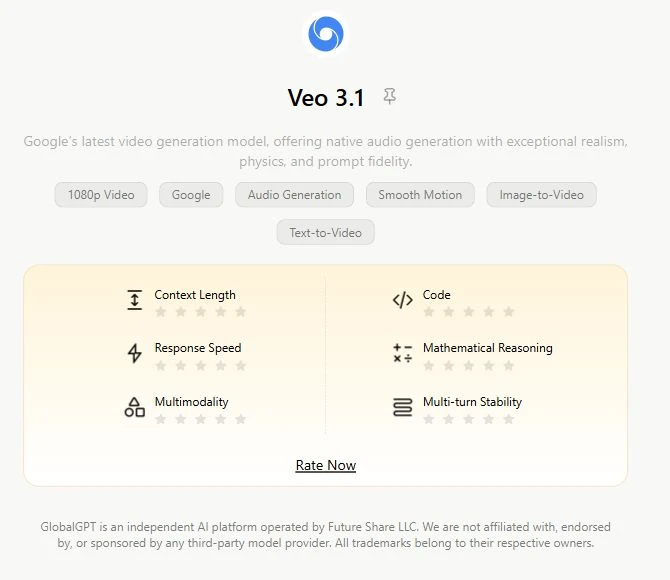
Veo 3.1 is available through more than one route. The important distinction is whether you want a consumer app, a developer API, or an all-in-one workspace.
The Problem: Restricted Access
- Gemini API: Google documents paid API access to Veo 3.1. You need an eligible project and billing setup; the official guide does not describe it as an enterprise-only Trusted Tester program.
- Gemini app: App controls and quotas are separate from the API extension parameters. If you are deciding how to use Veo 3.1 in Gemini, check the app workflow instead of assuming it exposes the API’s 20-extension chain.
The Solution: Instant Access on GlobalGPT
- No Waiting: You can start using Veo 3.1 immediately after signing up.
- No Region Locks: Works globally without needing a VPN.
- All-in-One Dashboard: You can write your script and use Veo 3.1 to animate it in the same window.
Frequently Asked Questions About Veo 3.1 Duration
Q1: Can I generate a 60-second video in one click with Veo 3.1?
No. The maximum length for a single click is 8 seconds; you must use the “Scene Extension” feature multiple times to reach 60 seconds.
Q2: Does Veo 3.1 support 4K resolution for extended videos?
No. Google’s Gemini API limits video extension to 720p. Veo 3.1 and Fast can generate an 8-second 4K base clip, but that does not make the extension workflow 4K.
Q3: Is Veo 3.1 free to use?
The Gemini API has no free tier for Veo 3.1. GlobalGPT includes access in Pro at $10.80 per month billed annually ($129.60 per year), with credit-based video use. Compare Veo 3.1 free and paid access.
Q4: Why does my video look weird after extending it 10 times?
This is often called “coherence decay”: details can drift across repeated extensions. Check each join and repeat important character cues. There is no fixed 60-second failure threshold in Google’s published specification.
Q5: Does Veo 3.1 generate audio for the extended parts?
Yes. Veo 3.1 generates native audio with video. For speech continuity, Google notes that voice cannot be effectively extended unless it is present in the final second of the input video.
Conclusion
Veo 3.1 gives you up to 8 seconds per base generation and up to 148 seconds through repeated 7-second extensions. The trade-off is clear: extension uses 720p. Start with a short scene, check each continuation, and keep the best takes. For the full production workflow, use our guide to making long videos with Veo 3.1.