VIDEO TRANSCRIPTION · CHATGPT WORKFLOW · API LIMITS
A video transcript looks like a single output, but producing one involves two distinct jobs: recognizing speech and making the resulting text useful. Much of the confusion around ChatGPT comes from treating those jobs, along with the consumer app, developer API, and third-party tools behind them, as one capability.
No single route fits every recording. Short dictation, live meetings, existing video files, subtitle production, and automated batches have different requirements for input formats, timestamps, speaker labels, privacy, and scale. The right choice depends less on the word “video” than on how the audio arrives and what the finished transcript needs to preserve.
Once the speech has become text, the workflow shifts from recognition to interpretation. That is where GlobalGPT can be useful: comparing how different models summarize the same recording, translating it, or turning it into notes and publishable content in one workspace. It belongs after transcription rather than in place of ChatGPT Record, the OpenAI transcription API, or a dedicated speech-to-text tool.
Quick Answer: Can ChatGPT Transcribe Videos?
Yes, when the audio reaches a supported speech-to-text route. ChatGPT Dictation or Record can cover eligible in-app recording cases. For an existing video file, the more dependable route is the OpenAI audio transcription API or a dedicated transcription tool; generic file upload should not be treated as a universal video-transcription feature.
If you are editing a YouTube interview, Zoom replay, lecture, podcast video, product demo, or training clip, the safest workflow is to treat ChatGPT as the transcript editor and reasoning layer, not as the only transcription engine. If your real question is whether ChatGPT can understand the visuals in a clip, the related guide on whether ChatGPT can watch videos is the cleaner next step.

All-in-one AI workspace for transcript cleanup, summaries, translation, and 100+ models.
What ChatGPT Can And Cannot Do
The confusion usually comes from using “ChatGPT” to mean several different things: the ChatGPT consumer app, OpenAI’s developer API, and tools built by other companies using speech-to-text models. They overlap, but they are not the same product surface.
| Task | Best route | What to expect |
|---|---|---|
| Dictate a spoken message into ChatGPT | ChatGPT Dictation | Useful for short spoken prompts. The audio is transcribed into editable text before you send it. |
| Record a meeting or voice note in ChatGPT | ChatGPT Record on supported desktop plans/workspaces | Good for supported recording workflows, with summaries and transcripts saved in ChatGPT. Availability depends on app, plan, and workspace settings. |
| Transcribe a video file for subtitles or publishing | OpenAI file transcription API or a dedicated ASR tool | Use gpt-transcribe for general recorded speech; choose a specialized route when you need speaker labels, timestamps, or English translation. |
| Turn a raw transcript into a blog post, summary, show notes, or translations | ChatGPT or GlobalGPT after transcription | This is where large language models are strongest: formatting, rewriting, speaker notes, summaries, titles, and multilingual drafts. |
The simple rule is this: if the job is speech recognition, use a speech-to-text feature or API. If the job is making the transcript useful, ChatGPT is a strong editor.
ChatGPT App Routes
OpenAI’s Help Center now documents a few voice-related ChatGPT experiences that are easy to mix up. Dictation is for recording an audio message in ChatGPT and turning it into editable text before sending. ChatGPT Record is a richer recording workflow that can transcribe and summarize audio recordings such as meetings, brainstorms, and voice notes in supported app environments.
OpenAI’s current ChatGPT Record guidance says Record is available for Plus, Enterprise, Edu, Business, and Pro workspaces, and only in the macOS desktop app. It can transcribe and summarize meetings, brainstorms, and voice notes, with sessions capped at 4 hours at the time of checking. Limits and pricing can change.
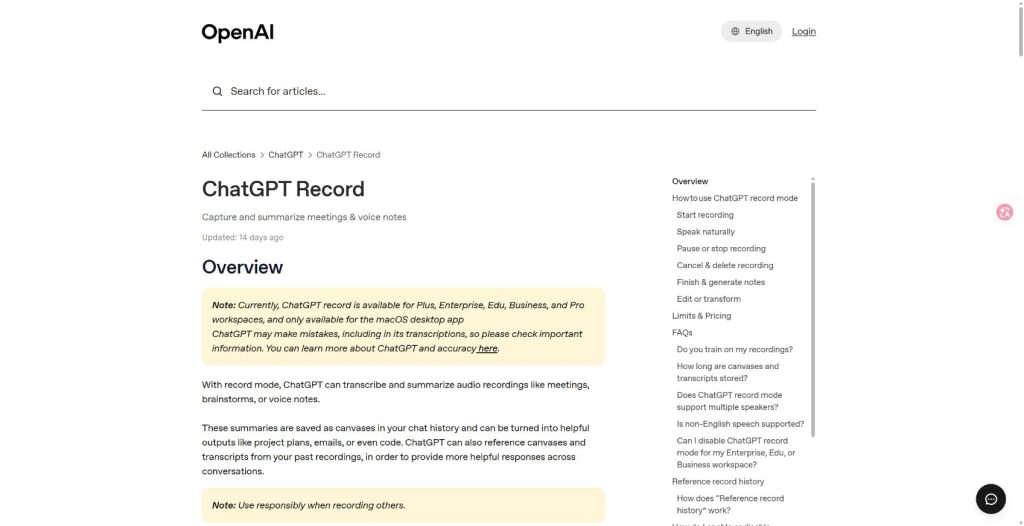
That is not the same as saying every ChatGPT user can upload any video file and receive a production-ready transcript. Record and Dictation are app features with their own availability, retention, and consent rules. They are helpful when your source is live or recorded audio inside ChatGPT, but they are not a universal replacement for a transcription pipeline.
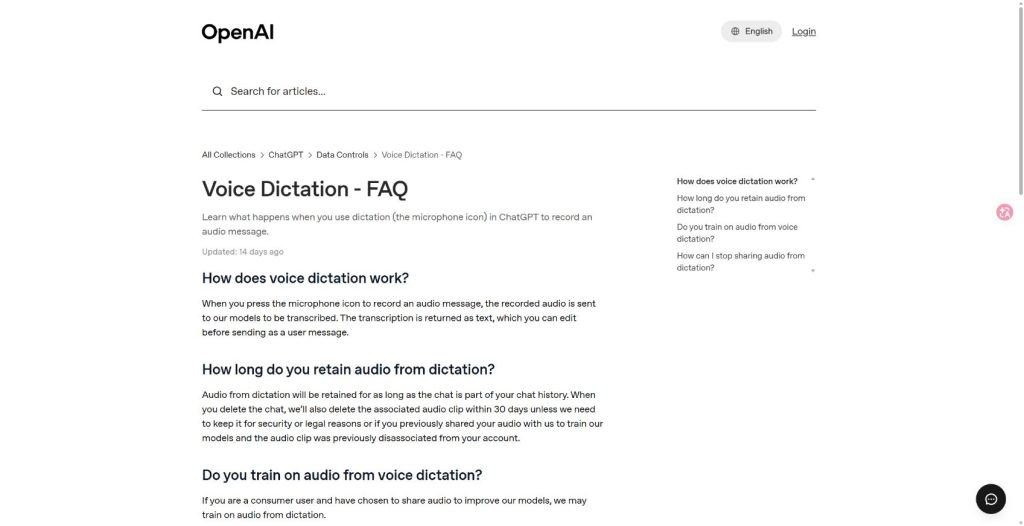
For short spoken prompts, OpenAI’s ChatGPT Voice help page describes Dictation as a route to review and edit a transcription before sending it.
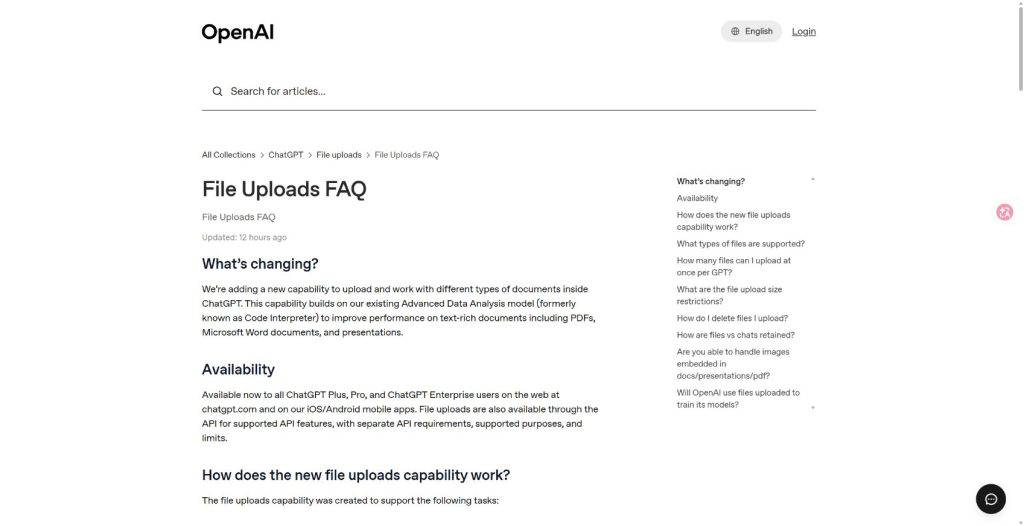
File uploads add another layer of confusion. ChatGPT’s file upload documentation focuses on documents, spreadsheets, presentations, images, and usage limits. If your team is running into upload caps rather than transcription quality, this separate guide on ChatGPT file upload limits is a better fit. If your goal is video transcription, do not assume file upload alone is the supported path. Check the exact account experience before writing instructions for a team or client.
OpenAI API Route
For developers, the cleanest OpenAI route is the audio transcription API. OpenAI’s speech-to-text documentation lists transcription models and supported audio formats, with file transcription meant for recorded audio and realtime transcription meant for audio that is still arriving from a microphone, call, or stream.
The current file transcription guide recommends gpt-transcribe for recorded speech in its original language. Use gpt-4o-transcribe-diarize when you need speaker labels, and use whisper-1 when you need word or segment timestamps or English translation.
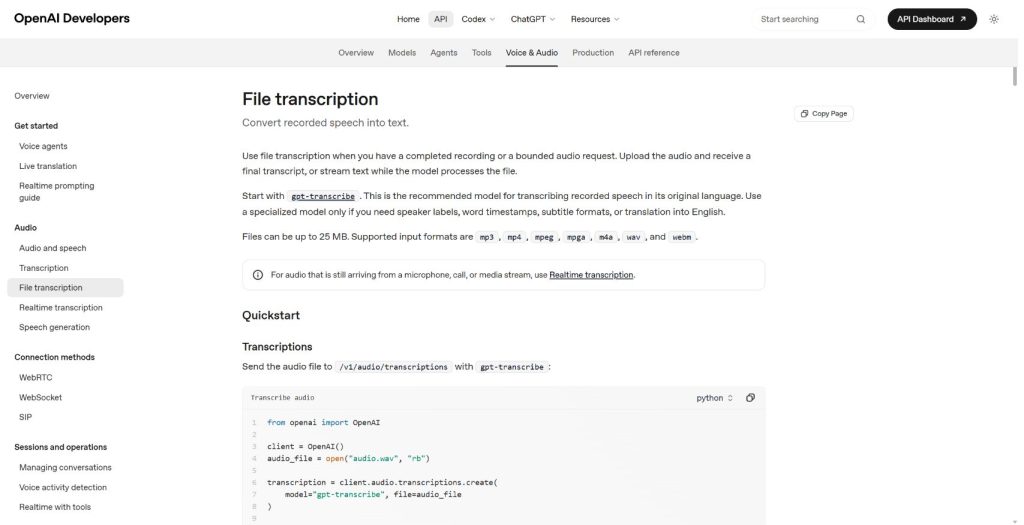
OpenAI’s current guide accepts files up to 25 MB and lists mp3, mp4, mpeg, mpga, m4a, wav, and webm. The practical point for video creators is simple: send an audio file or supported audio-containing media file to the transcription endpoint, then use the returned transcript downstream.
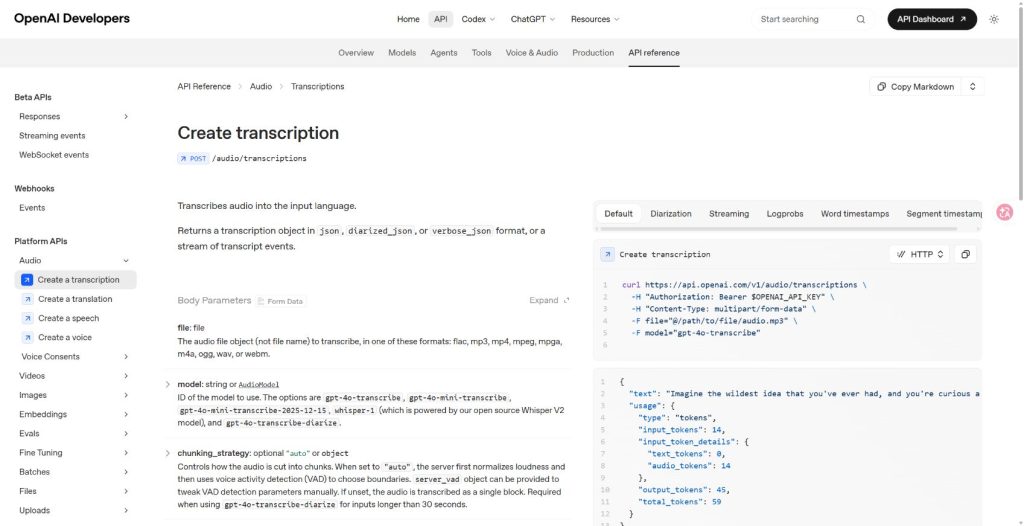
A simple developer pipeline looks like this:
- Extract the video’s audio track, or use a supported audio-containing file when the endpoint and file size allow it.
- Send the audio to the transcription endpoint.
- Store the raw transcript with timestamps when your workflow needs review, subtitles, or search.
- Pass the transcript into ChatGPT for cleanup, speaker formatting, summary, translation, topic extraction, or article drafting.
API pricing and limits are separate from ChatGPT app subscriptions. If you are building a product or processing many videos, check OpenAI’s pricing page and your account limits on the day you publish or deploy. Do not convert API costs into ChatGPT Plus, Pro, or workspace allowances unless the product itself gives that mapping.
At the current official rate, gpt-transcribe is listed at an estimated $0.0045 per minute—about $0.27 per hour before taxes or other account charges. See the live OpenAI transcription pricing table before you publish or deploy.
Third-Party Transcription Route
For non-developers, a dedicated transcription tool may be easier than an API. Tools such as Descript, AssemblyAI-powered apps, Rev-style services, and many video editing platforms can accept video files, produce transcripts, add timestamps, and export subtitles. After that, ChatGPT can still help clean the result.
This route is especially useful when you need speaker labels, subtitles, burned-in captions, translation review, team collaboration, or a human-in-the-loop editor. ChatGPT can fix wording and formatting, but it should not be the only quality gate for names, legal terms, medical language, prices, or anything that could hurt someone if misheard.
Prepare The Video First
Most transcription problems start before the model sees the audio. A noisy room, overlapping speakers, background music, low volume, or a compressed social clip can cause mistakes no matter which tool you use.
- Export clean audio when possible, ideally without music under speech.
- Use the original recording rather than a compressed social repost.
- Split long videos into smaller segments when the tool has file-size or duration limits.
- Keep a copy of the raw transcript before cleanup so you can audit changes later.
- For subtitles, preserve timestamps instead of asking ChatGPT to invent them from plain text.
Prompts For Cleaning A Transcript
Once you have raw text, ChatGPT becomes much more useful. The best prompts tell it what to preserve, what to fix, and what not to guess.
Clean transcript prompt:
Clean this raw transcript for readability.
Keep the speaker's meaning intact.
Do not add facts that are not in the transcript.
Mark unclear words as [unclear] instead of guessing.
Use short paragraphs and add speaker labels only when the speaker changes are obvious.
Subtitle review prompt:
Review this transcript for subtitle use.
Keep each caption short enough to read on screen.
Preserve timestamps exactly.
Flag any line where the text seems too long, too fast, or uncertain.
Repurposing prompt:
Turn this transcript into:
1. a 150-word summary,
2. 5 key takeaways,
3. 8 social post ideas,
4. a blog outline,
5. a list of claims that need fact-checking.
Do not add outside information unless I ask for it.
For longer transcripts, break the job into stages. First ask for cleanup, then summary, then repurposing. If the transcript is becoming a publishable article or reading summary, the same principles in the guide to using ChatGPT to summarize articles apply: preserve the source, separate summary from opinion, and keep a fact-check list. For support-call transcripts, the guide on summarizing support conversations automatically is a useful next workflow. If you ask for everything at once, the output often becomes too neat and loses details that matter.
Quality, Privacy, And Review
Transcription is never just a formatting task. A single misheard name, number, deadline, medication, legal term, or quote can change the meaning of a video. Treat the transcript as a draft until a person has reviewed the important parts against the original recording.
| Risk | What to do |
|---|---|
| Names, brands, and technical terms | Build a glossary before transcription, then ask ChatGPT to flag uncertain terms instead of guessing. |
| Multiple speakers | Use a tool with diarization when speaker labels matter, then manually review confusing turns. |
| Private meetings or customer calls | Check consent, retention, and workspace policies before uploading or recording. |
| Subtitles | Keep timestamps from the transcription tool. Ask ChatGPT to improve wording, not create timing from scratch. |
Where GlobalGPT Fits
GlobalGPT is best positioned after the transcript exists. Use your preferred transcription route first, then bring the text into a multi-model workspace to compare summaries, turn a lecture into study notes, rewrite a webinar into a blog outline, or produce localized drafts.
If the output is a reference pack, you can also use this guide to summarize a PDF with ChatGPT after you export the transcript.
That positioning keeps the workflow honest. GlobalGPT is not an official OpenAI transcription endpoint and should not be described as replacing ChatGPT Record or the OpenAI API. Its value is in the editing and analysis step, especially when you want to compare how different models summarize the same transcript without jumping between separate tools.
If your video workflow includes AI video creation as well as transcript cleanup, the related GlobalGPT Hub guide on whether ChatGPT can create videos is a useful next read. If your actual question is audio rather than video, start with the ChatGPT audio transcription guide instead.
Which Route Should You Choose?
| Situation | Recommended route | Why |
|---|---|---|
| You want to speak a prompt into ChatGPT | ChatGPT Dictation | Fast, built into ChatGPT, and editable before sending. |
| You want meeting notes from a supported ChatGPT desktop recording | ChatGPT Record | Designed for recordings, summaries, and follow-up outputs inside ChatGPT. |
| You have many videos to process | OpenAI API or a transcription platform | More controllable, easier to automate, and separate from consumer app limits. |
| You need subtitles with timestamps | Dedicated ASR/subtitle tool, then ChatGPT cleanup | The ASR tool handles timing; ChatGPT improves readability. |
| You need summaries, blog posts, translations, or study notes | Transcribe first, then use ChatGPT or GlobalGPT | Language models are strongest once the spoken content is already text. |
FAQ
Can ChatGPT transcribe video files directly?
Sometimes a specific ChatGPT experience may handle audio-related input, but you should not treat direct video-file transcription as a universal ChatGPT feature. The reliable workflow is to extract or provide the audio, transcribe it with a speech-to-text route, then use ChatGPT to clean and structure the text.
Is ChatGPT Record the same as video transcription?
No. ChatGPT Record is a supported recording workflow for audio recordings in eligible ChatGPT environments. It can be useful for meetings or voice notes, but that is different from batch-processing existing video files for subtitles or publishing.
Can the OpenAI API transcribe video?
The OpenAI API has audio transcription endpoints. In practice, developers usually extract the audio track from a video or send a supported audio-containing file, then pass the resulting transcript to ChatGPT or another model for cleanup.
Which OpenAI model should I use for transcription?
For new recorded-speech workflows, OpenAI currently recommends gpt-transcribe. Choose gpt-4o-transcribe-diarize when speaker labels matter, or whisper-1 when you need word or segment timestamps or English translation. Check the live speech-to-text guide before building or publishing.
Can ChatGPT make subtitles from a transcript?
ChatGPT can help clean subtitle text, shorten captions, translate lines, and flag awkward wording. It should not invent timestamps from a plain transcript when timing accuracy matters. Use an ASR or subtitle tool for timestamps, then ask ChatGPT to improve readability.
Is GlobalGPT a transcription tool?
GlobalGPT is better used after transcription: summarize the transcript, compare model outputs, rewrite the content, translate it, or turn it into notes and articles. It should not be presented as an official OpenAI transcription API or a replacement for ChatGPT’s own recording features.