GLBGPT · AI MOTION DESIGN · PROMPT-LED VIDEO EDITING
Searching for an AI motion designer for After Effects GPT usually means you want to describe an animation in plain language instead of building every cut, transition, title, and sound cue by hand.
GLBGPT gives you a practical web-first route. Use Yukie beside the Video Editor timeline, bring in footage or generated clips, describe the change, review the result, and refine the edit before export.
GLBGPT QUICK ANSWER
What can you do here?
Prompt an edit
Tell Yukie what to change beside the timeline
Shape the motion
Use transitions, titles, effects, captions, and timing
Generate and continue
Bring new clips, audio, and continuation shots into one project
Neste guia
What does “AI motion designer After Effects GPT” mean?
The phrase describes a prompt-led motion-design task. You have a visual idea—such as a logo reveal, product intro, kinetic title, social ad, or transition—and you want an AI assistant to turn that brief into concrete editing steps.
01
AI motion designer
An assistant that can reason about timing, visual hierarchy, transitions, captions, effects, and the order of an edit.
02
After Effects mindset
The search usually signals a need for motion-graphics control: layers, key moments, title placement, easing, and a deliberate reveal.
03
GPT-style prompting
You explain the intended change in natural language, then inspect the result and ask for a focused revision.
GLBGPT approaches this need through its own Video Editor rather than a native After Effects project. You can work with a visual timeline, use Yukie as an AI editing partner, and combine generated media with normal editing controls. The output is an edited video project in GLBGPT’s workspace; it is not a promise of a native .aep file.
GLBGPT features for AI motion design
GLBGPT brings the motion task into one place: create or select a clip, describe the change, and keep refining the timeline. The public Video Editor page shows Yukie next to the timeline so the prompt and the edit stay connected.
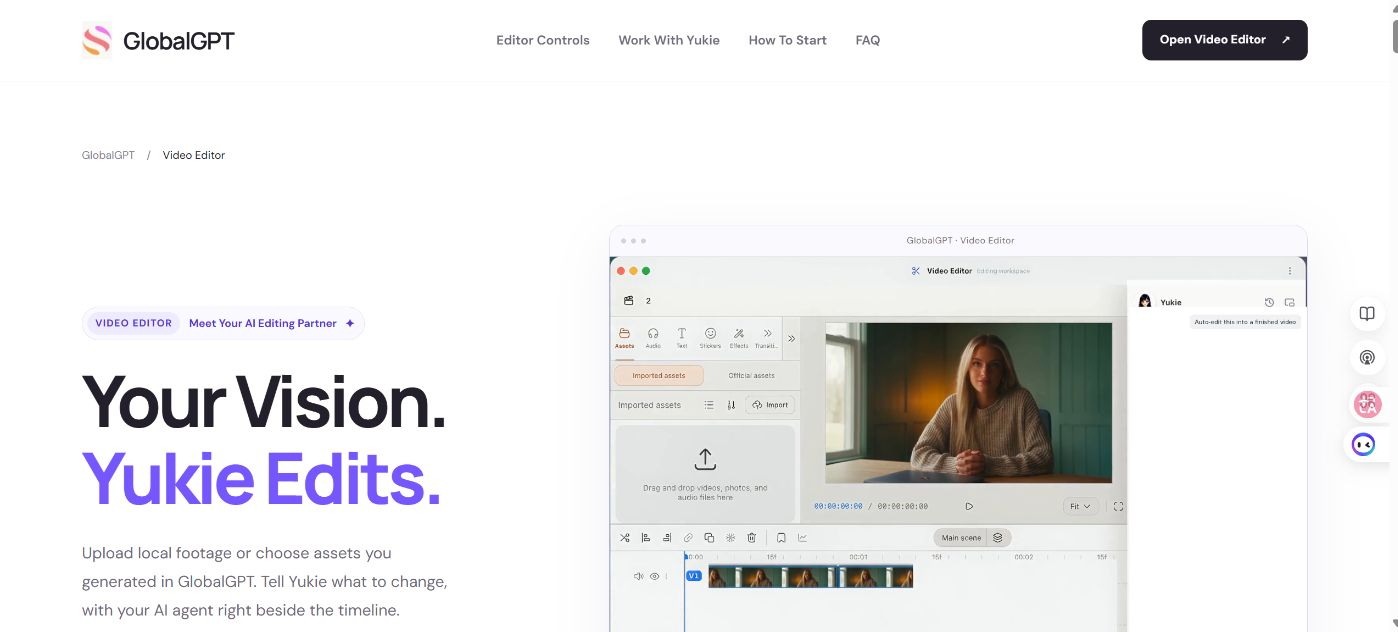
Yukie beside the timeline
Explain the edit in plain language while you keep a visual reference of the sequence. Ask for one focused change, then review what moved.
Motion-ready controls
Use text, stickers, effects, transitions, captions, split, duplicate, delete, zoom, and ripple editing to shape the timing of a clip.
Generated media in the same project
Choose assets made in GlobalGPT or upload local footage. You can bring generated video, audio, and continuation shots into the editor.
Sound and visual polish
Add a soundtrack, sound cue, custom effect, title, caption, or transition while keeping the changes tied to the cut.
Continuation workflow
Use the final frame of a clip as the starting point for a continuation, then import the new shot and check the join on the timeline.
Multiple model options
Explore available GlobalGPT video models, including Seedance 2.5, when the project needs a new shot before the motion edit.
These features make GLBGPT useful for prompt-led motion editing, social video production, product demos, UGC-style ads, and short-form campaign work. The common thread is a reviewable timeline: the prompt starts the change, and the editor gives you a place to inspect it.
How the GLBGPT Video Editor works
| Editor area | O que você pode fazer | Motion-design value |
|---|---|---|
| AI sidebar | Describe an edit, request a revision, or ask for a generated continuation | Turns a visual brief into a concrete next action |
| Visual timeline | Review clip order, timing, cuts, and track placement | Makes pacing and transitions easier to inspect |
| Text and captions | Add titles, lower thirds, captions, and text treatments | Supports kinetic typography and social-first readability |
| Effects and transitions | Apply a look, custom effect, transition, or visual change | Builds energy without writing every effect from scratch |
| Áudio | Add music, generated audio, and sound cues | Aligns sound with entrances, cuts, and product moments |
| Exportar | Review the final project and export the edited video | Creates a shareable result after a human check |
The editor is designed for an iterative loop rather than a single perfect command. Start with the shot and the one change that matters most. Then adjust the timing, text, audio, or effect after you see the result.
A practical GLBGPT workflow for motion-focused edits
- Choose the source. Upload one local clip or select one video already created in GlobalGPT. A clear source makes the requested change easier to judge.
- Describe the motion goal. Name the subject, the moment that should move, the timing, the visual style, and anything that must stay fixed.
- Ask Yukie for one change first. Try a title entrance, a transition, a custom effect, a caption pass, or a soundtrack before combining several requests.
- Inspect the timeline. Check the first frame, last frame, text placement, cut points, audio level, and the join between any generated continuation.
- Refine with constraints. If the change is too strong, specify a shorter duration, softer movement, smaller title, or fixed product framing.
- Export after approval. Review the saved video in the intended aspect ratio and confirm that brand claims, music, logos, and captions are correct.
REUSABLE GLBGPT MOTION BRIEF
Source + change + constraints + review
Fonte
[One uploaded clip or one GlobalGPT asset]
Motion change
[Title entrance, transition, effect, caption, audio cue, or continuation]
Keep fixed
[Product framing, subject, spoken claim, logo, colors, and duration]
Revisão
[First frame, last frame, timing, text, audio, and export settings]
For a campaign workflow, start with the exemplos de anúncios em vídeo de produtos, then move the chosen shot into the editor. For creator-led content, the AI UGC video generator guide e AI UGC video workflow guide help you prepare the source before editing.
Prompt examples for GLBGPT motion editing
PRODUCT INTRO
Title and scale-in
Use the uploaded product clip to make a clean 6-second intro. Keep the product framing and spoken claim unchanged. Add a subtle scale-in during the first second, place the approved title in the lower third, and use a soft whoosh when the title enters. Show the result in the Video Editor timeline for review before export.
Good for: a controlled product reveal with a clear review step.
SOCIAL MOTION
Caption and transition pass
Keep the subject and color palette fixed. Split the clip after the opening beat, add a short energetic transition, place readable captions below the face, and keep the music on its own track. Do not change the spoken words. Let me review the cut and captions before export.
Good for: short-form video where timing and readability matter.
CONTINUATION
Extend the final frame
Use the final frame of this clip as the first-frame reference for a 5-second continuation. Preserve the subject, camera direction, lighting, and product position. Import the continuation after the source clip and show the join on the timeline so I can check for a visible jump.
Good for: extending a generated shot while checking continuity.
Complete prompts work better when they define what can change and what must remain fixed. Treat every generated or edited result as a draft until you check the actual frames, timing, audio, text, and rights.
Where GLBGPT fits an AI motion workflow
01
Product videos
Build a short intro, add a benefit title, place captions, and shape the final beat before export.
02
UGC-style ads
Keep the creator clip natural while adding readable captions, a hook transition, music, and a clear callout.
03
Social cutdowns
Split a longer clip into focused moments, adjust pacing, and prepare a concise version for a vertical feed.
04
Motion experiments
Try a custom effect, title treatment, or continuation without rebuilding the whole sequence manually.
05
Audio-led edits
Pair music or generated audio with entrances, transitions, and the moments that need emphasis.
06
Comparação de modelos
Generate a few candidate shots in GlobalGPT, then bring the strongest one into the same editing workspace.
When you need a different source shot, the Seedance 2.5 production guide covers a related consistency question. For broader advertising work, see the AI ad generator guide. You can also use the Kling prompt guide for shot planning and the AI avatar video guide when the motion edit includes a presenter.
What to expect from GLBGPT
Prompt-led, not prompt-only
Yukie helps you request changes, but the timeline remains the place to judge pacing, framing, and continuity.
Web editor output
The documented workflow produces an edited video project in GLBGPT. It does not promise a native After Effects .aep handoff.
Human review stays essential
Check logos, claims, subtitles, music rights, audio levels, and generated frames before publishing or delivering the file.
If your goal is to turn a motion brief into a reviewable video quickly, GLBGPT gives you a direct place to try it. Start with one clip and one change, then keep the parts that actually improve the edit.
PERGUNTAS FREQUENTES
What is an AI motion designer for After Effects GPT?
It describes a prompt-led way to plan motion graphics, timing, titles, transitions, and effects with a GPT-style assistant. In GLBGPT, the related workflow lives in Video Editor with Yukie beside the timeline.
Does GLBGPT have an AI motion design workflow?
Yes. GLBGPT Video Editor combines Yukie, a visual timeline, generated assets, captions, audio, text, stickers, effects, transitions, split, duplicate, delete, ripple editing, and export.
Can GLBGPT edit a native After Effects project?
The documented GLBGPT workflow is a web-based video editor. It does not promise direct creation or editing of a native After Effects .aep project.
Can I use prompts to add motion effects?
Yes. Describe the clip, the effect, the timing, and what must remain unchanged. Then inspect the timeline and request a narrower revision if the movement is too strong or too slow.
Can GLBGPT create new clips for a motion project?
Yes. You can select assets generated in GlobalGPT, use available video models such as Seedance 2.5 for a new shot or continuation, and assemble the result in Video Editor.
Can I add captions and audio in the same workflow?
Yes. The public Video Editor surface documents captions, text, audio, music, effects, and transitions alongside timeline editing.
What should I include in a motion prompt?
Include the source clip, the exact change, timing, subject or framing constraints, text or caption rules, audio direction, and the checks you want to perform before export.
Is GLBGPT useful for UGC and product videos?
Yes. It is suited to short product intros, UGC-style ads, social cutdowns, captions, hooks, sound cues, and generated continuations that need a reviewable timeline.
THE GLBGPT ROUTE
Describe the motion, then refine the edit
GLBGPT turns a motion brief into a practical editing loop: bring in the footage, ask Yukie for a focused change, inspect the timeline, and export after review.
The best way to use it is to start small. One source clip, one motion request, and clear constraints give you a result you can actually evaluate.