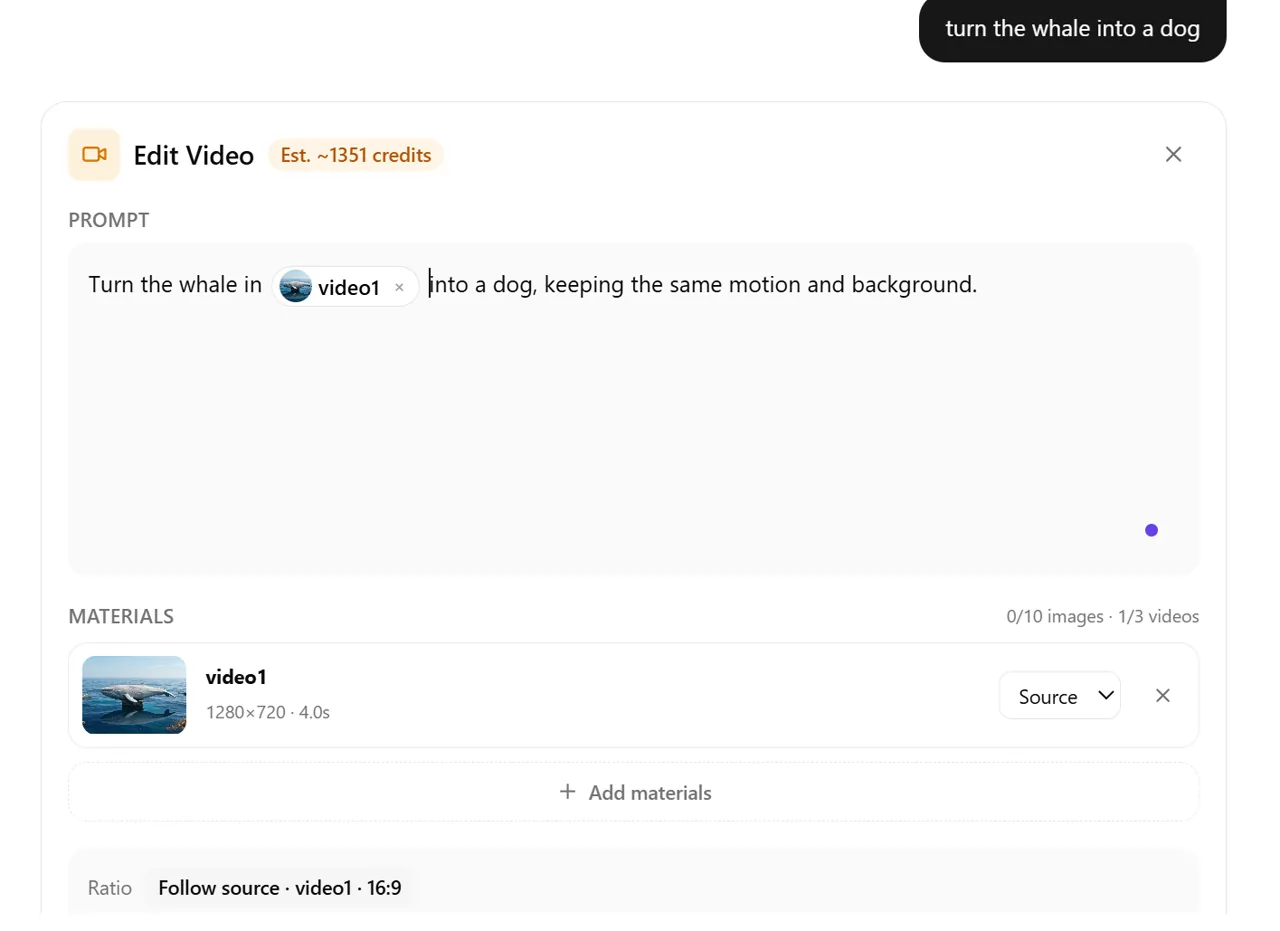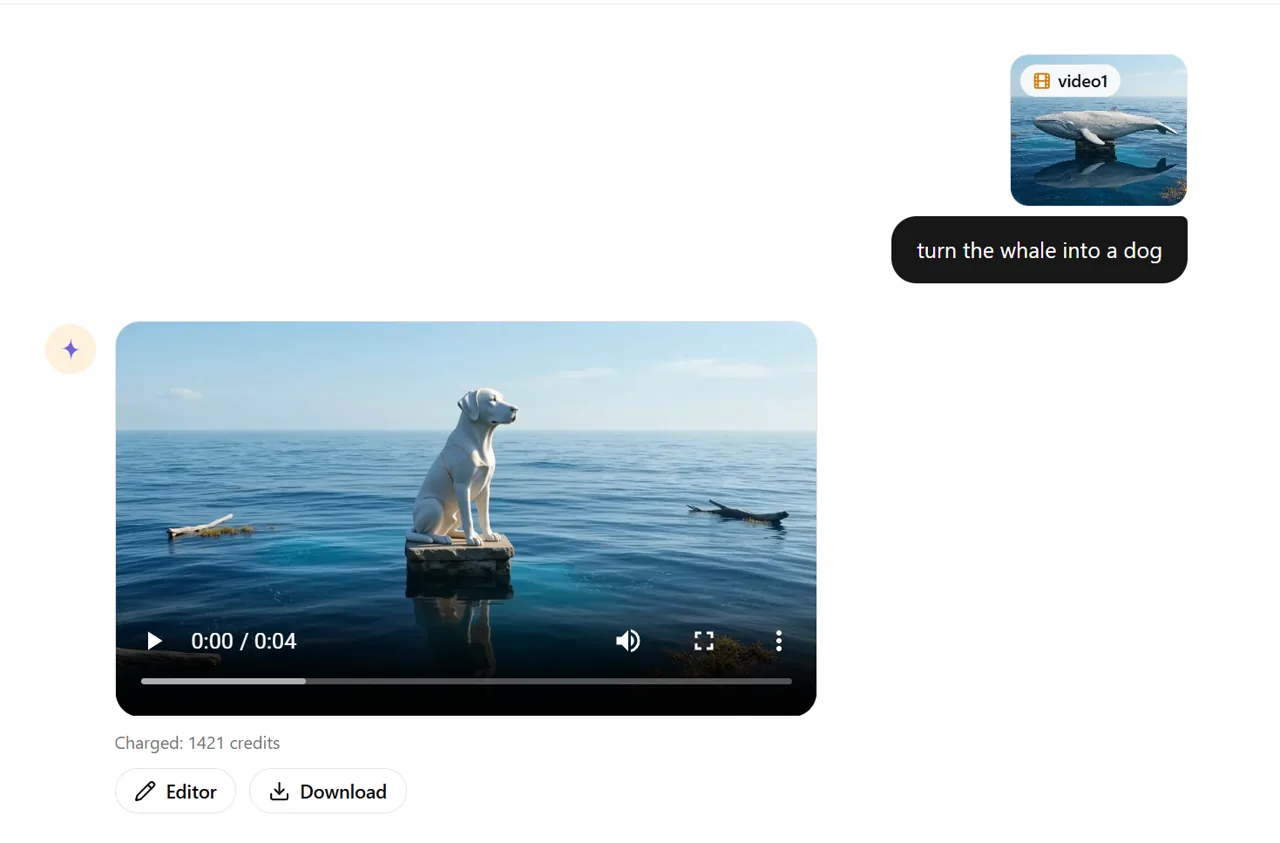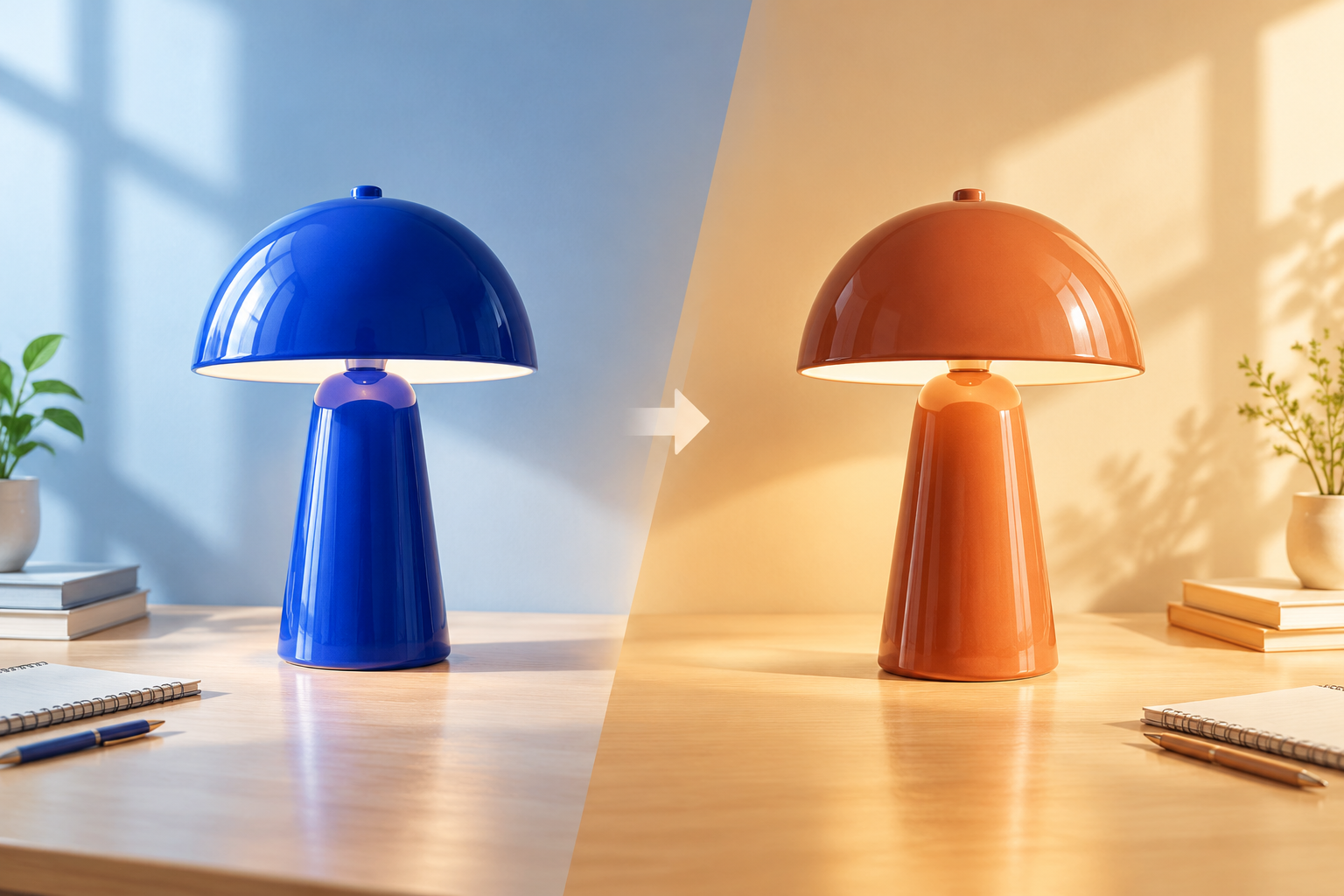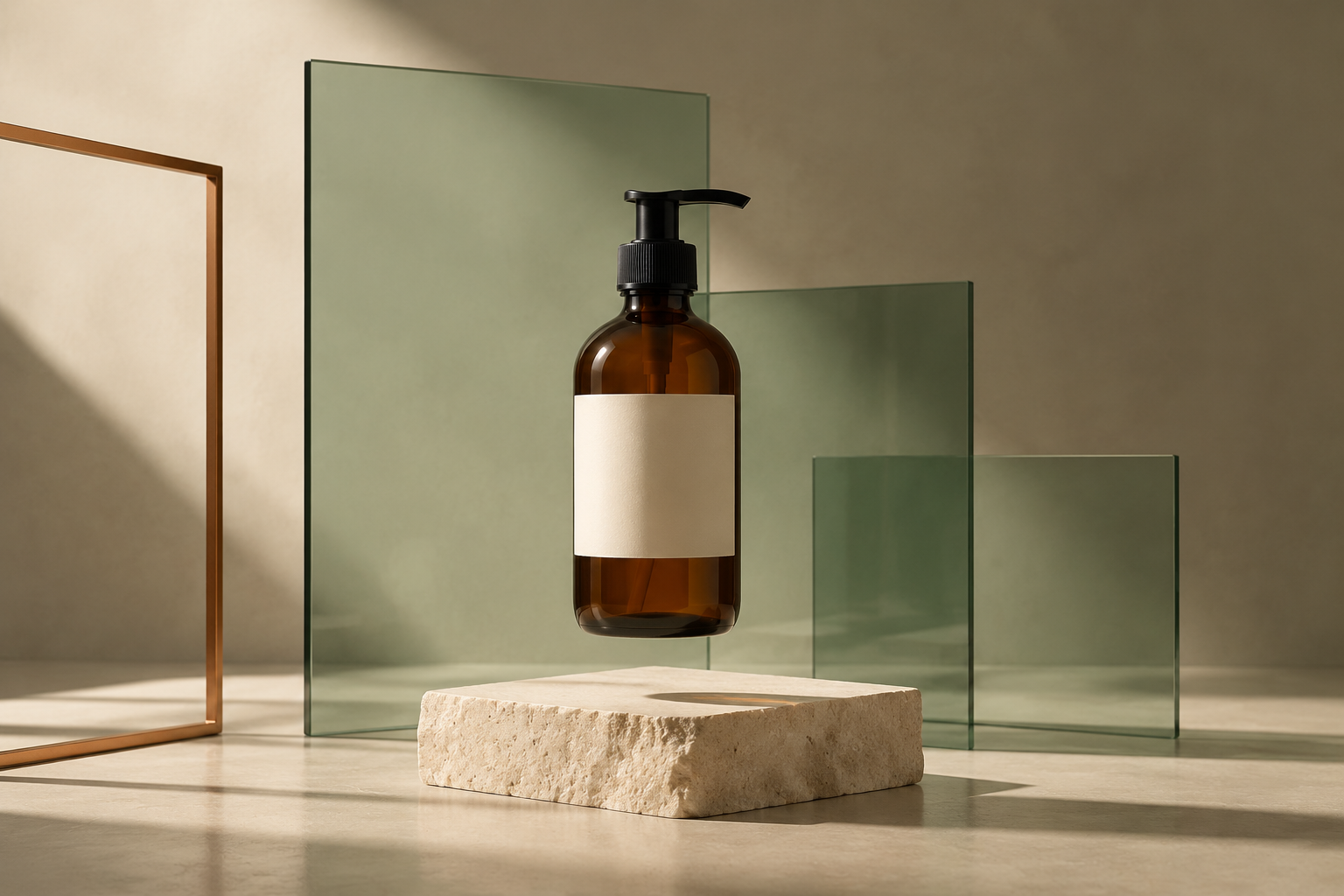
You should not have to regenerate an entire image because the background is wrong, the canvas is too small, or one detail needs fixing.
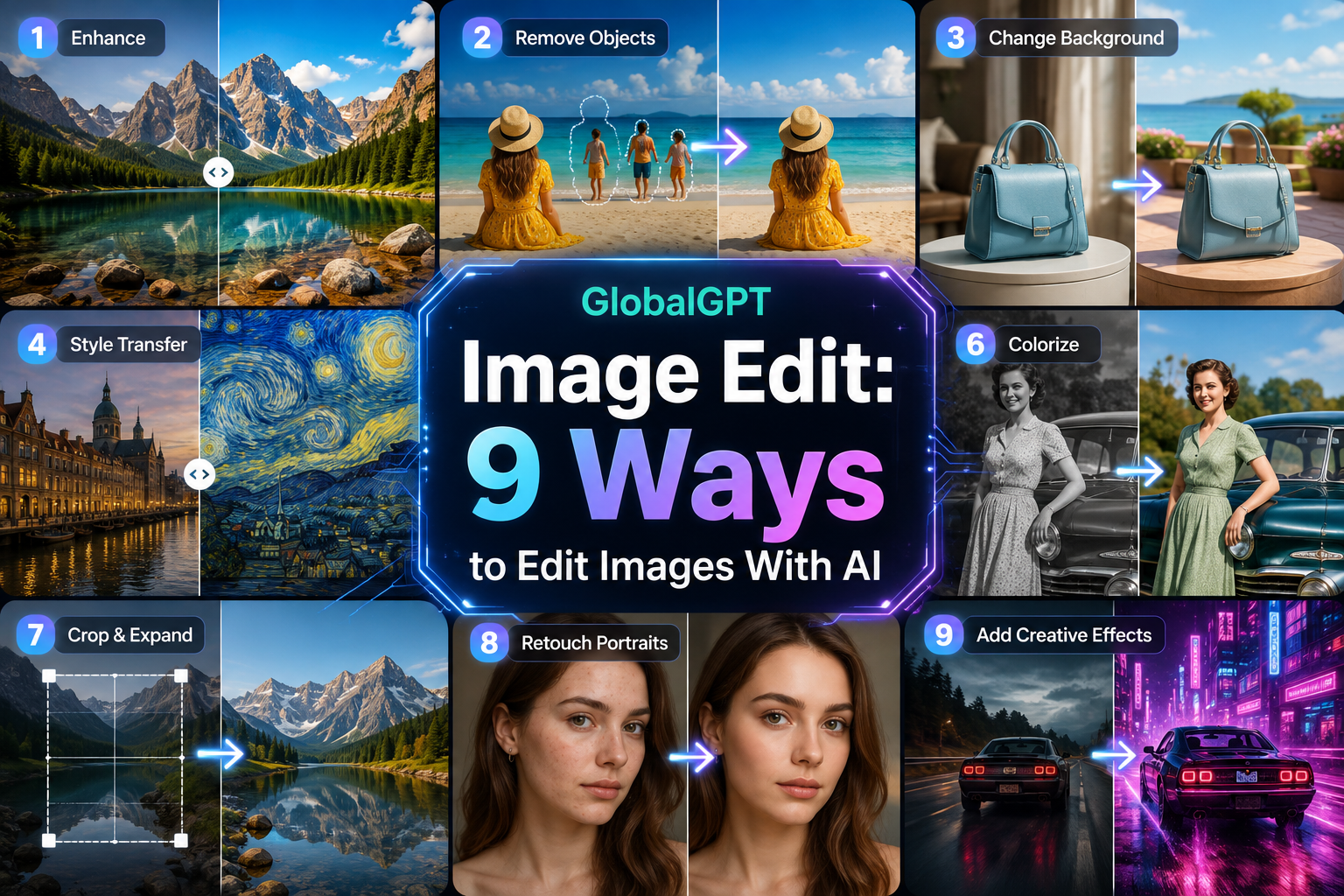
GlobalGPT Image Edit gives you a set of focused tools for common fixes: remove a background, expand the canvas, upscale a soft image, swap a setting, change hair, try on clothes, replace a face, create an ID-style portrait, or remove an unwanted mark. There is also a Prompt Edit mode when the change is easier to describe than to fit into a preset.
This guide explains what each option is for, how to ask for a controlled edit, how to edit by sending an image directly to Yukie, and when Gemini Omni Flash is the better route for an image that needs several connected revisions.
快速回答: Use a Quick Action when you have one clear job, such as removing a background or upscaling. Use Prompt Edit for a custom local change. Send the image to Yukie when you want to describe the result and let an agent handle the editing route. Choose Gemini Omni Flash when the same asset needs to move through several image and video steps.
- What is GlobalGPT Image Edit?
- Nine image editing tools
- Quick Actions vs. Prompt Edit
- How to edit an image
- Edit an image directly with Yukie
- When to use Gemini Omni Flash
- 提示範例
- Limits and responsible use
- 常見問題
What Is GlobalGPT Image Edit?
GlobalGPT Image Edit is a browser-based workspace for changing an existing image instead of beginning with a blank prompt. Upload a source image, choose a focused action or describe the change, then review the result before continuing.
The distinction matters. A general image generator may reinterpret the whole scene. A focused editor starts from the source and gives the model a narrower job. That usually makes it easier to protect the subject, composition, and details you want to keep, although no generative edit can guarantee that every untouched pixel will remain identical.
The live GlobalGPT interface separates Prompt Edit 來自 Quick Actions. It also exposes swap tools for faces, backgrounds, clothes, and hair. This article describes the options visible in GlobalGPT on September 4, 2026; names and access can change as the product evolves.
Nine Focused Ways to Edit an Existing Image
1. Remove Background
Cut out the main subject and return a transparent background. It is useful for product listings, profile cutouts, stickers, and design assets that need to sit on a new canvas.
2. AI Expand
Extend the image beyond its original edges. Use it to turn a square image into a landscape banner, add breathing room around a product, or create space for text.
3. HD Upscale
Enlarge an image and improve apparent sharpness. It can make a small asset more usable, but it cannot recover factual detail that never existed in the source.
4. Background Swap
Keep the subject while replacing the setting. This is useful for product scenes, travel-style portraits, seasonal campaigns, and cleaner social posts.
5. Hair Swap
Change hairstyle or hair color while trying to preserve the person’s identity and the rest of the portrait. A clear, front-facing photo gives the editor a stronger starting point.
6. Face Swap
Use a reference face to replace the face in the source image. Only use photos you own or have permission to edit, and never present a synthetic result as a real event.
7. Clothes Swap
Place a clothing reference onto a person’s photo for a virtual try-on concept. Treat the result as a visual preview rather than a guarantee of real-world fit, fabric, or sizing.
8. ID Photo
Turn a casual portrait into a cleaner, more formal headshot with an ID-style background. Check the exact government or application rules before using an AI-edited image for an official document.
9. Remove Mark
Erase an unwanted logo, text element, object, or mark from an image you are authorized to edit. Do not use it to remove ownership information from someone else’s work.
If none of these presets describes your task, Prompt Edit lets you state the change in natural language. That is the better option for requests such as “replace the mug with a clear glass, but keep the person, table, shadows, and camera angle unchanged.”
Quick Actions vs. Prompt Edit
| 選擇 | 最適合 | What you provide | Main review point |
|---|---|---|---|
| Quick Action | One standard job with a clear input | Source image and, for some swaps, a reference image | Edges, identity, texture, and preserved details |
| Prompt Edit | A custom object, color, lighting, or scene change | Source image plus a precise instruction | Whether the model changed anything outside the request |
| Yukie | A direct “send the image and explain the change” request | Source image plus editing instructions and protected details | Whether the agent chose and completed the intended edit |
| Gemini Omni Flash | Several connected creative steps | A prompt or existing asset, followed by conversational revisions | Continuity across each handoff and edit |
A Quick Action reduces prompt work, but it does not remove the need to inspect the output. Hair, hands, small text, transparent edges, reflections, and repeated patterns are common places where an edit can drift.
How to Edit an Image in GlobalGPT
- Start with the best source you have. Use a clear image with enough resolution to inspect. Avoid heavy compression when the task depends on hair, product edges, printed text, or facial details.
- Choose one job for the first pass. Select a focused tool or use Prompt Edit when the request does not fit a preset.
- Add a reference only when the tool needs one. Try to match the source in angle, lighting, and visibility so the editor has less to invent.
- State what must not change. Name the protected details: identity, pose, camera angle, logo placement, color palette, shadows, or aspect ratio.
- Review at full size. Check the requested change and untouched regions, then download the good version before starting another edit.
How to Edit an Image Directly With Yukie
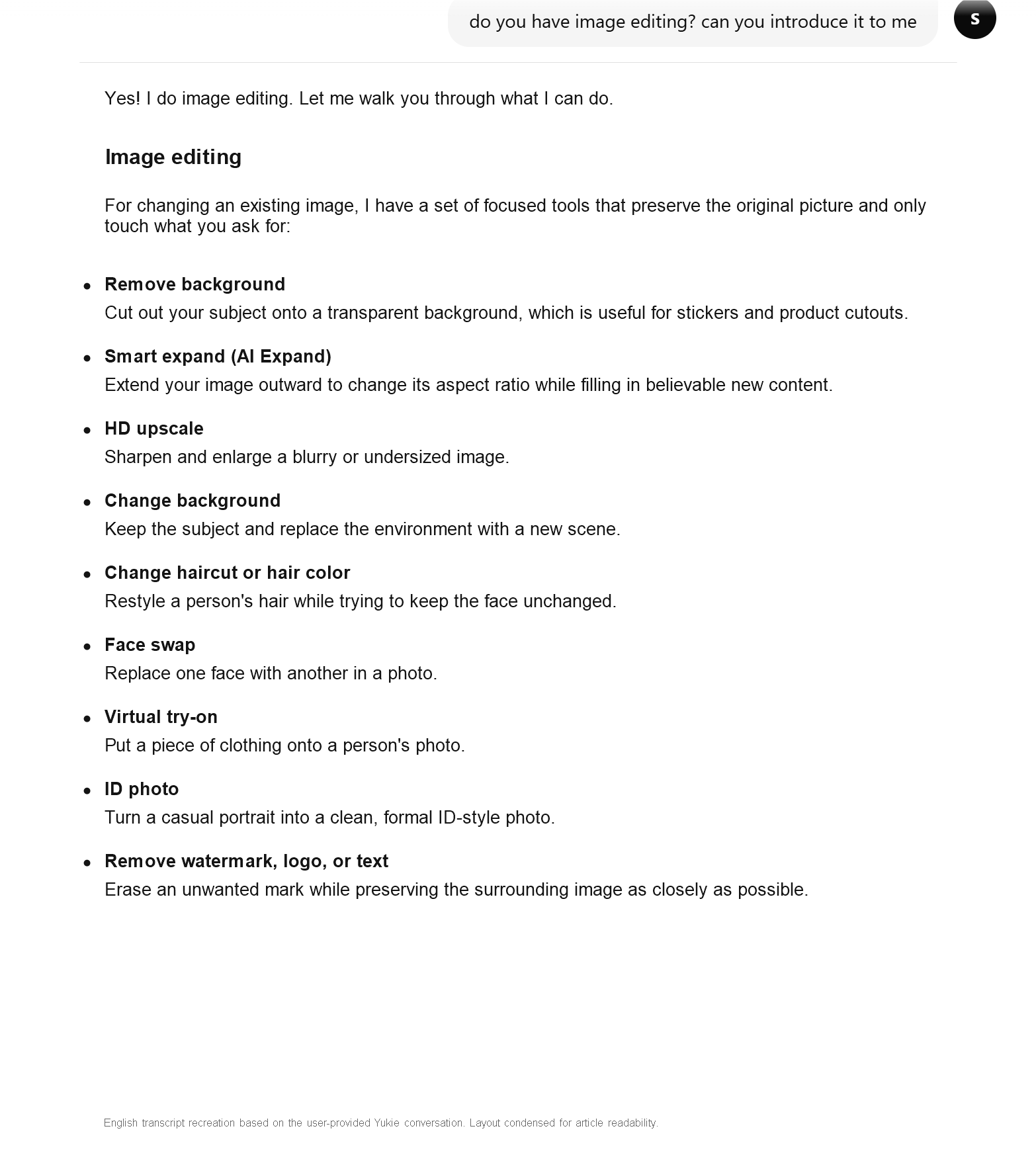
Yukie offers a more direct route: send the image in the chat and describe the change you want. You do not need to choose the exact editing tool first. In the user-supplied GlobalGPT conversation used for this article, Yukie identified focused options including background removal, AI Expand, HD Upscale, background changes, hair edits, face swap, virtual try-on, ID photos, and unwanted-mark removal.

This route is useful when you know the outcome but do not know which editor fits it. Attach the source, name the requested change, and list the details Yukie must preserve. If the first result needs refinement, reply with one correction at a time instead of replacing the entire brief.
Edit the attached image. Replace only the busy office background with a clean warm-gray studio wall. Keep the person's face, hair, pose, clothing, lighting direction, and crop unchanged. Do not add text or props.
The chat screenshot is evidence of how Yukie described its editing options, not proof that every tool will produce a perfect result on every source. Review the returned image at full size just as you would with the dedicated Image Edit workspace.
When Gemini Omni Flash Is the Better Image Editor
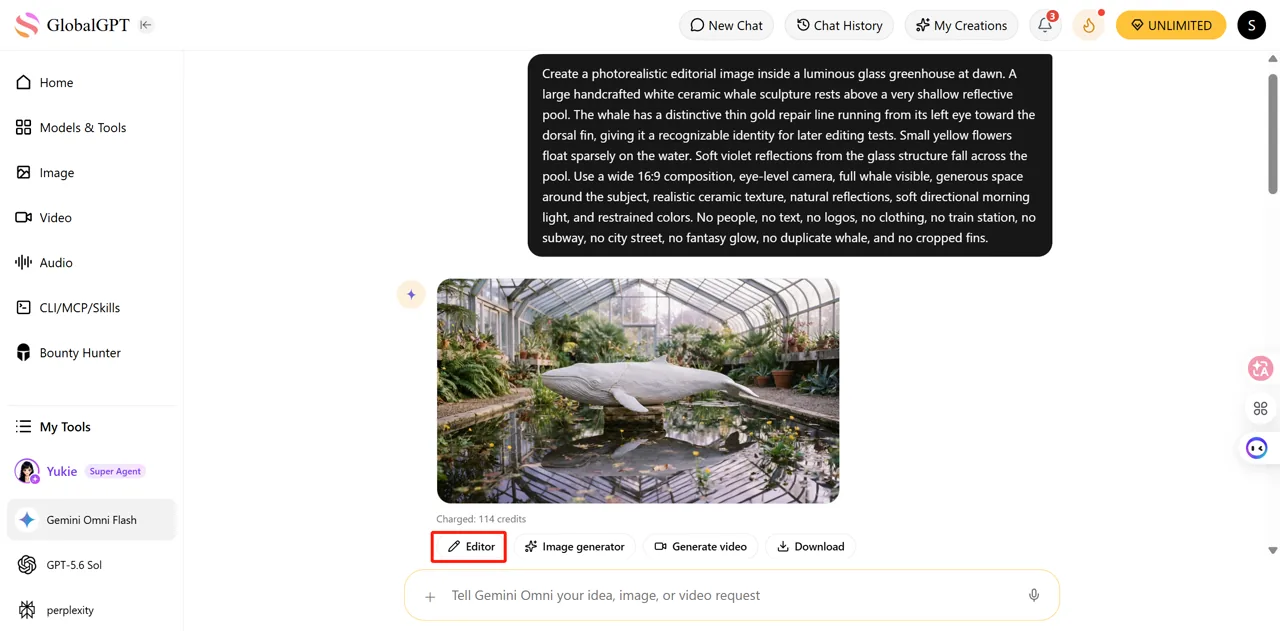
GlobalGPT also has a dedicated Gemini Omni Flash route. Its current product page describes a conversational process that connects image generation, image editing, image-to-video creation, and continued work with existing media.
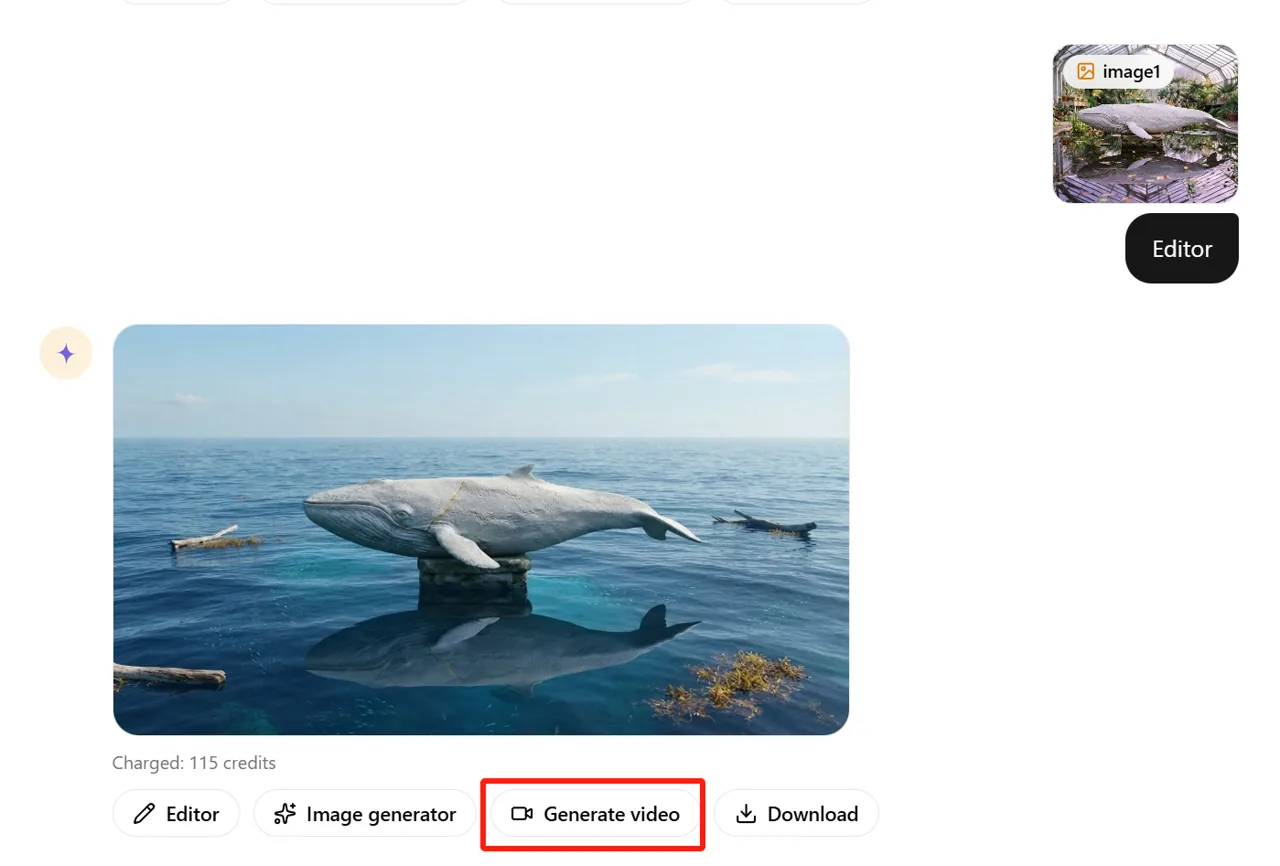
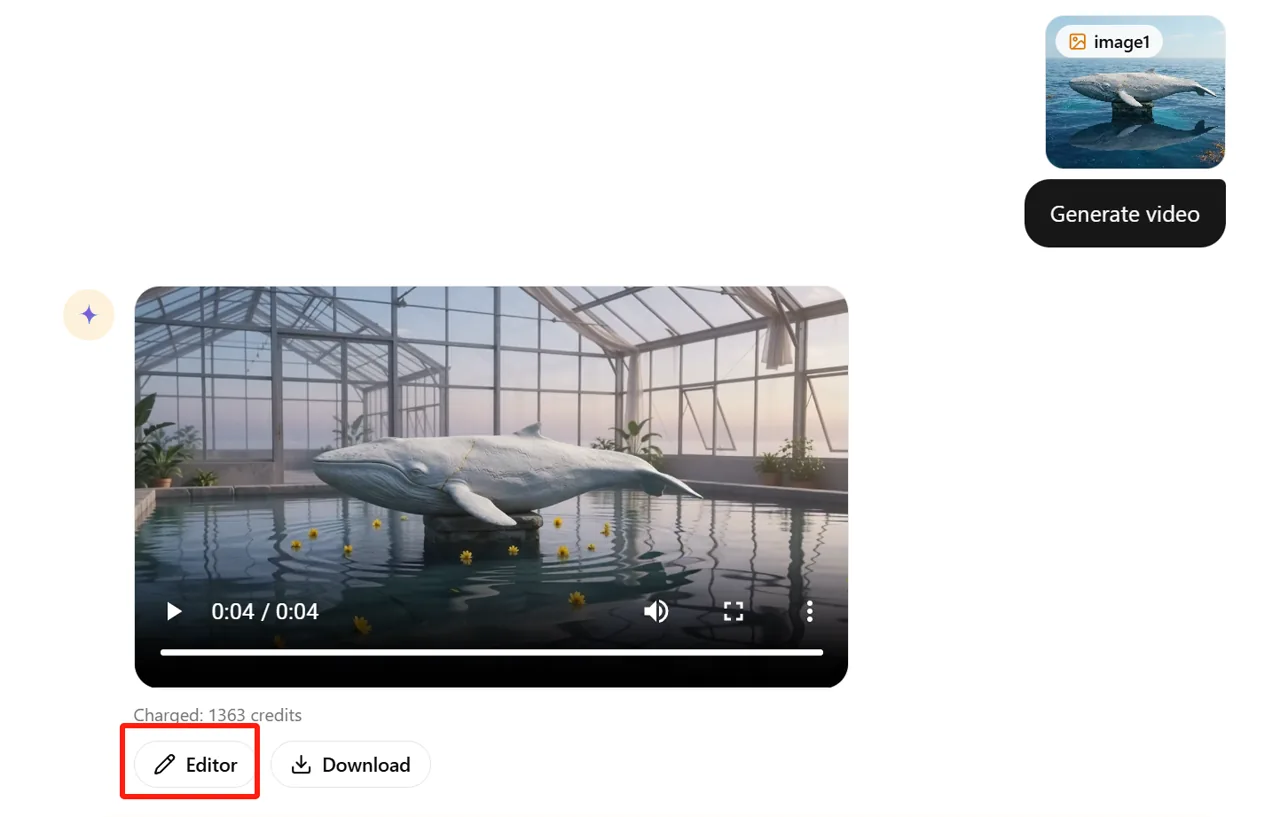
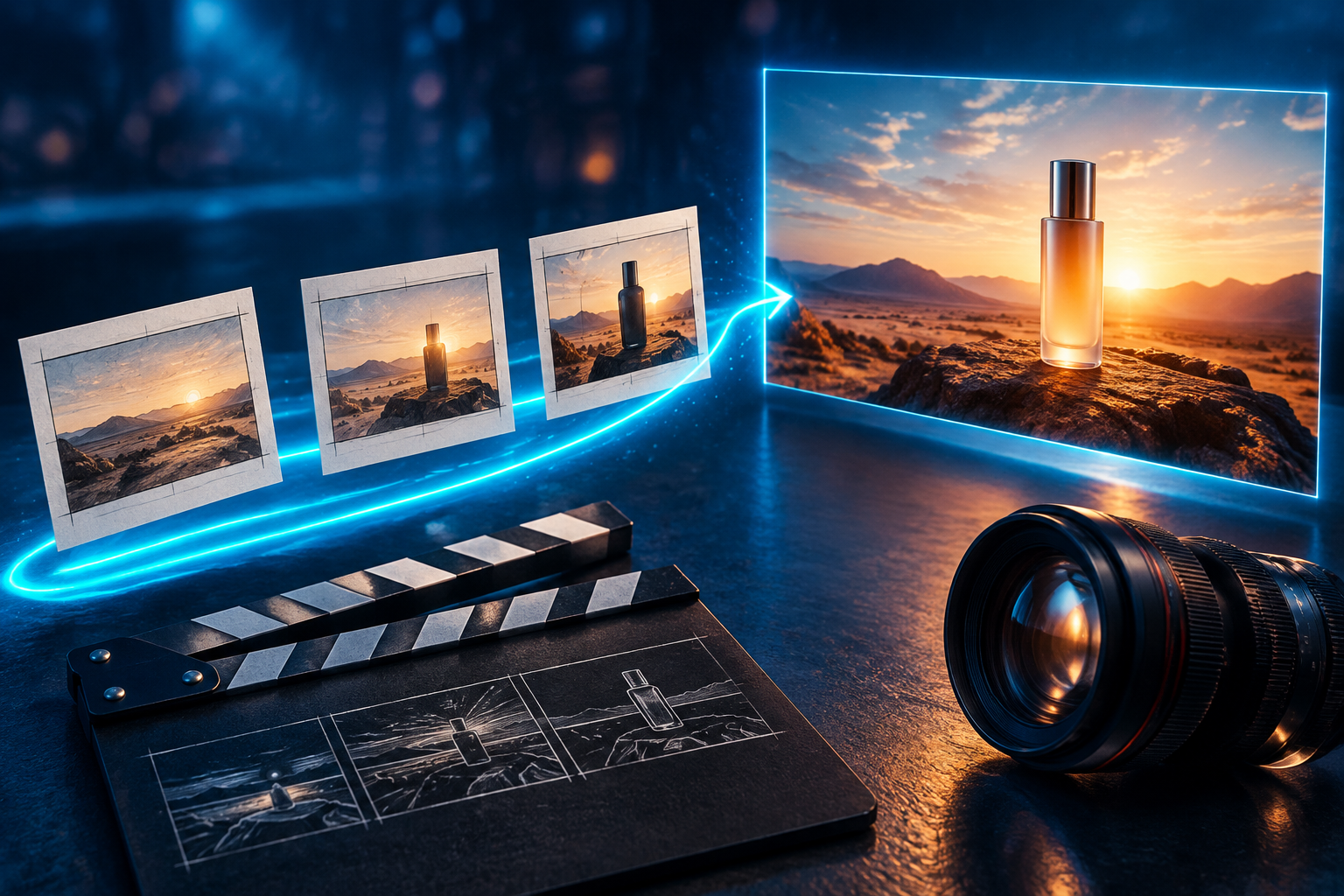
That makes Gemini Omni Flash useful when the edit is part of a sequence rather than a single fix. You might generate a product scene, revise the background, adjust one object, then turn the selected image into a short video without treating each result as an unrelated task.


The tradeoff is that every handoff needs a fresh review. A good image does not guarantee a good animation, and a second edit can accidentally change details that survived the first. Keep instructions narrow, compare each result with the last approved version, and download checkpoints as you go.
Simple choice: use GlobalGPT Quick Actions for repeatable one-step fixes; use Prompt Edit for a custom local change; send the image to Yukie for agent-led editing from plain-language instructions; use Gemini Omni Flash when the same asset needs to keep moving through several image and video steps.
Copyable Prompts for More Controlled Edits
Change a product background
Replace only the background with a clean light-gray studio wall and a soft floor shadow. Keep the product shape, label, colors, camera angle, reflections, and crop unchanged. Do not add props or text.
Remove one distracting object
Remove the red cable from the lower-right corner. Reconstruct the desk surface and its natural grain. Keep the laptop, hands, lighting, perspective, and all other objects unchanged.
Change hair while protecting identity
Change the hairstyle to a shoulder-length dark brown bob with a natural side part. Preserve the same face, expression, skin texture, pose, clothes, background, and lighting.
Expand a square image into a banner
Expand the canvas to 16:9 by adding believable space on the left and right. Continue the existing room, lighting, floor, and wall textures. Keep the person centered at the same scale and do not crop the original image.
Revise an image in Gemini Omni Flash
Use the selected image as the source. Change only the afternoon lighting to a warm sunset coming from the left. Keep the subject, face, clothing, composition, camera position, background objects, and aspect ratio consistent.
Good edit prompts use three parts: the change, the protected details, 以及 the finish. “Make it better” leaves too much open to interpretation; “remove the sign, preserve the storefront, and rebuild the brick texture” gives the model a bounded job.
What to Check Before You Use the Result
- 身分: compare facial structure, skin texture, hairline, and expression with the source.
- Text and logos: inspect every letter at full size; image models can alter small typography.
- Edges: look for halos around hair, transparent products, jewelry, and fine fabric.
- Geometry: check fingers, glasses, packaging, repeated patterns, and reflections.
- Truthfulness: disclose synthetic changes when an image could mislead viewers about a person, product, place, or event.
- Rights and consent: use source and reference images you are allowed to edit, especially for faces, clothing, brands, and watermarks.
For more model-specific editing ideas, see these practical examples for Nano Banana image editing and face swap. If you are deciding which generator should create the source image first, the 最佳 AI 圖片生成器指南 covers the wider choice.
常見問題
Can GlobalGPT edit an existing image?
Yes. GlobalGPT has a dedicated Image Edit workspace with Prompt Edit, Quick Actions, and swap tools for common changes to an uploaded image.
What is the difference between AI Expand and HD Upscale?
AI Expand creates new content outside the original frame to change the canvas or aspect ratio. HD Upscale enlarges the existing frame and improves apparent sharpness.
Can I remove a background and replace it with another one?
Yes. Remove Background is designed for a transparent cutout, while Background Swap places the subject into a different setting.
Can Gemini Omni Flash edit images?
Yes. GlobalGPT’s Gemini Omni Flash page describes image editing as part of a conversational creative process that can continue from an image into further edits or image-to-video work.
Can I send an image directly to Yukie for editing?
Yes. Attach the image in Yukie, describe the change, and state which details must stay the same. Review the result closely and use a follow-up message for one correction at a time.
Will an AI editor keep everything else exactly the same?
Not always. Focused tools and precise prompts can reduce unintended changes, but generative editing can still alter small details. Compare the result with the source before using it.
Can I use Face Swap or Remove Mark on any image?
No. Use images you own or have permission to edit, obtain consent for identifiable faces, and do not remove ownership marks from someone else’s work.
Fix the Image You Already Have
Start with one focused change, protect the details that matter, and keep the version that works. For longer creative sequences, move the same asset into Gemini Omni Flash and continue from there.