To use Seedream 5.0 Flash through its official API, enable the model in BytePlus ModelArk, create an API key and send a prompt to its image-generation endpoint. Add a reference image to edit an existing visual. The documentação oficial do modelo supports text-to-image, reference editing and output tiers from 1K to 2K.
Flash accepts up to ten reference images and costs $0.018 per generated image through BytePlus, with no reference-input charge. It is useful for product concepts and campaign variations, including targeted edits; the finished file still needs checking for unintended changes.
If you want to make those visuals without setting up API access, GlobalGPT provides a browser workspace for Flash. You can develop the brief, generate and revise an image, then use writing or video models to build out the same campaign under one subscription.
What Seedream 5.0 Flash can do
Seedream is ByteDance Seed’s image-model family. Flash is a separate model within the 5.0 lineup, alongside Lite and Pro. The official BytePlus image API documentation identifies Flash as a model that accepts text alone, one reference image, or multiple references to create a single output image.
Those inputs cover different jobs. Start from text when you are exploring an idea. Supply a product photo when the object must remain recognizable. Use several references when the product, setting and visual style come from different sources. Flash’s spatial editing tools add coordinates, selection boxes and arrows for identifying the part of an image you want to change.
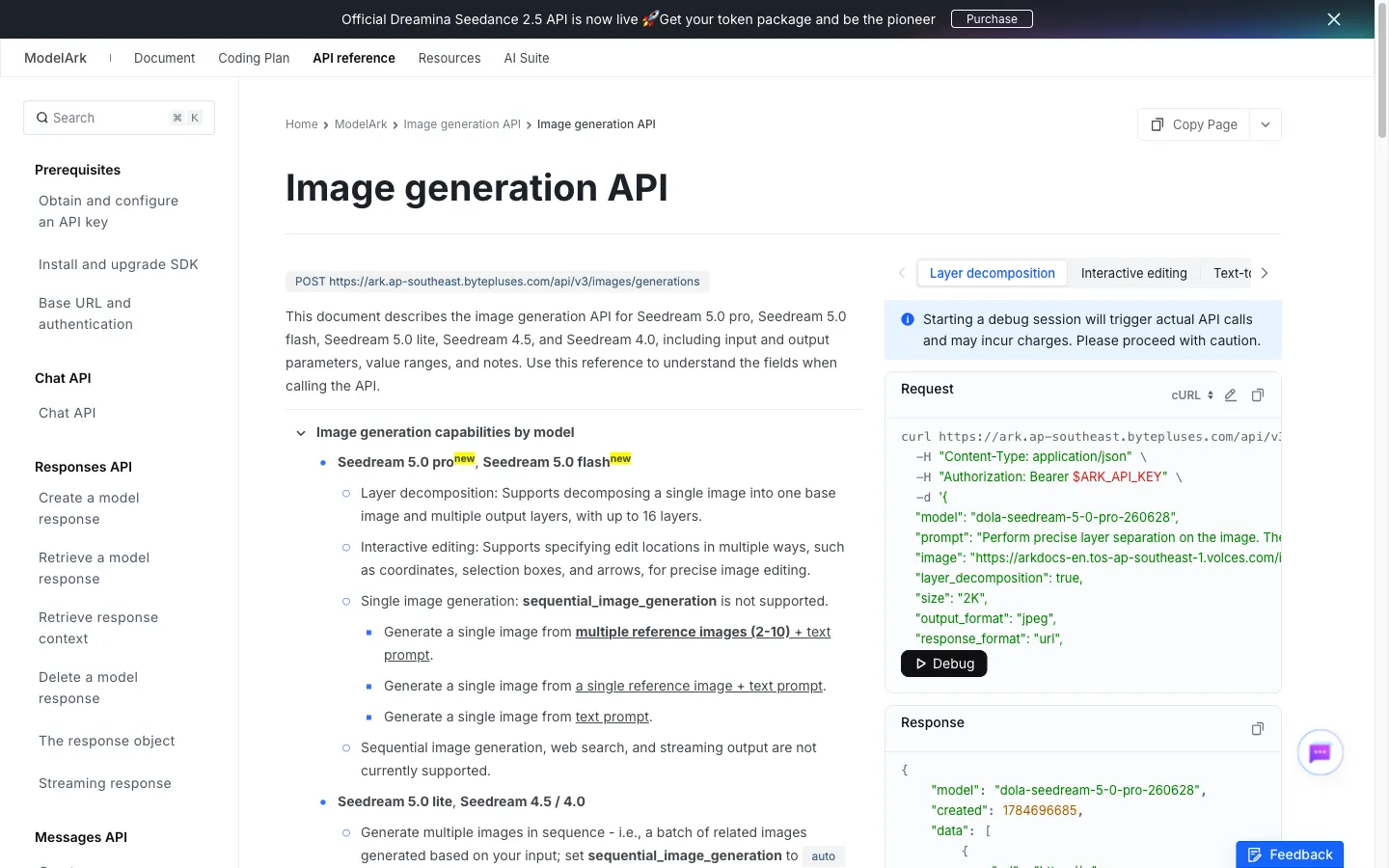
Layer decomposition is a separate mode: one image can become a base image and multiple output layers, up to 16 layers. It is useful when you need to work on elements separately after generation. Availability of a particular control depends on the app you use; the API exposes options that a simple image form may not show.
Flash, Lite or Pro: choose for the task
The names are not a reliable price ladder: Flash is cheaper per standard output than Lite in BytePlus’s published table. The more useful distinction is how you want to create and edit the image.
| Modelo | Best starting point when… | Important difference |
|---|---|---|
| Flash | You need individual concepts, reference edits and economical iteration. | Up to ten references; single-image generation; spatial editing and layer decomposition. |
| Lite | You need a related sequence of images in one request. | Supports sequential image generation and up to fourteen references, subject to input/output limits. |
| Prós | You are evaluating the family’s premium image route for demanding visual work. | Supports the same documented control categories as Flash, but uses a higher, resolution-dependent API price. |
Shared controls do not mean identical image quality. Choose a representative brief and compare the results at the size you will actually use. For a closer look at the two 5.0 options, see Seedream 5.0 Flash vs Pro.
How to use Seedream 5.0 Flash through BytePlus
BytePlus ModelArk is the official route for direct access. The documentação sobre geração de imagens links to its Experience Center, Model Activation and API Key pages. Console access depends on regional availability and account eligibility. For an integration with explicit model and output settings, follow the API steps below.
1. Enable Flash and prepare your API key
Sign in to BytePlus ModelArk, open Model Activation and enable Seedream 5.0 Flash for your account. Review the billing conditions, then create a key from API Key. Keep it in your local environment as ARK_API_KEY. Use the exact model ID dola-seedream-5-0-flash-260915; a sample that names Pro will request a different model.
2. Submit a text-to-image request
Send a POST request to https://ark.ap-southeast.bytepluses.com/api/v3/images/generations. Set Content-Type: application/json e Authorization: Bearer $ARK_API_KEY, substituting your environment variable’s value. Start with this request body:
Official API: first image request
{
  "model": "dola-seedream-5-0-flash-260915",
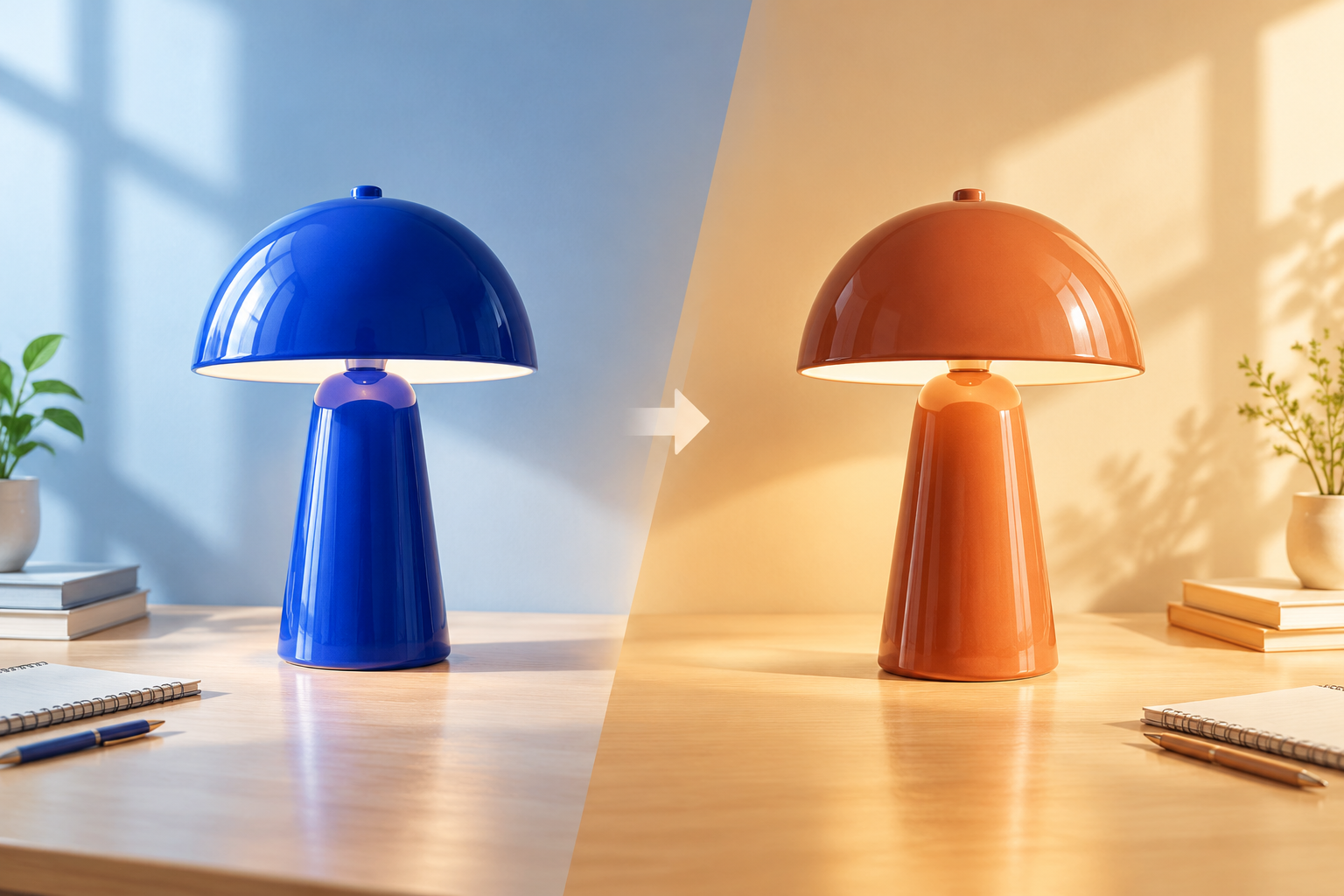
  "prompt": "A matte cobalt-blue desk lamp on a pale oak desk beside one closed cream notebook. Soft daylight from the left. Landscape 3:2. No text.",
  "size": "1.5K",
  "response_format": "url",
  "watermark": true
}
Use a resolution tier plus a ratio in the prompt, as above, or specify exact dimensions such as 1872x1248 em tamanho. Do not combine both size formats.
3. Save and inspect the returned image
Read the image address from data[0].url and download the file. Compare the returned tamanho and the actual image dimensions with the intended format. Inspect the subject, background and text before reusing the result. Flash uses a non-streaming response; leave streaming and sequential image generation disabled.
4. Turn that result into a reference edit
Send a second request to the same endpoint with the same Flash model ID. Add an imagem field containing an accessible source-image URL or supported Base64 image data, and replace the scene prompt with a focused instruction—for example, “Change only the lamp shade to terracotta. Keep the stem and base blue, and preserve the notebook, camera and lighting.” For several references, use an array of up to ten images and describe the role of each. Download and compare the edited result with the original.
How to generate your first image in GlobalGPT
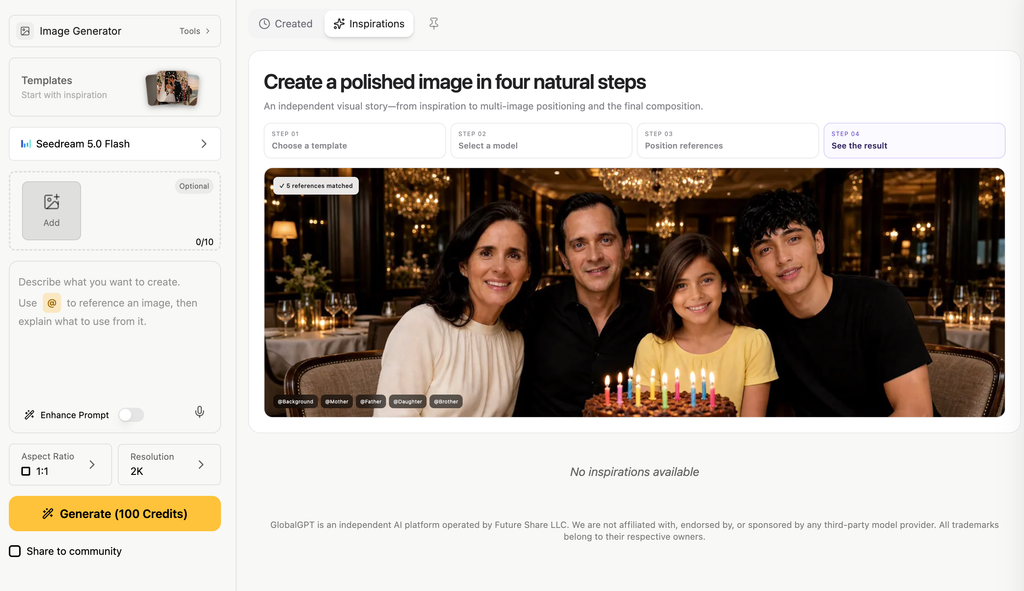
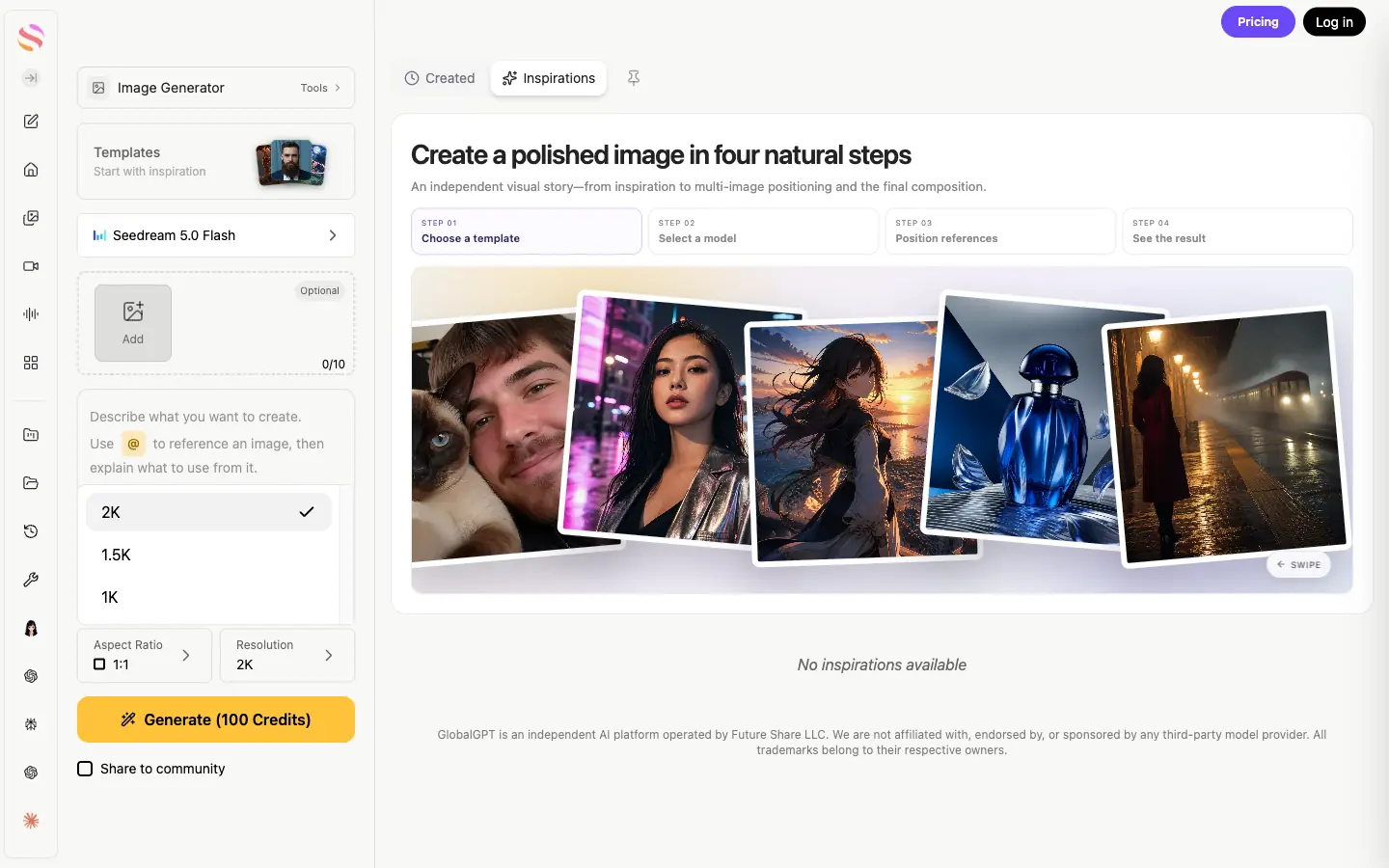
For a campaign or everyday design task, GlobalGPT makes the same model available through a browser image workspace. Open the workspace and select Seedream 5.0 Flash, then use the following settings and prompt workflow.
1. Choose a destination before writing the prompt
A product-card image, website banner and portrait social post need different compositions. Choose the aspect ratio in the interface, then describe the placement of the subject and any empty space you need. “Landscape 3:2” inside the prompt reinforces the composition; it should agree with the form’s ratio control.
2. Choose the resolution and review the charge
For the direct API, 1.5K is a useful starting point: BytePlus documents the same price as 1K with better image-generation quality. In a subscription workspace, choose the tier after reviewing its displayed credit charge. The Flash form offers 1K, 1.5K and 2K. “High resolution” in a prompt is a style request, not a substitute for the resolution control.
3. Describe the scene in a concrete order
Start with the subject and material, then add the setting, camera view, light and composition. Finish with a short list of exclusions. Specific relationships—“light from the left,” “notebook beside the lamp”—do more work than a long string of quality adjectives. BytePlus recommends keeping English prompts within 600 words; a normal product brief can be much shorter.
Product-photo prompt: copy and adapt
Open the exact prompt
Create a landscape editorial product photograph of a matte cobalt-blue ceramic desk lamp on a pale oak table beside an open notebook, soft morning window light from the left, warm neutral wall, realistic materials, clean commercial composition, 3:2 framing, no people, no brand logos, no watermark, no extra objects.
4. Generate, download and inspect
Submit the image and wait for the completed result. Download it before checking the pixel dimensions. Inspect the object count, materials, edges and any text at full size. If the composition is already useful, use it as the reference for the next edit instead of describing the entire scene again.
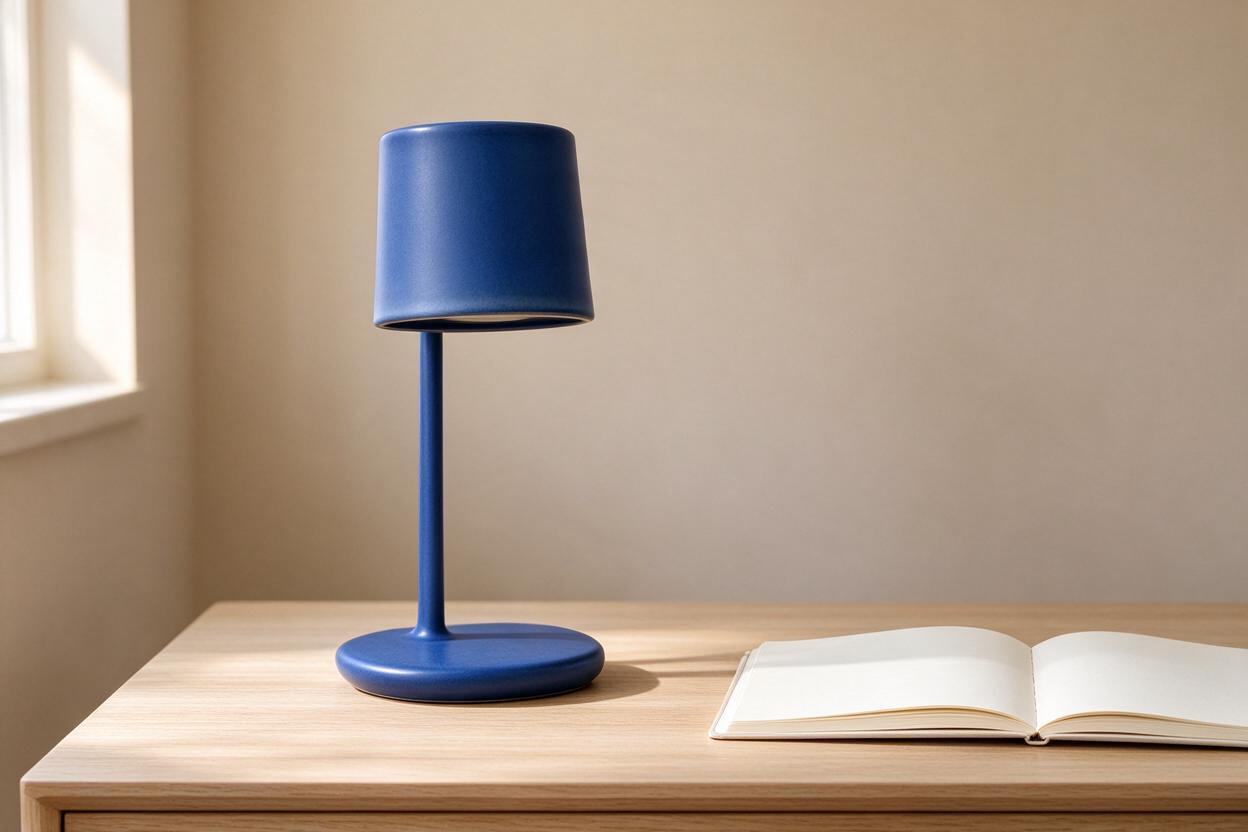
The lamp, oak table and notebook make a useful product-photography starting point. The lighting reads consistently and the scene is uncluttered. The file was 1248 × 832 despite a 2K target in this test, so we treated it as the delivered size and did not label it a 2K result.
How resolution and aspect ratio work
O official Flash API offers 1K, 1.5K and 2K, with 2K as its default. With a resolution tier, the aspect ratio described in the prompt determines the dimensions. Alternatively, an API request can specify an explicit width and height within the documented pixel and ratio limits.
| Caso de uso | Relação | 1 mil | 1.5K | 2K |
|---|---|---|---|---|
| Square product card | 1:1 | 1024 × 1024 | 1536 × 1536 | 2048 × 2048 |
| Landscape editorial | 3:2 | 1248 × 832 | 1872 × 1248 | 2496 × 1664 |
| Wide presentation | 16:9 | 1424 × 800 | 2048 × 1152 | 2816 × 1584 |
| Vertical social visual | 9:16 | 800 × 1424 | 1152 × 2048 | 1584 × 2816 |
A wide 2K image is not necessarily 2048 pixels on its longest side. The tier describes an approximate pixel budget, and the ratio changes the width and height. The test’s 1248 × 832 file corresponds to the official 1K landscape dimensions; it does not establish that Flash lacks 2K output.
How to edit an existing image
Upload the original image as a reference. Name one change, identify its target and state what must remain unchanged. For a product, include the shape, material, position, camera angle and lighting in that preservation list. Use the original file for independent variations so unwanted changes do not accumulate from edit to edit.
Reference-edit prompt: copy and adapt
Open the exact prompt
Edit the reference image while preserving the lamp shape, table position, camera angle, and overall composition. Change only the lamp shade color from cobalt blue to muted terracotta, keep the soft morning window light and pale oak table, remove any text or logos, and keep a realistic commercial-photography finish.

This edit is attractive as a new colorway, but it is not a precise shade-only alteration. The color spread to other parts of the lamp. For a fictional design concept that may be acceptable; for a real product listing it would be misleading unless the entire lamp is actually sold in that color.
A useful follow-up would name the untouched parts explicitly: “Keep the stem and base cobalt blue; recolor only the curved shade.” Where your tool supports spatial selection, mark the shade as the edit region. For exact brand colors or final catalog assets, finish the correction in an editor with direct color controls.
Go further with references, spatial edits and layers
Combine references without creating a conflicting brief
Flash supports up to ten reference images. Assign a role to each: image 1 supplies the product, image 2 the room, image 3 the lighting. Avoid several incompatible versions of the same object unless you explicitly explain which details to keep. For one product in a new setting, two well-chosen references are usually easier to direct than a loosely defined collection.
Point to the place that needs changing
The official API supports spatial edit instructions through coordinates, selection boxes and arrows. These are helpful when “the background object” could refer to several things. A clear location and a preservation instruction solve different problems: the first identifies where to edit, while the second explains what to keep.
Separate an image into editable components
Layer decomposition takes one source image and returns a base plus separate output layers, up to 16 layers. In the API this uses layer_decomposition: true; only one input image is allowed in this mode. Use it when the next step needs separate elements rather than another flattened picture. This is an official capability; the lamp example above tests ordinary reference editing.
For more ideas on describing subjects, composition and preserved details, the Seedream prompting guide gives further examples. Its Pro-specific features should be read in the context of that model.
Seedream 5.0 Flash pricing: what is free?
BytePlus charges $0.018 per successfully generated Flash image, and reference-image input is free. O official price table, checked October 19, 2026, lists this rate for dola-seedream-5-0-flash-260915. Free input means that uploading references does not add an input-image charge; the output image still costs money.
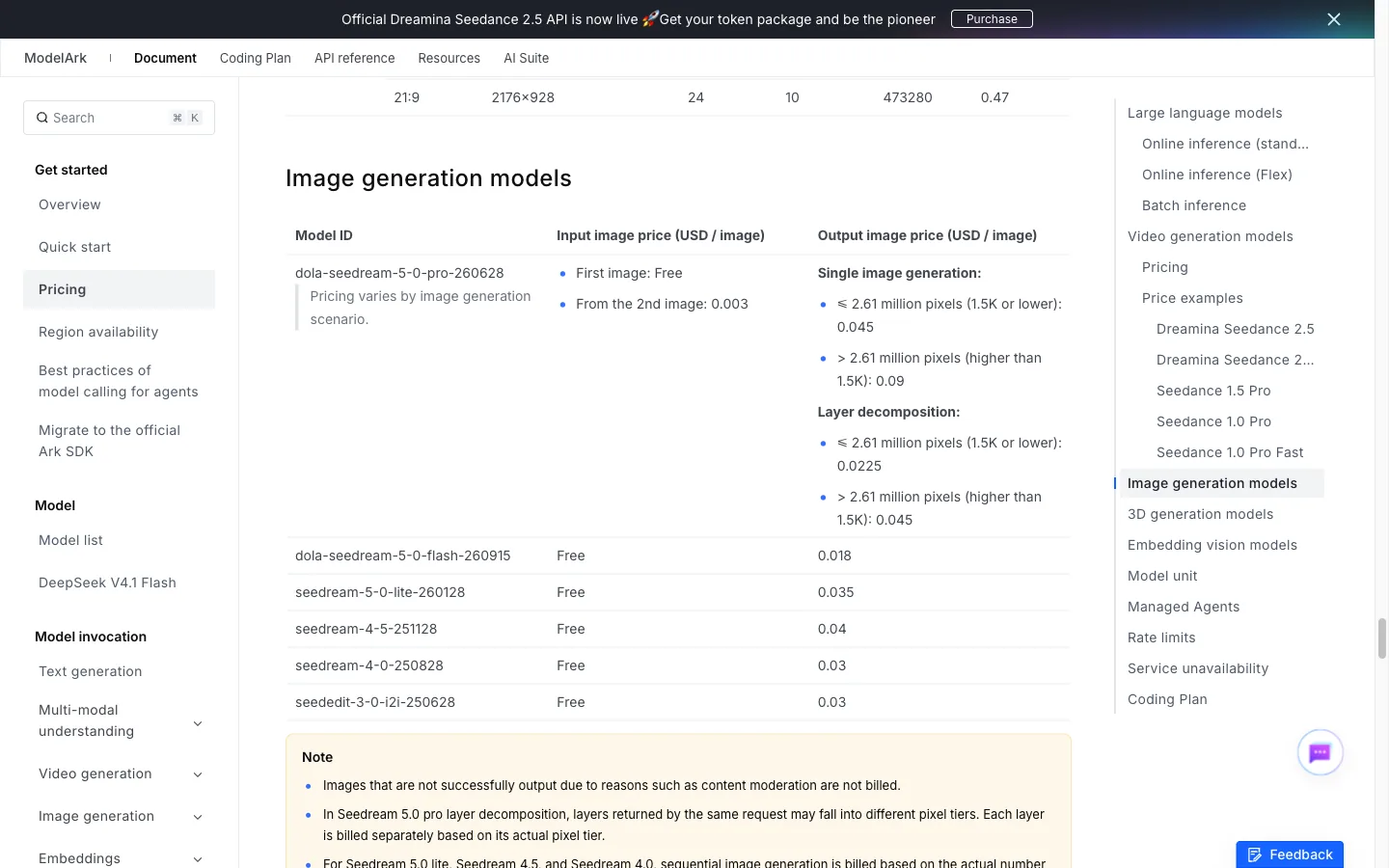
| Model / standard generation | Preço de saída | 100 imagens | Entrada de referência |
|---|---|---|---|
| Flash | $0.018 | $1.80 | Gratuito |
| Lite | $0.035 | $3.50 | Gratuito |
| Pro, up to 2.61 MP | $0.045 | $4.50 | First free; $0.003 each after that |
| Pro, above 2.61 MP | $0.090 | $9.00 | First free; $0.003 each after that |
Output cost for 100 standard images
Flash — 1.8 USD
Lite — 3.5 USD
Pro ≤ 2.61 MP — 4.5 USD
Pro > 2.61 MP — 9 USD
Calculated from BytePlus pricing, October 19, 2026. Standard image generation only; Pro reference-input charges and layer decomposition are excluded.
For planning, ten Flash images cost $0.18, 100 cost $1.80 and 1,000 cost $18 at the listed API rate. Budget for revisions as additional outputs. BytePlus says images that are not successfully output, including moderation failures, are not billed.
GlobalGPT uses its own subscription and credits: the 2K setup shown above displayed 100 credits. That is a separate billing system from BytePlus dollars. If you also need writing and video tools, O espaço de trabalho multimodelo do GlobalGPT lets you evaluate the cost of the whole creative workflow rather than maintaining separate products for each step.
There is no universal free-output promise attached to the Flash name. Any trial credits or account promotion belong to the service offering them. Check the current allowance before generating; “free reference input” does not mean unlimited free images.
What to check before you use the result
The two tasks in this guide
We tested Seedream 5.0 Flash in GlobalGPT on October 18, 2026: one text-to-image lamp scene and one edit using that first image. Both examples show the first valid output, with no appearance rerolls. Both delivered 1248 × 832 pixels. These are practical examples, not a multi-run benchmark.
The first task worked well as a clean concept image. The second exposed a common distinction: a visually pleasing edit can still violate the request. Judge a result against the brief, not just its finish.
- An edit changes neighboring details: isolate one change, name the untouched parts and use spatial selection where supported.
- The download is smaller than expected: compare its actual dimensions with the selected tier before exporting or printing.
- You need a related batch in one call: Flash does not support sequential image generation; Lite has that separate capability.
- You expect web search or streamed output: the current official Flash API supports neither.
- Packaging or typography must be exact: compare every word, label, edge and color with the source and retain an editable final design.
If the deciding factor is a particular editing task, compare one representative brief across models. The Seedream Pro vs GPT Image 2 comparison is a useful next read for that choice.
PERGUNTAS FREQUENTES
How do I use Seedream 5.0 Flash?
Enable Flash in BytePlus ModelArk, create an API key and send a prompt to the image-generation API using model ID dola-seedream-5-0-flash-260915. Add an image reference for editing. For a browser workflow without API setup, select Seedream 5.0 Flash in GlobalGPT, choose the output settings and generate.
Is Seedream 5.0 Flash free?
BytePlus reference-image inputs are free, but generated outputs cost $0.018 each at the rate checked October 19, 2026. Trial allowances depend on the service and account.
Does Seedream 5.0 Flash support 2K?
Yes. The official API lists 1K, 1.5K and 2K. A 3:2 image at the documented 2K tier is 2496 × 1664. Check the downloaded file: our test returned 1248 × 832 despite a 2K target.
How many references can I upload?
Flash supports up to ten reference images for generation. Layer decomposition is a separate mode that takes only one source image.
Can it edit only one part of an image?
It accepts targeted edit instructions and supports spatial editing controls through the official API. Inspect the result: our shade-color edit also changed the lamp stem and base.
Can Flash generate a related batch in one request?
Not through the current official sequential-generation option. Flash generates a single image in ordinary generation mode; Lite supports sequential generation. Layer decomposition is a different operation.
Is Flash right for your workflow?
Seedream 5.0 Flash is a useful choice for affordable image iteration, reference-based variations and product concepts. Its official controls reach beyond basic text-to-image, while the low output rate makes it practical to refine a brief over several attempts. The tradeoff is familiar: an image can look finished before all its details are correct.
Start with a clear scene, choose the output dimensions deliberately and edit one thing at a time. Use BytePlus when you need direct API integration, or try Flash in GlobalGPT when you want to carry the same creative brief through writing, images and video in one place.