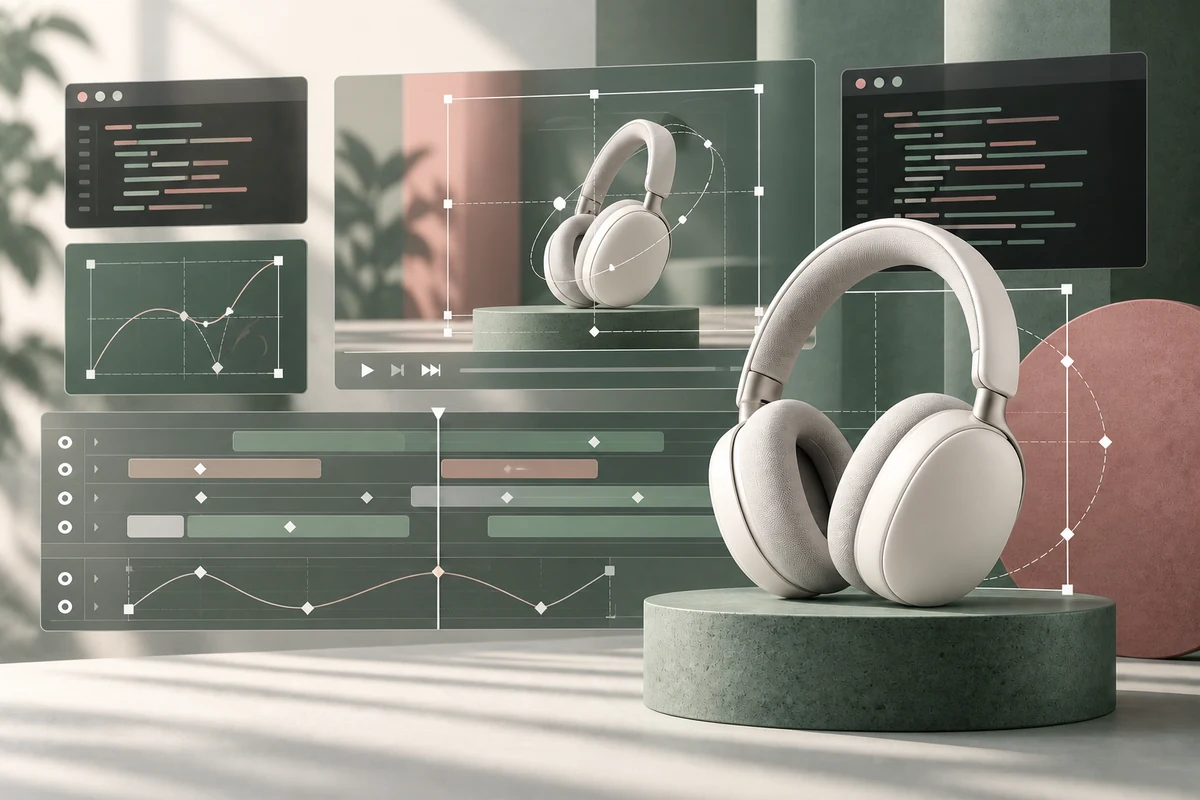
Um vídeo de produto parece estar pronto. Mas então o título muda, a chamada à ação precisa ficar mais um segundo na tela e a equipe de vendas pede uma versão em outro idioma. Se todos esses detalhes já estiverem incorporados à filmagem gerada, uma pequena revisão pode se transformar em mais um trabalho de produção.
Design de movimento com IA oferece uma abordagem mais prática: use a IA para ajudar a criar a cena e a lógica da animação, mantendo os elementos que você pretende revisar em uma composição editável. O que realmente importa é o controle sobre a próxima versão, e não apenas a primeira exportação impressionante.
Este guia explica essa divisão de tarefas, utilizando um exemplo de foto de produto, uma sequência prática de produção e orientações que você pode adaptar. Ele é publicado pela GlobalGPT; a plataforma é uma das opções para as etapas de planejamento e filmagem descritas a seguir. A documentação da ferramenta foi verificada em 7 de setembro de 2026.

O que é o design de movimento com IA e o que permanece editável?
O termo abrange vários fluxos de trabalho; portanto, comece com uma pergunta concreta: O que é possível alterar após a geração? Um modelo de conversão de texto em vídeo produz imagens em movimento. Um sistema de animação pode tratar uma manchete, sua posição, o momento em que ela aparece e sua cor como entradas separadas. A IA pode ajudar a definir essas regras, mas é o projeto editável que as torna reutilizáveis.
Visão geral de Higgsfield sobre o design de movimento com IA faz uma distinção útil entre a geração de cenas e o controle de gráficos estruturados. Essa distinção é mais importante do que o fato de um produto descrever sua interface como “prompting”, “vibe editing” ou “automação”.
No caso de um anúncio de produto, o movimento da câmera e a iluminação podem permanecer na filmagem. O nome do produto aprovado, a oferta, o logotipo e a menção legal devem, normalmente, permanecer separados. Alterar um título significa, portanto, editar um valor de texto e fazer uma nova renderização, enquanto a filmagem aprovada pode permanecer como está.
Um arquivo MP4 exportado não contém automaticamente essas camadas editáveis. Guarde o projeto de origem, as fontes, os elementos gráficos, os dados de entrada e a mídia original junto com o arquivo final. Sem eles, até mesmo um vídeo gerado por código pode se tornar apenas mais um recurso simplificado.
Atribua a cada parte do vídeo a função correta
Escolha o método de acordo com o requisito que você precisa atender. Movimentos fotorrealistas, tipografia exata e uma legenda sincronizada com precisão são desafios de produção distintos.
| Requisito | Camada de produção útil | O que verificar |
|---|---|---|
| Uma foto de produto com estilo cinematográfico | Imagens geradas ou filmadas | Forma, iluminação, movimento da câmera, continuidade |
| Um título ou preço exato | Camadas de texto e gráficos editáveis | Ortografia, valores aprovados, quebra automática de linha, margens de segurança |
| Uma chamada de atenção em um momento específico | Animação baseada em quadros ou quadros-chave na linha do tempo | Barra de entrada, tempo de manutenção, barra de saída |
| Muitas variantes de idioma ou de oferta | Composição parametrizada | Texto extenso, valores ausentes, conflitos de layout |
| Um produto sob medida ou um compósito complexo | Um editor ou um aplicativo de composição | Rastreamento, máscaras, quadros individuais, sincronização de áudio |
Se a câmera tiver que orbitar ao redor do produto, transforme isso em uma instrução de filmagem. Se um título tiver que deslizar 24 pixels até o lugar certo, transforme isso em uma instrução gráfica. Nosso guia sobre movimentos de câmera com IA é útil para descrever a cena antes da inserção dos elementos gráficos.
Sempre que possível, mantenha fora da camada generativa tudo o que precise ser exato. Um vídeo atraente ainda assim não cumpre seu objetivo comercial se o modelo inventar uma palavra na oferta. Esse problema é abordado com mais detalhes em nosso guia sobre erros comuns em vídeos com IA.
Escolha as ferramentas ao redor da fonte que você precisa manter
Remotion para composições de vídeo criadas com React
Documentação oficial do Remotion descreve a criação e a execução de projetos de vídeo programáticos, incluindo fluxos de trabalho auxiliados por agentes de programação. É uma opção relevante quando sua equipe busca componentes reutilizáveis e um projeto que os desenvolvedores possam manter.
A documentação sobre animação recomenda que a animação seja iniciada a partir do quadro atual. Isso faz com que o resultado renderizado dependa de um número de quadro conhecido, em vez do tempo de uma interação do navegador. Um assistente de programação pode ajudar a preparar o projeto, mas ainda é necessário que alguém o execute e verifique o resultado.
Motion Canvas para gráficos explicativos
Motion Canvas combina uma biblioteca de animação em TypeScript com um editor para visualizações em tempo real. Sua própria descrição destaca o foco em animações vetoriais informativas e na sincronização com narrações. Isso o torna relevante para diagramas e sequências educacionais; no entanto, isso não significa que todas as tarefas de edição de vídeos filmados se encaixem nessa ferramenta.
Um editor para montagem de tomadas e acabamento detalhado
Um editor convencional continua sendo uma opção sensata para organizar as tomadas aprovadas, equilibrar o áudio e fazer ajustes pontuais. Não é necessário transformar todas as decisões criativas em software. Escolha um modelo reutilizável quando a mesma composição for revisada repetidamente; opte pela edição direta quando o trabalho for, em sua maioria, único.
Verifique os termos do software separadamente dos direitos de mídia. Por exemplo, Licença da Remotion distingue entre seus acordos de licenciamento gratuito e corporativo. O uso de um assistente de codificação não isenta do cumprimento das condições de licenciamento das ferramentas, fontes ou mídias do projeto.
Estruture o fluxo de trabalho em torno de quatro camadas de controle
Um sistema de produção eficiente separa as decisões que mudam em ritmos diferentes. O briefing da tomada define o trabalho, a filmagem fornece o movimento visual, a composição é responsável pelos elementos gráficos precisos e a etapa de revisão decide o que está pronto para ser entregue.
Fechar o contrato de edição
Defina o público-alvo, a mensagem, o resultado final e os campos que devem permanecer editáveis.
Aprovar a tomada base
Faça uma tomada clara com a câmera e, em seguida, verifique a forma do objeto, a iluminação e a continuidade.
Exibir os controles
Mantenha o título, a cor, o quadro inicial, a duração e o tamanho da saída como parâmetros nomeados.
Comparar uma alteração
Renderize a mesma cena com uma alteração no tempo, analise ambas as versões e arquive a versão original.
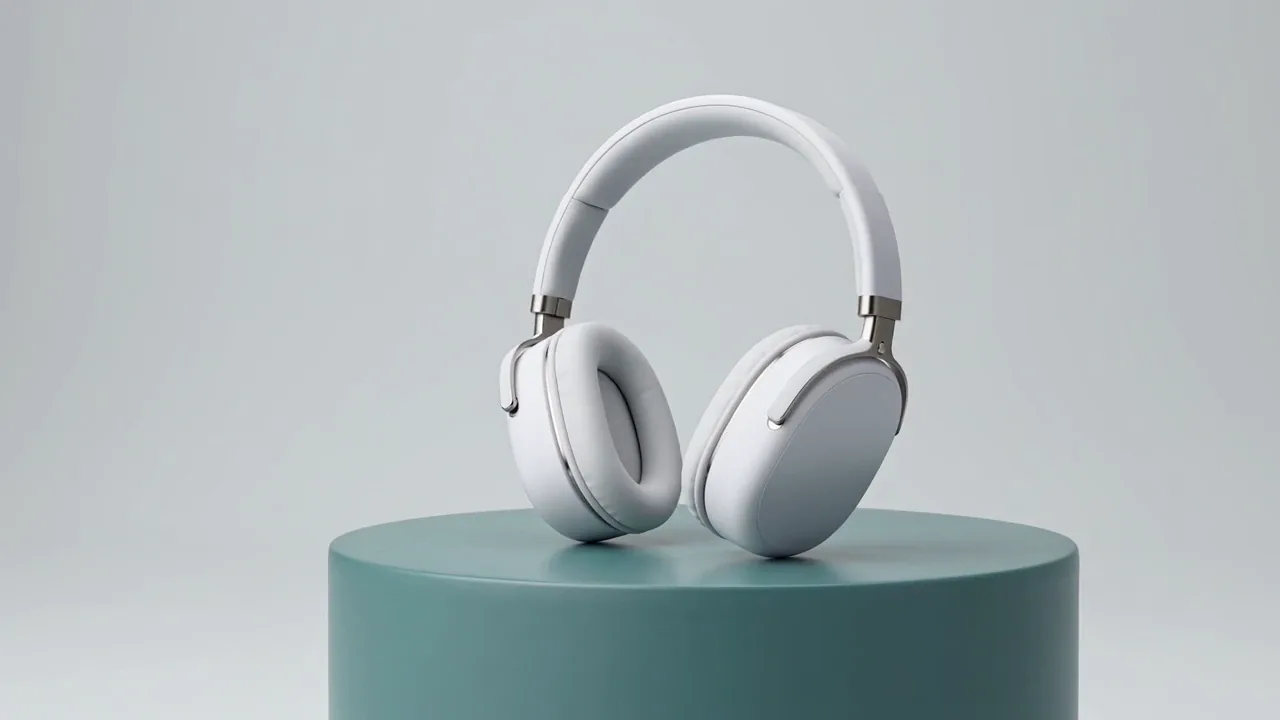
Para um produto real, comece com uma referência aprovada, desde que a rota selecionada permita isso. Nosso Guia de conversão de imagem em vídeo para criadores explica esse ponto de partida. Uma referência aprimora o briefing, mas o resultado ainda precisa ser comparado com o produto real.
Solicite um único tema, uma única tomada de câmera e um ambiente silencioso para a inserção posterior de elementos gráficos. Não inclua a oferta nem o texto da marca na descrição da filmagem. Analise o clipe antes de criar o conteúdo em torno dele; se os fones de ouvido mudarem de forma, nem mesmo um título bem colocado conseguirá salvar a tomada. Use as verificações em nosso Guia de consistência de vídeos com IA para decidir se a filmagem está estável o suficiente.
Adicione texto, logotipos, formas decorativas e legendas como camadas separadas da composição. Forneça aos futuros editores um conjunto reduzido de dados para inserção, em vez de espalhar os mesmos valores por vários trechos. Documentos do Remotion renderização de vídeo parametrizada como uma forma de variar uma composição por meio de entradas nomeadas.
Escolha a taxa de quadros antes de definir o tempo da animação. A 30 fps, mover uma entrada do quadro 15 para o quadro 30 atrasa-a em meio segundo. Mantenha a filmagem aprovada inalterada ao comparar esses dois pontos de início e, em seguida, verifique o texto longo, os primeiros e últimos quadros, o enquadramento em dispositivos móveis e a exportação completa antes de arquivar o projeto.
Use comandos separados para as imagens e a lógica de movimento
Uma descrição da filmagem descreve a cena visual. Um briefing de programação descreve a composição e seus critérios de aceitação. Combinar os dois em uma única instrução ambiciosa torna mais difícil identificar qual parte precisa ser revisada.
Sugestão de vídeo: uma foto nítida do produto
Um vídeo promocional de produto de alta qualidade, mostrando um fone de ouvido branco sem marca, do tipo “over-ear”, apoiado em um pedestal na cor azul-petróleo suave, tendo como pano de fundo um ciclorama cinza-claro e clean. Movimento lento e controlado da câmera em um quarto de volta, da frente esquerda para a frente; reflexos suaves e realistas de estúdio; uma tomada contínua; geometria estável do objeto; detalhes nítidos; o produto permanece centralizado ligeiramente à direita, com um espaço negativo generoso e limpo à esquerda para a inserção posterior de tipografia. Sem texto, sem logotipos, sem interface do usuário, sem diagramas, sem objetos extras, sem cortes.Use um objeto sem marca para um exercício conceitual. Para uma campanha real, substitua-o por material aprovado do produto e remova quaisquer detalhes criados que possam dar uma imagem equivocada do que o cliente receberá.
Resumo de programação: uma composição editável
Crie uma composição de vídeo na orientação paisagem com 5 segundos de duração, na resolução de 1280 x 720 e 30 fps, utilizando o clipe do produto fornecido.
Mantenha a filmagem como uma camada separada. Adicione o título exato: Som, em foco.
Defina headline, accentColor, titleStartFrame e titleDurationFrames como entradas.
Anime o título a partir de 24 pixels abaixo de sua posição final até sua posição final, enquanto a opacidade muda de 0 para 1.
Use temporização baseada em quadros. Defina o valor inicial de titleStartFrame como 15 e o de titleDurationFrames como 18.
Mantenha todo o texto dentro de uma margem segura de 64 pixels. Quebre títulos longos sem cobrir o produto.
Não crie alegações, preços, logotipos ou recursos do produto adicionais.
Renderize uma versão alternativa com titleStartFrame definido como 30, mantendo todas as outras entradas inalteradas.
Retorne o projeto editável, os valores dos parâmetros e ambas as exportações. Verifique o primeiro e o último quadros e relate quaisquer recursos ausentes.Considere isso como um resumo do projeto, e não como uma promessa de que uma resposta no chat já está pronta para ser publicada. A ferramenta receptora precisa ter acesso ao clipe em si, a um ambiente de renderização compatível e às fontes ou recursos aos quais ele faz referência.
Um pequeno exemplo de sincronização que torna as revisões previsíveis
O exemplo de JavaScript a seguir isola o cálculo do tempo. Ele retorna a opacidade e a posição vertical de um título. Ele não gera material de vídeo, não cria um player completo nem exporta um vídeo por conta própria.
função titleAtFrame(frame, startFrame = 15, durationFrames = 18) {
  if (!Number.isFinite(frame) || !Number.isFinite(startFrame) ||
 !Number.isFinite(durationFrames) || durationFrames <= 0) {
    throw new Error('Use valores finitos para os frames e uma duração positiva.');
  }
  const progress = Math.max(0, Math.min(1,
    (frame - startFrame) / durationFrames));
  const eased = 1 - Math.pow(1 - progress, 3);
  return { opacity: eased, translateY: 24 * (1 - eased) };
}

// A 30 fps, o quadro 15 corresponde a 0,5 segundos após o início.
titleAtFrame(15); // { opacity: 0, translateY: 24 }
titleAtFrame(33); // { opacity: 1, translateY: 0 }

// Atrase a mesma entrada em 15 quadros.
titleAtFrame(30, 30, 18); // { opacity: 0, translateY: 24 }
titleAtFrame(48, 30, 18); // { opacity: 1, translateY: 0 }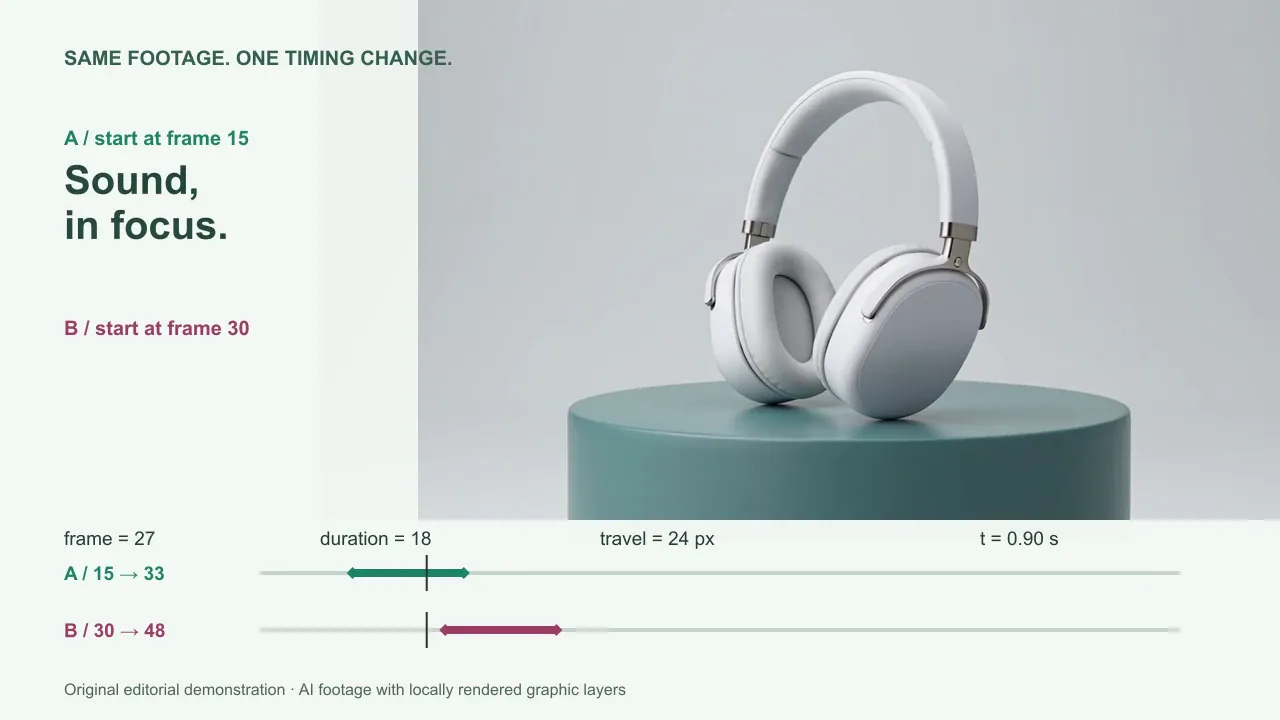
O início e o fim são os momentos-chave. A função de transição determina o movimento entre eles. Alterar o quadro inicial desloca a animação; alterar a duração modifica o tempo que a entrada leva. Nenhuma das duas operações requer uma nova filmagem do produto.
Para um projeto Remotion, utilize o quadro atual do seu sistema de renderização e os auxiliares descritos em seu documentação sobre animação. Evite depender de transições CSS baseadas no relógio de parede para uma exportação que exija um tempo de quadro consistente.
Decida se deseja editar a composição ou regenerar a tomada
Um pedido para reformular o estilo da cena em movimento é diferente de alterar uma sobreposição. Nosso guia de fluxo de trabalho de vídeo para vídeo explica o primeiro. Mesmo quando uma ferramenta aceita um clipe já existente, verifique o que ela alterou além da edição solicitada.
Se uma geração ficar parada ou se o aplicativo local apresentar falha após o envio, verifique a tarefa em andamento antes de iniciar outra. A ausência de um download não significa necessariamente que o servidor tenha parado de funcionar. Nosso guia sobre falhas na geração de vídeos por IA apresenta uma sequência útil de triagem.
Avalie o fluxo de trabalho com base no custo da revisão, e não em uma alegação de velocidade genérica
A criação de uma composição reutilizável leva tempo. Sua vantagem fica mais clara quando a equipe precisa fazer alterações repetidas na mesma estrutura. Um vídeo altamente personalizado talvez nunca compense esse esforço inicial de configuração; já uma série recorrente de vídeos explicativos sobre produtos pode aproveitá-la com frequência.
Faça um orçamento para a produção de filmagens, tentativas rejeitadas, configuração de modelos, renderização, revisão e licenças de software ou recursos. A pergunta útil para o planejamento é: quanto custa a próxima variação aprovada depois que a versão básica for aceita? Não compare um rascunho rápido com um vídeo de produção totalmente revisado e considere a diferença como um ganho de velocidade mensurável.
Um modelo simples de planejamento é configuração + material filmado aprovado + todas as tentativas de geração + renderização + revisão + licenciamento. Mantenha cada categoria visível. A renderização de uma alteração no texto pode evitar uma nova chamada de geração, mas ainda assim consome tempo de processamento e requer verificação.
Se você usar o GlobalGPT, comece com uma tarefa específica de planejamento ou edição de filmagem e mantenha a composição posterior na ferramenta que contém a fonte editável. Nossa guia para a criação de um fluxo de trabalho de IA completo explica como atribuir diferentes tarefas sem partir do pressuposto de que uma única plataforma substitui todas as ferramentas de produção.
Você pode iniciar um conceito de vídeo no GlobalGPT, em seguida, insira um clipe aprovado em sua animação ou projeto de edição. Escolha a opção disponível de acordo com a tomada que você precisa e verifique as configurações de geração antes de gastar créditos.
O Último Portão de Exportação
O melhor projeto inicial é simples: uma tomada aprovada, um título preciso e uma alteração controlada no tempo. Amplie o sistema assim que um colega conseguir revisar esses elementos e produzir um resultado aceitável sem precisar refazer a animação.
Perguntas frequentes
Qual é a diferença entre design de movimento com IA e geração de vídeo com IA?
A geração de vídeo por IA cria imagens em movimento a partir de dados de entrada, como prompts ou imagens de referência. O design de movimento por IA concentra-se em gráficos animados e em seu comportamento. Um projeto híbrido utiliza imagens geradas com texto, layouts e sincronização editáveis separadamente.
Preciso saber programar para usar o design de movimento com IA?
Algumas ferramentas de modelos ocultam o código, enquanto frameworks como o Remotion e o Motion Canvas o expõem. Um assistente de programação pode ajudar a criar um projeto, mas você ainda precisa de um ambiente de renderização funcional e de alguém para verificar o resultado.
A animação baseada em código consegue manter as cores do texto e da marca exatamente iguais?
É possível usar texto explícito e valores de cor em camadas gráficas separadas. Isso permite que você tenha controle direto sobre esses elementos, mas as fontes, o quebra automático de linha, as sobreposições e o vídeo exportado ainda precisam ser verificados.
Alterar o título exige que o vídeo seja gerado novamente?
Não quando o título é uma camada editável separada. Você pode alterar o texto e renderizar a composição novamente usando a mesma filmagem. O texto incorporado à imagem gerada é mais difícil de revisar de forma limpa.
Um projeto pode produzir vídeos tanto no formato paisagem quanto no formato vertical?
Um projeto parametrizado pode suportar várias dimensões, mas cada layout precisa ser verificado. Alterar a proporção da imagem pode cortar o objeto, ajustar o texto de maneira diferente ou colocar legendas sob os controles da plataforma.
O design de movimento com IA é sempre mais rápido ou mais barato?
Não. A configuração do modelo, as tentativas de geração, a renderização, o licenciamento e a revisão, todos esses fatores contribuem para o custo. As composições reutilizáveis são mais úteis quando as variantes repetidas justificam o trabalho inicial de configuração.
Onde o GlobalGPT se encaixa nesse fluxo de trabalho?
O GlobalGPT pode dar suporte a tarefas de planejamento e geração de vídeo. Um clipe aprovado pode então ser transferido para um projeto separado de animação ou edição. A composição editável e a exportação final continuam fazendo parte desse fluxo de trabalho de produção.
Comece com uma revisão útil
Comece o design de movimento com IA a partir da versão revisada que você espera receber. Mantenha as imagens com as quais está satisfeito, destaque o texto e a duração que precisam ser alterados e analise a próxima exportação com base nos mesmos critérios. É assim que um clipe útil se transforma em um processo de produção repetível.