Respuesta breve: Claude can turn an idea into a shot brief, but Claude is not the renderer in this workflow. GlobalGPT CLI submits the video task, returns a task ID, waits for the result, and saves the media file locally.
That division matters. Claude is useful for planning a scene, tightening a prompt, and checking whether a shot has one clear visual job. The CLI is useful for the parts that need to be repeatable: estimating credits, submitting a task, polling its status, and keeping the returned file.
For a direct entry point, use GlobalGPT’s CLI workspace. If you still need installation and Claude Code setup, follow the GlobalGPT CLI setup guide. This article focuses on the video handoff and the evidence returned by the CLI.
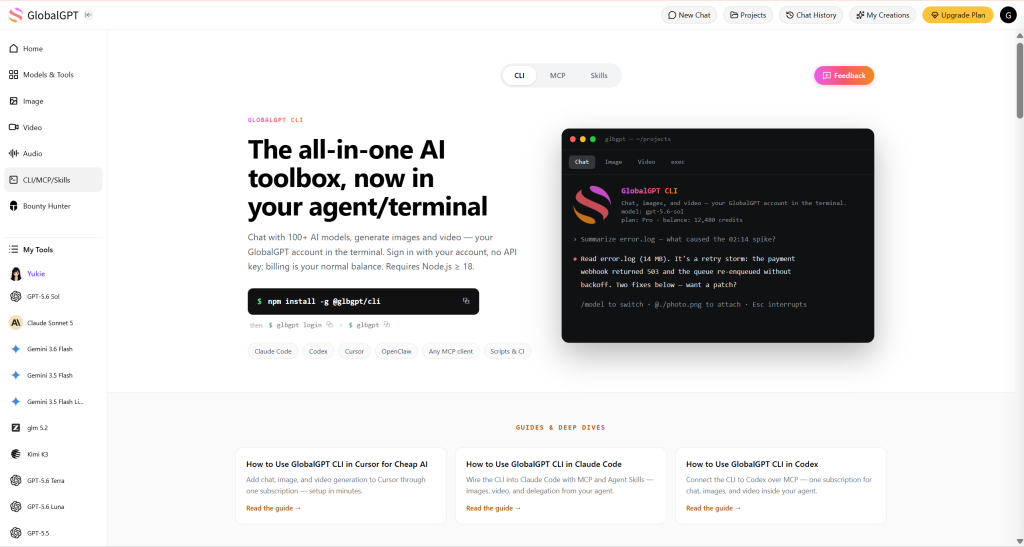
The practical product fit is breadth without a scattered workflow: GlobalGPT brings multiple AI models and functions into one workspace, while the CLI connects that workspace to the terminal and the files you actually need to keep.
This guide shows the workflow with three frozen prompts. The first two produced usable files in the first run. The third was a useful warning: the command requested 9:16, but the default route returned a 16:9 file. Treat the requested settings as inputs to verify, not as proof of the output.
Claude can plan the video; GlobalGPT CLI renders it
Claude can write a shot brief such as “a slow push-in on a bottle in morning light.” It does not make that sentence into an MP4 by itself in this workflow. The rendering step happens after you pass the brief to GlobalGPT CLI.
The practical loop is:
- Ask Claude to reduce the idea to one shot with a clear subject, camera move, light, and exclusions.
- Correr
glbgpt video --estimatewith the intended ratio, resolution, duration, and audio setting. - Review the estimated credits before submitting.
- Submit the same prompt, keep the task ID, and wait for the task to finish.
- Check the downloaded file’s dimensions, duration, playback, and soundtrack before using it.
What you need before the first CLI video
- Node.js 18 or newer.
- A GlobalGPT account signed in to the CLI.
- A terminal where the
glbgptcommand is available. - A prompt that describes one visual task.
- A local output folder for each case.
The CLI signs in with the GlobalGPT account, so the commands below do not paste an API key into the terminal. Keep the setup check separate from a paid generation. The --estimación flag is the safe checkpoint.
The Claude → GlobalGPT CLI workflow
Think of Claude as the shot planner and the CLI as the production handoff:
From idea to a saved video
- 1. Plan
Ask Claude for one clear shot brief. - 2. Estimate
Correrglbgpt video --estimate. - 3. Submit
Review credits, then keep the task ID. - 4. Comprobar
Download, play, and inspect the actual file.
Use one prompt per shot. A useful brief names the subject, movement, lighting, composition, and things to avoid. It should not ask the model to solve a whole storyboard, voice track, edit, and brand system in a single six-second clip.
Example estimate:
glbgpt video "A cinematic product reveal for a reusable water bottle on a studio table, slow push-in, soft morning light, realistic reflections, clean commercial composition, no text or logos." \
  --estimate --ar 16:9 --res 720p --duration 5 --no-audio
The exact option order matters when you attach a reference image. In this CLI build, --image <path...> can consume the following words as image paths. Put the prompt first, then add --image:
glbgpt video "Animate the supplied product photograph with gentle parallax and a controlled left-to-right camera move. Preserve the product shape, color, cap, and background. Keep the motion restrained and commercial. No text." \
  --estimate --ar 16:9 --res 720p --duration 5 --no-audio \
  --image assets/case-2-reference.png
After an estimate, submit the same command without --estimación and add a case-specific output directory. Keep the printed task ID. If a terminal closes while a task is processing, query that ID before submitting anything again.
Three CLI video examples
1. Product reveal from text
Pregunte a
A cinematic product reveal for a reusable water bottle on a studio table, slow push-in, soft morning light, realistic reflections, clean commercial composition, no text or logos.Configuración solicitada: 16:9, 720p, 5 seconds, no audio.
Estimated credits: 500. The completed task used the Grok Imagine video route and returned task 1187857984487688192.
The downloaded file is 1280×720 and its video track is about 5.04 seconds. The first frame shows a bottle on a sunlit table, which makes the subject easy to inspect. The container still includes an audio track, so the result should be played and checked rather than trusting the --no-audio flag alone.
Veredicto: A good first test for a text-only product shot. It answers whether the subject, push-in, and commercial lighting are present; it is not a guarantee that every later prompt will preserve the same product identity.
2. Product photo to motion
Before the video call, I generated one clean reference image: an unbranded ceramic bottle on a neutral tabletop. The reference image cost 300 credits and is saved locally as assets/case-2-reference.png.
Pregunte a
Animate the supplied product photograph with gentle parallax and a controlled left-to-right camera move. Preserve the product shape, color, cap, and background. Keep the motion restrained and commercial. No text.Configuración solicitada: 16:9, 720p, 5 seconds, no audio, one reference image.
Estimated credits: 500. The completed task returned task 1187863719057557504.
The downloaded file is 1280×704 and its video track is about 5.04 seconds. The bottle remains visible in the poster frame. Full playback is still the right place to judge the parallax, edge stability, and whether the cap and silhouette hold through the move.
Veredicto: Reference-image-to-video is the better fit when the object must remain recognizable. Inspect the output for shape drift and label or cap changes before treating it as a product asset.
3. A vertical storyboard request (and why verification matters)
Pregunte a
A vertical social clip showing a designer turning a storyboard card into a moving scene, clear visual cause and effect, restrained motion, clean studio lighting, no captions or logos.Configuración solicitada: 9:16, 720p, 6 seconds, no audio.
Estimated credits: 600. The completed task returned task 1187867250242095104.
The task succeeded, but the downloaded file is 1280×720 landscape and its video track is about 6.04 seconds. That means the requested 9:16 setting did not survive this run. The file is useful evidence of a parameter mismatch, not a verified vertical social clip. Do not crop it silently and call that a successful 9:16 generation; either keep the landscape result as a troubleshooting example or rerun only after the route and expected aspect ratio are clear.
What the first outputs show
The three tasks cost 500, 500, and 600 credits. The separate reference image cost 300 credits, for 1,900 credits across the first run. The account transaction list matched those four amounts.
The more useful lesson is operational. A successful task status only proves that the provider returned a file. It does not prove that every requested setting was honored. Check:
- Dimensions: read the actual width and height from the file.
- Duración: compare the video track with the requested seconds.
- Subject continuity: check the product shape, cap, edges, and background.
- Audio: verify whether an audio track is present when you requested no audio.
- Playback: play from the first frame to the end before embedding the file.
One more check is useful when you name a model in a command: read the model printed by the CLI estimate and task record. In this run, the video command returned Grok Imagine even when another model ID was supplied, so the result should be described by the route that actually ran. The default route also treats --no-audio as unavailable when it has no sound control; inspect the returned container instead of promising a silent file.
CLI vs. MCP: which connection fits your workflow?
The Model Context Protocol is an open standard for connecting AI applications to external tools and data. MCP is useful when an agent needs to discover and call tools inside a larger context.
CLI is the more direct fit when you want a visible command, a local file, a task ID, and a repeatable estimate → submit → download record. MCP becomes attractive when you want Claude or another agent to discover the video tool as part of a broader tool workflow. The examples above are CLI runs; they are not an MCP generation test.
| Choose CLI when you need | Consider MCP when you need |
|---|---|
| Explicit terminal commands, local files, task IDs, and a repeatable estimate → submit record. | An AI application to discover and call external tools as part of a wider workflow. |
| One repeatable media job per prompt. | Tool discovery and coordination across connected tools. |
Cost control and failure handling
Correr --estimación before each new prompt. Keep each case in its own output directory so a later download cannot hide which file belongs to which task. If the provider or transport fails before a file exists, check the original task ID before retrying once. If a playable file already exists, keep it as the first output; do not spend another generation simply because the composition is not your favorite.
If the returned dimensions do not match the request, record the mismatch. A task can be successful at the API level and still fail the editorial requirement. That is what happened to the 9:16 request in this run.
For the next stage after generation, turn a script into a shot-by-shot video plan so each clip has a clear role before you edit them together.
PREGUNTAS FRECUENTES
Can Claude generate a video by itself?
Claude can help plan the shot and write the prompt. In this workflow, GlobalGPT CLI performs the video generation and saves the returned file.
Does GlobalGPT CLI require an API key in the command?
The CLI uses the signed-in GlobalGPT account. The example commands do not paste an API key into the shell.
Why estimate credits first?
Video tasks consume credits. --estimación lets you check the expected cost before submitting. The amount is an estimate; the account transaction list is the place to verify the completed charge.
Where does the video go?
The CLI can download the result into the output directory you provide with --out. Keep one directory per case and retain the task ID and original media URL alongside the file.
Is CLI the same as MCP?
No. CLI is a terminal workflow with explicit commands and files. MCP is a standard for connecting an AI application to external tools and data. They can support related workflows, but a CLI result should not be described as an MCP test.
Conclusión
Use Claude to make the shot brief precise, then let GlobalGPT CLI handle the estimate, submission, task status, and local file. The small verification step is part of the workflow: a task can succeed while an aspect ratio or soundtrack setting is not reflected in the returned media.
When the next shot is ready, create videos with GlobalGPT, keep the prompt and task ID, and verify the actual file before it reaches the edit timeline.