AI VIDEO · SCRIPT-TO-VIDEO WORKFLOW
Quick answer: To create an AI video from a script, first divide the narration into short scenes, give each scene one visual job, define a consistent style, generate the shots, then add voiceover, captions, and a final quality check. The tool matters, but the scene plan is what turns disconnected clips into a coherent video.
Turning a paragraph into a watchable video sounds like a one-click task. In practice, the strongest AI video from script workflows involve several small decisions: where one scene ends, what appears on screen, how long the voiceover takes, which visual details must stay consistent, and what to regenerate when a shot goes wrong. The best AI video generator overview helps map those workflow choices to different creation needs.
For creators and small teams making a short product campaign, our GlobalGPT test turns a 43-word script into a 28.06-second skincare film. Below are the scene plan, reusable prompts, generation settings, and the complete GlobalGPT workflow: GPT Image 2 for the reference, built-in Seedance 2.5 for the footage, and Yukie for narration, captions, audio mixing, and export.
Test summary: We created two opening-frame candidates with GPT Image 2 inside GlobalGPT, selected the cleaner bottle design, and generated one continuous 28-second film with GlobalGPT’s built-in Seedance 2.5 at 720p. We then passed the raw video to Yukie in the same platform to add English narration, burn in captions, mix the ambience, and export the finished MP4. The downloaded result measured 28.06 seconds at 1280 × 720.

Table of Contents
- What AI video from script means
- What to prepare
- The step-by-step workflow
- Our GlobalGPT test
- Common problems and fixes
- How to write a better script
- Choosing a workflow
- Quality checklist
- FAQ
What Does AI Video from Script Mean?
AI video from script is a workflow that converts written narration into a sequence of generated or assembled visuals, usually with voiceover, captions, transitions, and audio. Some tools automate the entire process. Others let you control individual scenes, reference images, prompts, timing, and revisions before export.
Before choosing a tool, decide which output you need: a fast assembled draft, a presenter reading your script, or generated footage with precise product and camera direction. A script-to-video workflow may include all three stages—planning, generation, and editing—but one tool does not necessarily perform every stage.
What You Need Before Generating
- A clear audience: Who is watching, and what should they understand or do next?
- A target length: For a short explainer, count the spoken words before generating footage.
- A final narration draft: Rewriting the voiceover after making the shots creates timing problems.
- An aspect ratio: Use 16:9 for most landscape web videos, 9:16 for vertical short-form content, or 1:1 when the publishing surface requires it.
- A visual direction: Define medium, palette, lighting, camera behavior, and anything that must not appear.
- A review standard: Decide what counts as a failed shot before spending credits on revisions.
A useful planning rule is one scene, one job. A scene might introduce the problem, demonstrate a step, show a comparison, or deliver the final result. If it tries to do all four, the generated visual will usually feel crowded or vague.
How to Create an AI Video from a Script
Step 1: Break the Script Into Scenes
Start with changes in meaning, not arbitrary sentence counts. Mark the moment when the narration moves from problem to action, from one action to another, or from explanation to conclusion.
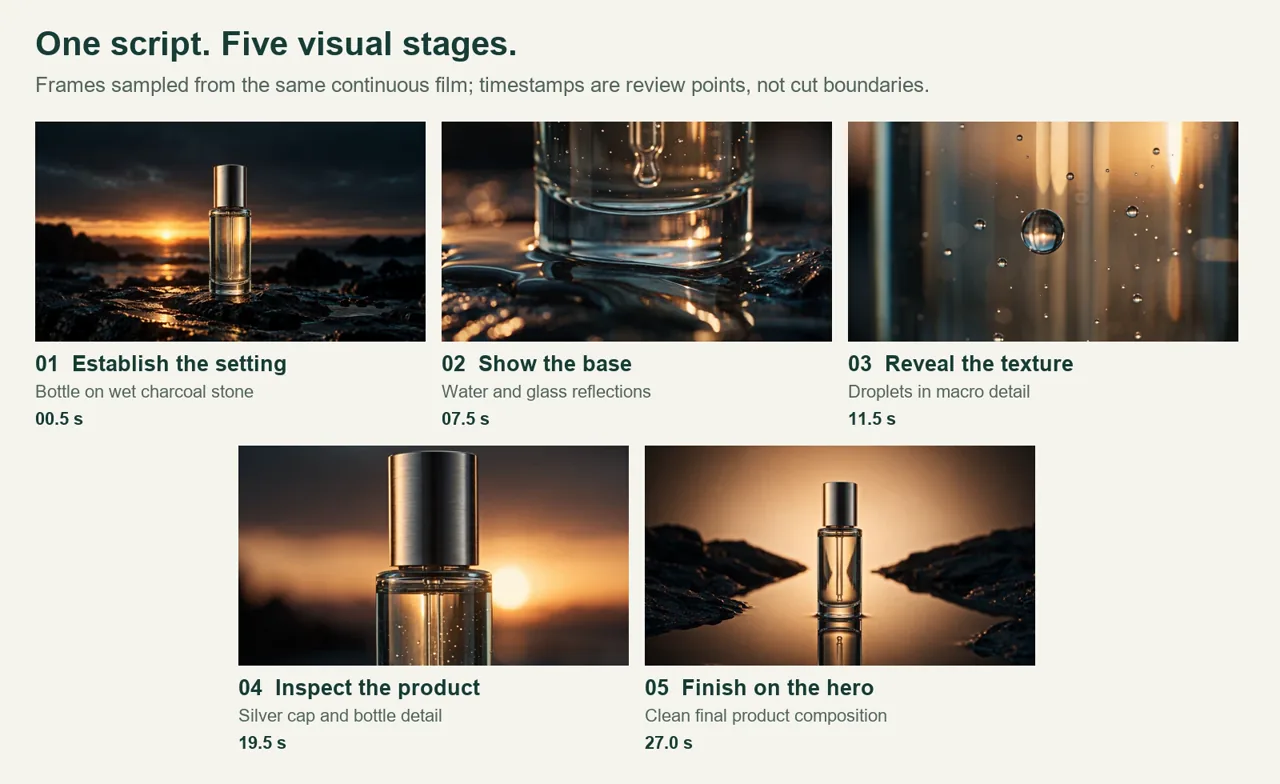
For our test, the 43-word campaign script mapped to five visual stages: an establishing shot, a water-and-base macro, a droplet macro, a bottle-detail turn, and a final hero frame. That structure gave the video variety without asking the model to introduce new products, people, or locations halfway through the sequence.
Step 2: Give Every Scene One Visual Job
Do not simply repeat the narration as an image prompt. Describe what the viewer should see.
Weak direction:
Show that every scene needs one clear job.
Stronger direction:
A script page separates into five rounded storyboard cards arranged in a row. Each card contains one simple geometric symbol. Thin connector lines show the order. Slow lateral camera movement, no readable text.
For more camera and motion patterns, see the Kling 3.0 prompt guide.
For another approach to describing the shot, compare these Veo 3.1 prompt-writing examples.
Step 3: Lock the Visual Style Before Making Every Shot
Consistency is easier to establish before generation than to repair afterward. Define a compact style block and reuse it in every scene prompt. Include:
- visual medium, such as flat vector, cinematic live action, clay animation, or product photography;
- palette and contrast;
- lighting direction and time of day;
- lens or camera behavior when relevant;
- recurring character, product, costume, or prop details;
- negative constraints, including unwanted text, logos, avatars, or camera movement.
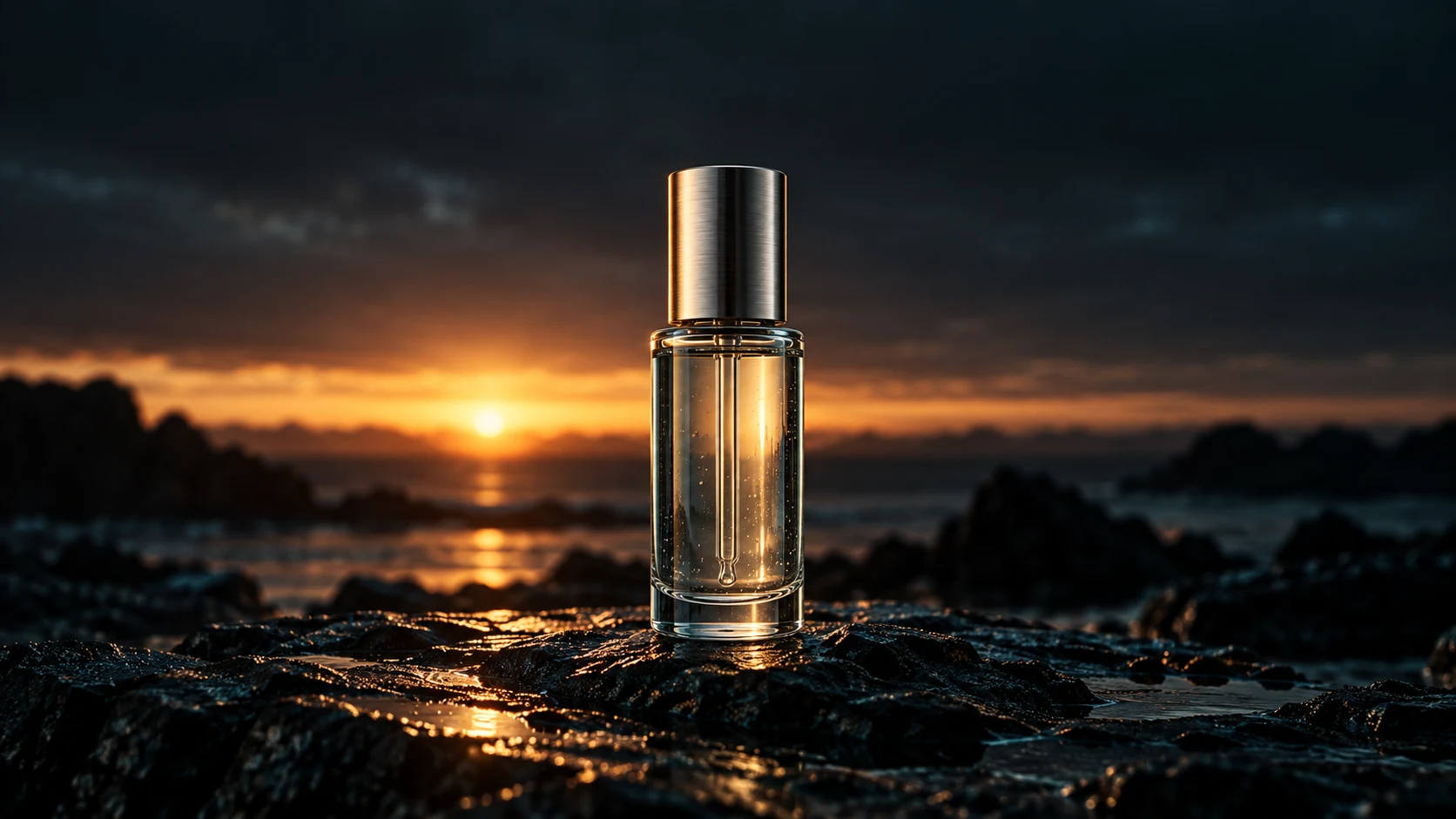
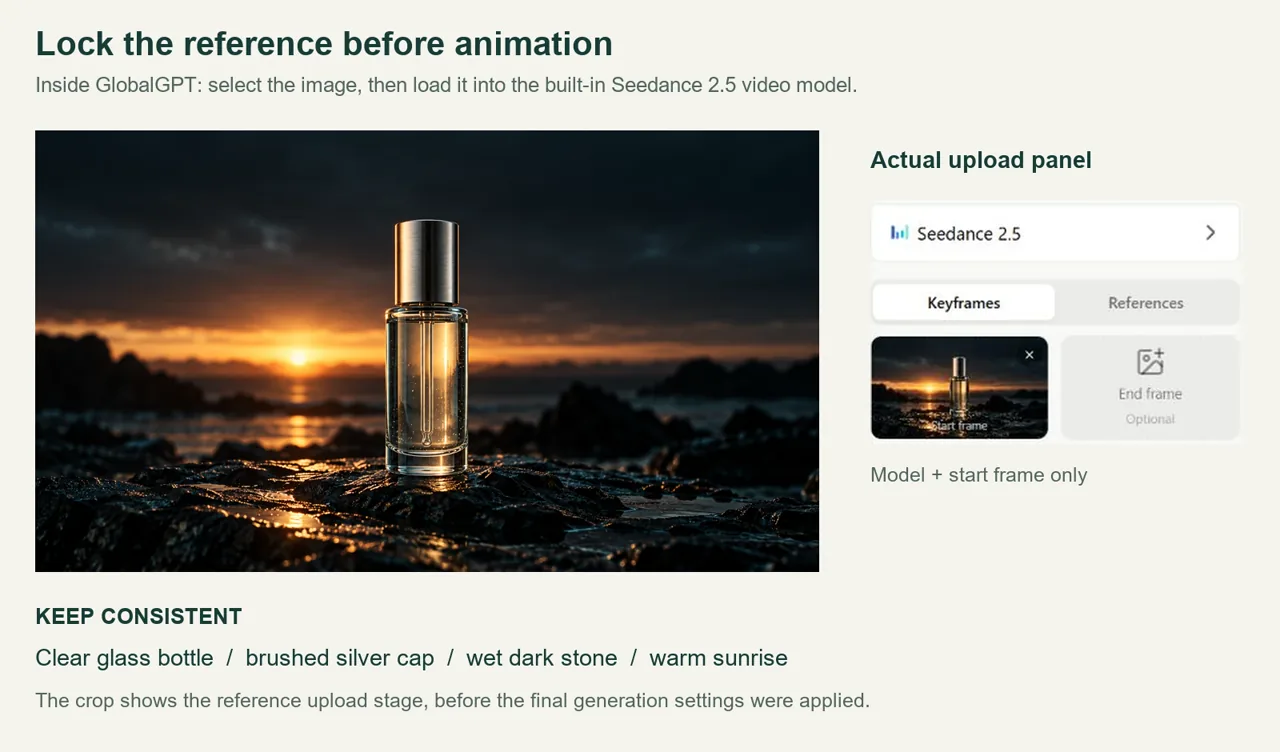
When the workflow supports reference images, make one style frame first. Approve its palette, material rendering, composition, and subject treatment before generating the rest. Our test created two opening-frame candidates and selected the version with the clearest glass bottle and brushed silver cap before any video credits were spent.
This is especially important for people and recurring objects. The separate guide to AI video consistency explains why identity, wardrobe, lighting, and framing drift across independently generated shots.
Step 4: Generate Short, Distinct Shots
Give each prompt one main movement. For example: a slow push-in, a playhead sliding across a timeline, or five cards fanning into a row. Asking for several transformations, a moving camera, changing lighting, and complex character action in the same short clip increases the chance of morphing.
Review each output before generating the next expensive stage. Look at the first frame, middle frames, and final frame. A clip can look clean as a thumbnail while an object melts or changes shape during motion. If generation fails outright, the AI video generation failures guide covers common prompt, moderation, and workflow causes.
One generation or separate clips? Use one multi-shot generation when the subject, location, and lighting stay the same and you can accept approximate transitions. Use separate clips when a line needs an exact cut, the setting changes, or you expect to replace individual shots. Our bottle film used one generation for all five stages; the general scene-by-scene method gives you more control over revisions.
For a continuous film, place the complete shot sequence in one prompt. For separate clips, reuse the same style and reference frame, then submit one shot at a time. Our test used one continuous Seedance 2.5 output, which we passed to Yukie inside GlobalGPT for finishing. A shot list does not require a separate generation for every row.
Step 5: Add Voiceover and Captions
Voiceover should fit inside its assigned shot, with a small pause before the cut. If a line is too long, you have four options: shorten the copy, increase the shot duration, split the shot, or slightly adjust narration speed. Do not solve every timing problem by making the voice unnaturally fast.
Captions should match the spoken words, not an earlier version of the script. Keep them inside mobile-safe margins, break long sentences into readable chunks, and check punctuation. Generated artwork should usually avoid important readable text; add precise titles and captions during editing, where spelling is controllable.
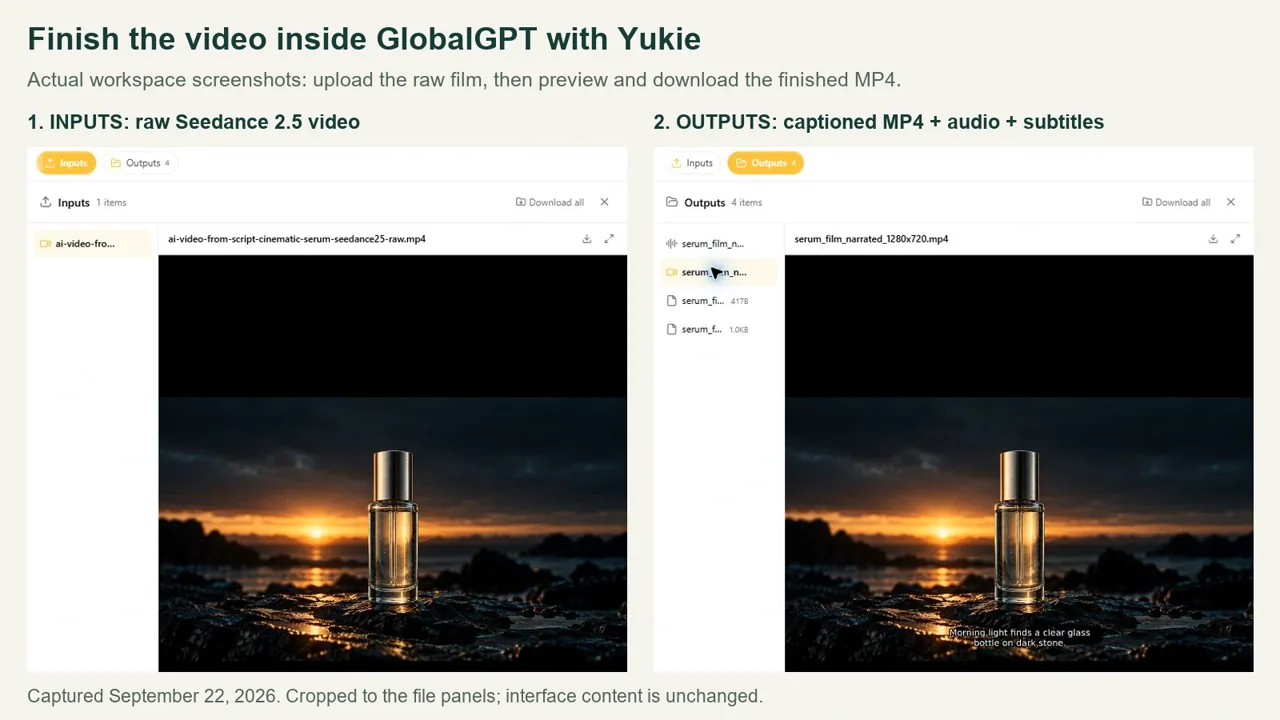
Finish inside GlobalGPT: open Yukie from the GlobalGPT workspace, attach the raw Seedance 2.5 MP4, and supply the exact narration. Ask Yukie to generate the voice, align and burn in the captions, retain the source ambience, and return a downloadable MP4. In our test, Yukie used eleven-v3 for speech and processed the video in its platform-hosted workspace. The Seedance Native Audio setting supplied the atmosphere; Yukie handled the exact spoken script and captions.
Step 6: Assemble, Review, and Export
Ask Yukie to preserve the approved shot order, align narration and captions, and export H.264/AAC MP4. Open the exported file from Outputs and download it. Check the actual dimensions, duration, audio, caption size, and sentence-to-scene timing; if something is off, request the correction in the same Yukie conversation. Our continuous-film workflow required no external editing application.
If you are estimating a multi-shot project, review how AI video credits work before spending most of the allowance on initial generations. Reserve enough capacity for at least one correction to the riskiest shot.
Our Hands-On AI Video from Script Test
Our test followed one complete workflow inside GlobalGPT: GPT Image 2 for the visual reference, built-in Seedance 2.5 for the footage, and Yukie for speech generation, caption burn-in, ambience mixing, and export. The video below is the finished MP4 from that workflow.
The Test Brief
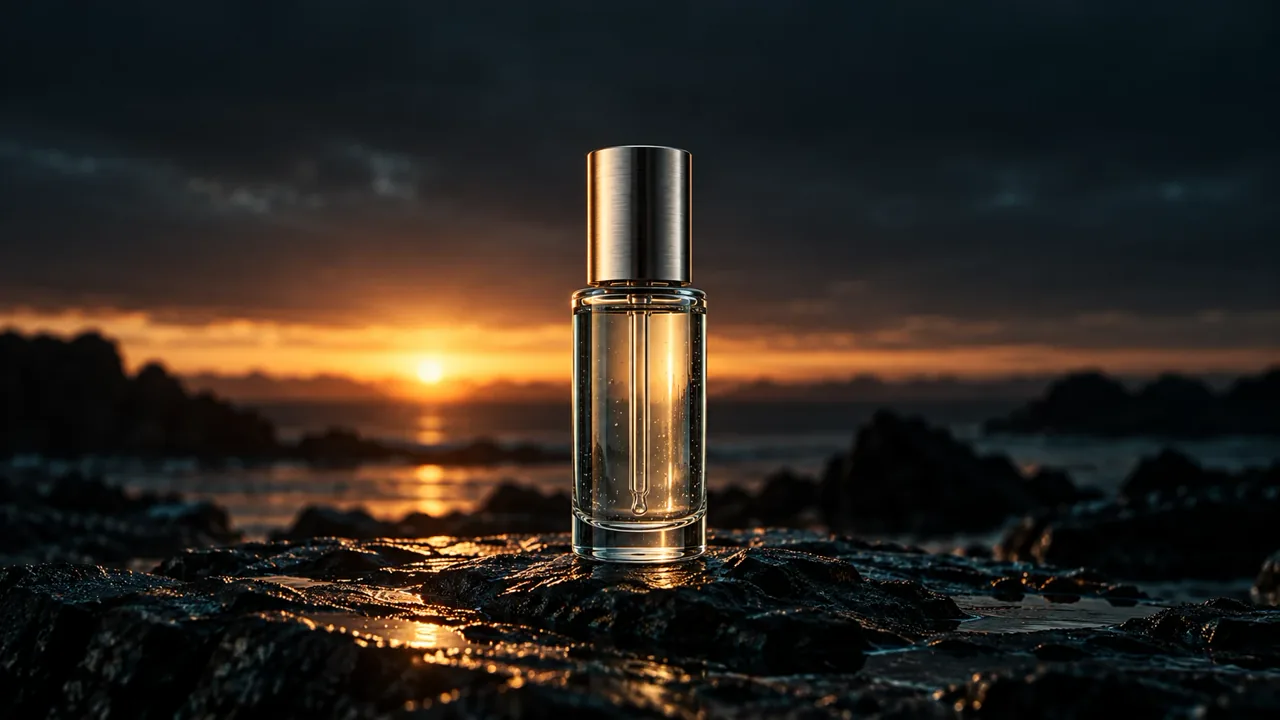
We asked for a 28-second, 16:9 cinematic skincare film centered on one clear serum bottle with a brushed silver cap. The art direction called for wet charcoal stone, warm sunrise light, restrained teal reflections, macro detail, and slow premium camera movement.
The 43-word narration was:
Morning light finds a clear glass bottle on dark stone. Water circles the base and catches the gold. Moving closer, tiny droplets reveal the texture. One quiet turn shows every detail. Clean, deliberate, and ready for the first frame of a new campaign.
We also excluded people, logos, generated lettering, duplicate bottles, obvious geometry errors, and watermarks.
Models and Structure
The workflow used:
- GPT Image 2 for two 16:9 opening-frame candidates;
- Seedance 2.5 for one continuous 28-second generation at 720p;
- eleven-v3 speech generation through Yukie inside GlobalGPT, using the model route’s default voice;
- English captions timed to the generated speech and burned in by Yukie;
- the source water and room ambience, mixed at 16% beneath the voice inside Yukie.
The five visual stages were an establishing shot, a water-and-base macro, a droplet macro, a bottle-detail turn, and a final hero composition.

Build the Five-Stage Film
For your own film, use the 43-word narration above as the voice script and start with the prompts below. Aim for the five timing windows in the shot plan, then adjust the transitions to fit your generated footage and measured narration.
| Suggested window | Narration cue | Visual job |
|---|---|---|
| 0–5.5 s | Morning light finds a clear glass bottle on dark stone. | Establish the full bottle and setting. |
| 5.5–10 s | Water circles the base and catches the gold. | Show water and warm reflections at the base. |
| 10–15 s | Moving closer, tiny droplets reveal the texture. | Reveal droplets and glass texture. |
| 15–19 s | One quiet turn shows every detail. | Show cap and bottle detail with a modest orbit. |
| 19–28 s | Clean, deliberate, and ready for the first frame of a new campaign. | Return to a hero frame; leave a quiet ending. |
Opening-frame prompt: use this to create the visual anchor before spending credits on video.
Create a cinematic 16:9 opening frame for a premium skincare film. One clear glass serum bottle with a brushed silver cap stands on wet charcoal stone. Warm sunrise light comes from one side, with restrained teal reflections in the shadows. Keep the complete bottle and cap visible, with room around the base for water reflections. Realistic glass thickness, metal texture, tiny water droplets, and natural reflections. Quiet, minimal composition suitable for a slow camera push-in. No people, hands, duplicate bottles, logos, readable lettering, captions, or watermark-like graphics.
To follow the original model choice, open GPT Image 2 in GlobalGPT. Create two 16:9 candidates and keep the one with clean bottle geometry, a complete cap, and believable reflections. Save that image for the video start frame.
Video prompt: copy the full sequence into the video prompt field, keeping the narration out of the visual instructions.
Create a 28-second, 16:9 cinematic skincare product film using the supplied start frame. Preserve the same clear glass serum bottle, brushed silver cap, wet charcoal stone, warm sunrise direction, and restrained teal reflections throughout. Use five deliberate visual stages with calm transitions:

0–5.5 seconds: establish the full bottle on dark wet stone; slow push-in with a stable horizon.
5.5–10 seconds: move to a low macro view of water circling the same bottle base; catch small golden reflections.
10–15 seconds: show tiny droplets on the glass in close detail; subtle focus shift without changing bottle geometry.
15–19 seconds: make one slow, modest orbit around the bottle to reveal the silver cap and glass detail; keep the bottle upright and recognizable.
19–28 seconds: ease into a clean hero composition of the same bottle and hold a calm final frame.

One product only. No new locations, people, hands, logos, readable text, subtitles, extra bottles, shape changes, fast morphing, shaky camera, or abrupt lighting changes. Request gentle water and room ambience, without speech or music. Add the exact campaign narration and captions afterward in Yukie inside GlobalGPT. Timing targets guide the sequence; preserve coherent motion rather than forcing abrupt cuts.
- Open Seedance 2.5 in GlobalGPT and choose Keyframes.
- Upload your chosen image under Start frame. Leave the optional end frame empty for this workflow.
- Paste the video prompt. Set Aspect Ratio: 16:9, Duration: 28S, and Resolution: 720p. Keep Native Audio on for ambience; leave Enhance Prompt off to keep control of the wording.
- Review the start frame, prompt, duration, and resolution, then press Generate.
- Inspect the finished clip for product continuity, then download the raw MP4 and attach it to Yukie inside GlobalGPT. Keep this version free of added captions or narration so the finishing stage starts from the original video and ambience.
What Worked
The strongest result was product continuity. The bottle and brushed cap remained recognizable from the wide establishing view through the closer droplet and material shots. The glass, water, metal, and wet stone also held up well under changing angles, and the macro stages created visual variety without introducing a second product.
The Yukie export measured 28.06 seconds at 1280 × 720 and 24 fps, with H.264 video and AAC stereo audio. We downloaded the actual file and checked its parameters and captioned frames. Yukie’s media inspection reported that the English speech matched the script and remained intelligible over the quieter source ambience.
What Needed Correction
Yukie’s first subtitle render was too large and wrapped to three lines. Its self-check caught the problem, and a second render used an explicit 1280 × 720 caption canvas with 28 px white text, a black outline, and no opaque panel. We checked the downloaded frames at 2, 6, 10, 14, and 18 seconds: captions stayed within two lines.
The generated video and final export are both 1280 × 720, so this version did not rely on a 1080p upscale. A page about whether Seedance supports 1080p explains why a model setting, native generation size, and final delivery resolution should still be recorded separately.
Yukie retained the source ambience at 16% and mixed it beneath the narration. The pacing still needs attention: the voice ends around 19.2 seconds, and some sentences arrive before their visual stages. Caption timing follows the speech, but matching the speech to the picture is a separate review. The follow-up instruction below shows how to request that adjustment in Yukie without regenerating the footage.
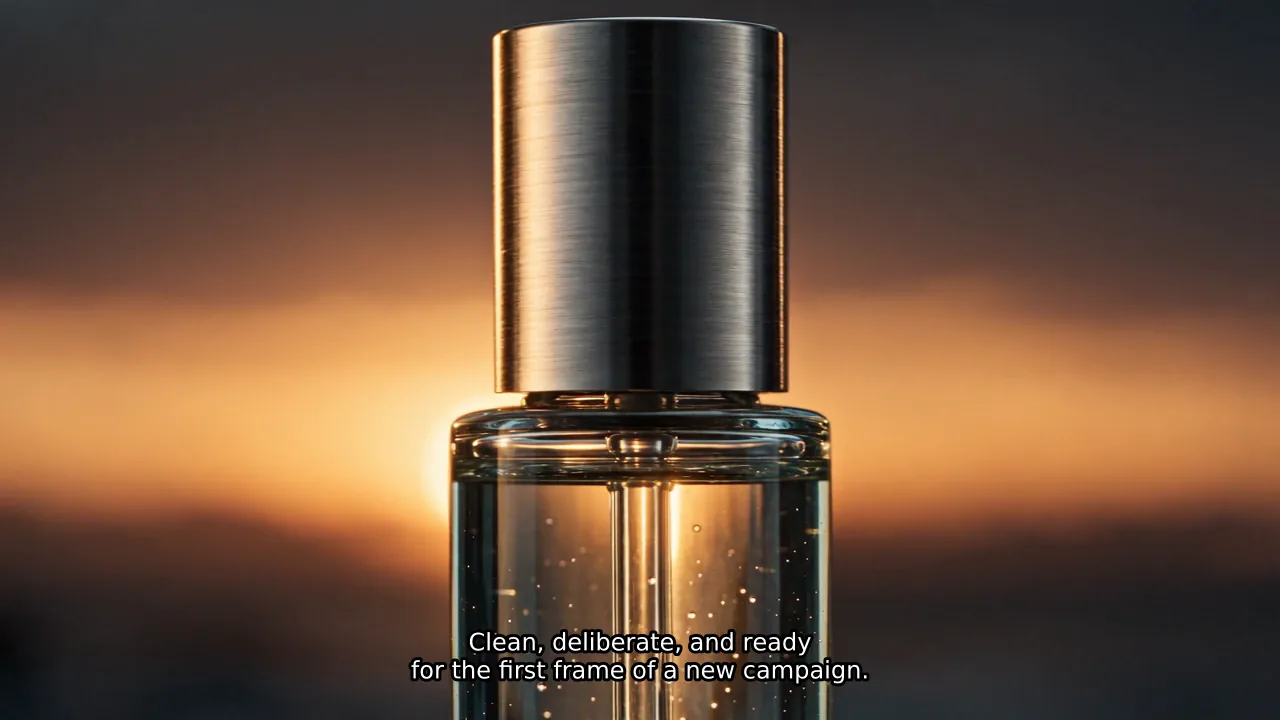
Finish the Narration, Captions, and Audio in Yukie
Open the GlobalGPT workspace and select Yukie. Attach the raw Seedance MP4 to the conversation, then confirm it appears under Inputs. Our uploaded source contained the product footage and native ambience, with no finished narration or captions.
Finishing prompt: paste the request below with your raw video attached. It specifies the same finishing operations used in our test.
Finish the attached raw Seedance 2.5 skincare video entirely inside this GlobalGPT workspace. Keep the existing visuals, shot order, approximately 28.06-second duration, 1280 x 720 resolution, and 24 fps. Do not generate new footage, upscale, add music, use an avatar, or replace the source ambience.

Use exactly this narration in a calm, natural English voice:
Morning light finds a clear glass bottle on dark stone. Water circles the base and catches the gold. Moving closer, tiny droplets reveal the texture. One quiet turn shows every detail. Clean, deliberate, and ready for the first frame of a new campaign.

Inspect the attached video first. Generate the narration with an available GlobalGPT speech model and report the model and voice used. Aim to finish speaking by 25.5 seconds. Measure the actual speech and create matching captions with no overlapping cues. Burn them into the video: compact white text, black outline, no opaque panel, maximum two lines, safe margins, and an explicit 1280 x 720 caption canvas.

Mix the original ambience underneath the voice, starting at 16% source volume. Check intelligibility and clipping. Export a real H.264/AAC MP4 and inspect its duration, resolution, frame rate, audio, and caption layout. Return the downloadable MP4 plus separate narration MP3 and SRT files. Perform the finishing in this workspace; do not return only instructions for an external editor.
- Let Yukie inspect the attachment and generate the speech. Our run used eleven-v3 with the model route’s default voice. Save the returned narration so timing fixes can reuse it.
- Review the rendered captions, not only the SRT text. Ask Yukie to check a frame from every sentence, keep a maximum of two lines, and correct any oversized text inside the same conversation.
- Ask for the source ambience beneath the voice and an audio check. Our starting mix was 16% source volume; adjust it if the ambience masks a word.
- Open Outputs, select the MP4, and preview it. Use its Download control to save the finished video; also keep the MP3 and SRT as revision assets.
- Check the downloaded MP4 independently. Ours was 28.06 seconds, 1280 × 720, 24 fps, H.264/AAC stereo. Watch the full film, listen through, and check captions on a phone-sized display before using it publicly.
If the narration leads the picture: our first finished version read the script in about 19.2 seconds, leaving an 8.8-second ambience-only tail. The following is a timing correction to request next; the embedded video above shows the export before this adjustment.
Adjust the timing of this existing edit in Yukie. Reuse the current video and generated narration; do not generate new footage or new speech. Split the narration at its sentence pauses and place each sentence beside the corresponding visual stage. Use 0–5.5, 5.5–10, 10–15, 15–19, and 19–28 seconds as the initial plan, then inspect the actual footage and adjust to the real transitions. Add natural pauses, keep the final line with the hero composition, and avoid cutting off words or unnaturally speeding up the voice. Rebuild the caption timings from the repositioned speech, keep the source ambience, and export a revised MP4 for review.
Yukie handled caption rendering and audio mixing with FFmpeg filters in its platform-hosted execution environment. You give the editing instructions in GlobalGPT and receive the output files there; no local command-line setup is needed for this route.
Hands-On Verdict
GlobalGPT covered the complete workflow for this film: GPT Image 2 established the product reference, built-in Seedance 2.5 generated the continuous footage, and Yukie added speech, captions, the ambience mix, and the MP4 export. Human review still matters for caption scale and sentence-to-scene timing, but those corrections can be requested in the same workspace.
Start in the GlobalGPT all-in-one workspace: approve the visual reference, generate the footage, then use Yukie for the final audio and caption pass.
Common Script-to-Video Problems and Fixes
| Problem | Likely reason | What to try |
|---|---|---|
| The video looks like one still image moving | The scene prompt describes a composition but no action | Add one clear subject movement or camera movement |
| Shots feel unrelated | Each prompt uses different style language | Reuse one style block and reference frame across scenes |
| A character changes between shots | Identity details are vague or competing | Lock face, hair, wardrobe, age, palette, and reference image |
| Objects melt or flicker | Too many transformations happen in one clip | Reduce motion, shorten the shot, or regenerate from a cleaner frame |
| Voiceover runs past the cut | Timing was estimated from words only | Generate the voice first and measure the real audio duration |
| Captions do not match | The script changed after caption creation | Generate captions from the final voice script and review them line by line |
| Text inside the artwork is malformed | The video model is trying to render typography | Keep artwork text-free and add titles during editing |
| Export says 1080p but looks soft | Low-resolution clips were enlarged | Check source resolution and generate higher-resolution clips when available |
| Credits disappear too quickly | Long clips or retries were generated without a budget | Test a short risky scene first and reserve credits for correction |
Many of these issues are preventable. The AI video mistakes checklist is a useful companion before the final export.
How to Write a Better Script for AI Video
Write for the ear and the screen at the same time. A narrator can explain an abstract idea, but the shot still needs visible subjects, actions, and spatial relationships.
Use this scene template:
Narration:
[The exact words the audience will hear]

Visual job:
[The one idea this scene must communicate]

Shot:
[Subject, setting, composition, action, and camera movement]

Continuity:
[Style, character, wardrobe, lighting, palette, and reference details]

Avoid:
[Readable text, extra characters, logos, fast morphing, camera shake]

Target duration:
[Measured narration length plus a short pause]
Keep narration sentences short enough to caption cleanly. Replace stacked abstractions with visible verbs: splits, aligns, slides, locks, opens, points, or transforms. When a sentence contains two visual moments, either split it or plan two shots inside the same scene.
Choosing an AI Video from Script Workflow
| Workflow | Best for | Main advantage | Main limitation |
|---|---|---|---|
| One-click script generator | Fast drafts, internal explainers, simple social posts | Minimal setup | Less control over shot meaning and consistency |
| Avatar-led generator | Training, presentations, direct-to-camera delivery | Predictable speech and framing | Can feel generic when the topic needs visual demonstration |
| Scene-by-scene generation | Branded explainers, product stories, controlled visuals | Stronger timing and art direction | More planning, credits, and review |
| All-in-one AI workspace | Teams using chat, images, video, audio, and agents | One account for generation and Yukie finishing; verified on this product film | Still requires caption, audio, and sentence-to-scene timing checks |
| Traditional editor plus AI assets | Client work and precise finishing | Maximum control over timing and polish | More manual editing time |
For a quick internal draft, one-click generation may be enough. For a public campaign with recurring characters or exact product details, scene-by-scene control is usually worth the extra work.
Final AI Video Quality Checklist
Before publishing, watch the exported file and confirm:
- the first five seconds make the topic clear;
- scenes follow the script in the intended order;
- every visual supports the line being spoken;
- recurring characters, products, palette, and lighting remain consistent;
- no frame contains malformed text, unintended logos, or unexplained objects;
- voiceover is audible, natural, and not clipped at scene boundaries;
- captions match the narration and remain inside safe margins;
- music, if used, is licensed and stays below the voice;
- no shot repeats unless repetition is intentional;
- the final duration, aspect ratio, resolution, codec, and file size suit the publishing platform;
- commercial-use and disclosure requirements have been checked for the selected tools and assets.
Frequently Asked Questions
Can AI turn a full script into a video?
Yes. AI tools can split a script into scenes, generate or select visuals, create narration, add captions, and export a video. Results improve when you review the scene plan first. Long scripts should be produced in sections so timing, visual consistency, and failed shots can be corrected without rebuilding the entire video.
What is the best AI for making videos from scripts?
There is no single best option for every script. Avatar tools suit presenter-led training, one-click generators suit fast drafts, and scene-based image-to-video workflows suit controlled visual stories. Choose according to required consistency, editing control, output resolution, commercial terms, and the cost of regenerating failed clips.
Can AI add voiceovers and captions automatically?
Yes. In our GlobalGPT test, Yukie generated English speech, burned in matching captions, mixed the original ambience, and exported the finished MP4 inside the platform. Review the actual file: we corrected oversized captions, and the first export still needed a sentence-to-scene timing pass.
How long should each AI-generated scene be?
Use the narration length as the baseline. Measure the real audio, then give the scene a short pause before the cut. Short shots of roughly three to eight seconds are often easier to control than long prompts containing several actions, but the correct duration depends on the spoken line and visual complexity.
How do I keep characters consistent across AI video scenes?
Create a reference image and repeat the same identity details in every prompt: face, hair, age, clothing, proportions, palette, lighting, and camera treatment. Change only what the new scene requires. For longer projects, see the workflow for making long AI videos with consistent characters.
Can I create an AI video from a script for free?
Sometimes, but free plans usually impose limits on credits, duration, resolution, watermarks, models, or export. Test the shortest representative scene first. Do not assume a free allowance can cover a multi-shot final video, narration, revisions, and high-resolution export without checking the current plan.
Can AI-generated videos be used commercially?
Commercial use depends on the platform terms, model terms, plan, source assets, music, trademarks, and local law. Keep records of the tools and assets used, and verify current terms before publishing client or advertising work. Model output alone does not clear third-party music, logos, likenesses, or copyrighted source material.
Final Takeaway
The reliable way to create an AI video from script is to plan the edit before generating the footage. Split the narration into scenes, assign one visual job to each scene, lock the style, measure the voiceover, and inspect the exported file. That process takes more thought than pasting a paragraph, but it produces a video that feels directed rather than randomly assembled.
For this product film, the full workflow stayed inside GlobalGPT: script and scene plan, GPT Image 2 reference, built-in Seedance 2.5 footage, then Yukie narration, captions, audio mixing, and export. Start with the storyboard and finish by checking the downloaded MP4. A single workspace keeps the process together; your review gives the film its final pacing and polish.