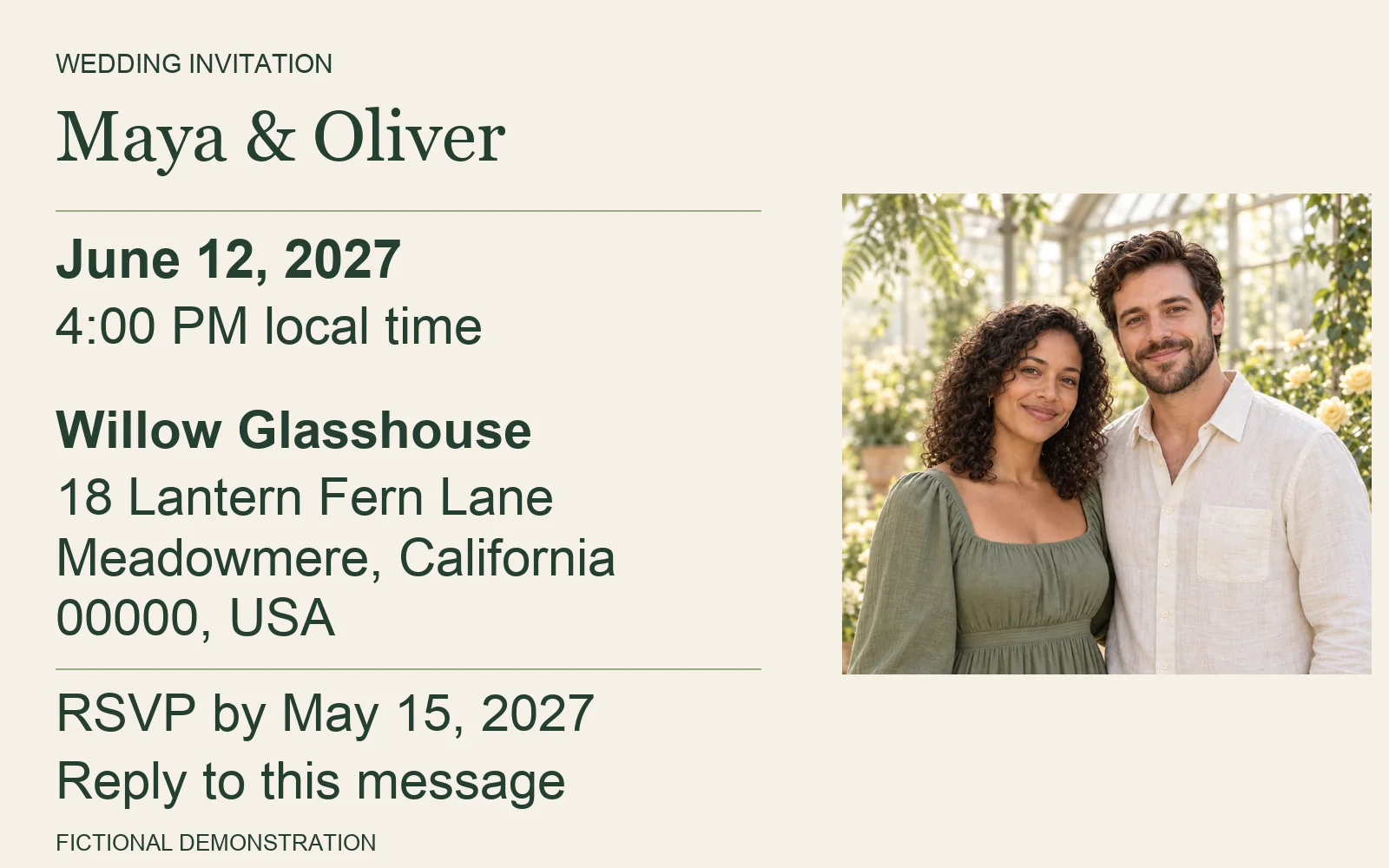
To make an AI wedding invitation photo and video, start with one clear couple photo and one confirmed set of wedding details. Create the invitation background with AI, add editable wording, then export a still and a short video from the same design. The finished example here uses a simple photo fade-in; the people are not animated by a video model.
The visual style is the fun part. The invitation still needs to tell someone whose wedding it is, when to arrive, where to go, and how to reply. Keeping those details in an editable text layer also makes a last-minute time change easier to fix.
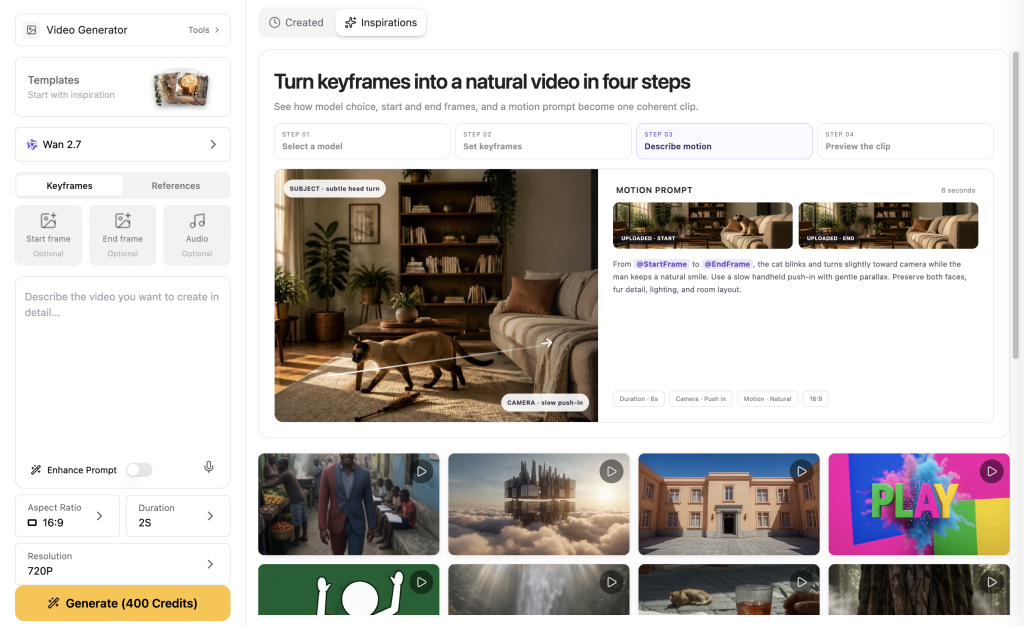
An invitation project can need help with wording, a photo edit, and a video. GlobalGPT offers an affordable way to access multiple AI models through one subscription, instead of managing separate subscriptions for each creative step. Work on the wording and matching visuals from one dashboard, then finish the layout in your preferred editor.
Choose your next step
Start with one photo and six confirmed details
Choose a photo where both faces are clear, well lit, and easy to distinguish from the background. Avoid a tight crop if you want room for the venue name and address. Ask everyone pictured before uploading a real photo; the example here uses invented adults and fictional wedding details.
Keep a single text note with the couple’s names, wedding date, start time, venue and full address, RSVP deadline, and reply method. Copy from that note each time you build a version. Include the year in both dates, and make it clear whether the invitation is for the ceremony, reception, or both.
For a real event, use the address guests should actually travel to, including any entrance instructions they need. The demonstration address below is invented and must be replaced before sharing an invitation.
One note, six details
- Couple
- Maya & Oliver
- Wedding date
- June 12, 2027
- Zeit
- 4:00 PM local time
- Venue and address
- Willow Glasshouse
18 Lantern Fern Lane
Meadowmere, California 00000, USA - RSVP deadline
- May 15, 2027
- Reply method
- Reply to this message
Fictional demonstration. The people, wedding venue and address are invented; 00000 is a demonstration postal code, not a delivery address.
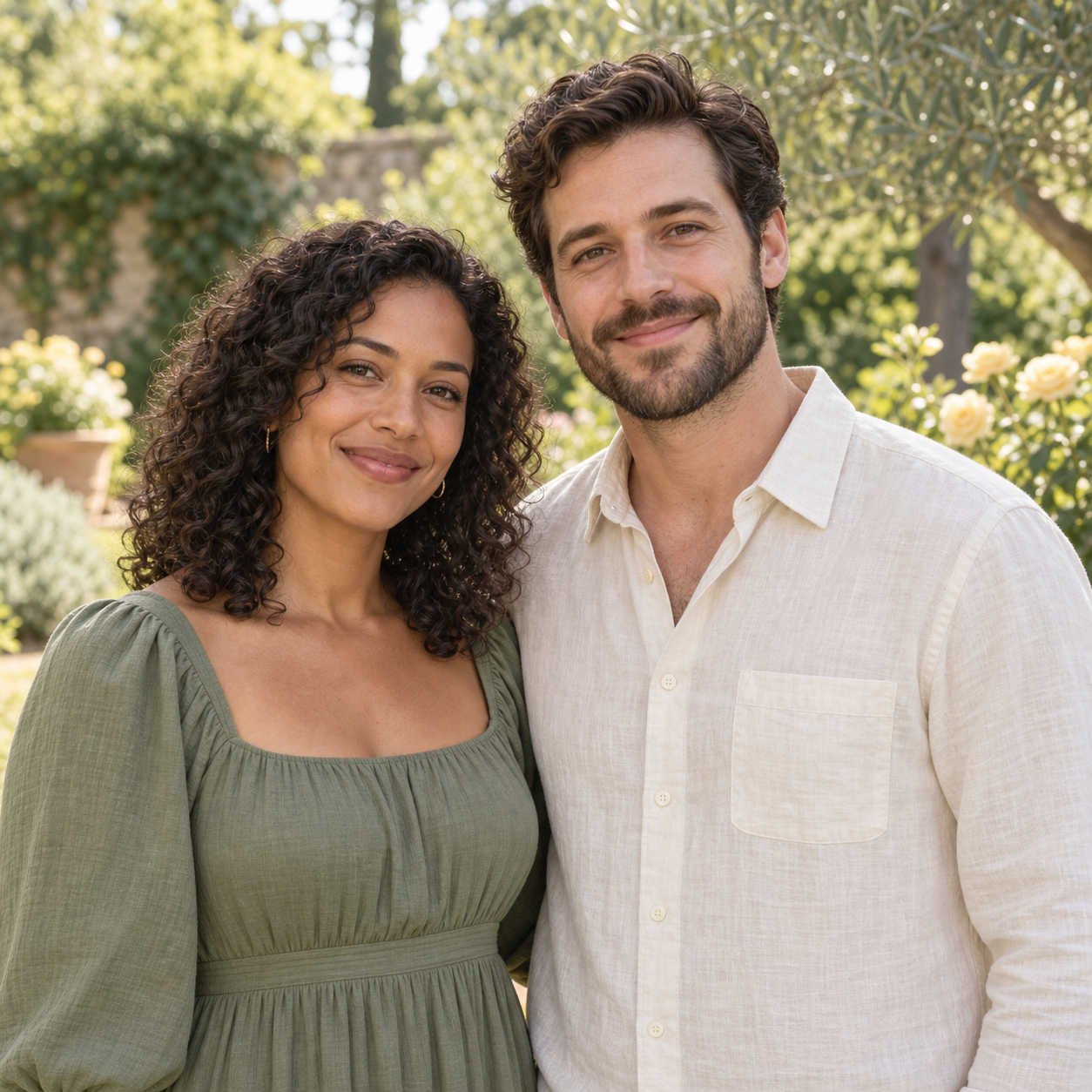
Keep the couple, change the setting
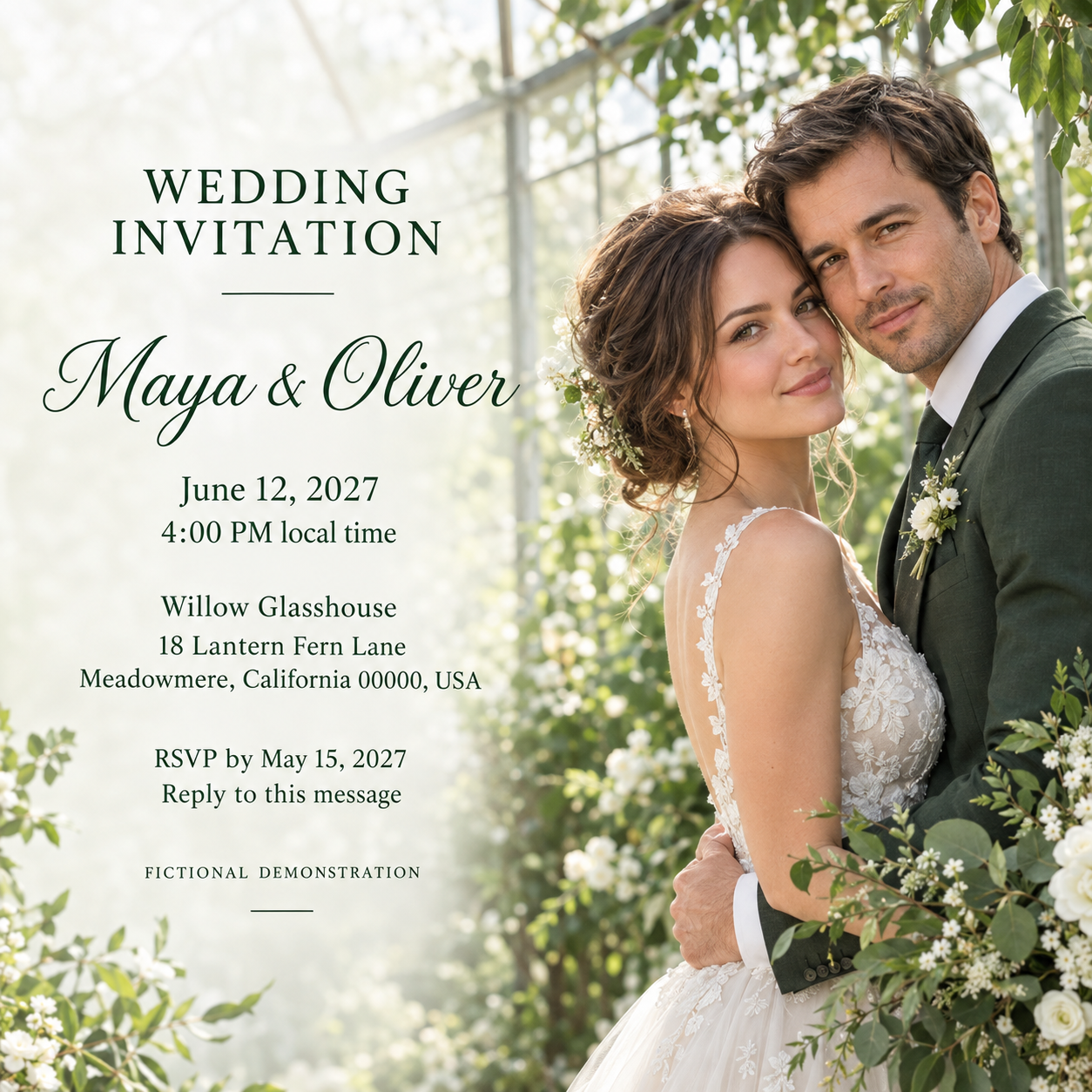
A good invitation should still look like the people getting married. In this example, GPT Image 2 on GlobalGPT turned the reference into a botanical scene with space for the names and date. A second image added accurate English wording but changed the couple, so we used the first background for the finished invitations.
That choice keeps the useful parts of AI generation while leaving the final details in your hands: choose the image that preserves the people, then add text you can edit.
The examples use the first returned images from September 15, 2026. The finished video combines the chosen AI image with an editor-applied photo fade-in.
Turn the photo into a matching invitation design
Use the original photo as the reference for the image edit. Ask for the background, framing, and colour palette you want while naming the features that should stay the same. A prompt that describes a new couple from scratch gives the model more room to change the people.
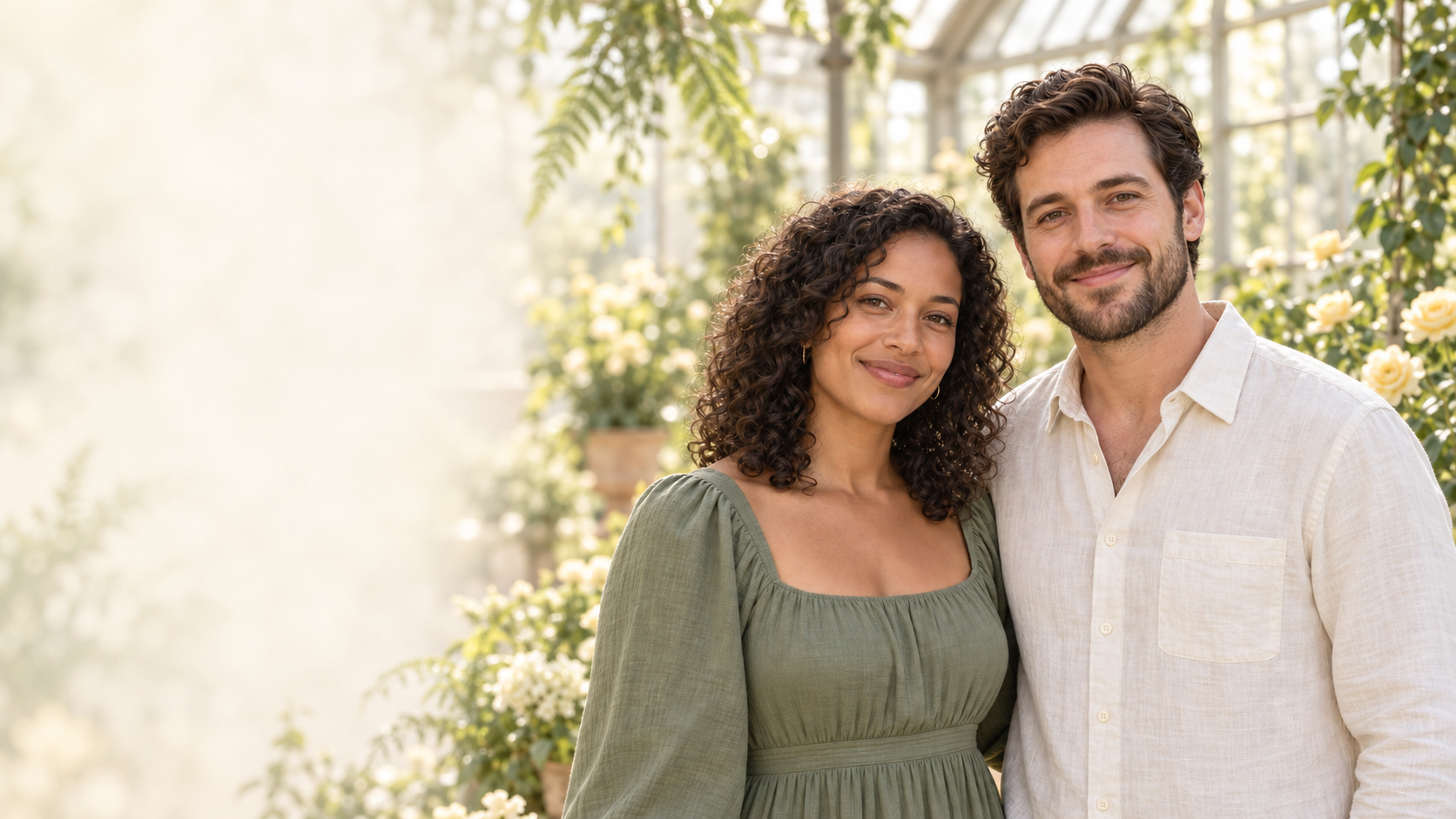
For this botanical design, the request places the couple on the right and leaves a quiet cream area on the left. That blank space has a job: it gives the invitation wording somewhere to sit without covering a face or competing with flowers and foliage.
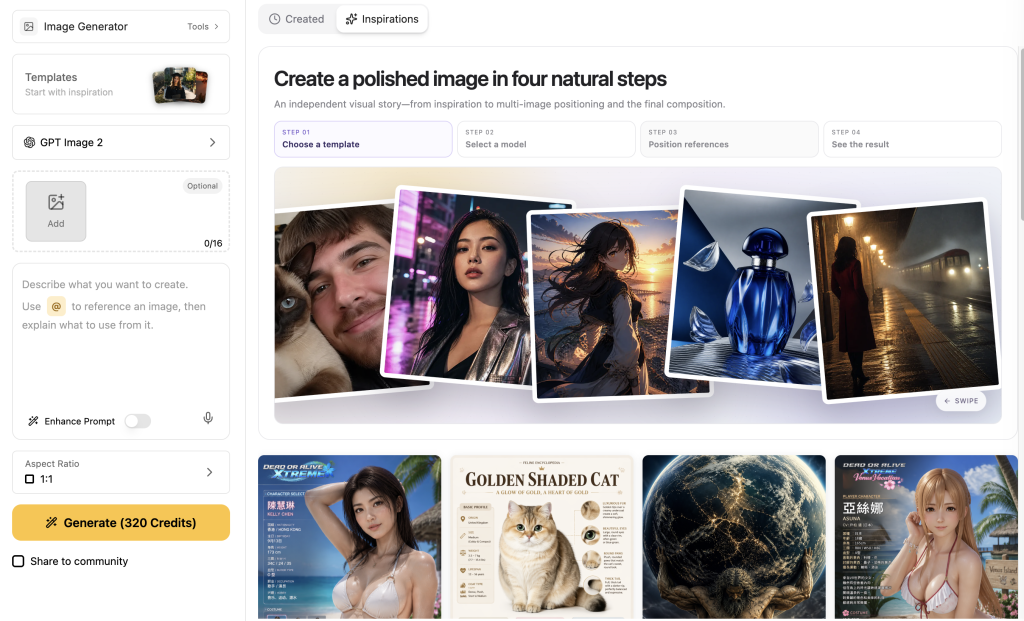
You can begin the visual step with GPT Image 2 on GlobalGPT. Describe the visual you need, keep the reference photo close at hand, and check the faces before moving to video.
Leave room for the details
The glasshouse background kept the couple recognisable, with the same hair, clothing and left-to-right order. Moving them to the right left a calm cream area for the invitation wording.
Expressions and small facial details changed, so compare the result with your original photo before choosing it. Here, both faces stayed fully inside the frame and the text area did not compete with the people.
For your invitation: Ask for a specific text area in the first image prompt. A clear composition makes the names and venue easier to read without shrinking the photo.
Genaue Eingabeaufforderung anzeigen
Edit the supplied reference photograph into a wedding invitation background. Preserve the same two fictional adult people: their facial features, skin tones, hairstyles, clothing and relative height. Keep Maya on the left of Oliver. Move the couple together into the right half of a horizontal 16:9 frame, shown waist-up with both faces clear and hands outside the frame. Place them in a softly lit botanical glasshouse with delicate fern leaves and a few butter-yellow flowers. Keep the left half calm, light cream, uncluttered and suitable for adding invitation text later. Natural photographic style, sage green, cream and butter yellow, gentle afternoon light. Do not add or change people. Do not add text, letters, numbers, captions, logos, watermark or interface elements.
Check AI-generated wording before you use it
Check the visible wording against your original note, one field at a time. A card can look convincing while displaying the wrong year, a missing street number, or an altered name. Read what is actually in the image rather than what you remember asking for.
OpenAI’s image-generation documentation describes limitations with precise text placement and clarity, as well as consistency across images. Treat the generated wording as something to inspect. For details that must be exact, a fixed text layer gives you direct control over the characters and line breaks.
Correct wording still needs the right people
The English names, wedding date, time, full address, RSVP deadline and reply instruction were all correct, including both years.
But the couple changed: the result introduced different faces, hair and clothing, including a wedding dress and dark-green suit. Beautiful lettering would not make this the right invitation for the original pair.
For your invitation: Check the wording and the people separately. We chose the earlier background and added an editable text layer, keeping the recognisable couple and the checked details together.
Genaue Eingabeaufforderung anzeigen
Edit the supplied wedding invitation background. Preserve the same two adults, their faces, clothing, position, botanical glasshouse, palette and framing. In the quiet left side add only the following English invitation wording, exactly as written, with clean dark-green typography and a clear hierarchy. Keep every line readable and do not cover either face. Text:
WEDDING INVITATION
Maya & Oliver
June 12, 2027
4:00 PM local time
Willow Glasshouse
18 Lantern Fern Lane
Meadowmere, California 00000, USA
RSVP by May 15, 2027
Reply to this message
FICTIONAL DEMONSTRATION
The couple, venue and address are entirely fictional. Do not invent extra names, locations, dates, icons, logos, watermarks or a QR code.
Turn the photo into a short invitation video
You have two ways to make the video. An image-to-video model can generate movement within the scene. A video editor can also turn the finished design into a short clip using a photo fade-in, while keeping the faces and wording unchanged. The second option produced the finished example shown here.
If you try generated movement, use the background without text and keep the motion modest. Play the whole result and check for changed faces, clothing, new people or sudden cuts. For more help with that option, see these ways to keep characters consistent in AI video.
If you want to explore generated scene movement, explore Seedance 2.0 on GlobalGPT alongside the image tools in one dashboard. Our test on GlobalGPT did not return a clip, so we finished the matching invitation video in a video editor.
Choose a video that keeps the invitation readable
For subtle scene movement, start with the invitation background before adding text. Keep the action simple so guests can focus on the couple and the event details.
Our Seedance 2.0 attempt on GlobalGPT was declined during content review and produced no video. We used the approved still in a video editor instead: the photo fades in, the people remain still, and the wording stays visible throughout.
For your invitation: A short photo video is a useful finished invitation in its own right. Choose it when preserving faces and readable details matters more than adding movement within the scene.
Genaue Eingabeaufforderung anzeigen
Animate the supplied invitation background as one continuous five-second horizontal 16:9 shot. Preserve the same two fictional adult people, their faces, skin tones, hairstyles, clothing, positions and relative height. They stay relaxed and nearly still on the right side, with a subtle natural smile and tiny breathing movement. A few fern leaves move gently in the botanical glasshouse. Use a very slow, subtle camera push-in while keeping both faces fully inside the frame and the left half light, calm and empty for text to be added later. Keep the sage green, cream and butter-yellow palette. No cuts, no new people, no exaggerated gestures, no dialogue, no subtitles, no text, no letters, no numbers, no logos, no watermark and no interface elements.
Add exact text and export both invitations
Place the confirmed invitation text in a separate layer beside the photo. Use the same typefaces, colours, and line breaks in both versions. In the finished example, the photo fades in over 0.8 seconds while the text stays visible throughout the 12-second video.
Start with the names and wedding date, then add the time, venue and address, RSVP deadline, and reply instruction. Leave enough space around the text that no line feels squeezed against an edge. If a long address needs another line, give it one.
For another approach to lettering on generated images, see adding text and branding to AI photos. Keep your invitation details editable until everyone responsible for the event has checked them.
In a video editor, put the photo on its own layer, set the total clip to 12 seconds, and apply a short fade to that photo layer only. Keep the text layer visible for the whole clip. This preserves the same people and avoids asking a model to redraw the lettering.
Export a still image as well as the video. The still gives guests an easy reference for the address and RSVP details. Our video is silent; the invitation does not need music or a voiceover to explain the event.
The finished pair: one photo, two invitations
The finished still and video share the same recognisable couple, botanical setting and English wording. A separate text layer keeps the address, dates and reply instructions easy to update without generating another picture.
The photo fades in over 0.8 seconds while the wording stays visible for all 12 seconds. This fade is an editing effect; the people remain still. The finished image was also checked at 390 pixels wide so the design could be reviewed at a phone-sized width.
Send the still alongside the video so guests can save the address and RSVP details without replaying the clip.
View exact invitation text
WEDDING INVITATION
Maya & Oliver
June 12, 2027
4:00 PM local time
Willow Glasshouse
18 Lantern Fern Lane
Meadowmere, California
00000, USA
RSVP by May 15, 2027
Reply to this message
FICTIONAL DEMONSTRATION
Six-field check: wording and identity are separate
| Feld | AI text | Final still | Final video |
|---|---|---|---|
| Couple | Weiter | Weiter | Weiter |
| Wedding date | Weiter | Weiter | Weiter |
| Zeit | Weiter | Weiter | Weiter |
| Venue and address | Weiter | Weiter | Weiter |
| RSVP deadline | Weiter | Weiter | Weiter |
| Reply method | Weiter | Weiter | Weiter |
The generated wording passed all six information checks at full resolution, but the people changed. The finished still and photo video add the same checked details to the background that retained the reference couple.
Results from this single example. Six correct fields is not a model success rate. The video uses fixed text, not generated lettering.
Copy the prompts and the send-ready checklist
Replace every bracketed field before you use this template. Keep the complete venue address even when you also send a map link.
WEDDING INVITATION
[Name] & [Name]
[Month Day, Year]
[Time, with AM/PM and local time or time zone]
[Venue name]
[Street address]
[City, state/region, postal code, country]
RSVP by [Month Day, Year]
[How guests should reply]
Reuse the sequence
- Choose a clear reference photo.
- Use the image-edit prompt above to create a background with quiet space for text.
- Confirm the people before choosing generated movement or a local photo effect.
- Add your checked invitation wording in an editable layer.
- Export and inspect each format separately.
Replace the sample names, venue and every date. Keep the exact prompts above as examples of this test, including the requests that did not meet the full task.
Before you send it
- Both names are spelled correctly.
- The wedding date includes the year and the time is unambiguous.
- The venue address is complete and is the real destination.
- The RSVP date includes the year and precedes the event.
- The guest knows exactly how to reply.
- The still is readable on a phone without zooming.
- The entire video makes sense with the sound off.
- The people and styling match across both formats.
FAQ
Can AI create a wedding invitation video?
Yes. Generate an invitation background with AI, then turn it into a short video. Our finished example uses an editor-applied photo fade-in with fixed text. For movement within the scene, try an image-to-video model and check the faces and clothing before adding the invitation details.
Can I make a matching photo invitation and video?
Start both versions from the same edited photo, and use the same wording, colours, and typography. Export the still separately so guests can save the details without replaying the video.
Can ChatGPT write the invitation wording?
ChatGPT can help draft the wording and adjust the tone. Give it the confirmed names, dates, venue, and reply instructions, then check that nothing was added or changed. Creating the moving visuals is a separate step that uses a video-generation tool.
Can I make an AI wedding invitation for free?
Free invitation templates and free AI generation are different offers. Before you start, check the tool’s current generation allowance, download options, watermark conditions, and whether video export is included. Do not assume that a free template also includes free generated images and video.
Start with your photo and confirmed details
Use one visual theme for the still and the video, and keep the wording editable until the final check.
Mit GlobalGPT erstellen