

If you’re asking how to use Sora 2 on PC today, the direct answer is: you may still be able to use it for now, but Sora has already been announced for shutdown, so downloading it or paying just for Sora now comes with real risk. During this transition, you may face missing features, uneven account access, region limits, blocked real-person uploads, and uncertainty around app support, API access, and saved assets—all of which can make Sora a poor choice for anyone who needs a stable PC video workflow.
That uncertainty is exactly why Sora is hard to trust for real work: one missing editor, one disabled download option, or one sudden access change can break your workflow and waste both time and money. GlobalGPT offers a more practical option, and its $10.8 Pro plan gives you access to leading video models like Sora 2 pro (before Sora is fully shut down), Veo 3.1, Kling, and Wan, so you can keep creating even if one model or app becomes unstable.
More importantly, GlobalGPT covers the complete workflow—from ideation and research to script drafting, visual creation, and final video production—so you do not need to rebuild your process every time one tool changes. You can also use top models like ChatGPT 5.4, Gemini 3.1 Pro, Claude 4.6, and Perplexity to plan ideas, improve prompts, write storyboards, and polish copy, then finish the whole project in one seamless dashboard.

The End of an Era: OpenAI Announces Full Sora 2 Shutdown (March 2026)
OpenAI has officially announced the discontinuation of Sora 2, marking a sudden end to its most ambitious video project. This strategic withdrawal has sent shockwaves through the creative community, as Sora was once positioned to dominate the AI cinematography market on PC.
Is it just the App? (The Scope of Shutdown)
The shutdown is comprehensive and absolute. It is not limited to the mobile application; OpenAI is pulling the plug on the entire ecosystem.

PC users will lose access to the following components:
- The primary browser-based portal for PC creators will be taken offline.
- Sora API: Third-party integrations and enterprise-level developers will lose their connection to the model.
- Sora 2 Pro Model: Even high-paying subscribers will no longer have access to the flagship video generation capabilities.
Why is OpenAI Pulling the Plug?
OpenAI’s leadership, led by Sam Altman, admitted that video generation had become a “distraction” from the race toward AGI. The company is entering a “Code Red” internal status to focus exclusively on next-generation reasoning models like GPT-5.2 and a new secret project codenamed “Spud”.
The key drivers behind this decision include:
- Massive GPU Burn: The compute power required to render realistic physics in Sora 2 is being reallocated to AGI training.
- Strategic Pivot: OpenAI aims to beat Anthropic and Google Gemini 3 in the reasoning wars, leaving video to specialized competitors.
- Financial Rebalancing: Despite a $1 billion investment from Disney, the low user retention rate for standalone video tools made Sora 2 commercially unviable as a separate product.

What Should PC Users Do Before the Final Deadline?
If you have active projects on Sora 2, your priority should be data preservation. Once the servers are decommissioned, retrieving assets from OpenAI’s cloud will be impossible.
To safeguard your creative workflow, take these immediate actions:
- Export All Renders:Download your entire library in the highest available resolution (1080p for Pro users) before access is revoked.

- Save Prompt Templates: Copy the specific prompt structures and camera movement parameters that worked for your style into a local file.
- Check Subscription Status: Cancel any auto-renewals directly with OpenAI to avoid being charged for a service that no longer exists.
While the official web version is fading, platforms like GlobalGPT offer a stable bridge, allowing you to use Sora 2 Pro alongside even more powerful alternatives like Veo 3.1 during this transition.
The Best Sora 2 Alternatives for PC: Why GlobalGPT is the Final Answer
The sudden sunset of Sora 2 highlights a critical risk for AI creators: relying on a single official platform is no longer a sustainable strategy in the 2026 landscape. As OpenAI pivots toward AGI and GPT-5.2, professional video creators need a “Safety Net” that ensures their projects never halt, regardless of individual model changes.
GlobalGPT has emerged as the industry-standard bridge for this transition, offering three decisive advantages for PC users:
1. Guaranteed Access to Sora 2 Pro (Until the Final Cutoff)
While the official web version may experience login instability or region-based lockouts during its wind-down, GlobalGPT maintains high-availability API connections.
- No Invite Codes Required: You can bypass the official waitlist and access the high-performance Sora 2 Pro model immediately.
- No Regional Barriers: Unlike the official Sora app (often restricted to the U.S.), GlobalGPT provides unrestricted access globally without complex credit card requirements or VPN setups.

2. A “Multi-Model” Insurance Policy
The true power of GlobalGPT lies in its Pro Plan ($10.8). For a fraction of the cost of a single high-end subscription, you gain a unified dashboard that houses the world’s most powerful Video AI models. If one model faces downtime, you can instantly switch your prompt to:
- Google Veo 3.1: Perfect for cinematic consistency and long-form 4K clips.
- Kling 3.0 & Wan: Ideal for complex human physics and rapid prototyping.
- Nano Banana 2: The current leader in stylistic and artistic video rendering.
| Model | Best For | PC Access via GlobalGPT |
| Google Veo 3.1 | Long-form cinematic content (up to 2 mins) | Available |
| Kling 3.0 | Realistic physics & complex human motion | Available |
| Wan Animate | High-speed, high-resolution short clips | Available |
| Luma Dream Machine | Artistic, abstract, and stylized storytelling | Available |

3. Full-Cycle Creative Workflow (Beyond Video)
Professional video production is rarely just about the video itself. GlobalGPT is the only platform that covers the complete workflow from end to end:
- Ideation & Scripting: Use ChatGPT 5.4 or Claude 4.6 to draft storyboards and optimize video prompts.
- Visual Reference: Generate high-fidelity stills with Midjourney or Flux to guide your video’s aesthetic.
- Real-time Research: Use Perplexity integration to fact-check your content or find trending visual styles.
- Final Production: Render the video using the model of your choice, all within a single, seamless tab on your PC browser.


Step 1: Access Sora 2 via the Web (PC Version)
To get started, open your browser and go to sora.com. You’ll be prompted to log inusing your OpenAI or ChatGPT account. During this onboarding, OpenAI may ask for your birthday to apply age-appropriate protections.
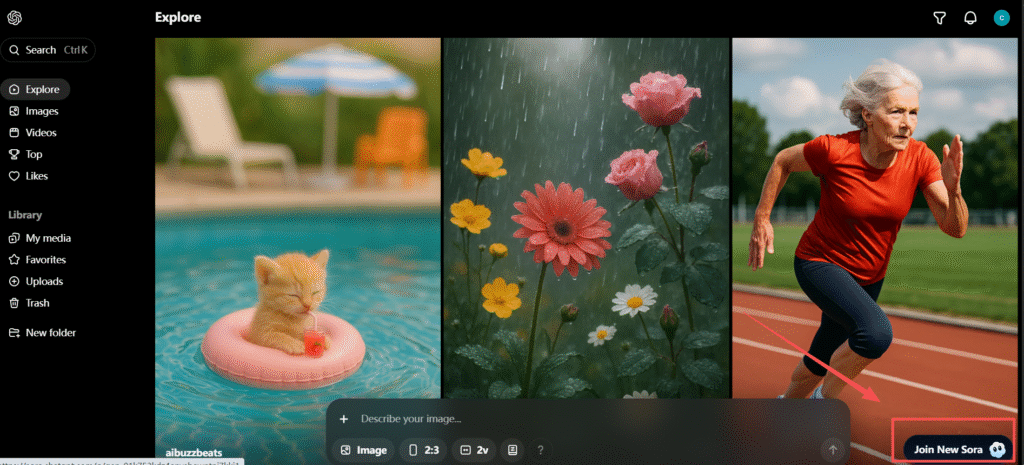
Keep in mind that OpenAI’s official help pages and live product availability may not match perfectly during the transition. Some users may still see web access, while others may find that onboarding, app downloads, or generation features are no longer visible.
💡 Note: Access may still be rolling out or being limited account by account. If you cannot enter Sora from the web, that may be due to region support, account eligibility, or the ongoing phase-out rather than something wrong with your browser.
Step 2: Set Up Your OpenAI Account for Sora Access
- Visit sora.com and select “Sign in with OpenAI.”
- Enter your credentials and complete any onboarding prompts that still appear, such as account verification or age-related protections.
- Confirm your personal details and complete the onboarding process.
- You may see a “Join Waitlist” or “Enter Invite Code” screen depending on rollout status.
✅ Success check: If Sora is still enabled for you, you should be able to reach the web interface and see at least some of the current creation tools.
Step 3: Create Your First AI Video on PC
If generation is still available in your version of Sora, click + Create or the current composer entry point to start your first video. During the transition, some users may see missing buttons, fewer duration options, or a different editor layout than older screenshots show.
Prompt Writing Tips
Prompt quality still matters, but during the shutdown period, access to certain controls may vary. Start with a short, clear scene description before adding camera movement, lighting, or mood details.
Example:
“A futuristic Tokyo street at night, neon lights reflecting on wet pavement, slow camera pan left, subtle ambient sound.”
Optional: Upload an Image
If your current version of Sora still supports image-based workflows, you may be able to upload a reference image and animate it into a short clip. If that option is missing, it may be due to your plan, region, app version, or the current transition stage rather than a mistake on your part.
⚠️ Avoid using photos of real people unless you have their explicit consent. Cameo features require verification.
Generate and Review
After submitting your prompt, Sora may generate a preview directly in the web interface if your account still has generation access. If rendering fails, disappears, or takes unusually long, the cause may be prompt complexity, service load, account limits, or product changes during the wind-down.
You can also use Sora 2 to create longer animations — here’s a detailed guide.
Sora 2 Content Restrictions
If Sora refuses to generate a video, the cause may not be moderation alone. During this transition period, failed generations can also come from account-level access changes, feature rollbacks, service load, or tools that are no longer visible in your version of the app or web experience.If Sora refuses to generate a video, the cause may not be moderation alone. During this transition period, failed generations can also come from account-level access changes, feature rollbacks, service load, or tools that are no longer visible in your version of the app or web experience.
You should still avoid prompts involving real people without permission, copyrighted material, deceptive content, sexual content, or graphic violence. But right now, it is important to understand that some failures may reflect product changes rather than only prompt mistakes.
Sora 2 Region and Country Restrictions
Sora availability can still depend on your country or territory, and OpenAI continues to maintain official supported-country pages for Sora app access and Sora 2. During the current transition, however, remaining access may also vary by account status and shutdown stage.
So if Sora is not visible to you, do not assume it is only a region problem. It may also reflect phased availability, account-level rollout differences, or product changes that have started to affect certain users before others.
Step 4: Iterate and Refine Your Results
If editing tools are still visible in your version of Sora, make small refinements rather than rewriting everything at once. Some users may still see the newer editor or storyboard workflow, while others may only have a simpler generation interface depending on rollout and transition timing.
Good AI videos come from small, thoughtful iterations. Try:
- Adjusting lighting (“warmer morning glow”)
- Adding motion (“camera tilt upward toward the skyline”)
- Refining mood (“gentle background jazz music”)
Keep a note of what works. Most creators find that 2–3 iterations yield a satisfying cinematic clip.
Example Workflow
A user named Andy generated a short video of a floating café in zero gravity, describing “soft jazz, floating cookies, and slow camera pan.” It took only one selfie cameo and a 12-second clip to produce a fully rendered, realistic AI video.
Step 5: Use Cameos on PC (Optional Feature)
The Cameo feature allows you to insert your likeness into a video safely and responsibly.
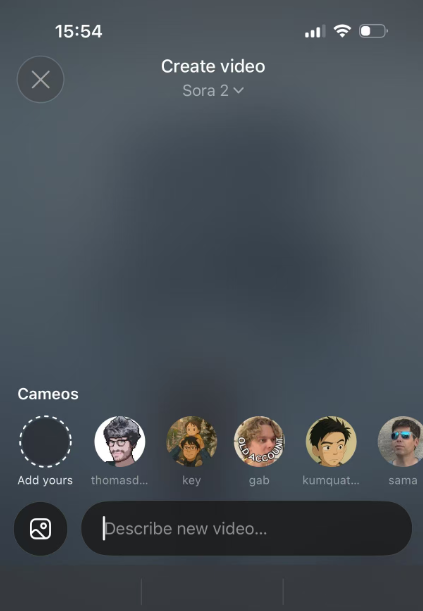
How it works:
- Record a short video of yourself for Sora’s verification process.
- Once approved, you can appear in your clips or allow specific friends to use your cameo.
- You retain full control — you can revoke access or delete any cameo-based video at any time.
💡 Privacy Tip: Cameos are permission-based and fully transparent. You’ll see all videos that include your likeness, even drafts.
Step 6: Export and Share Your Videos
If you still have access to Sora, save or export anything important as early as possible. Once a product enters sunset or deprecation, asset access, downloads, and export windows may become more limited over time.
When you’re satisfied with your clip:
- Click Download to save it in MP4 format.
- Each video includes an official watermark and C2PA digital signature confirming AI provenance.
- You can share your clips on social media, remix them, or use them in creative projects.
If you still have access to Sora, save or export anything important as early as possible. Once a product enters sunset or deprecation, asset access, downloads, and export windows may become more limited over time.
At the moment, all videos generated through the official Sora 2 platform include a watermark. If you want watermark-free videos, you can try third-party platforms that access the API, such as GlobalGPT.
If you prefer desktop editing, import your Sora 2 clips into editors like DaVinci Resolve, CapCut, or Premiere Pro for post-processing.
Step 7: Troubleshooting Common Issues on PC
| Issue | Likely Cause | Quick Fix |
|---|---|---|
| “Waitlist only” message | Rollout not yet open in your region | Check OpenAI’s Sora announcement page |
| Failed video render | Network instability or prompt error | Refresh and retry with simpler motion |
| Access denied | Missing invite code | Request invite or use Global GPT |
| Audio desync | Long or complex motion prompts | Shorten scene length or simplify audio cues |
| “Some buttons or features are missing” | Phased shutdown, account-level access change, or outdated screenshots | Refresh, try the web version again, and compare what you see with the latest official help pages |
| Download or export options are no longer visible | Product transition or limited remaining access | Check Settings / Data Controls, download individual assets if available, and export your data as soon as possible |
Step 8: Safe and Responsible Use
OpenAI enforces strong safety and consent policies:
- All outputs include visible watermarks and C2PA metadata.
- Real-person imagery is restricted unless verified through Cameo.
- Harmful, deceptive, or explicit prompts are automatically blocked.
Before publishing, double-check that:
✅ You have consent for any likeness used
✅ Your video adheres to OpenAI’s Sora System Card guidelines
✅ You maintain original watermarking
Step 9: Track Official Status Before You Download or Pay
Because Sora is now in a transition period, the most important thing is to verify the latest official status before downloading the app, subscribing for access, or moving active projects into it.
Check OpenAI’s Sora help center, supported-country pages, and release notes first. During a wind-down, official help pages may remain live even as product availability starts changing, so users should treat older screenshots and older access assumptions with caution.
Is It Worth Paying for Sora Right Now?
If you are only curious and want to test Sora while it is still accessible, paying for short-term access may still make sense to some users. But if your goal is long-term video production, subscribing now carries more risk than it did before OpenAI announced the product’s discontinuation.
Before paying, confirm three things: whether Sora is actually available to your account, whether the features you want are still visible, and whether you can save your output locally. If any of those points are unclear, it may be smarter to avoid building your workflow around it.
Final Thoughts
Sora 2 is still a meaningful product for users who want to test OpenAI’s video generation while access remains available. But after OpenAI’s shutdown announcement, it no longer makes sense to treat Sora as a low-risk long-term home for serious creative work.
If you only want to explore it before it disappears, the steps above should help you do that more carefully. But if you need a dependable AI video workflow that will still support your projects after one app changes direction, a multi-model platform is the safer path.
FAQ: How to Use Sora 2 on Different Devices
1. How to use Sora 2 on Windows?
You can use Sora 2 on Windows through the Web version — no installation needed.
Just visit the official Sora 2 website, click “Join New Sora” at the bottom-right corner, and enter your invite code when prompted.
If you don’t have an invite code, you can still try Sora 2 through Global GPT, which integrates Sora 2 and allows free access without invitation or watermark restrictions.
2. How to use Sora 2 on Mac?
Using Sora 2 on Mac works exactly like on Windows.
Simply open your browser (Safari, Chrome, or Edge), go to the Sora 2 Web version, and input your prompt to generate videos.
Alternatively, you can access Sora 2 inside Global GPT, which lets you generate AI videos without any invite or geographic restrictions.
3. How to use Sora 2 on iPhone?
The Sora 2 iOS app is available only in the U.S. App Store for now.
To use it, you’ll need:
- A U.S. Apple ID
- A North American IP address
- A valid Sora 2 invite code
Search for “Sora by OpenAI” in the App Store, install it, and log in with your invite.
If you don’t have a code, you can still experience the same AI video features through Global GPT’s mobile web version — no invite needed.
4. How to use Sora 2 in browser?
The browser version of Sora 2 is the easiest way to get started.
- Go to the official Sora 2 site.
- Click “Join New Sora” at the bottom-right corner.
- Enter your invite code when prompted.
Once inside, you can generate cinematic AI videos directly from text prompts.
Alternatively, you can use Sora 2 via Global GPT, which provides full browser access without invite codes, watermarks, or time limits.
5. How to use Sora 2 without iPhone?
If you don’t own an iPhone, you can still use Sora 2 through the Web.
Simply open your browser on Windows, Mac, or Android, visit the Sora 2 website, and log in using an invite code.
Or, use Global GPT, which integrates Sora 2 directly—no invite, no app download, and no device restrictions required.
6. How to use Sora 2 on Android?
Sora 2 now has an official Android app available on the Google Play Store, allowing users to generate AI videos directly from their phones or tablets. Alternatively, Android users can also access Sora 2 through their mobile web browser, providing the same AI video-generation experience without installing the app.
7 How to use Sora 2 Cameos without an iOS device?
You can use Sora 2 Cameos on a computer by visiting the official Sora 2 website at sora.com. Additionally, the Android version of Sora 2 is now available for pre-download, allowing non-iOS users to create and feature Cameos on their mobile devices once it’s officially released.
Updates
March 10, 2026 — Update
Added clarification about Sora 2 usage limits on PC. The guide now explains how many videos users can generate with the free web version of Sora 2 (currently about 10 videos per day) and outlines the limitations of the free tier, including the lack of access to Sora 2 Pro features and other advanced capabilities.
March 26, 2026 — Critical Service Update Major content revision following OpenAI’s official announcement to decommission the Sora 2 ecosystem (Web, App, and API). This update transitions the guide into a sunset resource, adding a verified shutdown timeline (March–June 2026), urgent data export procedures for PC users, and a deep-dive comparison of high-stability alternatives including Google Veo 3.1 and Kling 3.0 via the GlobalGPT multi-model dashboard.

