วิดีโอ AI · กระบวนการสร้างวิดีโอจากบทเขียน
คำตอบด่วน: เพื่อสร้างวิดีโอ AI จากบทเขียน ให้แบ่งการบรรยายออกเป็นฉากสั้นๆ ก่อน ให้แต่ละฉากมีงานด้านภาพหนึ่งงาน กำหนดสไตล์ที่สอดคล้องกัน สร้างช็อตภาพ แล้วเพิ่มเสียงบรรยาย คำบรรยาย และตรวจสอบคุณภาพขั้นสุดท้าย เครื่องมือนั้นสำคัญ แต่แผนการจัดฉากคือสิ่งที่ทำให้คลิปที่แยกกันกลายเป็นวิดีโอที่มีความต่อเนื่อง.
การเปลี่ยนย่อหน้าหนึ่งให้กลายเป็นวิดีโอที่ดูได้ดูเหมือนเป็นงานที่ทำได้ง่ายๆ เพียงคลิกเดียว แต่ในความเป็นจริง สิ่งที่สำคัญที่สุดคือ วิดีโอ AI จากบทเขียน กระบวนการทำงานประกอบด้วยหลายการตัดสินใจเล็กๆ น้อยๆ: จุดที่ฉากหนึ่งสิ้นสุดลง, สิ่งที่ปรากฏบนหน้าจอ, ความยาวของเสียงบรรยาย, รายละเอียดทางภาพใดที่ต้องรักษาความสม่ำเสมอ, และสิ่งใดที่จำเป็นต้องสร้างใหม่เมื่อช็อตหนึ่งไม่สำเร็จ. The บทสรุปเกี่ยวกับเครื่องมือสร้างวิดีโอ AI ที่ดีที่สุด ช่วยกำหนดตัวเลือกในกระบวนการทำงานให้สอดคล้องกับความต้องการในการสร้างเนื้อหาที่แตกต่างกัน.
สำหรับผู้สร้างเนื้อหาและทีมขนาดเล็กที่กำลังทำแคมเปญผลิตภัณฑ์แบบสั้น การทดสอบ GlobalGPT ของเราจะเปลี่ยนบทพูด 43 คำให้เป็นคลิปวิดีโอเกี่ยวกับผลิตภัณฑ์ดูแลผิวความยาว 28.06 วินาที ด้านล่างนี้คือแผนฉาก คำแนะนำที่สามารถใช้ซ้ำได้ การตั้งค่าการสร้าง และขั้นตอนการทำงาน GlobalGPT แบบครบวงจร: GPT Image 2 สำหรับภาพอ้างอิง Seedance 2.5 ที่มาพร้อมระบบสำหรับฟุตเทจ และ Yukie สำหรับการบรรยาย คำบรรยาย การผสมเสียง และการส่งออก.
สรุปผลการทดสอบ: เราได้สร้างภาพเปิดต้นแบบสองภาพด้วย GPT Image 2 ภายใน GlobalGPT เลือกออกแบบขวดที่ดูสะอาดกว่า และสร้างคลิปวิดีโอต่อเนื่องความยาว 28 วินาที ด้วย Seedance 2.5 ที่มาพร้อมกับ GlobalGPT ที่ความละเอียด 720p จากนั้น เราส่งวิดีโอแบบดิบไปยัง Yukie บนแพลตฟอร์มเดียวกัน เพื่อเพิ่มเสียงบรรยายภาษาอังกฤษ ใส่คำบรรยายแบบเบิร์นอิน ปรับสมดุลเสียงบรรยากาศ และส่งออกไฟล์ MP4 ที่เสร็จสมบูรณ์ ผลลัพธ์ที่ดาวน์โหลดมามีความยาว 28.06 วินาที ที่ความละเอียด 1280 × 720.

สารบัญ
- AI video from script หมายถึงอะไร
- สิ่งที่ต้องเตรียม
- ขั้นตอนการทำงานแบบทีละขั้นตอน
- การทดสอบ GlobalGPT ของเรา
- ปัญหาที่พบบ่อยและวิธีแก้ไข
- วิธีเขียนบทภาพยนตร์ให้ดีขึ้น
- การเลือกกระบวนการทำงาน
- รายการตรวจสอบคุณภาพ
- คำถามที่พบบ่อย
“AI Video from Script” หมายถึงอะไร?
วิดีโอ AI จากบทเขียน เป็นกระบวนการที่แปลงคำบรรยายที่เขียนไว้เป็นลำดับของภาพที่สร้างขึ้นหรือจัดเรียงไว้ โดยทั่วไปจะมีเสียงบรรยาย คำบรรยายภาพ การเปลี่ยนฉาก และเสียงประกอบ บางเครื่องมือจะทำงานอัตโนมัติในทุกขั้นตอน ส่วนเครื่องมืออื่น ๆ ให้คุณสามารถควบคุมฉากแต่ละฉาก ภาพอ้างอิง คำคำสั่ง เวลา และการแก้ไขได้ก่อนที่จะส่งออก.
ก่อนที่จะเลือกเครื่องมือ ให้ตัดสินใจก่อนว่าคุณต้องการผลลัพธ์แบบใด: ร่างที่จัดทำขึ้นอย่างรวดเร็ว, ผู้นำเสนอที่อ่านตามบท หรือคลิปวิดีโอที่สร้างขึ้นพร้อมการกำหนดทิศทางของผลิตภัณฑ์และกล้องอย่างแม่นยำ กระบวนการทำงานจากบทเป็นวิดีโออาจรวมถึงทั้งสามขั้นตอน—การวางแผน, การสร้าง และการตัดต่อ—แต่เครื่องมือหนึ่งไม่จำเป็นต้องสามารถดำเนินการทุกขั้นตอนได้.
สิ่งที่คุณต้องเตรียมไว้ก่อนการสร้าง
- กลุ่มเป้าหมายที่ชัดเจน: ใครกำลังติดตามอยู่ และพวกเขาควรเข้าใจหรือทำอะไรต่อไป?
- ความยาวเป้าหมาย: หากต้องการคลิปอธิบายสั้นๆ ให้นับจำนวนคำที่พูดก่อนที่จะสร้างคลิปวิดีโอ.
- ฉบับร่างคำบรรยายสุดท้าย: การเขียนใหม่คำบรรยายเสียงหลังจากถ่ายทำเสร็จแล้ว จะก่อให้เกิดปัญหาด้านจังหวะเวลา.
- อัตราส่วนภาพ: ใช้สัดส่วน 16:9 สำหรับวิดีโอออนไลน์แบบแนวนอนส่วนใหญ่ สัดส่วน 9:16 สำหรับเนื้อหาแบบแนวตั้งสั้น หรือสัดส่วน 1:1 เมื่อพื้นที่เผยแพร่ต้องการ.
- แนวทางด้านการออกแบบภาพ: กำหนดขนาดภาพ, ปาล์ตสี, แสง, พฤติกรรมของกล้อง และสิ่งใดก็ตามที่ไม่ควรปรากฏ.
- มาตรฐานการประเมิน: ตัดสินใจก่อนว่าจะถือว่าการถ่ายภาพนั้นล้มเหลวเมื่อใด ก่อนที่จะใช้เครดิตไปกับการแก้ไข.
กฎการวางแผนที่มีประโยชน์คือ “หนึ่งฉาก หนึ่งงาน” ฉากหนึ่งอาจใช้เพื่อแนะนำปัญหา แสดงขั้นตอน เปรียบเทียบ หรือนำเสนอผลลัพธ์สุดท้าย หากพยายามทำทั้งสี่อย่างพร้อมกัน ภาพที่สร้างขึ้นมักจะดูแน่นเกินไปหรือไม่ชัดเจน.
วิธีสร้างวิดีโอ AI จากบทเขียน
ขั้นตอนที่ 1: แบ่งบทละครออกเป็นฉากๆ
เริ่มจากความเปลี่ยนแปลงในความหมาย ไม่ใช่การนับจำนวนประโยคแบบสุ่มๆ ให้ทำเครื่องหมายไว้ที่จุดที่การเล่าเรื่องเปลี่ยนจากปัญหาไปสู่การกระทำ จากหนึ่งการกระทำสู่การกระทำอื่น หรือจากคำอธิบายไปสู่ข้อสรุป.
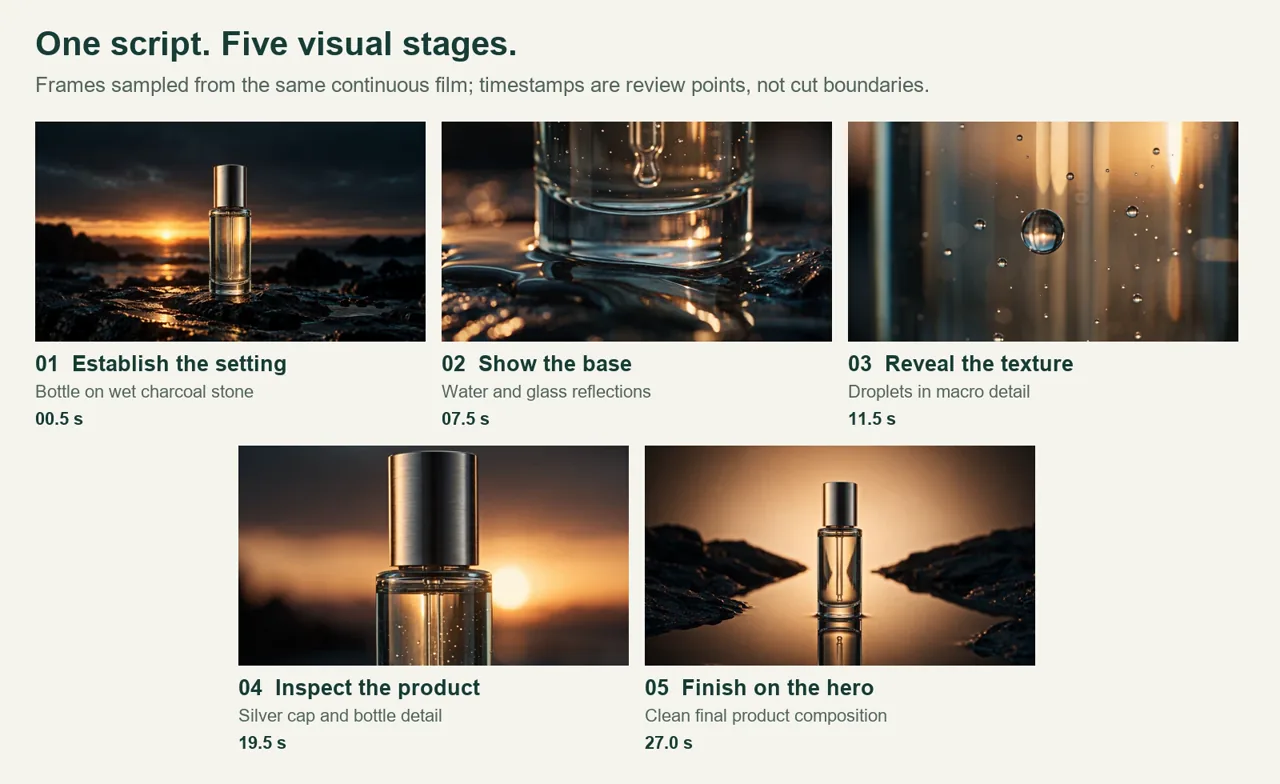
ในการทดสอบของเรา สคริปต์แคมเปญที่มี 43 คำถูกจัดแบ่งเป็น 5 ขั้นตอนทางภาพ ได้แก่ ภาพเปิดฉาก ภาพมาโครของน้ำและฐาน ภาพมาโครของหยดน้ำ ภาพแสดงรายละเอียดขวด และภาพหลักสุดท้าย โครงสร้างดังกล่าวทำให้วิดีโอมีความหลากหลาย โดยไม่ต้องให้โมเดลต้องแนะนำผลิตภัณฑ์ใหม่ บุคคลใหม่ หรือสถานที่ใหม่ในระหว่างลำดับการถ่ายทำ.
ขั้นตอนที่ 2: กำหนดงานด้านภาพให้แต่ละฉาก
อย่าเพียงแต่คัดลอกคำบรรยายมาใช้เป็นคำอธิบายภาพเท่านั้น แต่ให้อธิบายว่าผู้ชมควรเห็นอะไร.
ทิศทางที่อ่อนแอ:
แสดงให้เห็นว่าทุกฉากต้องมีหน้าที่ที่ชัดเจนหนึ่งอย่าง.
ทิศทางที่ชัดเจนยิ่งขึ้น:
หน้าบทภาพยนตร์ถูกแบ่งออกเป็นห้าบัตรสตอรีบอร์ดมุมมนที่จัดเรียงเป็นแถว แต่ละบัตรมีสัญลักษณ์เรขาคณิตแบบเรียบง่ายหนึ่งสัญลักษณ์ เส้นเชื่อมต่อบางๆ แสดงลำดับการปรากฏ การเคลื่อนไหวของกล้องด้านข้างอย่างช้าๆ ไม่มีข้อความที่อ่านได้.
หากต้องการดูรูปแบบการถ่ายภาพและรูปแบบการเคลื่อนไหวเพิ่มเติม โปรดดูที่ คู่มือคำสั่ง Kling 3.0.
เพื่อหาวิธีอธิบายภาพนี้แบบอื่น ให้ลองเปรียบเทียบภาพเหล่านี้ Veo 3.1 ตัวอย่างการเขียนคำสั่ง.
ขั้นตอนที่ 3: กำหนดสไตล์ภาพให้คงที่ก่อนที่จะถ่ายภาพทุกครั้ง
การรักษาความสม่ำเสมอนั้นทำได้ง่ายกว่าก่อนการสร้างเนื้อหา มากกว่าการแก้ไขภายหลัง ให้กำหนดบล็อกสไตล์ที่กระชับ และนำกลับมาใช้ซ้ำในทุกคำสั่งสร้างฉาก ให้รวมถึง:
- สื่อภาพ เช่น เวกเตอร์แบบแบน, ภาพยนตร์ไลฟ์แอ็กชัน, แอนิเมชันดินน้ำมัน หรือการถ่ายภาพผลิตภัณฑ์;
- สีและคอนทราสต์;
- ทิศทางของแสงและช่วงเวลาของวัน;
- การทำงานของเลนส์หรือกล้อง เมื่อจำเป็น;
- รายละเอียดของตัวละคร ผลิตภัณฑ์ เครื่องแต่งตัว หรืออุปกรณ์ประกอบฉากที่ปรากฏซ้ำๆ;
- ข้อจำกัดเชิงลบ รวมถึงข้อความที่ไม่ต้องการ โลโก้ อวาตาร์ หรือการเคลื่อนไหวของกล้อง.
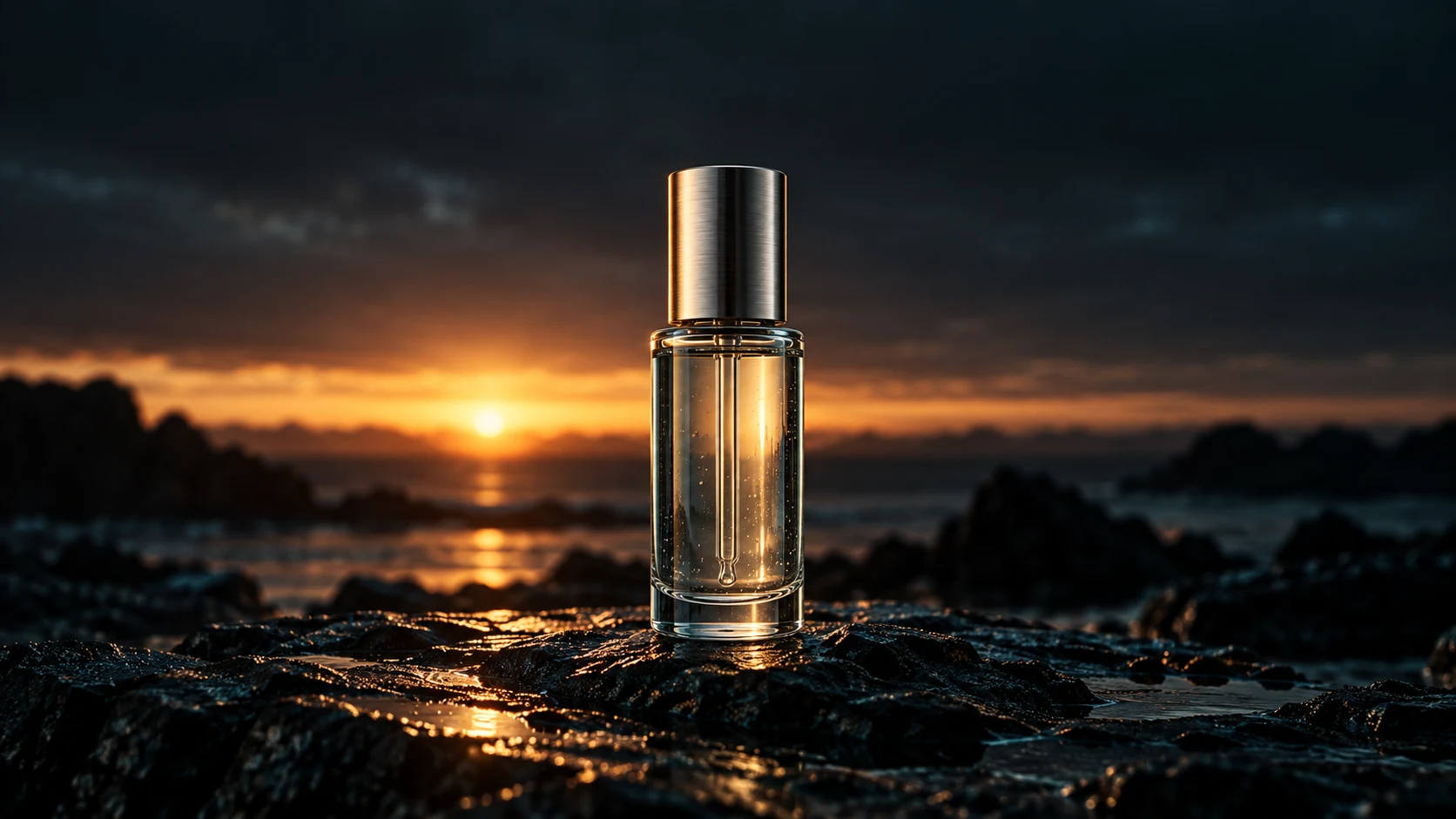
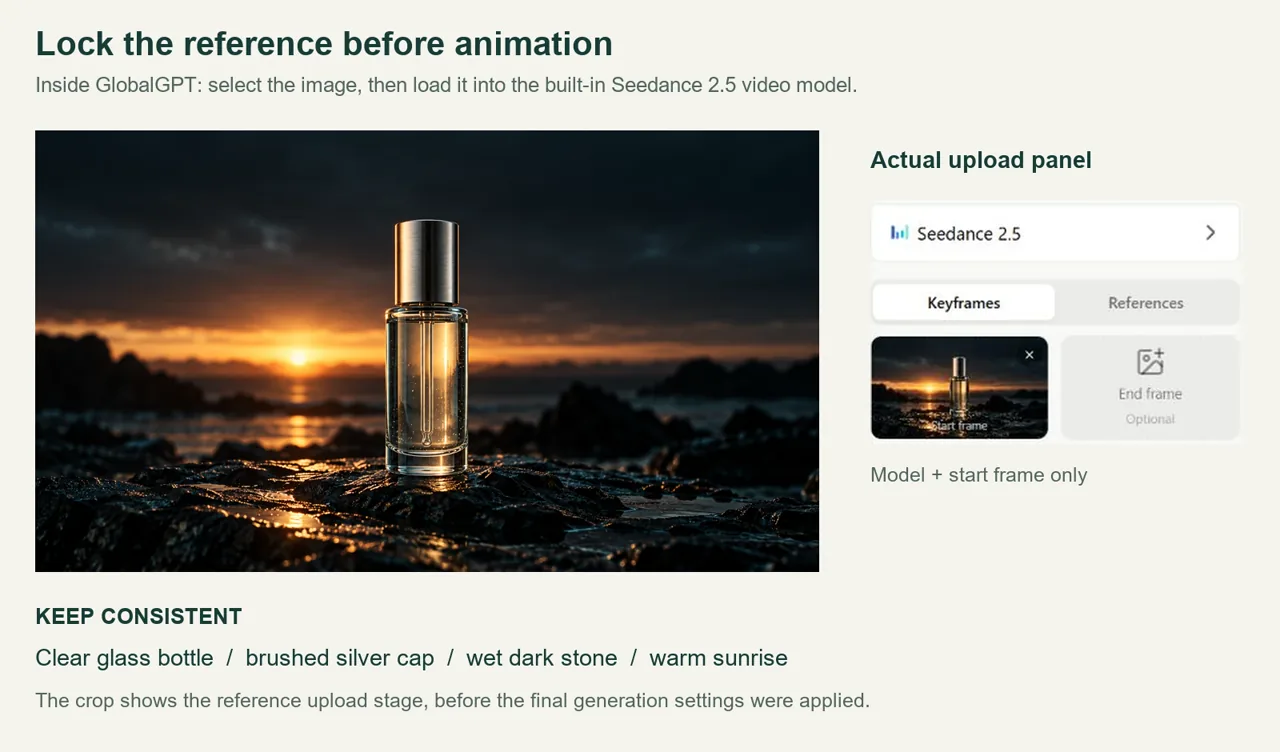
เมื่อกระบวนการทำงานรองรับภาพอ้างอิง ให้สร้างเฟรมตัวอย่างหนึ่งก่อน โดยต้องอนุมัติชุดสี การแสดงผลวัสดุ การจัดองค์ประกอบ และการนำเสนอหัวข้อของเฟรมนั้นก่อนที่จะสร้างเฟรมอื่นๆ ต่อมา ในการทดสอบของเรา ได้สร้างเฟรมเปิดสองเวอร์ชันที่เป็นตัวเลือก และเลือกเวอร์ชันที่มีขวดแก้วที่ชัดเจนที่สุดและฝาเงินแบบขัดเงาก่อนที่จะใช้เครดิตวิดีโอใดๆ.
สิ่งนี้สำคัญเป็นพิเศษสำหรับบุคคลและวัตถุที่ปรากฏซ้ำๆ คู่มือแยกต่างหากเกี่ยวกับ ความสม่ำเสมอของวิดีโอ AI อธิบายว่าทำไมเอกลักษณ์ การแต่งตัว แสง และการจัดกรอบภาพ จึงมีการเปลี่ยนแปลงไปในแต่ละช็อตที่ถ่ายขึ้นอย่างอิสระ.
ขั้นตอนที่ 4: สร้างภาพสั้นๆ ที่มีความโดดเด่น
ให้แต่ละคำสั่งมีการเคลื่อนไหวหลักหนึ่งอย่าง ตัวอย่างเช่น: การดันเข้าอย่างช้าๆ, การเลื่อนหัวเล่น (playhead) ไปตามไทม์ไลน์, หรือการกางไพ่ห้าใบเป็นแถว การขอให้มีการเปลี่ยนแปลงหลายอย่าง เช่น การเคลื่อนไหวของกล้อง, การเปลี่ยนแสง, และการเคลื่อนไหวของตัวละครที่ซับซ้อน ในคลิปสั้นเดียวกัน จะเพิ่มโอกาสที่จะเกิดการเปลี่ยนรูปแบบ.
ตรวจสอบผลลัพธ์แต่ละครั้งก่อนที่จะสร้างขั้นตอนต่อไปที่ใช้ทรัพยากรมาก ดูเฟรมแรก เฟรมกลาง และเฟรมสุดท้าย คลิปอาจดูสะอาดตาเมื่อเป็นภาพขนาดย่อ แต่เมื่อวัตถุเคลื่อนที่ อาจเกิดการละลายหรือเปลี่ยนรูปทรงได้ หากการสร้างล้มเหลวโดยสิ้นเชิง, คู่มือเกี่ยวกับข้อผิดพลาดในการสร้างวิดีโอด้วย AI ครอบคลุมสาเหตุทั่วไปที่เกี่ยวข้องกับคำสั่ง (prompt) การตรวจสอบเนื้อหา (moderation) และกระบวนการทำงาน (workflow).
หนึ่งรุ่นหรือคลิปแยกกัน? ใช้การสร้างภาพแบบหลายช็อตในครั้งเดียวเมื่อหัวข้อ สถานที่ และแสงยังคงเหมือนเดิม และคุณสามารถยอมรับการเปลี่ยนฉากที่ใกล้เคียงได้ ใช้คลิปแยกกันเมื่อต้องการตัดฉากอย่างแม่นยำ ฉากเปลี่ยนไป หรือคุณคาดว่าจะเปลี่ยนช็อตแต่ละช็อตในภายหลัง คลิปวิดีโอขวดของเราใช้การสร้างภาพแบบหลายช็อตในครั้งเดียวสำหรับทั้งห้าขั้นตอน ส่วนวิธีการทั่วไปที่แบ่งตามฉากจะช่วยให้คุณควบคุมการแก้ไขได้ดีขึ้น.
สำหรับคลิปวิดีโอแบบต่อเนื่อง ให้วางลำดับช็อตทั้งหมดไว้ในคำสั่งเดียว สำหรับคลิปที่แยกกัน ให้ใช้สไตล์และเฟรมอ้างอิงเดียวกัน แล้วส่งช็อตละหนึ่งครั้ง การทดสอบของเราใช้เอาต์พุต Seedance 2.5 แบบต่อเนื่องหนึ่งชุด ซึ่งเราส่งต่อไปยัง Yukie ภายใน GlobalGPT เพื่อการปรับแต่งขั้นสุดท้าย รายการช็อตไม่จำเป็นต้องสร้างแยกสำหรับแต่ละแถว.
ขั้นตอนที่ 5: เพิ่มเสียงบรรยายและคำบรรยาย
เสียงบรรยายควรอยู่ในช่วงของช็อตที่กำหนดไว้ พร้อมหยุดพักสั้นๆ ก่อนการตัดช็อต หากบทพูดยาวเกินไป คุณมีสี่ตัวเลือก: ตัดบทพูดให้สั้นลง, เพิ่มระยะเวลาของช็อต, แบ่งช็อตออกเป็นสองส่วน หรือปรับความเร็วการบรรยายให้เหมาะสมเล็กน้อย อย่าแก้ปัญหาเรื่องเวลาทุกครั้งด้วยการทำให้เสียงบรรยายเร็วขึ้นอย่างไม่เป็นธรรมชาติ.
คำบรรยายควรตรงกับคำพูดจริง ไม่ใช่เวอร์ชันเก่าของบทพูด ให้รักษาคำบรรยายให้อยู่ภายในขอบเขตที่เหมาะสมสำหรับอุปกรณ์มือถือ แบ่งประโยคยาวเป็นส่วนๆ ที่อ่านได้ง่าย และตรวจสอบเครื่องหมายวรรคตอน สำหรับภาพที่สร้างขึ้นโดยระบบ ควรหลีกเลี่ยงการวางทับข้อความสำคัญที่อ่านได้ โดยเพิ่มชื่อและคำบรรยายที่แม่นยำในขั้นตอนการแก้ไข ซึ่งสามารถตรวจสอบการสะกดคำได้.
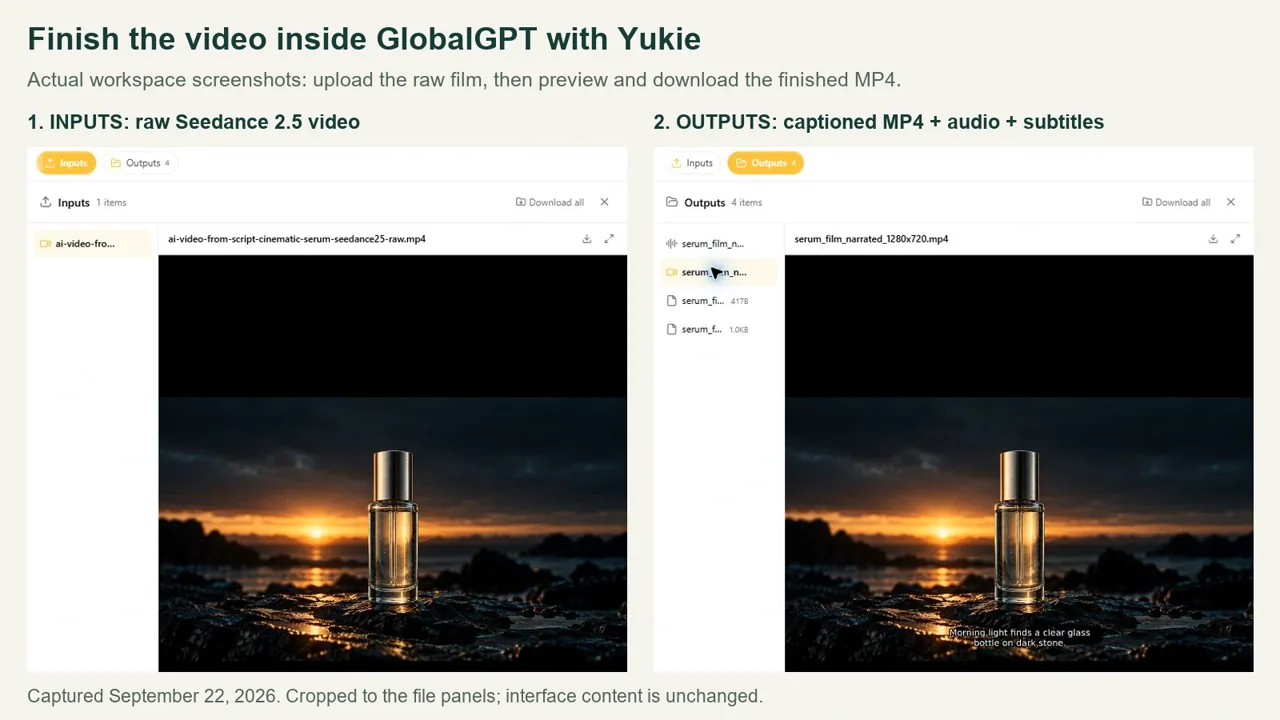
เสร็จสิ้นภายใน GlobalGPT: เปิด Yukie จากพื้นที่ทำงาน GlobalGPT, แนบไฟล์ MP4 ต้นฉบับ Seedance 2.5 MP4 และให้คำบรรยายที่ถูกต้อง ขอให้ Yukie สร้างเสียง, จัดตำแหน่งและฝังคำบรรยาย, รักษาบรรยากาศเสียงต้นฉบับ และส่งไฟล์ MP4 ที่สามารถดาวน์โหลดได้ ในการทดสอบของเรา Yukie ได้ใช้ eleven-v3 สำหรับการสังเคราะห์เสียงและประมวลผลวิดีโอในพื้นที่ทำงานที่โฮสต์บนแพลตฟอร์มของมัน การตั้งค่า Seedance Native Audio ได้สร้างบรรยากาศให้ Yukie ส่วน Yukie เองก็จัดการกับบทพูดที่แม่นยำและคำบรรยาย.
ขั้นตอนที่ 6: รวมข้อมูล ตรวจสอบ และส่งออก
ขอให้ Yukie รักษาลำดับภาพที่ได้รับการอนุมัติไว้ ให้คำบรรยายและคำอธิบายภาพสอดคล้องกัน และส่งออกเป็นไฟล์ MP4 ในรูปแบบ H.264/AAC เปิดไฟล์ที่ส่งออกได้จาก ผลลัพธ์ และดาวน์โหลดมันมา ตรวจสอบขนาดจริง ความยาว เสียง ขนาดตัวอักษรของคำบรรยาย และเวลาที่ตรงกันระหว่างประโยคกับฉาก หากมีอะไรผิดพลาด ให้ขอให้แก้ไขในบทสนทนา Yukie เดียวกันนั้น กระบวนการทำงานแบบภาพยนตร์ต่อเนื่องของเราไม่จำเป็นต้องใช้โปรแกรมตัดต่อภายนอก.
หากคุณกำลังประเมินโครงการที่มีหลายขั้นตอน ให้ตรวจสอบว่า ระบบเครดิตวิดีโอ AI ทำงาน ก่อนที่จะใช้เงินส่วนใหญ่ของงบประมาณไปกับการสร้างรุ่นแรกๆ ให้เก็บกำลังไว้พอสำหรับการแก้ไขอย่างน้อยหนึ่งครั้งสำหรับภาพที่มีความเสี่ยงสูงที่สุด.
วิดีโอ AI แบบปฏิบัติจริงของเราจาก Script Test
การทดสอบของเราได้ดำเนินการตามขั้นตอนการทำงานแบบครบวงจรภายใน GlobalGPT: ใช้ GPT Image 2 เป็นข้อมูลอ้างอิงทางภาพ, ใช้ Seedance 2.5 ที่มาพร้อมระบบเป็นแหล่งฟุตเทจ, และใช้ Yukie สำหรับการสร้างเสียงพูด การใส่คำบรรยายแบบฝัง การผสมเสียงบรรยากาศ และการส่งออก วิดีโอด้านล่างคือไฟล์ MP4 ที่เสร็จสมบูรณ์จากขั้นตอนการทำงานดังกล่าว.
บทสรุปการทดสอบ
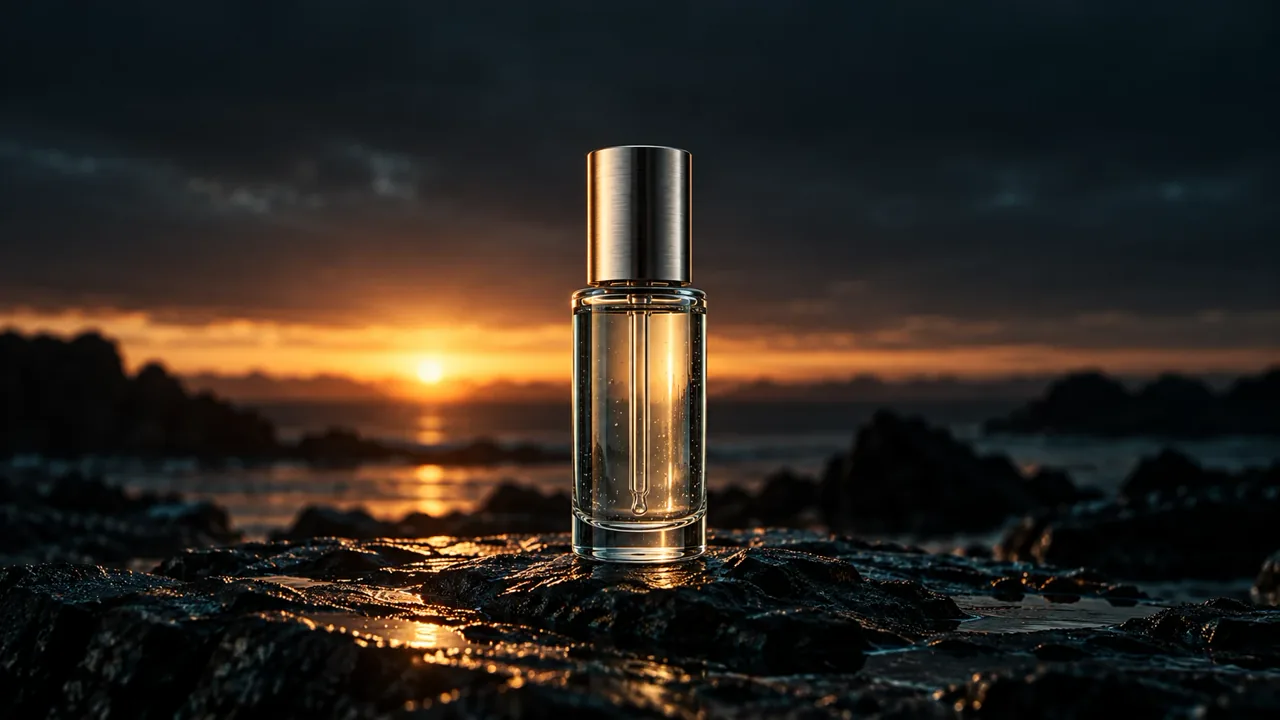
เราได้ขอให้ผลิตภาพยนตร์ดูแลผิวแบบภาพยนตร์ความยาว 28 วินาที ในสัดส่วน 16:9 โดยเน้นไปที่ขวดเซรั่มใสหนึ่งขวดที่มีฝาปิดสีเงินแบบขัดเงา การออกแบบศิลป์เน้นไปที่หินถ่านเปียก แสงอาทิตย์ขึ้นที่อบอุ่น แสงสะท้อนสีเทียลที่นุ่มนวล รายละเอียดแบบมาโคร และการเคลื่อนไหวของกล้องแบบพรีเมียมที่ช้าๆ.
คำบรรยายที่มี 43 คำนั้นคือ:
แสงเช้าส่องลงบนขวดแก้วใสที่วางอยู่บนหินสีเข้ม น้ำล้อมรอบฐานขวดและสะท้อนแสงสีทอง เมื่อเดินเข้าไปใกล้ หยดน้ำเล็กๆ ก็เผยให้เห็นพื้นผิวของขวด การหมุนขวดอย่างช้าๆ และเงียบๆ ก็เผยให้เห็นทุกรายละเอียด ความสะอาด ความตั้งใจ และความพร้อมสำหรับภาพแรกของแคมเปญใหม่.
นอกจากนี้ เรายังได้ตัดออกภาพบุคคล โลโก้ ตัวอักษรที่สร้างขึ้นด้วยระบบอัตโนมัติ ขวดที่ซ้ำกัน ข้อผิดพลาดทางเรขาคณิตที่เห็นได้ชัด และลายน้ำ.
แบบจำลองและโครงสร้าง
ขั้นตอนการทำงานที่ใช้:
- GPT Image 2 สำหรับผู้เข้าชิงสองคนในประเภทภาพเปิดแบบ 16:9;
- Seedance 2.5 สำหรับวิดีโอความยาวต่อเนื่อง 28 วินาที ที่ความละเอียด 720p;
- การสร้างเสียงด้วย eleven-v3 ผ่าน Yukie ใน GlobalGPT โดยใช้เสียงเริ่มต้นของโมเดล route;
- คำบรรยายภาษาอังกฤษที่ปรับเวลาให้ตรงกับเสียงที่สร้างขึ้น และถูก Yukie ฝังลงในวิดีโอ;
- น้ำต้นทางและบรรยากาศในห้อง ผสมกันที่ 16% ใต้เสียงภายในตัว Yukie.
ห้าขั้นตอนการถ่ายภาพ ได้แก่ ภาพเปิดฉาก ภาพมาโครของน้ำและพื้นผิว ภาพมาโครของหยดน้ำ ภาพมาโครที่แสดงรายละเอียดของขวด และภาพองค์ประกอบหลักสุดท้าย.

สร้างภาพยนตร์ 5 ขั้นตอน
สำหรับภาพยนตร์ของคุณเอง ให้ใช้คำบรรยาย 43 คำข้างต้นเป็นบทพูด และเริ่มจากคำแนะนำด้านล่างนี้ ตั้งเป้าหมายให้ตรงกับช่วงเวลา 5 ช่วงในแผนการถ่าย แล้วปรับการเปลี่ยนฉากให้เหมาะสมกับคลิปวิดีโอที่สร้างขึ้นและคำบรรยายที่วัดเวลาแล้ว.
| หน้าต่างที่แนะนำ | สัญญาณบอกเล่า | งานด้านภาพ |
|---|---|---|
| 0–5.5 วินาที | แสงเช้าส่องลงบนขวดแก้วใสที่วางอยู่บนหินสีดำ. | จัดวางขวดและอุปกรณ์ให้ครบถ้วน. |
| 5.5–10 วินาที | น้ำไหลวนรอบฐานและเก็บทองไว้. | แสดงน้ำและภาพสะท้อนที่อบอุ่นบริเวณฐาน. |
| 10–15 วินาที | เมื่อเข้าใกล้ขึ้น หยดน้ำเล็กๆ ก็เผยให้เห็นพื้นผิว. | แสดงหยดน้ำและพื้นผิวของแก้ว. |
| 15–19 วินาที | เพียงการหมุนตัวที่เงียบสงบครั้งเดียว ก็เผยให้เห็นทุกรายละเอียด. | แสดงรายละเอียดของฝาและขวดด้วยวงโคจรที่เรียบง่าย. |
| 19–28 วินาที | สะอาด เรียบร้อย และพร้อมสำหรับเฟรมแรกของแคมเปญใหม่. | กลับสู่ฉากของวีรบุรุษ; ทิ้งท้ายด้วยตอนจบที่เงียบสงบ. |
ข้อความแจ้งเตือนในเฟรมแรก: ใช้สิ่งนี้เพื่อสร้างจุดยึดทางภาพก่อนที่จะใช้เครดิตไปกับการผลิตวิดีโอ.
สร้างภาพเปิดแบบภาพยนตร์ในสัดส่วน 16:9 สำหรับภาพยนตร์ผลิตภัณฑ์ดูแลผิวระดับพรีเมียม ขวดเซรั่มแก้วใสหนึ่งขวดที่มีฝาปิดสีเงินแบบขัดผิว ตั้งอยู่บนหินถ่านเปียก แสงอาทิตย์ยามเช้าที่อบอุ่นส่องมาจากด้านหนึ่ง พร้อมด้วยเงาสะท้อนสีเทียลที่ดูนุ่มนวลในส่วนเงา ให้ขวดและฝาปรากฏให้เห็นอย่างครบถ้วน พร้อมพื้นที่รอบฐานเพื่อสะท้อนภาพน้ำ ความหนาของแก้วที่สมจริง พื้นผิวโลหะ หยดน้ำเล็กๆ และการสะท้อนแสงตามธรรมชาติ การจัดองค์ประกอบที่เรียบง่ายและสงบ เหมาะสำหรับการซูมเข้าด้วยกล้องอย่างช้าๆ ไม่มีคน มือ ขวดซ้ำ โลโก้ ตัวอักษรที่อ่านได้ คำบรรยาย หรือกราฟิกที่คล้ายลายน้ำ.
เพื่อทำตามการเลือกแบบต้นแบบ ให้เปิด GPT Image 2 in GlobalGPT. สร้างภาพตัวอย่างสองภาพในอัตราส่วน 16:9 และเลือกภาพที่มีรูปทรงขวดที่ชัดเจน ฝาขวดครบถ้วน และภาพสะท้อนที่ดูสมจริง เก็บภาพนั้นไว้เป็นเฟรมเริ่มต้นของวิดีโอ.
คำชี้แจงสำหรับวิดีโอ: คัดลอกข้อความทั้งหมดลงในช่องคำสั่งวิดีโอ โดยอย่าใส่คำบรรยายลงในส่วนคำแนะนำทางภาพ.
สร้างภาพยนตร์ผลิตภัณฑ์ดูแลผิวแบบภาพยนตร์ความยาว 28 วินาที ในอัตราส่วน 16:9 โดยใช้เฟรมเริ่มต้นที่ให้มา รักษาองค์ประกอบเดิมไว้ตลอดทั้งคลิป ได้แก่ ขวดเซรั่มแก้วใส ฝาเงินแบบขัดเงา หินถ่านเปียก ทิศทางแสงอาทิตย์ขึ้นที่อบอุ่น และเงาสีเทียลที่ดูเรียบง่าย ใช้ห้าขั้นตอนภาพที่ออกแบบมาอย่างตั้งใจ พร้อมการเปลี่ยนฉากที่นุ่มนวล:

0–5.5 วินาที: แสดงขวดเต็มตัวบนหินเปียกสีมืด; ซูมเข้าอย่างช้าๆ พร้อมเส้นขอบฟ้าที่มั่นคง
5.5–10 วินาที: เปลี่ยนมุมมองเป็นมาโครต่ำที่น้ำไหลวนรอบฐานขวดเดียวกัน; จับภาพสะท้อนสีทองเล็กๆ
10–15 วินาที: แสดงหยดน้ำเล็กๆ บนแก้วในรายละเอียดใกล้ๆ; เปลี่ยนจุดโฟกัสอย่างละเอียดอ่อนโดยไม่เปลี่ยนรูปทรงของขวด
15–19 วินาที: หมุนรอบขวดอย่างช้าๆ และไม่มากเกินไป เพื่อเผยให้เห็นฝาเงินและรายละเอียดของแก้ว; รักษาขวดให้ตั้งตรงและสามารถระบุได้
19–28 วินาที: ค่อยๆ เข้าสู่การจัดองค์ประกอบหลักที่สะอาดของขวดเดียวกัน และคงภาพสุดท้ายที่สงบ

ใช้ผลิตภัณฑ์เพียงชิ้นเดียวเท่านั้น ไม่มีการเพิ่มสถานที่ใหม่ บุคคล มือ โลโก้ ข้อความที่อ่านได้ คำบรรยาย ขวดเพิ่มเติม การเปลี่ยนรูปทรง การเปลี่ยนรูปอย่างรวดเร็ว กล้องสั่น หรือการเปลี่ยนแปลงแสงอย่างกะทันหัน ขอให้ใช้เสียงน้ำไหลเบาๆ และบรรยากาศห้องโดยไม่มีเสียงพูดหรือเพลง เพิ่มคำบรรยายและคำบรรยายภาพของแคมเปญที่ถูกต้องเข้าไปใน Yukie ภายใน GlobalGPT ในภายหลัง เป้าหมายด้านเวลาจะกำหนดลำดับการถ่าย; รักษาการเคลื่อนไหวที่ต่อเนื่องแทนที่จะบังคับตัดภาพอย่างกะทันหัน.
- เปิด Seedance 2.5 ใน GlobalGPT และเลือก เฟรมสำคัญ.
- อัปโหลดภาพที่คุณเลือกไว้ใต้ เฟรมเริ่มต้น. สำหรับขั้นตอนการทำงานนี้ ให้ทิ้งช่องกรอบท้าย (หากมี) ไว้ว่าง.
- วางข้อความคำสั่งวิดีโอลงไป ตั้งค่า อัตราส่วนภาพ: 16:9, ระยะเวลา: 28S, และ ความละเอียด: 720p. เก็บไว้ เสียงต้นฉบับ เปิดเพื่อสร้างบรรยากาศ; ปิด เพิ่มประสิทธิภาพคำแนะนำ ไปเพื่อควบคุมเนื้อหาให้เหมาะสม.
- ตรวจสอบเฟรมเริ่มต้น ข้อความแจ้งเตือน ระยะเวลา และความละเอียด แล้วกด สร้าง.
- ตรวจสอบคลิปที่เสร็จแล้วเพื่อตรวจสอบความต่อเนื่องของเนื้อหา จากนั้นดาวน์โหลดไฟล์ MP4 ดิบและแนบเข้าไปใน Yukie ภายใน GlobalGPT ให้เวอร์ชันนี้ไม่มีคำบรรยายหรือเสียงบรรยายเพิ่มเติม เพื่อให้ขั้นตอนการปรับแต่งขั้นสุดท้ายเริ่มต้นจากวิดีโอต้นฉบับและบรรยากาศเดิม.
สิ่งที่ได้ผล
ผลลัพธ์ที่โดดเด่นที่สุดคือความต่อเนื่องของผลิตภัณฑ์ ขวดและฝาที่ขัดเงายังคงสามารถระบุได้ชัดเจน ตั้งแต่ภาพมุมกว้างที่แสดงภาพรวม ไปจนถึงภาพระยะใกล้ของหยดน้ำและวัสดุต่าง ๆ แก้ว น้ำ โลหะ และหินเปียกก็ยังคงรักษาความชัดเจนได้ดีแม้ในมุมกล้องที่เปลี่ยนไป ส่วนภาพมาโครก็สร้างความหลากหลายทางภาพได้โดยไม่จำเป็นต้องเพิ่มผลิตภัณฑ์อื่นเข้ามา.
ไฟล์ที่ Yukie ส่งออกมีระยะเวลา 28.06 วินาที ที่ความละเอียด 1280 × 720 และ 24 fps พร้อมวิดีโอ H.264 และเสียงสเตอริโอ AAC เราได้ดาวน์โหลดไฟล์จริงมาตรวจสอบพารามิเตอร์และเฟรมที่มีคำบรรยาย Yukie รายงานผลการตรวจสอบสื่อว่าคำพูดภาษาอังกฤษตรงกับบทสนทนาและยังคงฟังเข้าใจได้แม้ในสภาพแวดล้อมเสียงพื้นหลังที่เงียบสงบ.
สิ่งที่จำเป็นต้องแก้ไข
การเรนเดอร์คำบรรยายครั้งแรกของ Yukie มีขนาดใหญ่เกินไปและถูกแบ่งเป็นสามบรรทัด ระบบตรวจสอบอัตโนมัติได้ตรวจพบปัญหานี้ และในการเรนเดอร์ครั้งที่สอง ได้ใช้พื้นที่แสดงคำบรรยายที่กำหนดไว้อย่างชัดเจนขนาด 1280 × 720 พร้อมข้อความสีขาวขนาด 28 พิกเซล เส้นขอบสีดำ และไม่มีแผงทึบ เราได้ตรวจสอบเฟรมที่ดาวน์โหลดมาที่เวลา 2, 6, 10, 14 และ 18 วินาที: คำบรรยายยังคงอยู่ในสองบรรทัด.
วิดีโอที่สร้างขึ้นและไฟล์ที่ส่งออกสุดท้ายมีขนาด 1280 × 720 ทั้งสอง ดังนั้นเวอร์ชันนี้จึงไม่ใช้การปรับความละเอียดขึ้นเป็น 1080p หน้าเกี่ยวกับ Seedance รองรับความละเอียด 1080p หรือไม่ อธิบายว่าทำไมการตั้งค่าแบบจำลอง ขนาดการสร้างความละเอียดแบบเนทีฟ และความละเอียดในการส่งมอบขั้นสุดท้าย จึงควรบันทึกไว้อย่างแยกกัน.
Yukie ได้รักษาบรรยากาศต้นฉบับไว้ที่ 16% และผสมมันให้อยู่ใต้เสียงบรรยาย จังหวะการเล่าเรื่องยังต้องปรับปรุง: เสียงบรรยายจบลงประมาณ 19.2 วินาที และบางประโยคปรากฏขึ้นก่อนฉากภาพที่เกี่ยวข้อง การจัดเวลาของคำบรรยายตามเสียงพูด แต่การปรับให้เสียงพูดตรงกับภาพเป็นขั้นตอนการตรวจสอบที่แยกต่างหาก คำแนะนำต่อไปนี้แสดงวิธีขอให้ Yukie ปรับเปลี่ยนส่วนดังกล่าวโดยไม่ต้องสร้างคลิปวิดีโอใหม่.
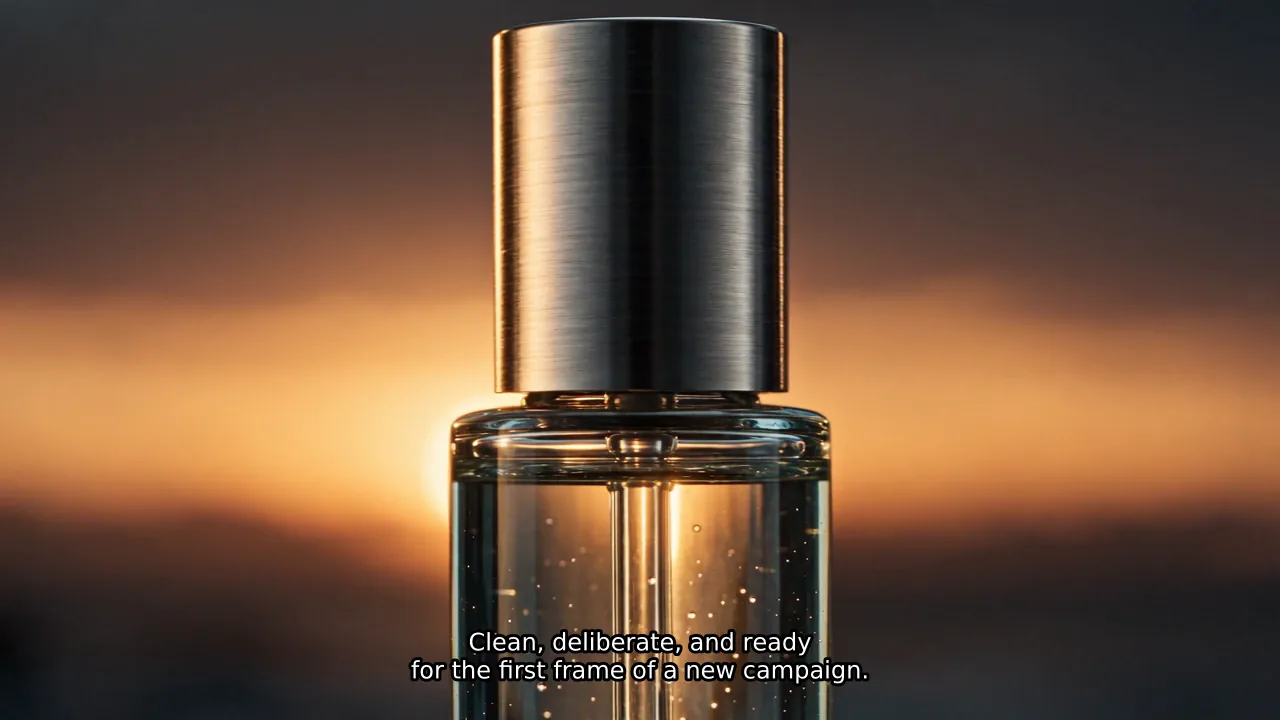
เสร็จสิ้นการบันทึกเสียงบรรยาย คำบรรยาย และเสียงใน Yukie
เปิด พื้นที่ทำงาน GlobalGPT และเลือก ยูคิเอะ. แนบไฟล์ MP4 ต้นฉบับ Seedance เข้าสู่การสนทนา แล้วตรวจสอบให้แน่ใจว่าไฟล์นั้นปรากฏอยู่ใต้ ข้อมูลนำเข้า. ไฟล์ต้นฉบับที่เราอัปโหลดมาประกอบด้วยภาพผลิตภัณฑ์และเสียงบรรยากาศต้นฉบับ โดยไม่มีเสียงบรรยายหรือคำบรรยายที่เสร็จสมบูรณ์.
คำสั่งให้เสร็จสิ้น: โปรดคัดลอกและวางคำขอด้านล่างนี้ พร้อมแนบไฟล์วิดีโอต้นฉบับของคุณมาด้วย คำขอนี้ระบุขั้นตอนการประมวลผลขั้นสุดท้ายที่เหมือนกันกับที่ใช้ในการทดสอบของเรา.
โปรดเสร็จสิ้นวิดีโอการดูแลผิว Seedance 2.5 ที่แนบมาในรูปแบบดิบทั้งหมดภายในพื้นที่ทำงาน GlobalGPT นี้ รักษาภาพที่มีอยู่ ลำดับการถ่าย ความยาวประมาณ 28.06 วินาที ความละเอียด 1280 x 720 และ 24 fps ให้คงเดิม ห้ามสร้างฟุตเทจใหม่ ปรับความละเอียดให้สูงขึ้น เพิ่มเพลง ใช้อวาตาร์ หรือเปลี่ยนเสียงบรรยากาศต้นฉบับ

ใช้คำบรรยายนี้อย่างแม่นยำด้วยเสียงภาษาอังกฤษที่สงบและเป็นธรรมชาติ:
แสงเช้าส่องลงบนขวดแก้วใสที่วางอยู่บนหินสีเข้ม น้ำล้อมรอบฐานขวดและสะท้อนแสงสีทอง เมื่อเข้าใกล้ขึ้น หยดน้ำเล็กๆ เผยให้เห็นพื้นผิว การหมุนอย่างเงียบๆ แสดงให้เห็นทุกรายละเอียด สะอาด ละเอียด และพร้อมสำหรับเฟรมแรกของแคมเปญใหม่

ตรวจสอบวิดีโอที่แนบมาก่อน สร้างคำบรรยายด้วยโมเดลเสียง GlobalGPT ที่มีอยู่ และรายงานโมเดลและเสียงที่ใช้ พยายามให้จบการพูดภายใน 25.5 วินาที วัดเวลาการพูดจริงและสร้างคำบรรยายที่ตรงกันโดยไม่มีการทับซ้อนของคำบอก ฝังคำบรรยายลงในวิดีโอ: ข้อความสีขาวขนาดกะทัดรัด, เส้นขอบสีดำ, ไม่มีแผงทึบ, สูงสุดสองบรรทัด, ขอบปลอดภัย, และพื้นที่คำบรรยายที่ชัดเจนขนาด 1280 x 720

ผสมเสียงบรรยากาศต้นฉบับไว้ใต้เสียงบรรยาย, เริ่มจากระดับเสียงต้นฉบับ 16% ตรวจสอบความชัดเจนของเสียงและปรากฏการณ์คลิปปิ้ง ส่งออกไฟล์ MP4 H.264/AAC ที่ใช้งานได้จริง และตรวจสอบระยะเวลา ความละเอียด อัตราเฟรม เสียง และรูปแบบการจัดวางคำบรรยาย ส่งคืนไฟล์ MP4 ที่สามารถดาวน์โหลดได้ พร้อมด้วยไฟล์ MP3 ของคำบรรยายและไฟล์ SRT แยกต่างหาก ดำเนินการปรับแต่งขั้นสุดท้ายในพื้นที่ทำงานนี้; ไม่ส่งคืนเพียงคำแนะนำสำหรับโปรแกรมแก้ไขภายนอกเท่านั้น.
- ให้ Yukie ตรวจสอบไฟล์แนบและสร้างข้อความพูด การทดสอบของเราได้ใช้ eleven-v3 ด้วยเสียงเริ่มต้นของเส้นทางแบบจำลอง ให้บันทึกเสียงบรรยายที่ระบบส่งกลับมา เพื่อที่ทีมปรับเวลาจะสามารถนำเสียงนั้นมาใช้ใหม่ได้.
- ตรวจสอบคำบรรยายที่แสดงผล ไม่ใช่เพียงข้อความ SRT เท่านั้น ขอให้ Yukie ตรวจสอบเฟรมหนึ่งจากทุกประโยค ให้เหลือไม่เกินสองบรรทัด และแก้ไขข้อความที่มีขนาดใหญ่เกินไปในบทสนทนาเดียวกัน.
- ขอให้ตรวจสอบเสียงบรรยากาศพื้นหลังที่อยู่ใต้เสียงพูด และตรวจสอบคุณภาพเสียงด้วยครับ การผสมเสียงเริ่มต้นของเราคือ 16% ระดับเสียงต้นทาง; ปรับระดับเสียงนี้หากเสียงรอบข้างทำให้คำพูดฟังไม่ชัดเจน.
- เปิด ผลลัพธ์, เลือกไฟล์ MP4 และดูตัวอย่าง ใช้ ดาวน์โหลด คลิกปุ่มเพื่อบันทึกวิดีโอที่เสร็จเรียบร้อยแล้ว; นอกจากนี้ ให้เก็บไฟล์ MP3 และ SRT ไว้เป็นไฟล์สำรองสำหรับการแก้ไข.
- ตรวจสอบไฟล์ MP4 ที่ดาวน์โหลดมาด้วยตัวเอง ไฟล์ของเราคือ 28.06 วินาที, 1280 × 720, 24 fps, H.264/AAC สเตอริโอ. ดูหนังเต็มเรื่อง ฟังจนจบ และตรวจสอบคำบรรยายบนหน้าจอขนาดโทรศัพท์ก่อนนำไปใช้ในที่สาธารณะ.
หากคำบรรยายนำทางภาพ: เวอร์ชันแรกที่เสร็จสมบูรณ์ของเราใช้เวลาอ่านสคริปต์ประมาณ 19.2 วินาที โดยเหลือส่วนท้ายที่มีเพียงเสียงบรรยากาศเท่านั้นเป็นเวลา 8.8 วินาที ต่อไปนี้คือการปรับเวลาที่ขอให้คุณดำเนินการต่อไป; วิดีโอที่ฝังไว้ด้านบนแสดงผลการส่งออกก่อนการปรับนี้.
ปรับเวลาของการตัดต่อที่มีอยู่ใน Yukie ให้เหมาะสม ใช้คลิปวิดีโอและเสียงบรรยายที่มีอยู่เดิม; ไม่สร้างคลิปวิดีโอหรือเสียงบรรยายใหม่ แบ่งเสียงบรรยายตามจุดหยุดระหว่างประโยค และวางแต่ละประโยคข้างฉากภาพที่สอดคล้องกัน ใช้ช่วง 0–5.5, 5.5–10, 10–15, 15–19 และ 19–28 วินาที เป็นแผนเบื้องต้น จากนั้นตรวจสอบฟุตเทจจริงและปรับให้สอดคล้องกับการเปลี่ยนฉากจริง เพิ่มช่วงหยุดพักที่ดูเป็นธรรมชาติ รักษาประโยคสุดท้ายให้สอดคล้องกับองค์ประกอบของตัวละครหลัก และหลีกเลี่ยงการตัดคำหรือเร่งความเร็วเสียงอย่างไม่เป็นธรรมชาติ สร้างเวลาแสดงคำบรรยายใหม่จากคำพูดที่จัดวางใหม่ รักษาเสียงบรรยากาศต้นฉบับ และส่งออกไฟล์ MP4 ที่แก้ไขแล้วเพื่อตรวจสอบ.
Yukie รับผิดชอบการประมวลผลคำบรรยายและการผสมเสียงด้วย ฟิลเตอร์ FFmpeg ในสภาพแวดล้อมการดำเนินการที่โฮสต์โดยแพลตฟอร์ม คุณจะให้คำสั่งการแก้ไขใน GlobalGPT และรับไฟล์ผลลัพธ์ที่นั่น; วิธีนี้ไม่จำเป็นต้องตั้งค่าบรรทัดคำสั่งในเครื่องท้องถิ่น.
บทสรุปจากประสบการณ์ใช้งานจริง
GlobalGPT ครอบคลุมกระบวนการทำงานทั้งหมดของภาพยนตร์เรื่องนี้: GPT Image 2 กำหนดข้อมูลอ้างอิงของผลิตภัณฑ์, Seedance 2.5 ที่ติดตั้งมาพร้อมระบบสร้างคลิปวิดีโอต่อเนื่อง, และ Yukie ได้เพิ่มเสียงพูด คำบรรยาย การผสมเสียงบรรยากาศ และการส่งออกเป็นไฟล์ MP4 การตรวจสอบโดยมนุษย์ยังคงมีความสำคัญต่อขนาดของคำบรรยายและเวลาการจับคู่ระหว่างประโยคกับฉาก แต่การแก้ไขเหล่านั้นสามารถขอได้ในพื้นที่ทำงานเดียวกัน.
เริ่มจาก พื้นที่ทำงานแบบออลอินวัน GlobalGPT: อนุมัติแบบร่างภาพ, สร้างคลิปวิดีโอ, แล้วใช้ Yukie เพื่อปรับแต่งเสียงและคำบรรยายในขั้นตอนสุดท้าย.
ปัญหาทั่วไปในการแปลงสคริปต์เป็นวิดีโอและวิธีแก้ไข
| ปัญหา | เหตุผลที่น่าจะเป็นไปได้ | ลองดูอะไรบ้าง |
|---|---|---|
| วิดีโอนี้ดูเหมือนภาพนิ่งหนึ่งภาพที่กำลังเคลื่อนไหว | คำอธิบายฉากนี้อธิบายถึงการจัดวางองค์ประกอบ แต่ไม่มีการกระทำใดๆ | เพิ่มการเคลื่อนไหวของตัวแบบหรือการเคลื่อนไหวของกล้องที่ชัดเจนหนึ่งครั้ง |
| ฉากต่าง ๆ ดูเหมือนไม่มีความเกี่ยวข้องกัน | แต่ละคำสั่งใช้ภาษาในสไตล์ที่แตกต่างกัน | ใช้บล็อกสไตล์และกรอบอ้างอิงเดียวกันซ้ำในหลายฉาก |
| ตัวละครเปลี่ยนไปในแต่ละฉาก | ข้อมูลเกี่ยวกับตัวตนไม่ชัดเจนหรือมีความขัดแย้งกัน | หน้าตา, ผม, ชุดแต่งตัว, อายุ, โทนสี และภาพตัวอย่าง |
| วัตถุละลายหรือกระพริบ | มีการแปลงรูปแบบเกิดขึ้นมากเกินไปในคลิปเดียว | ลดการเคลื่อนไหว, ตัดฉากให้สั้นลง หรือสร้างใหม่จากเฟรมที่ชัดเจนขึ้น |
| เสียงบรรยายยังคงดังต่อไปหลังจากจุดตัด | การประมาณเวลาทำขึ้นจากคำเท่านั้น | สร้างเสียงก่อน แล้ววัดระยะเวลาเสียงจริง |
| คำบรรยายไม่ตรงกัน | สคริปต์ได้เปลี่ยนแปลงไปหลังจากสร้างคำบรรยาย | สร้างคำบรรยายจากบทพูดฉบับสุดท้าย และตรวจสอบทีละบรรทัด |
| ข้อความภายในภาพมีรูปแบบผิด | โมเดลวิดีโอนี้กำลังพยายามแสดงผลแบบอักษร | อย่าใส่ข้อความลงในภาพ และเพิ่มชื่อภาพขณะแก้ไข |
| ในส่วนข้อมูลการส่งออกระบุว่า 1080p แต่ภาพดูไม่คมชัด | คลิปที่มีความละเอียดต่ำได้ถูกขยายให้ใหญ่ขึ้น | ตรวจสอบความละเอียดของแหล่งต้นฉบับ และสร้างคลิปที่มีความละเอียดสูงยิ่งขึ้นเมื่อมีข้อมูลดังกล่าว |
| เครดิตหายไปเร็วเกินไป | คลิปที่ยาวหรือการลองใหม่ถูกสร้างขึ้นโดยไม่มีงบประมาณ | ลองถ่ายฉากสั้นที่มีความเสี่ยงก่อน และเก็บเครดิตไว้สำหรับการแก้ไข |
ปัญหาเหล่านี้ส่วนใหญ่สามารถป้องกันได้. The รายการตรวจสอบข้อผิดพลาดในวิดีโอ AI เป็นเครื่องมือที่มีประโยชน์ก่อนการส่งออกขั้นสุดท้าย.
วิธีเขียนบทที่ดีขึ้นสำหรับวิดีโอ AI
เขียนให้เหมาะกับทั้งการฟังและหน้าจอไปพร้อมกัน ผู้บรรยายสามารถอธิบายแนวคิดที่เป็นนามธรรมได้ แต่ฉากนั้นยังคงต้องมีวัตถุที่มองเห็นได้ การกระทำ และความสัมพันธ์ทางพื้นที่.
ใช้แม่แบบฉากนี้:
คำบรรยาย:
[คำพูดที่ผู้ชมจะได้ยิน]

วัตถุประสงค์ทางภาพ:
[แนวคิดหลักที่ฉากนี้ต้องสื่อถึง]

ช็อต:
[หัวข้อ, ฉาก, การจัดองค์ประกอบ, การเคลื่อนไหว, และการเคลื่อนไหวของกล้อง]

ความต่อเนื่อง:
[สไตล์, ตัวละคร, เครื่องแต่งกาย, แสง, โทนสี, และรายละเอียดอ้างอิง]

สิ่งที่ควรหลีกเลี่ยง:
[ข้อความที่อ่านได้ชัดเจน, ตัวละครเพิ่มเติม, โลโก้, การเปลี่ยนภาพเร็วเกินไป, การสั่นของกล้อง]

ระยะเวลาเป้าหมาย:
[ความยาวของคำบรรยายที่วัดได้ บวกกับช่วงหยุดสั้นๆ]
ให้ประโยคบรรยายสั้นพอที่จะใส่เป็นคำบรรยายได้อย่างชัดเจน แทนที่คำนามนามธรรมที่ซ้อนกันด้วยคำกริยาที่มองเห็นได้ชัดเจน เช่น แบ่ง, จัดแนว, เลื่อน, ล็อก, เปิด, ชี้ หรือ แปลง เมื่อประโยคหนึ่งมีภาพสองช่วง ให้แบ่งประโยคนั้นออก หรือวางแผนถ่ายสองช็อตภายในฉากเดียวกัน.
การเลือกวิดีโอ AI จากกระบวนการทำงานตามบท
| กระบวนการทำงาน | เหมาะที่สุดสำหรับ | ข้อได้เปรียบหลัก | ข้อจำกัดหลัก |
|---|---|---|---|
| เครื่องมือสร้างสคริปต์ด้วยคลิกเดียว | ร่างเนื้อหาอย่างรวดเร็ว, เอกสารอธิบายภายในองค์กร, โพสต์บนโซเชียลมีเดียแบบเรียบง่าย | การตั้งค่าขั้นต่ำ | การควบคุมความหมายและความสม่ำเสมอของภาพถ่ายลดลง |
| เครื่องกำเนิดไฟฟ้าที่ควบคุมโดยอวตาร | การฝึกอบรม, การนำเสนอ, การพูดหน้ากล้องโดยตรง | คำพูดและวิธีการนำเสนอที่คาดได้ | อาจดูทั่วไปเกินไปเมื่อหัวข้อนั้นต้องการการสาธิตด้วยภาพ |
| การสร้างฉากต่อฉาก | วิดีโออธิบายแบรนด์, เรื่องราวของผลิตภัณฑ์, ภาพที่ได้รับการควบคุม | การกำหนดจังหวะและทิศทางศิลปะที่ชัดเจนยิ่งขึ้น | การวางแผนเพิ่มเติม, เครดิต และการทบทวน |
| พื้นที่ทำงาน AI แบบครบวงจร | ทีมที่ใช้การแชท รูปภาพ วิดีโอ เสียง และเจ้าหน้าที่ | บัญชีเดียวสำหรับการสร้างและ Yukie ที่เสร็จสิ้น; ได้รับการยืนยันในภาพยนตร์ผลิตภัณฑ์นี้ | ยังต้องตรวจสอบคำบรรยาย เสียง และเวลาการจับคู่ระหว่างประโยคกับฉาก |
| เครื่องมือแก้ไขแบบดั้งเดิม พร้อมด้วยทรัพยากร AI | งานสำหรับลูกค้าและการเสร็จสิ้นที่แม่นยำ | ควบคุมเวลาและคุณภาพงานได้อย่างเต็มที่ | ใช้เวลาในการแก้ไขด้วยมือมากขึ้น |
สำหรับร่างภายในแบบรวดเร็ว การสร้างด้วยคลิกเดียวอาจเพียงพอแล้ว แต่สำหรับแคมเปญสาธารณะที่มีตัวละครที่ปรากฏซ้ำๆ หรือรายละเอียดผลิตภัณฑ์ที่แม่นยำ การควบคุมแต่ละฉากโดยละเอียดมักคุ้มค่ากับความพยายามเพิ่มเติม.
รายการตรวจสอบคุณภาพวิดีโอ AI ขั้นสุดท้าย
ก่อนที่จะเผยแพร่ ให้ตรวจสอบไฟล์ที่ส่งออกและยืนยันว่า:
- 5 วินาทีแรกช่วยให้หัวข้อชัดเจน;
- ฉากต่าง ๆ จะดำเนินไปตามบทตามลำดับที่กำหนดไว้;
- ทุกภาพที่ปรากฏจะสนับสนุนคำพูดที่กำลังกล่าวอยู่;
- ตัวละครที่ปรากฏซ้ำๆ, ผลิตภัณฑ์, โทนสี และแสงยังคงมีความสม่ำเสมอ;
- ไม่มีกรอบใดที่มีข้อความผิดรูปแบบ โลโก้ที่ไม่ตั้งใจ หรือวัตถุที่ไม่สามารถอธิบายได้;
- เสียงบรรยายฟังได้ชัดเจน ฟังเป็นธรรมชาติ และไม่ถูกตัดขาดที่จุดเปลี่ยนฉาก;
- คำบรรยายต้องสอดคล้องกับเสียงบรรยายและอยู่ภายในขอบปลอดภัย;
- เพลง (หากมี) ได้รับการอนุญาตใช้และระดับเสียงต้องต่ำกว่าเสียงพูด;
- ไม่มีการซ้ำภาพ เว้นแต่การซ้ำนั้นเป็นไปตามเจตนา;
- ความยาวสุดท้าย อัตราส่วนภาพ ความละเอียด โคเดก และขนาดไฟล์ต้องเหมาะสมกับแพลตฟอร์มการเผยแพร่;
- ได้ตรวจสอบข้อกำหนดเกี่ยวกับการใช้ในเชิงพาณิชย์และการเปิดเผยข้อมูลสำหรับเครื่องมือและทรัพยากรที่เลือกไว้แล้ว.
คำถามที่พบบ่อย
AI สามารถเปลี่ยนบทภาพยนตร์ทั้งเรื่องให้เป็นวิดีโอได้หรือไม่?
ใช่ครับ เครื่องมือ AI สามารถแบ่งบทเป็นฉากต่าง ๆ สร้างหรือเลือกภาพ สร้างเสียงบรรยาย เพิ่มคำบรรยาย และส่งออกวิดีโอได้ ผลลัพธ์จะดีขึ้นหากคุณตรวจสอบแผนฉากก่อน บทที่ยาวควรผลิตเป็นส่วน ๆ เพื่อสามารถปรับเวลา ความสอดคล้องของภาพ และแก้ไขฉากที่ถ่ายไม่สำเร็จได้ โดยไม่ต้องสร้างวิดีโอใหม่ทั้งหมด.
AI ใดที่ดีที่สุดสำหรับการสร้างวิดีโอจากบทเขียน?
ไม่มีตัวเลือกเดียวที่ดีที่สุดสำหรับทุกสคริปต์ เครื่องมือ Avatar เหมาะสำหรับการฝึกอบรมที่ผู้นำเสนอเป็นผู้ควบคุม เครื่องมือสร้างด้วยคลิกเดียวเหมาะสำหรับการเขียนร่างอย่างรวดเร็ว และกระบวนการทำงานแบบภาพเป็นวิดีโอที่อิงตามฉากเหมาะสำหรับเรื่องราวภาพที่มีการควบคุมอย่างละเอียด ให้เลือกตามความสม่ำเสมอที่ต้องการ การควบคุมการแก้ไข ความละเอียดของผลลัพธ์ เงื่อนไขทางการค้า และค่าใช้จ่ายในการสร้างคลิปใหม่เมื่อคลิปเดิมไม่สำเร็จ.
AI สามารถเพิ่มเสียงบรรยายและคำบรรยายได้โดยอัตโนมัติหรือไม่?
ใช่ครับ ในการทดสอบ GlobalGPT ของเรา Yukie ได้สร้างเสียงพูดภาษาอังกฤษ ใส่คำบรรยายที่ตรงกัน ผสมเสียงบรรยากาศต้นฉบับ และส่งออกไฟล์ MP4 ที่เสร็จสมบูรณ์ภายในแพลตฟอร์ม ดูไฟล์จริงได้ครับ: เราได้แก้ไขคำบรรยายที่ใหญ่เกินไป และการส่งออกครั้งแรกยังต้องปรับเวลาให้ตรงระหว่างประโยคกับฉาก.
แต่ละฉากที่สร้างขึ้นโดย AI ควรมีความยาวเท่าใด?
ใช้ความยาวของเสียงบรรยายเป็นจุดอ้างอิง วัดความยาวของเสียงจริง แล้วให้ฉากนั้นหยุดชั่วครู่ก่อนการตัดต่อ ฉากสั้นๆ ที่มีความยาวประมาณ 3 ถึง 8 วินาที มักควบคุมได้ง่ายกว่าคำสั่งยาวที่มีหลายการกระทำ แต่ระยะเวลาที่ถูกต้องจะขึ้นอยู่กับบทพูดและความซับซ้อนของภาพ.
ทำอย่างไรให้ตัวละครดูสอดคล้องกันในทุกฉากวิดีโอที่สร้างโดย AI?
สร้างภาพอ้างอิงและใช้รายละเอียดลักษณะเดียวกันในทุกคำสั่ง: ใบหน้า, ผม, อายุ, เสื้อผ้า, สัดส่วน, โทนสี, แสง, และวิธีการใช้กล้อง เปลี่ยนแปลงเฉพาะส่วนที่ฉากใหม่ต้องการเท่านั้น สำหรับโครงการที่ใช้เวลานานกว่า ให้ดูขั้นตอนการทำงานสำหรับ การสร้างวิดีโอ AI ที่ยาวด้วยตัวละครที่คงที่.
ฉันสามารถสร้างวิดีโอ AI จากบทบทได้ฟรีหรือไม่?
บางครั้ง แต่แพ็กเกจฟรีมักมีข้อจำกัดเกี่ยวกับเครดิต ระยะเวลา ความละเอียด ลายน้ำ แบบจำลอง หรือการส่งออก ลองทดสอบฉากสั้นๆ ที่เป็นตัวแทนก่อน อย่าสมมติว่าเครดิตฟรีจะเพียงพอสำหรับวิดีโอสุดท้ายที่มีหลายช็อต การบรรยาย การแก้ไข และการส่งออกความละเอียดสูง โดยไม่ตรวจสอบแพ็กเกจปัจจุบัน.
วิดีโอที่สร้างโดย AI สามารถใช้ในเชิงพาณิชย์ได้หรือไม่?
การใช้ในเชิงพาณิชย์ขึ้นอยู่กับเงื่อนไขของแพลตฟอร์ม เงื่อนไขของโมเดล แผนบริการ ทรัพย์สินต้นทาง ดนตรี เครื่องหมายการค้า และกฎหมายท้องถิ่น ให้เก็บบันทึกเครื่องมือและทรัพย์สินที่ใช้ไว้ และตรวจสอบเงื่อนไขปัจจุบันก่อนเผยแพร่ผลงานของลูกค้าหรือผลงานโฆษณา ผลลัพธ์จากโมเดลเพียงอย่างเดียวไม่สามารถยืนยันว่าดนตรี โลโก้ ภาพลักษณ์ หรือวัสดุต้นทางที่มีลิขสิทธิ์ของบุคคลที่สามได้รับการอนุญาตแล้ว.
ข้อสรุปสุดท้าย
วิธีที่เชื่อถือได้ในการสร้าง วิดีโอ AI จากบทเขียน คือการวางแผนการตัดต่อก่อนที่จะถ่ายทำคลิปวิดีโอ แบ่งคำบรรยายออกเป็นฉากๆ กำหนดงานด้านภาพให้แต่ละฉาก กำหนดสไตล์ให้คงที่ วัดความยาวของเสียงบรรยาย และตรวจสอบไฟล์ที่ส่งออก กระบวนการนี้ต้องใช้ความคิดมากกว่าการคัดลอกและวางย่อหน้า แต่จะสร้างวิดีโอที่ดูเหมือนได้รับการกำกับอย่างเป็นระบบ แทนที่จะถูกประกอบขึ้นอย่างสุ่มสี่สุ่มห้า.
สำหรับวิดีโอผลิตภัณฑ์นี้ กระบวนการทำงานทั้งหมดดำเนินการภายใน GlobalGPT: ตั้งแต่บทและแผนฉาก การอ้างอิงภาพ GPT Image 2 การใช้ฟุตเทจ 2.5 ที่มาพร้อมกับ Seedance ตามด้วยการบรรยายของ Yukie คำบรรยาย การผสมเสียง และการส่งออก เริ่มจากสตอรีบอร์ดและจบด้วยการตรวจสอบไฟล์ MP4 ที่ดาวน์โหลดมา พื้นที่ทำงานเดียวช่วยให้กระบวนการทั้งหมดเป็นหนึ่งเดียว; การตรวจสอบของคุณจะกำหนดจังหวะและปรับแต่งให้ภาพยนตร์สมบูรณ์แบบ.