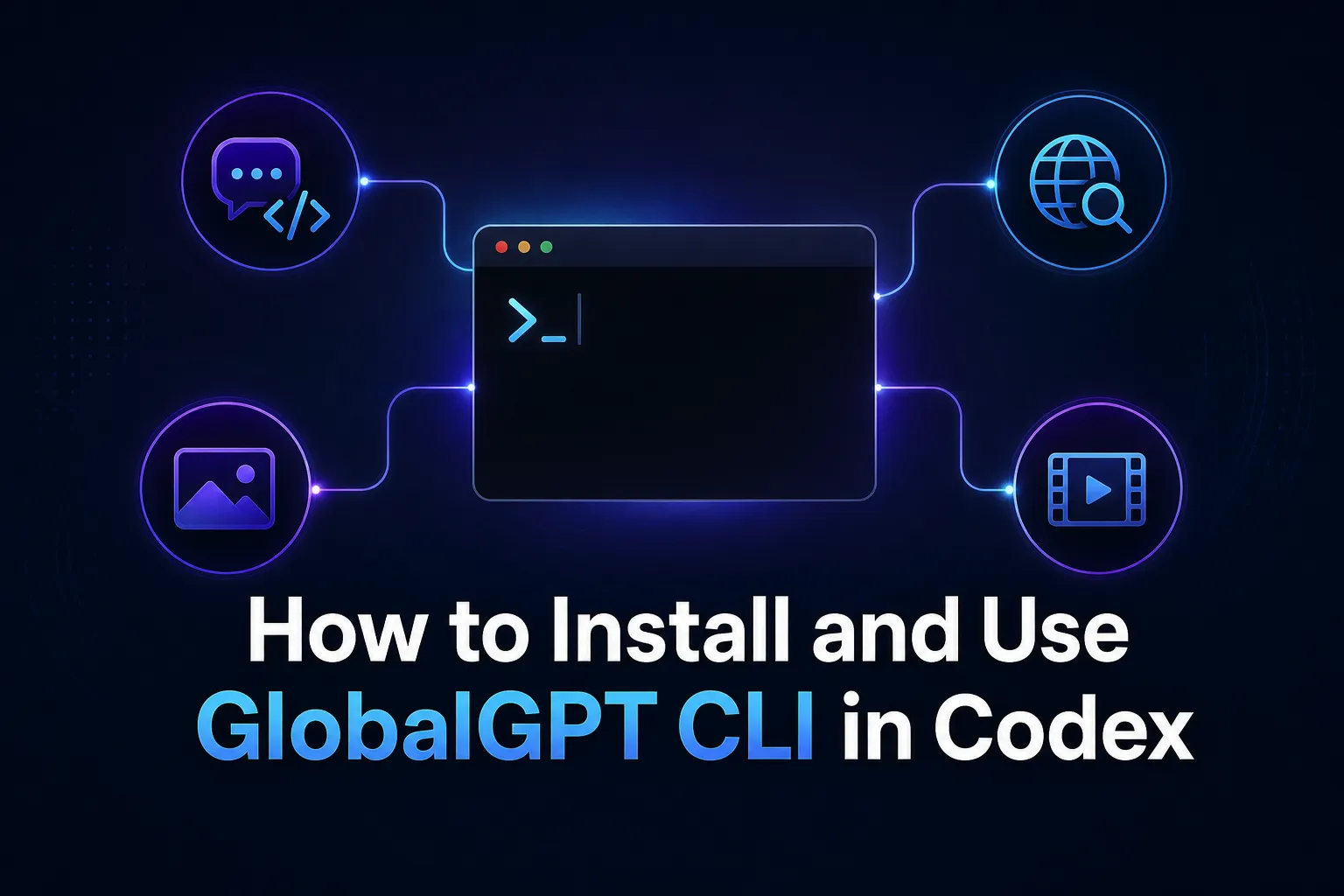
이미 실제 업무에 Codex를 사용하고 있다면, 조사, 코딩, 이미지 생성, 동영상 제작을 위해 별도의 웹사이트를 오가다 보면 작업 흐름이 금세 끊기게 됩니다. GlobalGPT CLI는 이러한 기능을 Codex에 통합하여, 동일한 작업 공간에서 파일, 작업, 다음 단계를 계속 관리하면서 GlobalGPT 모델과 도구를 호출할 수 있게 해줍니다.
이 튜토리얼에서는 Codex에서 GlobalGPT CLI를 사용하여, 초기 설치부터 정상적으로 작동하는 다중 모델 워크플로우를 구축하는 방법을 배웁니다. 터미널이나 Codex를 사용하여 공식 npm 패키지를 설치하고, GlobalGPT 계정을 인증하며, 번들로 제공되는 스킬을 활성화하고, MCP 서버에 연결한 후 설정을 확인합니다. 그런 다음 웹 검색, 코딩, 이미지 생성, 동영상 제작 등 실제 작업에 이 통합 기능을 활용해 보게 됩니다.
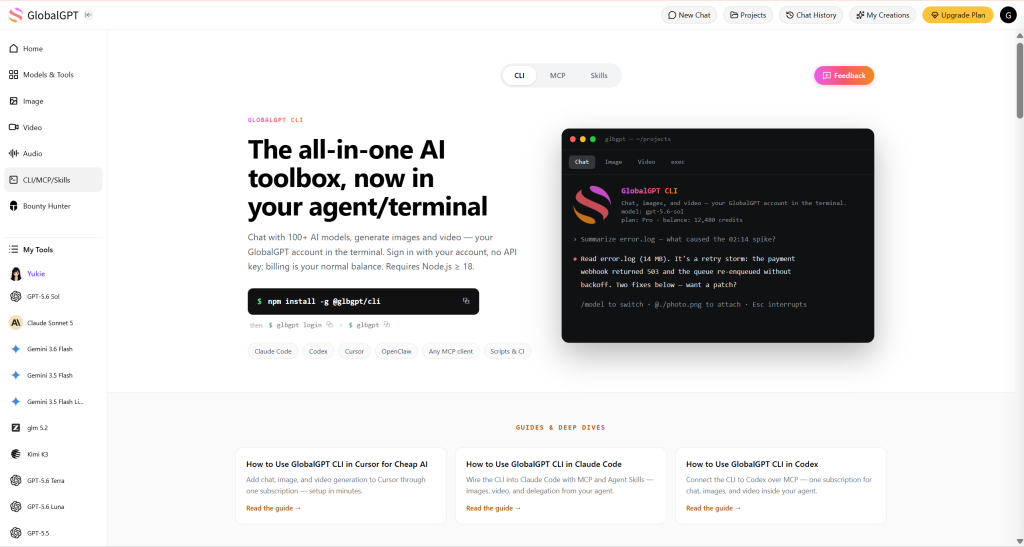
GlobalGPT가 Codex에 더하는 것
GlobalGPT CLI, 번들로 제공되는 스킬, 그리고 MCP 서버는 동일한 통합 시스템의 세 가지 구성 요소입니다. CLI는 명령어를 제공하고, 스킬은 Codex에게 해당 명령어를 언제, 어떻게 사용해야 하는지 가르치며, MCP는 GlobalGPT의 기능을 호출 가능한 도구로 제공합니다.
GlobalGPT CLI
계정, 채팅, 이미지, 동영상, 스킬 및 MCP 명령어를 제공합니다.
GlobalGPT 기술
Codex에게 채팅, 코딩, 이미지 및 동영상 관련 작업을 처리하는 방법을 가르쳐 주세요.
GlobalGPT MCP
Codex가 직접 호출할 수 있는 채팅 및 미디어 기능을 제공합니다.
세 가지 중 하나만 선택해야 하는 것은 아닙니다. 먼저 CLI를 설치한 다음, 스킬과 MCP 연결을 추가하면 Codex가 동일한 GlobalGPT 계정을 다양한 방식으로 사용할 수 있습니다.
전제 조건
시작하기 전에 다음 사항이 준비되어 있는지 확인하십시오:
- Codex가 설치되어 정상적으로 작동 중입니다.
- 컴퓨터에 Node.js와 npm이 설치되어 있어야 합니다.
- 사용하려는 모델에 필요한 크레딧이 충분히 적립된 GlobalGPT 계정.
- 일회성 인증 절차를 위한 브라우저.
macOS, Windows, Linux에서 npm 설치 명령어는 모두 동일합니다. 일반 터미널에 직접 입력하거나 Codex에 명령어를 전달할 수 있습니다.
GlobalGPT CLI 설치
아래 방법 중 하나를 선택하십시오. 두 방법 모두 동일한 공식 GlobalGPT CLI 패키지를 설치하며, 이후 설정 단계도 동일합니다.
방법 1: 터미널에서 GlobalGPT CLI 설치하기
터미널, PowerShell 또는 선호하는 명령줄 애플리케이션을 열고 공식 설치 명령을 실행하십시오:
npm i -g @glbgpt/cli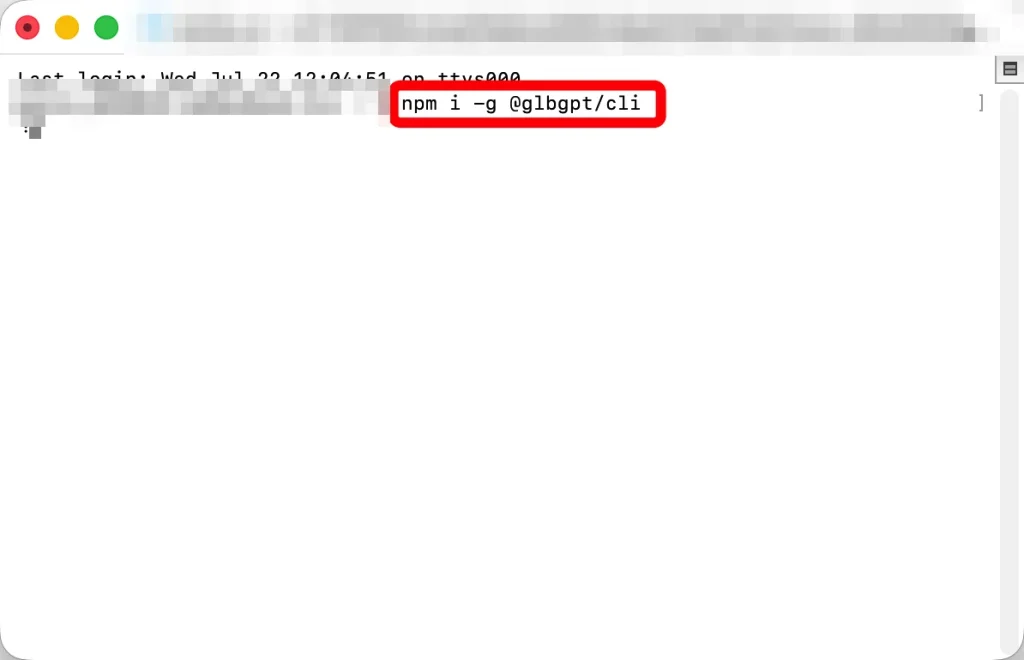
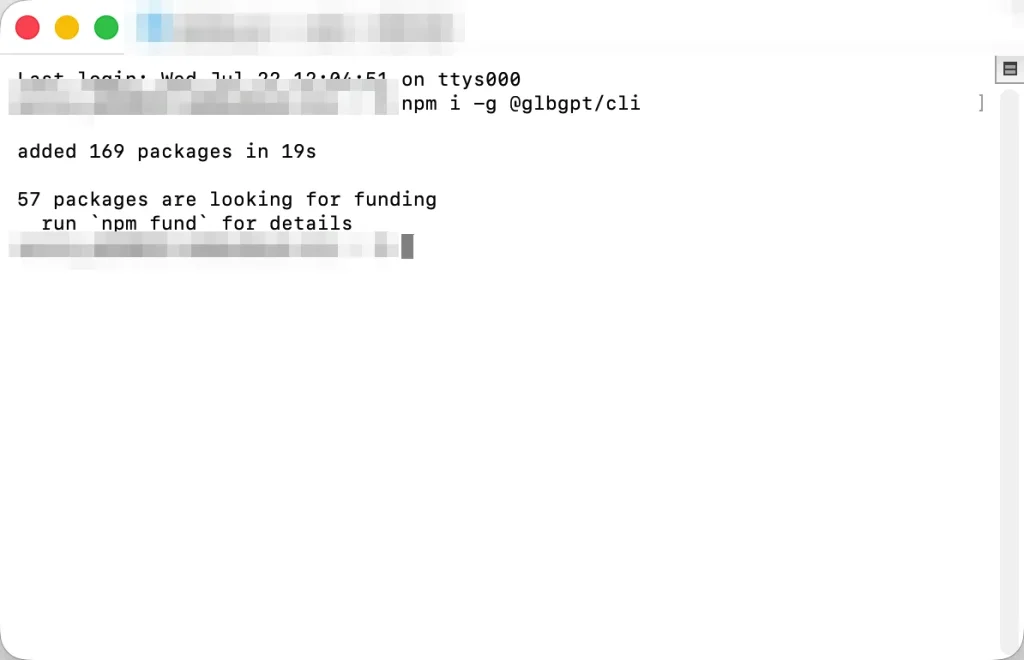
npm이 완료될 때까지 기다리세요. 설치가 성공하면 npm 오류 메시지 없이 종료되며, 추가된 패키지가 표시됩니다.
설치된 CLI를 확인하십시오:
glbgpt --version성공 확인: 이 테스트에서 설치된 패키지는 @glbgpt/cli@0.1.1 그리고 version 명령어의 실행 결과는 다음과 같았습니다. 0.1.1. 이 가이드를 따라 진행하시면 사용 중인 버전이 더 최신 버전일 수도 있습니다.
방법 2: Codex에 GlobalGPT CLI 설치를 요청하기
코덱스 내에 머무르기를 원하신다면, 다음 지시를 보내주십시오:
다음 명령어를 사용하여 공식 GlobalGPT CLI를 설치하십시오:

npm i -g @glbgpt/cli

설치가 완료되면 설치된 패키지의 버전을 확인하고,
glbgpt 및 globalgpt 명령어 모두 사용할 수 있는지 확인하십시오.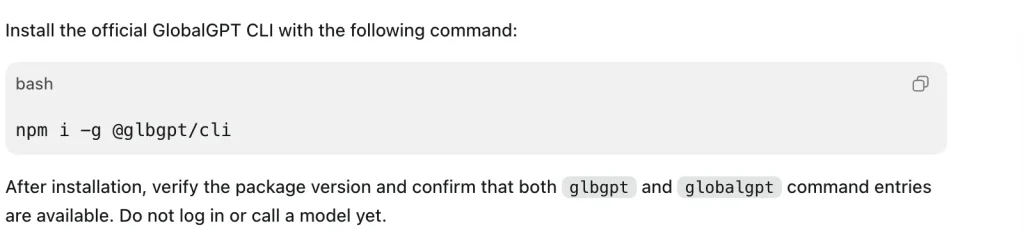
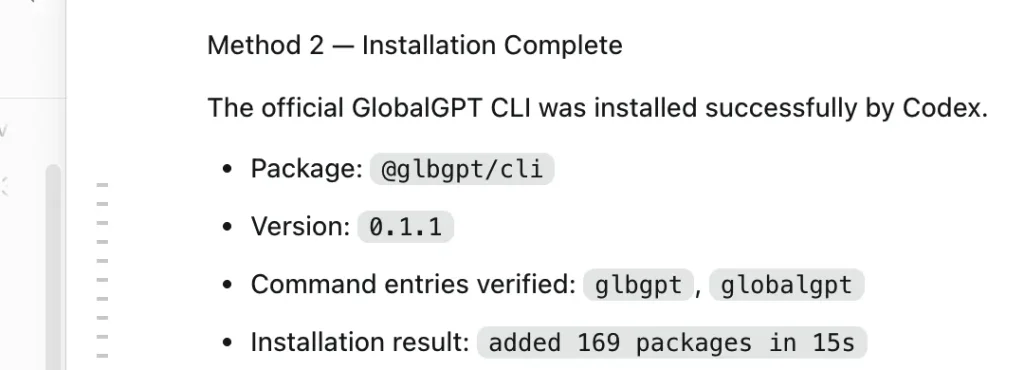
Codex는 npm 명령어를 실행하고, 설치된 패키지를 확인하며, 명령어 입력을 대신 검증해 줄 수 있습니다.
방법 2 완료: 두 설치 방법 모두 아래와 같은 공유 설정으로 이어집니다. 패키지를 두 번 설치하지 마십시오.
GlobalGPT에 로그인하세요
브라우저 인증 절차를 시작합니다:
glbgpt 로그인Codex에 문의하실 수도 있습니다:
GlobalGPT CLI 로그인 절차를 시작합니다.CLI가 브라우저에서 인증 페이지를 엽니다. 본인의 기기에서 직접 요청을 시작한 것인지 확인한 후, 다음을 선택하십시오. 승인. AI 비서에게 비밀번호, 인증 코드 또는 인증 URL을 보내지 마십시오.
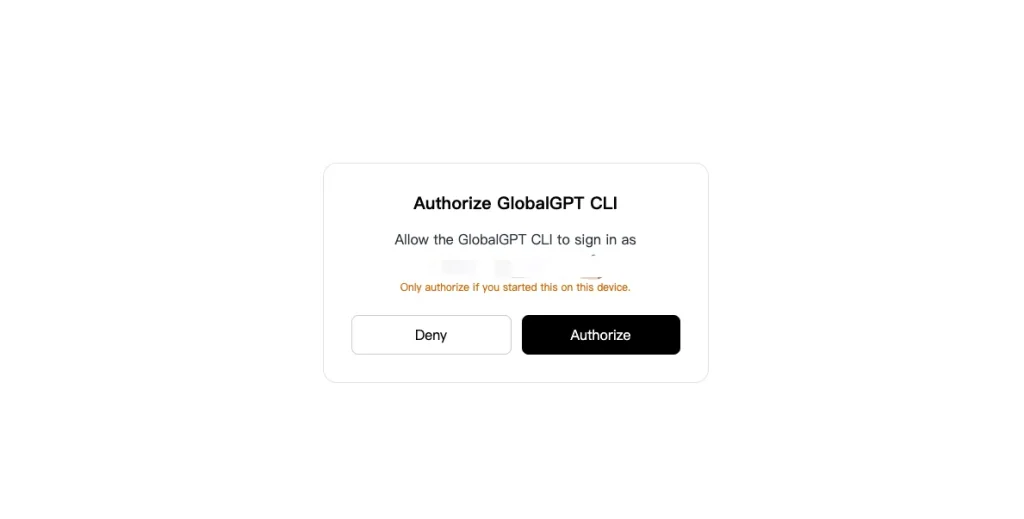

다음 방법을 통해 활성 계정을 비공개로 확인하세요:
glbgpt whoami개인정보 처리방침: 이 명령어는 사용자의 이메일 주소와 크레딧 잔액을 표시할 수 있으므로, 공개되는 스크린샷에 이 명령어의 원본 출력 내용을 포함하지 않도록 주의하십시오.
코덱스에 GlobalGPT 스킬을 설치하세요
공식 CLI에는 에이전트 애플리케이션을 위한 네 가지 스킬이 포함되어 있습니다:
globalgpt계정 접속 및 GlobalGPT 관련 일반 업무 수행을 위해.globalgpt-코딩명시적으로 위임된 코딩 업무의 경우.globalgpt-image이미지 생성 및 편집을 위해.globalgpt-video동영상 및 이미지 기반 동영상 생성을 위해.
다음 명령어를 사용하여 네 개를 모두 설치하십시오:
glbgpt 스킬 설치예상 결과: 테스트 대상 설치 프로그램에서 다음과 같은 오류가 보고되었습니다. 4가지 기능 설치됨 그리고 해당 번들을 지원되는 에이전트 스킬 디렉터리에 추가했습니다. 설치 후 Codex를 다시 시작하거나 새 작업을 열어 애플리케이션이 해당 파일을 불러올 수 있도록 하십시오.
로드가 완료되면 다음과 같은 자연어 요청을 할 수 있습니다:
GlobalGPT를 사용하여 공식 기업 블로그에서 최근 출시된 생산성 앱 3개를 조사하십시오.
각 게시물의 제목, 날짜, URL 및 해당 게시물에서 발견된
출시 메시지 유형 하나씩을 포함하십시오.
GlobalGPT MCP를 Codex에 연결하세요
MCP 연결을 통해 GlobalGPT 채팅, 모델 검색, 이미지 생성, 동영상 생성 및 작업 상태 확인 기능이 Codex에 직접 제공됩니다.
만약 glbgpt 일반 명령어 경로에 있는 경우, 다음 명령을 사용하여 stdio 서버를 등록하십시오:
codex mcp add globalgpt -- glbgpt mcp --max-credits 4000그리고 --최대 학점 value는 미디어 생성을 위한 세션 예산입니다. MCP 서버를 등록하는 것만으로는 미디어가 생성되거나 크레딧이 소모되지 않습니다.
Codex에 설정을 요청할 수도 있습니다:
다음 명령어를 사용하여 GlobalGPT를 Codex MCP 서버로 등록하십시오:

glbgpt mcp --max-credits 4000

그런 다음 서버가 활성화되었는지 확인하십시오. 아직 미디어는 생성하지 마십시오.
저장된 구성을 확인하십시오:
codex mcp globalgpt 가져오기코드엑스 MCP 목록MCP 연결됨: 등록 후 새로운 Codex 작업을 시작합니다. 테스트 환경에서 Codex는 GlobalGPT MCP 도구 5개를 불러왔습니다.
- GlobalGPT 모델과 채팅해 보세요.
- 채팅, 이미지, 동영상 모델을 나열하세요.
- 이미지를 생성하거나 편집합니다.
- 텍스트나 참조 프레임을 바탕으로 동영상을 생성합니다.
- 이미지 또는 동영상 생성 작업을 확인하세요.
Codex에서 완벽한 AI 워크플로우 구축하기
설치는 단지 해당 명령어가 존재한다는 사실만을 증명할 뿐입니다. 더 중요한 질문은 이 통합 기능이 실제 업무에 어떤 이점을 가져다주는가 하는 것입니다. 이를 테스트하기 위해, 우리는 Codex 내에서 GlobalGPT를 사용하여 가상의 생산성 앱인 FlowNote.
이 워크플로는 네 가지 서로 다른 기능을 연결했습니다:
- 웹에 접속 가능한 대규모 언어 모델(LLM)을 활용하여 최신 공식 예시를 수집하십시오.
- 이 연구 결과를 출시 기획서로 정리하십시오.
- 랜딩 페이지의 헤로 이미지를 생성합니다.
- 이 시각 자료를 8초 분량의 홍보 영상으로 제작해 주세요.
각 단계에서는 첫 번째 유효한 출력을 사용했습니다. 외부 정보는 공식 페이지를 통해 확인했으며, 생성된 미디어 제한 사항은 그대로 유지하고 공개했습니다.
1단계: 웹 연결이 가능한 대규모 언어 모델(LLM)을 활용해 최신 정보를 조사하기
도구 활용이 가능한 GlobalGPT 채팅 모델은 질문에 최신 정보가 필요할 때 웹을 검색하고 관련 페이지를 가져올 수 있습니다. 테스트 프롬프트에서는 공식 기업 블로그에 게시된 최근 생산성 관련 제품 발표 세 가지를 요청했습니다:
웹 검색을 통해 최근 출시된 생산성 앱 3개 또는
공식 제품 블로그를 통해 발표된 주요 제품 업데이트를 찾아보세요.

각 사례에 대해 다음 정보를 제시하십시오:
- 제품명
- 정확한 발표 제목
- 게시일
- 공식 출처 URL
- 참고할 만한 랜딩 페이지 또는 출시 메시지 사례 1가지

뉴스 요약이 아닌 공식 제품 또는 회사 출처를 활용하십시오.
확인된 사실과 본인의 권장 사항을 명확히 구분하십시오.
첫 번째 유효한 응답에서 Asana, Linear, Notion의 공지 사항을 확인했습니다. 그 후 각 URL을 개별적으로 확인했습니다. 세 URL 모두 HTTP 200 응답을 반환했으며, 페이지 제목과 게시 날짜는 답변 내용과 일치했습니다.
| 제품 | 공식 발표 | 날짜 | 검증 |
|---|---|---|---|
| 아사나 | 아사나 2026년 봄 릴리스 | 2026년 5월 20일 | 제목과 날짜가 일치함 |
| 선형 에이전트 | 리니어 에이전트 소개 | 2026년 3월 24일 | 제목과 날짜가 일치함 |
| Notion 3.0 | Notion 3.0을 소개합니다 | 2025년 9월 18일 | 제목과 날짜가 일치함 |
최초로 유효성이 입증된 연구 결과 전문 보기
아사나
관측된 발사 양상: 조직적 문제부터 시작하여, 기존 도구가 왜 한계가 있는지 설명하고, 통합된 해결책을 제시한 다음, 기능 수준의 근거를 통해 이를 뒷받침하십시오.
선형 에이전트
관측된 발사 양상: 사용자의 상황, 구체적인 행동, 그리고 즉각적인 결과를 보여줌으로써 추상적인 기능을 구체적인 사용 사례로 전환하십시오.
Notion 3.0
관측된 발사 양상: 긴 설명 앞부분에 간략한 ‘TL;DR’을 넣고, 그 뒤에 문제점, 제품 비전, 시연, 사용 사례, 그리고 행동 유도 문구(CTA)를 차례로 배치하세요.
출처의 제목, 날짜 및 URL은 사실로 간주되었습니다. 출시 패턴은 모델의 분석 결과였으며, 해당 기업들이 발표한 내용으로 제시된 것은 아닙니다.
2단계: 조사 결과를 출시 기획서로 정리하기
이어 진행된 GlobalGPT MCP 회의에서는 검증된 패턴들을 실용적인 FlowNote 브리프로 정리했습니다. 이 모델에는 대상 고객, 핵심 메시지, 세 가지 이점, 랜딩 페이지 구조, 시각적 방향, 영상 콘셉트 및 CTA가 정의되었습니다.
핵심 메시지: 흩어진 생각을 집중된 행동으로 바꾸세요.
CTA: FlowNote를 사용해 보세요 — 중요한 순간을 기록하고, 다음 단계를 실행에 옮기세요.
전체 출시 개요 보기
대상 독자: 여러 곳에 아이디어를 기록해 두었다가, 흩어진 메모를 명확한 다음 단계의 실행 과제로 정리하는 데 어려움을 겪는 지식 근로자, 창업자, 학생 및 소규모 팀.
- 초점을 잃지 않고 촬영하기: 아이디어, 결정 사항, 할 일을 하나의 일관된 흐름 속에서 기록하세요.
- 노트에서 다음 단계로 이동: 선택한 텍스트를 담당자, 날짜 또는 우선순위가 지정된 작업으로 변환합니다.
- 지금 중요한 것이 무엇인지 확인해 보세요: 관련 메모와 처리해야 할 작업을 한눈에 파악할 수 있는 일일 보기로 모아보세요.
제안된 페이지 구성은 다음과 같았습니다: 헤로 및 TL;DR, 시장 갈등, 고충 사례, 통합된 제품 비전, 상황별 결과 시연, 사용 사례, 그리고 최종 CTA.
FlowNote는 가상의 제품이기 때문에, 이 브리프에서는 확인되지 않은 고객 수, 사용 후기, 연동 기능, 가격, 보안 인증, 성능 관련 주장 및 브랜드 추천을 명시적으로 금지했습니다.
3단계: 랜딩 페이지의 헤로 이미지 생성하기
설치된 globalgpt-image Skill은 먼저 작업을 추정하고, 계정의 기본 이미지 모델을 사용하여 16:9 비율의 이미지 한 장을 생성했습니다. CLI는 Nano Banana 2를 선택했으며, 약 400 크레딧이 소요될 것으로 추정했습니다.
흩어진 메모를 체계적인 일일 계획으로 정리해 주는 가상의 생산성
앱인 ‘FlowNote’를 위한 깔끔한 16:9 헤로 이미지를 제작하세요. 서로 분리된 메모 카드들이 매끄럽게
하나의 집중된 일일 계획으로 통합되는
현대적인 데스크톱 작업 공간을 보여주세요. 세련된 파란색과 보라색
색상 팔레트, 부드러운 입체감, 차분하고 전문적인 조명, 그리고 넉넉한 여백을
사용하세요. 가독성 있는 텍스트, 로고, 브랜드 마크, 워터마크, 인물, 또는
기기 모형 프레임은 포함하지 마세요.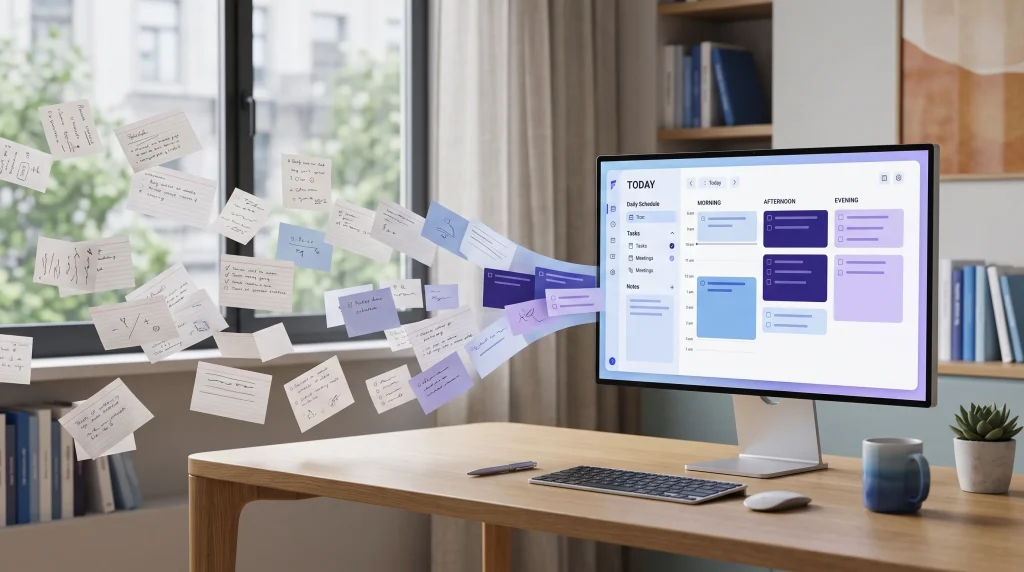
실제 결과: 구도와 색감 방향은 적절했지만, 모델이 프롬프트 내용과 달리 읽기 쉬운 인터페이스 텍스트를 추가했습니다. 첫 번째 유효한 이미지가 채택되었습니다.
이 이미지는 핵심 콘셉트를 잘 구현했습니다. 파란색과 보라색으로 구성된 작업 공간에서 흩어져 있던 메모들이 체계적인 플래너 쪽으로 눈에 띄게 모여드는 모습을 보여주었기 때문입니다. 다만 모든 세부 사항을 정확히 따르지는 않았습니다. 가독성 있는 텍스트를 피하라는 지침에도 불구하고, 인터페이스에는 “TODAY”나 “Tasks”와 같은 읽을 수 있는 단어들이 포함되어 있습니다. 우리는 다시 작업하는 대신 첫 번째 유효한 결과를 그대로 채택했습니다.
자신만의 프롬프트를 다듬고 싶다면, 다음을 참고하세요. 나노 바나나 2 프롬프트 가이드. 또한 다음을 이용할 수 있습니다. Nano Banana 2 in GlobalGPT CLI 워크플로우 외부에서.
4단계: 히어로 이미지를 홍보 영상으로 만들기
그리고 globalgpt-video Skill은 히어로 이미지를 시작 프레임으로 사용했습니다. 기본 동영상 경로는 Grok Imagine을 선택했고, 약 800 크레딧을 예상한 뒤 8초 분량의 동영상 하나를 반환했습니다.
FlowNote의 메인 이미지를 8초 분량의 제품 출시 영상으로 애니메이션화하세요.
흩어져 있는 종이 메모와 디지털 작업 카드가 왼쪽에서 오른쪽으로
부드럽게 미끄러지듯 이동하며, 모니터 속의 체계적인 일일
플래너로 정리되어야 합니다. 차분하고 전문적인 모션, 은은한 파란색과
보라색 빛의 흔적, 고정된 카메라, 세련된 랜딩 페이지 스타일을 사용하십시오.
작업 공간의 구도를 유지하십시오. 인물, 로고,
브랜드 마크, 워터마크, 새로운 가독성 있는 텍스트, 카메라 흔들림 또는 갑작스러운
전환 효과를 추가하지 마십시오.실제 결과: 결과물은 재생이 가능했고 작업 공간의 전반적인 개념을 유지했지만, 초기 구성을 상당히 변경했습니다.
반환된 파일의 해상도는 1280×720이었고, 재생 시간은 8.042초였으며, H.264로 인코딩되어 있었습니다. 대표적인 한 프레임은 책상, 모니터, 메모 카드라는 기본 구도를 유지했으나, 구도가 상당히 달라졌고 모니터 화면은 거의 비어 있는 상태가 되었습니다. 이는 이미지에서 비디오로 변환하는 과정에서 참조 프레임이 정확히 보존되기보다는 재해석될 수 있음을 상기시켜 주는 유용한 사례입니다.
다음 방법을 통해 동일한 모델을 살펴볼 수 있습니다. Grok, GlobalGPT를 상상해 보세요.
이 워크플로가 보여주는 내용
그 가치는 단순히 하나의 정답이나 미디어 파일에 그치지 않습니다. Codex는 일련의 과정을 조율합니다. 즉, 현재 진행 중인 웹 조사가 기획서로 정리되고, 기획서는 시각적 방향성으로 구체화되며, 시각적 방향성은 결국 영상으로 완성됩니다. GlobalGPT는 추가적인 모델과 미디어 도구를 제공하는 한편, Codex는 프로젝트의 맥락을 유지하고 작업을 체계적으로 관리합니다.
| 워크플로우 단계 | GlobalGPT 기능 | 유용한 결과 |
|---|---|---|
| 최근 연구 | MCP를 통한 웹 기반 채팅 모델 | 공식 출처 및 재사용형 발사 패턴 |
| 기획 | GlobalGPT 대화형 모델 | 주장 범위가 명시된 체계적인 출시 브리핑 |
| 영상 제작 | GlobalGPT 이미지 스킬 | 랜딩 페이지의 헤로 이미지 |
| 모션 제작 | GlobalGPT 영상 기술 | 짧은 홍보 영상 |
유용한 GlobalGPT CLI 명령어
계정을 확인하거나, 모델을 찾거나, 생성 작업을 시작해야 할 때 이 간결한 참고 자료를 활용하세요.
설정 및 계정
glbgpt --versionglbgpt 로그인glbgpt whoamiglbgpt 스킬 설치glbgpt mcpglbgpt 작업: 최근 내역 표시모델 및 생성
glbgpt 모델 목록 채팅glbgpt 모델 목록 이미지glbgpt 모델 목록 동영상glbgpt exec "..." -mglbgpt 이미지 "..." --추정glbgpt 동영상 "..." --추정문제 해결
glbgpt: 명령어를 찾을 수 없음
먼저 터미널을 닫았다가 다시 열어보세요. 오류가 계속 발생하면, 셸의 PATH에 npm의 전역 바이너리 디렉터리가 포함되어 있는지 확인해 보세요. npm 패키지를 설치하는 것과 해당 명령어를 사용할 수 있도록 설정하는 것은 별개의 단계입니다. 또한 Codex에 설치된 패키지의 위치를 확인하도록 요청하고, 어떤 PATH 항목이 누락되었는지 설명을 들을 수도 있습니다.
Codex에서 새로 설치된 스킬이 표시되지 않습니다.
스킬 설치 프로그램을 실행한 후, Codex를 다시 시작하거나 새 작업을 열어 주세요. 스킬은 에이전트가 시작될 때 로드되며, 이미 열려 있는 작업의 경우 스킬 목록이 자동으로 새로 고쳐지지 않을 수 있습니다.
glbgpt 스킬 설치MCP 서버는 활성화되어 있지만 도구가 표시되지 않습니다
저장된 MCP 구성을 확인한 다음, 새로운 Codex 작업을 시작하십시오:
codex mcp globalgpt 가져오기Codex가 터미널 환경 외부에서 실행되는 경우, GlobalGPT 실행 파일의 전체 경로를 확인하십시오:
command -v glbgpt모델이 아무런 출력도 반환하지 않습니다
인증, 전송, 제공자 용량 및 빈 응답은 모델이 취약하다는 증거가 아니라 운영상의 오류로 간주하십시오. 중단된 서버 측 작업이 여전히 크레딧을 소모할 수 있다는 이유만으로 무턱대고 미디어 생성을 계속 재시도하지 마십시오. 먼저 오류와 작업 상태를 확인하십시오.
자주 묻는 질문
GlobalGPT CLI, Skill, MCP는 같은 것입니까?
이들은 동일한 통합 구성 요소에 속하지만, 각기 다른 역할을 수행합니다. CLI는 명령어를 제공하고, 스킬은 Codex의 동작을 제어하며, MCP는 기능을 도구 형태로 제공합니다.
Codex에서 GlobalGPT CLI를 대신 설치해 줄 수 있나요?
네. 아래의 공식 명령어를 Codex에 입력하고, 설치된 버전과 명령어 항목을 확인해 달라고 요청하세요.
npm i -g @glbgpt/cli터미널을 계속 열어두어야 하나요?
아닙니다. 설치 및 구성이 완료된 후, Codex는 필요할 때 CLI 또는 MCP 서버를 실행할 수 있습니다. 터미널은 설정, 검증 및 문제 해결에 유용합니다.
GlobalGPT 모델은 Codex를 통해 웹 검색을 수행할 수 있나요?
도구 기능을 지원하는 챗모델은 웹을 검색하고 페이지를 불러올 수 있습니다. 웹 검색 시 추가 크레딧이 소모될 수 있습니다. 중요한 URL, 날짜, 가격 및 제품 관련 주장은 항상 인용된 출처를 통해 확인하시기 바랍니다.
Codex 내에서 이미지와 동영상을 생성할 수 있나요?
네. 번들로 제공되는 globalgpt-image 그리고 globalgpt-video 스킬은 GlobalGPT 계정을 사용하며, MCP 서버에서는 이미지 및 동영상 도구도 제공합니다.
MCP가 CLI를 대체하나요?
아닙니다. MCP 서버는 CLI를 통해 실행됩니다. MCP는 Codex가 해당 기능을 도구 형태로 더 쉽게 호출할 수 있도록 지원하지만, CLI는 여전히 기본 로컬 인터페이스로 남아 있습니다.
GlobalGPT 계정을 어떻게 전환하나요?
-
1
현재 계정에서 로그아웃하기
glbgpt 로그아웃 -
2
브라우저 인증 시작
glbgpt 로그인 -
3
활성 계정을 비공개로 확인하세요
glbgpt whoami
GlobalGPT CLI는 어떻게 업데이트하나요?
현재 패키지를 다시 설치하십시오:
npm i -g @glbgpt/cli번들로 제공되는 스킬을 새로 고친 다음, Codex를 다시 시작하세요:
glbgpt 스킬 설치최종 결론
GlobalGPT CLI는 Codex를 더욱 포괄적인 멀티모델 작업 공간으로 탈바꿈시킵니다. CLI는 로컬 연결을 처리하고, Skills는 자연어 기반 위임 기능을 예측 가능하게 하며, MCP는 Codex가 채팅 및 미디어 도구를 직접 호출할 수 있게 해줍니다. 이 세 가지가 모두 연결되면, 워크플로우를 관련 없는 앱들로 분할하지 않고도 현재 진행 중인 연구에서 체계적인 계획 수립, 이미지 생성, 동영상 생성 단계로 작업을 원활하게 진행할 수 있습니다.
여러 AI 코딩 환경에서 작업하는 경우, 동일한 GlobalGPT CLI 계정과 기능을 다른 곳에서도 사용할 수 있습니다. 사용 방법은 Claude 코드에서 GlobalGPT CLI 사용 또는 안내에 따라 Cursor에서 GLBGPT CLI 사용.
명령줄 환경 밖에서 동일한 멀티 모델 계정을 사용하려면 다음 방법도 있습니다. 브라우저에서 GlobalGPT를 열어보세요.