
Seedance 2.0 supports video output up to 15 seconds, according to ByteDance’s official launch announcement. The model also supports video extension. For a 30-second ad or a one-minute story, distinguish the length of one generated clip from an extended shot and the final sequence you assemble in an editor. Each has a different limit and workflow.
For creators who want to turn those short clips into a finished piece, Seedance 2.0 on GlobalGPT is an affordable starting point. Generate your shots, save the useful takes, then import them into GlobalGPT’s Video Editor for sequencing, captions and audio. Keeping these tasks in one platform can reduce the need for separate AI subscriptions.

What is the Seedance 2.0 video length limit?
The 15-second figure refers to the model’s audio-video output. ByteDance describes this as multi-shot output, so one generated clip can contain more than one camera shot. It does not mean that each shot inside that output receives an additional 15 seconds.
| What you are measuring | What it means | How to plan around it |
|---|---|---|
| A single generated clip | ByteDance describes Seedance 2.0 output of up to 15 seconds. | Give the clip a focused action, or a short sequence of clearly ordered beats. |
| An extended shot | New footage continues an existing video through an extension operation. | Check the app’s extension controls, accepted source clip and available duration before submitting. |
| The final edited sequence | The duration of clips and other material arranged on a timeline. | Choose your target runtime first, then assemble and trim the shots to fit. |
Model source: ByteDance’s Seedance 2.0 launch announcement, checked October 10, 2026. Editing advice is a production workflow, not an additional model-duration allowance.
Why does my app show a shorter duration?
The model name, generation mode and app controls all matter. A screen offering a five- or ten-second option does not establish the maximum for every Seedance 2.0 service. Check the exact model label, including any “Fast” variant, and the available duration menu in the interface you are using.
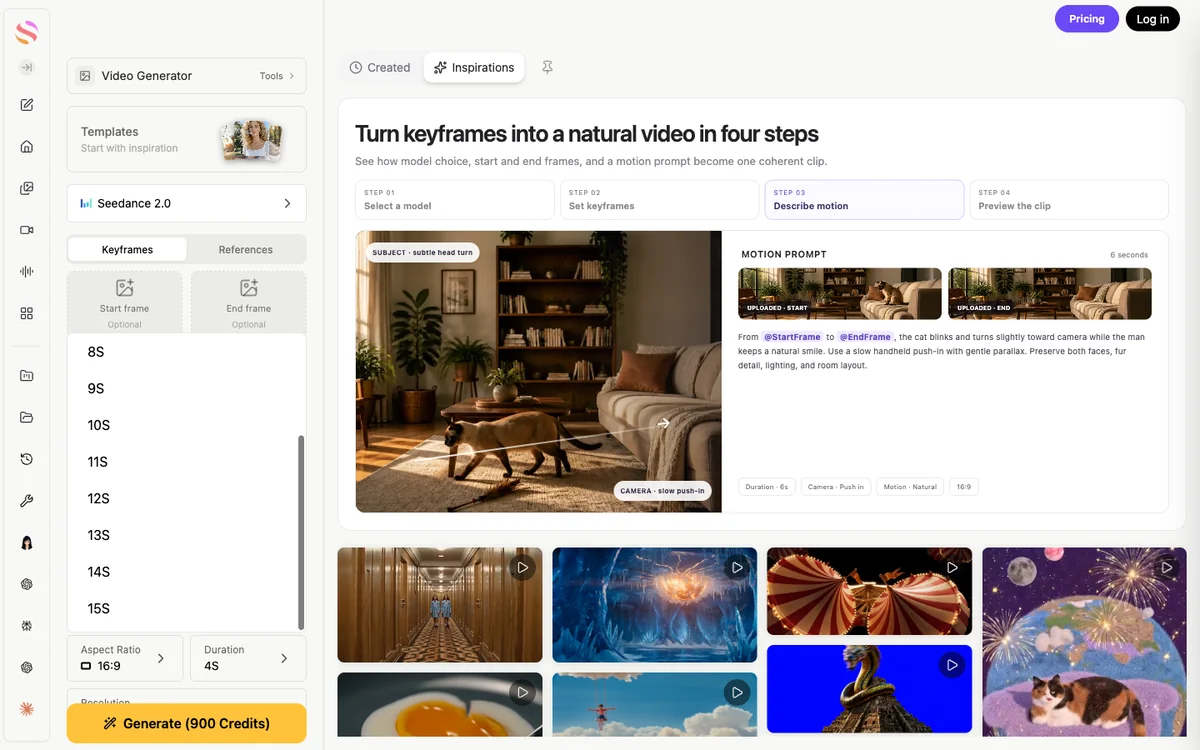
Choose the duration for one shot, then confirm the updated credit cost before submitting it. Plan a 30-second piece as a sequence of selected takes, leaving room to trim the beginning and end of each clip.
The earlier interfaces below show two ways apps expose this choice: a duration menu and a seconds control. They illustrate where to look; use the options in your current app when placing a new request.


If your first problem is finding the right entry point, use the Seedance 2.0 access guide. For programmatic requests, check the endpoint’s own duration rules; the Seedance 2.0 API guide explains that separate route.
Can Seedance 2.0 make videos longer than 15 seconds?
A longer finished video is possible by extending footage or assembling multiple clips. These are different operations. ByteDance confirms a video-extension capability that generates continuous shots from user prompts, but a long edited sequence does not become one longer initial generation.
Use extension when the same action needs to continue
Extension makes sense when the next moment belongs to the same shot: a camera keeps moving through a room, a person finishes an action, or a vehicle continues down a road. Keep the continuation narrow instead of asking it to change the setting, subject and camera direction at once.
- Choose a clean source clip. Inspect the final frames for a stable subject, readable objects and a motion that can continue.
- Open the supported extension workflow. Select the source video and review the duration, input requirements and displayed generation cost.
- Describe the next action. Name what should stay consistent, what moves next and where the shot should end.
- Review before continuing again. Check the join, character details, camera movement and sound. Keep the useful version before another attempt.

Use editing when the story needs a new shot
A cut is often the better choice when you need a close-up, a new location, a reaction or a product detail. Generate each shot around one purpose, then join the selected takes in an editor. You gain control over pacing and can replace a weak shot without rebuilding the entire sequence.
Avoid planning around “infinite” extension. Each continuation adds another result to review, and continuity can drift. For a video with several distinct beats, a shot list gives you a clearer route to the intended runtime.
A practical 30-second shot plan
Start with the message and work backward from the final length. Here is an illustrative 30-second product story built from six five-second timeline segments. The times below are editing targets, not a claim that every generation will produce five usable seconds.
30 seconds · 6 planned segments
Illustrative timeline with hard cuts: 6 × 5 seconds = 30 seconds.
00–05 sec
Establish
Show the product in its setting.
05–10 sec
Detail
Move closer to one feature.
10–15 sec
Action
Show that feature being used.
15–20 sec
Context
Show why the task matters.
20–25 sec
Payoff
Show the result or benefit.
25–30 sec
Close
Hold the final image and add a clear message.
Trim each take to its useful moment. For a 60-second piece, expand the story with purposeful shots; repeating weak footage will not improve it.
Allow for the difference between generated footage and usable footage. A shot may need its opening pause trimmed, or its final second may contain a visual error. If you need exactly 30 seconds, check the assembled timeline after trimming rather than adding up the requested generation durations.
Record the voiceover early when it drives the story. Then fit the shots to the spoken beats. A five-second slot that looks comfortable on a storyboard may be too short for a detailed explanation.
Keep characters, motion and sound consistent
Continuity needs a review at every join. ByteDance identifies remaining challenges in detail stability, multi-subject consistency and complex editing. References can guide the model, but they are not a guarantee that every face, logo or hand position will stay identical.
The medium two-shot keeps both people and their interacting arms in view as the short action develops. When using a clip like this in a longer edit, check the hand positions and screen direction at the first and last usable frames before choosing where to cut or continue.
- Keep a small reference set. Reuse the same subject and product references where the selected mode supports them.
- Repeat the visual essentials. Describe clothing, key objects, lighting and the setting consistently across prompts.
- Preserve screen direction. A subject moving left to right should not unexpectedly reverse direction in the next shot.
- Keep the action manageable. Give each short shot one main action and a clear endpoint.
- Inspect the cut with sound on. Listen for abrupt changes in room tone, music, dialogue or volume as well as checking the picture.
For a new shot, describe the new framing explicitly while preserving the subject details. The Seedance 2.0 prompt guide provides more ways to organize those instructions.
How does audio fit the length limit?
ByteDance describes Seedance 2.0 as an audio-video model with dual-channel stereo and support for music, ambient effects and voices. That sound belongs to the generated clip. For a longer edit, choose whether to keep each clip’s sound or use a continuous voiceover or music track across the sequence.
Listen across every cut. If the music restarts or ambience changes sharply between clips, use the editor’s volume and mute controls and import an appropriate audio track. Use audio you have the right to include, and check that dialogue stays clear over the background.
Build the longer video in GlobalGPT
GlobalGPT’s Seedance 2.0 workspace and Video Editor cover two parts of the same job: making the shots and assembling the final piece. This is where a low-cost multi-model platform becomes useful beyond choosing a generator—you can keep scripting, generation and editing in one workspace while reducing separate subscription overhead.
1. Set the target runtime and shot list
Write one sentence for each shot: what the viewer sees, what changes, and how it supports the message. Choose the intended aspect ratio before making the shots. Keep the same format unless a different composition has a clear purpose.
2. Generate and select the Seedance shots
Open Seedance 2.0, confirm the model name, choose an available clip duration and add references as appropriate. Review the displayed cost before submitting. Watch the whole result, then save the takes that fit the story. Give the files useful names such as “01-opening” and “02-product-detail.”
3. Import saved clips into Video Editor
Open GlobalGPT’s Video Editor and import your saved video files. Place them in order on the timeline. Trim unwanted starts and endings, split a clip when only part is useful, and adjust the sequence until it follows the planned story. Keep the material for this export together in the active scene.
4. Add the voiceover, audio and captions
Import the audio you want to use and align it with the picture. Adjust volume or mute individual clips where necessary. In Captions, transcribe the timeline audio or import an SRT/ASS subtitle file, then correct the text and timing. Check names, numbers and product terms before delivery.
5. Export and inspect the file
Use Export to create an MP4, with audio included when needed. Play the exported file from beginning to end: check runtime, aspect ratio, readable captions, sound and the final frame. If an export fails, review the media loading state and try a smaller project before regenerating footage.
Budget for usable footage and revisions
A longer film usually needs several generation requests and some editing. Budget for the number of shots, alternative takes and any extra processing—not just the desired final runtime. Keep a simple record of which take you accepted and what it cost so repeated attempts do not disappear into the total.
- Test the difficult shot first. A complicated interaction or essential product detail can determine whether the concept will work.
- Keep good takes. Revise the weak shot rather than replacing material that already fits.
- Review the chosen plan and generation estimate. Video features and credits depend on the plan and request; leave room for revisions.
- Use the editor for timing. A cut, trim or text overlay may solve the problem without another generation.
GlobalGPT’s price advantage is most useful when you need several AI tasks around the same project: drafting the script, creating visuals and video, and finishing the sequence. Choose a plan that includes the video models and creative tools you need, with enough credits for your planned shots and alternate takes.
Fix common duration and extension problems
| What you see | What to check | Practical next step |
|---|---|---|
| The duration you want is missing | Exact model, mode and available controls in this app. | Choose a supported duration or divide the scene into shorter shots. |
| There is no Extend control, or it is disabled | Whether this interface supports extension; source-video requirements; any displayed account, credit or error message. | Follow the specific message. If extension is unavailable here, generate a matching next shot and edit the sequence. |
| The subject changes between shots | Reference consistency, final-frame quality and how much the next prompt changes. | Simplify the continuation or use an intentional cut to a closer view. |
| The finished sequence is too short | Actual usable footage after trimming, gaps and the timing of text or narration. | Add a purposeful shot or adjust the edit; do not assume requested seconds equal retained seconds. |
| The soundtrack jumps at a cut | Original clip audio, volume and the start of each music segment. | Mute conflicting clip audio and align a continuous imported track. |
Generation time is a separate issue from video length. A 15-second clip describes playback duration, not a promise that generation will finish in 15 seconds. Check the service’s current queue and task status when a request takes longer than expected.
Seedance 2.0 video length FAQ
What is the maximum Seedance 2.0 video length?
ByteDance describes Seedance 2.0 as supporting up to 15 seconds of multi-shot audio-video output. The duration choices shown in a particular app depend on its model and generation mode.
Can Seedance 2.0 generate a 30-second video in one request?
The cited Seedance 2.0 launch specification describes 15-second output. Plan a 30-second finished video as several clips, or use a supported extension workflow, then check the assembled runtime.
Can I keep extending a Seedance 2.0 video indefinitely?
Do not plan on indefinite extension. The model supports extension, but each service sets its own controls and request requirements. Review every continuation for visual and audio consistency.
Why can I only select five or ten seconds?
The options belong to your selected app, model and mode. Check those settings and the duration menu. A shorter preset does not describe the maximum for every Seedance 2.0 interface.
Does Seedance 2.0 generate audio with the video?
ByteDance describes audio-video generation with dual-channel stereo, including music, ambient effects and voices. For a longer edited piece, review the clip audio across cuts and add or adjust an audio track as needed.
How do I make a one-minute video with Seedance 2.0?
Plan the story as short shots, generate and select usable takes, then arrange them in a video editor. Trim to the target runtime, add the required audio and captions, and check the exported file.
Can I assemble Seedance clips in GlobalGPT?
Yes. Save the selected clips and import them into GlobalGPT’s Video Editor. Arrange and trim the sequence, add audio and editable captions, then export the finished video.