Réponse rapide
ChatGPT can make some blurry photos look clearer through image editing. Ask for a restrained edit, then compare the face, lettering and edges with the original. Severe blur leaves gaps that AI may fill with plausible new detail, so a sharper image can still change what was photographed.
The best starting point is the largest original file you have. A slightly soft phone photo, a tiny messaging-app copy and a damaged paper photograph need different treatment. Before typing “make it 4K,” decide whether you need clearer edges, a larger image or a creative reconstruction.
For a dedicated enlargement step, GlobalGPT’s HD Upscale gives you a source-image form with optional face enhancement. You can also make a separate prompt-based edit in the same workspace when the picture needs another visual change. That combination is useful when you want to avoid separate subscriptions for everyday image generation and editing.
Can ChatGPT unblur a photo?
Yes, with limits. You can upload a photo and request an image edit that improves its apparent clarity. The useful question is how much the edit changes. Sharper eyelashes or cleaner fabric can look convincing even when their exact shape differs from the source.
Four operations often get described as “unblurring.” Sharpening increases edge contrast. Denoising reduces speckles and grain. Upscaling adds pixels so a small image can be displayed at a larger size. Generative reconstruction synthesizes detail guided by the source and your instructions. An AI workflow may combine these operations, but they solve different problems.
This distinction matters for faces and text. A pleasant family-photo edit can be useful for a small print even if fine texture changes. A reconstructed serial number, signature or product label could communicate the wrong information. Judge success by what you need the image to preserve.
L'équipe d'OpenAI documentation sur la génération d'images describes image editing and limitations around text rendering, consistency and precise placement. Those are good reasons to examine more than sharpness. For broader editing ideas, see our guides to modifying images with ChatGPT et amélioration des images avec ChatGPT.
Choose the right fix for the blur
Zoom in on a copy of the original before editing. Directional streaks suggest camera or subject movement; uniformly soft edges suggest missed focus. Square blocks and smeared texture often point to compression or a small source stretched too far. Several problems can appear in one photo.
Match the symptom to the first step
| Ce que vous voyez | Commencez par ici | À surveiller : |
|---|---|---|
| Slightly soft edges, useful detail still visible | Try modest sharpening or a restrained image edit. | Bright outlines and crunchy texture from over-sharpening. |
| A tiny image that looks soft when enlarged | Find the original file, then upscale a copy for the target size. | A larger file can still contain invented fine detail. |
| Grainy shadows or colored speckles | Try light noise reduction before judging sharpness. | Smooth, waxy skin and erased fabric texture. |
| Strong motion trails or a badly missed focus | Look for another frame; use reconstruction only where an approximation suits the job. | Changed facial features, lettering and object shapes. |
| Faded, scratched or poorly photographed prints | Make a clean, well-lit scan, then handle damage and softness separately. | Glare, scan texture and aggressive removal of real details. |
Check eyes, hair and fabric in the portrait examples below. For your own photo, match the first step to the visible problem: soft edges, noise, a small source or physical damage.
A digital photo does not lose focus simply because it gets older. The paper original can fade or become damaged, and a digital copy can lose quality through repeated compression, screenshots or resizing. Finding the earlier file or rescanning the print often gives you more usable detail than another AI pass.
How to ask ChatGPT to unblur a photo
Start with one photo and one clear instruction. Uploading the original rather than a screenshot gives the edit more information to work with. Keep an untouched copy so you can compare later.
- Upload the largest available source. Use the original camera file or scan when possible. A downloaded social-media preview is usually a weaker starting point.
- Describe the problem and intended use. Say whether the image has mild softness, motion blur or scan damage, and whether you want a small print, a profile picture or a larger display image.
- Request an edited image explicitly. Name what should change and what should stay the same. If the reply only gives advice, ask it to produce the edited version using the uploaded photo.
- Inspect the first output before another pass. Compare the same face, label and edge areas. Make one specific follow-up request or return to the source if important details have drifted.
A ChatGPT unblur prompt for mild softness
Prompt 1 · Gentle clarity
Edit this uploaded photo to reduce mild blur and improve natural-looking clarity. Keep the same person, facial proportions, expression, hairline, clothing, background and framing. Use restrained sharpening and light noise reduction. Keep skin texture natural. Preserve all existing lettering and logos. If a detail is too blurred to resolve, leave it soft instead of inventing a crisp feature. Return the edited image.
Treat these as instructions to guide the edit, then check the outcome. A prompt that says “preserve the face” still needs a face comparison. For a product photo, add the exact parts that matter: the bottle cap, stitching, label layout or silhouette.
A prompt for an old scanned photograph
Prompt 2 · Restore a scan
Restore this scanned photograph with a light touch. Reduce visible dust and small scratches, balance the faded contrast, and improve mild softness. Preserve the original face, age, expression, hairstyle, clothing, composition and photographic grain. Keep the original black-and-white or color treatment. Leave ambiguous facial details subtle. Return one edited image without adding objects or changing the scene.
Use a clean scan first. Photograph a print square-on in even light if scanning is unavailable, and avoid reflections. Colorization is a separate creative decision; asking for it in the same prompt makes a faithful comparison harder.
A follow-up when the first edit is too strong
Prompt 3 · Reduce an overdone edit
Use the original uploaded photo as the reference. Make a subtler version than the previous edit. Reduce the bright outlines around edges and the smoothing on skin. Keep the original eye shape, smile, hairline and facial proportions. Retain a little natural grain and softness. Change only the clarity treatment; keep the composition and colors close to the source.
If repeated edits keep changing the subject, stop that sequence and return to the original. A conventional editor with adjustable sharpening and noise reduction gives you a more direct way to make small changes. Severe blur may call for a different photo altogether.
What does a useful result look like?
A useful result looks clearer at the size where you will actually use it and still depicts the same subject. Compare original and output at the same crop and display size first. Then inspect fine details at full size. Shrinking an image can hide defects; enlarging one can make extra texture look more impressive than it is.

In this soft portrait, the hair, eyes and clothing give you distinct areas to examine. The broad restoration instruction beside the image leaves many choices open. More precise instructions should name the features you want to preserve and the amount of change you want.

The second illustration makes fine texture easier to see. Look closely at the eye shape, hairline and repeated knit pattern. In your own output, newly crisp details deserve the same attention as the overall improvement. A result can be attractive yet unsuitable for a record, a product listing or a portrait where likeness is the priority.
A focused GlobalGPT workflow for a blurry photo
When the main job is making a small photo larger for display, open the full HD Upscale form on GlobalGPT. It keeps the starting choices focused: your source image and an optional Face Enhance setting. Use this route when you want to inspect those choices before submitting.

- Add your source image. Use the largest original available and keep a separate untouched copy.
- Choose whether to use Face Enhance. For a portrait, treat it as a creative choice and check the eyes, mouth and skin afterward. Leave it off for the first pass when preserving subtle facial texture matters most.
- Review the displayed credit estimate, then select Generate. Read the estimate for your current settings before submitting.
- Compare the result and save the useful version. Match the source crop and display size, then check the file at the intended print or screen size.
Output dimensions describe how large the image is. They do not tell you whether a person’s eyelashes, a sign’s wording or a fabric pattern match the scene. If those details change, use the source or a gentler editing route.
Use a prompt-based edit when you need another change
If the photo also needs a specific visual adjustment, open Nano Banana 2 sur GlobalGPT and use the image as a reference. For example, ask for a less yellow color cast while preserving the subject and composition. Keep the request narrow so you can tell what the edit changed.

Choose the image you want to edit, then add a prompt that describes the change. The gentle-clarity prompt above is a useful starting brief. For a second operation after upscaling, use the accepted result only if it has preserved the details you need; otherwise return to the original.

Keep the source composition in mind when selecting an aspect ratio. A wider or taller frame changes the task because the image may need cropping or added surroundings. Choose output size for the intended use; asking for 4K alone says little about how faithfully blur should be handled.

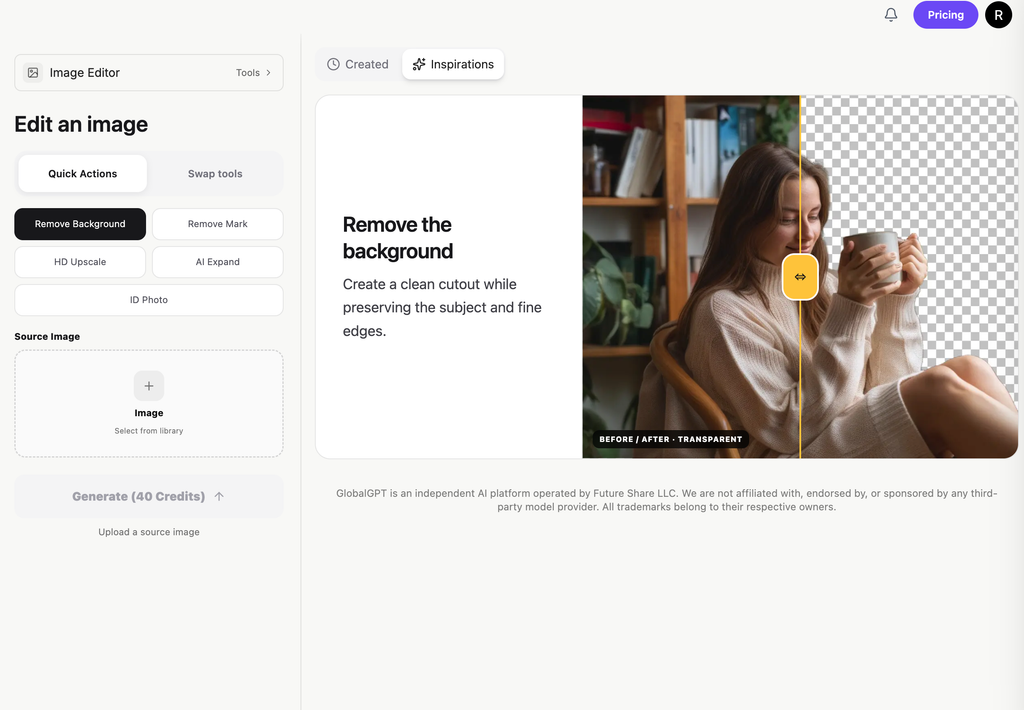
Review the reference, prompt, framing and current estimate before generating. When the edited image is ready, inspect it before downloading or using it in another edit. The example below shows the input and Generate controls; the Inspirations gallery is separate from the photo being edited.

Where GlobalGPT offers practical value

For someone who regularly prepares portraits, blog illustrations or social images, generation and editing tend to be parts of the same job. GlobalGPT combines those tasks in one subscription: make or edit a picture with a model such as Nano Banana 2, then use a focused tool such as HD Upscale to prepare a larger version. That gives you a way to reduce the number of separate image subscriptions you maintain.
GlobalGPT Pro: the annual offer for this workflow
| Objet | Public offer on October 10, 2026 | What it means for a photo workflow |
|---|---|---|
| Pro subscription | $9.70 per month, billed annually | An annual commitment, shown as a monthly equivalent. |
| Credit allocation | 20,000 credits each month | Credits arrive monthly; different tasks draw from the balance. |
| Coût de la tâche | Check the estimate in the editing form. | Review settings before each run; an edit and a later upscale are separate tasks. |
Source : GlobalGPT’s public pricing page, October 10, 2026. Check the current offer and full payment amount before subscribing.
The price advantage is most relevant when you already need several kinds of image work. For one slightly soft photo, first try the tools you have. For recurring creation and editing, weigh the subscription against the separate services it would let you stop paying for. Your useful output matters more than the number of versions generated.
Check these details before using the edited photo
A quick thumbnail review catches big changes; a close inspection catches small ones. Save both views long enough to compare the following details:
- Faces: compare eye spacing, the shape of the smile, hairline, age and distinctive marks. Reject an edit that makes the person look different.
- Text and numbers: check each character against the source or another reliable record. Crisp-looking text can still be wrong.
- Products: examine logos, seams, buttons, ports and packaging. A cleaner surface should still show the item you actually sell.
- Edges and texture: look for light halos, doubled outlines, plastic skin and repeated patterns. Reduce the treatment if it starts to dominate the photo.
- Final use: view the image at its actual display or print size. Extra pixels are useful only if the result works at that size.
For a document, identification image or evidence record, preserve the original and use the underlying file, another photograph or a better scan to resolve uncertain detail. For a personal keepsake or creative image, choose the lightest edit that gives you the appearance you want.
Foire aux questions
Can ChatGPT make a blurry picture clear?
It can improve the appearance of some blurry pictures through image editing. Mild softness is a better starting point than severe motion blur or a tiny source. Compare faces, text and edges with the original before using the result.
What is a good ChatGPT unblur image prompt?
Ask for restrained sharpening and light noise reduction while preserving the face, expression, clothing, text and framing. Specify that ambiguous details should stay soft, then inspect the edited image. The gentle-clarity prompt above provides a complete starting version.
Can ChatGPT recover text from a blurred image?
An edit may make visible characters easier to inspect, but it may also create plausible-looking letters or numbers. Check the wording against the original document or another reliable source. For unreadable text, obtain a clearer scan or photograph.
Does making an image 4K remove blur?
A larger output has more pixels, but that alone does not establish that missing detail has been recovered. Match the original and output at the same crop and display size to judge clarity and fidelity.
Should I use HD Upscale or a prompt-based image editor?
Start with HD Upscale when your main goal is a larger display image and focused settings. Use a prompt-based image editor when you also want a describable change, such as color correction or cleaning up a damaged area. Inspect important details after either route.
Start with the original file and the smallest useful change. Try the gentle ChatGPT prompt for mild softness, or open HD Upscale for a focused enlargement workflow. Review the result before taking it into another creative edit.