The best free offline AI image generators give you a choice about where the work runs. Choose GlobalGPT when you want to submit an image task online, step away and let the cloud finish it without local model setup. For creating new images with no internet connection, use a free local tool after downloading its models and required components.
But “offline” can mean two different things. Do you need to create a new image with no connection, or simply leave your computer while a submitted job finishes? That distinction matters more than a long list of apps.
For the second situation, GlobalGPT offers an affordable multi-model subscription workflow in one dashboard. Develop the idea, prepare a prompt and create an image without maintaining local models. After an image task is accepted, cloud processing continues while you leave the webpage or go offline. Reconnect to retrieve the result. Starting the task and collecting the image still require internet access.
Choose your route
Use a local model on a compatible device, with all required files downloaded.
Use GlobalGPT for cloud processing and return online when you want the result.
What Do You Mean by Offline?
A genuinely offline generator performs inference—the computation that creates the image—on your device. Once everything is installed, a new prompt does not need to travel to a cloud service. Your computer supplies the processing power, stores the model files and saves the output.
| Question | Local generation | GlobalGPT cloud workflow |
|---|---|---|
| Where does the image run? | Your compatible device | Remote cloud infrastructure |
| When is internet needed? | Initial downloads; optional online features | Submission and result retrieval |
| What keeps working? | Your running local process | An accepted cloud task |
| Main commitment | Hardware, storage and maintenance | Account access and applicable usage charges |
A browser interface does not settle this question. A page opened on localhost can control software running on the same computer. Conversely, an installed app can send work to an online API. ComfyUI, for example, separates its offline core from optional paid API nodes. Check the actual workflow, including extensions and model choices.
Start with three questions: Must you create new images while disconnected? Must source material stay on your device? Are you willing to prepare and maintain compatible models? A firm yes to the first question points toward local generation. Sensitive work also calls for checking sync folders, extensions and where files are saved—not simply trusting an “offline” label.
Cloud tools are convenient when those constraints do not apply. Review Politiques de confidentialité des données relatives à l'IA before uploading confidential material, and check the terms of the particular service you use.
GlobalGPT Cloud Creation and Five Free Offline Tools
Start with GlobalGPT for an affordable, flexible cloud workflow that brings image creation and supporting content into one dashboard. The five local options below suit work that needs on-device generation. Choose around your setup, creative task and preferred way of working.
| Outil | Configuration | Utile pour | Workflow / considerations |
|---|---|---|---|
| GlobalGPT | No local model installation | Affordable multi-model, multi-function creation in one dashboard | Submit online; after acceptance, close the page or go offline while cloud processing continues. Reconnect to retrieve. |
| ComfyUI | Compatible desktop system | Repeatable node workflows | Learning nodes and dependencies |
| Draw Things | Supported Apple devices | Local generation in an app | Device memory and model fit |
| Invoke | Locally hosted interface | Canvas-based iteration | Installation and model management |
| Forge | Stable Diffusion WebUI setup | Detailed generation controls | Compatibility checks |
| Fooocus | SDXL-focused installation | Prompt-first generation | Limited LTS; bug fixes only |
GlobalGPT: create images and content without local setup
Choisir GlobalGPT when you want to turn a brief into an image and its supporting copy in one dashboard. Its affordable multi-model subscription brings several AI functions together, so you can plan the scene, generate the image and develop a headline or caption without maintaining model files. Submit online; once the task is accepted, cloud processing continues while you close the page or go offline. Reconnect when you are ready to review the result.
ComfyUI: reusable workflows
ComfyUI connects generation steps through nodes, making it useful when you want to reuse a process instead of rebuilding settings for every image. Its official documentation says the core works fully offline. That statement does not extend to optional API nodes. Choose it if control and repeatability justify learning the graph and maintaining any custom nodes your workflow needs.
Draw Things: local creation on Apple devices
Draw Things is a practical starting point for supported Macs, iPhones and iPads. Its free local edition separates on-device generation from cloud offerings. That gives Apple users an app-oriented route without assembling a desktop web interface first. Model downloads, available memory and device performance still matter; a free app is not a promise that every model will run comfortably on every device.
Invoke: canvas-based image work
Invoke combines a locally hosted interface with a visual canvas and workflows. It fits creators who expect to revise parts of an image and build a composition over several passes. You still need a compatible installation and local models. Read model listings carefully: entries marked API Only depend on a remote service and do not belong in a disconnected workflow.
Forge: familiar Stable Diffusion controls
Forge builds on the Stable Diffusion WebUI approach, with attention to resource management and generation controls. It is worth considering if you already understand that style of interface. The trade-off is checking your chosen model, extensions and device against the current build. Older performance tables should not be treated as guarantees for a different GPU or a newly released model.
Fooocus: a simpler SDXL starting point
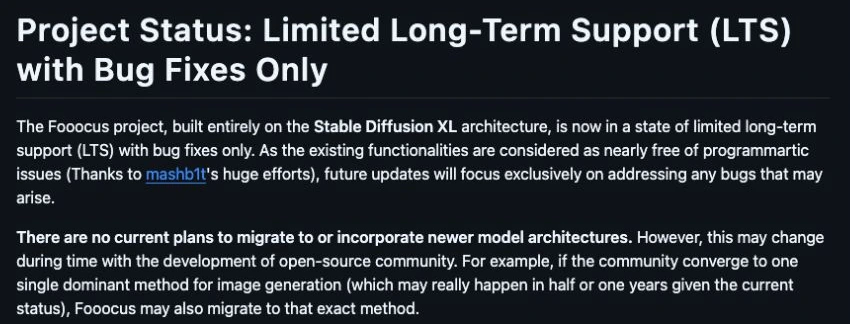
Fooocus focuses on prompts and images rather than exposing every technical decision. That can suit someone happy with SDXL who wants fewer controls to learn. Its official repository now states limited long-term support with bug fixes only, and no current plan to incorporate newer model architectures. It remains an option, but its maintenance direction should shape your expectations before installation.
What Free Software Still Asks of You
Free software removes one purchase decision. It does not remove the resources needed to generate images. Before choosing a setup, separate the interface license, the model license and the practical cost of running it. The most useful comparison is your whole workflow, not a download button.
Ce que vous fournissez
Check both licenses. Permission to use an interface does not settle rights for every model.
Allow room for model files and outputs, plus memory and processing capacity.
Budget time for installation, dependencies, updates and troubleshooting.
A cloud route shifts computation off your device; check its plan or credits before submitting.
For a concrete license example, FLUX.1-schnell uses Apache 2.0. FLUX.1-dev has a noncommercial license for its weights, while its model card separately addresses commercial use of outputs. Do not reduce those different permissions to “all FLUX images are noncommercial.” Read the exact model’s current terms for your intended use.
If you generate frequently on hardware you already own, local control may be attractive. If you make occasional campaign images, keeping an environment working may demand more attention than writing the brief. That is where a cloud workflow becomes useful: you can spend the session on the image and its accompanying content.
A Simpler Cloud Workflow with GlobalGPT
GlobalGPT brings multiple AI models and functions into one subscription platform. For a small content team, its appeal is an affordable place to move from an idea to imagery and supporting copy, without a separate local installation for each model. You can choose the tool for the job and keep the broader creative workflow in one dashboard.
From idea to usable image
- Plan the image. Clarify the purpose, subject, composition and text space.
- Select a model and submit. Confirm the brief and wait for the task to be accepted.
- Step away. Cloud processing continues after acceptance.
- Return and finish. Reconnect, inspect the result and continue the content work.
Start with the destination. A blog hero, product illustration and social post ask for different framing. Use a language model to turn your idea into a compact brief: what belongs in the picture, where it sits, which material details matter and whether a designer needs empty space for a headline. Keep required elements separate from optional stylistic preferences.
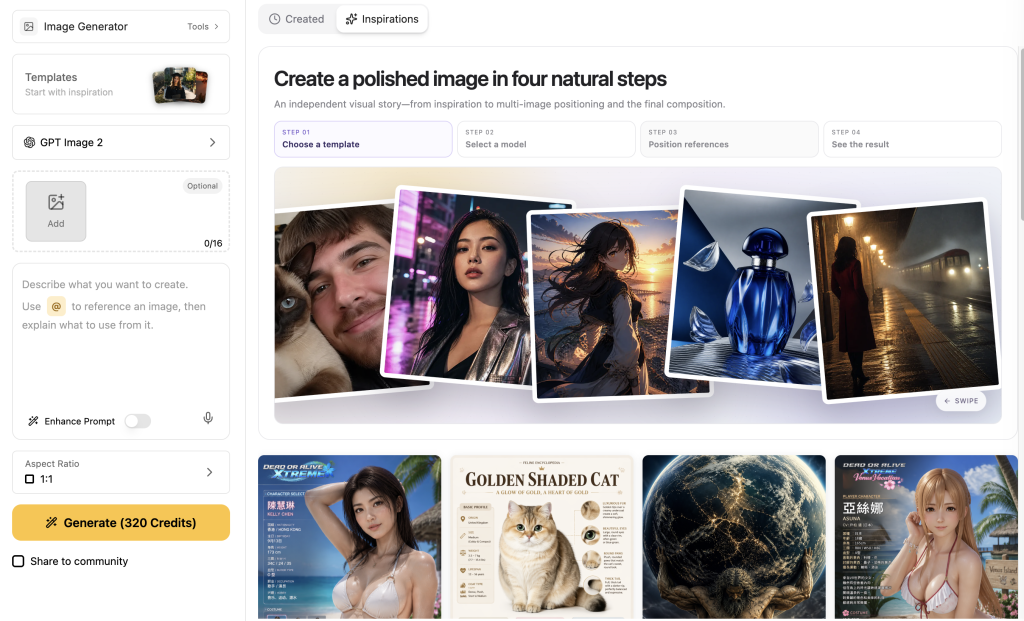
Choose the image model. Vous pouvez create an image with GPT Image 2 from GlobalGPT’s image workspace. Review the available controls and current plan or credit requirements before submitting. Specify the format in the relevant control where one is available, and reinforce the intended composition in the prompt. A request for empty space deserves its own sentence.
Leave once the task is accepted. You do not need to keep watching the webpage: processing continues in the cloud while you step away or go offline. Wait for acceptance before leaving, because an unsent prompt cannot start a cloud job. When you return, reconnect to collect the result.
Finish the asset, then its context. Inspect object count, edges, lettering and actual dimensions before placing the image in a layout. Keep useful prompt wording for later briefs, then use the dashboard’s text tools to develop a caption, headline or related content. Review that copy against what the image actually shows.
This route suits creators who want several AI capabilities without maintaining model files. If you are still choosing an image approach, compare image-generation tools around your next deliverable. Start with the output you need; a larger model list alone does not make that decision.
Create a Blog Visual Without Installing a Generator
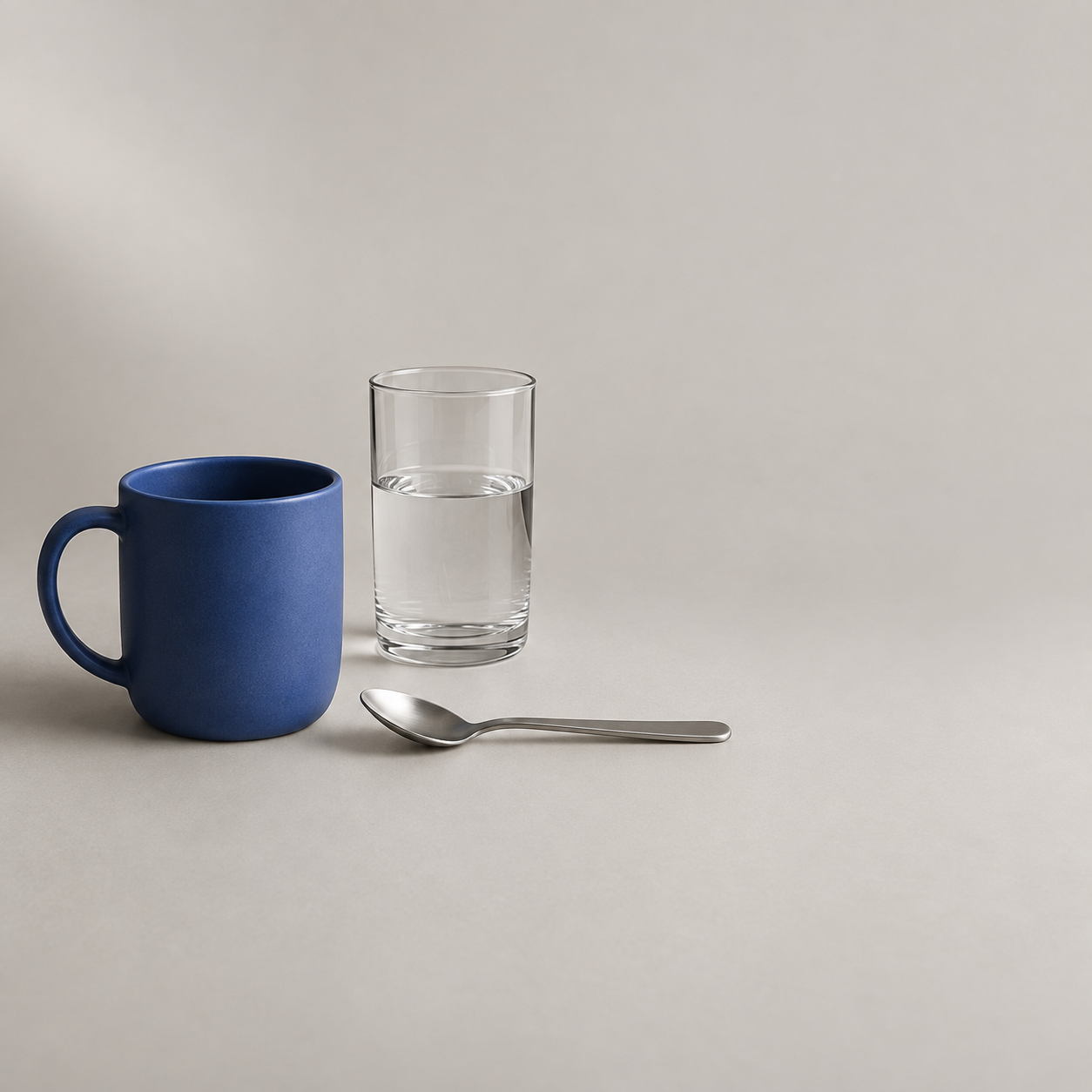
Suppose you need an illustration for a blog post about a calmer morning routine, plus a square image for its social post. With GlobalGPT, you can turn a written brief into a visual without downloading model files or setting up a local generator. Here is one image generated with GPT Image 2 on GlobalGPT, using a blue mug, a spoon and a glass of water as a simple editorial scene.
Modèle : GPT Image 2 (gpt-image-2). The original image below is 1254 × 1254 pixels and has not been cropped or retouched.
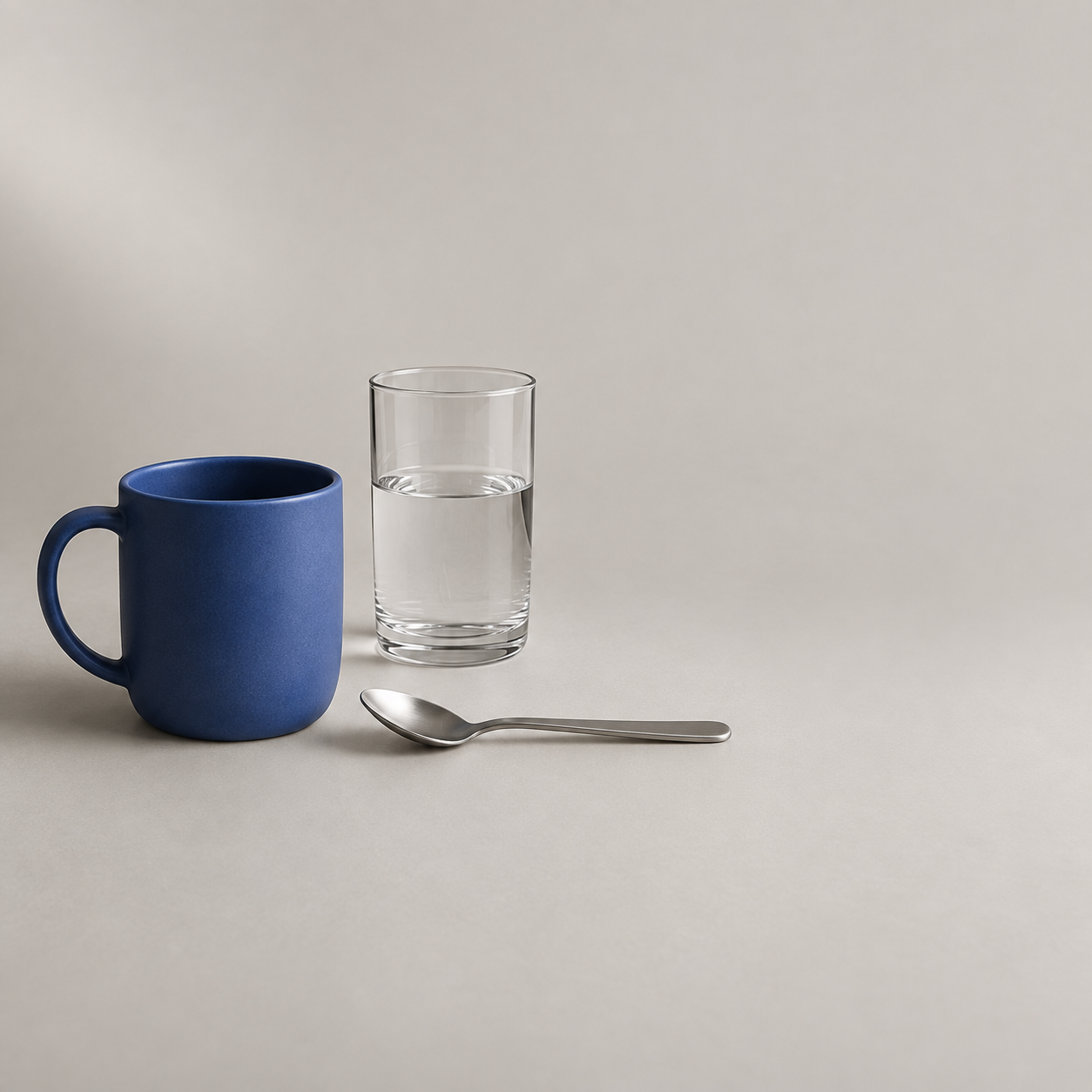
The quiet background and everyday objects suit a lifestyle article about daily habits. Pair the image with your blog introduction or use it in a social post that shares a morning-routine tip.
Put the image to work
Keep the full composition and add your message in the post caption. Preview it at phone size before exporting.
Crop or adjust the composition to fit your layout. Check that the mug and glass stay complete; a tight crop may cut them off.
Add the headline separately. The prompt requested a landscape image and clear headline space, but this result is square and the spoon reaches into the intended text area. Put the title outside the image, or adjust the layout before adding text.
Use the prompt below as a starting brief: replace the objects and color with details that fit your article, then choose the format for its destination. Keep the finished image and its accompanying headline as separate assets so you can reuse the visual across a blog and social channels.
Read the complete original image prompt
Create one photorealistic editorial product photograph in a 3:2 landscape composition. On a seamless warm light-gray tabletop and background, show exactly three separate, unbranded objects: one cobalt-blue matte ceramic mug with a single handle; one brushed stainless-steel teaspoon lying horizontally to the right of the mug; and one clear cylindrical glass tumbler half filled with water, standing behind the teaspoon. Place all three objects entirely within the left 60 percent of the frame. Keep the rightmost 35 percent completely empty, with an even warm light-gray background, no objects, no text and no hard shadows, so a designer can add a headline later. Use soft natural studio light from the upper left, realistic contact shadows below the objects, a visibly matte ceramic surface, fine brushed-metal highlights on the spoon, and transparent glass with a clear horizontal waterline. Show the complete objects without cropping. No extra objects, duplicate utensils, flowers, fruit, hands, people, lettering, numbers, logos, watermarks, borders or interface elements. This is a finished still-life image, not an infographic.
Open the original image at full size to check the composition before placing it in your design.
Questions fréquemment posées
Can AI image generators work without the internet?
Yes. A local generator can create images without internet access after the software, model weights and required components are downloaded. Use a compatible device and a workflow that does not call online services. Cloud generators still need a connection to receive new tasks and return results.
Is a browser-based image generator always online?
No. A browser can display an interface hosted on your own computer. The important question is where the model performs the computation. A localhost interface using local weights can operate offline; a remote API node requires a connection even inside otherwise local software.
Are free offline image generators free for commercial use?
Check the software and model licenses separately. Free installation does not grant unrestricted rights to every model or output. Some model licenses distinguish use of the weights from use of generated images. Also consider third-party rights in source material and the intended use of the final image.
Can I close GlobalGPT after submitting an image task?
Yes. Once the image task is accepted, processing continues in the cloud while you leave the webpage or go offline. You need an internet connection to submit the task and to retrieve the result when you return. Wait for acceptance before closing the page.
Which offline option works on a Mac or iPhone?
Draw Things offers local image generation on supported Apple devices, including Macs, iPhones and iPads. Check the current device requirements and the needs of your chosen model. Desktop alternatives may also support Macs, but installation paths and performance vary; a desktop workflow does not automatically run on an iPhone.
Choose a local tool when creating without a connection or keeping computation on your device is essential. Begin with one compatible model and a small brief before building a larger setup. If your priority is to avoid installation and keep imagery and writing in one place, GlobalGPT provides a cloud route that continues after you step away. Whichever route you choose, inspect the delivered file against the brief before using it.
Start your image brief with GlobalGPT, submit online and return to review the result.