Si ya utilizas Codex para tu trabajo diario, tener que cambiar constantemente entre diferentes sitios web para investigar, programar, generar imágenes y crear vídeos interrumpe rápidamente tu flujo de trabajo. La CLI de GlobalGPT integra estas funciones en Codex, lo que te permite utilizar los modelos y herramientas de GlobalGPT sin dejar de gestionar tus archivos, tareas y próximos pasos en el mismo espacio de trabajo.
En este tutorial, aprenderás a utilizar la CLI de GlobalGPT en Codex, desde una instalación limpia hasta un flujo de trabajo multimodelo operativo. Instalaremos el paquete oficial de npm utilizando Terminal o Codex, autorizaremos una cuenta de GlobalGPT, habilitaremos las habilidades incluidas, conectaremos el servidor MCP y verificaremos la configuración. A continuación, utilizarás la integración para tareas prácticas, como la búsqueda en la web, la programación, la generación de imágenes y la creación de vídeos.
Qué aporta GlobalGPT a Codex
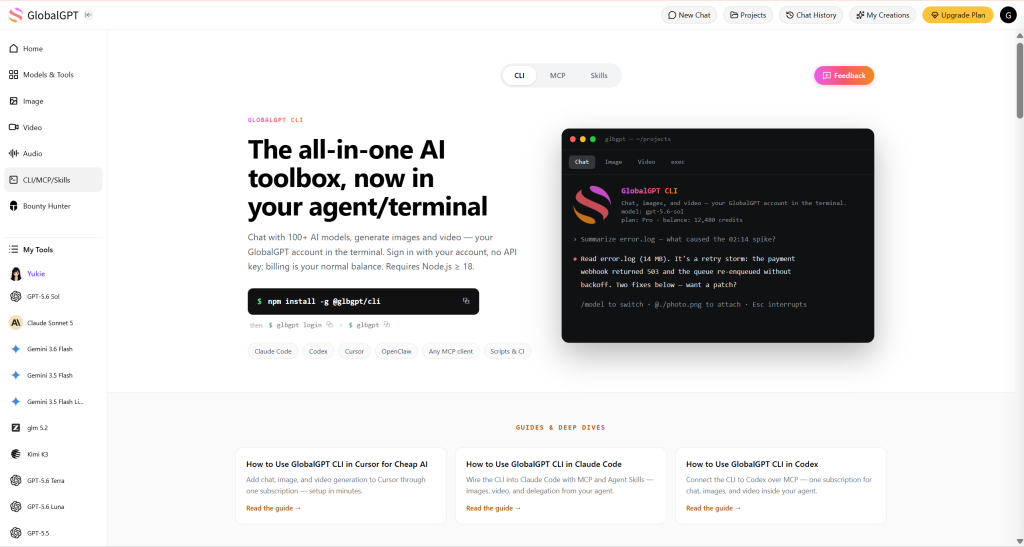
La CLI de GlobalGPT, las «Skills» incluidas y el servidor MCP son tres componentes de la misma integración. La CLI proporciona los comandos, las «Skills» enseñan a Codex cuándo y cómo utilizarlos, y el MCP pone a disposición las capacidades de GlobalGPT como herramientas a las que se puede acceder mediante llamadas.
GlobalGPT CLI
Ofrece comandos relacionados con la cuenta, el chat, las imágenes, los vídeos, las habilidades y el MCP.
Competencias GlobalGPT
Enséñale a Codex cómo gestionar tareas relacionadas con el chat, la programación, las imágenes y los vídeos.
GlobalGPT MCP
Muestra las funciones de chat y multimedia a las que Codex puede acceder directamente.
No es necesario que elijas solo una de las tres opciones. Instala primero la CLI y, a continuación, añade las Skills y la conexión MCP para que Codex pueda utilizar la misma cuenta GlobalGPT de diferentes maneras.
Requisitos previos
Antes de empezar, asegúrate de que tienes:
- Codex está instalado y funciona correctamente.
- Node.js y npm deben estar instalados en tu ordenador.
- Una cuenta GlobalGPT con créditos suficientes para los modelos que tengas previsto utilizar.
- Un navegador para el paso de autorización única.
El comando de instalación de npm es el mismo en macOS, Windows y Linux. Puedes escribirlo en tu terminal habitual o introducir el comando en Codex.
Instalar la CLI de GlobalGPT
Elige cualquiera de los dos métodos que se indican a continuación. Ambos instalan el mismo paquete oficial de la CLI de GlobalGPT y, a continuación, siguen los mismos pasos de configuración.
Método 1: Instalar la CLI de GlobalGPT en la terminal
Abre Terminal, PowerShell o tu aplicación de línea de comandos preferida y ejecuta el comando de instalación oficial:
npm i -g @glbgpt/cli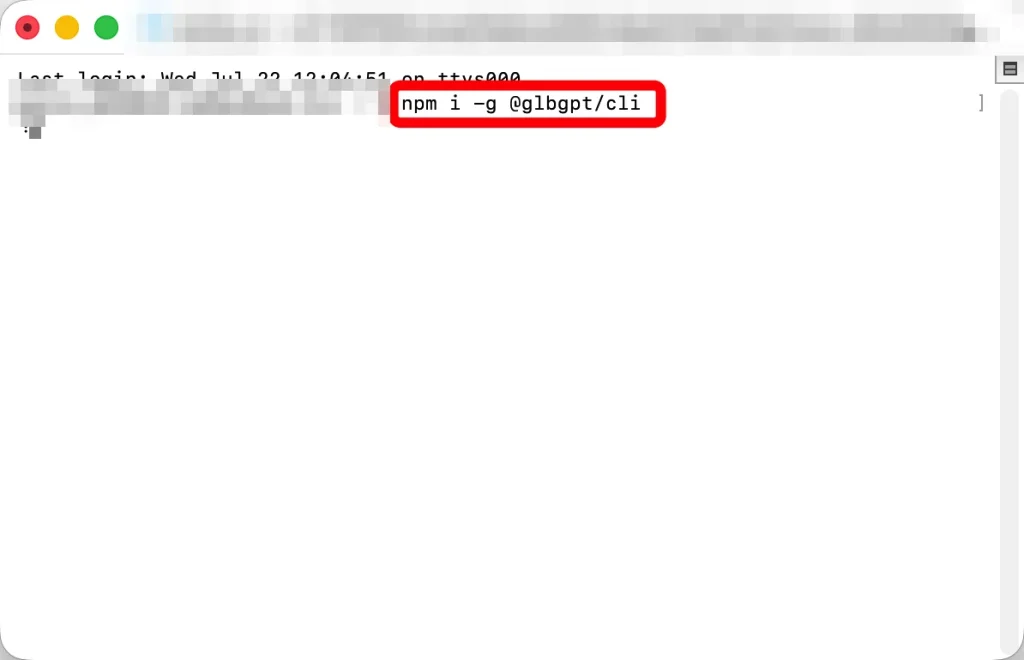
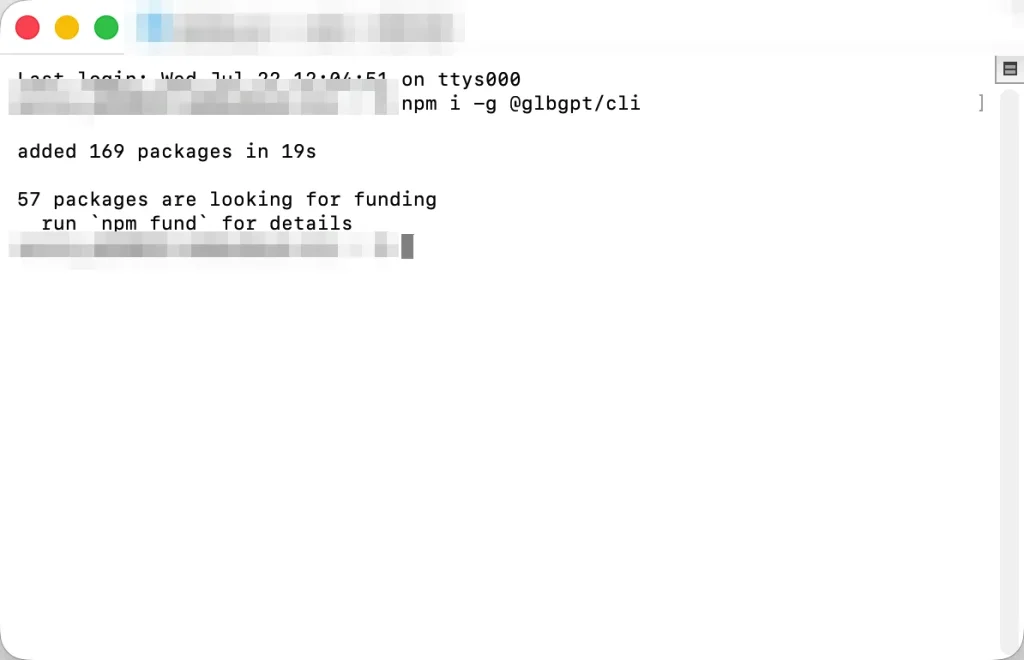
Espera a que npm termine. Una instalación correcta finaliza sin errores de npm y muestra los paquetes que se han añadido.
Comprueba la CLI instalada:
glbgpt --versiónComprobación de éxito: En esta prueba, el paquete instalado fue @glbgpt/cli@0.1.1 y el comando «version» devolvió 0.1.1. Es posible que tu versión sea más reciente cuando sigas la guía.
Método 2: Pedir a Codex que instale la CLI de GlobalGPT
Si prefieres quedarte dentro de Codex, envía esta instrucción:
Instala la CLI oficial de GlobalGPT con este comando:

npm i -g @glbgpt/cli

Tras la instalación, comprueba la versión del paquete instalado y verifica
que estén disponibles los comandos «glbgpt» y «globalgpt».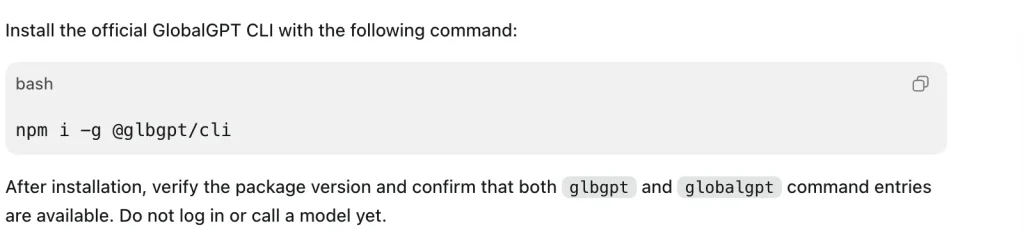
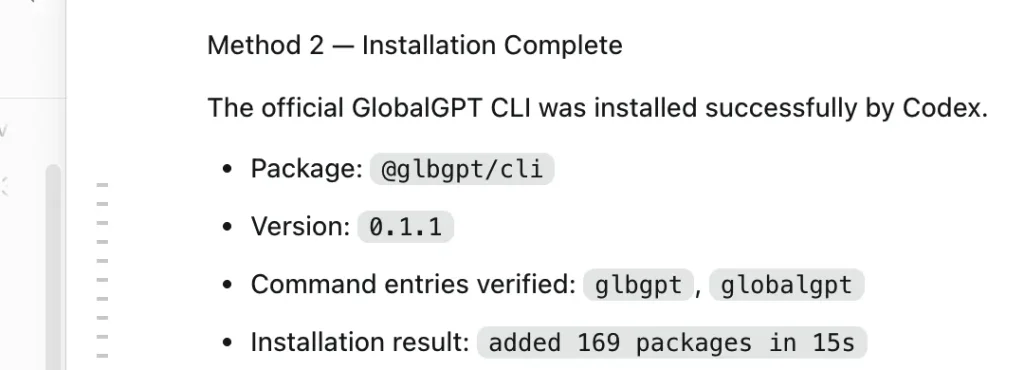
Codex puede ejecutar el comando npm, examinar el paquete instalado y comprobar las entradas de los comandos por ti.
Método 2 completado: Ambos métodos de instalación dan como resultado la misma configuración compartida que se muestra a continuación. No instales el paquete dos veces.
Iniciar sesión en GlobalGPT
Iniciar el proceso de autorización del navegador:
Inicio de sesión en glbgptTambién puedes preguntarle a Codex:
Inicia el proceso de inicio de sesión en la CLI de GlobalGPT.La CLI abre una página de autorización en tu navegador. Comprueba que has iniciado la solicitud desde tu propio dispositivo y, a continuación, selecciona Autorizar. No envíes tu contraseña, código de verificación ni URL de autorización a un asistente de IA.
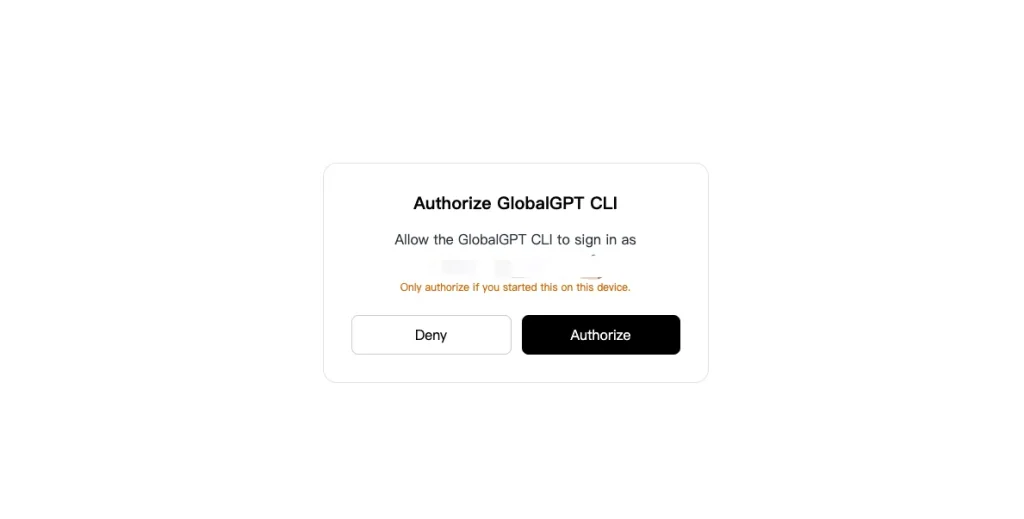

Comprueba la cuenta activa de forma privada mediante:
glbgpt whoamiNota sobre la privacidad: Este comando puede mostrar tu dirección de correo electrónico y tu saldo de crédito, así que evita incluir su salida sin procesar en capturas de pantalla públicas.
Instala las habilidades GlobalGPT en el Codex
La CLI oficial incluye cuatro Skills para aplicaciones de agentes:
globalgptpara el acceso a la cuenta y las tareas generales relacionadas con GlobalGPT.globalgpt-codificaciónpara tareas de codificación delegadas de forma explícita.globalgpt-imagepara la creación y edición de imágenes.globalgpt-vídeopara la generación de vídeos y de imágenes a partir de vídeos.
Instala los cuatro con:
Instalación de la habilidad glbgptResultado esperado: El instalador probado informó de lo siguiente: 4 habilidades instaladas y ha añadido el paquete a los directorios de habilidades del agente compatible. Reinicia Codex o abre una nueva tarea tras la instalación para que la aplicación pueda cargarlos.
Una vez cargado, puedes realizar una solicitud en lenguaje natural, como por ejemplo:
Utiliza GlobalGPT para investigar tres lanzamientos recientes de aplicaciones de productividad
en los blogs oficiales de las empresas. Incluye el título, la fecha, la URL y un
ejemplo de mensaje de lanzamiento de cada fuente.
Conectar el MCP GlobalGPT a Codex
La conexión MCP pone a disposición de Codex, de forma directa, las funciones de chat GlobalGPT, detección de modelos, generación de imágenes, generación de vídeos y estado de las tareas.
Si glbgpt está disponible en tu ruta de comandos habitual, registra el servidor stdio con:
codex mcp add globalgpt -- glbgpt mcp --max-credits 4000En --máximo de créditos Este valor corresponde al presupuesto de la sesión para la generación de contenidos multimedia. El registro del servidor MCP no genera por sí mismo contenidos multimedia ni consume créditos.
También puedes pedirle a Codex que lo configure:
Registra GlobalGPT como servidor MCP de Codex utilizando:

glbgpt mcp --max-credits 4000

A continuación, comprueba que el servidor esté activado. No generes ningún contenido multimedia todavía.
Comprueba la configuración guardada:
codex mcp get globalgptLista del Codex MCPMCP conectado: Abre una nueva tarea de Codex tras el registro. En la configuración probada, Codex cargó cinco herramientas MCP GlobalGPT.
- Chatea con una modelo GlobalGPT.
- Enumera los modelos de chat, imagen y vídeo.
- Generar o editar una imagen.
- Genera un vídeo a partir de texto o fotogramas de referencia.
- Comprobar una tarea de generación de imágenes o vídeos.
Crea un flujo de trabajo completo de IA en Codex
La instalación solo demuestra que los comandos existen. La pregunta más relevante es qué aporta la integración al trabajo real. Para comprobarlo, utilizamos GlobalGPT dentro de Codex para preparar un paquete de lanzamiento para una aplicación de productividad ficticia llamada FlowNote.
El flujo de trabajo conectaba cuatro funciones diferentes:
- Utiliza un modelo de lenguaje grande (LLM) con acceso a Internet para recopilar ejemplos oficiales actuales.
- Convierte el estudio en un informe de lanzamiento.
- Generar una imagen principal para la página de destino.
- Convierte el material gráfico en un vídeo promocional de ocho segundos.
En cada etapa se utilizó el primer resultado válido. Los datos externos se contrastaron con las páginas oficiales, mientras que las restricciones de los medios generadas se mantuvieron y se hicieron públicas.
Paso 1: Buscar información actualizada con un modelo de lenguaje grande (LLM) conectado a Internet
Los modelos de chat GlobalGPT con capacidad para utilizar herramientas pueden realizar búsquedas en Internet y recuperar páginas cuando una pregunta requiere información actualizada. La pregunta de la prueba solicitaba tres anuncios recientes sobre productos de productividad procedentes de blogs oficiales de empresas:
Utiliza un buscador web para encontrar tres lanzamientos recientes de aplicaciones de productividad o
actualizaciones importantes de productos anunciadas en los blogs oficiales de los productos.

Para cada ejemplo, indica:
- Nombre del producto
- Título exacto del anuncio
- Fecha de publicación
- URL de la fuente oficial
- Un modelo de página de destino o de mensaje de lanzamiento del que merezca la pena aprender

Utiliza fuentes oficiales del producto o de la empresa, no resúmenes de noticias.
Separa claramente los datos contrastados de tus recomendaciones.
La primera respuesta válida mostró anuncios de Asana, Linear y Notion. A continuación, comprobamos cada URL por separado. Las tres devolvieron un código HTTP 200, y los títulos de las páginas y las fechas de publicación coincidían con la respuesta.
| Producto | Comunicado oficial | Fecha | Verificación |
|---|---|---|---|
| Asana | Lanzamiento de Asana: Primavera de 2026 | 20 de mayo de 2026 | El título y la fecha coinciden |
| Agente lineal | Presentamos Linear Agent | 24 de marzo de 2026 | El título y la fecha coinciden |
| Notion 3.0 | Presentamos Notion 3.0 | 18 de septiembre de 2025 | El título y la fecha coinciden |
Consulta el resultado completo de la primera investigación válida
Asana
Patrón de lanzamiento observado: Empieza por el problema organizativo, explica por qué las herramientas actuales no dan la talla, presenta una solución integral y, a continuación, respáldala con pruebas basadas en las funcionalidades.
Agente lineal
Patrón de lanzamiento observado: Convierte las capacidades abstractas en casos de uso concretos mostrando al usuario la situación, la acción exacta y el resultado inmediato.
Notion 3.0
Patrón de lanzamiento observado: Incluye un breve resumen (TL;DR) antes de la descripción más detallada, seguido del problema principal, la visión del producto, las demostraciones, los casos de uso y la llamada a la acción (CTA).
Los títulos, las fechas y las URL de las fuentes se consideraron datos objetivos. Los patrones de lanzamiento fueron el resultado del análisis del modelo y no se presentaron como declaraciones realizadas por las empresas.
Paso 2: Convertir el estudio en un informe de lanzamiento
En la siguiente reunión del MCP GlobalGPT, esos patrones verificados se plasmaron en un resumen práctico de FlowNote. El modelo definió el público objetivo, el mensaje principal, tres ventajas, la estructura de la página de destino, la dirección visual, el concepto del vídeo y la llamada a la acción (CTA).
Mensaje principal: Convierte los pensamientos dispersos en acciones concretas.
Llamada a la acción: Prueba FlowNote: captura lo que importa. Actúa en función de lo que viene después.
Consulta el informe completo sobre el lanzamiento
Público objetivo: Trabajadores del conocimiento, fundadores, estudiantes y pequeños equipos que anotan sus ideas en distintos sitios y tienen dificultades para convertir esas notas dispersas en acciones concretas y claras.
- Captura sin perder el enfoque: Anota ideas, decisiones y tareas en un flujo coherente.
- Pasar de la nota al siguiente paso: Convierte el texto seleccionado en una tarea con un responsable, una fecha o una prioridad.
- Descubre lo que importa ahora: Reúne las notas relevantes y las tareas pendientes en una vista diaria concisa.
La estructura propuesta para la página era la siguiente: sección principal y resumen (TL;DR), tensión del mercado, historia sobre los puntos débiles, visión unificada del producto, demostraciones de «de la situación al resultado», casos de uso y llamada a la acción (CTA) final.
Dado que FlowNote es una empresa ficticia, el briefing prohibía expresamente mencionar cifras de clientes no verificadas, testimonios, integraciones, precios, certificaciones de seguridad, afirmaciones sobre el rendimiento y recomendaciones de marcas.
Paso 3: Crear una imagen principal para la página de destino
El instalado globalgpt-image Skill realizó primero una estimación del trabajo y, a continuación, generó una imagen en formato 16:9 con el modelo de imagen predeterminado de la cuenta. La CLI seleccionó Nano Banana 2 y estimó unos 400 créditos.
Crea una imagen principal nítida en formato 16:9 para FlowNote, una aplicación de productividad ficticia
que convierte notas dispersas en planes diarios organizados. Muestra un
espacio de trabajo moderno en el escritorio con fichas sueltas que
convergen con fluidez en un único plan diario bien definido. Utiliza una refinada paleta de azules y violetas,
una profundidad suave, una iluminación profesional y tranquila, y un generoso
espacio negativo. No incluyas texto legible, logotipos, marcas de marca, marcas de agua, personas ni
marcos de maquetas de dispositivos.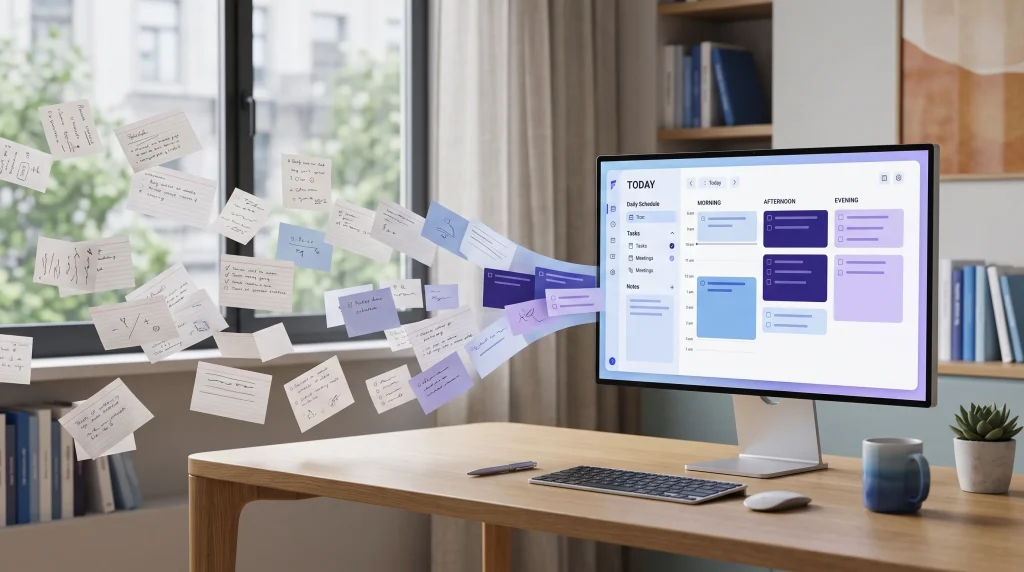
Resultado práctico: La composición y la paleta de colores funcionaron bien, pero la modelo añadió texto legible en la interfaz a pesar de las instrucciones. Se conservó la primera imagen válida.
La imagen logró plasmar la idea principal: las notas dispersas convergen de forma visible hacia una agenda organizada en un espacio de trabajo azul y violeta. No se respetaron todos los detalles. La interfaz contiene palabras legibles como “HOY” y “Tareas”, a pesar de la indicación de evitar el texto legible. Nos quedamos con el primer resultado válido en lugar de volver a intentarlo.
Si quieres perfeccionar tu propia indicación, consulta la Guía rápida de Nano Banana 2. También puedes acceder a Nano Banana 2 en GlobalGPT fuera del flujo de trabajo de la CLI.
Paso 4: Convierte la imagen principal en un vídeo promocional
En globalgpt-vídeo Skill utilizó la imagen principal como fotograma inicial. La ruta de vídeo predeterminada seleccionó «Grok Imagine», calculó un coste aproximado de 800 créditos y devolvió un vídeo de ocho segundos.
Anima la imagen principal de FlowNote para crear un vídeo de 8 segundos sobre el lanzamiento del producto.
Las notas en papel sueltas y las fichas de tareas digitales deben deslizarse suavemente
de izquierda a derecha y organizarse en la agenda diaria
que se ve en la pantalla. Utiliza un movimiento tranquilo y profesional, sutiles rastros de luz en tonos azules y
violetas, una cámara fija y un estilo pulido propio de una página de destino.
Mantén la composición del espacio de trabajo. No introduzcas personas, logotipos,
marcas de marca, marcas de agua, texto nuevo legible, movimientos de cámara ni transiciones
bruscas.
Resultado práctico: El resultado final era reproducible y conservaba la idea general del espacio de trabajo, pero modificaba sustancialmente la composición inicial.
El archivo obtenido tenía una resolución de 1280×720, una duración de 8,042 segundos y estaba codificado en H.264. Un fotograma representativo mantenía el concepto del escritorio, el monitor y la ficha, pero la composición cambiaba sustancialmente y la interfaz del monitor quedaba prácticamente en blanco. Esto nos sirve de recordatorio de que la generación de vídeo a partir de imágenes puede reinterpretar un fotograma de referencia en lugar de conservarlo exactamente.
Puedes explorar el mismo modelo a través de Grok Imagínate en GlobalGPT.
Qué muestra este flujo de trabajo
El valor no reside en una única respuesta ni en un archivo multimedia concreto. Codex puede coordinar el proceso: la investigación web actual se convierte en un briefing, el briefing se transforma en una dirección visual y la dirección visual da lugar a un vídeo. GlobalGPT aporta modelos y herramientas multimedia adicionales, mientras que Codex mantiene el contexto del proyecto y organiza el trabajo.
| Fase del flujo de trabajo | Capacidad GlobalGPT | Resultado útil |
|---|---|---|
| Investigación actual | Modelo de chat basado en web a través de MCP | Fuentes oficiales y patrones de lanzamiento reutilizables |
| Planificación | Modelo de chat GlobalGPT | Resumen estructurado de lanzamiento con los límites de la propuesta |
| Producción visual | GlobalGPT Habilidad de imagen | Imagen principal de la página de destino |
| Producción de Motion | GlobalGPT: Habilidades de vídeo | Breve vídeo promocional |
Comandos útiles de la interfaz de línea de comandos (CLI) de GlobalGPT
Utiliza esta guía de referencia compacta cuando necesites consultar una cuenta, descubrir un modelo o iniciar una tarea de generación.
Configuración y cuenta
glbgpt --versiónInicio de sesión en glbgptglbgpt whoamiInstalación de la habilidad glbgptglbgpt mcpglbgpt: mostrar la última tareaModelos y generación
glbgpt: lista de modelos de chatImagen de la lista de modelos glbgptLista de modelos glbgpt (vídeo)glbgpt exec "..." -mglbgpt imagen "..." --estimarglbgpt vídeo "..." --estimateSolución de problemas
glbgpt: comando no encontrado
Cierra y vuelve a abrir primero tu terminal. Si el error persiste, comprueba si el directorio del binario global de npm está incluido en la variable PATH de tu shell. La instalación del paquete npm y hacer que el comando sea detectable son pasos independientes. También puedes pedirle a Codex que localice el paquete instalado y te explique qué entrada falta en la variable PATH.
Codex no detecta las habilidades recién instaladas
Ejecuta el instalador de habilidades y, a continuación, reinicia Codex o abre una nueva tarea. Las habilidades se cargan al iniciar el agente; es posible que una tarea ya abierta no actualice automáticamente su inventario de habilidades.
Instalación de la habilidad glbgptEl servidor MCP está activado, pero no aparece ninguna herramienta
Confirma la configuración guardada de MCP y, a continuación, abre una nueva tarea de Codex:
codex mcp get globalgptSi Codex se inicia fuera de tu entorno de terminal, busca la ruta completa del ejecutable GlobalGPT:
comando -v glbgptUn modelo no devuelve ningún resultado
Considera la autenticación, el transporte, la capacidad del proveedor y las respuestas vacías como errores operativos, no como una prueba de que el modelo sea deficiente. No sigas intentando generar contenidos a ciegas, ya que una tarea interrumpida del lado del servidor puede seguir consumiendo créditos. Comprueba primero el error y el estado de la tarea.
Preguntas frecuentes
¿Son lo mismo GlobalGPT CLI, Skill y MCP?
Pertenecen a la misma integración, pero tienen funciones diferentes. La CLI proporciona comandos, las Skills controlan el comportamiento de Codex y MCP ofrece funciones en forma de herramientas.
¿Puede Codex instalarme la CLI de GlobalGPT?
Sí. Introduce el comando oficial que aparece a continuación en Codex y pídele que verifique la versión instalada y las entradas de comando.
npm i -g @glbgpt/cli¿Tengo que mantener abierta la Terminal?
No. Tras la instalación y la configuración, Codex puede iniciar el servidor CLI o MCP cuando sea necesario. La terminal resulta útil para la configuración, la verificación y la resolución de problemas.
¿Pueden los modelos GlobalGPT realizar búsquedas en Internet desde Codex?
Los modelos de chat con funciones de búsqueda pueden realizar búsquedas en Internet y recuperar páginas. Las búsquedas en Internet pueden consumir créditos adicionales. Comprueba siempre las URL, fechas, precios y afirmaciones sobre productos importantes cotejándolas con la fuente citada.
¿Puedo crear imágenes y vídeos dentro de Codex?
Sí. El paquete globalgpt-image y globalgpt-vídeo Las funciones utilizan tu cuenta GlobalGPT, y el servidor MCP también ofrece herramientas para imágenes y vídeos.
¿Sustituye MCP a la CLI?
No. El servidor MCP se inicia desde la CLI. MCP facilita que Codex pueda acceder a las funcionalidades como herramientas, mientras que la CLI sigue siendo la interfaz local subyacente.
¿Cómo puedo cambiar de cuenta GlobalGPT?
-
1
Cerrar sesión de la cuenta actual
glbgpt cerrar sesión -
2
Iniciar la autorización del navegador
Inicio de sesión en glbgpt -
3
Verifica la cuenta activa de forma privada
glbgpt whoami
¿Cómo actualizo la CLI de GlobalGPT?
Vuelve a instalar el paquete actual:
npm i -g @glbgpt/cliActualiza las habilidades incluidas y, a continuación, reinicia Codex:
Instalación de la habilidad glbgptConclusión final
La CLI de GlobalGPT convierte a Codex en un espacio de trabajo multimodelo más amplio. La CLI se encarga de la conexión local, las Skills hacen que la delegación mediante lenguaje natural sea predecible y el MCP permite a Codex acceder directamente a herramientas de chat y multimedia. Una vez conectados los tres, una tarea puede pasar de la investigación inicial a la planificación estructurada, la generación de imágenes y la generación de vídeos sin tener que interrumpir el flujo de trabajo para cambiar a aplicaciones no relacionadas.
Si trabajas en varios entornos de programación de IA, puedes utilizar la misma cuenta y las mismas funciones de la CLI de GlobalGPT en otros lugares. Descubre cómo hacerlo Utilizar la CLI de GlobalGPT en el código de Claude o sigue la guía para Utilizar la CLI de GLBGPT en Cursor.
Si quieres utilizar la misma cuenta multimodelo fuera de la línea de comandos, también puedes Abre GlobalGPT en tu navegador.