Seedance 2.0 is not just a text-to-video generator. For creators, marketers, filmmakers, and brand teams, its real value comes from how well you guide it with structured prompts, reference files, and clear scene instructions.
This guide explains how to write better Seedance 2.0 prompts, how to use the @Mention reference system, how to apply Seedance in real use cases such as logo animation, ads, creator videos, and short films, how to edit and expand videos with Seedance 2.0 and how to avoid common limits around resolution, duration, file inputs, faces, and unstable outputs.
TL;DR
Prompt Formula
Subject + Action + Scene + Camera + Style + Reference + Constraints- Who is in the scene
- What they are doing
- How the camera moves
- Where the scene takes place
- Visual style and mood
- Rules for consistency and realism
Multi-Modal Combination (@Mention)
@image1 as the first frame, reference @video1 for motion,
@audio1 for rhythm and mood, [describe full scene]
Video Editing
Replace [element A] in @video1 with [element B], [additional constraints]
Video Extension
Extend @video1 by [X] seconds, [describe new content]
🖊How to Write a Good Seedance Prompt ?
The most reliable Seedance prompt structure is:
Subject + Action + Scene + Camera + Style + Reference + Constraints| Prompt Element | What It Controls | Example |
|---|---|---|
| Subject | Main person, object, product, or logo | “A young astronaut in a silver suit” |
| Action | What happens in the clip | “slowly opens a glowing door” |
| Scene | Location and environment | “inside a retro-futuristic space station” |
| Camera | Shot type and movement | “slow dolly-in from wide shot to close-up” |
| Style | Visual mood and lighting | “1970s sci-fi commercial, warm golden light” |
| Reference | Uploaded image, video, or audio file | “use @Image1 for character identity” |
| Constraints | What must stay stable | “keep the logo sharp and unchanged” |
If you want to know more detailed information, such as “How to Write Seedance Prompts for Different Input Types”, or if you wish to view the vast amount of videos generated by Seedance and the prompt templates that can be directly copied, you can check Seedance 2.0 Prompt Guide and Examples.
🖊Basic Usage
The basic usage of Seedance includes multimodal reference, editing videos and extending videos.
💡How to Use the @Mention System for Professional AI Video?
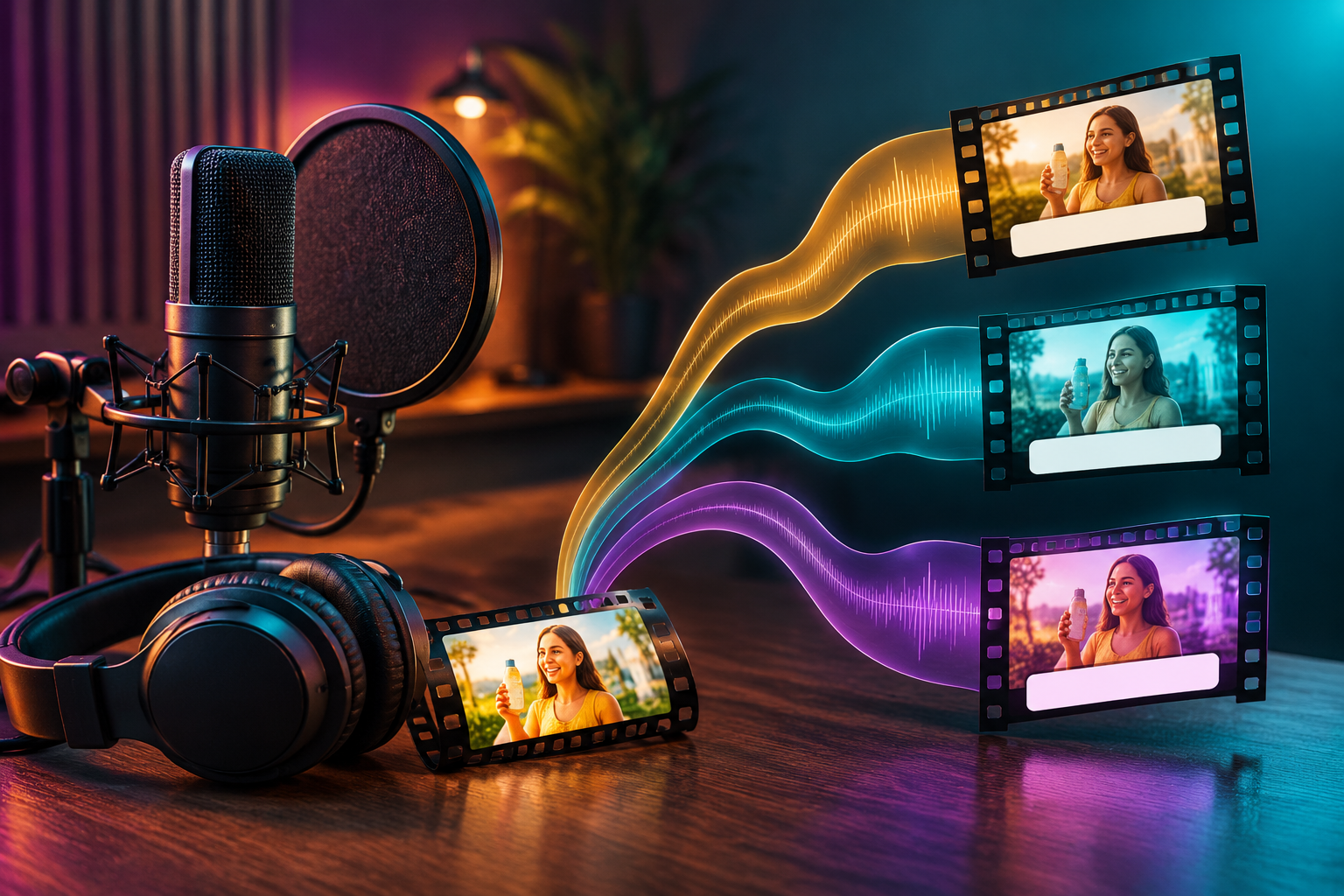
Seedance 2.0 Omni is the first model to offer a unified “Quad-modal” input system. It processes text, images, videos, and audio simultaneously to create high-precision cinematic content.

The core of this system is the @Mention logic. Seedance 2.0 currently supports uploading three types of files as references: image, video, and audio. By tagging your uploaded files (e.g., @img1, @vid1), you can tell the AI exactly which file to use for character appearance, movement, or sound.

Seedance-style @Mention prompting usually follows this logic:
Use @Image1 for identity.
Use @Video1 for motion and camera movement.
Use @Audio1 for rhythm, voice, or atmosphere.
This makes your prompt more controllable because every reference has a clear job. You can also freely combine the materials as references. The common usage methods can be found in the cheat sheet I have prepared below.
Seedance @Mention Cheat Sheet
| Goal | Best Reference Setup | Prompt Formula |
|---|---|---|
| Keep a character consistent | @Image1 | “Use @Image1 as the main character reference.” |
| Animate a logo | @Image1 logo PNG | “Place the logo from @Image1 clearly on…” |
| Recreate a viral motion | @Video1 + @Image1 | “Keep the motion of @Video1, replace subject with @Image1.” |
| Create a two-photo short film | @Image1 + @Image2 | “Use @Image1 for character, @Image2 for scene.” |
| Make an ad from a product photo | @Image1 product | “Use @Image1 as the exact product design.” |
| Sync to music | @Audio1 | “Follow the rhythm and mood of @Audio1.” |
| Control camera movement | @Video1 | “Follow the camera path from @Video1.” |
We have provided a vast number of examples and replicable prompts. Click to view more. The following text also provides other usage examples for your reference.
What @Image Does
| Use Case | How to Prompt |
|---|---|
| Character consistency | “Use @Image1 as the main character reference.” |
| Product accuracy | “Use @Image1 as the exact product design.” |
| Logo stability | “Use the logo from @Image1, keep its shape and color unchanged.” |
| Style reference | “Follow the lighting and color palette of @Image2.” |
| Scene reference | “Use @Image2 as the environment reference.” |
What @Video Does
Use @Video when you want to copy motion, rhythm, camera movement, or a viral video structure.
| Use Case | How to Prompt |
| TikTok-style transitions | “Match the transition timing and rhythm of @Video1.” |
| Fashion walking shots | “Follow the walking pace and model’s posture from @Video1.” |
| Dance movements | “Mimic the choreography and body movements in @Video1.” |
| Camera tracking shots | “Apply the same cinematic camera tracking movement as @Video2.” |
| Product rotation videos | “Rotate the object in the same 360-degree style as @Video1.” |
| Action scenes | “Replicate the intensity and motion flow of the action in @Video2.” |
| Reference-based cinematic shots | “Use @Video2 as a reference for the camera depth and pacing.” |
What @Audio Does
Use @Audio when rhythm, voice, sound design, or pacing matters.
| Audio Input | Best For |
|---|---|
| Music | dance videos, ads, trailers, short-form edits |
| Voiceover | narration, product demos, character dialogue |
| Sound effects | explosions, footsteps, glass breaking, ambience |
| Beat reference | fast cuts, transitions, rhythmic camera moves |
However, the references you have uploaded must meet the following conditions:
Seedance 2.0 / 2.0 Fast Input Requirements
This document outlines the technical specifications and constraints for multimodal-reference-to-video generation using the Seedance 2.0 series models.
1. Image Requirements
| Parameter | Specification |
|---|---|
| Quantity | 1 – 9 images (Multimodal-reference-to-video) |
| Formats | .jpeg, .png, .webp, .bmp, .tiff, .gif |
| Dimensions | Width/Height: [300px, 6000px] Aspect Ratio: [0.4, 2.5] |
| File Size | Single image < 30 MB; Request body < 64 MB |
| Input Method | URL or Base64 string (URL recommended) |
2. Video Requirements
| Parameter | Specification |
|---|---|
| Quantity | Max 3 reference videos |
| Duration | Single video: [2s, 15s] Total duration: ≤ 15s |
| Resolution | 480p, 720p, 1080p |
| Pixel Count | Total pixels (W × H) must be between 409,600 and 2,086,876 |
| Frame Rate | 24 – 60 FPS |
| File Size | Single video ≤ 50 MB |
3. Audio Requirements
| Parameter | Specification |
|---|---|
| Quantity | Max 3 reference audio clips |
| Duration | Single audio: [2s, 15s] Total duration: ≤ 15s |
| Formats | .wav, .mp3 |
| File Size | Single audio ≤ 15 MB; Request body < 64 MB |
💡Step-by-Step Guide: Mastering Omni Mode with 12 Multi-Modal Assets
Start by preparing your assets. Please make sure that the file you upload complies with the requirements. If it doesn’t, the upload will fail. You can make the necessary modifications according to the prompts on the page.


Upload your files to the dashboard and assign them @tags. In your prompt, be specific: use “Reference @img1 for character face” and “Follow @vid1 for camera path.”
Example:
@Reference the man's image in @image 1, in the elevator in @image 2, fully referencing all camera movements and the main character's facial expressions from @video 1. The main character uses Hitchcock zoom when in fear, then several surrounding shots show the perspective inside the elevator. The elevator door opens, and a tracking shot follows the man exiting the elevator. The scene outside the elevator references @image 3, where the man looks around, with multiple angles following his line of sight using a robotic arm as in @video 1.
💴Seedance Prompt Examples by Use Case
The multimodal reference function has different functions in different scenarios. Seedance 2.0 is strongest when you choose a clear use case before writing the prompt. A creator video, logo animation, product ad, and cinematic short film should not use the same prompt structure. If you want to obtain specific information, you can click on the relevant content to view more details.
| Use Case | Description | Recommended @mention Strategy |
| Logo Animation | Focuses on brand identity stability. Animates static logos with cinematic lighting or fluid motion while preserving original geometry. | @Image1: High-res source logo. @Video: Reference for specific motion paths or “reveal” logic. |
| Ads (Advertising) | Designed for high-conversion marketing. Replicates the “Visual DNA” of viral trends to create professional product showcases. | @Image1: Exact product photo. @Image2: Brand moodboard. @Video: Viral ad structure/pacing. @Audio: Background music/VO. |
| Creators | Tailored for social media influencers and content artists. Optimized for rhythmic transitions, trending movements, and consistent characters. | @Video: Motion/Rhythm reference (e.g., TikTok transitions). @Audio: Beat reference for rhythmic sync. @Image: Character or outfit reference. |
| Short Films | Aimed at cinematic storytelling. Utilizes precise camera direction (panning, zooming, tracking) and atmospheric environment references. | @Image: Environment/Concept art. @Video: Hollywood-style camera tracking/angles. @Audio: Ambient soundscapes or dialogue. |
💡Edit Videos
You can use the Video Edit feature of Seedance 2.0 when you need to transform or refine existing footage without re-shooting. This powerful “Multimodal-Reference” capability is ideal for the following scenarios:
- Scene & Background Swapping: Change the environment of your original video (e.g., moving a product from a studio to a beach) by using @Image as a new environment reference while preserving the original subject’s motion.
- Visual Style Transfer: Apply the “Visual DNA” (lighting, color palette, and mood) of a viral ad or a cinematic masterpiece to your own raw footage using @Video as a style reference.
- Character & Outfit Consistency: Update or maintain the appearance of a character across different shots by referencing a specific character sheet or outfit photo via @Image.
- Dynamic Product Placement: Insert a product into a lifestyle scene while ensuring it inherits the realistic lighting and reflections of the surrounding environment.
- Rhythmic Re-timing: Sync your existing video’s motion to a new soundtrack using @Audio, allowing the AI to adjust the pacing and transitions to match new musical beats.
Essentially, Seedance 2.0 Video Edit acts as an AI-powered Director of Photography, allowing you to keep the “action” of your video while completely overhauling the “aesthetic” and “context.”
Step-by-Step Guide
- Step1: Provide the video to be edited, reference images or audio.
- Step2: Use prompts together to complete various video editing tasks, such as replacing the video subject, adding, deleting and modifying objects in the video, redrawing/repairing partial frames, etc.
Example:
Keep the camera movement, pacing, and action rhythm from @Video1.
Replace the original subject with the person/product from @Image1.
Preserve the motion blueprint, but change the visual identity…
💡Extend Videos
The Extend Video feature in Seedance 2.0 is your primary tool for overcoming technical duration limits and building long-form narrative content. Here is when you should utilize this functionality:
- Surpassing the 15s Limit: Since a single Seedance generation is capped at a maximum of 15 seconds, you can use the Extend feature to continue the action seamlessly, allowing you to build 30-second ads, 1-minute explainers, or even full-length cinematic scenes.
- Sequential Storytelling: If you have successfully generated a “Hero Shot” of your product, you can extend that video to transition into a new scene—such as moving from a close-up texture shot to a wide-angle lifestyle shot—without losing visual consistency.
- Refining Pacing and Flow: Use the extension tool to add “breathing room” to a clip. If an action finishes too abruptly, extending the video allows the AI to generate a natural follow-through or a lingering cinematic ending.
- Developing Character Arcs: For creators and filmmakers, the Extend feature is essential for maintaining character and environment stability over a longer duration, ensuring that the “Visual DNA” established in the first few seconds remains intact as the story progresses.
- Dynamic Loop Creation: You can extend existing footage to create perfect, high-quality loops for social media backgrounds or digital billboards, ensuring the motion remains fluid and the lighting stays consistent.
By treating each 15-second generation as a “building block,” the Extend Video feature effectively transforms Seedance 2.0 from a clip generator into a comprehensive video production suite.
Based on the original video, you can extend the video forward or backward, or stitch multiple video clips (up to 3 clips) into a coherent video.
Example:
Extend the video, tracking shot of a man in orange riding a brown horse, he speeds up and runs to a large tree with orange flowers, breaks off two flowers from the branch, then other people successively ride into the frame. The camera zooms in to capture the man in orange dismounting, the camera quickly circles him, he turns and walks towards a woman in white riding a white horse, presenting the flowers to her. Chinese style portrait style, 3D, cheerful folk music.For more information about the duration of the Seedance video, please click here.
🙅Seedance Limits and How to Work Around Them
Even with strong prompts, Seedance has limits. The best way to improve output quality is to understand what the model handles well and where you need to give stricter instructions.
| Feature | Seedance 2.0 Hard Rule | What It Means For You |
| Realistic Human Faces | 0 Allowed (Strict Ban) | You cannot use photos of real people. The AI will block them. Want to know how to bypass the face recognition restrictions? Click here. |
| Maximum Input Files | 12 Files Total | You are limited to a mix of max 9 images, 3 videos, and 3 audios. |
| Max Video Duration | 15 Seconds | You cannot generate a continuous clip longer than 15s at a time. |
| Base Resolution | 720p Max | The standard output is not full 1080p HD. |
File Input Limits: How Many References Can You Use?
Your current Seedance cluster explains a reference setup built around:
| Asset Type | Max Quantity | Best Use |
|---|---|---|
| Images | 9 | characters, products, logos, scenes, style |
| Videos | 3 | motion, camera movement, action, pacing |
| Audio | 3 | voice, rhythm, music, sound effects |
| Total assets | 12 | combined multimodal references |
The key is not to upload as many files as possible. The key is to assign every file a clear role.
Example1:
@Image1 A girl breaks the fourth wall, continuously traveling through multiple famous painting worlds, retaining real textures while the oil painting worlds present a 3D high-saturation animation style. She stands excitedly under the swirling starry sky of @Image2; then curiously watches the embracing couple of @Image3 who shyly cover their heads with a blanket; subsequently takes a selfie with the Girl with a Pearl Earring in @Image4; immediately enters @Image5 passing between two samurai; makes funny faces and screams with the figure in @Image6; runs to the Mona Lisa in @Image7, getting patted on the head..."Example2:
Reference @Image1 storyboard script, reference the shots, framing, camera movement, visuals, and copy of @Image1, the character is @Image2, the scene is @Image3, the prop is @Image4, create a 15s healing video.Duration: How Long Can Seedance Generate?
Seedance workflows commonly work best in short controlled clips. The existing cluster content describes a 4–15 second generation range in more advanced web/API-style workflows, while some app-based workflows use fixed shorter presets.
For prompt quality, the practical recommendation is:
| Clip Length | Best Use |
|---|---|
| 4–5 seconds | testing prompts, fast iterations |
| 6–8 seconds | social clips, ads, product shots |
| 8–10 seconds | short cinematic scenes |
| 10–15 seconds | longer single-shot storytelling |
| Longer video | import the video and extend it |
You can upload the ending part of an existing video and ask Seedance 2.0 to extend it.
Extend @video1 for 5 minutes,[detailed request]For more information about the duration of the Seedance video, please click here.
Resolution: Does Seedance Support 1080p?
Yes. Seedance supports 1080p-style HD output, and some workflows also discuss higher-resolution or 2K-oriented rendering depending on the platform and settings. For most creators, 1080p is the practical sweet spot for YouTube, TikTok, Reels, Shorts, client previews, and paid social ads.
Recommended resolution settings:
| Use Case | Recommended Resolution |
|---|---|
| Fast draft | 720p |
| Social media | 1080p |
| YouTube / client delivery | 1080p or higher |
| Commercial hero shot | 1080p / 2K workflow + upscale if needed |
Common reason your video looks soft:
- source image is low quality
- default export is set to 720p
- prompt lacks sharp detail instructions
- lighting is too dark or noisy
- too many moving elements
- the subject is too small in frame
For more information about Seedance’s resolution, please click here.
Common Seedance Prompt Problems and Fixes
| Problem | Root Cause | Direct Prompt Fix (Copy & Paste) |
| Character Changes | Weak identity reference | "Use @Image1 as strict character reference. Keep face, hair, and outfit unchanged throughout the entire clip." |
| Logo Morphs | Treated as decoration | "The logo from @Image1 must remain perfectly unchanged. Do not alter the typography, spacing, color, or proportions." |
| Product Warping | Lack of geometric anchor | "Use @Image1 as exact product geometry. Keep the physical shape, material, and dimensions 100% consistent. No warping." |
| Chaotic Motion | Conflicting action commands | "The subject performs only one main action: [e.g., slowly turning toward the camera]. No sudden movements or cuts." |
| Random Camera | Unspecified camera path | "Static tripod shot. No shaking, no random zooms, no sudden camera rotation." |
| Blurry Output | Vague environmental details | "High-end commercial style, sharp focus, clean studio lighting, realistic reflections, 4K detail." |
| Unreadable Text | Model’s inherent limitation | Pro-Tip: "Keep the focus on the visual subject. [Add specific text overlays in post-production for 100% clarity]." |
| Generic Visuals | Lack of sensory details | "Warm golden sunlight, glossy chrome reflections, shallow depth of field, clean commercial composition." |
| Wrong Face | Restricted/unclear ref | "Use @Image1 as the strict identity anchor. The face, hairstyle, body shape, and age must be locked and consistent." |
| Reference Ignored | Role not assigned to @mention | "Use @Image1 for character identity, @Image2 for environment lighting, and @Video1 for the specific motion path." |
The Ultimate 2026 Workflow on GlobalGPT: From ChatGPT Ideation to Seedance 2.0 Production
The most efficient workflow involves using multiple AI models in synergy. First, use ChatGPT 5.4, Claude 4.6 or Gemini 3.1 Pro to brainstorm a script and a detailed multi-modal prompt.

Second, generate your reference character sheets using Midjourney or Nano Banana 2. These will become your @img assets for the final video.

Finally, you can feed those visuals into Seedance 2.0 to generate the final footage. This integrated approach saves hours of time and ensures your creative vision remains consistent from the first prompt to the final 4K exports.

FAQ: Seedance Prompt Guide
How do I write a good Seedance prompt?
Use a director-style structure: subject, action, scene, camera, style, reference, and constraints. Be specific about what should happen and what must stay consistent.
What is @Mention in Seedance?
@Mention lets you reference uploaded files directly in your prompt. For example, @Image1 can define a character, product, logo, or style, while @Video1 can define motion or camera movement.
How do I use @Image in Seedance?
Upload an image and tell Seedance exactly how to use it. For example: “Use @Image1 as the main character reference” or “Use @Image1 as the exact product design.”
How do I use @Video in Seedance?
Use @Video when you want to transfer motion, camera movement, or pacing from an existing clip. For example: “Use @Video1 as the camera and motion reference, but replace the subject with @Image1.”
Can Seedance recreate viral videos?
Seedance can use a reference video as a motion blueprint, then replace the original subject with your own character or product reference. You should avoid copying protected branding, faces, or copyrighted material directly.
Can Seedance animate logos?
Yes. Use a clean logo image, preferably a high-resolution transparent PNG, and write clear instructions to keep the logo shape, typography, color, and spacing unchanged.
Does Seedance support 1080p?
Yes, Seedance workflows can support 1080p-style HD output, and some workflows reference higher-quality 2K generation. For most creators, 1080p is ideal for social media, YouTube, ads, and client previews.
How long can Seedance videos be?
Many Seedance workflows are built around short controlled clips, commonly 4–15 seconds depending on the platform and settings. For longer videos, generate multiple clips and edit them together.
Why does my Seedance video look blurry?
Common reasons include low-resolution source images, default 720p settings, weak lighting instructions, too much motion, or vague prompts. Use clear reference images and add “sharp focus, clean lighting, high detail.”
Why does Seedance change my character or logo?
The model may not understand which details are fixed unless you say so clearly. Use strict language such as “keep the face unchanged” or “keep the logo typography, shape, color, and spacing unchanged.”
Can Seedance generate perfect text inside videos?
Not reliably. For exact text, slogans, captions, UI labels, or product copy, add the text later during editing.
What is the best Seedance prompt length?
A good prompt is usually detailed but not overloaded. For one clip, 80–180 words is often enough. For multi-shot videos, use a structured shot list instead of one long paragraph.
Conclusion: Seedance Prompting Is About Control
The best Seedance results do not come from writing longer prompts. They come from giving the model clearer control instructions.
Use @Image to lock identity, product shape, logo design, or visual style. Use @Video to control motion and camera movement. Use @Audio to guide rhythm, voice, pacing, or sound. Then write the prompt like a director: one subject, one main action, one clear scene, one camera plan, and strict consistency rules.
If your output fails, do not start over blindly. Fix the weak part: identity, motion, camera, resolution, duration, or reference role.
With the right prompt structure, Seedance 2.0 can become a practical production tool for creators, advertisers, brand teams, and AI filmmakers who need controlled, cinematic video generation instead of random AI clips.