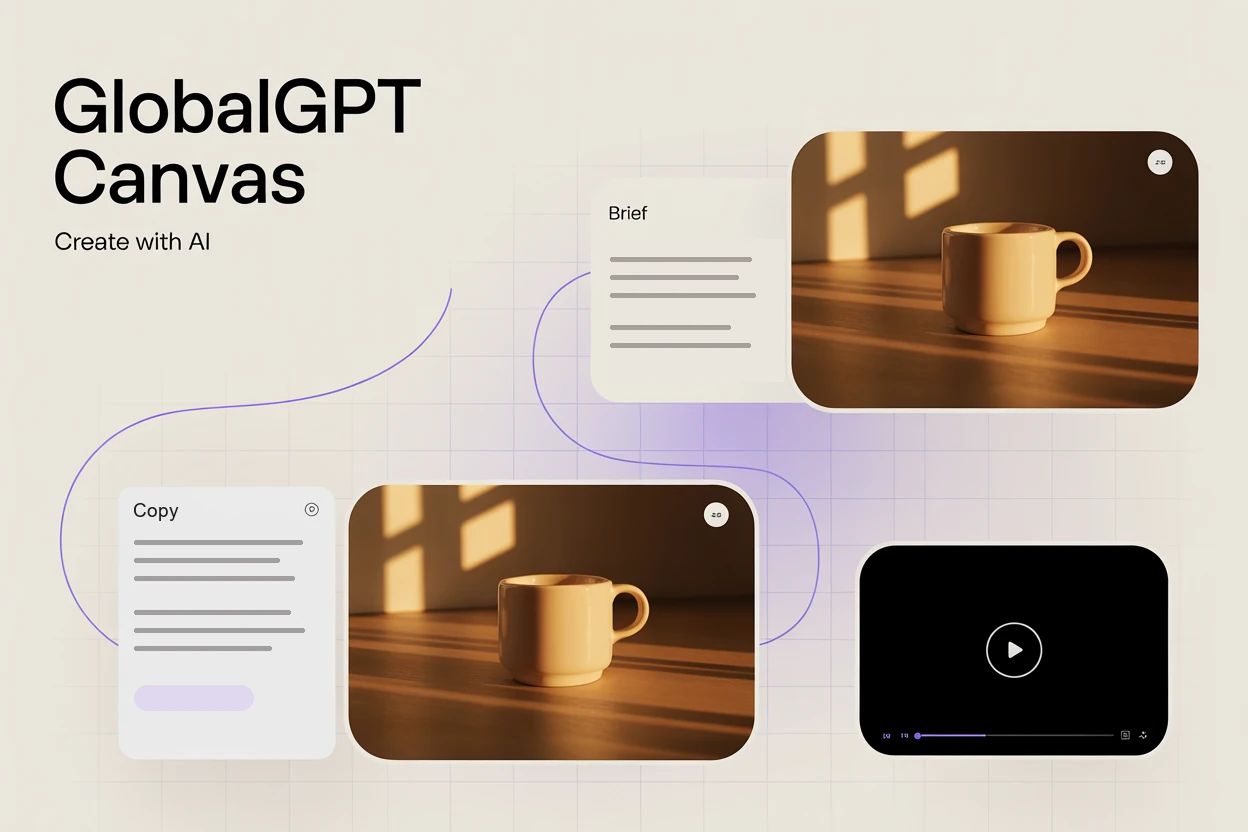
Sua primeira imagem gerada por IA raramente marca o fim de um projeto. Você ainda precisa alterar a cena, adaptar a mensagem e decidir o que criar em seguida. O GlobalGPT Canvas oferece um espaço de trabalho compartilhado para essas decisões: descreva a tarefa a um agente, analise os nós que ele cria e continue desenvolvendo o resultado.
Testamos esse processo com uma campanha fictícia sobre xícaras de café. Na mesma tela, criamos um fluxo de imagens do produto, desenvolvemos uma variação da primeira imagem voltada para estudantes e elaboramos textos para redes sociais, e-mails e blogs. O mais útil foi poder alternar entre o planejamento com IA e a edição direta sem precisar recriar o projeto em outro aplicativo. Experimente o GlobalGPT Canvas com um pequeno resumo de sua autoria.
Escopo do teste: Teste prático do Canvas (GlobalGPT) em 16 de setembro de 2026. Foram produzidas duas imagens, duas versões do texto e um vídeo. Trata-se de um tutorial sobre o Canvas, e não de um teste comparativo de qualidade de saída ou velocidade em relação ao Canva.
Integrações do Canvas, do Canva e do GPT Image
Se você chegou aqui procurando por “integrações do Canva com o GPT Image 1 Mini”, comece por esclarecer uma coisa: O GlobalGPT Canvas e o Canva são produtos diferentes. A conexão de um assistente ao Canva também não revela qual modelo de imagem está por trás das ferramentas nativas do Canva.
Do Canva documentação oficial do AI Connector afirma que assistentes como o ChatGPT, o Claude e o Cursor podem criar designs, preencher modelos automaticamente, localizar designs existentes e exportar arquivos. O Canva já oferece suporte ao trabalho assistido por IA; a questão é saber qual espaço de trabalho se adapta melhor ao resultado que você deseja.
Há também uma data que você precisa saber, caso esteja se referindo ao modelo de API OpenAI. O cronograma oficial de descontinuação indica que o GPT Image 1 Mini será descontinuado da API em 1º de dezembro de 2026, sendo o GPT Image 2 o substituto recomendado. Esse cronograma não define o modelo subjacente do Canva nem a disponibilidade de um modelo por meio de uma plataforma separada.
Neste artigo, nos concentramos em uma questão diferente: é possível criar imagens e textos com IA sem perder a coesão do projeto? O GlobalGPT’s abordagem de assinatura de IA “tudo em um” esse é o contexto mais amplo; os exemplos a seguir mostram o que realmente fizemos no Canvas.
1. Transformar um briefing em uma imagem do produto
Começamos com uma tela em branco e escolhemos Pergunte ao agente. A tarefa foi propositalmente pequena: um breve briefing da campanha e uma imagem quadrada do produto para a Morrow, uma marca fictícia de copos de café reutilizáveis. Solicitar apenas um rascunho ajudou a manter a primeira revisão bem focada.
O pedido
Crie um pequeno modelo de lançamento de produto para a Morrow, uma marca fictícia de copos de café reutilizáveis. Elabore um breve briefing de campanha e um nó de geração de imagem vinculado a ele. Público-alvo: pessoas ocupadas que se deslocam diariamente para o trabalho. Imagem: uma xícara de café reutilizável de cor creme, sem marca, sobre uma mesa de café da manhã simples de madeira, com luz suave da manhã, fotografia editorial aconchegante do produto, sem texto nem logotipo. Use um modelo de imagem disponível. Gere apenas UMA imagem principal quadrada para este primeiro rascunho, sem vídeo nem áudio por enquanto. Vou analisá-la antes de solicitar alterações.
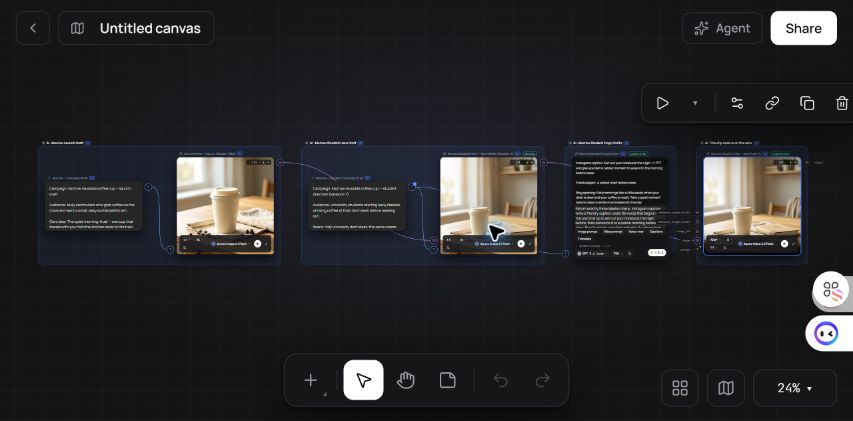
O agente criou um resumo de texto e um nó Gerador de Imagens, conectou-os e selecionou o modelo denominado Agnes Image 2.1 Flash. O nó exibia uma proporção quadrada e uma configuração de 1K. Em seguida, executamos o nó de imagem; a simples criação do fluxo não havia gerado a imagem.
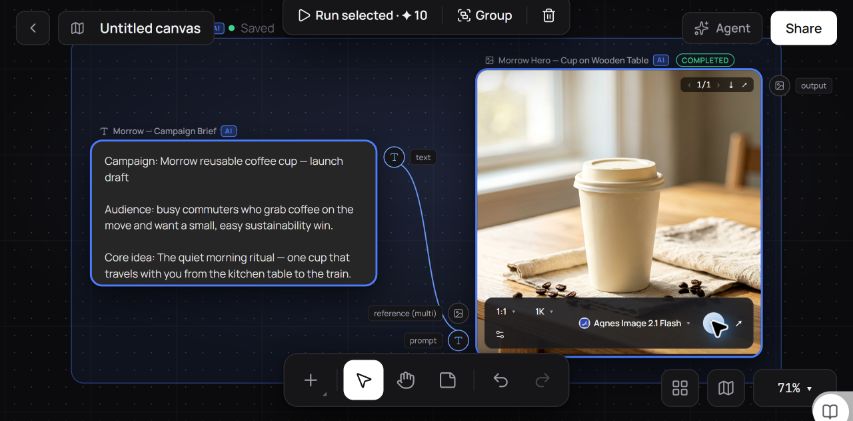
O resultado mostrava a xícara de cor creme sobre uma mesa de madeira ao lado de uma janela, com um guardanapo de linho e grãos de café espalhados. Combinava tão bem com a direção de fotografia de produto aconchegante que se tornou o ponto de partida para outra cena.
O briefing ainda precisava de uma revisão editorial: o agente acrescentou uma linguagem voltada para a sustentabilidade que não havíamos fornecido. No caso de um produto real, isso precisaria ser endossado ou removido. Um rascunho útil não transforma cada linha em uma afirmação de marca aprovada.
2. Desenvolver uma nova direção a partir da primeira imagem
Em seguida, mudamos o público-alvo de pessoas que se deslocam diariamente para o trabalho para estudantes universitários. Em vez de descartar o primeiro resultado, solicitamos a criação de um ramo separado que o utilizasse como referência visual. Isso permitiu que a direção original e a nova ficassem disponíveis no mesmo projeto.
O feedback
Gosto da primeira imagem. Mantenha inalterados o briefing existente e a imagem principal já finalizada. Crie um segundo nó de imagem para uma campanha estudantil, usando a imagem principal já finalizada como referência, para que o mesmo copo seja mantido. Altere o cenário para uma mesa arrumada em um dormitório universitário, com um caderno fechado, luz quente de manhã e um espaço vazio generoso no terço superior para um título que adicionarei mais tarde. Sem texto ou logotipos visíveis. Mantenha o formato quadrado e use o mesmo modelo de imagem. Adicione um breve texto com orientações para essa nova direção. Crie apenas essa variação; não adicione vídeo nem áudio.
O agente adicionou um resumo da campanha estudantil e um segundo nó de imagem. O novo nó fazia referência visível à imagem principal original, enquanto o resumo e a imagem originais permaneceram na tela. Executamos o novo nó e analisamos o resultado.
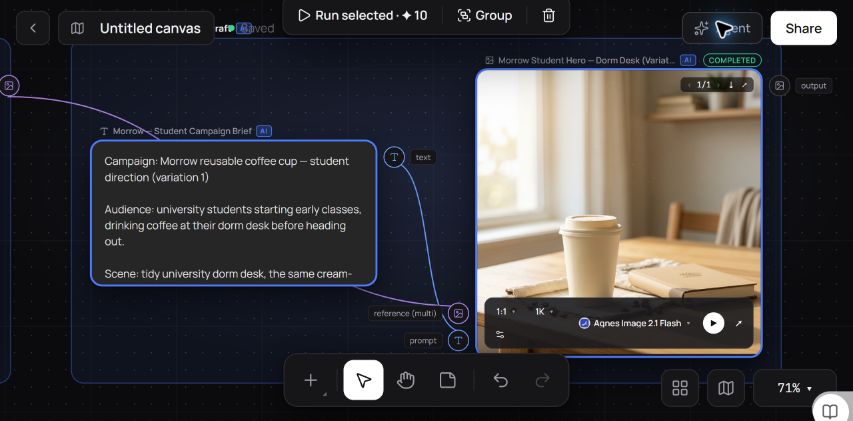
A nova imagem manteve o visual do copo de creme e acrescentou o caderno solicitado. Além disso, deixou mais espaço acima do copo para um título a ser inserido posteriormente. Nesse exemplo, trata-se de uma continuidade visual útil, e não de uma prova de que todos os detalhes do produto permanecerão idênticos nas futuras gerações.
O padrão de instrução reutilizável é mantenha isso, mude aquilo e use isso como referência. Indique a cena, a iluminação, os objetos e o espaço vazio que você deseja alterar. Para outros tipos de revisões visuais, o Guia de edição de imagens do GlobalGPT abrange tarefas adicionais de edição.
3. Elaborar e aperfeiçoar o texto da campanha
Em seguida, pedimos ao agente para adicionar um nó do LLM Assistant para três textos: uma legenda no Instagram com menos de 35 palavras, um assunto de e-mail com menos de oito palavras e uma introdução de blog com duas frases. Ele selecionou o modelo chamado GPT-5.6 Luna e criou uma conexão a partir do briefing do aluno.
O pedido
Próxima tarefa: transformar a campanha estudantil em um texto conciso. Mantenha inalterados todos os nós de imagem e briefing existentes. Adicione um nó do Assistente LLM conectado ao briefing da campanha estudantil, com instruções para elaborar três resultados: uma legenda para o Instagram com menos de 35 palavras, um assunto de e-mail com menos de 8 palavras e uma introdução de blog com duas frases. Use um tom coloquial e jovem e concentre-se em uma rotina matinal mais tranquila, sem fazer referências ambientais ou de desempenho. Não invente preços, descontos, datas ou especificações de produtos. Não publique nem envie nada. Use um modelo de texto disponível e crie apenas este único nó de texto.
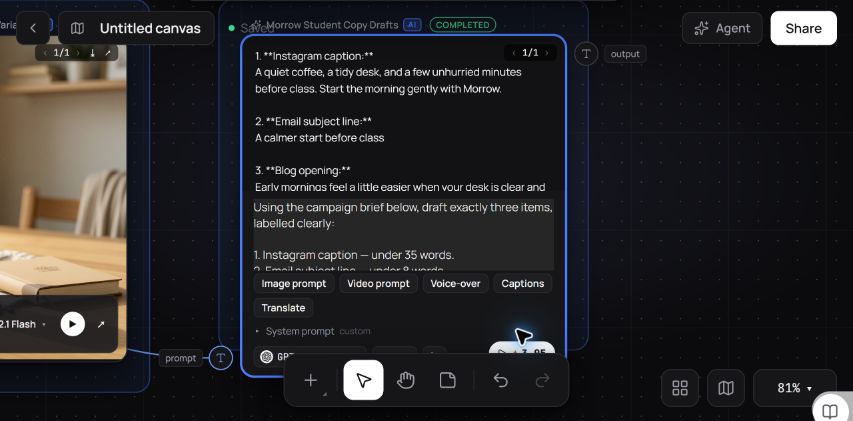
A primeira legenda do Instagram dizia: “Um café tranquilo, uma mesa organizada e alguns minutos sem pressa antes da aula. Comece a manhã com calma com a Morrow.” Era uma legenda aceitável, mas genérica, então pedimos uma dica prática em vez disso: deixe seu caderno pronto na noite anterior.
Essa revisão exigiu uma etapa manual. O agente informou que havia atualizado as instruções, mas o campo visível e a tela salva ainda exibiam a instrução anterior. Editamos esse campo diretamente e executamos o nó novamente. O segundo resultado foi:
Deixe seu caderno à mão na noite anterior e reserve um momento de tranquilidade para começar o dia com calma antes da aula.
O nó exibiu, então, duas versões do resultado. A abertura do blog permaneceu a mesma, e o assunto do e-mail seguiu o texto da nossa instrução manual, incluindo o ponto final. Pudemos manter a primeira versão disponível enquanto revisávamos a legenda revisada.
Há outro recurso útil que é importante entender: o inspetor do nó indica que uma instrução digitada substitui o prompt conectado. A simples existência de uma linha de conexão não garante que todas as frases a montante sejam incluídas. Verifique o campo de instruções antes de executar novamente um nó.
Adicione uma etapa com vídeo quando for necessário
Também pedimos ao agente para conectar a imagem do aluno a um nó de vídeo como seu primeiro quadro. O movimento solicitado era um zoom lento da câmera, com o copo e o caderno permanecendo imóveis. Ele configurou o Agnes Video 2.5 Flash para cinco segundos, 720P e proporção quadrada.
O vídeo foi concluído após uma solicitação de geração. Antes de executá-la, verificamos uma discrepância no custo: o nó e sua tabela de custos apresentavam uma estimativa de 420 créditos, enquanto a descrição do agente indicava 0,42 créditos. Aprovamos a execução com base na estimativa mais alta, a nível do nó. Essas são estimativas exibidas, não um total de cobrança verificado.
O nó concluído exibiu um resultado, com a cena do aluno visível na pré-visualização do vídeo. O reprodutor indicou uma duração de 5,175 segundos e dimensões de 704 × 704 pixels, embora a configuração selecionada fosse identificada como 720P. Verificamos os metadados de conclusão e reprodução; não realizamos uma análise quadro a quadro do movimento nem uma verificação da consistência do produto.
Quando a abordagem “tudo em um” faz sentido
O GlobalGPT Canvas é um excelente ponto de partida quando seu trabalho principal é desenvolver recursos gerados por IA e refinar a direção do projeto. Em nosso teste, conseguimos manter a imagem original, criar uma variação baseada na referência, elaborar uma versão com um modelo diferente e gerar um vídeo a partir da imagem do aluno, tudo em um único espaço de trabalho. Esse é um motivo concreto para experimentá-lo, além de buscar uma conexão com um modelo de imagem específico.
| Seu objetivo principal | Um ponto de partida prático | Por que |
|---|---|---|
| Elaborar um briefing sobre as opções de imagens e o texto de acompanhamento | GlobalGPT Lona | Nosso teste manteve o briefing, os ramos de imagem e a saída do modelo de texto reunidos. |
| Criar, localizar, preencher automaticamente ou exportar designs do Canva a partir de um assistente | Conector de IA do Canva | Essas ações estão documentadas no guia oficial de conectores do Canva. |
| Melhorar uma parte, mantendo o restante disponível | Experimente um pequeno branch do Canvas | O branch “image” funcionou em nosso teste; a revisão da cópia precisou de edição direta e de uma verificação final. |
| Escolha uma ferramenta com base na qualidade do projeto final, na velocidade ou no custo total | Execute um teste comparativo para o seu produto final | Este guia não fez uma comparação com o Canva nem verificou se há uma vantagem de preço. |
Comece com um brief e uma imagem. Analise o primeiro resultado e, em seguida, crie um branch para a alteração que você realmente deseja. Abrir o Canvas GlobalGPT e tente seguir o mesmo processo: peça ao agente para compilar, verifique o resultado e decida o que deve ser alterado em seguida.
Perguntas frequentes
O GlobalGPT Canvas é o mesmo que o Canva?
O No. GlobalGPT Canvas é o espaço de trabalho testado aqui. O Canva é uma plataforma de design independente, com seus próprios recursos de IA e integrações com assistentes.
O Canva usa o GPT Image 1 Mini?
As fontes analisadas para este artigo não comprovam que as ferramentas nativas de imagem do Canva utilizem o GPT Image 1 Mini. O AI Connector do Canva é um recurso distinto de uma integração específica com um modelo de imagem.
Posso trabalhar tanto com imagens quanto com texto no GlobalGPT Canvas?
Sim. Em nosso teste de 16 de setembro de 2026, o Canvas gerou duas imagens por meio do Agnes Image 2.1 Flash e o texto da campanha por meio do nó identificado como GPT-5.6 Luna.
O agente pode revisar um projeto já existente?
Foi criado um novo ramo de imagem com base em nosso feedback, e o original foi preservado. Uma atualização posterior da instrução de cópia não foi mantida como esperado; por isso, editamos o nó diretamente e verificamos o novo resultado.
Esse teste gerou um vídeo?
Sim. Uma solicitação do Agnes Video 2.5 Flash foi concluída utilizando a imagem do aluno como seu primeiro quadro. As configurações selecionadas foram cinco segundos, 720P e 1:1; o reprodutor indicou 5,175 segundos e 704 × 704 pixels. A conclusão e os metadados foram verificados, mas a precisão do movimento não foi avaliada sistematicamente.
A criação de um canvas executa automaticamente todos os nós?
Não neste teste. O agente criou os nós e exibiu as estimativas; executamos os nós de imagem e de cópia separadamente. Verifique as configurações dos nós e os créditos estimados antes de iniciar a geração.