How To Use Kling 3.0 Like A PRO: 2026 Ultimate Guide

To use Kling 3.0 like a pro, you must master the "Prompt Spine" formula, utilize Element Binding to lock character consistency, and switch to the Omni model for native lip-syncing across multi-shot sequences. Instead of relying purely on text-to-video, professionals first generate high-quality base images and use motion brushes to control exact physical movements. However, running complex tests directly inside Kling 3.0 burns through expensive credits quickly, making trial-and-error a costly nightmare for video creators.
Wasting dollars on failed video renders because your prompt was not perfect breaks your budget and ruins your production schedule. Fortunately, GlobalGPT provides an all-in-one environment where you can perfect your script, generate base images, and render final videos without jumping between expensive standalone subscriptions.
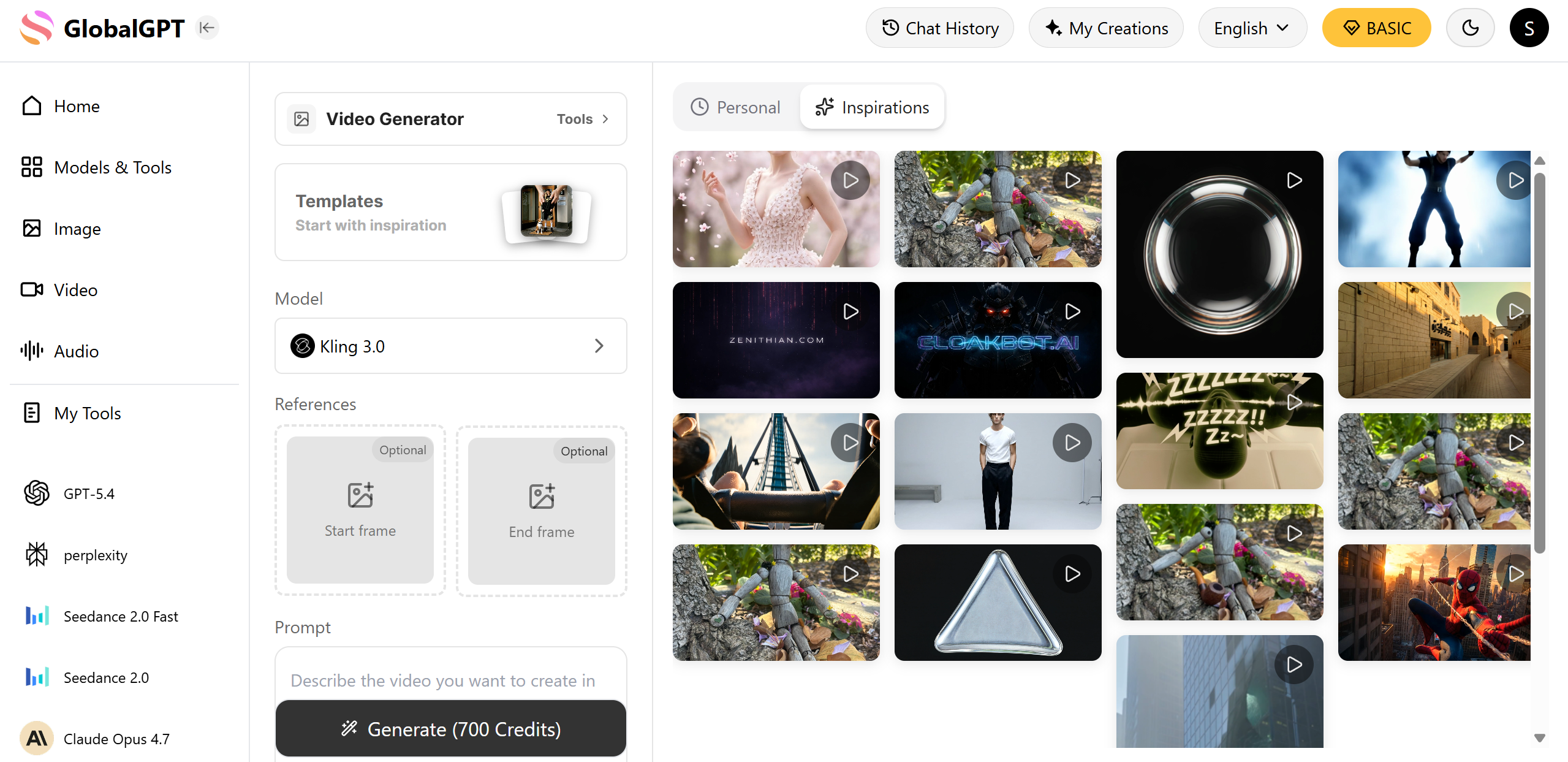
This all-in-one platform consolidates your entire filmmaking workflow. For just the $10.8 Pro Plan, you can seamlessly switch between top models like GPT-5.4 for scriptwriting, Midjourney for storyboarding, and Kling 3.0 for final video animation. You get professional-grade video output with no rigid region restrictions and no need to manage multiple billing accounts..
How To Use Kling 3.0 Like A PRO: What Is the Ultimate Video Workflow?
The ultimate video workflow involves using a "Pre-Production" phase where you draft scripts with a text AI before rendering anything in Kling 3.0. Professionals never type their ideas directly into the video generator without planning first.
Use LLMs as your AI Director: Before opening Kling, use a text model like GPT-5.4 or Claude 4.6. Ask the AI to break down your video idea into 3-second camera shots, detailing the lighting, character position, and camera movement for each clip.
Generate base images first: Text-to-video often results in random character faces. Pros use image generators to create a perfect static picture of their character, then upload that image into Kling 3.0 to animate it.
Manage the credit system: Kling 3.0 operates on a credit system where every generation costs money. By planning your shots with text and image models first, you avoid wasting credits on bad video renders.
Workflow Stage | Amateur Approach | PRO Approach | Result |
Scripting | Typing random ideas into Kling | Using GPT-5.4 to write a structured shot list | No wasted credits |
Base Visuals | Direct Text-to-Video | Image-to-Video (using Midjourney/Flux base) | Perfect character faces |
Animation | Hoping the AI guesses right | Using Motion Brush to guide exact movements | Cinematic control |

Prompt Templates
A 30-year-old female detective in a beige trench coat [Reference A] (Subject), standing inside a dimly lit abandoned warehouse (Scene), lighting a match and raising it to examine a clue on the wall (Action), medium shot slowly pushing into an extreme close-up of her face (Camera), dramatic chiaroscuro lighting, warm match glow against cold blue ambient light (Light), gritty cinematic documentary (Style), 4k ultra HD, film grain (Quality). --v 3.0_omniHow Do You Write the Perfect Kling 3.0 Prompt Spine?
You write the perfect Kling 3.0 prompt spine by following a strict 7-step formula: Subject, Scene, Action, Camera, Light, Style, and Quality. This structured approach stops the AI from getting confused and combining random elements.
Follow the 7-Step Formula: Always write your prompt in this exact order. For example: "A young woman (Subject), in a neon cafe (Scene), drinking coffee (Action), slow zoom in (Camera), warm cinematic lighting (Light), photorealistic (Style), 4k ultra HD (Quality)."
Think in short sequences: Kling 3.0 allows you to generate up to 3 minutes of video, but it works best when you prompt it in 10-to-15-second segments.
Use action verbs: Avoid vague words like "happy" or "busy." Use strong physical verbs like "running," "stirring," or "falling" so the AI engine knows exactly what physics to simulate.
Prompt Spine Element | Bad Example | PRO Example |
Subject & Action | A guy looks cool | A man in a suit adjusts his red tie |
Camera Movement | Move around | Slow dolly zoom pushing forward |
Lighting & Style | Good lighting | High-contrast neon lighting, cinematic 35mm lens |

How Can You Maintain Character Consistency Across Multiple Scenes?
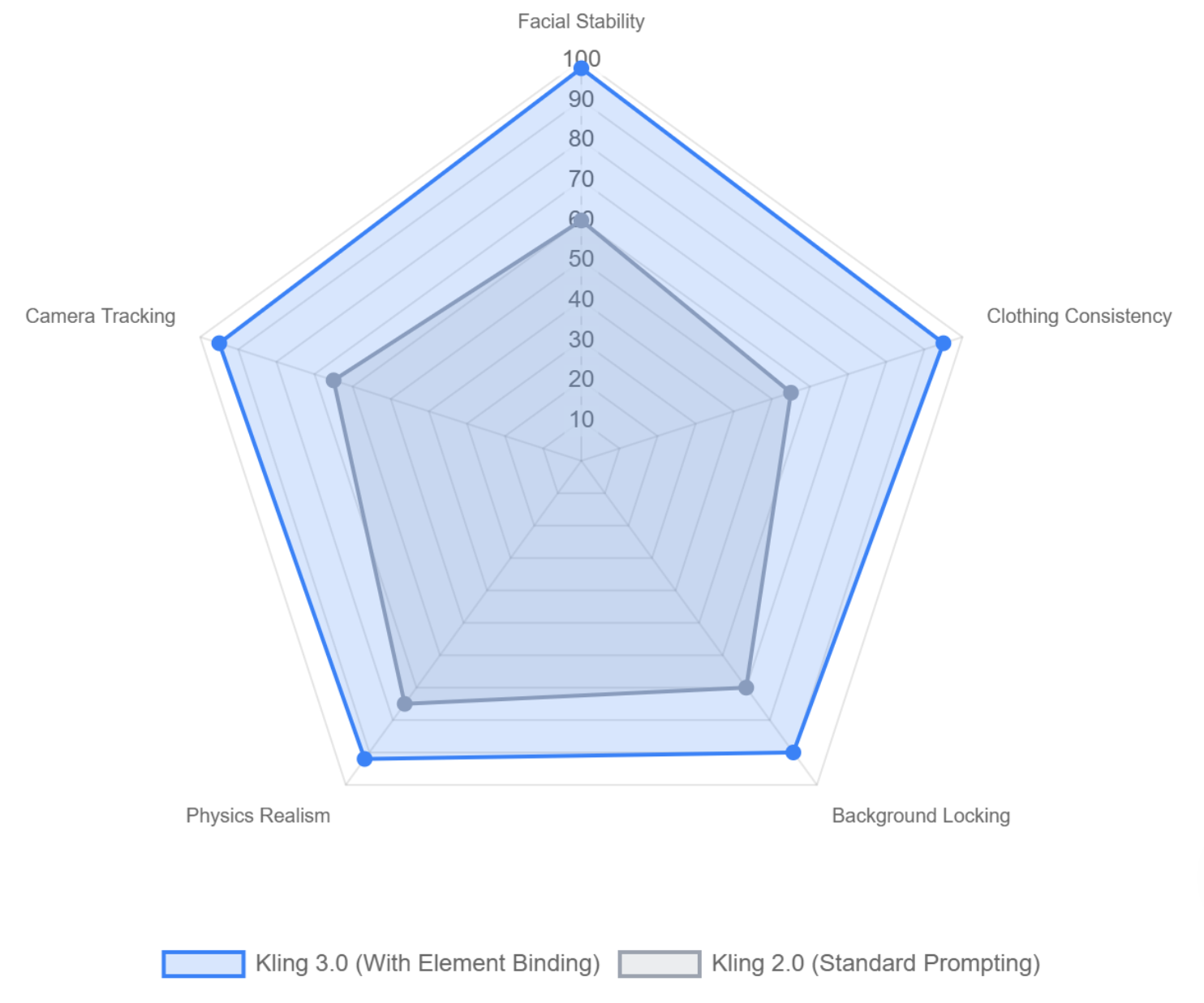
You can maintain character consistency across multiple scenes by utilizing Kling 3.0's "Element Binding" feature and securing your background constants. This prevents your character's face or clothes from changing when the camera moves.
Master Element Binding: Kling 3.0 allows you to lock a character's identity. You upload a reference image of your actor, and the AI will ensure that exact face remains identical across all multi-shot sequences.
Secure the constants: If your character is in a "rainy alleyway," you must include "rainy alleyway" in every single prompt for that scene. If you forget it in shot 2, the AI will suddenly change the background to a sunny street.
Avoid over-describing later: Once you establish the character in the first shot, you can use a shorter "creative brief" for the following shots, allowing platforms like GlobalGPT to smoothly transition your workflow from image creation straight into video consistency testing.
Feature | What It Does | Why Pros Use It |
Element Binding | Locks facial features and clothing | Stops characters from morphing into different people |
Reference Images | Uses a picture instead of text to guide the AI | Ensures exact color matching for products or outfits |
Prompt Constants | Repeating background keywords | Keeps the environment stable during camera panning |
Filmmaker Monthly Subscription Costs: Standalone vs All-in-One
What Are the Best Settings for Advanced Motion Control and Native Audio?
The best settings for advanced motion control require using the Motion Brush, while getting native audio requires selecting the Kling 3.0 Omni model from the dashboard to enable lip-syncing.
Paint with the Motion Brush: Do not just type "the car drives forward." Upload your image, select the Motion Brush, highlight the car, and draw an arrow pointing forward. This guarantees pixel-perfect movement without distorting the background.
Activate Kling 3.0 Omni for audio: Standard Kling Video 3.0 is silent. You must switch to the Omni version to generate native environmental sound effects and perfect lip-syncing.
Use native text rendering: If you need a billboard or UI screen in your video, Kling 3.0 allows you to put exact words in quotation marks within your prompt. The AI will render clear, readable typography instead of blurry alien text.
Feature | Standard Video Model | Omni Video Model | PRO Use Case |
Audio | Silent | Native Sound & Dialogue | Character interviews, cinematic scenes |
Motion Brush | Yes | Yes | Controlling falling water, driving cars |
Text Rendering | Blurry / Random | Crystal Clear | Commercial ads with brand logos |

Why Are Professional Filmmakers Switching to All-in-One AI Platforms?
Professional filmmakers are switching to all-in-one AI platforms because jumping between standalone websites causes delays and hidden subscription costs.
Avoiding subscription fatigue: Buying separate plans for ChatGPT, Midjourney, and Kling AI can cost over $60 a month. All-in-one platforms bundle these powerful tools together for a fraction of the cost.
Stopping wasted credits: When you pay per video generation on standalone sites, every mistake costs money. Unified platforms often provide higher usage limits, allowing you to test and perfect your prompts without financial stress.
The seamless pipeline: Moving heavy Sora-style 4K videos is slow. Professionals want to write the script, generate the reference, and render the final video inside a single browser tab.

Expense Category | Buying Standalone Tools | Using an All-in-One Platform |
Text Generation (Script) | ~$20 / month | Included |
Image Generation (Base) | ~$10 - $30 / month | Included |
Video Generation (Kling) | ~$8 - $30+ / month | Included |
Total Estimated Cost | $38 - $80+ / month | Under $15 / month |
How Do You Fix Common AI Video Mistakes and Hallucinations?
You fix common AI video mistakes by avoiding overly long prompts and limiting extreme camera movements. Giving the AI too many instructions at once causes characters to glitch or melt.
Stop over-prompting: If your prompt is a massive paragraph, the AI gets confused. Shorten your prompt into a concise "creative brief." Focus only on the most important action in the frame.
Reduce camera motion: If faces look warped or backgrounds are breaking apart, it is usually because you asked for a fast drone camera move. Change your prompt to "tripod stable shot" to instantly fix glitching.
Always use control groups: Test a 3-second video first before rendering a full 15-second multi-shot sequence. If the 3-second test looks bad, adjust your prompt before wasting more credits on a longer render.
Common Mistake | Root Cause | How to Fix It Like a PRO |
Faces Melting / Warping | Too much fast camera movement | Use "locked off camera" or "tripod shot" |
Object changes color | No reference image uploaded | Use Element Binding to lock the object |
Messy / Alien Text | Using the wrong Kling model | Switch to Kling Video 3.0 Omni and use quotes |
FAQs
Is Kling 3.0 better than Sora?
Kling 3.0 is highly competitive with Sora, especially for long-form video, offering superior character consistency and pixel-perfect motion control for up to 3 minutes.
How do I make Kling 3.0 videos longer?
You can make Kling 3.0 videos longer by utilizing the multi-shot generation feature, allowing you to sequence multiple 10-to-15-second clips into a single continuous timeline.
Does Kling 3.0 have audio?
Yes, if you select the Kling Video 3.0 Omni model, it can natively generate environmental sound effects and synchronize lip movements to multi-language dialogue.
What is the maximum video length for Kling 3.0?
Kling 3.0 can generate continuous, highly realistic storytelling sequences that last up to 3 minutes for enterprise and professional users.
Conclusion
Mastering Kling 3.0 requires moving beyond basic text inputs and adopting a professional workflow. By establishing a strong prompt spine, leveraging Element Binding for consistency, and using the Omni model for native audio, creators can produce truly cinematic multi-shot sequences. Rather than wasting time and budget on fragmented tools, streamlining your entire production process—from script to final render—is the key to scaling your AI video output efficiently.
