
Keep the Idea Moving.
Gemini Omni Flash
Begin with a still image, revise the result, bring it into motion, and keep directing what happens next in one GlobalGPT creative thread.
A Creative Workflow That Continues Past the First Result.
Inside GlobalGPT, Gemini Omni Flash connects image generation, image editing, image-to-video creation, and existing-media entry points through conversational actions. Each result can become material for the next task.
From First Prompt to Video Edit.
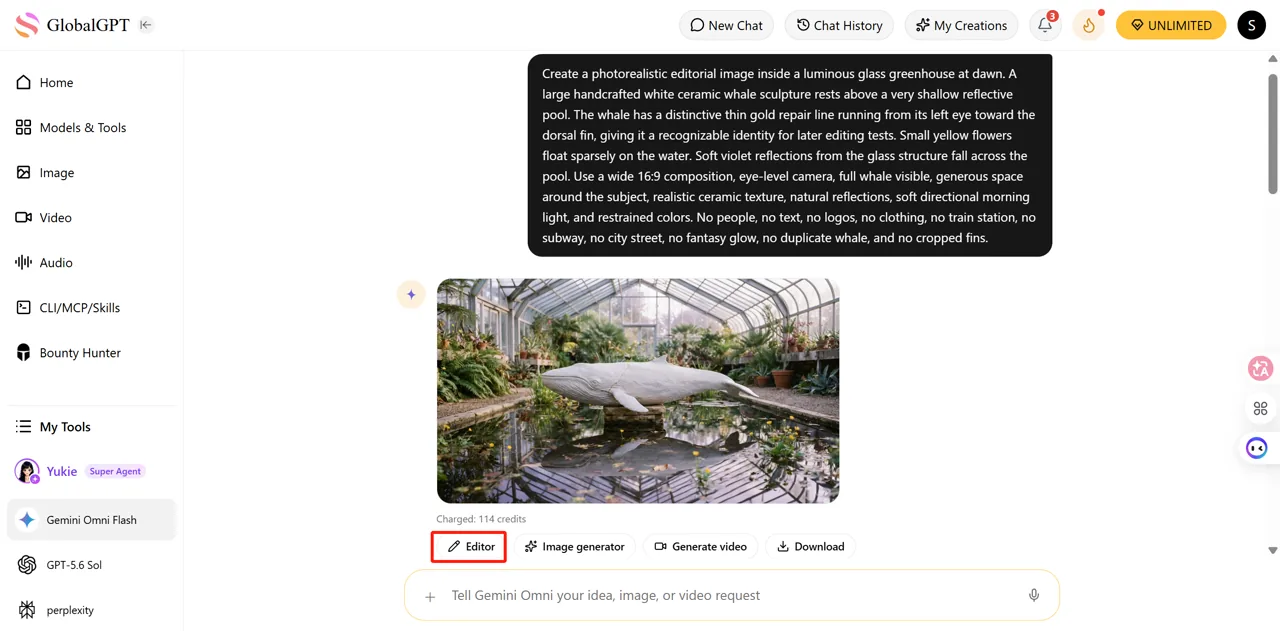
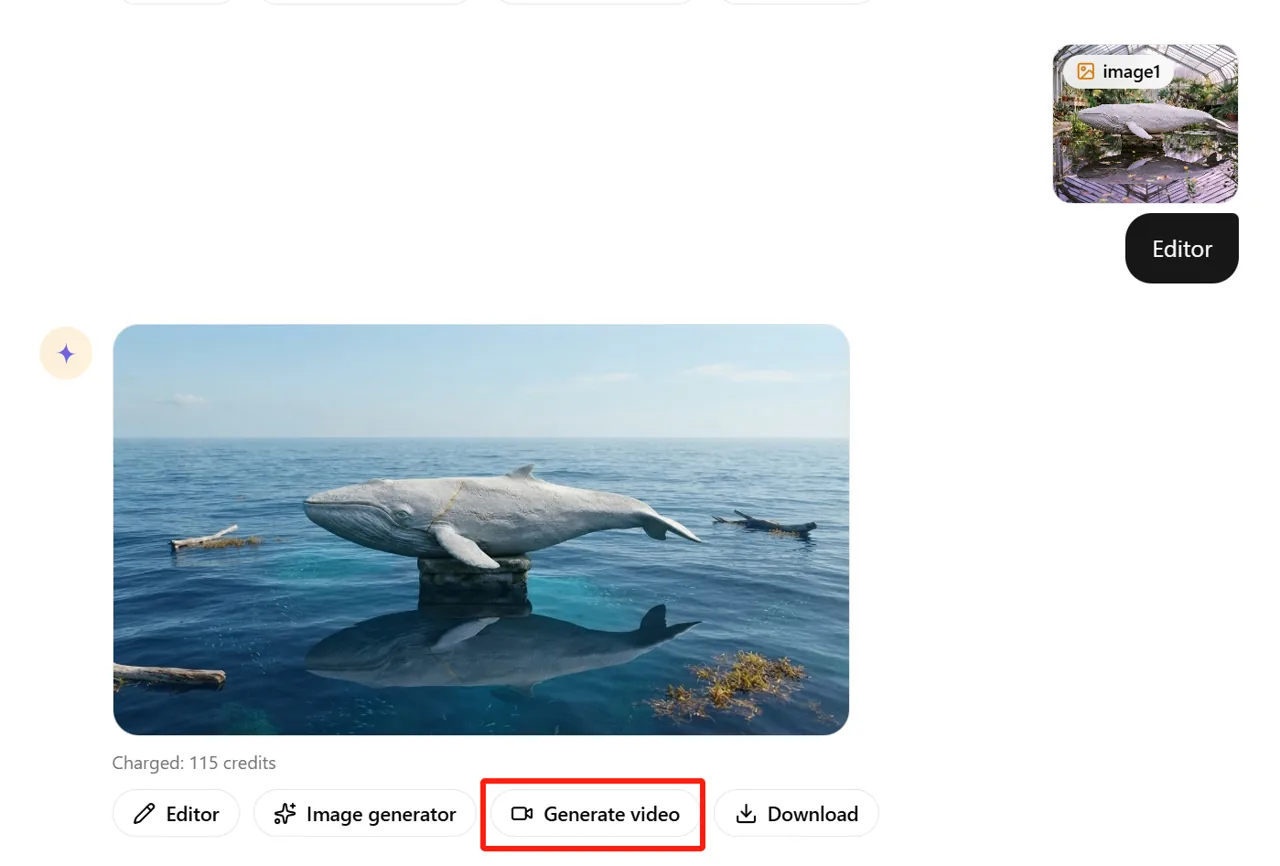
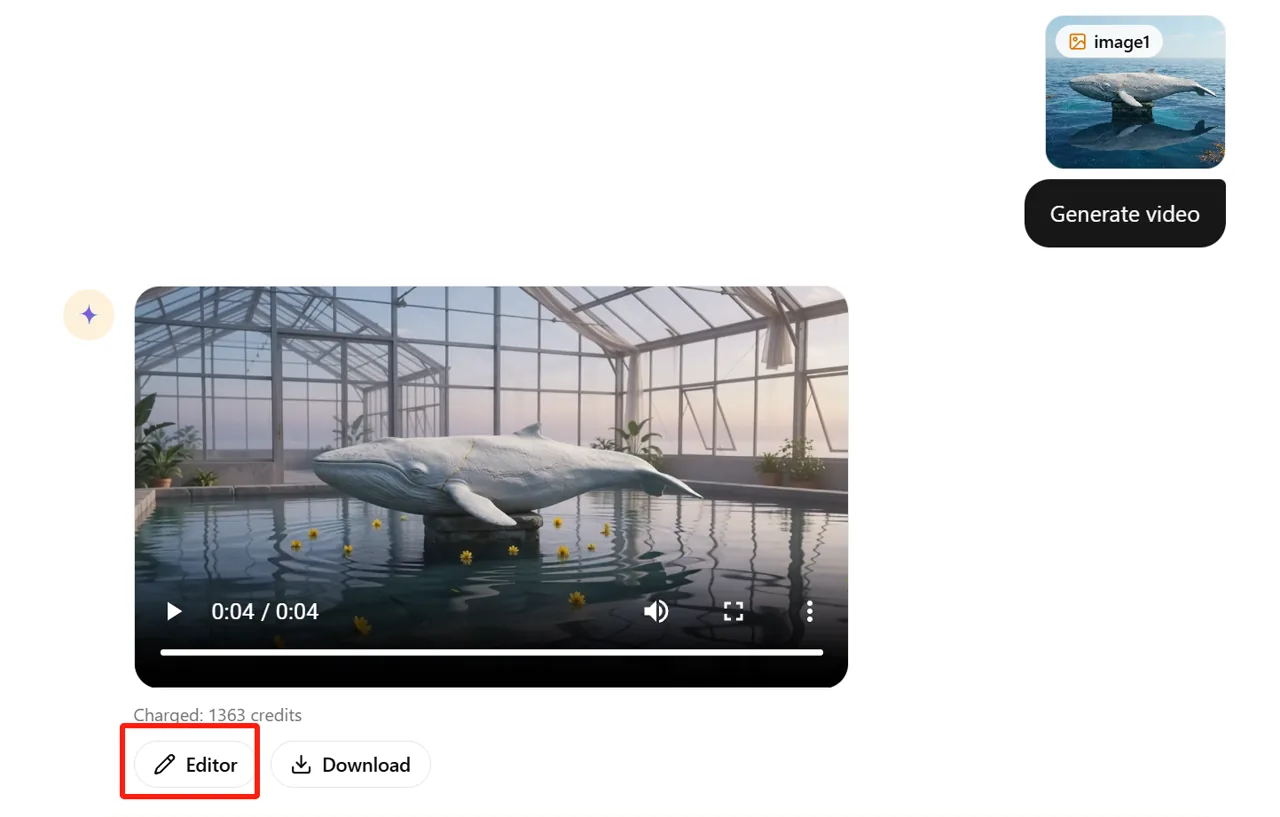
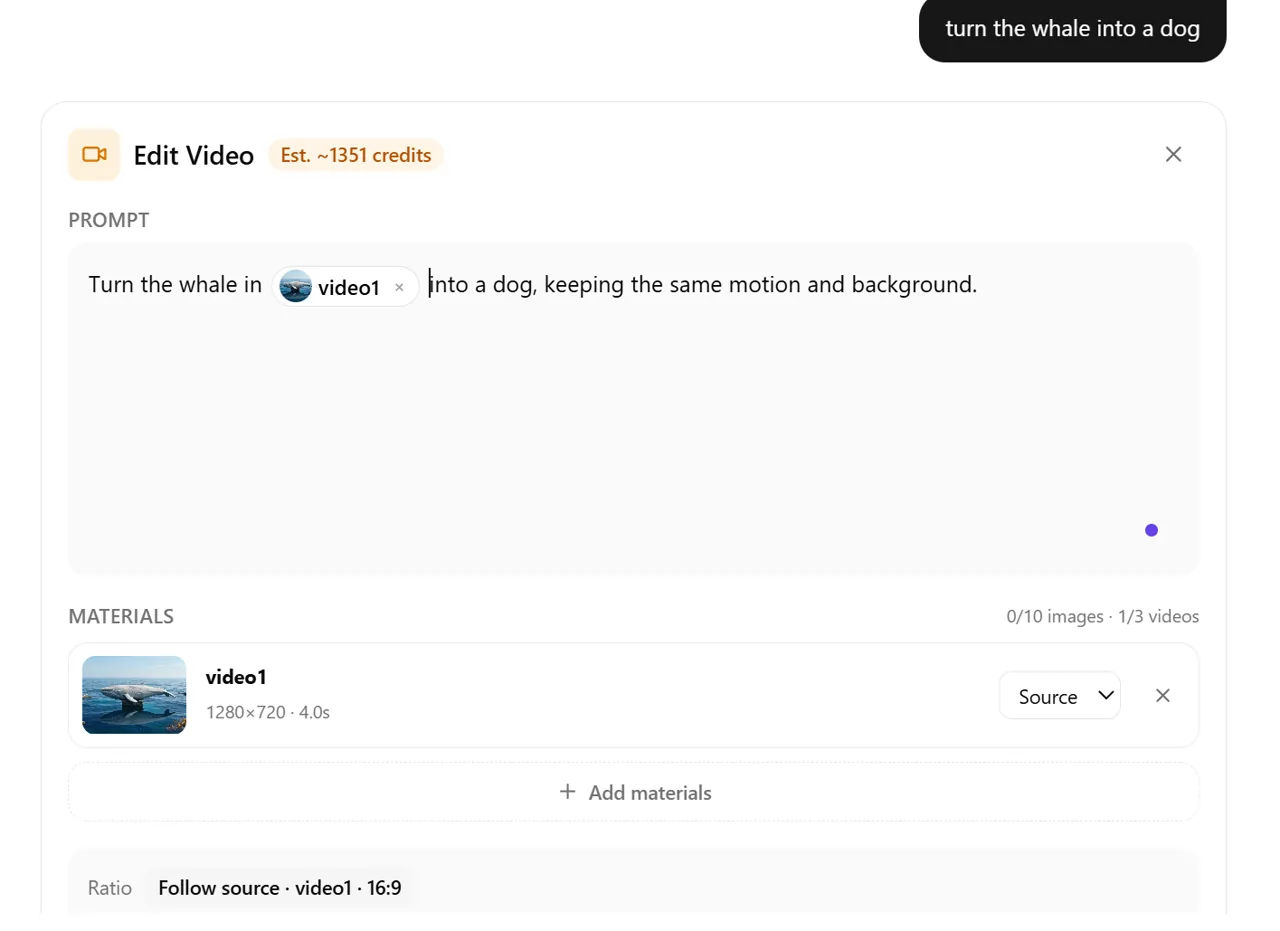
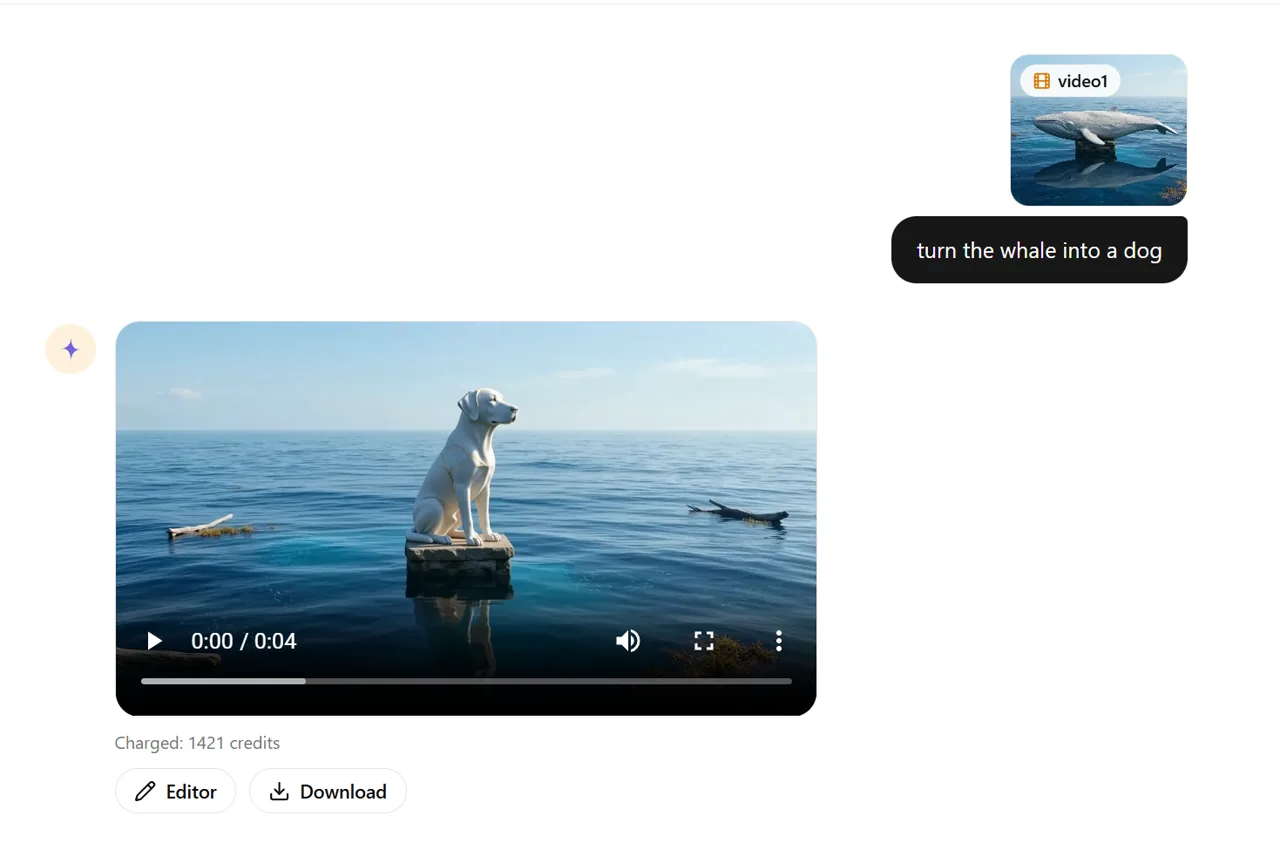
This signed-in GlobalGPT sequence follows one asset through image generation, image editing, animation, and an existing-video edit. Prompts, materials, estimates, charges, and next actions remain visible.
Continue the Thread, Then Judge the Change.
Move from one media task to the next without losing sight of the source, the instruction, or the result.
Choose the exact image or video that should continue.
Describe the event, material, or motion to revise.
Keep identity, camera, lighting, and duration explicit.
Save the result before beginning the next task.
Change One Thing. Protect the Rest.
A scoped direction is easier to evaluate and less likely to restart the entire scene.
Choose the Job. Bring Back the Asset. Continue.
GlobalGPT provides the image, video and asset-library workflow. The verified Gemini Omni Flash test on this page is an existing-video edit.
Choose Image or Video
Switch the shared input between Generate Image and Generate Video.
Open the Media Library
Select uploaded or created images and videos when the work already has a starting point.
Edit the Existing Video
Describe the event, timing and continuity rules for the supplied clip.
Inspect and Continue
Compare source and output, then direct the next specific change.
Different Sources Create Different Next Moves.
Each example uses a new subject, scene, and motion language created for this section.
A slow descending orbit establishes a miniature volcanic library as a fresh visual source.
TEXT → GENERATED MEDIAInternal gears, accelerating wings, and a pollen trail make the intended motion easy to judge.
CONCEPT → VIDEOThe lunar pottery shot asks for one material event while protecting the robot, camera, and workshop.
VIDEO → VIDEO EDITReview Every Handoff.
- GlobalGPT exposes image, video, Editor, and Download actions
- A generated image can become the source for a new edit
- An edited image can become the source for a video request
- The environment may change between image and video tasks
- Video-edit accuracy requires complete playback and comparison
- GlobalGPT task charges and Google API pricing are separate
Before Your First Generation.
What Can I Do With Gemini Omni Flash in GlobalGPT?
Gemini Omni Flash in GlobalGPT provides a conversational workflow for generating images, editing images, turning selected images into videos, and continuing work with existing media.
Can Gemini Omni Flash Edit an Existing Image?
Yes. In the observed GlobalGPT workflow, a generated image can be selected with Editor and revised through a new natural-language instruction.
Can I Turn an Edited Image Into a Video?
Yes. A selected edited image can be sent to Generate Video, although the result should always be reviewed for scene and subject continuity.
Can Gemini Omni Flash Work With Existing Video?
GlobalGPT exposes an Editor action beside video results. Precise edit compliance should be checked by playing and comparing the complete returned clip.
How Much Does a Gemini Omni Flash Task Cost?
GlobalGPT shows the charge for each completed task in the workspace. Treat that displayed task charge separately from Google API pricing.
Who Should Use Gemini Omni Flash?
Gemini Omni Flash is suited to creators who want to move quickly between image generation, image revision, animation, and media iteration while reviewing continuity at every step.
Workflow reviewed 2026-08-20 using the signed-in GlobalGPT Gemini Omni Flash route. Google API behavior is reported separately from GlobalGPT product behavior.