

Choose the destination first
Pick a square, portrait or landscape composition around the place the image will appear.
Prompt Guide
Model
Reference Image
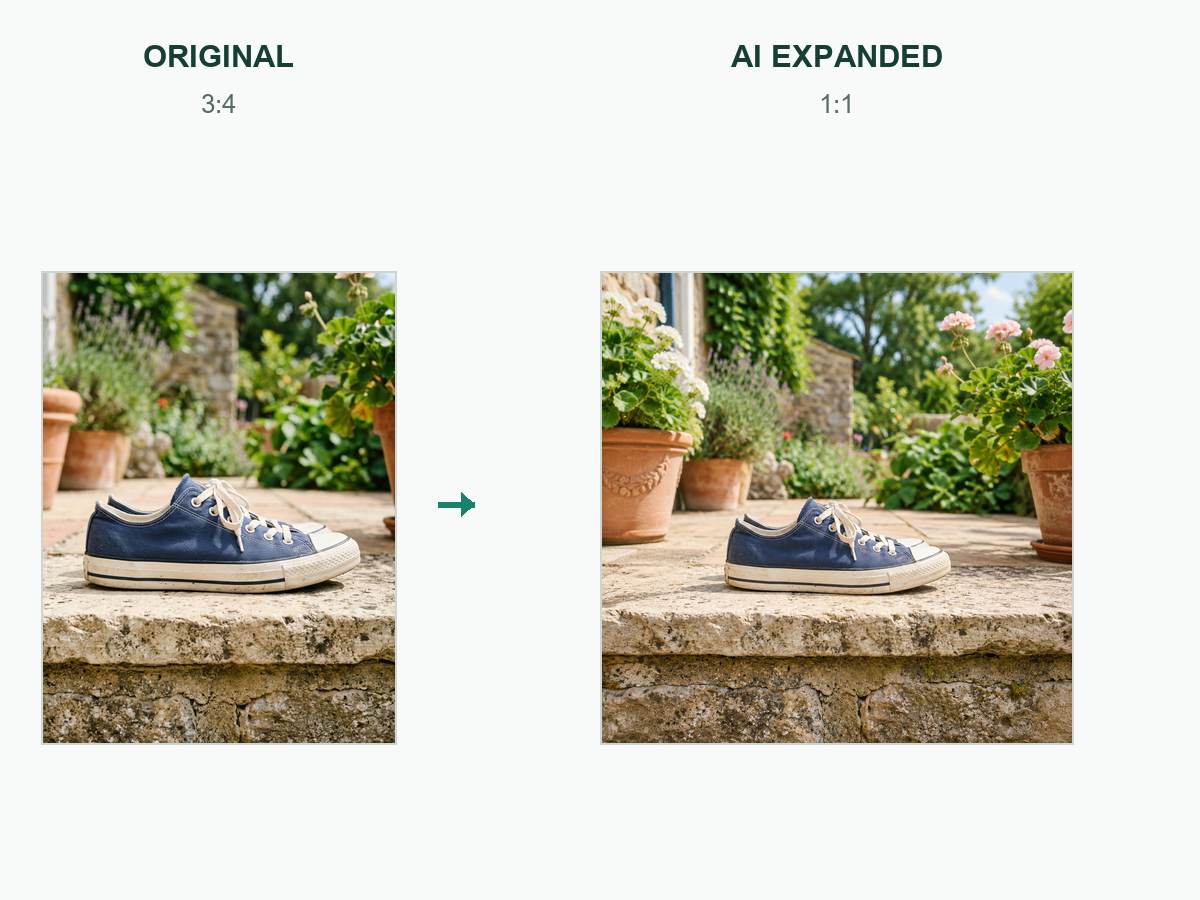
Turn one photo into square, portrait and landscape formats with edge-to-edge AI outpainting that keeps the original subject clear.
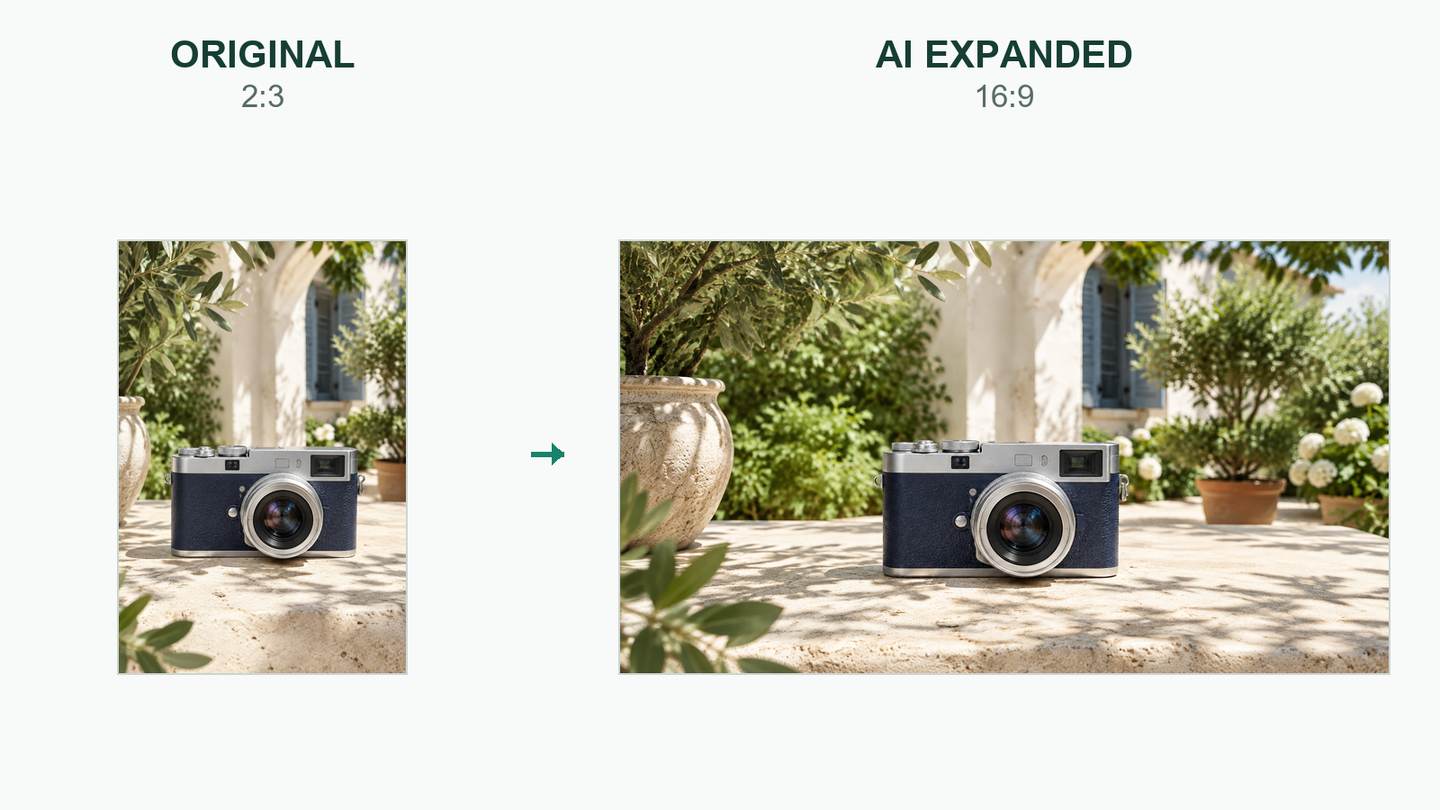
Original photos on the left, AI-expanded results on the right. Compare square, portrait and landscape formats with newly generated scene content instead of padding. AI editing may change fine details.
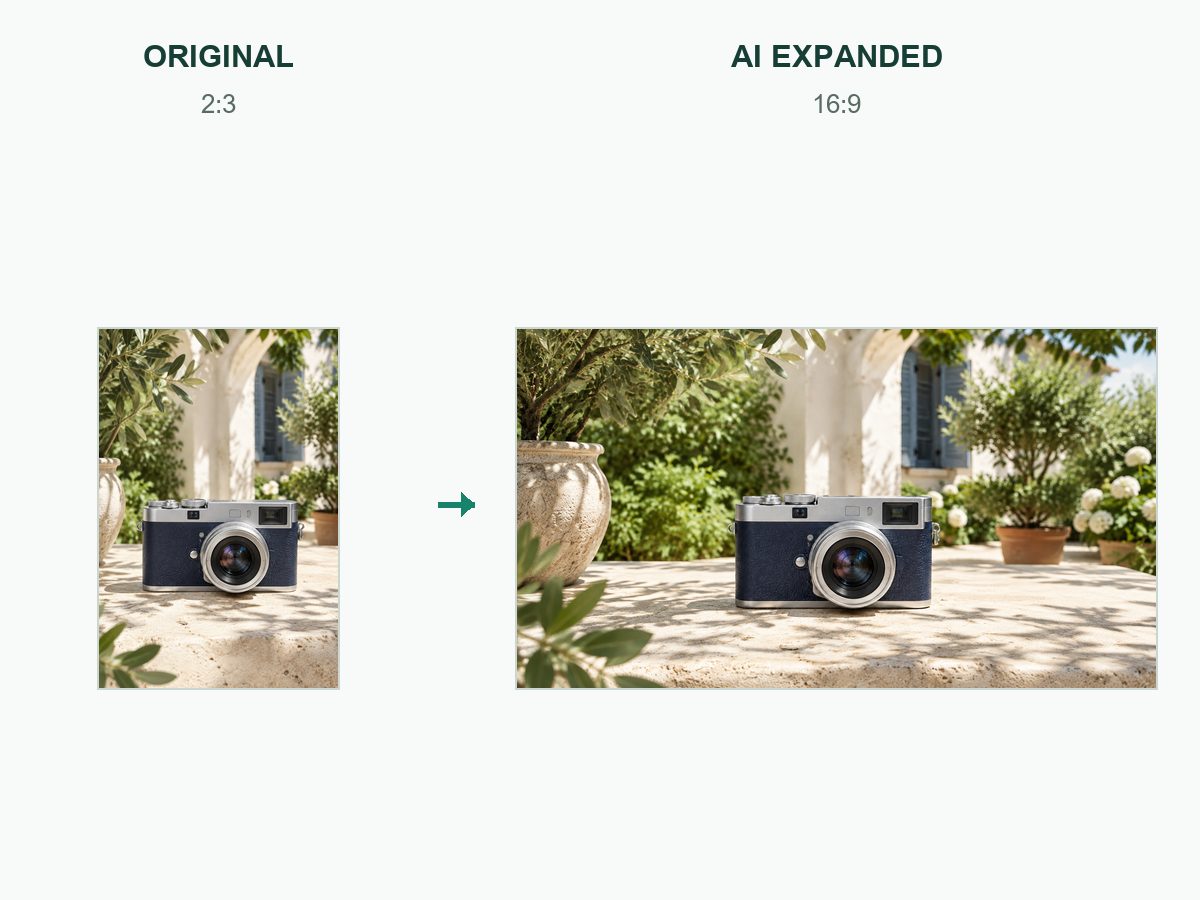 Products
Expand my original photo to 16:9 with natural AI outpainting. Keep the same subject and proportions, and fill the added area with coherent continuation of the scene. Use realistic natural daylight. No cropping of the subject, stretching, padding, bars or duplicated subjects. Return one expanded photo.
Use a Related Prompt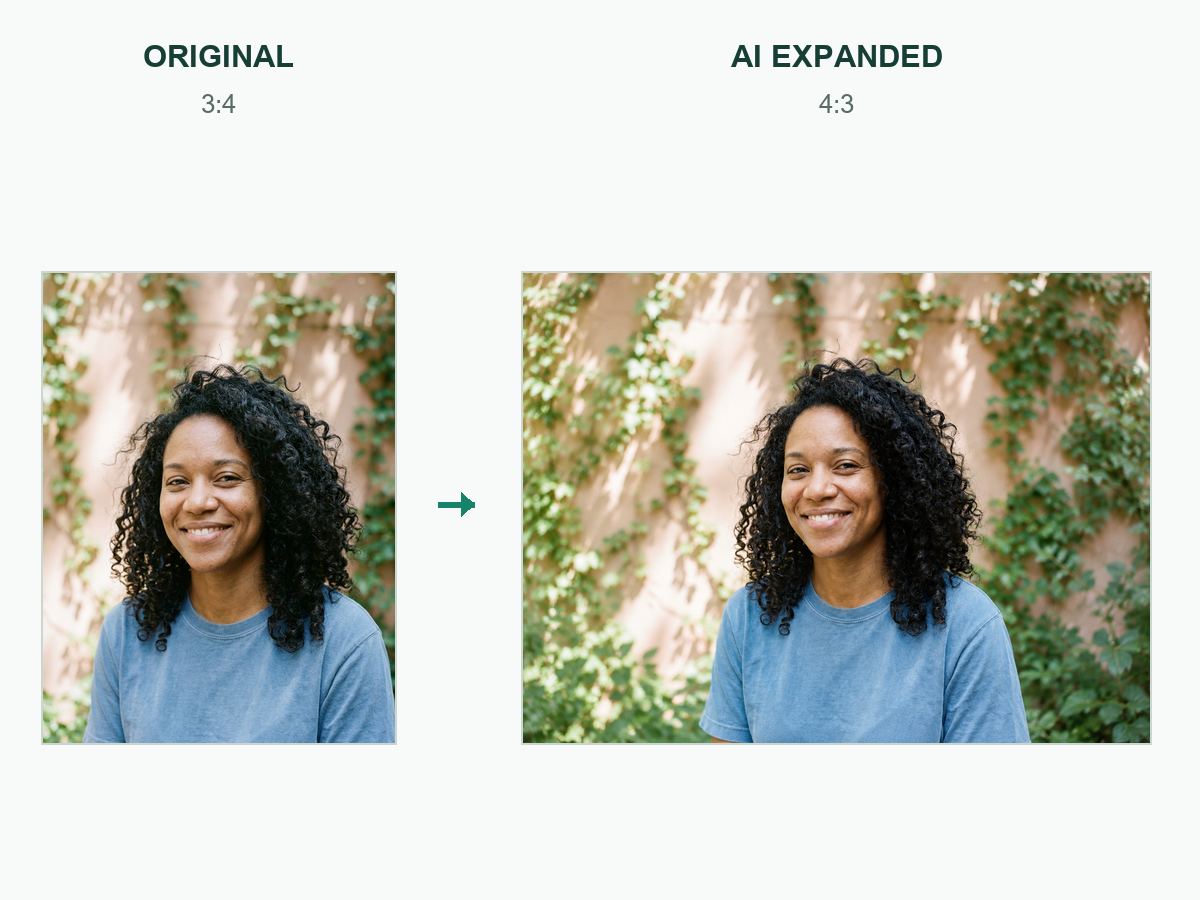 Portraits
Expand my original photo to 4:3 with natural AI outpainting. Keep the same subject and proportions, and fill the added area with coherent continuation of the scene. Use realistic natural daylight. No cropping of the subject, stretching, padding, bars or duplicated subjects. Return one expanded photo.
Use a Related Prompt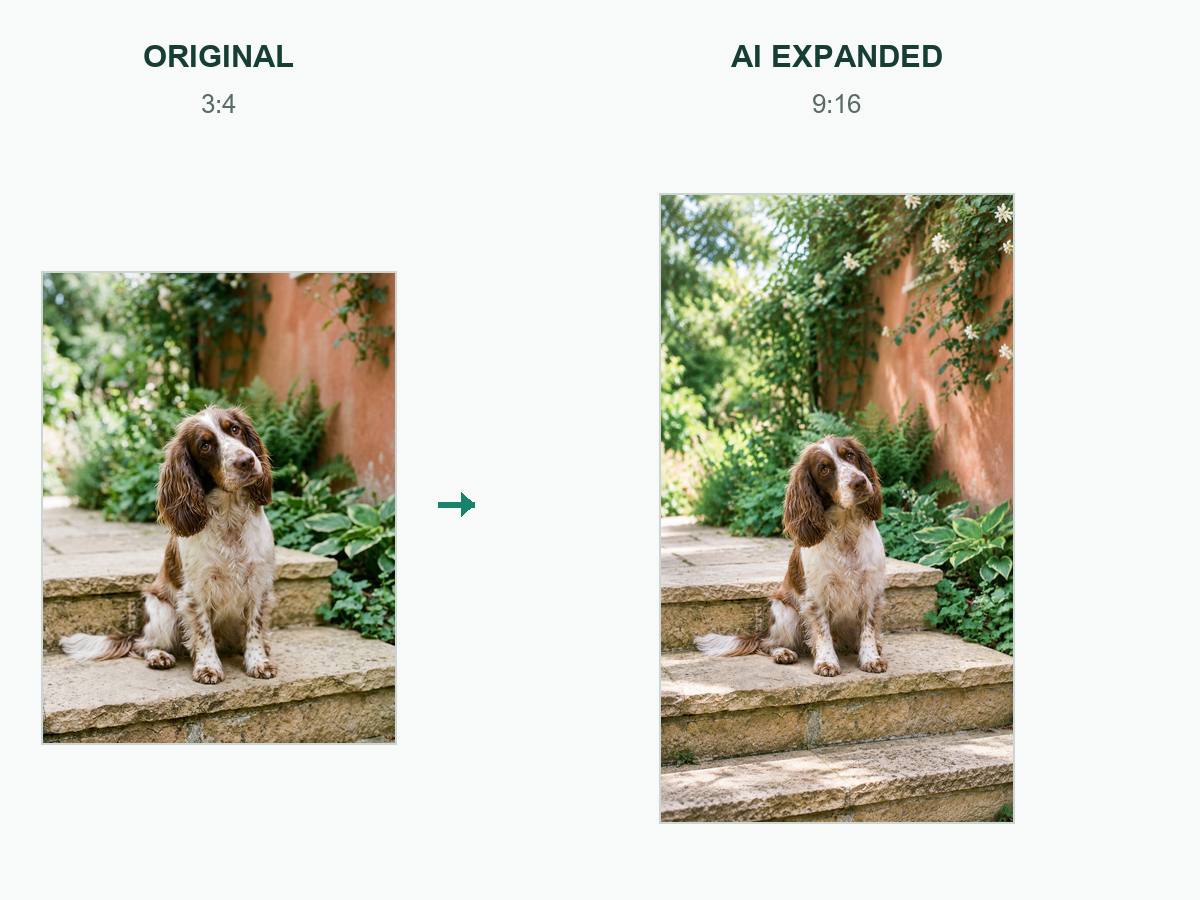 Pets
PetsExpand my original photo to 9:16 with natural AI outpainting. Keep the same subject and proportions, and fill the added area with coherent continuation of the scene. Use realistic natural daylight. No cropping of the subject, stretching, padding, bars or duplicated subjects. Return one expanded photo.
Use a Related Prompt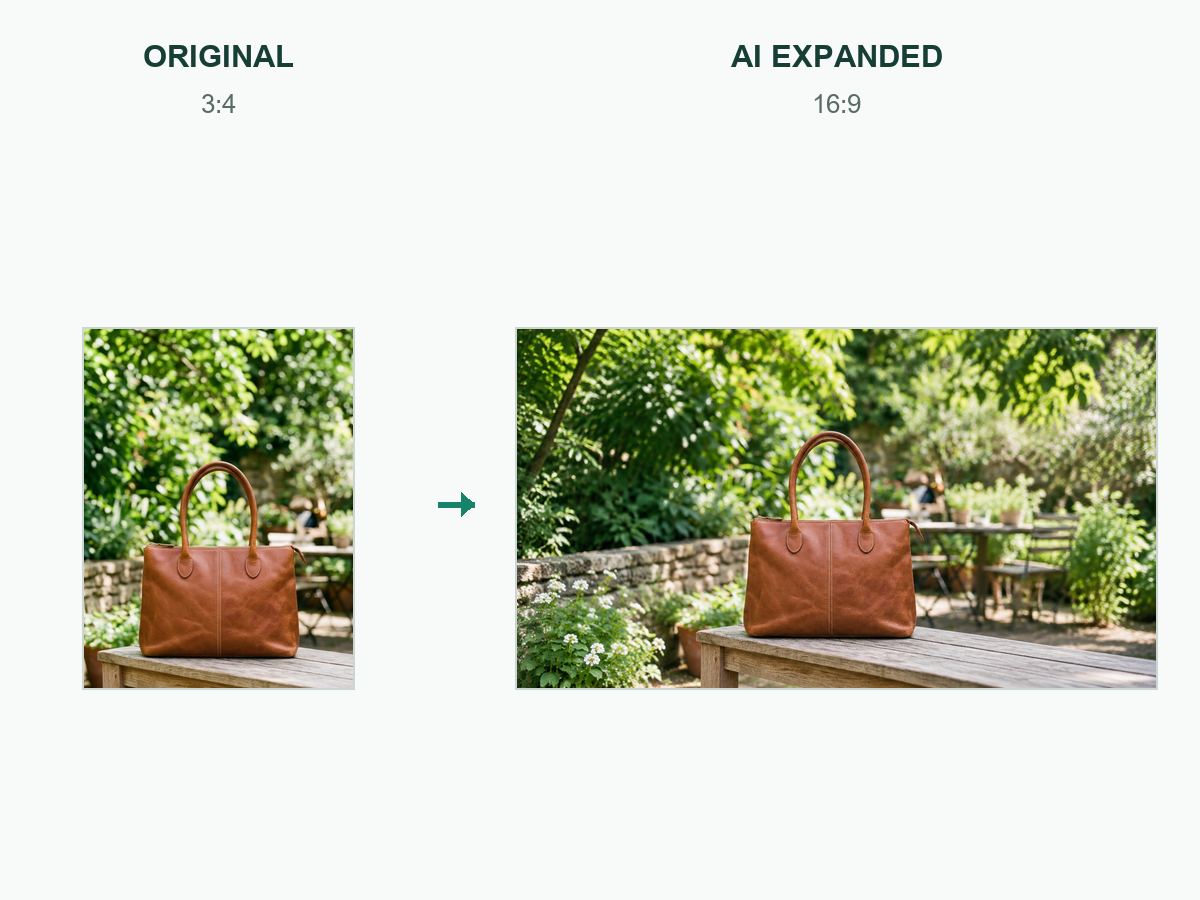 Accessories
Expand my original photo to 16:9 with natural AI outpainting. Keep the same subject and proportions, and fill the added area with coherent continuation of the scene. Use realistic natural daylight. No cropping of the subject, stretching, padding, bars or duplicated subjects. Return one expanded photo.
Use a Related PromptProductsExpand my original photo to 1:1 with natural AI outpainting. Keep the same subject and proportions, and fill the added area with coherent continuation of the scene. Use realistic natural daylight. No cropping of the subject, stretching, padding, bars or duplicated subjects. Return one expanded photo.
Use This Direction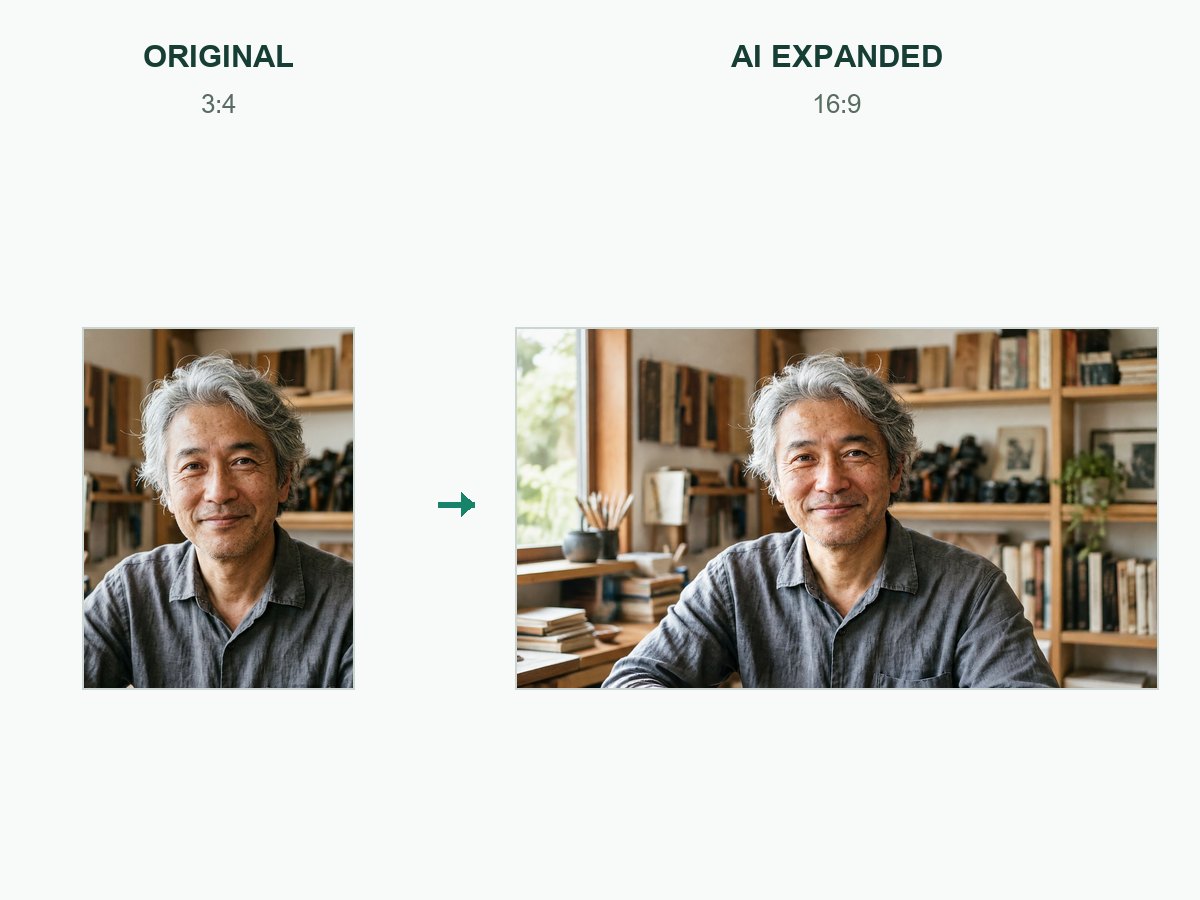 Portraits
Expand my original photo to 16:9 with natural AI outpainting. Keep the same subject and proportions, and fill the added area with coherent continuation of the scene. Use realistic natural daylight. No cropping of the subject, stretching, padding, bars or duplicated subjects. Return one expanded photo.
Use This Direction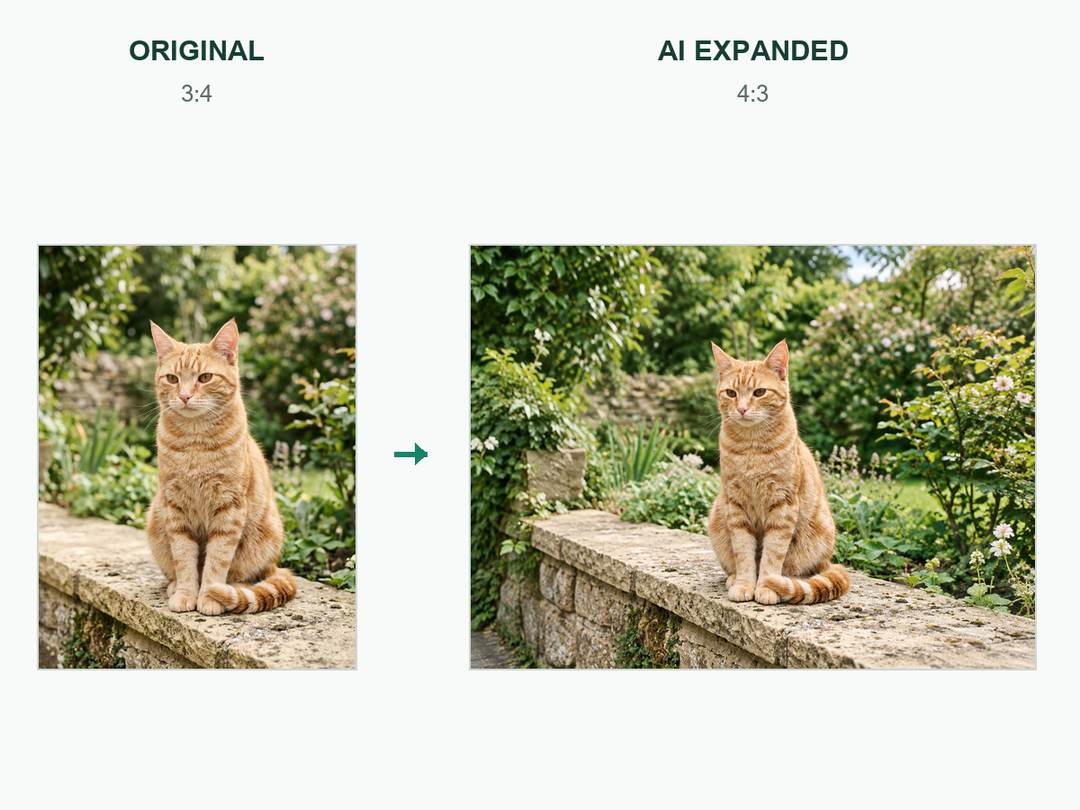 Pets
PetsExpand my original photo to 4:3 with natural AI outpainting. Keep the same subject and proportions, and fill the added area with coherent continuation of the scene. Use realistic natural daylight. No cropping of the subject, stretching, padding, bars or duplicated subjects. Return one expanded photo.
Use This Direction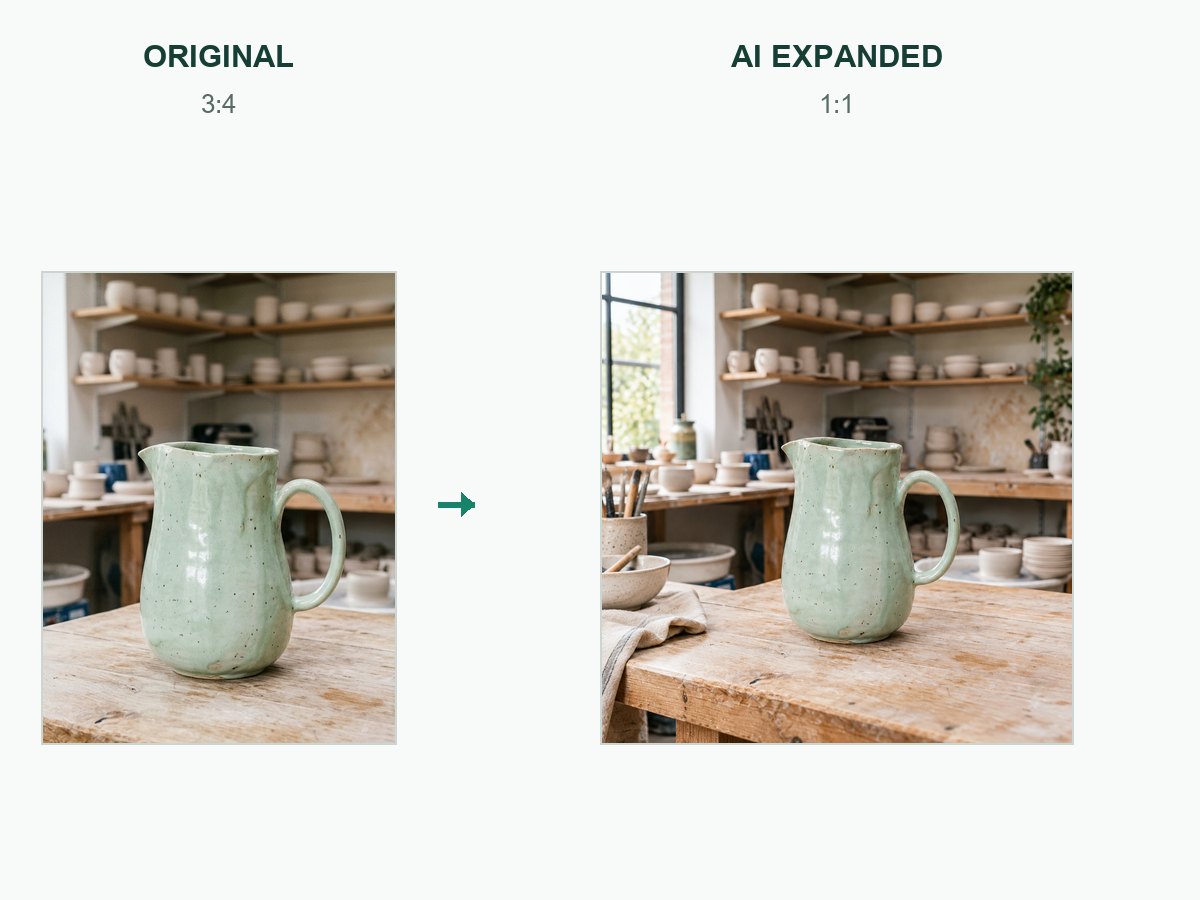 Products
Expand my original photo to 1:1 with natural AI outpainting. Keep the same subject and proportions, and fill the added area with coherent continuation of the scene. Use realistic natural daylight. No cropping of the subject, stretching, padding, bars or duplicated subjects. Return one expanded photo.
Use This Direction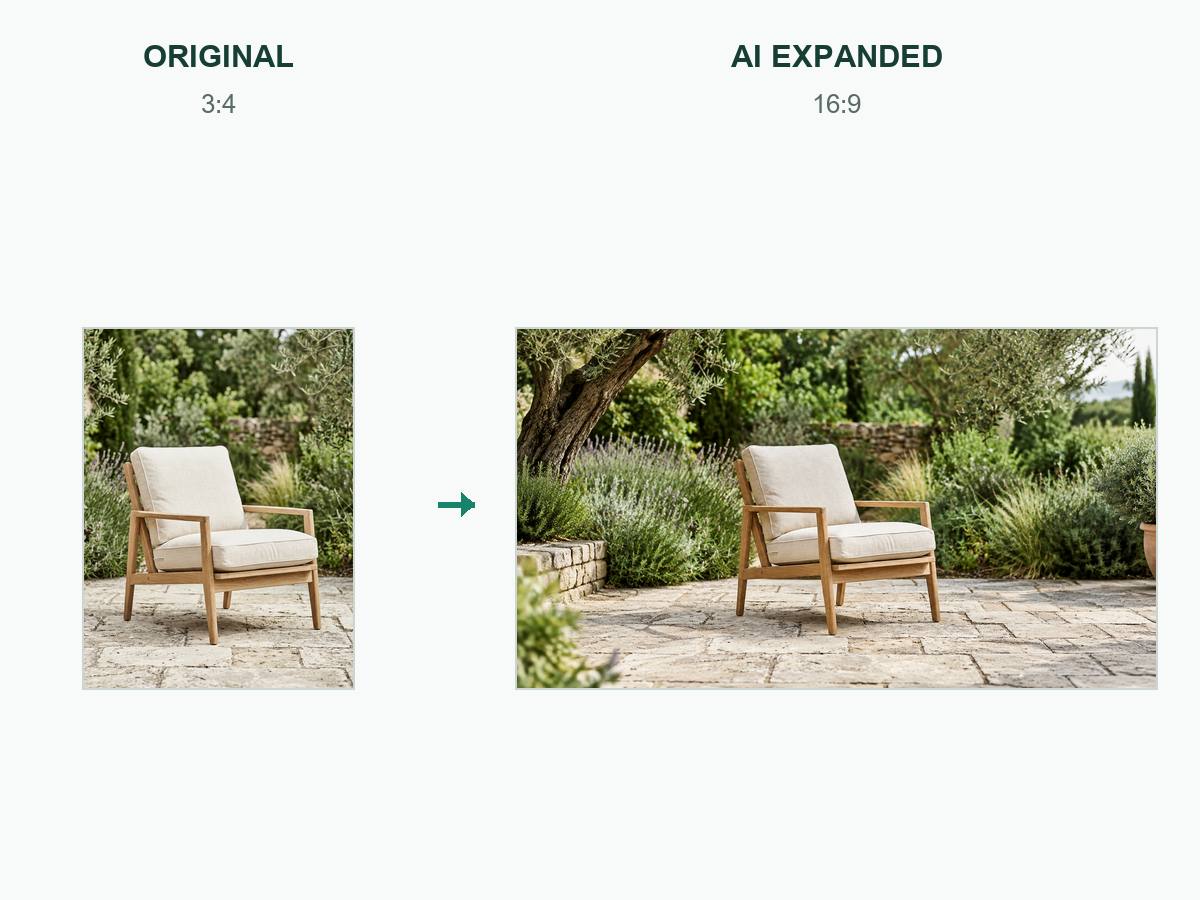 Products
Expand my original photo to 16:9 with natural AI outpainting. Keep the same subject and proportions, and fill the added area with coherent continuation of the scene. Use realistic natural daylight. No cropping of the subject, stretching, padding, bars or duplicated subjects. Return one expanded photo.
Use This Direction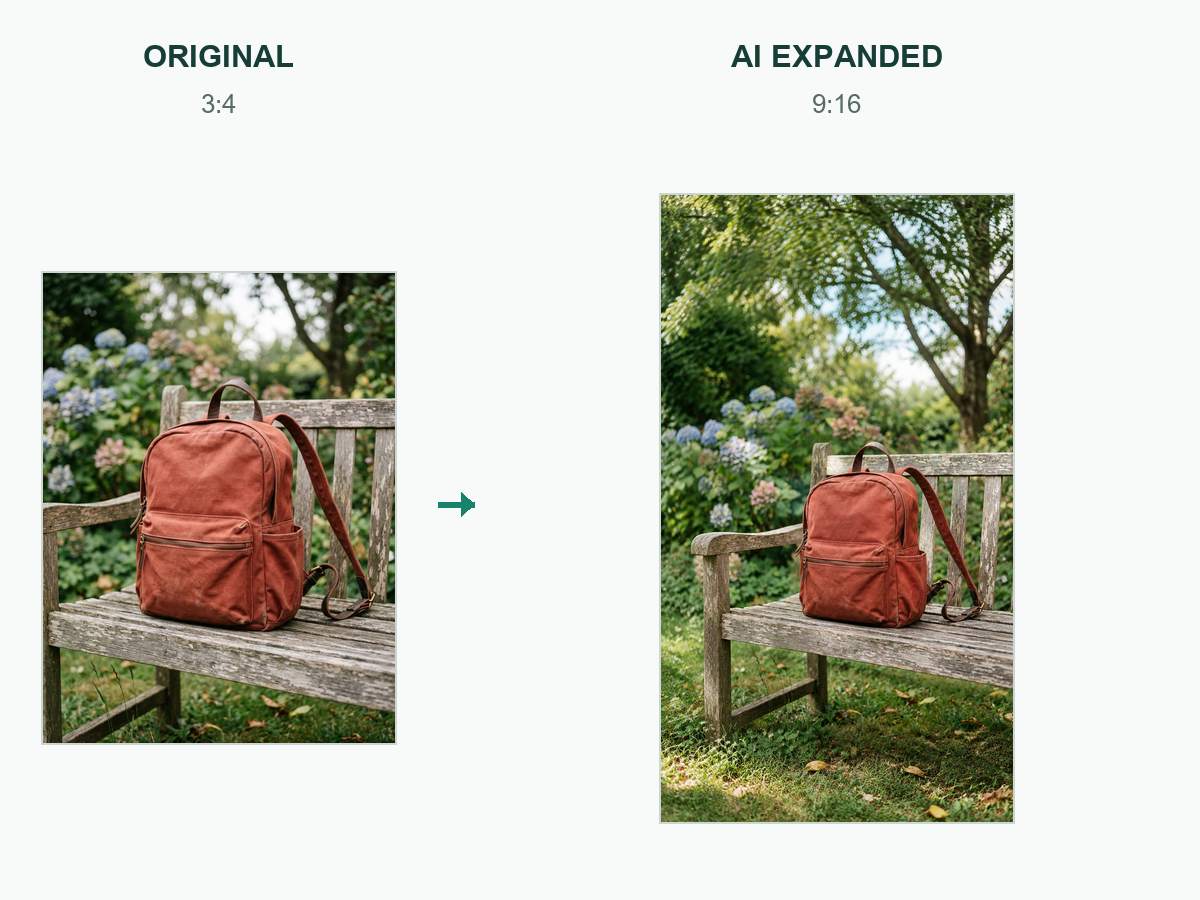 Accessories
Expand my original photo to 9:16 with natural AI outpainting. Keep the same subject and proportions, and fill the added area with coherent continuation of the scene. Use realistic natural daylight. No cropping of the subject, stretching, padding, bars or duplicated subjects. Return one expanded photo.
Use This DirectionPick a square, portrait or landscape composition around the place the image will appear.
Name the face, product or architectural detail that must remain visible when the composition changes.
Ask for breathing room around the subject so captions or branding can be added accurately in your design editor.
A focused brief makes each result easier to judge.
Start with your original photo and choose the destination: a square product card, portrait post or wide banner. Identify the face or object to preserve.
Choose GPT Image 2 and a target aspect ratio. Ask it to extend the scene naturally into the new space without padding or stretching.
Review the framing and downloaded pixel dimensions. Use a dedicated resize editor when exact dimensions or unchanged pixels are required.
Fictional scenarios for review, not real customer testimonials or ratings.
Illustrative scenario: Square product composition. Pick a square, portrait or landscape composition around the place the image will appear.
Illustrative scenario: Portrait crop. Name the face, product or architectural detail that must remain visible when the composition changes.
Illustrative scenario: Landscape banner. Ask for breathing room around the subject so captions or branding can be added accurately in your design editor.
Exact pixel dimensions have not been verified in this workspace. The available controls select aspect ratios; use a dedicated resizing editor when an upload requires a specific pixel size.
No. Resizing changes pixel dimensions, while AI reframing can recreate or extend parts of a composition. Compare the generated version with your original.
A generative model may invent or alter detail. For pixel-preserving enlargement, use a verified resampling or upscaling workflow and inspect the output.
Use square for balanced social posts, portrait for taller layouts and widescreen for banners. Check the destination platform's current specifications.
File size depends on the output format and dimensions. After generation, check the downloaded file and optimize it for your website's requirements.