

Focused controls
Keep prompt, style, ratio, and quality choices together in one workflow.
Prompt Guide
Model
Reference Image

Turn a clear idea into polished image filler visuals with practical controls and reusable styles.
Explore reusable directions before you generate.
Featured resultBefore and after retouch of a woman portrait where the plain background is replaced with a soft studio gradient, natural edge blending.
Try This Style Featured result
Before and after of a sparse room where missing furniture and wall detail are filled in, consistent daylight and perspective.
Try This Style Featured result
Before and after of a mountain valley panorama with the missing frame edges filled in, seamless sky and ridge lines.
Try This Style Featured result
Before and after product shot of a white sneaker with the torn backdrop replaced by clean neutral paper, sharp product edges.
Try This Style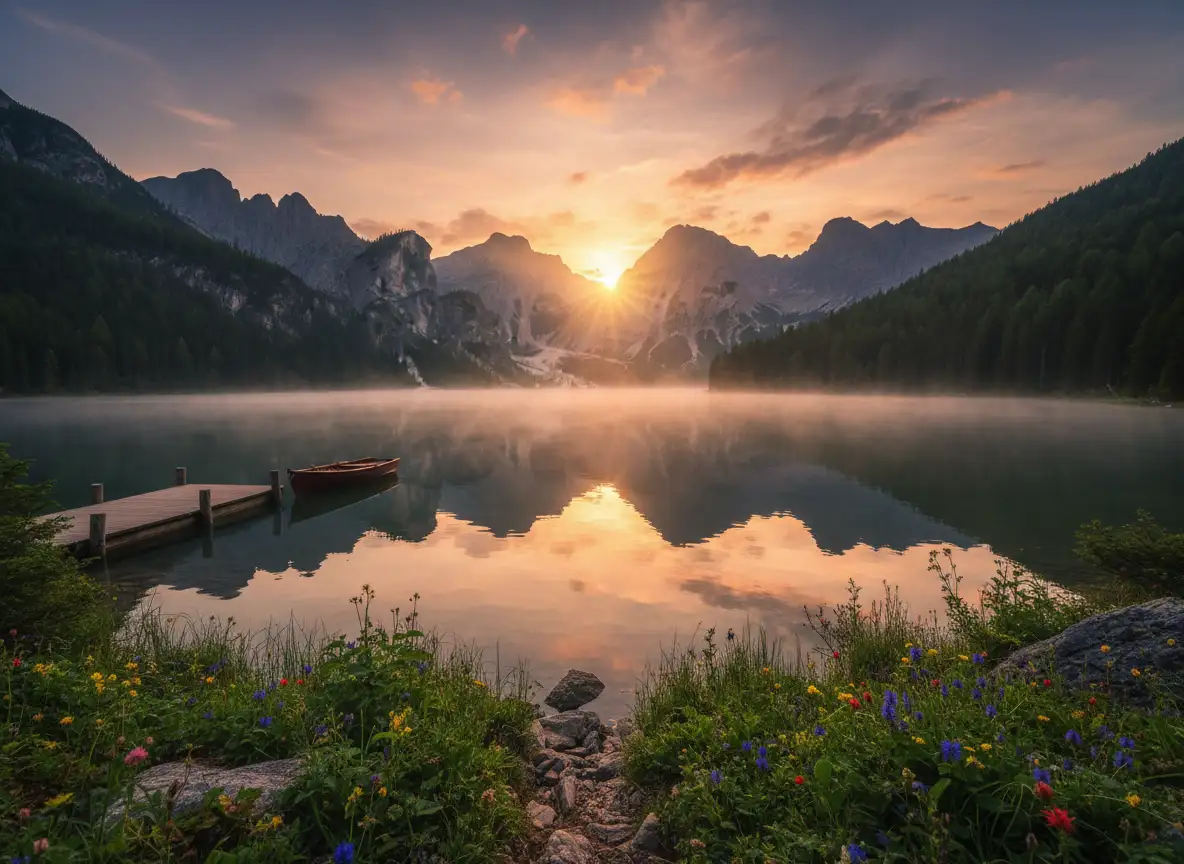 Featured result
Couple portrait with the damaged background restored to a warm cafe interior, natural skin tones preserved.
Try This Style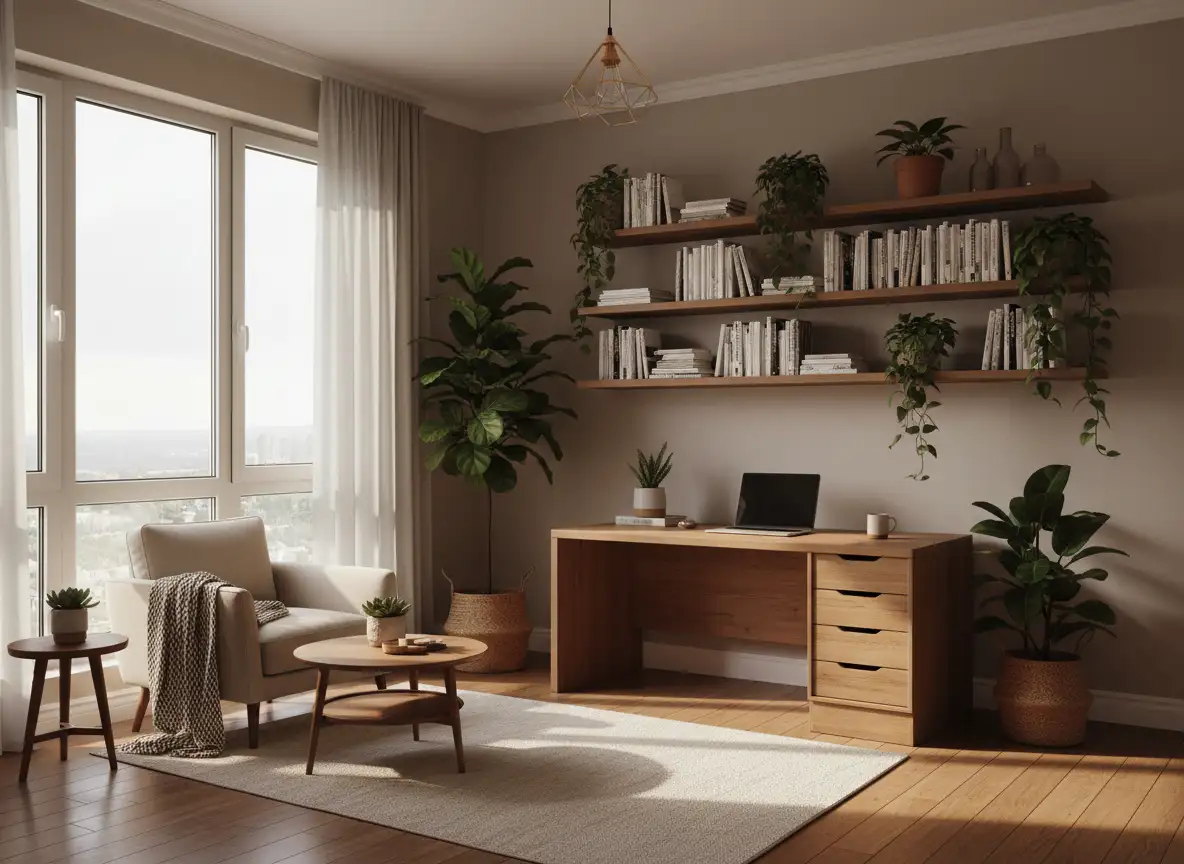 Featured result
Silhouetted couple standing close in front of a warm backlit window, soft haze, romantic mood.
Try This Style Featured result
Two figures standing in a dim hallway with light spilling from a doorway, cinematic contrast.
Try This StyleKeep prompt, style, ratio, and quality choices together in one workflow.
Start from proven examples and adjust the details for your own result.
Compare enabled models without rebuilding the whole workflow.
State the subject, style, mood, and key details for your ai image filler output.
Pick a starting example, ratio, and model that match your intended use.
Review the result, adjust the prompt, and generate another version when needed.
The examples made it easier to start my ai image filler project.
I liked keeping the main controls together instead of switching between tools.
The focused workflow helped me compare a few directions quickly.
AI Image Filler helps you create focused results from a prompt and reusable visual directions.
Yes. Start from an example, change the prompt and controls, then generate another direction.
Choose the ratio that matches where you will use the result, such as social, portrait, or widescreen content.
The workspace exposes enabled models so you can compare available workflows before generating.