

★★★★★
I had a box of faded family prints scanned years ago. The enhancer brought back contrast and made the faces easier to see without turning them into something new.
EEmma Robert
Prompt Guide
Model
Reference Image
Clean up blur, noise, weak lighting, and washed-out color while keeping the people, products, and places in your original shot.

Start with the best source you have, describe the fix you need, and check the result before you download it.
Use a JPG, PNG, or WebP image. A larger, cleaner source gives the enhancer more detail to work with.
Say what needs attention—blur, noise, faded color, harsh shadows, or scratches—and keep the original subject in place.
Compare the enhanced image with your original. If one area still looks soft, adjust the prompt and run another pass.
See how a focused prompt can clean up blur, noise, faded color, and haze without changing the scene.
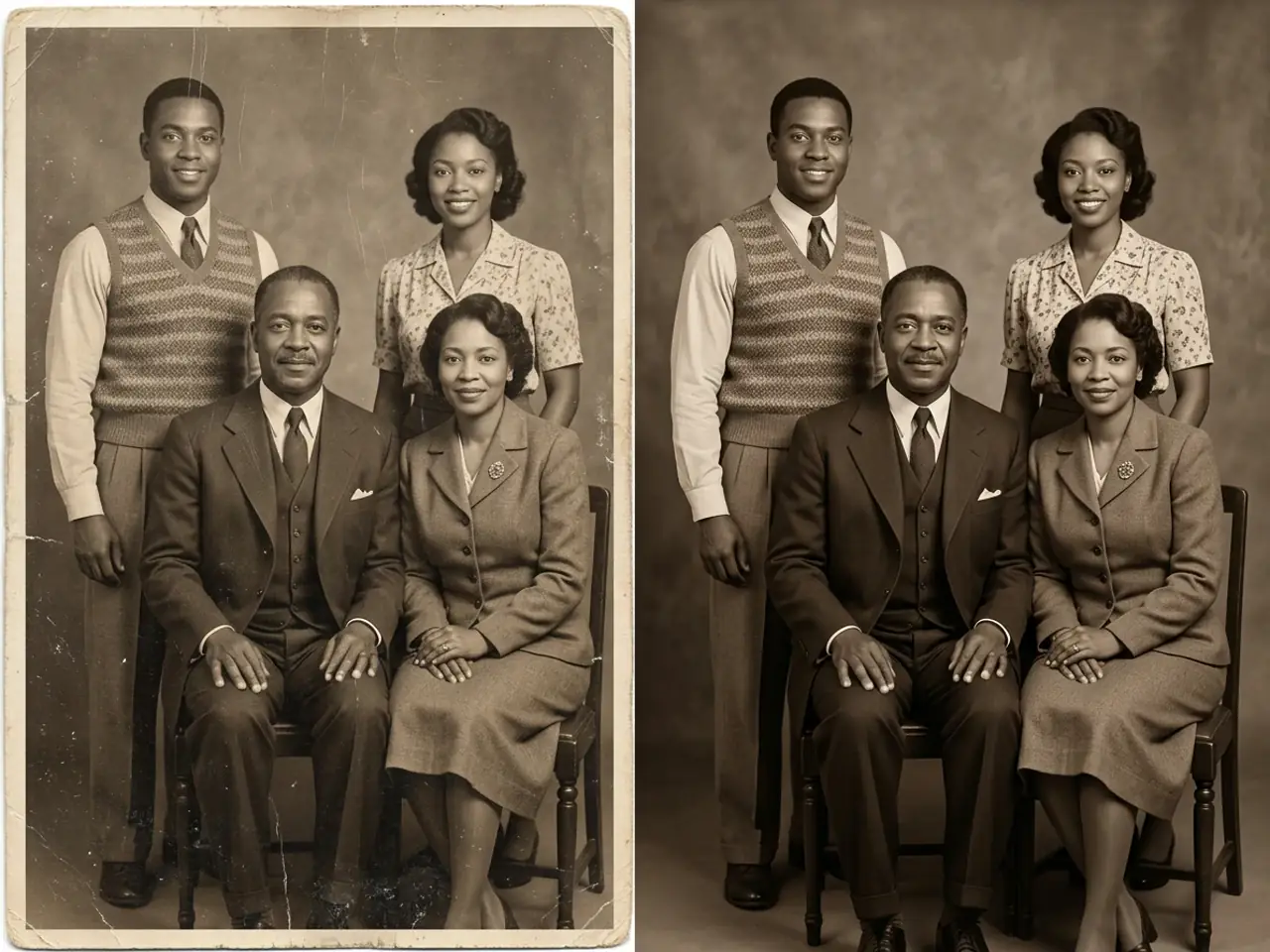 Old Photo Restoration
Restore faded contrast, remove dust and scratches, and keep each face and period detail true to the original.
Enhance a Similar Photo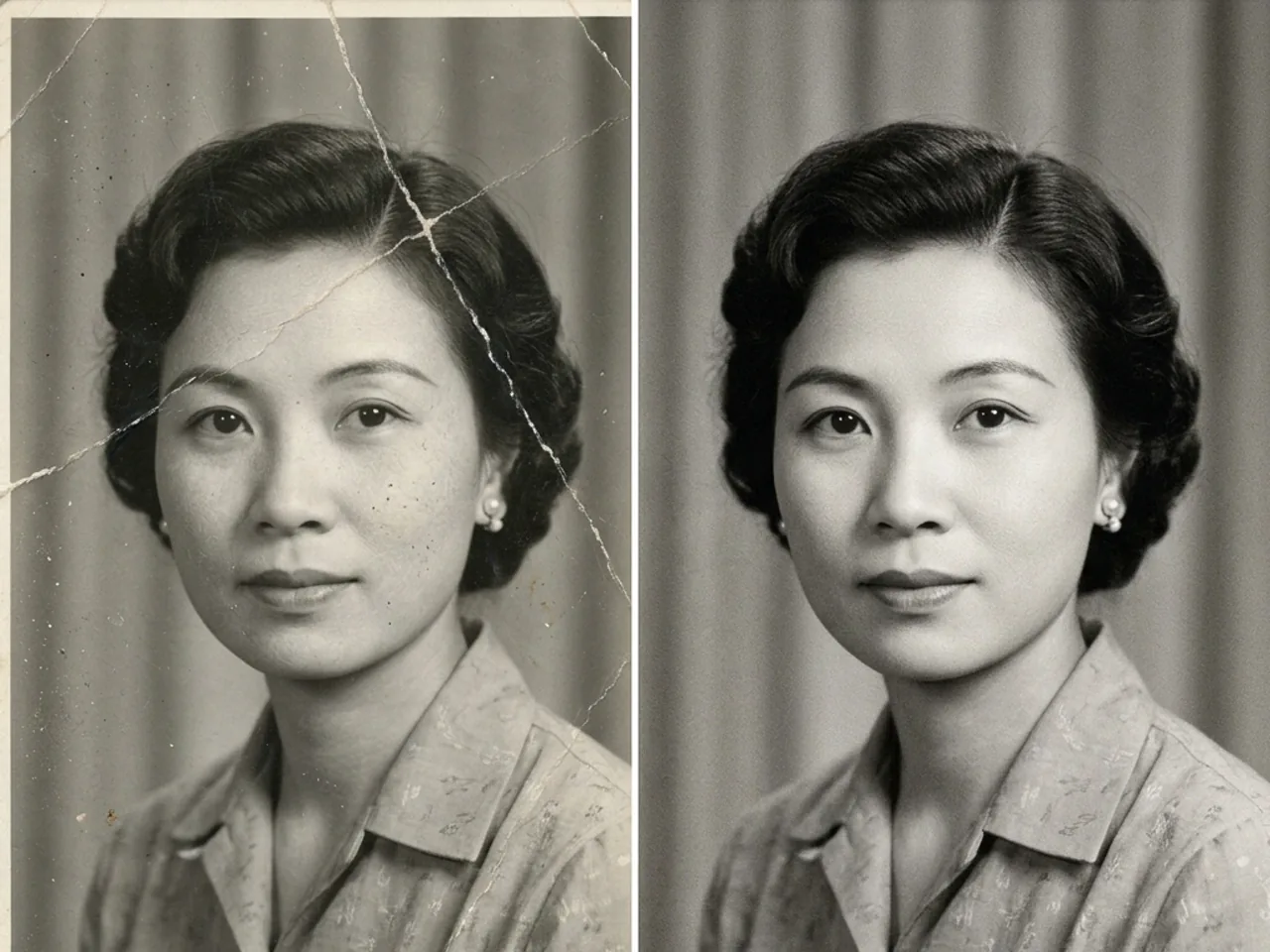 Old Photo Restoration
Fill cracks and torn edges while keeping the monochrome lighting and film grain intact.
Enhance a Similar Photo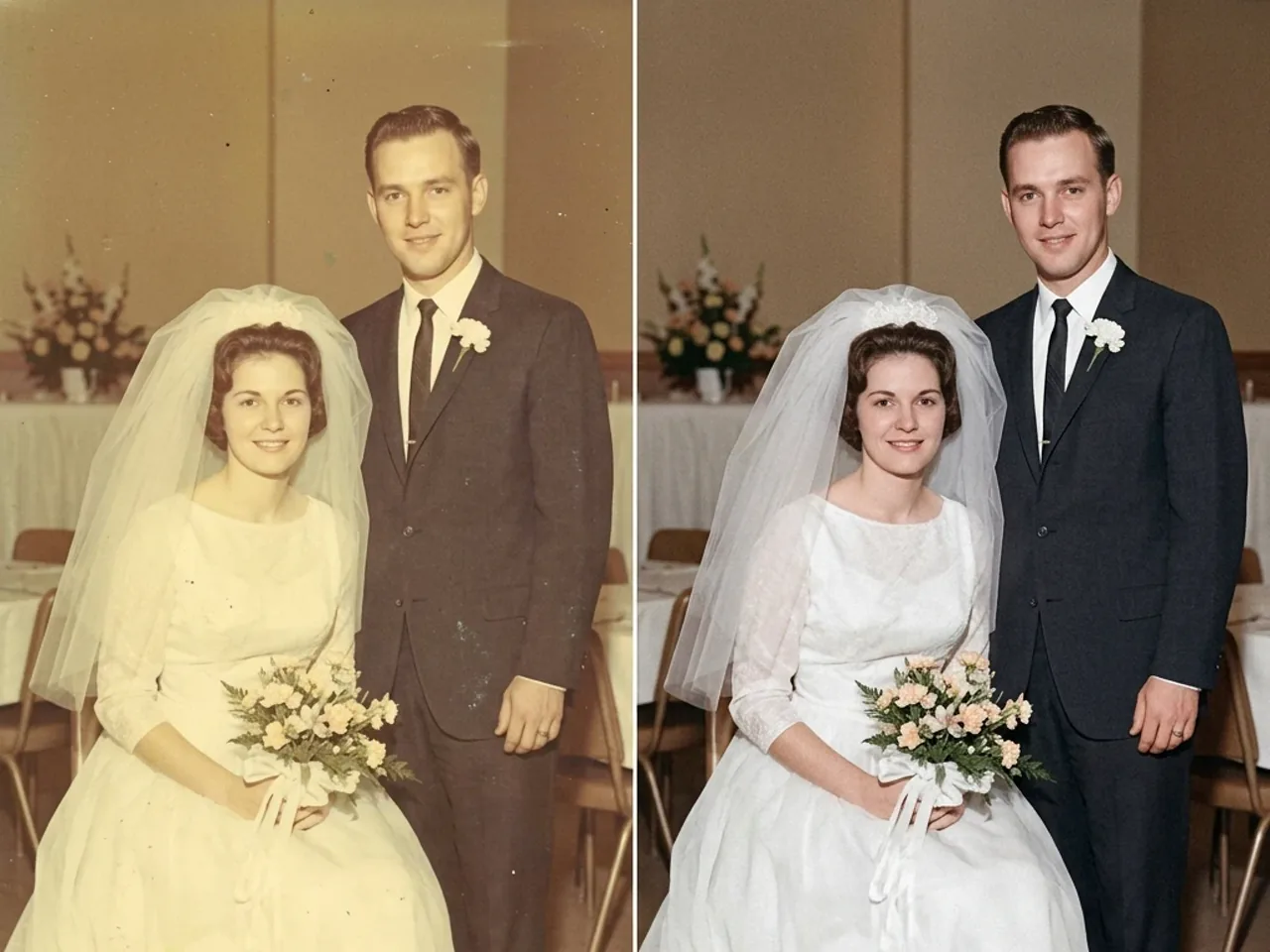 Old Photo Restoration
Correct yellowed tones and uneven exposure while leaving the couple, clothes, and setting alone.
Enhance a Similar Photo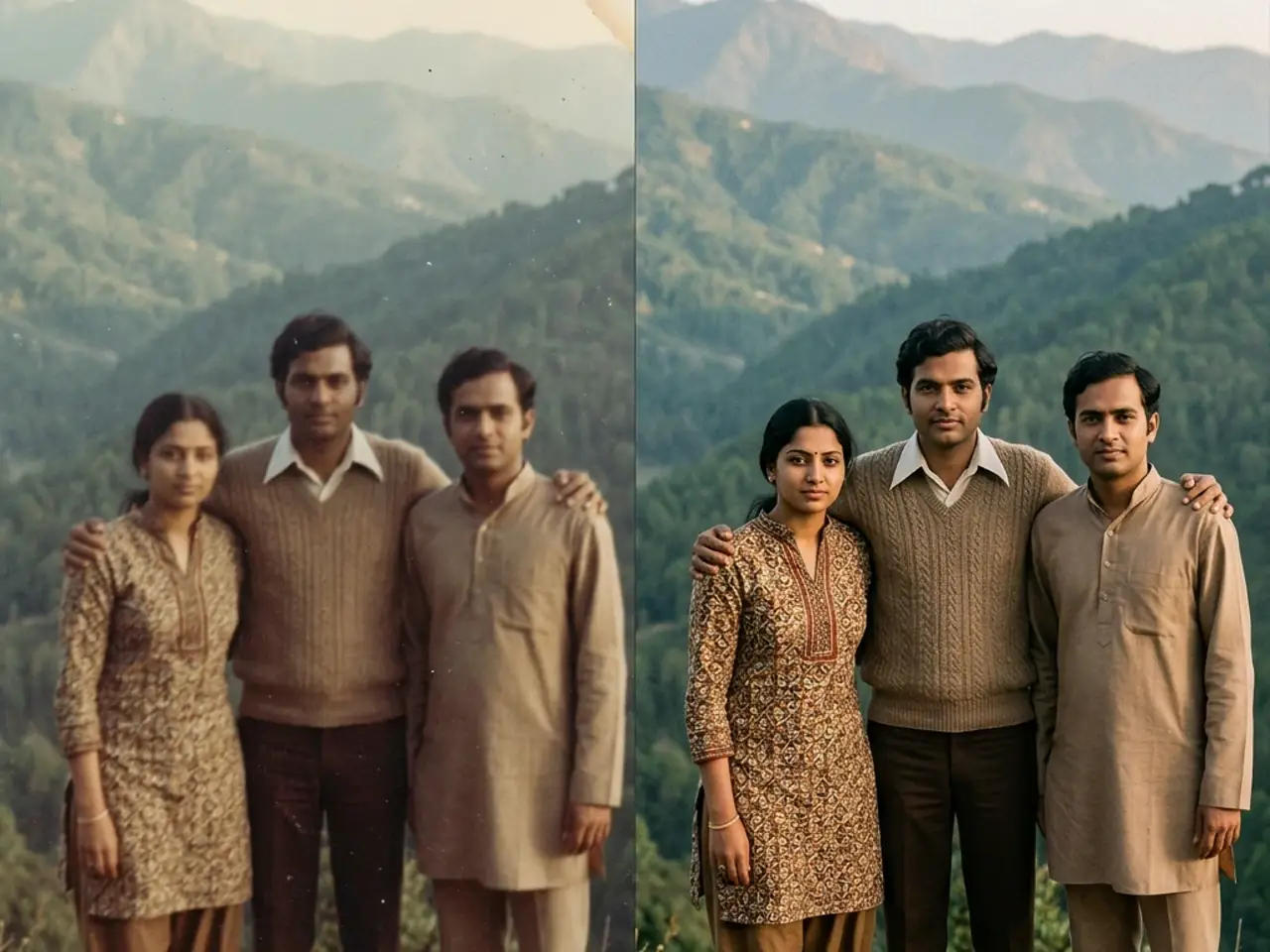 Motion & Blur
Reduce blur and grain, recover natural color, and make the people easier to see without changing the place.
Enhance a Similar Photo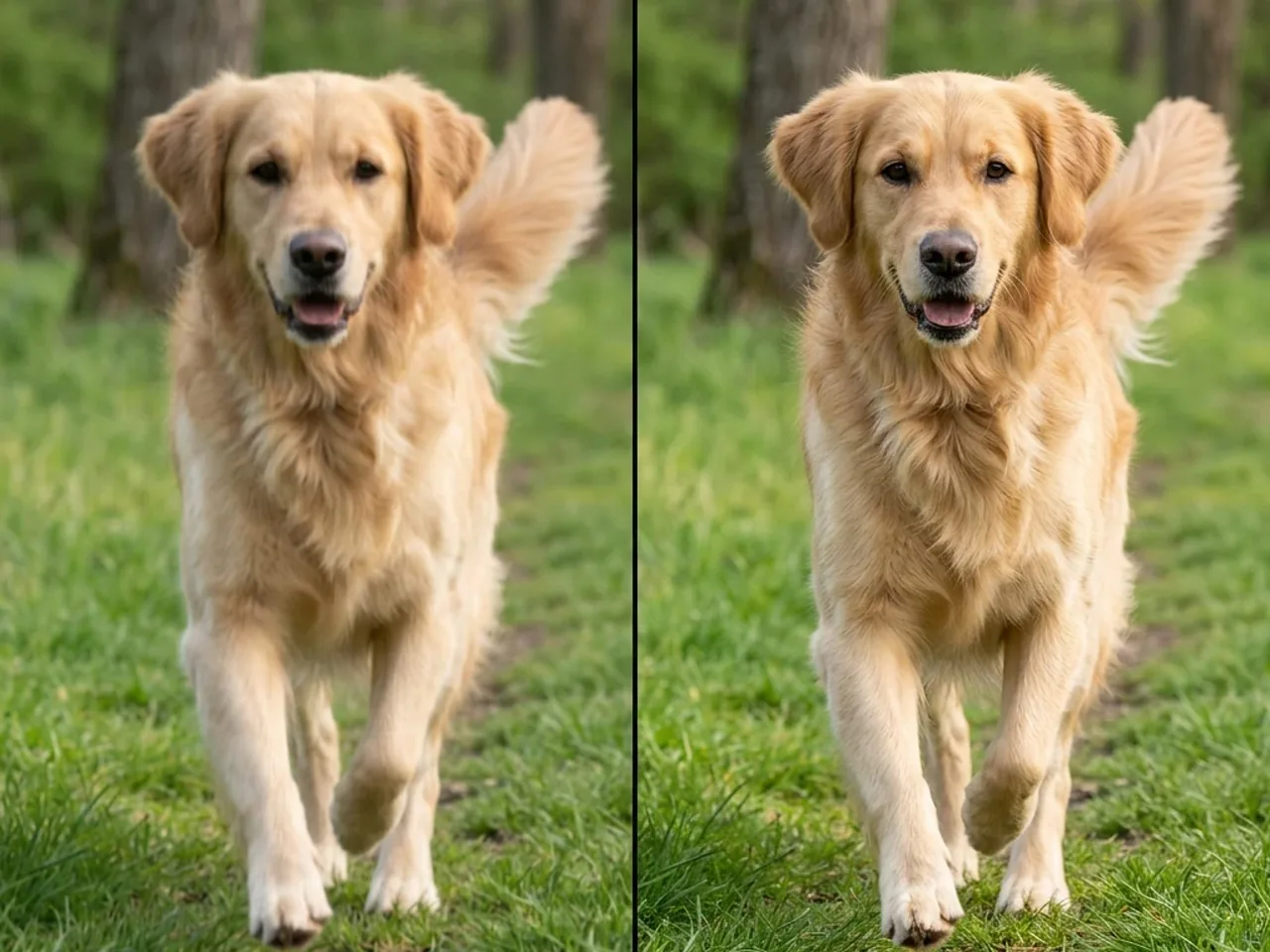 Motion & Blur
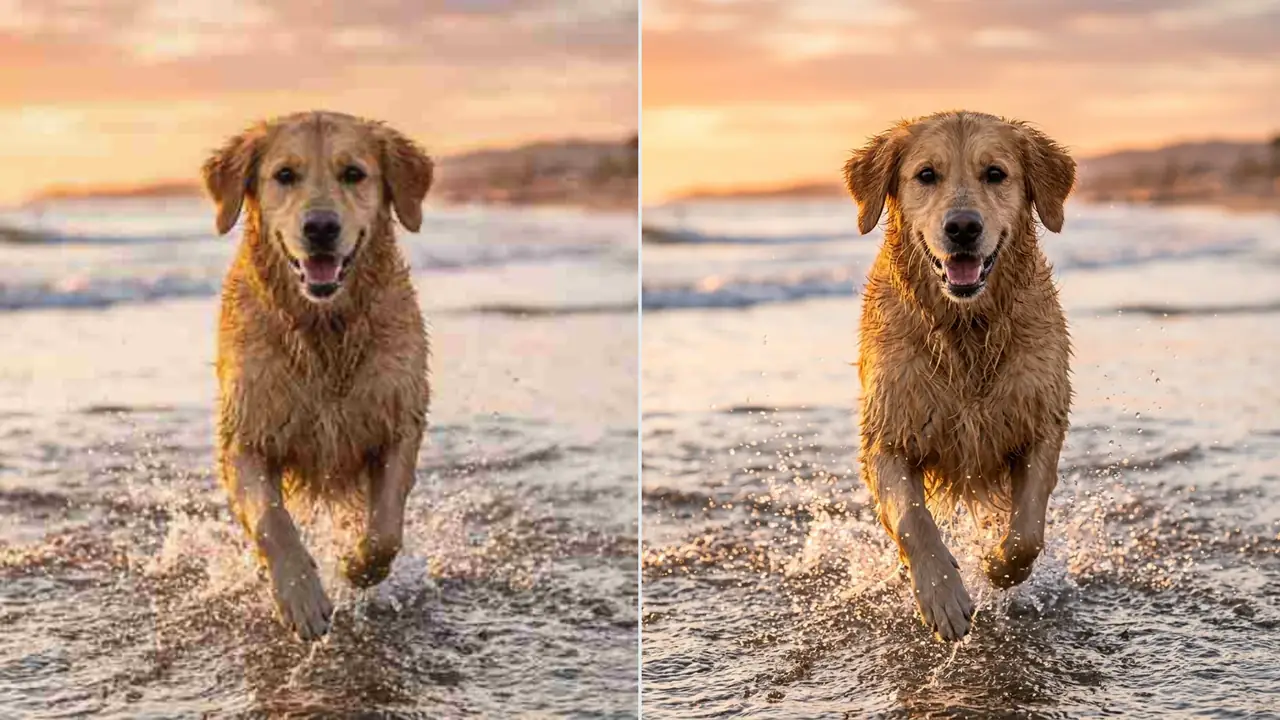
Bring back fur and eye detail, reduce motion blur, and clean up compression without making the photo look plastic.
Enhance a Similar Photo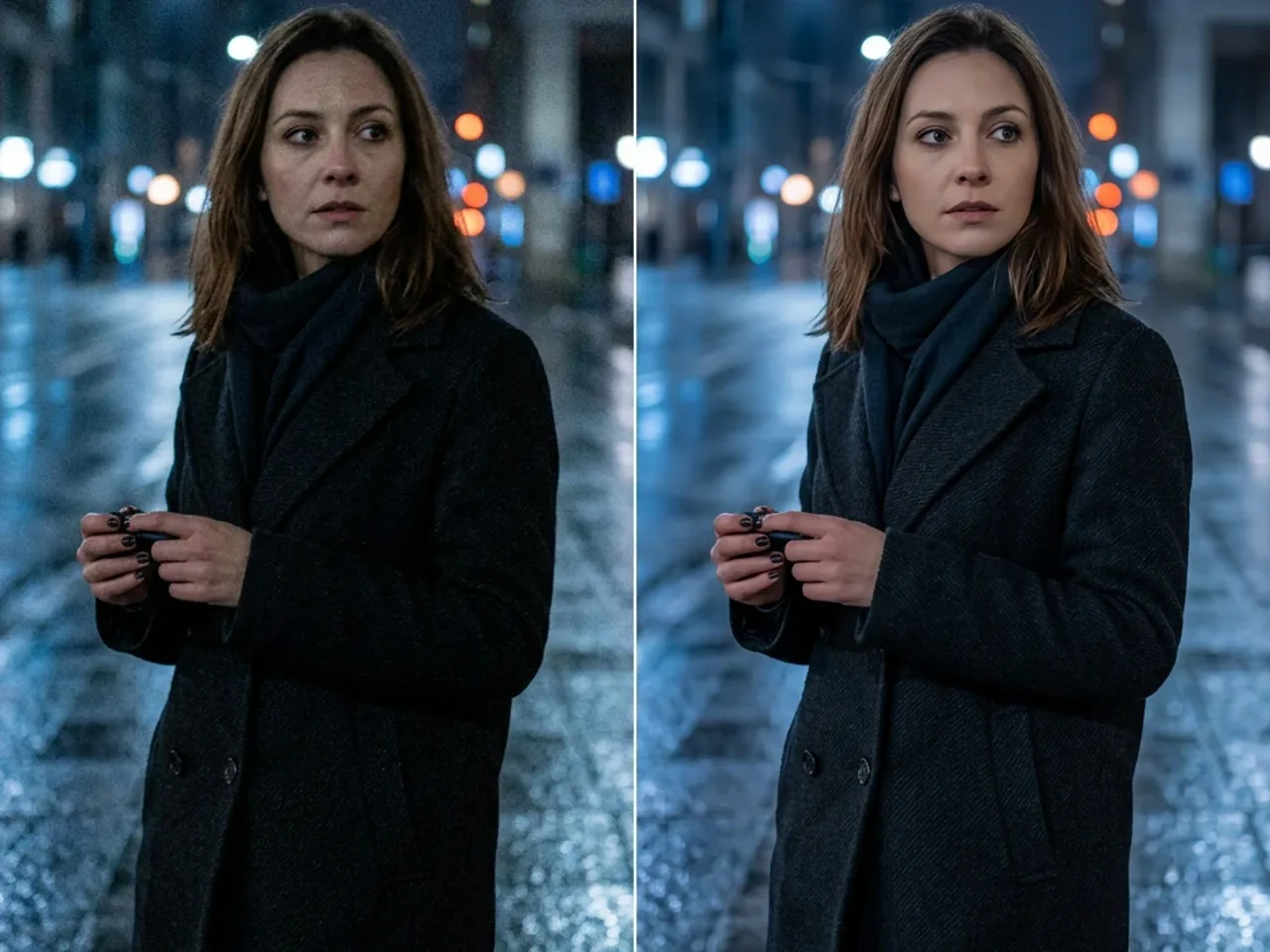 Low-Light Portrait
Reduce color noise, open up shadow detail, and even out skin tone without adding beauty retouching.
Enhance a Similar Photo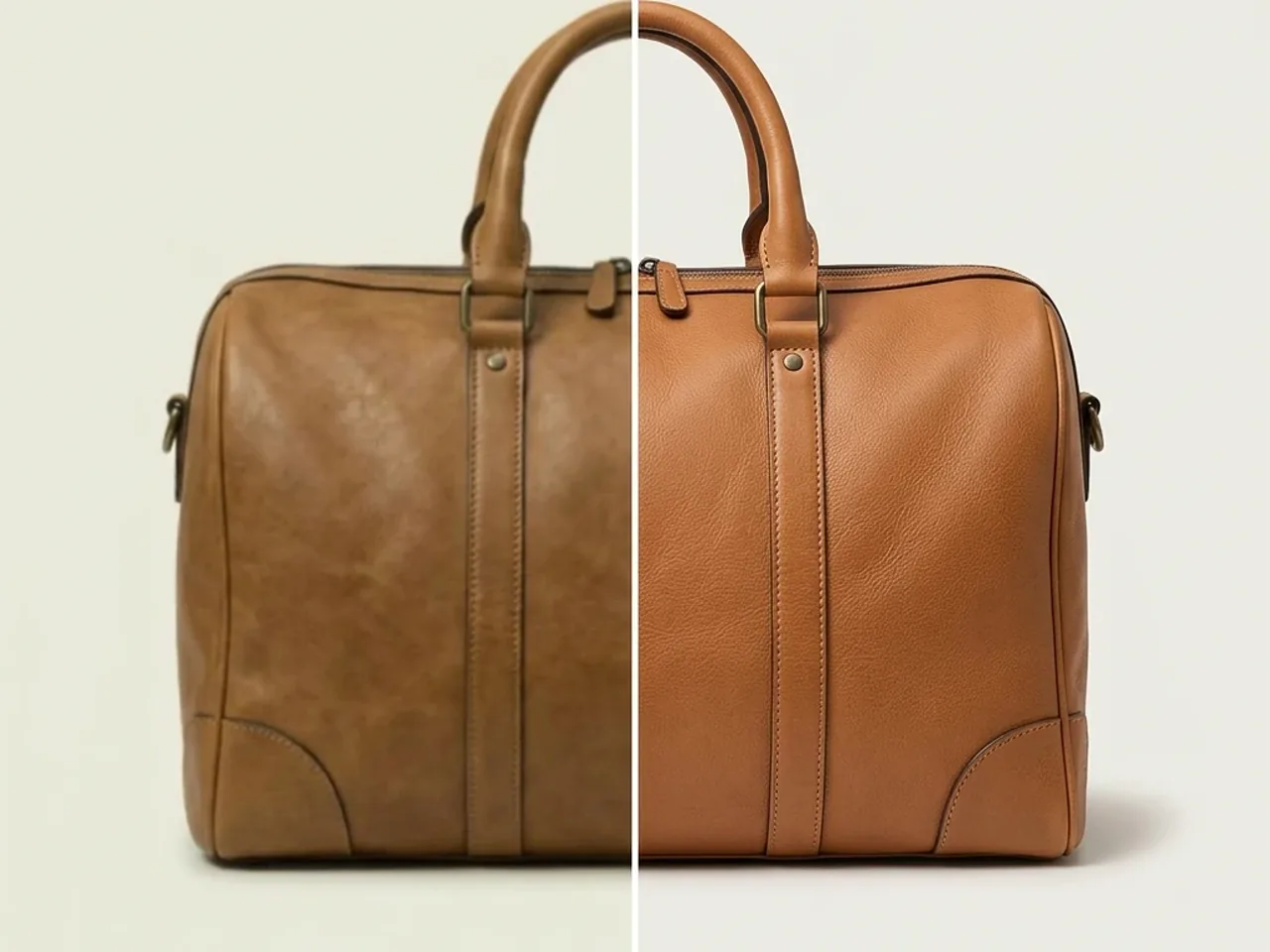 Product Photo
Bring out leather texture, stitching, edge clarity, and white balance without redesigning the product.
Enhance a Similar Photo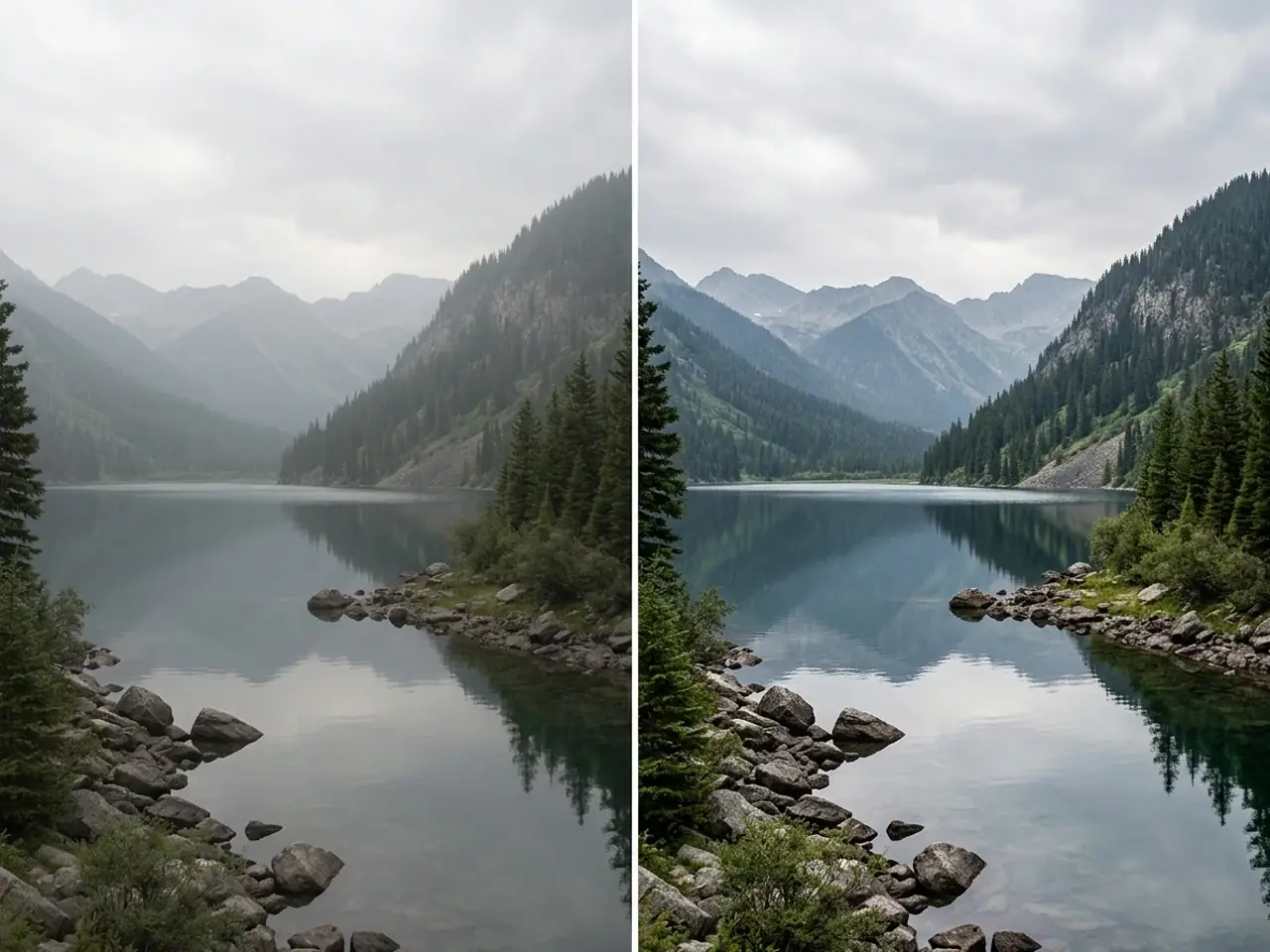 Landscape Enhancement
Reduce atmospheric haze, restore distant detail, and balance the lake, sky, and forest naturally.
Enhance a Similar PhotoA few practical examples from family archives, product listings, and everyday photos.
I had a box of faded family prints scanned years ago. The enhancer brought back contrast and made the faces easier to see without turning them into something new.
I use it on product shots when the stitching or material looks soft. It gives me a cleaner starting point before I upload the images to a listing.
It helped with haze and low-light noise on travel photos. The worst blur still needed another pass, but the first result was much easier to work with.
It can help with blur, digital noise, weak lighting, faded color, low contrast, haze, dust, scratches, and soft detail in portraits, old photos, pet pictures, products, and landscapes.
The prompt can ask it to preserve the original subject and composition while improving clarity, exposure, color, and texture. Heavily damaged or blurred areas may still require the tool to infer missing detail.
Yes. Ask it to remove dust and scratches, recover contrast, and bring back faded detail while keeping the photo's original character.
JPG, PNG, and WebP are supported. Use the highest-quality copy you have, especially for small text, faces, and fine product detail.
Be specific about what to fix and what to preserve. For example, ask for less noise and more detail while keeping the person's face, clothing, background, and original lighting direction unchanged.
Describe the problem, keep the important parts, and make the result easier to use.
Reduce motion blur, compression artifacts, and low-light noise so edges, faces, and textures read more clearly.
Bring back contrast, correct a color cast, and lift dark areas without washing out the rest of the image.
Tell the enhancer what must stay the same—people, products, clothing, framing, and background—while it works on the weak spots.