

GPT Image 2.5
Explore with Flare. Refine with Sunburst.
Two published model positions for different moments in your creative work.
GPT Image 2.5 turns text and image inputs into new images and edits. In GlobalGPT it is one model entry, so you describe the job in the prompt instead of picking a version—an open-ended idea and a carefully directed change are both written here.
Different Priorities.
The Same Creative Toolkit.
OpenAI publishes GPT Image 2.5 in two versions. Both generate and edit images; what differs is the kind of work each one is recommended for.
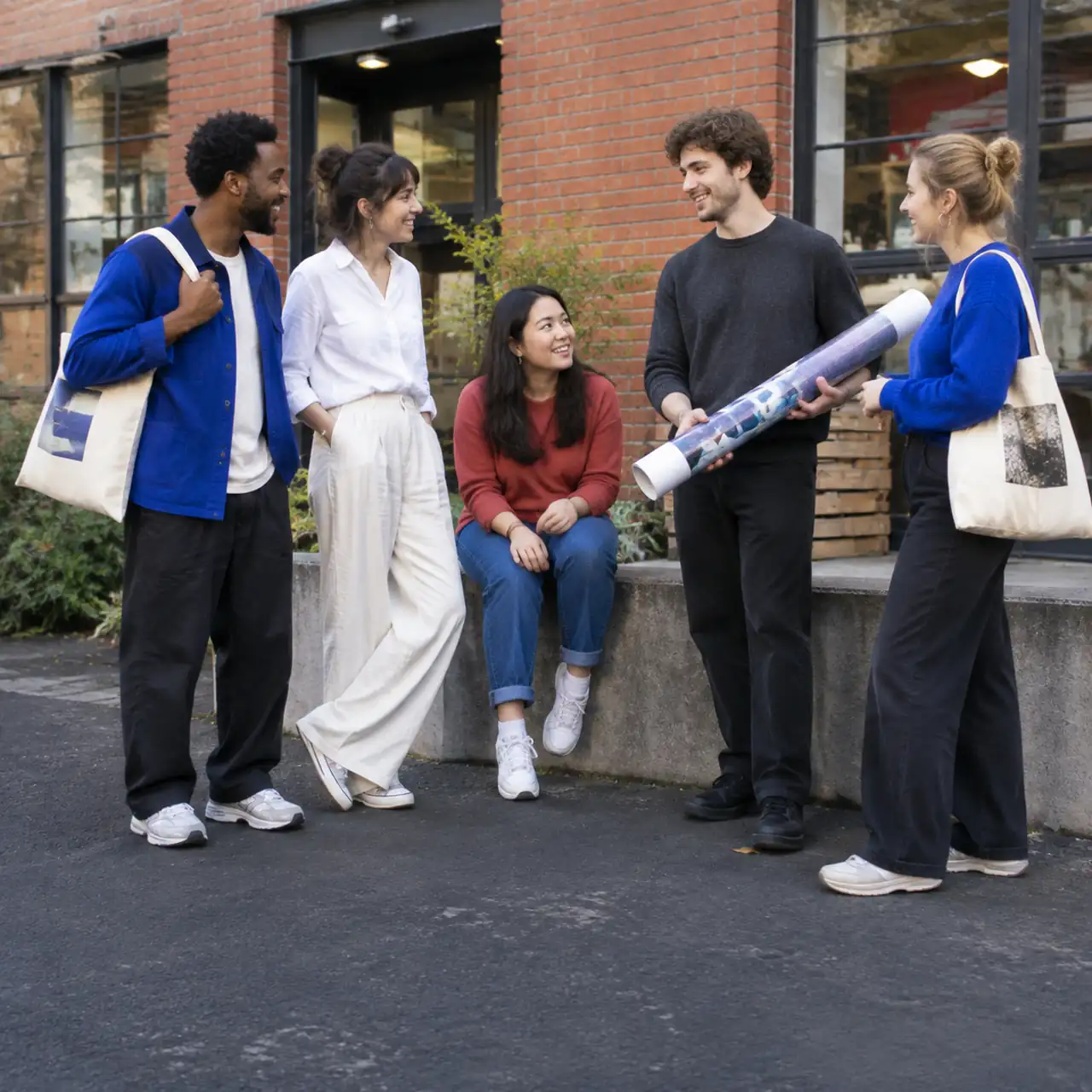
Sunburst
Editing PrecisionFor an image that already has a direction. Specify the change and the details that matter, then refine with intention.
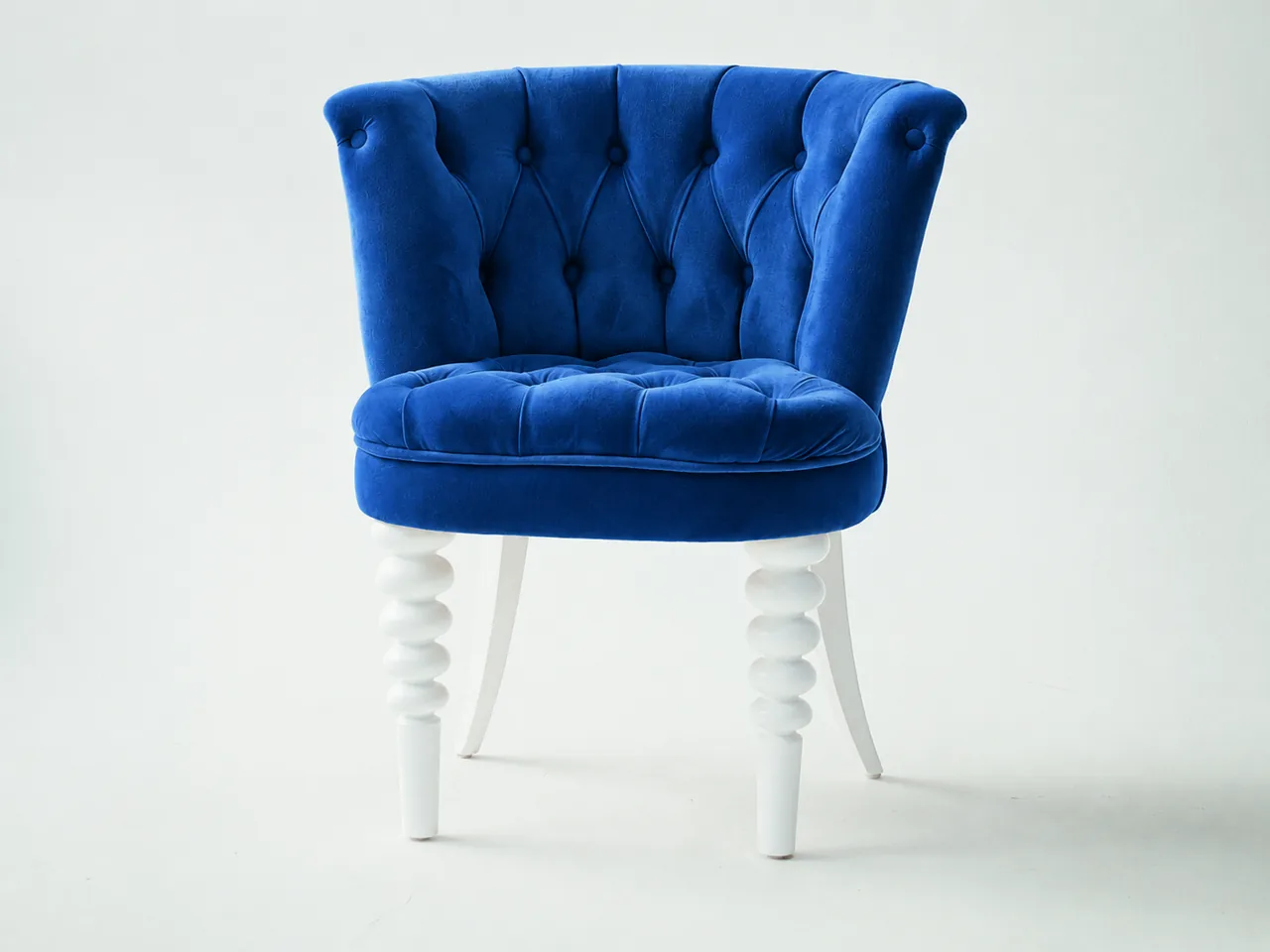
Flare
Everyday GenerationFor an idea ready to take shape. Explore subjects, art direction and compositions for everyday creative work.
| Your Priority | Sunburst | Flare |
|---|---|---|
| Official Positioning | Editing precision | Fast, high-quality everyday generation |
| Inputs | Text and images | Text and images |
| Editing Support | Image edits and inpainting | Image edits and inpainting |
| API Quality Settings | Low through Max, plus Auto | Low through Max, plus Auto |
Source: OpenAI’s Sunburst and Flare specifications, reviewed September 10, 2026. These are provider specifications, not a GlobalGPT benchmark. The quality settings above belong to the OpenAI API; the settings and credit cost available in this workspace are the ones shown next to the prompt box.
The Detail Is the Assignment.
A focused edit starts by naming what stays. Give the model a specific change instead of asking it to redesign the whole image.
- Source
- An existing product photograph.
- Preserve
- Shape, angle, branding and lighting.
- Change
- Only the material finish.
- Review
- Edges, geometry and small details.
Give the Idea a First Image.
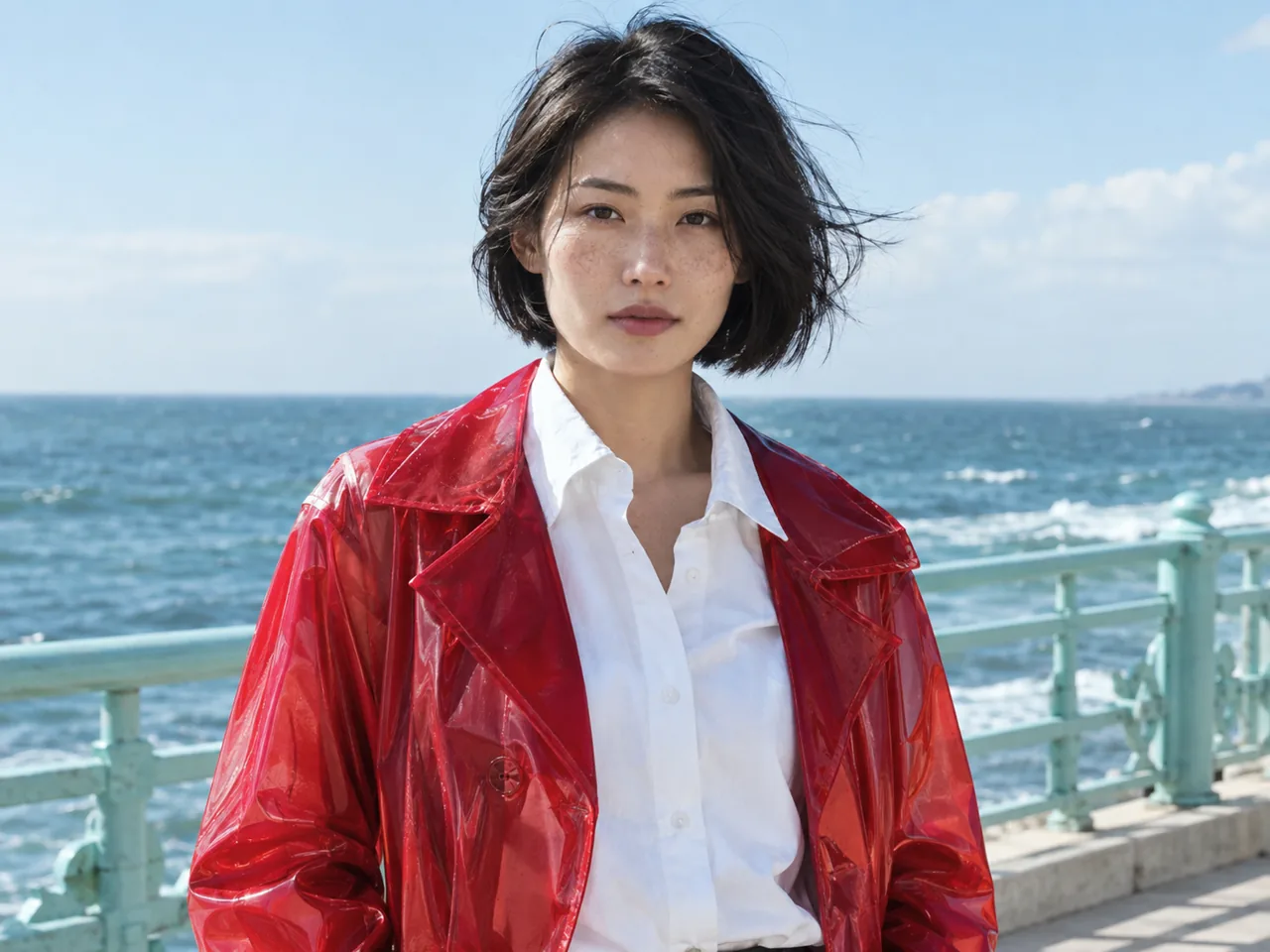
Define a subject and an art direction. Review the result, then vary one creative decision at a time.
- Subject
- A new editorial portrait.
- Direction
- Candid, tactile and naturally lit.
- Composition
- A clear subject and room for a headline.
- Review
- Expression, anatomy and visual balance.
A Better Brief.
A More Intentional Image.
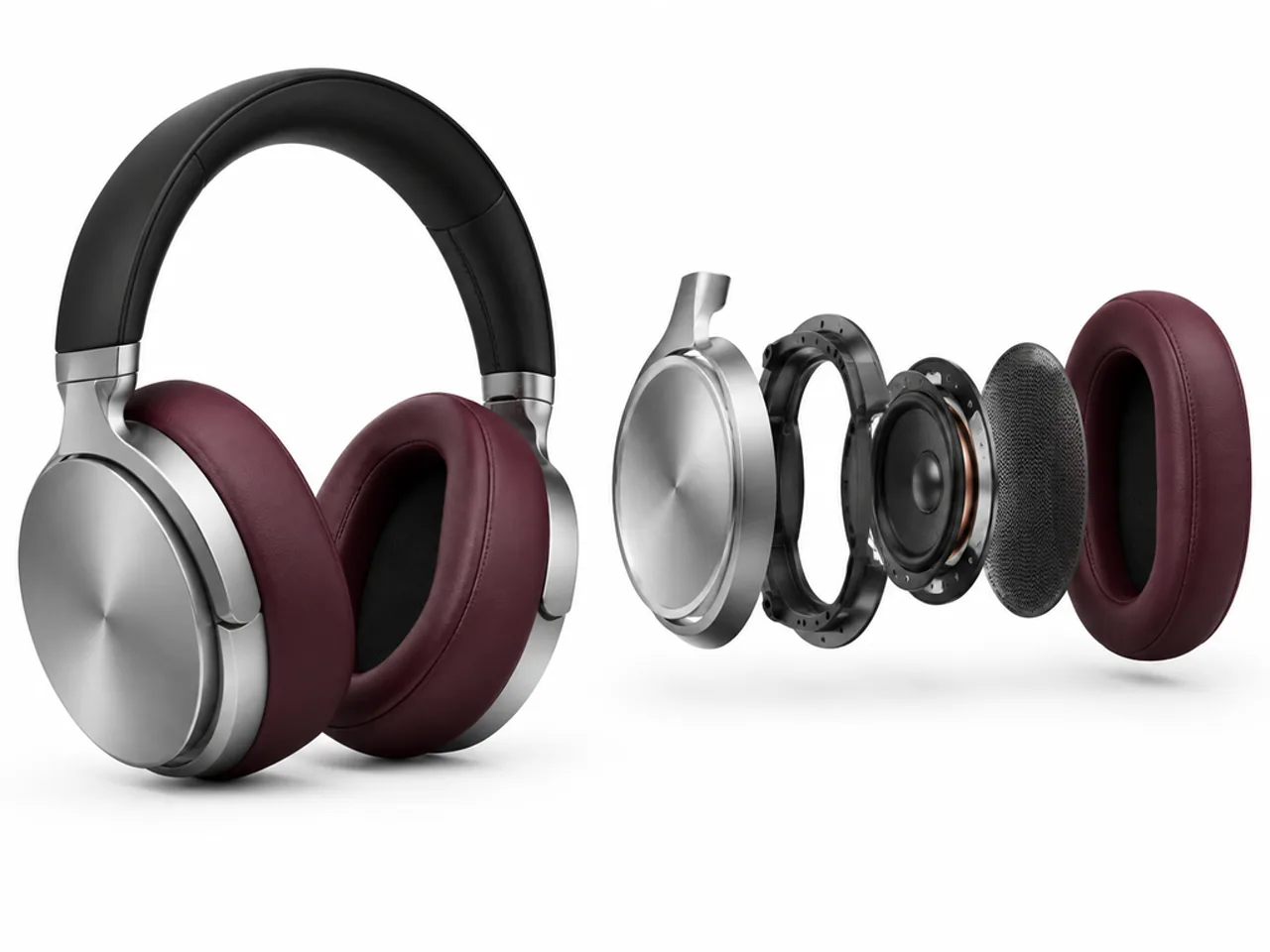
Show the Product. Reveal the Parts.
Create a 4:3 product visualization with complete brushed-aluminum headphones on the left and an exploded view of one matching earcup on the right. Align the outer shell, support ring, driver, acoustic mesh and burgundy leather cushion. Keep all parts visible on a white studio background. No text or logos.
Make Every Detail Earn Its Place.
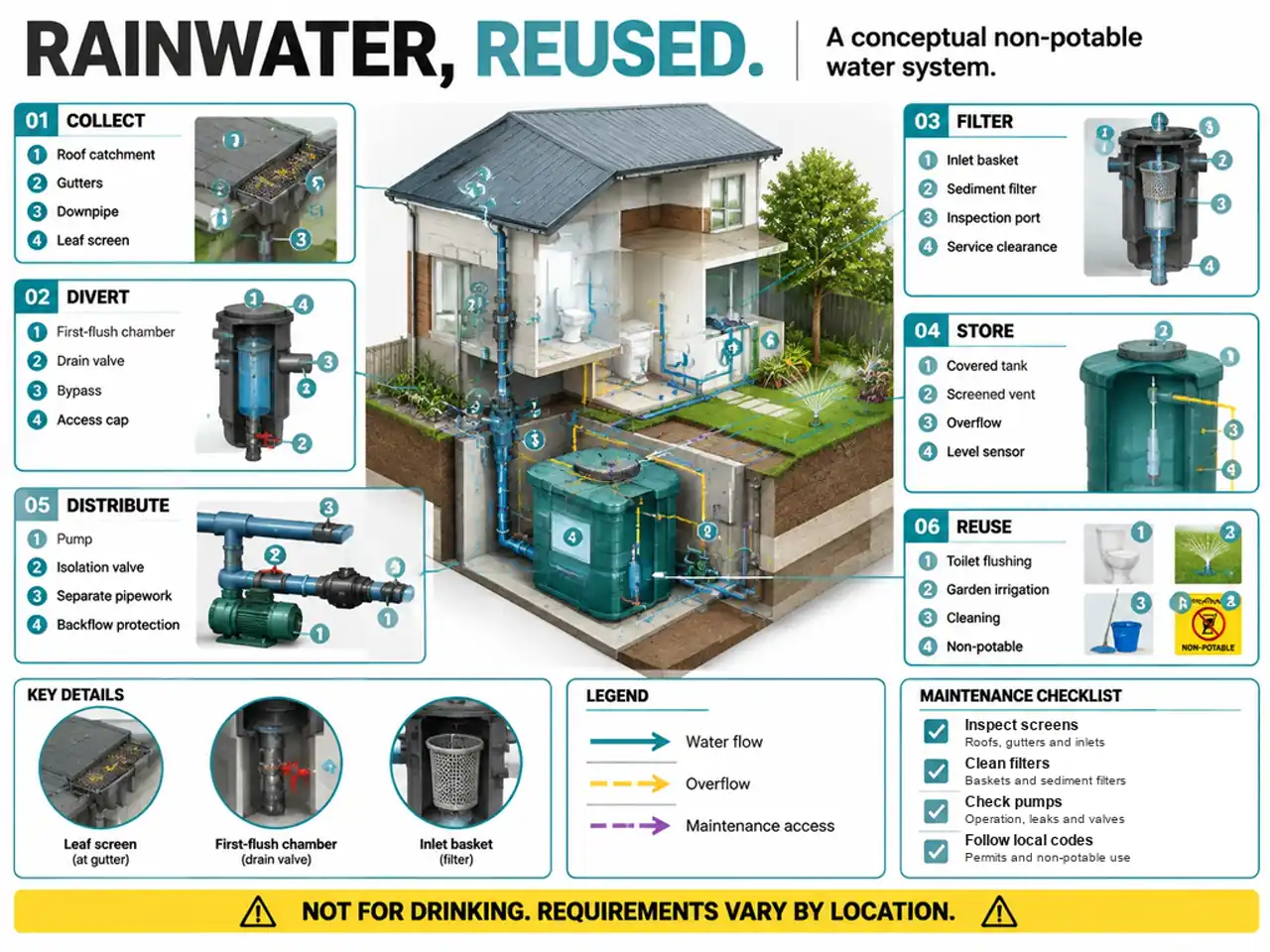
Design a dense 4:3 rainwater reuse infographic. Build six labeled stages around a building cutaway, with 24 linked labels, flow arrows, three mechanical details, a legend and a maintenance checklist. Clearly mark the system as conceptual and non-potable.
Make Every Word Part of the Design.
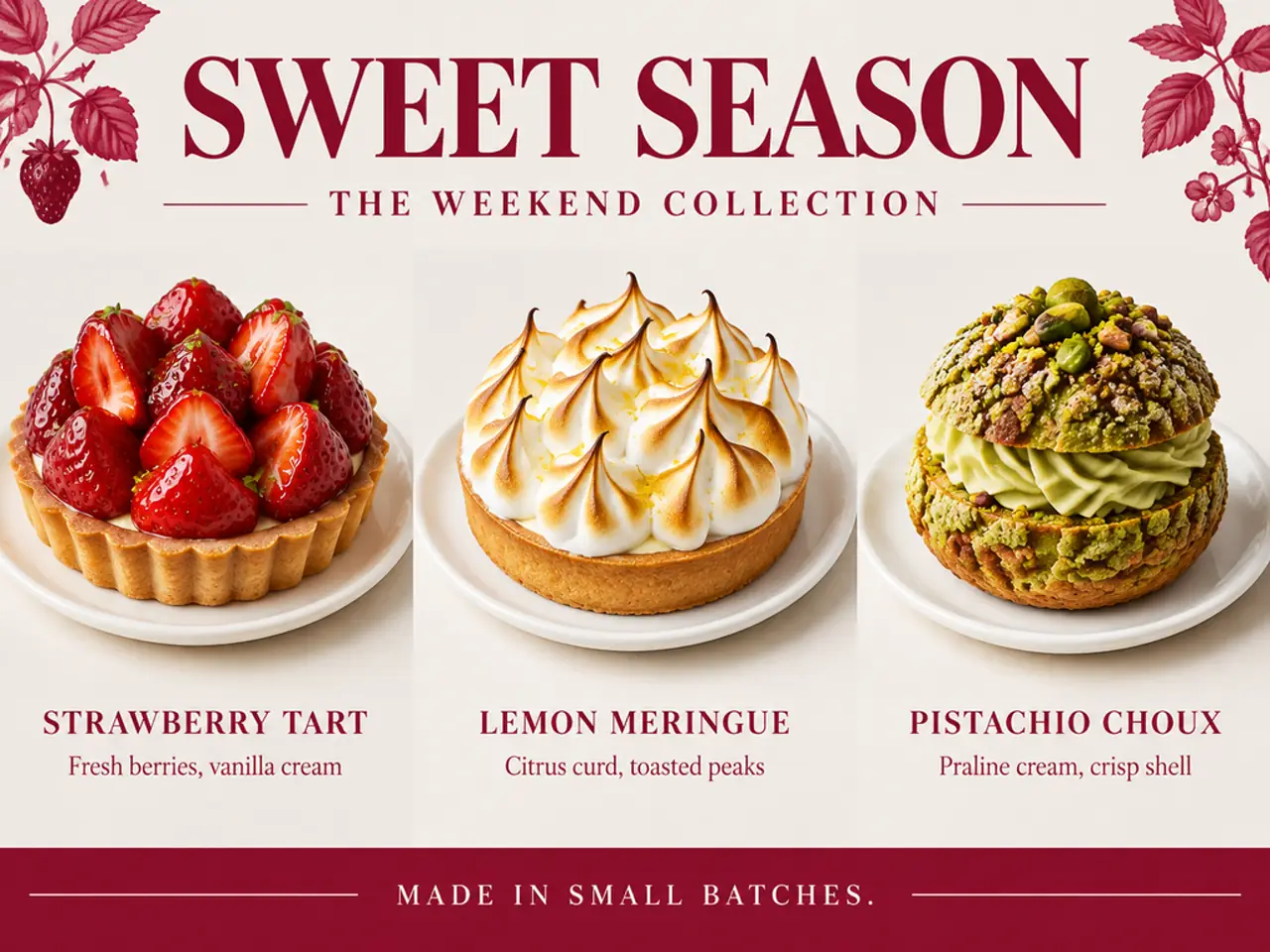
Design a 4:3 patisserie menu titled SWEET SEASON, with the subtitle THE WEEKEND COLLECTION. Show a strawberry tart, lemon meringue and pistachio choux in three aligned columns. Use raspberry-red typography, realistic food photography and the footer MADE IN SMALL BATCHES. No prices or logos.
Put the Words Into the World.
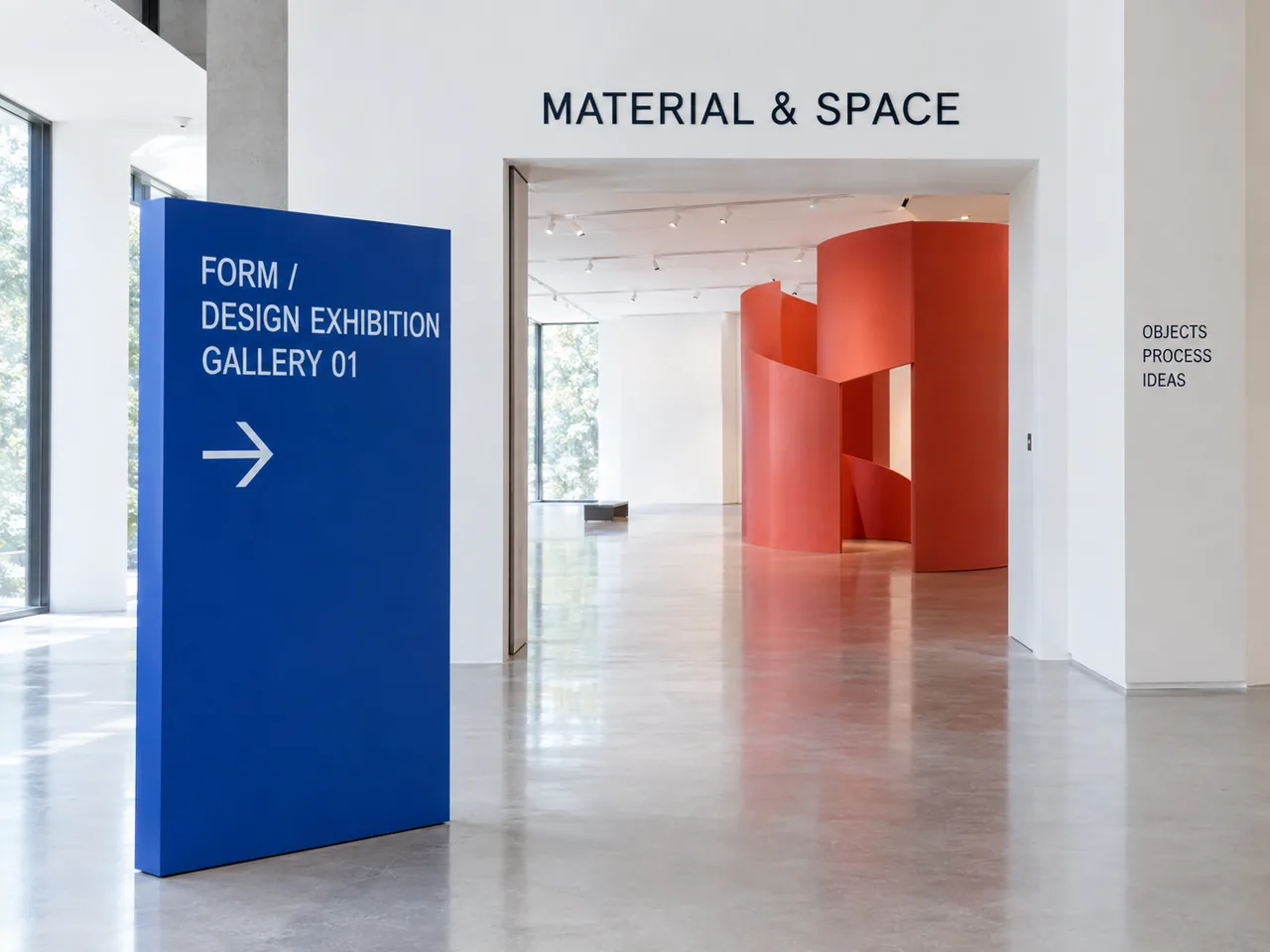
Create a 4:3 architectural photograph of a design exhibition. Place a blue sign reading FORM, DESIGN EXHIBITION and GALLERY 01 with a right arrow. Above the doorway write MATERIAL & SPACE. Add OBJECTS, PROCESS and IDEAS on the wall. Keep lettering readable and perspective believable.
Generated examples use GPT Image 2.5. The Sunburst and Flare labels describe the kind of job each brief is—a controlled edit or an open creative build—not a head-to-head test between the two versions.
From Open Brief
to Intentional Finish.
Image generation and editing can be separate steps. Write each step as its own brief, then review the work before it moves on.
Name the Deliverable
Set the audience, format, subject and exact words that the image needs.
Choose Your Starting Point
Decide whether this is a precise edit of an existing image or an open creative exploration.
Make the Brief Specific
Supply references for edits. Separate the details to preserve from the changes to make.
Check the Whole Image
Inspect text, faces, hands, geometry and usage rights before exporting or publishing.
Choose by the Work
in Front of You.
Product Teams
Write tightly scoped material and presentation edits for an existing product image.
Campaign Teams
Build distinct photographic directions before choosing the final campaign concept.
Art Directors
Specify targeted revisions while checking the identity and composition of an existing visual.
Editorial Teams
Develop visual briefs for portraits, publications, food stories and everyday content.
GPT Image 2.5,
Answered.
What Is GPT Image 2.5?
GPT Image 2.5 is a family of OpenAI models for generating and editing images from text and image inputs. The family includes Sunburst, which emphasizes editing precision, and Flare, which emphasizes fast, high-quality everyday image generation.
What Is the Difference Between Sunburst and Flare?
Sunburst is positioned for changes that need careful control over an existing image, and Flare for everyday image generation and creative exploration. These are OpenAI's published model positions, not a measured speed or quality comparison from GlobalGPT. In GlobalGPT, GPT Image 2.5 is a single model entry, so you describe the job in your prompt instead of picking a version.
Can GPT Image 2.5 Edit an Existing Image?
Yes. OpenAI documents text and image inputs, image generation, image editing and inpainting for GPT Image 2.5. In GlobalGPT, upload the image as a reference, then describe both the requested change and the details that must stay the same, such as geometry, branding, camera angle and lighting.
How Do I Write a Better GPT Image 2.5 Prompt?
Name the deliverable, describe the subject and composition, and quote any exact wording that has to appear in the image. For an edit, separate what must change from what must remain. For creative exploration, keep the brief consistent and vary one decision at a time, such as lighting, styling or camera angle.
How Much Does GPT Image 2.5 Cost and How Long Does It Take?
The current credit cost and available settings are shown in the GlobalGPT workspace before you generate. Generation time varies with demand and the selected settings, so check the live workspace rather than relying on a fixed price or wait-time claim. OpenAI API token prices are a separate billing system and do not set the credit cost here.
Can I Use GPT Image 2.5 Images Commercially?
Commercial use depends on the current GlobalGPT terms, applicable model-provider policies and the rights attached to your prompts, references and output. Review those terms before publishing, and do not upload or imitate protected brands, copyrighted material or a person's likeness without the necessary permission.